Social Media Website Screenshots
Learn how to capture social media posts and pages, preserve context and metadata, and automate clean screenshots safely.
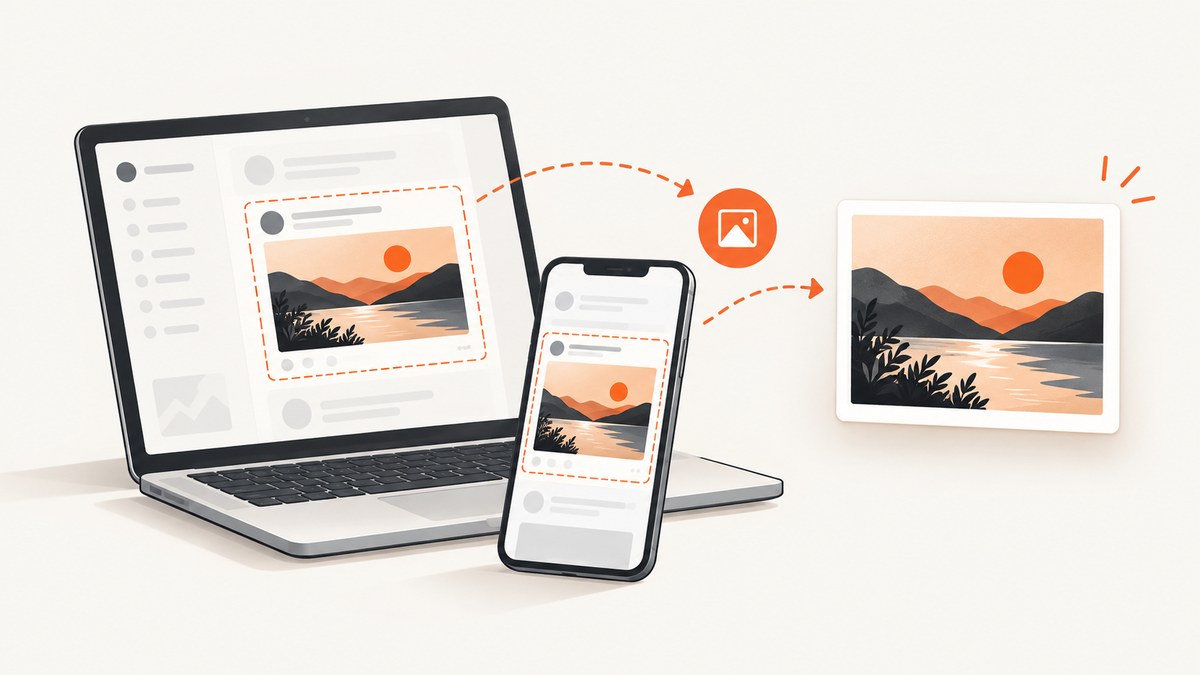
To take a screenshot of a social media website, open the post or page, make the content and identifying details visible, use your device’s screenshot command, and save the file with the URL and capture date. A screenshot records what was visible at that moment. It does not preserve every comment, hidden field, account export, or platform metadata. Choose a platform export, download, API, or browser capture when you need a more complete record.
Choose the right capture method
| Need | Best first method | What it preserves |
|---|---|---|
| Personal reference to one visible post | Device screenshot | Visible pixels, including the displayed account name and timestamp |
| Your own photos, videos, messages, or account history | Platform download or export | Often more original media and metadata than a screenshot |
| A repeatable capture of public pages | Browser automation or a screenshot API | Consistent viewport, format, timing, and file naming |
| An organizational record | Capture plan using exports, web capture, APIs, and metadata | Content plus associated metadata, subject to a completeness review |
The National Archives and Records Administration defines best practices as methods that let an agency capture complete social media records with associated metadata. A screenshot alone may not meet that requirement. Read NARA’s guidance.
Before you capture
- Open the original post or profile in the official app or website. Avoid third-party viewer sites that request your password.
- Confirm that the account name, profile image, post date, and relevant URL are visible. Expand “more” text or media when context matters.
- Decide whether you need one screen, a long page, one element, or an export of your own account.
- Remove unrelated private information from the screen. Do not expose private contact details, home or precise location information, financial or health data, identity documents, or intimate media without permission.
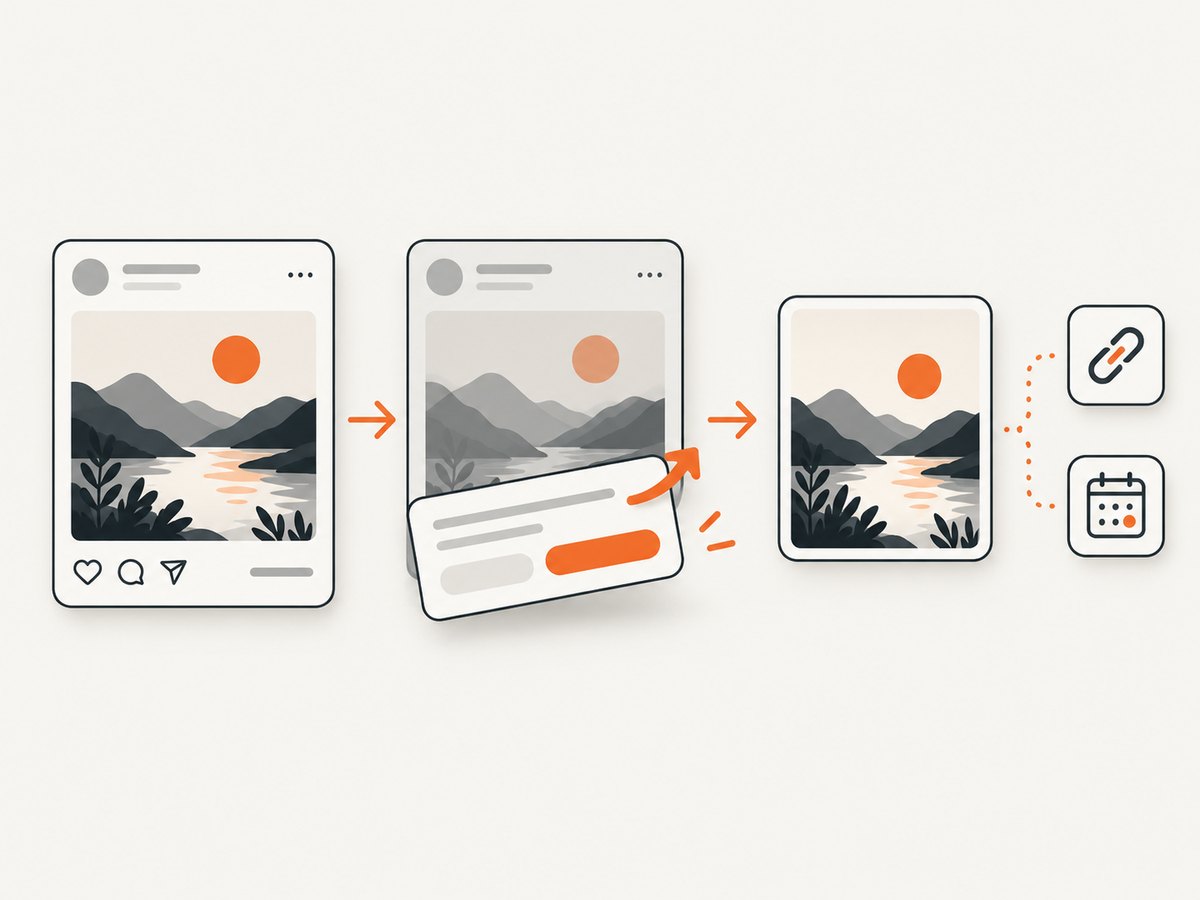
- Record the capture date and timezone. Save the original URL separately because a screenshot can be detached from its source.
Take a screenshot on common devices
Windows
- Use Windows + Shift + S to select the post or page area.
- Choose a rectangular, window, or full-screen capture in Snipping Tool.
- Save the original PNG and copy the source URL into the file notes.
macOS
- Press Shift + Command + 4 for a selection, or Shift + Command + 5 for window and recording options.
- Hold Control while capturing if you also need the image on the clipboard.
- Keep the untouched file before adding redactions or annotations.
iPhone and iPad
On Face ID devices, press the side button and volume-up button together. On models with a Home button, press the side or top button and Home together. Tap the preview to crop, mark up, or redact, then save the original and an edited copy separately.
Android
Most current devices use power plus volume-down. Some manufacturers provide a scrolling screenshot after the initial capture. Review the result for repeated headers, missing lazy-loaded media, or content that was below the visible viewport.
Chrome, Edge, and Firefox
Use the browser’s developer or command menu to capture a visible area or a full page. Full-page capture can include content that loads only after scrolling, but it can also miss content behind login walls, consent dialogs, infinite feeds, or virtualized lists. Check the final image from top to bottom.
Capture a post or page with the correct context
A cropped image is easier to share, but a crop can remove the account identity, URL, date, reply chain, or warning label that gives the post meaning. For evidence, moderation, journalism, or internal review:
- Capture the post and enough surrounding page to identify the account and conversation.
- Save the canonical URL, capture time, timezone, and your device or browser.
- Keep the original file and create a separate redacted copy for distribution.
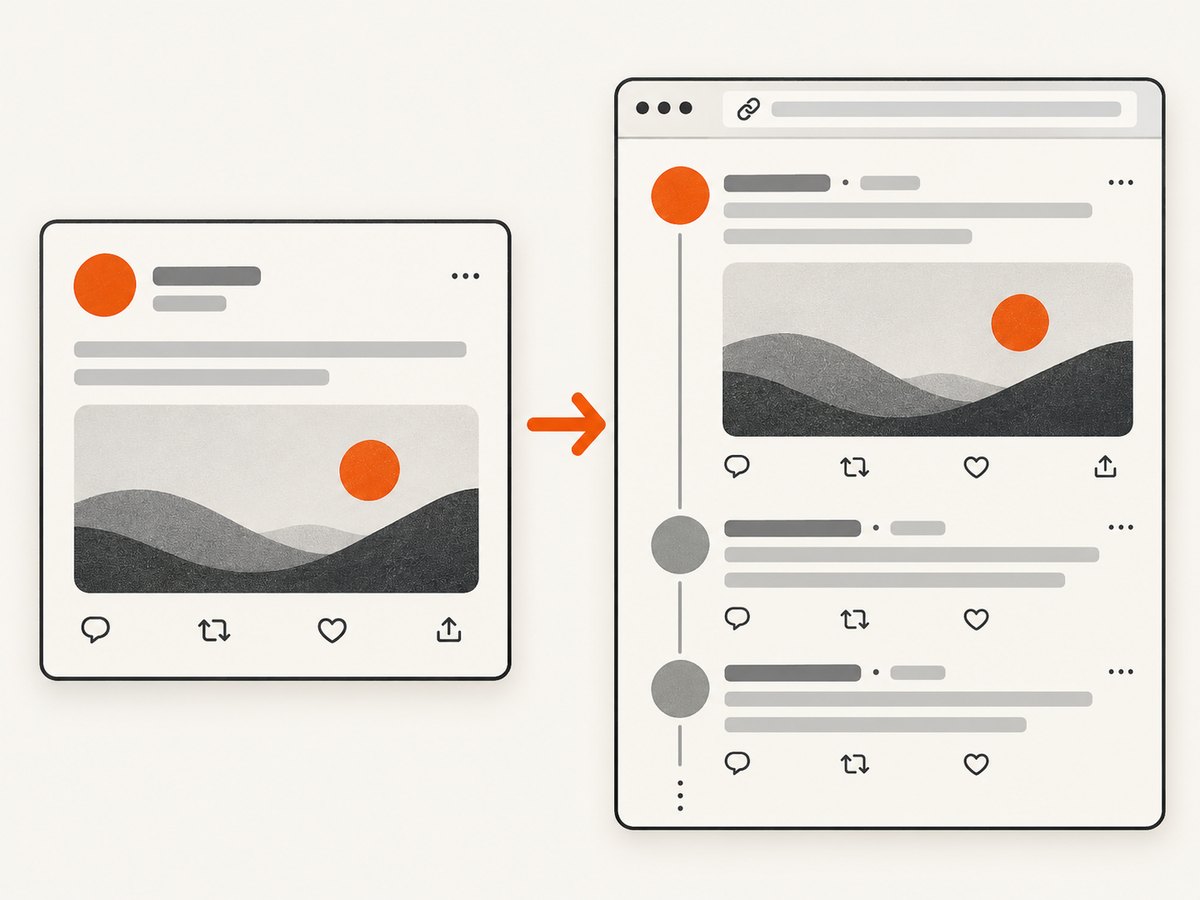
- For a thread, capture each relevant item in order and preserve reply relationships.
- For a video, record the post URL and timestamp; a still image does not preserve the full motion or audio.
A 2026 preprint on screenshot sharing describes how cross-platform screenshots can remove context or hide the source. Treat the image as a record of a view, not independent proof of authorship or authenticity. See the research preprint.
Platform exports and download options
When the content belongs to you, use the platform’s account download or export where available. Exports can retain original media, messages, or structured metadata that pixels cannot. Menu names change, so verify the current interface in the live service.
The U.S. Army’s social media operations page illustrates that workflows differ: it describes exports for Facebook and X, periodic screenshots for Instagram and YouTube, and account-data downloads for LinkedIn. These are examples rather than permanent instructions. Check the Army examples.
Automate screenshots with a browser
For repeated public captures, browser automation gives you a fixed viewport, wait conditions, cookies, headers, and file naming. The following Playwright example captures a public post page. Replace the URL and selector with the live page you are allowed to access.
import { chromium } from 'playwright';

const url = 'https://example.com/public-post';
const browser = await chromium.launch();
const page = await browser.newPage({ viewport: { width: 1440, height: 1000 }, deviceScaleFactor: 1 });
await page.goto(url, { waitUntil: 'networkidle', timeout: 60000 });
await page.screenshot({ path: 'social-post.png', fullPage: true });
await browser.close();
Install Playwright with npm install playwright. For a single post, prefer an element screenshot after confirming that the selector identifies the post rather than the entire feed:
const post = page.locator('[data-testid="post"]');
await post.waitFor({ state: 'visible', timeout: 15000 });
await post.screenshot({ path: 'post-only.png' });
Browser automation options to plan for
| Requirement | Implementation concern |
|---|---|
| Lazy-loaded images | Scroll incrementally, wait for images, then capture; a full-page command alone may not trigger every loader. |
| Consent banners | Handle the banner before capture and document whether consent was accepted. |
| Infinite scrolling | Define a stopping rule; otherwise the page may never become complete. |
| Login-required content | Use an authorized session and protect cookies; never ask a capture service for your password outside an official login flow. |
| Dynamic feeds | Record the URL and time because posts, rankings, and replies can change between runs. |
| Bot checks or CAPTCHA | Do not attempt to defeat access controls. Capture an authorized, normally accessible page or use the platform’s export. |
Or skip the browser setup
ScreenshotNeo is a website screenshot API and MCP server. One GET request returns a PNG, JPEG, WebP, or PDF. It accepts cookie and consent banners as a visitor and removes more than 60 known consent platforms, newsletter popups, and chat widgets before the capture; each step can be turned off. Only clean shots are billed: bot checks or CAPTCHAs, blank pages, timeouts, failed loads, and cache hits cost nothing, and the response identifies the result with X-Page-Verdict and X-Billed headers.
See the ScreenshotNeo API documentation for all options. Relevant controls include full-page capture with lazy images loaded, CSS-selector element capture, dark mode, device presets or custom viewports, retina scale, custom CSS and JavaScript, clicks, selector or network-idle waits, hiding selectors, blocking ads, trackers, requests or resource types, custom headers, cookies, user agents and Authorization, timezone and geolocation, transparent backgrounds, resizing, configurable-TTL caching, signed links, asynchronous jobs with signed webhooks, bulk capture of up to 100 URLs per call, a usage API, and an OpenAPI specification.
curl -G "https://api.screenshotneo.com/v1/shot" -d access_key=YOUR_API_KEY --data-urlencode url=https://example.com/public-post -o post.webpimport requests
r = requests.get("https://api.screenshotneo.com/v1/shot", params={"access_key": "YOUR_API_KEY", "url": "https://example.com/public-post"}, timeout=90)
r.raise_for_status()
open("post.webp", "wb").write(r.content)const q = new URLSearchParams({ access_key: 'YOUR_API_KEY', url: 'https://example.com/public-post' });
const res = await fetch(`https://api.screenshotneo.com/v1/shot?${q}`);
if (!res.ok) throw new Error(`HTTP ${res.status}`);
const fs = await import('node:fs/promises');
await fs.writeFile('post.webp', Buffer.from(await res.arrayBuffer()));ScreenshotNeo also provides an MCP server with take_screenshot, get_page_info, and capture_pdf tools for Claude, Cursor, and other MCP clients. The Free plan includes 1,000 shots per month with no card; paid plans start at $5 for 3,000 shots. Create a free ScreenshotNeo account.
Privacy, safety, and copyright
Protect private information
X’s private-information policy lists non-public contact details, home or private location information, financial and health information, identity documents, and non-consensual intimate media among restricted examples. Follow the platform’s current rules and obtain consent before sharing sensitive material. Read X’s policy.
Meta advises never giving Facebook or Instagram passwords to third-party sites outside the official apps, websites, or permitted login flow. Unauthorized credentials can expose messages and account activity. Meta also describes automated collection used to create clone sites as unauthorized scraping. Meta’s credential guidance and scraping explanation.
Copyright is separate from capture
Taking a screenshot does not grant permission to republish it. Meta says that online availability, credit, or lack of profit does not by itself decide whether a use infringes. TikTok’s policy likewise prohibits infringing content while recognizing that legal exceptions differ by country. Obtain permission or rely on a specific legal exception after considering your jurisdiction and intended use. Read TikTok’s policy.
Troubleshooting
| Symptom | Likely cause | Fix |
|---|---|---|
| Blank or white image | Page failed, blocked scripts, or capture occurred before rendering | Check the URL in a normal browser, wait for a visible selector, and save the verdict or error response. |
| Cookie banner covers the post | Consent state was not handled | Accept or dismiss it through the official page flow, or use a capture service that removes known consent overlays. |
| Images are missing | Lazy loading or blocked resources | Scroll to trigger loading, wait for image elements, and avoid blocking the required image host. |
| Only part of a thread appears | Virtualized or infinite feed | Capture each required post, use an element target, or use the account export. |
| Text is too small | Desktop page compressed into a narrow image | Increase viewport width or capture the post element at retina scale. |
| Capture asks for a password | Untrusted viewer or scraper | Stop and use the official app, an authorized browser session, or an export. Never submit credentials to an unknown site. |
| Screenshot disputed later | Missing source and timestamp | Keep the original URL, capture date, timezone, surrounding context, and untouched file. |
Performance, reliability, and cost
- Performance: Element captures are usually smaller and faster than full-page captures. Use a fixed viewport and wait only for the selector or network condition you need.
- Reliability: Dynamic social pages change. Store URLs, timestamps, response status, and hashes of retained files; retry transient failures with a limit.
- Privacy: Minimize cookies and headers, protect exported archives, and redact copies instead of overwriting originals.
- Cost: Local screenshots use your existing device. Automated browser infrastructure consumes compute and storage. ScreenshotNeo bills only clean shots, while failed loads, blank pages, bot checks, timeouts, and cache hits are not billed.
- Repeatability: Pin viewport, timezone, user agent, wait rules, and format. Document any consent or login state that affects what is visible.
FAQ
Does a social media site notify someone when I take a screenshot?
Notification behavior can change by platform, content type, and app version. Check the service’s current help or privacy documentation rather than assuming a universal rule.
Can I screenshot a private account?
Only if you are authorized to view it. Do not bypass privacy controls, share private material without consent, or give credentials to an untrusted capture site.
Is a screenshot valid evidence?
It can document what was visible, but preserve the original URL, date, account identity, and surrounding context. For formal records, evaluate whether an export or web-capture process is required.
What format should I use?
PNG is useful for crisp text and annotations; JPEG is smaller for photographic content; WebP can reduce size when supported. Keep the original format before conversion.
How do I capture a long social media page?
Use scrolling capture or browser automation, then inspect the result for repeated headers, missing lazy media, and truncated infinite feeds. For your own account, an export may be more complete.


