How to Speed Up jsPDF and html2canvas PDF Downloads on Mobile Browsers
Reduce html2canvas work, tune scale, avoid canvas limits, and measure jsPDF output so PDF downloads stay usable on mobile browsers.
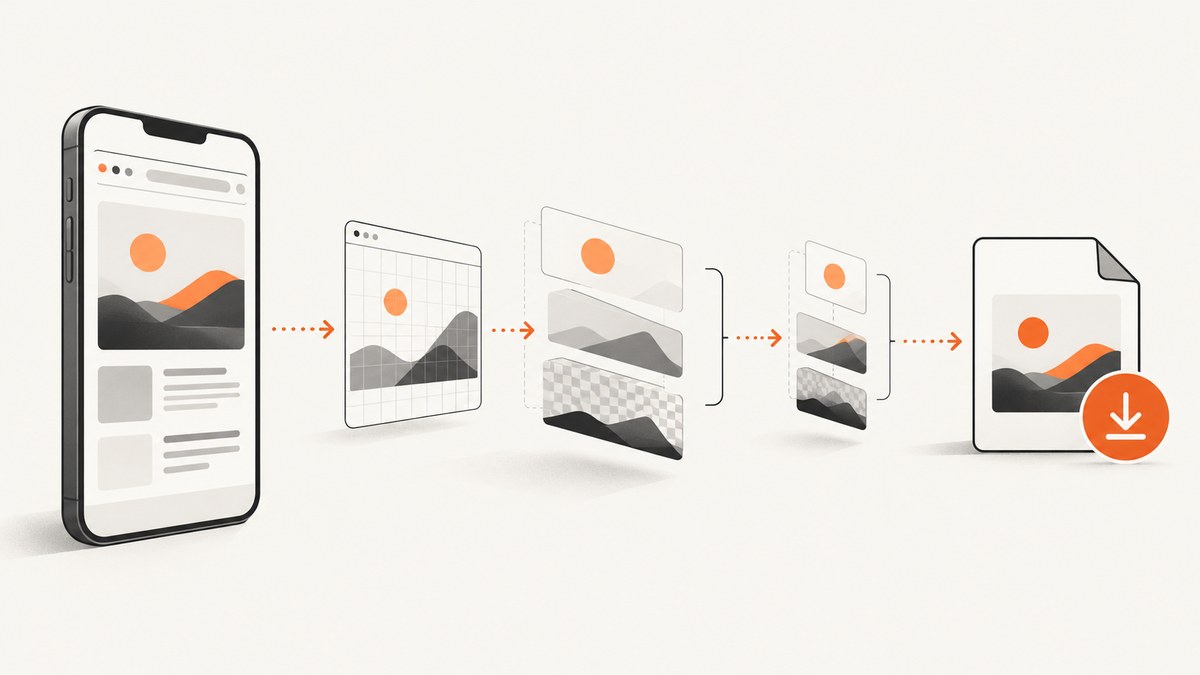
Short answer: make the browser render less, set html2canvas scale deliberately, capture only the content you need, and avoid one giant canvas on memory-constrained phones. For viewport-sized exports, evaluate cullOffscreen. Then compare image compression and jsPDF output methods on representative iOS Safari and Android browsers. These are practical optimization levers, not guaranteed speed multipliers: the official documentation does not publish a universal mobile benchmark.
This guide explains how to diagnose slow downloads, provides a complete implementation, and covers blank PDFs, cross-origin images, canvas limits, repeated exports, file size, reliability, and cost. It also shows when a server-side screenshot API is a better fit.
What actually makes a mobile PDF export slow?
There are several separate phases, and each can dominate on a different phone:
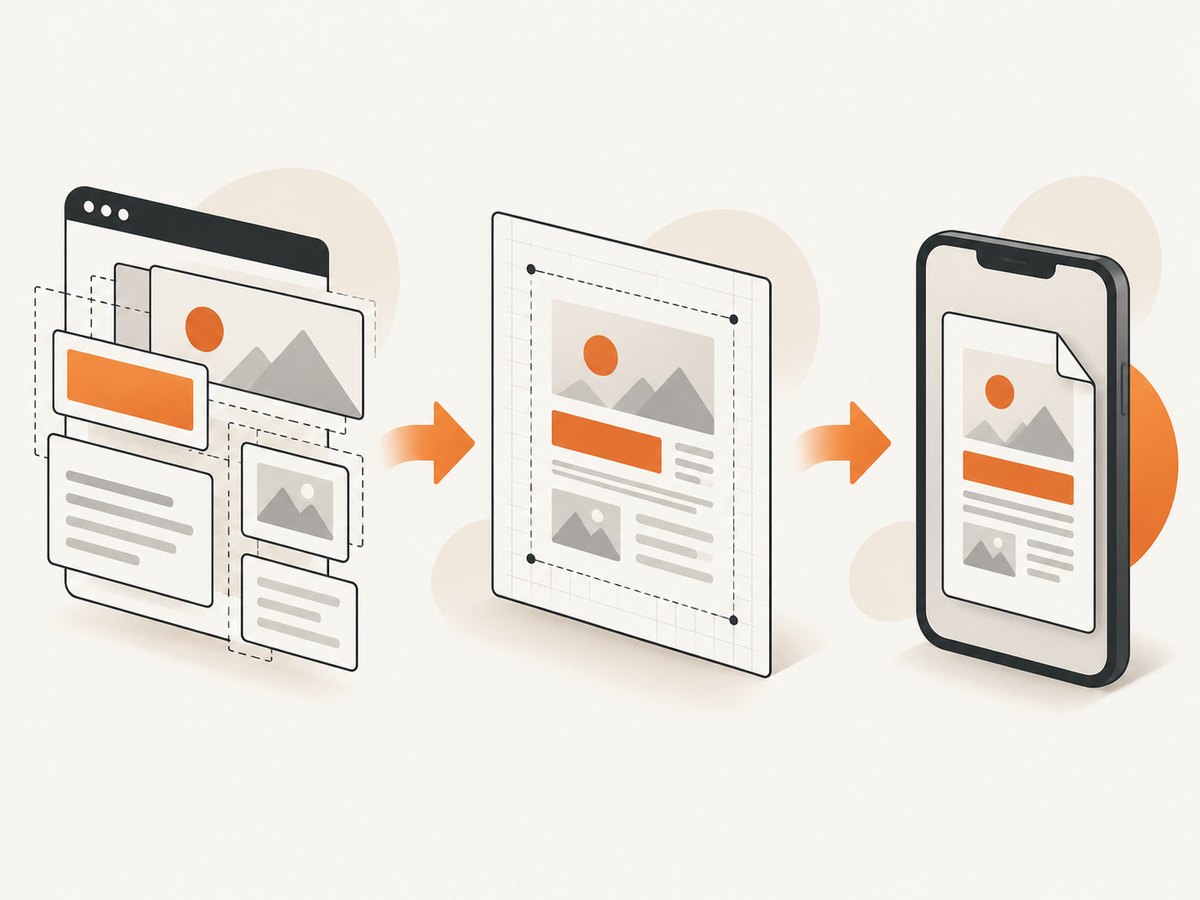
- DOM cloning and layout: html2canvas walks the document and reconstructs a canvas from browser-visible DOM and CSS. It is not a native screenshot API, so complex layouts and unsupported CSS can increase work or change the result. See the html2canvas documentation.
- Painting pixels: the canvas pixel count is approximately
width × height × scale². A high device-pixel ratio can multiply memory and paint time. - Image loading: remote images may wait on network requests, CORS checks, decoding, and resizing.
- PDF assembly: jsPDF converts the canvas or image data, compresses it, and writes PDF objects.
- Download handoff: converting large data URLs, creating a Blob, and handing the file to the browser can add another delay or memory spike.
Instrument each phase instead of treating “the PDF download” as one operation. The documentation describes options and constraints, but it does not provide comparative timing results for current mobile devices.
Measure the phases before changing settings
Use performance.mark around capture, PDF assembly, and download. Record the same document, viewport, browser version, PDF byte size, visual quality, page completeness, and whether the tab remains responsive.
async function exportPdf() {
  performance.mark('capture-start');

  const canvas = await html2canvas(document.querySelector('#invoice'), {
    scale: 1.5,
    backgroundColor: '#ffffff',
    useCORS: true,
    logging: false
  });

  performance.mark('capture-end');
  performance.measure('html2canvas', 'capture-start', 'capture-end');

  performance.mark('pdf-start');
  const pdf = new jsPDF({ unit: 'pt', format: 'a4' });
  const image = canvas.toDataURL('image/jpeg', 0.82);
  pdf.addImage(image, 'JPEG', 24, 24, 547, 0, undefined, 'FAST');
  const blob = pdf.output('blob');
  performance.mark('pdf-end');
  performance.measure('jsPDF', 'pdf-start', 'pdf-end');

  performance.mark('download-start');
  const url = URL.createObjectURL(blob);
  const link = document.createElement('a');
  link.href = url;
  link.download = 'invoice.pdf';
  link.click();
  URL.revokeObjectURL(url);
  performance.mark('download-end');
  performance.measure('download-handoff', 'download-start', 'download-end');

  console.table(performance.getEntriesByType('measure').map(x => ({
    phase: x.name,
    milliseconds: Math.round(x.duration)
  })));
}
Run this on the iOS Safari and Android browser versions you support. A change that helps a fast desktop can make no difference on a phone if image decoding or the browser’s canvas ceiling is the real bottleneck.
Reduce the capture area and content
The most dependable optimization is rendering fewer pixels. Capture the invoice, report, or article section users actually need instead of the entire page.
const element = document.querySelector('#report');
const canvas = await html2canvas(element, {
  windowWidth: element.scrollWidth,
  windowHeight: element.scrollHeight,
  scale: 1.5,
  backgroundColor: '#fff'
});
For a viewport-sized result from a long page, try cullOffscreen: true. html2canvas documents this option as skipping fully offscreen nodes to speed up large-page viewport captures. It is conservative around transformed, fixed, and sticky elements, so inspect headers, overlays, and positioned content after enabling it.
const canvas = await html2canvas(document.body, {
  width: window.innerWidth,
  height: window.innerHeight,
  windowWidth: window.innerWidth,
  windowHeight: window.innerHeight,
  cullOffscreen: true,
  scale: 1.25
});
Hide controls that do not belong in the document, and avoid rendering collapsed or unrelated sections just to remove them later. The ignoreElements callback can exclude nodes:
const canvas = await html2canvas(document.querySelector('#report'), {
  ignoreElements: element => element.matches('.print-actions, .live-chat')
});
Tune scale instead of inheriting a high device pixel ratio
html2canvas defaults scale to window.devicePixelRatio. That improves sharpness on high-density screens, but it also increases canvas dimensions and memory. Set a value deliberately and compare readability, generation time, and bytes on your target devices. The project’s scale example explains why device-pixel-ratio scaling produces sharper output; it does not promise a particular performance gain.
const dpr = window.devicePixelRatio || 1;
const scale = Math.min(dpr, 1.5); // candidate value; validate on your devices

const canvas = await html2canvas(document.querySelector('#receipt'), {
  scale,
  width: 390,
  windowWidth: 390,
  backgroundColor: '#ffffff'
});
Do not treat 1.5 as a universal best setting. For small text, a lower value may look soft; for a large page, even 1.5 can exceed available memory. Compare candidate scales such as 1, 1.25, and 1.5 using the same content.
Split long documents before they hit canvas limits
Canvas maximum dimensions and total area vary by browser, operating system, and hardware. The html2canvas FAQ warns that iOS Safari limits are lower and device-dependent. When a limit is exceeded, output may be blank or partial without a useful JavaScript error. Do not publish one fixed iPhone pixel threshold as a current universal rule.
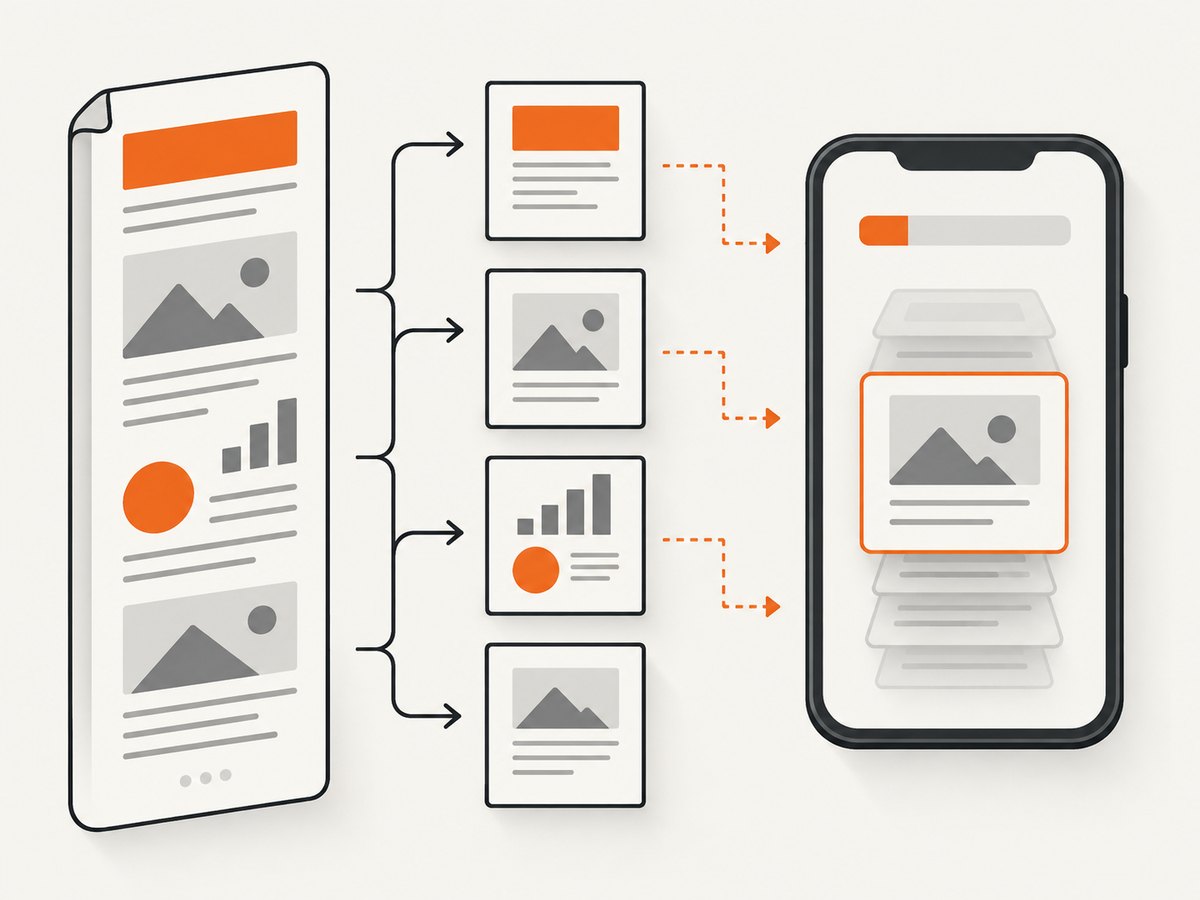
For long reports, render page-sized elements one at a time, add each image to jsPDF, and release the canvas reference before processing the next page:
async function makeMultiPagePdf(pageElements) {
  const pdf = new jsPDF({ unit: 'pt', format: 'a4' });
  const pageWidth = 595.28;
  const pageHeight = 841.89;

  for (let i = 0; i < pageElements.length; i++) {
    const canvas = await html2canvas(pageElements[i], {
      scale: 1.25,
      backgroundColor: '#ffffff',
      useCORS: true
    });

    const ratio = Math.min(pageWidth / canvas.width, pageHeight / canvas.height);
    const width = canvas.width * ratio;
    const height = canvas.height * ratio;
    const x = (pageWidth - width) / 2;
    const y = (pageHeight - height) / 2;

    if (i > 0) pdf.addPage();
    pdf.addImage(canvas, 'JPEG', x, y, width, height, undefined, 'MEDIUM');

    // Drop references before the next large render.
    canvas.width = 1;
    canvas.height = 1;
  }

  return pdf.output('blob');
}
Validate page breaks, fixed elements, fonts, and memory stability. Splitting is an implementation strategy, not a guarantee that every browser will behave identically.
Handle images and cross-origin content correctly
useCORS: true only works when the image server permits the request with suitable CORS headers. It cannot bypass the browser’s origin policy. If a remote image does not send permission, use a same-origin proxy, host a permitted copy, or omit/replace the image. The official html2canvas FAQ describes these restrictions.
const canvas = await html2canvas(element, {
  useCORS: true,
  imageTimeout: 15000,
  allowTaint: false
});
allowTaint does not make an unsafe canvas exportable; a tainted canvas cannot be read with toDataURL or toBlob. Make sure images include correct crossorigin handling before capture, and wait for critical images to finish loading:
await Promise.all([...document.images].map(img => {
  if (img.complete) return Promise.resolve();
  return new Promise(resolve => {
    img.addEventListener('load', resolve, { once: true });
    img.addEventListener('error', resolve, { once: true });
  });
}));
Choose an image format and jsPDF compression deliberately
jsPDF accepts canvas elements and image data. JPEG is often smaller for photographic or gradient-heavy pages; PNG preserves sharp text and transparency but can be much larger. Test both with your actual content.
const jpeg = canvas.toDataURL('image/jpeg', 0.8);
pdf.addImage(jpeg, 'JPEG', 24, 24, 547, 0, undefined, 'FAST');
jsPDF documents JPEG compression choices NONE, FAST, MEDIUM, and SLOW. The names describe compression processing, not a guaranteed end-to-end speed ranking on every phone. Compare generation time, file size, and text quality.
pdf.addImage(canvas, 'JPEG', 24, 24, 547, 0, undefined, 'MEDIUM');
const blob = pdf.output('blob');
const bytes = pdf.output('arraybuffer').byteLength;
Prefer output('blob') or output('arraybuffer') when your handoff supports them. Avoid converting to a base64 data URL unless the selected workflow requires it, because base64 adds memory and processing overhead.
A complete mobile-friendly export example
async function downloadReport() {
  const target = document.querySelector('#report');
  if (!target) throw new Error('Missing #report');

  await document.fonts.ready;
  await Promise.all([...target.querySelectorAll('img')].map(img => {
    if (img.complete) return Promise.resolve();
    return new Promise(resolve => {
      img.addEventListener('load', resolve, { once: true });
      img.addEventListener('error', resolve, { once: true });
    });
  }));

  const canvas = await html2canvas(target, {
    scale: Math.min(window.devicePixelRatio || 1, 1.5),
    backgroundColor: '#ffffff',
    useCORS: true,
    cullOffscreen: false,
    logging: false
  });

  const pdf = new jsPDF({ unit: 'pt', format: 'a4', orientation: 'portrait' });
  const margin = 24;
  const maxWidth = 595.28 - margin * 2;
  const maxHeight = 841.89 - margin * 2;
  const ratio = Math.min(maxWidth / canvas.width, maxHeight / canvas.height);

  pdf.addImage(
    canvas,
    'JPEG',
    margin,
    margin,
    canvas.width * ratio,
    canvas.height * ratio,
    undefined,
    'FAST'
  );

  const blob = pdf.output('blob');
  const url = URL.createObjectURL(blob);
  const link = document.createElement('a');
  link.href = url;
  link.download = 'report.pdf';
  document.body.appendChild(link);
  link.click();
  link.remove();
  setTimeout(() => URL.revokeObjectURL(url), 0);

  canvas.width = 1;
  canvas.height = 1;
}
Reliability checklist for production
- Capture a specific element where possible.
- Set
scale, width, and height intentionally. - Wait for fonts and important images.
- Use CORS-enabled images or a same-origin proxy.
- Split long documents into page-sized captures.
- Test fixed, sticky, transformed, and positioned elements when using
cullOffscreen. - Prefer Blob or ArrayBuffer output for large files.
- Show progress and allow cancellation for long exports.
- Clear references after each page; do not retain canvases unnecessarily.
For repeated exports in a long-lived app, html2canvas exposes clearImageCache. Clear the shared cache only after a capture finishes; clearing while concurrent captures use it can interfere with those captures.
Troubleshooting slow, blank, or incomplete PDFs
| Symptom | Likely cause | Fix |
|---|---|---|
| Download takes a long time | Huge canvas from full-page capture or high DPR | Capture a smaller element, set an explicit lower scale, and split pages. |
| Blank PDF on iPhone | Canvas dimension or area limit | Reduce dimensions, split the document, and test the target iOS versions. |
| Images missing | Remote server lacks CORS permission | Enable correct CORS headers, use a same-origin proxy, or replace the image. |
| Text or CSS differs from the page | html2canvas reconstructs supported DOM/CSS rather than taking a native screenshot | Check supported properties, simplify the print layout, or use a server-side renderer. |
| Sticky header appears repeatedly | Positioned or fixed elements interact with cloning or page splitting | Provide a print-specific layout and inspect each page capture. |
| PDF is too large | High scale or PNG data for photographic content | Lower scale, try JPEG quality around your measured readability target, and compare compression modes. |
| Export fails intermittently | Network images, timeouts, or memory pressure | Wait for assets, set image timeouts, reduce capture size, and log each phase. |
Performance, reliability, and cost notes
There is no official universal percentage improvement for any setting in this guide. Report measurements with the device, browser version, document dimensions, scale, image format, PDF size, and completeness result. A lower scale can improve memory behavior while reducing text sharpness; JPEG can shrink files while introducing artifacts; splitting pages can avoid a canvas ceiling while increasing orchestration work.
Client-side generation uses the user’s CPU, memory, battery, and browser limits. A server-side service moves rendering away from the phone and gives you a consistent request boundary, but introduces network latency and service cost. Choose based on document sensitivity, offline requirements, rendering fidelity, and operational control.
Or skip the browser setup
If you need a clean image or PDF of a URL instead of reconstructing a DOM on every phone, ScreenshotNeo provides a website screenshot API and MCP server. Its request flow is one GET call; use the ScreenshotNeo documentation for the full option list.
curl -G "https://api.screenshotneo.com/v1/shot" -d access_key=YOUR_API_KEY --data-urlencode url=https://stripe.com -o shot.webpimport requests
r = requests.get("https://api.screenshotneo.com/v1/shot", params={"access_key": "YOUR_API_KEY", "url": "https://stripe.com"}, timeout=90)
open("shot.webp", "wb").write(r.content)const q = new URLSearchParams({ access_key: 'YOUR_API_KEY', url: 'https://stripe.com' });
const res = await fetch(`https://api.screenshotneo.com/v1/shot?${q}`);Cookie banners, newsletter popups, and chat widgets are removed before the shot. Bot checks, blank pages, timeouts, failed loads, and cache hits are never billed, and response headers identify the page verdict and billing status. An MCP server lets Claude, Cursor, and other MCP clients call take_screenshot, get_page_info, and capture_pdf. The free plan includes 1,000 screenshots per month with no card; paid plans start at $5 for 3,000 shots.
Create a free ScreenshotNeo account and try the first 1,000 screenshots without adding a card.
FAQ
Why is my jsPDF download slow only on mobile?
Mobile browsers have less memory and different canvas limits. High device-pixel-ratio scaling, full-page dimensions, and image decoding often expose those limits first. Measure capture, PDF assembly, and download handoff separately.
How do I reduce html2canvas file size?
Capture less content, lower scale, compare JPEG and PNG for your content, and test jsPDF compression modes. Confirm that text remains readable at the intended zoom.
Why does an html2canvas PDF go blank on iPhone?
A canvas dimension or area limit may have been exceeded. iOS Safari limits are device-dependent. Reduce the capture, split it into pages, and validate on the actual supported devices.
Does useCORS bypass cross-origin restrictions?
No. The remote server must permit the image request with CORS headers, or you need a same-origin proxy or replacement asset.
Should I use cullOffscreen for every export?
No. It is intended for viewport-sized captures and can require extra checking around transformed, fixed, and sticky elements. Test the resulting layout.
Is there a proven fastest jsPDF compression mode?
No universal ranking is documented. Compare NONE, FAST, MEDIUM, and SLOW with the same document and target devices.


