How to Speed Up Screenshot Capture in LibGDX
Reduce LibGDX screenshot stalls by measuring GPU readback, pixel processing and encoding, then optimizing each stage safely.
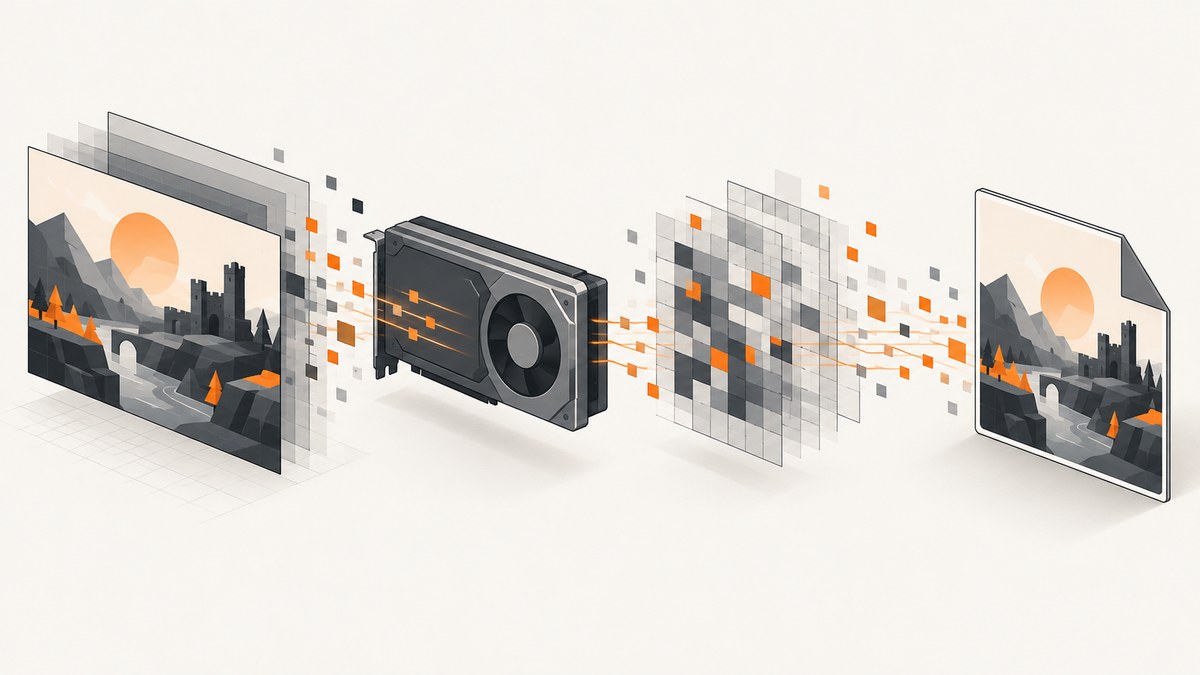
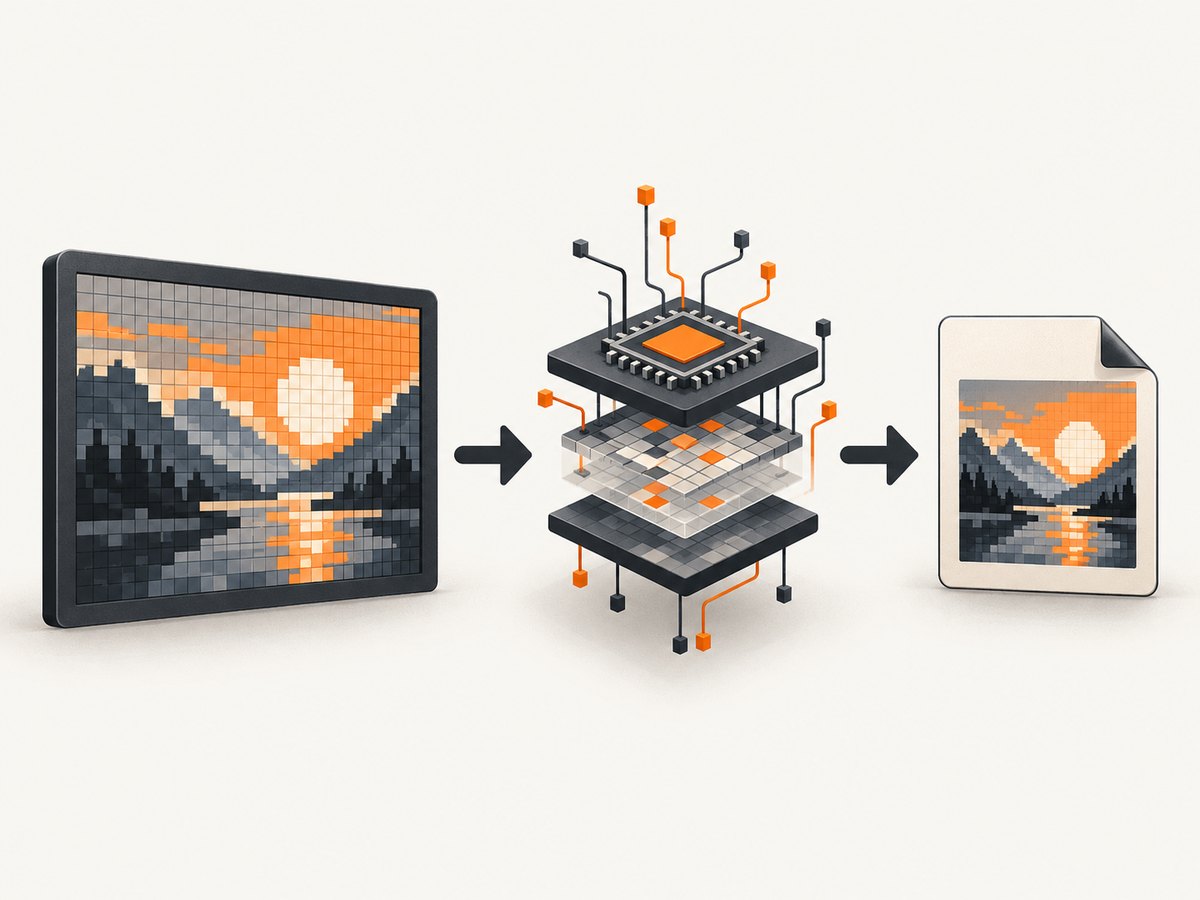
Speed up LibGDX screenshots by separating the work into three stages: framebuffer readback, CPU pixel processing, and image encoding or file output. Measure each stage on the target backend, capture only the required rectangle, avoid unnecessary Y flipping, and move independent encoding or file I/O away from the rendering thread after the pixels are safely obtained.
A screenshot can freeze a game because glReadPixels synchronizes the CPU and GPU. Writing a PNG synchronously can add another visible stall. There is no universal percentage improvement for these changes; backend, device, resolution and image content determine the result.
1. Measure the screenshot pipeline first
Start with timings around readback, pixel transforms and encoding. The official LibGDX screenshot guide uses Pixmap.createFromFrameBuffer, then PixmapIO.writePNG, and finally disposes the Pixmap. That is a useful baseline for comparison.
long t0 = System.nanoTime();
Pixmap pixmap = Pixmap.createFromFrameBuffer(x, y, width, height);
long t1 = System.nanoTime();

// Optional pixel processing belongs here.
long t2 = System.nanoTime();

PixmapIO.writePNG(fileHandle, pixmap);
long t3 = System.nanoTime();

pixmap.dispose();

Gdx.app.log("Screenshot",
    String.format("readback=%.2f ms, processing=%.2f ms, encode+write=%.2f ms, total=%.2f ms",
        (t1 - t0) / 1_000_000.0,
        (t2 - t1) / 1_000_000.0,
        (t3 - t2) / 1_000_000.0,
        (t3 - t0) / 1_000_000.0));
For production profiling, LibGDX documents PerformanceCounter and GLProfiler. When GLProfiler is enabled, use Gdx.gl20 or Gdx.gl30 for OpenGL calls; accessing those interfaces through Gdx.graphics bypasses the profiler. See the GLProfiler documentation and the LibGDX profiling guide.
2. Capture the smallest useful rectangle
A full-screen capture reads and processes every pixel. If you only need a game panel, viewport or UI element, pass its framebuffer coordinates and dimensions instead.
int captureX = 0;
int captureY = 0;
int captureWidth = Gdx.graphics.getWidth();
int captureHeight = Gdx.graphics.getHeight();

Pixmap pixmap = Pixmap.createFromFrameBuffer(
    captureX, captureY, captureWidth, captureHeight);
try {
    PixmapIO.writePNG(Gdx.files.local("shot.png"), pixmap);
} finally {
    pixmap.dispose();
}
Use the smallest rectangle that satisfies the requirement. Measure the actual end-to-end result because backend readback behavior can make the improvement smaller or larger than expected.
3. Avoid an unnecessary Y flip
OpenGL framebuffer coordinates start at the bottom, while many image formats and UI workflows expect the top row first. LibGDX’s ScreenUtils.getFrameBufferPixels(..., flipY) supports this conversion, but the API documentation warns that flipping is not cheap.
byte[] pixels = ScreenUtils.getFrameBufferPixels(
    captureX, captureY, captureWidth, captureHeight, false);
Set flipY to false only when the consumer accepts the native orientation. If the saved image appears upside down, restore the flip or perform an equivalent transformation in a worker stage after readback.
4. Keep OpenGL work on the rendering thread
Framebuffer readback and other GL operations must run where the active LibGDX context is valid. LibGDX classes are not generally thread-safe unless documented otherwise. Do not call Pixmap.createFromFrameBuffer from an arbitrary executor thread.
You can, however, separate the safe stages. Obtain the pixels or Pixmap on the rendering thread, then queue CPU-only processing or file output if the objects and backend permit it. Use postRunnable to schedule work back onto the rendering thread when required.
// Rendering thread
final Pixmap captured = Pixmap.createFromFrameBuffer(0, 0, width, height);

executor.execute(() -> {
    try {
        // Only do work here that your LibGDX version documents as thread-safe.
        // File output may be moved here after validating your lifecycle rules.
        PixmapIO.writePNG(Gdx.files.local("queued-shot.png"), captured);
    } finally {
        Gdx.app.postRunnable(captured::dispose);
    }
});
Verify this design on every target backend. If a Pixmap or encoder is not safe to use off-thread in your setup, copy the needed bytes on the rendering thread and process those bytes instead.
5. Use a FrameBuffer deliberately
A FrameBuffer renders into a texture and exposes a color-buffer texture. This can help when you already have an off-screen rendering pipeline or need a controlled capture target. It is not automatically faster than direct back-buffer readback.
FrameBuffer fbo = new FrameBuffer(
    Pixmap.Format.RGBA8888, width, height, true);

try {
    fbo.begin();
    Gdx.gl.glClear(GL20.GL_COLOR_BUFFER_BIT);
    renderScene();
    fbo.end();

    Texture texture = fbo.getColorBufferTexture();
    // Use the texture in your pipeline or read pixels when required.
} finally {
    fbo.dispose();
}
Framebuffer textures are commonly upside down, and high-DPI backends can require physical-pixel dimensions. Compare direct readback and FrameBuffer approaches for correctness, additional rendering cost, memory use and end-to-end latency on the actual device.
6. Account for high-DPI and logical coordinates
On LWJGL 3 with logical HDPI mode, drawing dimensions can be logical rather than raw pixel dimensions. OpenGL calls such as glReadPixels require pixel coordinates. Confirm that your capture rectangle maps to the physical backbuffer you intend to save, especially when a window is scaled.
7. Consider asynchronous readback carefully
OpenGL ES 3.0 pixel buffer objects (PBOs) are sometimes discussed for asynchronous readback. A LibGDX issue describes the synchronization cost of glReadPixels and limitations in the Java binding’s exposed method. This is an issue report, not a portable optimization. Check your LibGDX version, backend and GL capabilities before designing around PBOs.
8. A complete baseline utility
public final class FastScreenshot {
    private FastScreenshot() {}

    public static void save(String path, int x, int y, int width, int height) {
        long start = System.nanoTime();
        Pixmap pixmap = null;
        try {
            long beforeRead = System.nanoTime();
            pixmap = Pixmap.createFromFrameBuffer(x, y, width, height);
            long afterRead = System.nanoTime();

            PixmapIO.writePNG(Gdx.files.local(path), pixmap);
            long afterWrite = System.nanoTime();

            Gdx.app.log("Screenshot", String.format(
                "readback=%.2f ms write=%.2f ms total=%.2f ms",
                (afterRead - beforeRead) / 1_000_000.0,
                (afterWrite - afterRead) / 1_000_000.0,
                (afterWrite - start) / 1_000_000.0));
        } finally {
            if (pixmap != null) pixmap.dispose();
        }
    }
}
9. Troubleshooting
| Symptom | Likely cause | Fix |
|---|---|---|
| The game freezes during capture | GPU/CPU synchronization or synchronous PNG output | Time readback and writing separately; reduce the rectangle; queue safe CPU or file work. |
| Image is upside down | OpenGL bottom-left origin | Enable Y flipping or transform the pixels after readback. |
| Screenshot is the wrong size on HiDPI | Logical dimensions differ from physical framebuffer pixels | Use the physical backbuffer dimensions required by the backend. |
| Capture crashes off-thread | OpenGL or LibGDX object accessed without the rendering context | Perform readback on the rendering thread; only move validated CPU-only work. |
| Memory grows after repeated captures | Pixmap objects are not disposed or queued work outlives the screen | Dispose every Pixmap in a finally block and bound the queue. |
| FrameBuffer output is inverted | Framebuffer texture orientation | Adjust texture coordinates or use a deliberate pixel conversion before encoding. |
| Profiler shows no GL calls | Calls bypass GLProfiler | Use Gdx.gl20 or Gdx.gl30 while profiling. |
| PNG writing remains slow | Large image, compression and storage latency | Capture fewer pixels, defer writing, and choose an output format appropriate to the requirement. |

10. Performance, reliability and cost considerations
- Latency: optimize the largest measured stage, not the most visible line of code.
- Frame time: a readback can stall rendering even when the Java code looks short.
- Memory: queued full-resolution Pixmaps consume substantial native memory; bound queues and dispose promptly.
- Reliability: test orientation, alpha, HiDPI sizing and lifecycle shutdown on every backend you ship.
- Batching: retaining screenshots and writing them in batches can reduce repeated I/O, but increases memory and failure recovery complexity.
- Portability: PBO-based designs and backend-specific GL paths need capability checks and fallbacks.
Or skip the browser setup
If your goal is a screenshot of a web page rather than the LibGDX backbuffer, ScreenshotNeo provides a single HTTP request. Its capture pipeline accepts cookie and consent banners, removes more than 60 known consent platforms plus newsletter popups and chat widgets, and lets each step be disabled. Bot checks, blank pages, timeouts, failed loads and cache hits are not billed; the response identifies the result with X-Page-Verdict and X-Billed headers.
See the ScreenshotNeo API documentation for all options.
cURL
curl -G "https://api.screenshotneo.com/v1/shot" \
  -d access_key=YOUR_API_KEY \
  --data-urlencode url=https://stripe.com \
  -o shot.webp
Python
import requests

r = requests.get(
    "https://api.screenshotneo.com/v1/shot",
    params={"access_key": "YOUR_API_KEY", "url": "https://stripe.com"},
    timeout=90,
)
r.raise_for_status()
open("shot.webp", "wb").write(r.content)
Node.js
const q = new URLSearchParams({
  access_key: 'YOUR_API_KEY',
  url: 'https://stripe.com'
});
const res = await fetch(`https://api.screenshotneo.com/v1/shot?${q}`);
if (!res.ok) throw new Error(`HTTP ${res.status}`);
const data = Buffer.from(await res.arrayBuffer());
require('fs').writeFileSync('shot.webp', data);
ScreenshotNeo also supports full-page capture with lazy images loaded, CSS-selector element capture, dark mode, device presets and custom viewports, retina scale, PDF output, custom CSS and JavaScript, clicks, waits, request blocking, headers, cookies, user agents, authorization, timezone, geolocation, transparency, resizing, TTL caching, signed links, asynchronous jobs with signed webhooks, bulk capture of up to 100 URLs per call, a usage API and an OpenAPI specification. An MCP server provides take_screenshot, get_page_info and capture_pdf for Claude, Cursor and other MCP clients.
1,000 screenshots per month are free with no card. Paid plans start at $5 for 3,000 screenshots. Create a free ScreenshotNeo account.
FAQ
Is a smaller capture always faster?
It reduces pixels handled, but the realized gain depends on the backend and workload. Measure it on the deployment device.
Can I call Pixmap.createFromFrameBuffer from a worker thread?
Keep framebuffer and OpenGL operations on the rendering thread unless your backend and documentation explicitly allow otherwise.
Should I always use a FrameBuffer?
No. Use one when an off-screen render target fits your pipeline, then compare its full cost and correctness with direct backbuffer capture.
How do I prove an optimization helped?
Record separate readback, processing and encode/write timings across representative devices, resolutions and backends, then verify image orientation and alpha.


