How to Speed Up Puppeteer Page Loads on AWS
Find whether browser startup, navigation, or page readiness is slowing Puppeteer on AWS, then improve the right stage without breaking results.

To speed up Puppeteer page loads on AWS, first measure browser startup, navigation, and the page-ready condition separately. Then change the slow stage: select an appropriate waitUntil condition, reduce requests only when the page’s output permits it, or investigate AWS packaging and cold initialization if startup dominates. There is no universal fast flag or published speedup that applies to every URL and AWS setup.
This guide shows how to instrument those stages, choose a safe readiness condition, conditionally skip unnecessary resources, and compare Lambda, EC2, and CloudWatch Synthetics with repeatable measurements.
1. Measure the slow stage first
Puppeteer coordinates Chromium. The elapsed time can come from launching the browser, opening a page, DNS/TLS and other network work, page JavaScript and rendering, or waiting longer than the task requires. Timing only page.goto() can hide a slow cold start or a slow application-specific wait.
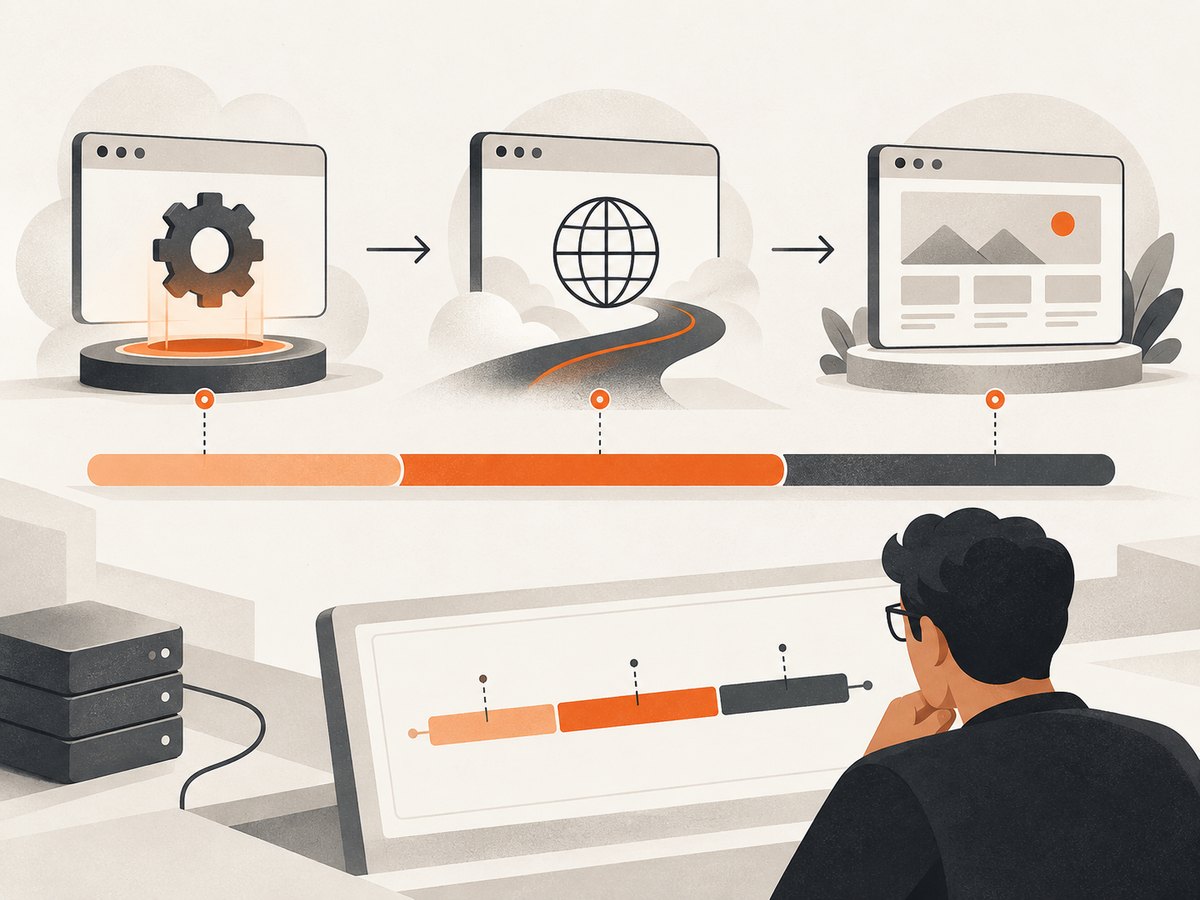
Record the deployment shape and versions with each run: AWS service or EC2 instance, region, Node.js runtime, Puppeteer and Chromium versions, target URL, cache state, emulation settings, navigation condition, and readiness condition. Compare repeated runs with the same settings. If the first invocation is slow while later invocations are not, examine initialization and launch separately from navigation. If navigation dominates, inspect request volume and network timing.
const puppeteer = require('puppeteer');

async function capture(url) {
  const timings = {};
  let browser;
  try {
    let start = performance.now();
    browser = await puppeteer.launch({ headless: true });
    timings.launchMs = performance.now() - start;

    start = performance.now();
    const page = await browser.newPage();
    timings.newPageMs = performance.now() - start;

    start = performance.now();
    const response = await page.goto(url, {
      waitUntil: 'domcontentloaded',
      timeout: 45000,
    });
    timings.navigationMs = performance.now() - start;

    start = performance.now();
    await page.waitForSelector('main', { timeout: 10000 });
    timings.readyMs = performance.now() - start;

    console.log({
      status: response?.status(),
      timings,
      totalMs: Object.values(timings).reduce((a, b) => a + b, 0),
    });
    return await page.title();
  } finally {
    if (browser) await browser.close();
  }
}

capture('https://example.com').catch(console.error);
Run this in the same environment and with the same Chromium build you intend to deploy. The sample selector main is illustrative; substitute a selector or application signal that means the required result is ready. Keep timings for each stage rather than relying on a single total.
2. Choose the earliest correct navigation condition
page.goto() accepts lifecycle conditions through waitUntil. Use the earliest condition that matches the task’s actual dependency:
| Condition | What it indicates | Use when |
|---|---|---|
commit |
Navigation response has been received and document loading has started. | You need an early navigation signal and will explicitly wait for the content you need. |
domcontentloaded |
The initial HTML document has been parsed. | You need the document and then can wait for a target selector or app signal. |
load |
The page’s load event has fired. | The task depends on resources that ordinarily finish before that event. |
networkidle0 / networkidle2 |
Network activity has met Puppeteer’s idle criterion for the configured period. | Use only if network settling is relevant to the result and the site becomes idle. |
Network idle is not the same as application readiness. Analytics, polling, long-lived connections, or background requests can keep a page busy even when the needed content is ready. Conversely, an idle page may not yet have completed an asynchronous application render. A targeted selector is often a more direct condition:
const response = await page.goto(url, {
  waitUntil: 'domcontentloaded',
  timeout: 45000,
});
if (!response || !response.ok()) {
  throw new Error(`Navigation failed: ${response?.status() ?? 'no response'}`);
}
await page.waitForSelector('[data-report-ready="true"]', {
  visible: true,
  timeout: 15000,
});
For a screenshot, the meaningful condition might be a visible chart or the removal of a loading indicator. For extraction, it might be a result row. For a static page, domcontentloaded may be sufficient. Add a finite timeout so an unexpected page state fails clearly; increasing a timeout only changes how long failure takes, not page speed.
3. Reduce network work only when safe
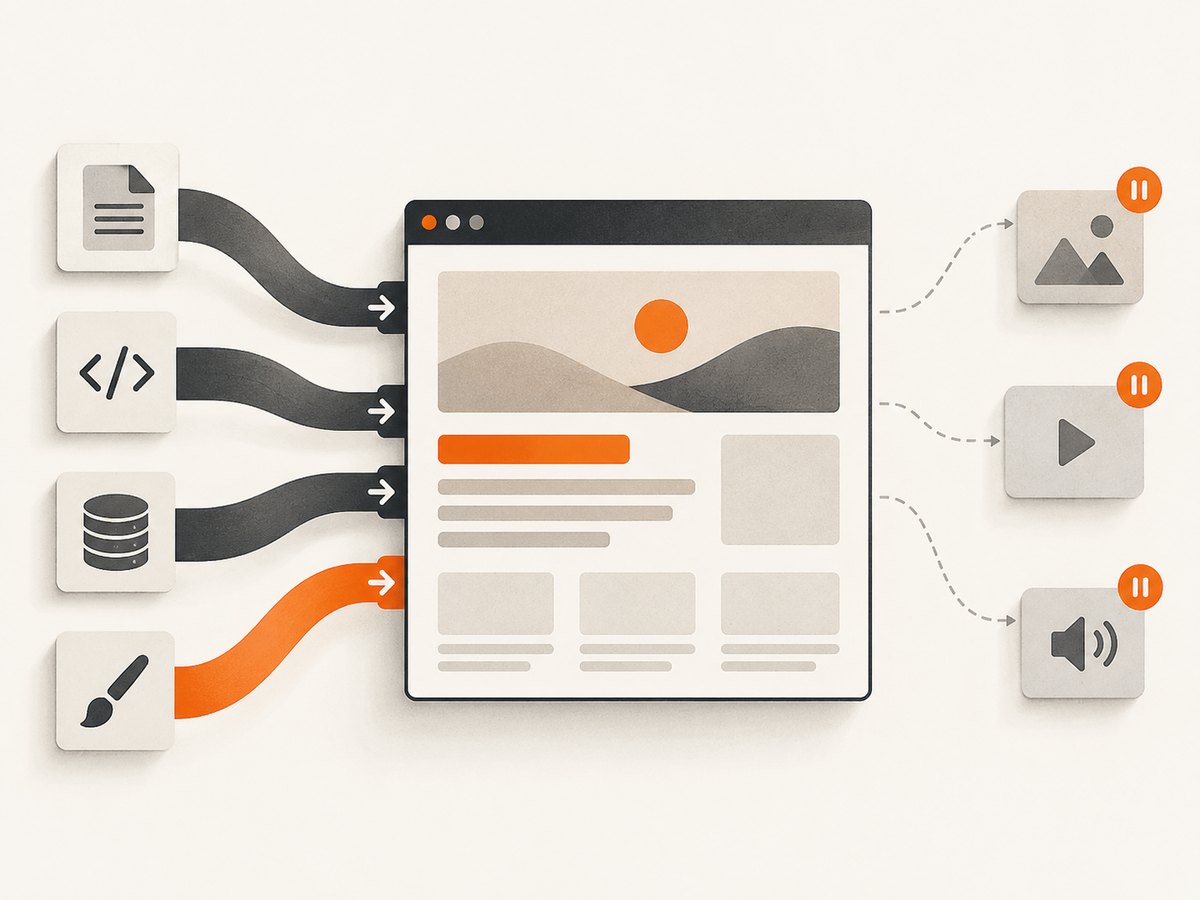
Request interception can skip resources that do not affect the output. Chrome’s server-side rendering example illustrates preserving documents, scripts, XHR, and fetch while aborting other resource types. Treat that as a starting idea, not a universal allowlist: CSS affects layout, fonts affect text metrics, and images may be the data you need. Some applications depend on requests that are not obvious from their resource type.
await page.setRequestInterception(true);
page.on('request', request => {
  const type = request.resourceType();
  const needed = new Set(['document', 'script', 'xhr', 'fetch', 'stylesheet']);
  if (needed.has(type)) {
    request.continue().catch(() => {});
  } else {
    request.abort().catch(() => {});
  }
});

await page.goto('https://example.com', {
  waitUntil: 'domcontentloaded',
  timeout: 45000,
});
This example preserves stylesheets but blocks images, fonts, media, and other types; change the set to suit the page. Attach interception before navigation. Interception adds handling work to each request, so it is not automatically faster. Compare page correctness and timings with interception on and off using the same URL and readiness condition. Do not block scripts, XHR, or fetch when the page’s content depends on them.
4. Diagnose AWS startup and deployment constraints
Lambda
Lambda can suit bursty, on-demand work, but packaging a headless Chromium binary within deployment constraints requires attention. Puppeteer’s troubleshooting guidance points to Sparticuz Chromium as a community option. The package supplies Chromium and serverless-oriented launch arguments; it is not tied to one Puppeteer version. Check its current compatibility guidance before pinning dependencies. Its version scheme is not semantic versioning and breaking changes may occur at patch level.
Keep Puppeteer and Chromium compatible. Record both versions in diagnostic output. A browser that fails to launch because its binary or shared libraries are incompatible is a deployment failure, not a slow page. If warm invocations are quick and cold ones are slow, measure initialization and launch explicitly before changing navigation behavior.
EC2
On EC2, the browser is installed with the operating system dependencies required by the selected image. Puppeteer’s troubleshooting documentation describes an Amazon Linux path involving EPEL and Chromium, and warns that missing system libraries can prevent launch. Follow instructions for the specific Amazon Linux generation rather than copying commands from an older environment. AWS also documents Puppeteer on Graviton EC2; ARM is a configuration worth benchmarking when your dependencies support it, not a guaranteed speed improvement.
CloudWatch Synthetics
Synthetics canaries are useful for repeatable monitoring and expose step duration and network metrics such as DNS lookup and first-byte timing. AWS examples show configurable navigation conditions, device emulation, response-status checks, and canary execution. Inspect the metric definitions for the runtime you choose: AWS notes that the Duration metric may exclude screenshot, artifact upload, and metric-generation work. Do not compare unlike runtime generations or metric definitions as if they measured the same interval.
5. Run a fair performance comparison
- Fix the workload. Use the same URL, region, browser build, viewport, device emulation, cache state, and readiness condition.
- Measure stages. Record launch, page creation, navigation, and readiness durations independently.
- Repeat runs. Separate cold and warm invocations. Report the run count and distributions or medians if you publish results.
- Change one thing. For example, compare
loadwithdomcontentloadedplus a selector, or compare interception enabled and disabled. - Check correctness. Verify the extracted data or screenshot still includes all required content.
- Check AWS metrics carefully. Confirm what the selected Synthetics runtime includes in each reported duration.
There is no source-backed universal percentage improvement for these changes. Likewise, Lambda, EC2, Graviton, and Synthetics are not ranked here by speed or cost: compare them against your workload, concurrency, startup pattern, operational needs, and actual AWS pricing and usage.
6. Troubleshooting
| Symptom | Likely cause | What to do |
|---|---|---|
| Launch is slow or fails on Lambda | Cold initialization, large package, incompatible binary, or missing dependency. | Time initialization and launch separately; review package limits and current Chromium compatibility instructions. |
| Launch fails on EC2 with a shared-library error | A system dependency is absent or the browser package does not fit the OS image. | Install the dependencies required by that Amazon Linux generation and confirm Chromium launches in the deployed image. |
goto() appears to hang |
The chosen lifecycle condition never occurs, often because background traffic remains active. | Use an appropriate earlier condition and wait for the specific content needed; keep a finite timeout. |
| Navigation times out although content appears | The selected wait condition is stricter than the task requires. | Switch to domcontentloaded or another suitable condition, then explicitly wait for the target content. |
| Page is incomplete after blocking requests | A blocked stylesheet, font, image, script, or API response is required. | Restore the required resource type and test the page’s output again. |
| Screenshot layout changes between runs | Different fonts, viewport, device scale, cache state, or readiness timing. | Fix emulation and viewport, allow required resources, and wait for a stable application signal. |
| Navigation succeeds but the expected page is absent | Redirect, bot check, authentication, error response, or changed page structure. | Inspect final URL, response status, and page content; handle auth and access behavior explicitly. |
| CloudWatch duration disagrees with end-to-end time | The runtime metric may exclude artifact or metric-generation work. | Read the chosen runtime’s metric definition and compare like intervals. |
7. Or skip the browser setup
If the job is to produce a website screenshot, [ScreenshotNeo](https://screenshotneo.com) provides a screenshot API and MCP server. One GET request can return PNG, JPEG, WebP, or PDF. Its API accepts the common screenshot parameter names, which can make switching easier. See the [API documentation](https://screenshotneo.com/docs/) for options such as full-page capture, a CSS element selector, device presets, custom headers, cookies, waits, request blocking, caching, and async jobs.
curl -G "https://api.screenshotneo.com/v1/shot" -d access_key=YOUR_API_KEY --data-urlencode url=https://stripe.com -o shot.webpScreenshotNeo accepts cookie and consent banners before capture and removes more than 60 known consent platforms, along with newsletter popups and chat widgets; each step can be turned off. Bot checks, blank pages, timeouts, failed loads, and cache hits cost nothing, and response headers report the page verdict and billing status. Its MCP server gives AI agents tools for screenshots, page information, and PDF capture. The free plan includes 1,000 shots per month with no card; paid plans start at $5 for 3,000 shots. [Create a free account](https://screenshotneo.com/account/sign-up/) and try the screenshot call.
FAQ
Should I reuse one browser across jobs?
It can avoid repeating browser launch work in a persistent worker, but requires lifecycle management and isolation between jobs. Measure startup savings alongside memory use, concurrency, and the cost of restarting a browser after errors.
Does raising the navigation timeout make Puppeteer faster?
No. A timeout is a failure limit. It can prevent premature failures for a genuinely slow page, but it does not speed up the browser or network.
Is networkidle0 always more reliable than a selector?
No. It describes network activity, not whether the specific application result you need is ready. Choose based on the task’s actual dependency.
Is Lambda faster than EC2 for Puppeteer?
The available guidance establishes both as deployment paths, not a universal performance winner. Benchmark the same workload and separate cold startup from page navigation.
Where can I inspect browser and navigation behavior?
Use Puppeteer’s current Page API and troubleshooting documentation, then compare your own stage timings. AWS Synthetics can provide step and network metrics when its runtime’s definitions match the question you are measuring.


