How to Speed Up Puppeteer HTML-to-PDF Generation in Node.js
Find what slows Puppeteer PDF generation, then benchmark browser startup, page readiness, font loading, printing, and output I/O before tuning.
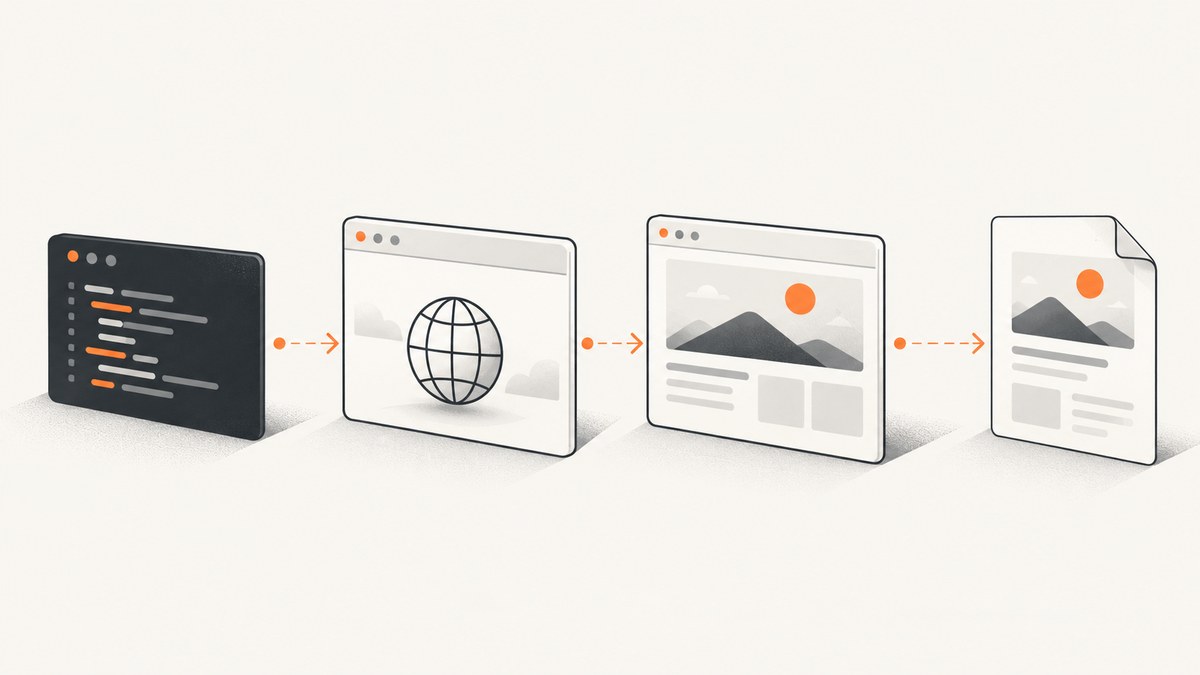
Puppeteer PDF generation gets faster when you find the slow stage and reduce only the work your output does not need. Measure browser launch, page setup, navigation and asset loading, your document-ready wait, page.pdf(), and writing or returning the bytes separately. Then benchmark a warm browser for repeated jobs, replace unnecessarily broad network-idle waits with a reliable document-ready signal, and review print options. Puppeteer’s documentation describes these controls but publishes no guaranteed speedup, so verify latency and PDF correctness on your own workload.
1. Measure the stages before changing them
A single end-to-end duration cannot tell you whether time is spent starting Chromium, waiting on a remote image, loading a font, laying out print CSS, or writing a large PDF. Add timings around each stage. This breakdown is a practical diagnostic method, not a published Puppeteer benchmark.
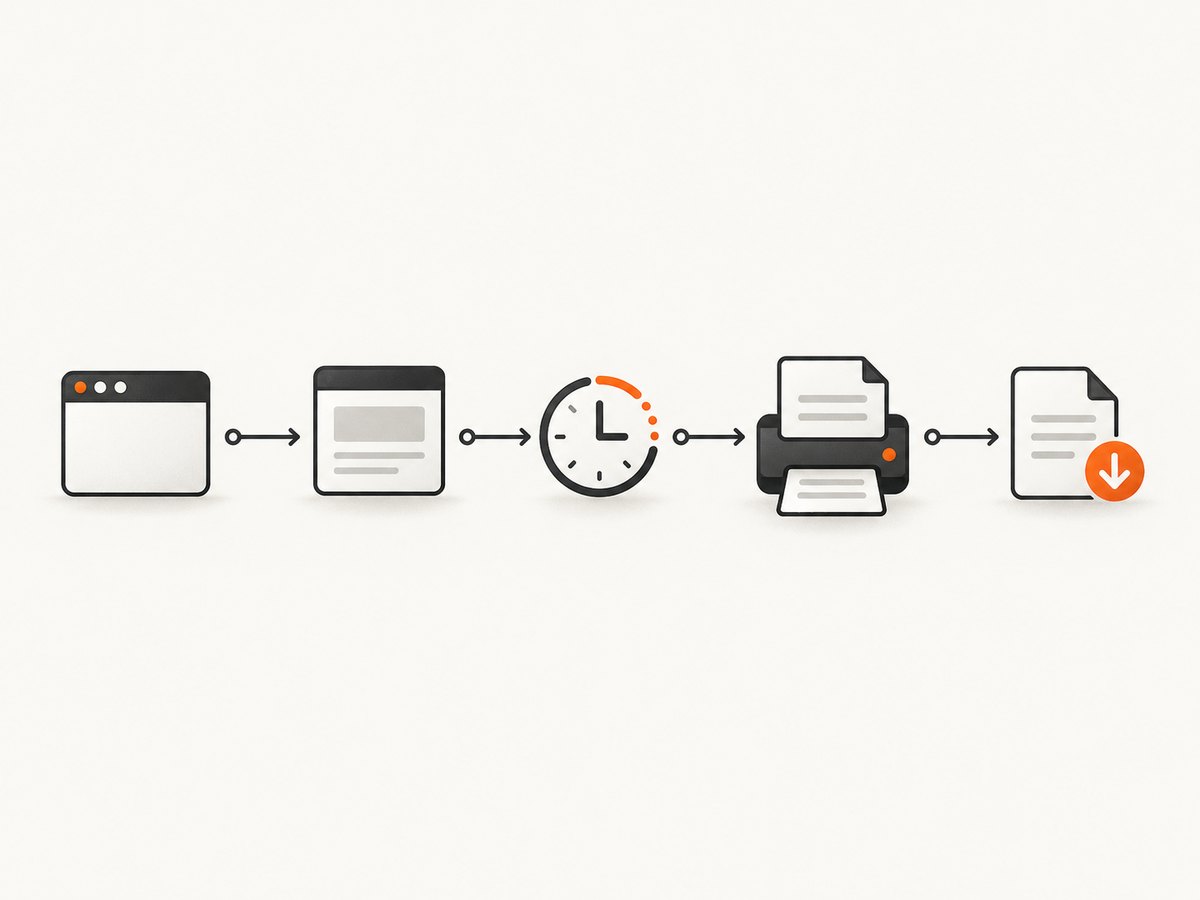
Use representative documents: a small text report, a long document, an image-heavy page, and one that uses web fonts or asynchronous charts. Include both cold runs (new browser process) and warm runs (browser already running). Keep output options and wait conditions fixed while comparing a change.
import { performance } from 'node:perf_hooks';
import puppeteer from 'puppeteer';
import { writeFile } from 'node:fs/promises';

const mark = (name, start) => {
  console.log(`${name}: ${(performance.now() - start).toFixed(1)} ms`);
};

const totalStart = performance.now();
const launchStart = performance.now();
const browser = await puppeteer.launch({ headless: true });
mark('browser launch', launchStart);

try {
  const pageStart = performance.now();
  const page = await browser.newPage();
  mark('new page', pageStart);

  const navStart = performance.now();
  await page.goto('https://example.com/report', {
    waitUntil: 'domcontentloaded',
    timeout: 30_000,
  });
  mark('navigation to DOM content loaded', navStart);

  const readyStart = performance.now();
  await page.waitForSelector('[data-report-ready="true"]', {
    timeout: 15_000,
  });
  mark('application readiness', readyStart);

  const pdfStart = performance.now();
  const pdf = await page.pdf({ format: 'A4', printBackground: true });
  mark('PDF rendering', pdfStart);

  const writeStart = performance.now();
  await writeFile('report.pdf', pdf);
  mark('write PDF', writeStart);
  mark('total', totalStart);
} finally {
  await browser.close();
}
Replace the sample URL and selector with your own. If your application has no readiness marker, add one when the data and assets required in the PDF are ready, or wait on a specific observable condition. Do not use a selector that appears before charts, images, or fonts needed by the document have finished.
For reproducible comparisons, record Puppeteer and Chrome versions, operating system or container, concurrency, document mix, wait strategy, PDF options, and whether the browser was cold or warm. Compare median and tail latency, throughput, CPU and memory, PDF size, and visual or text correctness. Do not report a speed multiplier unless you measured it under stated conditions.
2. Reuse a browser process for repeated jobs
If a service generates many PDFs, launching Chromium for every document may be a measurable part of the cost. Consider keeping a browser process alive and creating a fresh page for each job. The official standalone PDF example launches and closes a browser for one operation; the docs do not promise a reuse speedup. Treat reuse as an architecture choice to benchmark in your deployment.
import puppeteer from 'puppeteer';

const browser = await puppeteer.launch({ headless: true });
let closing = false;

export async function makePdf(url) {
  if (closing || !browser.connected) {
    throw new Error('PDF browser is unavailable');
  }

  const page = await browser.newPage();
  try {
    await page.goto(url, {
      waitUntil: 'domcontentloaded',
      timeout: 30_000,
    });
    await page.waitForSelector('[data-report-ready="true"]', {
      timeout: 15_000,
    });
    return await page.pdf({ format: 'A4', printBackground: true });
  } finally {
    await page.close();
  }
}

export async function shutdown() {
  closing = true;
  if (browser.connected) await browser.close();
}
In production, put a bounded queue or concurrency limit in front of this function. Unbounded parallel pages can exhaust memory or CPU and increase tail latency. Decide how jobs behave if Chromium disconnects: detect the failure, discard the affected page, restart the browser under a controlled supervisor, and retry only when duplicate work is safe. Close pages in finally; monitor process memory and recycle the browser on a schedule or threshold you establish from observation. Use separate contexts where jobs need cookie or storage isolation.
3. Wait for the content you actually need
Puppeteer’s PDF guide demonstrates navigation with waitUntil: 'networkidle2'. Network-idle waiting can be appropriate for a page whose relevant work settles, but waitForNetworkIdle() always waits at least its configured idle period. Pages with polling, analytics, streaming, or unrelated background requests may make a broad wait slow or unreliable.
A targeted wait can avoid waiting for unrelated activity, provided it represents genuine readiness. Puppeteer also exposes waitForSelector() and waitForFunction(). This is an engineering inference from the available wait APIs, not a documented benchmark result. Confirm that the chosen signal comes after all required data and assets are ready.
await page.goto(url, {
  waitUntil: 'domcontentloaded',
  timeout: 30_000,
});

// Prefer an application-owned signal that means the printable report is ready.
await page.waitForFunction(() => {
  return document.documentElement.dataset.reportReady === 'true';
}, { timeout: 15_000 });

// If a selector is your readiness contract:
// await page.waitForSelector('.report-rendered', { timeout: 15_000 });

const pdf = await page.pdf({ format: 'A4' });
If external resources are essential, readiness should account for them. For example, wait for a chart’s completed state rather than merely its container, and check image completion if the page renders images asynchronously. A fixed delay is simple but may waste time on fast runs and still be too short on slow ones.
4. Check fonts and print rendering
Page.pdf() uses the print CSS media type by default. If the intended PDF should match screen styles, call page.emulateMediaType('screen') before generating it. Print styles and print color handling can change the result, so validate output after any media change.
Puppeteer waits for fonts to load before producing a PDF by default. The current PDF options reference lists waitForFonts: true, tied to document.fonts.ready. Disabling it is a correctness tradeoff: output may use fallback fonts or differ across runs. The docs do not state that setting it to false makes generation faster. Only benchmark it when fonts are not required and compare the resulting PDFs.
// For a PDF using screen CSS rather than print CSS:
await page.emulateMediaType('screen');

// Default behavior waits for fonts. Only consider false after checking output:
const pdf = await page.pdf({
  format: 'A4',
  waitForFonts: true,
});
5. Review PDF options without changing requirements by accident
Options control output and behavior; the documentation does not quantify their relative speed. Change one at a time and inspect the result.
| Option | Documented behavior | What to check |
|---|---|---|
format, width, height |
Choose paper format or explicit dimensions. | Page count, wrapping, and clipping. |
pageRanges |
Print selected page ranges. | Whether omitted pages are truly unnecessary. |
scale |
Scale the page rendering. | Legibility and layout; do not assume a speed gain. |
printBackground |
Defaults to false; enables background graphics. |
Brand colors and shaded sections. Enabling it changes appearance and may affect work. |
timeout |
PDF operation timeout; documented default is 30,000 ms. | Set a limit appropriate to the job. A larger timeout permits longer work; it does not make it faster. |
path |
Save the PDF to a path; without it, the generated bytes can be returned. | Separate rendering time from filesystem or network transfer time. |
When pages are expensive to render, check whether the product requirement allows printing only a range or omitting backgrounds. Do not remove content or lower scale solely to improve a metric if that makes the PDF incorrect for its users.
6. Benchmark changes safely
- Establish a baseline. Run the same document set in the target container with fixed browser and Puppeteer versions.
- Separate cold and warm cases. Measure process startup separately from jobs served by an existing browser.
- Change one factor. Compare wait condition, browser lifecycle, or a PDF option independently.
- Check output. Compare page count, extracted text, layout, fonts, images, and print colors.
- Run at expected concurrency. Observe throughput, memory, CPU, failures, and tail latency, not only the fastest single run.
- Keep a rollback path. If a targeted readiness signal misses late content or a reused process becomes unhealthy, restore the prior behavior while investigating.
There is no controlled speed benchmark or guaranteed multiplier in the cited Puppeteer documentation. Publish your own figures only with the workload, versions, environment, options, and measurement method attached.
7. Troubleshooting slow or incorrect PDFs
| Symptom | Likely cause | Fix |
|---|---|---|
| Every job has a large fixed delay | Browser startup is included in each job. | Time launch separately; benchmark a long-lived browser for repeated work. |
| Navigation hangs or times out | Broad network-idle waiting sees persistent or slow requests. | Use a narrower navigation condition and an application-owned readiness signal, after verifying required assets. |
| PDF is missing late data | Readiness condition fires too early. | Move the signal to after data and rendering complete; explicitly wait for required images or charts. |
| Fonts look different in PDF | Font loading was incomplete or disabled, or print CSS selects different fonts. | Keep the default font wait, check font availability and print styles, and compare output. |
| Colors or backgrounds differ | PDF uses print media by default; print background graphics default off. | Review print CSS, use screen media only if intended, and set printBackground: true when backgrounds are required. |
| PDF operation exceeds 30 seconds | PDF timeout is at its documented default, or rendering is slow. | Measure the PDF stage first. Adjust timeout only to permit the expected workload; then investigate document complexity and resource readiness. |
| Latency rises under load | Too many concurrent pages, CPU contention, or memory pressure. | Bound concurrency, observe resource use, and test capacity using the real document mix. |
| PDF generation works locally but fails in a container | Browser or environment differences. | Record and align Chrome/Puppeteer versions and runtime configuration; capture the failing stage and browser error details. |
| Returned PDF is slow to deliver | Large output or slow persistence/transfer, rather than PDF rendering. | Time byte writing and response transfer separately; review whether document content and image dimensions meet requirements. |
8. Or skip the browser setup
If the task is to capture a web page as an image or PDF rather than generate a custom report from your own HTML, ScreenshotNeo offers a screenshot API and MCP server. One GET request returns a PNG, JPEG, WebP, or PDF. See the API documentation for parameters and options.

curl -G "https://api.screenshotneo.com/v1/shot" -d access_key=YOUR_API_KEY --data-urlencode url=https://stripe.com -o shot.webpimport requests
r = requests.get("https://api.screenshotneo.com/v1/shot", params={"access_key": "YOUR_API_KEY", "url": "https://stripe.com"}, timeout=90)
open("shot.webp", "wb").write(r.content)const q = new URLSearchParams({ access_key: 'YOUR_API_KEY', url: 'https://stripe.com' });
const res = await fetch(`https://api.screenshotneo.com/v1/shot?${q}`);Cookie and consent banners, newsletter popups, and chat widgets are removed before the capture; each step can be turned off. Bot checks, blank pages, failed loads, timeouts, and cache hits are not billed, and response headers say the page verdict and billing status. Its MCP server gives AI agents tools to take screenshots, get page information, and capture PDFs. The free plan includes 1,000 screenshots per month with no card; paid plans start at $5 for 3,000. These are page captures, so use Puppeteer when you need to render a custom HTML document with your own application logic.
Create a free ScreenshotNeo account for 1,000 screenshots a month with no card.
FAQ
Does Puppeteer publish a PDF speed benchmark?
The cited official guide and API references document behavior and options, not a controlled speed comparison or guaranteed multiplier. Measure your own representative workload.
Should I always use a persistent browser?
No single lifecycle fits every service. Benchmark startup savings against memory use, isolation needs, concurrency, cleanup, and recovery from browser failure.
Does raising the PDF timeout speed it up?
No. Timeout sets how long an operation may run before failing; it does not reduce the work required.
Can I make the PDF use the page’s screen design?
Yes. Call page.emulateMediaType('screen') before page.pdf(), then verify the output because layout and colors can change.


