How to Speed Up Puppeteer Launches on AWS Lambda
Speed up Puppeteer on AWS Lambda by measuring cold and warm startup separately, matching Chromium to your runtime, and reducing avoidable extraction and launch work.
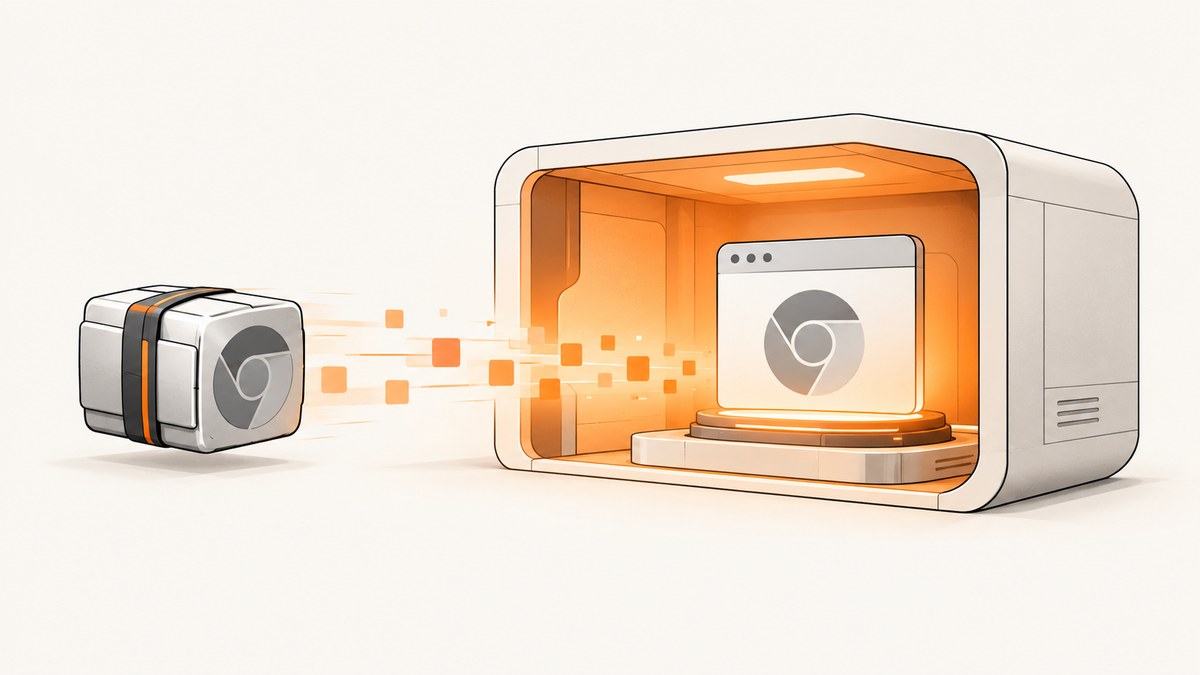
Direct answer: To speed up Puppeteer launches on AWS Lambda, first use a Lambda-compatible Chromium binary with a matching Puppeteer version, then measure cold initialization separately from warm reuse. Tune memory against your real workload, avoid repeating binary downloads or extraction where possible, and make Chrome’s profile and cache paths writable under /tmp. There is no universal launch-time setting: the right combination depends on your function, architecture, and page or PDF workload.
This guide uses puppeteer-core with @sparticuz/chromium, a Chromium distribution whose maintainer documents Lambda launch configuration and packaging choices. Follow its current README and release notes when choosing versions; package behavior and compatibility can change. See [Puppeteer’s troubleshooting guide](https://pptr.dev/troubleshooting) for Lambda packaging and restricted-container notes, and the [Sparticuz Chromium README](https://github.com/Sparticuz/chromium) for its current example and artifact details.
1. Measure the work before tuning it
“Launch time” can hide several separate costs. A cold invocation may initialize your function, locate or download a binary pack, extract files, launch Chrome, and then navigate to the page. A warm invocation may reuse the execution environment and extracted files. Measure each part so you know which cost is actually dominating.
| Measurement | What it tells you |
|---|---|
| Function initialization duration | Time spent loading your handler and dependencies before invocation work. |
| Executable resolution or pack extraction | Whether locating, downloading, or unpacking Chromium dominates startup. |
puppeteer.launch() |
Browser process startup and connection time. |
| Time until the page is ready | End-to-end time for the actual navigation, rendering, screenshot, or PDF task. |
Log these durations with the runtime, architecture, Puppeteer version, Chromium package version, memory size, and cold or warm classification. Compare like with like: use the same target pages, wait condition, output format, and concurrency. Do not infer a speedup from one invocation. The reviewed documentation does not provide controlled launch benchmarks across Lambda configurations, so measure your own workload rather than relying on a promised percentage.
2. Install a Lambda-compatible browser
Regular Puppeteer downloads a browser for local development, but packaging a compatible browser into a Lambda deployment can be challenging. Puppeteer’s troubleshooting guide points Lambda users toward the Sparticuz Chromium project. In Lambda, use puppeteer-core so your code connects to the separately supplied executable instead of expecting Puppeteer to manage a local browser download.
npm install puppeteer-core @sparticuz/chromiumStart with the launch pattern in the package README. This handler is a runnable baseline for a Node.js Lambda configured with an appropriate memory allocation and deployment artifact:
const chromium = require('@sparticuz/chromium');
const puppeteer = require('puppeteer-core');

exports.handler = async (event) => {
  const url = event.url || 'https://example.com';
  let browser;

  try {
    browser = await puppeteer.launch({
      args: chromium.args,
      executablePath: await chromium.executablePath(),
      headless: chromium.headless,
    });

    const page = await browser.newPage();
    await page.goto(url, { waitUntil: 'domcontentloaded', timeout: 30000 });
    const screenshot = await page.screenshot({ type: 'png' });

    return {
      statusCode: 200,
      headers: { 'content-type': 'image/png' },
      isBase64Encoded: true,
      body: screenshot.toString('base64'),
    };
  } finally {
    if (browser) await browser.close();
  }
};
Use the package’s args, resolved executablePath, and headless setting from its current example. Avoid copying launch flags from an unrelated container or Chromium build: the package’s arguments account for its environment. The example closes the browser for each invocation, which is a straightforward baseline. If you later keep a browser process in a warm environment, add lifecycle and failure handling, and verify that pages, contexts, and memory are cleaned up between requests.
3. Tune Lambda memory with your real workload
Memory is a performance variable for browser work. The Sparticuz README recommends allocating at least 512 MB and says 1600 MB or more is recommended. These are maintainer recommendations, not measured guarantees for every function or the optimal setting for your workload.
- Choose a representative page or PDF task, including its normal assets and wait condition.
- Run the same workload at several memory settings allowed by your deployment.
- Record initialization, extraction, launch, page-ready, and total duration for cold and warm runs.
- Compare the resulting duration and Lambda cost for the same amount of work.
- Repeat enough invocations to account for ordinary variation; keep the runtime, architecture, and package versions fixed.
A larger allocation may change the performance and cost tradeoff, but do not assume it will improve every phase. If extraction dominates, memory tuning may not address the root cause. If page rendering dominates, the browser can launch quickly while the overall task remains slow.
4. Reduce repeat downloads and extraction
If deployment package size is a constraint, the @sparticuz/chromium-min package omits the Brotli binaries and lets your function supply their location. The README describes downloading a remote pack, unpacking it to /tmp/chromium-pack, and decompressing Chromium to /tmp/chromium. On a later warm invocation, existing extracted files can be detected and reused.
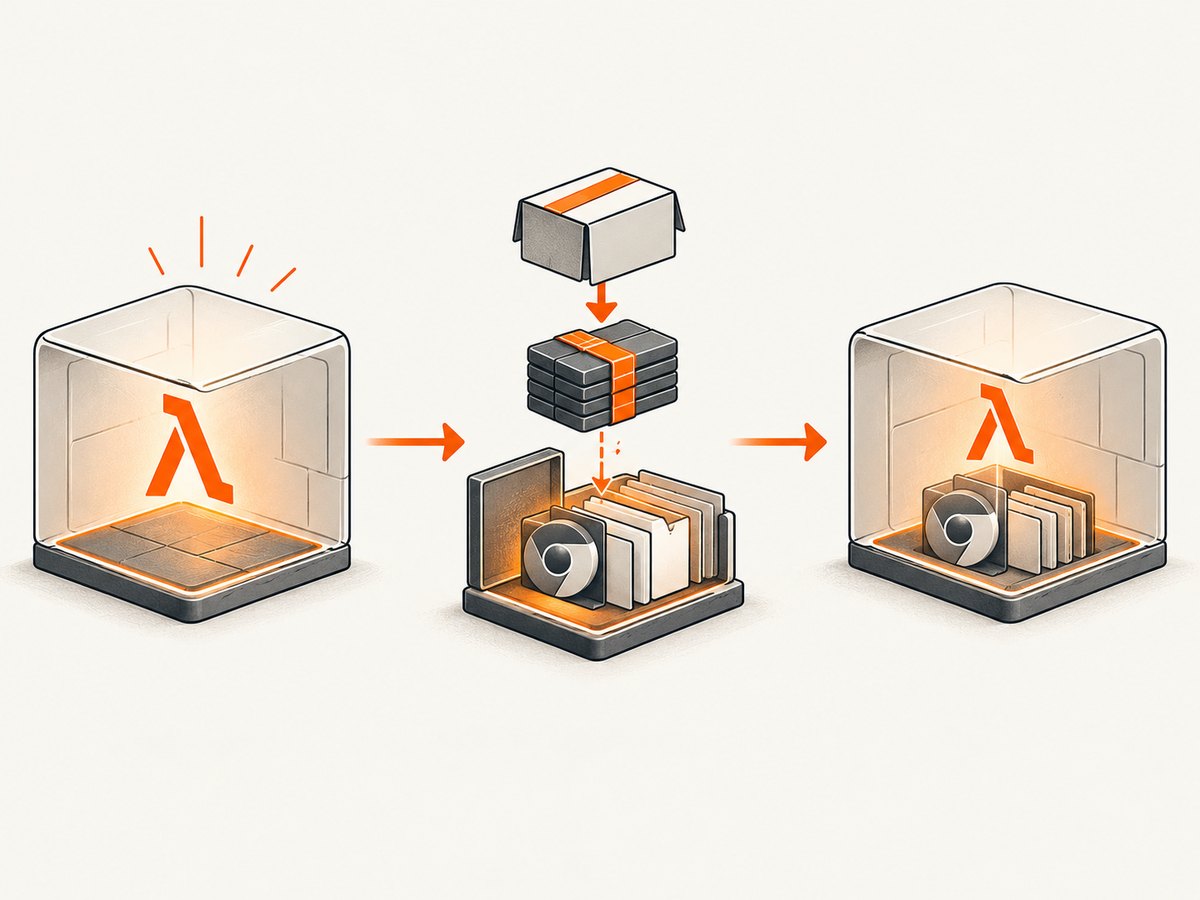
This can avoid repeating some setup work in a reused environment, but it does not guarantee a particular launch-time improvement. Lambda execution environments have a lifecycle, and a later invocation may use a different environment. Treat files under /tmp as a useful optimization when available, not durable storage.
When using the minimal package, follow the README’s current remote-pack example and provide a valid pack location. Record whether each measurement included a download, extraction, or reuse. Make sure temporary storage can hold the pack, extracted browser and libraries, Chrome profile and cache, and your output files. For architecture-specific artifact instructions, use the project README.
5. Keep Chrome’s runtime files writable
Chrome writes profile, configuration, and cache data during startup. In a restricted container, read-only filesystem, or Lambda deployment where only selected paths can be written, configure those locations under /tmp. For example, set environment variables before launching the browser:
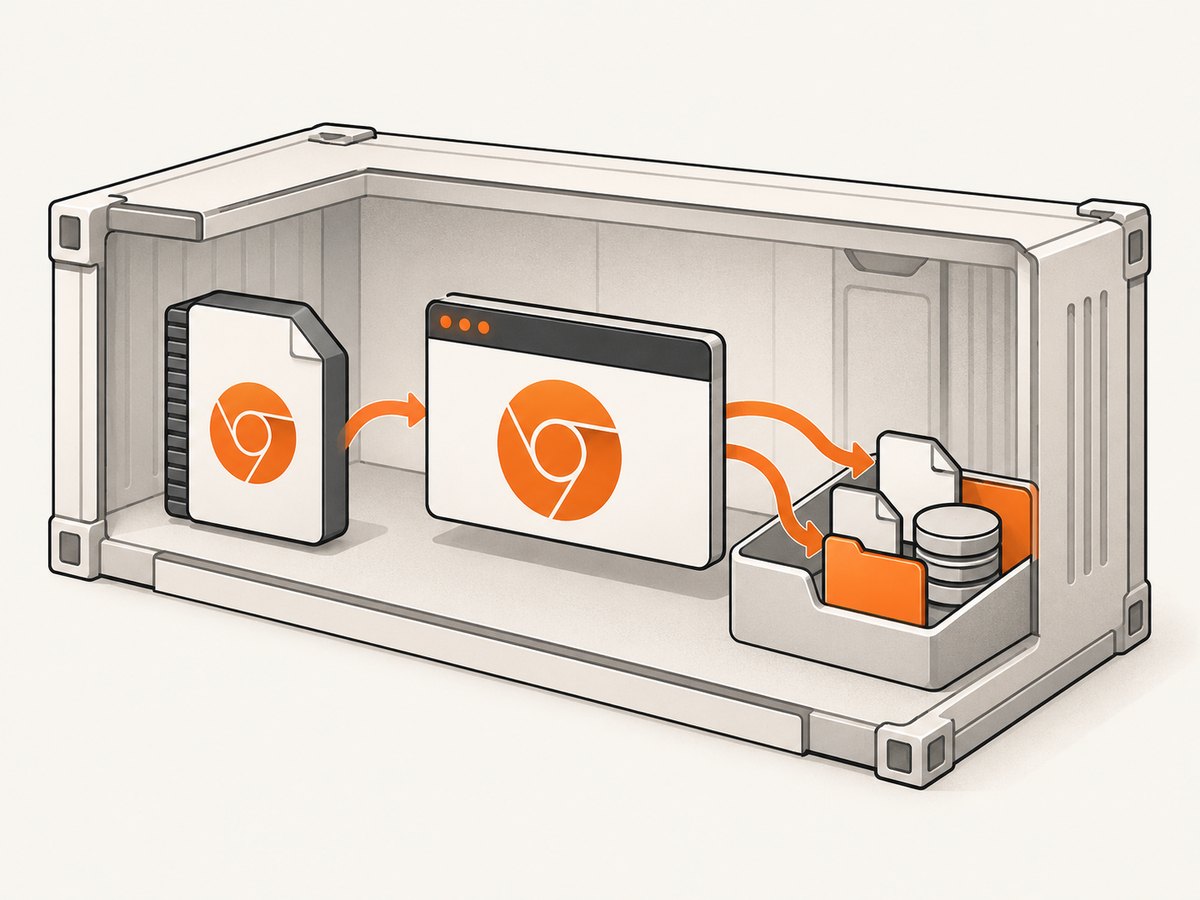
process.env.XDG_CONFIG_HOME = '/tmp/.config';
process.env.XDG_CACHE_HOME = '/tmp/.cache';
If your launch setup needs an explicit user data directory, point it to a writable location and make it unique per concurrent browser process. Do not place profiles in the read-only deployment directory. If startup fails with profile or cache write errors, inspect the actual paths and permissions before changing unrelated Chromium flags.
6. Match architecture, versions, and bundling
Compatibility problems often look like slow or failed launches. Verify the deployed Node.js runtime, Lambda architecture, Puppeteer version, and Chromium release as one combination. The Sparticuz README says the npm package includes x64 binaries. Starting with Chromium v135, arm64 artifacts are available as a Lambda layer zip or a remote pack used with chromium-min. Choose an artifact for the deployed architecture.
The project cautions that it does not follow semantic versioning and that breaking changes can happen at patch level. Check release notes and retest the complete function when upgrading. The README also says to mark @sparticuz/chromium external when bundling, because bundling can break relative paths used to find binary files. Confirm that the final deployment artifact contains the expected files and that the resolved executable path exists in Lambda.
7. Make browser and page work reliable
- Set a navigation timeout appropriate to the target pages and return a clear error when a page does not become ready.
- Pick the least strict wait condition that still satisfies your output.
domcontentloadedcan avoid waiting for every resource; use a stronger condition only when the page requires it. - Close the browser in a
finallyblock so exceptions do not skip cleanup. - Keep task output within the function’s response and temporary-storage limits; large screenshots and PDFs need an output strategy suited to your application.
- Do not assume warm reuse always occurs. The function must still work when no prior temporary files or browser process are available.
- When reusing a process, isolate each request in a fresh page or browser context and close it afterward; watch for leaked pages and growing memory.
For screenshot-only jobs, also distinguish browser startup from the page’s own network and rendering time. A page with a slow third-party request can make the whole invocation look like a launch problem even when Chrome started promptly.
8. Troubleshooting common launch problems
| Symptom | Likely cause | What to check or change |
|---|---|---|
| Executable not found | Wrong package or path, missing extracted files, or a broken bundle. | Use the package’s resolved executablePath; verify the deployment contents and bundler external setting. |
| Exec format error or immediate process exit | Chromium artifact architecture does not match Lambda. | Match x64 or arm64 deployment to the artifact and confirm supported release guidance. |
| Browser fails with permission or profile errors | Chrome is writing to a read-only path. | Set config/cache and, if needed, user-data paths under writable /tmp. |
| First invocation is much slower than later ones | Initialization, download, and extraction happen on first use; warm files may be reused. | Time those phases independently and compare cold with warm invocations. |
| Every invocation downloads or extracts again | Environment reuse is not occurring, files are removed, or the pack path differs. | Check the documented paths and lifecycle assumptions; ensure correctness does not depend on reuse. |
| Launch works locally but fails on Lambda | Different architecture, missing deployment files, non-writable paths, or incompatible versions. | Reproduce with the Lambda artifact and runtime configuration; verify the full version and architecture tuple. |
| Launch is quick but request remains slow | Navigation, remote assets, page scripts, or output generation dominates. | Measure until page-ready and inspect the actual task rather than optimizing launch alone. |
| Upgrade causes a new launch failure | Package changes can be breaking even at patch version. | Review release notes, pin compatible versions, and redeploy only after validating the full combination. |
9. Cost and performance checklist
- Capture a baseline with cold and warm cases clearly labeled.
- Log initialization, binary resolution or extraction, browser launch, and page-ready time.
- Keep the same page workload while changing one setting at a time.
- Compare memory settings using both end-to-end duration and cost.
- Use a compatible prepackaged binary; consider
chromium-minand remote packs when deployment size is the constraint. - Store temporary browser assets and writable profiles under suitable
/tmppaths. - Verify architecture, package versions, bundling, and extracted paths after every relevant deployment change.
- Retain cold-start behavior as a first-class case even if warm invocations are faster.
There is no source-backed universal figure for how many milliseconds a particular optimization saves. The practical target is the least costly configuration that meets your own latency and reliability needs for the pages you actually capture.
Or skip the browser setup
If the job is simply to get a screenshot or PDF from a URL, ScreenshotNeo provides a website screenshot API and MCP server. One GET request returns PNG, JPEG, WebP, or PDF. See the API documentation for request options and setup.
curl -G "https://api.screenshotneo.com/v1/shot" \
  -d access_key=YOUR_API_KEY \
  --data-urlencode url=https://stripe.com \
  -o shot.webp
import requests
r = requests.get(
"https://api.screenshotneo.com/v1/shot",
params={"access_key": "YOUR_API_KEY", "url": "https://stripe.com"},
timeout=90,
)
open("shot.webp", "wb").write(r.content)const q = new URLSearchParams({ access_key: 'YOUR_API_KEY', url: 'https://stripe.com' });
const res = await fetch(`https://api.screenshotneo.com/v1/shot?${q}`);
if (!res.ok) throw new Error(`Screenshot request failed: ${res.status}`);
await Bun.write('shot.webp', res);ScreenshotNeo accepts cookie and consent banners like a visitor and removes more than 60 known consent platforms, newsletter popups, and chat widgets before capture; each cleanup step can be turned off. Bot checks, CAPTCHAs, blank pages, timeouts, failed loads, and cache hits cost nothing, and response headers report the page verdict and billing status. Its MCP server provides take_screenshot, get_page_info, and capture_pdf for Claude, Cursor, and other MCP clients. The free plan includes 1,000 screenshots each month with no card; paid plans start at $5 for 3,000 screenshots.
Sign up free for 1,000 screenshots a month, with no card required.
FAQ
Should I keep Puppeteer in a warm Lambda environment?
It can avoid repeated browser startup when the environment is reused, but reuse is not guaranteed. Make cold initialization work correctly, and carefully manage page and browser cleanup if you reuse a process.
Does the Sparticuz memory recommendation guarantee faster launches?
No. The README’s 512 MB minimum and 1600 MB or higher recommendation are maintainer guidance, not a benchmark or per-function guarantee. Measure your workload and cost.
Is a remote Chromium pack always faster than bundling the browser?
No. It changes where the binary comes from and can avoid package-size constraints; the first download and extraction may add work. Compare cold and warm invocations in your deployment.
What should I record when upgrading?
Record the Node.js runtime, architecture, Puppeteer and Chromium versions, memory setting, packaging or bundler configuration, and cold/warm timings. That makes regressions easier to trace to a changed component.


