How to Speed Up Python ImageGrab.grab()
Speed up Pillow ImageGrab.grab() by capturing fewer pixels, choosing the right platform options, and measuring capture separately from processing.
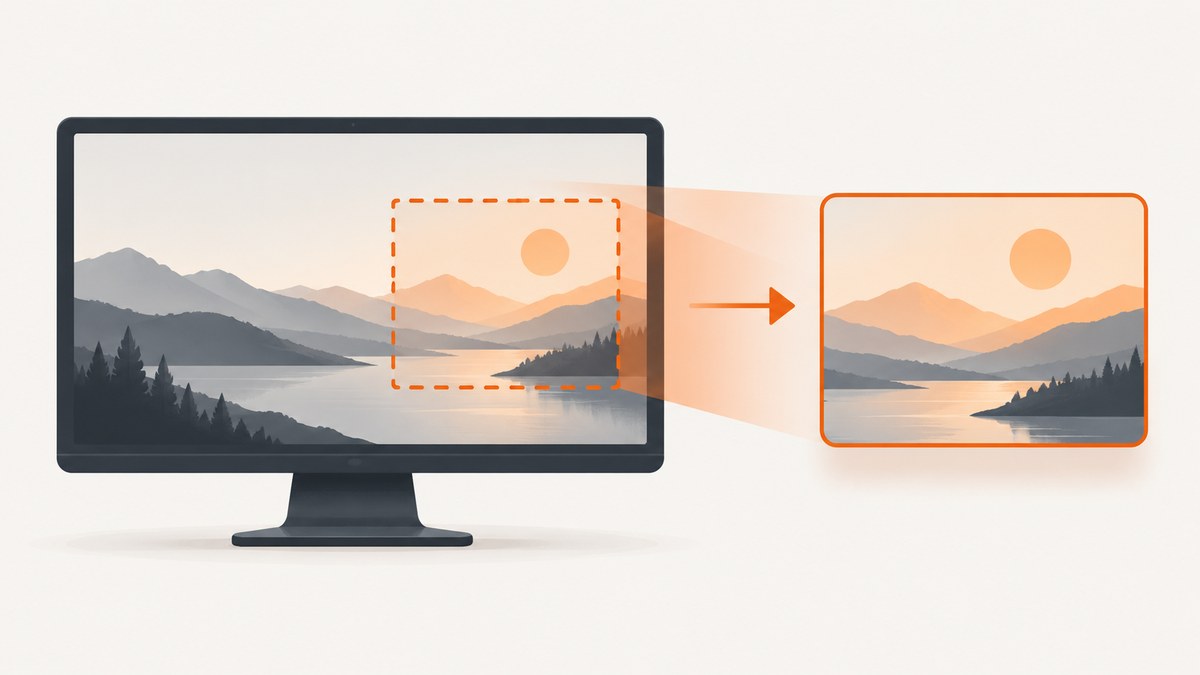
Capture only the pixels your program needs, then measure each stage separately. Start with a tight bbox=(left, top, right, bottom). Pillow copies the entire screen when bbox is omitted, so a smaller region reduces the image dimensions your application must retain and process. It may or may not reduce the native capture time on your platform; benchmark it on the target machine.
This guide covers region and window capture, Retina displays, Linux backends, downstream processing, a repeatable benchmark, common errors, and an API alternative when you do not need a local desktop capture.
1. Measure the capture before changing it
A slow screenshot loop can spend most of its time converting pixels, comparing images, resizing, encoding, or writing files. Time ImageGrab.grab() by itself before changing code.
from time import perf_counter
from PIL import ImageGrab

start = perf_counter()
image = ImageGrab.grab()
capture_seconds = perf_counter() - start

print(f'capture: {capture_seconds:.4f}s')
print('size:', image.size)
print('mode:', image.mode)
Then measure later stages independently:
from time import perf_counter
from PIL import ImageGrab

start = perf_counter()
image = ImageGrab.grab(bbox=(0, 0, 1280, 720))
capture_seconds = perf_counter() - start

start = perf_counter()
pixels = image.load()
processing_seconds = perf_counter() - start

start = perf_counter()
image.save('capture.png')
save_seconds = perf_counter() - start

print({
    'capture_seconds': capture_seconds,
    'processing_seconds': processing_seconds,
    'save_seconds': save_seconds,
    'size': image.size,
})
Record the operating system, Pillow version, display resolution, monitor count, Linux display/session type, and whether your timing includes conversion or saving. Compare runs on the same machine and workload.
2. Use the smallest correct bbox
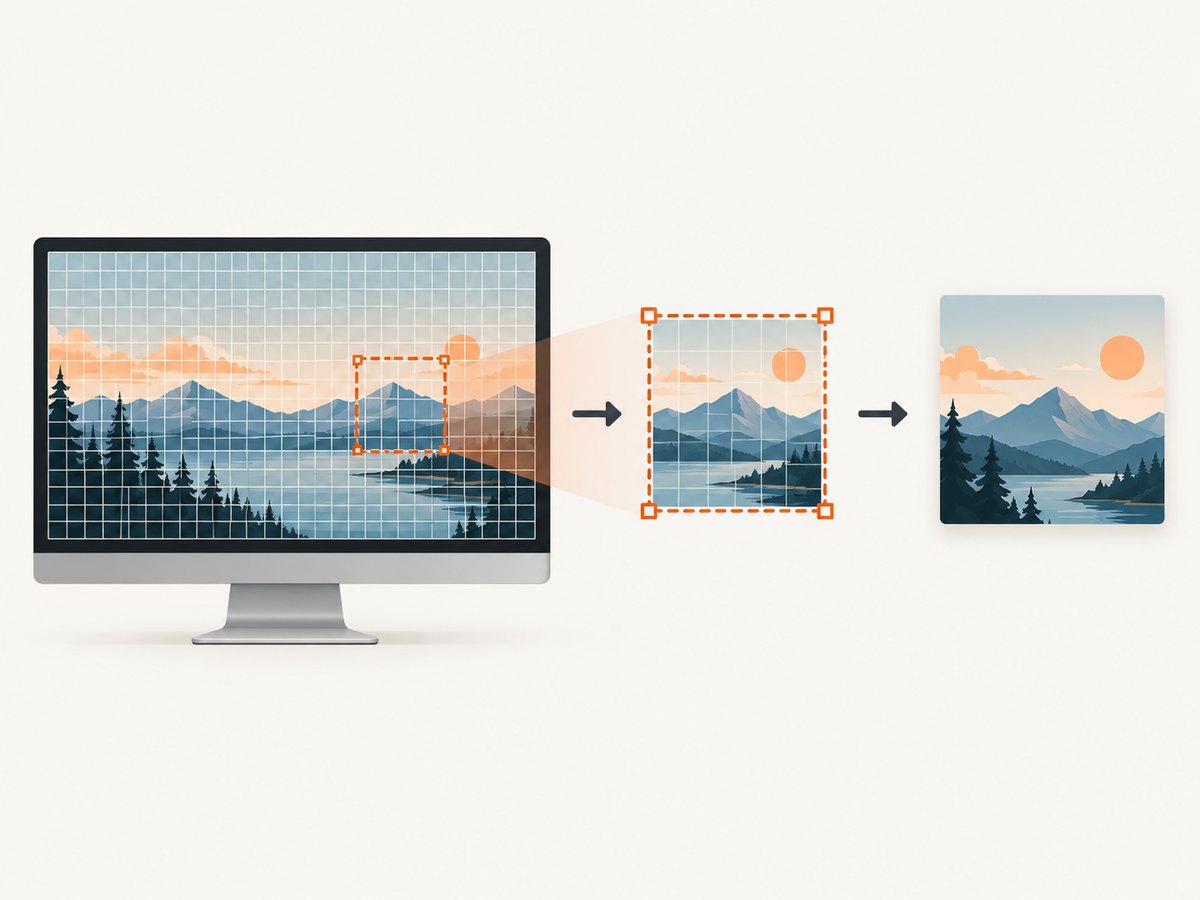
bbox is a four-item tuple: (left, top, right, bottom). Coordinates describe the rectangle to capture. The right and bottom edges are outside the returned rectangle, so a box from (100, 100) to (500, 400) produces a 400 by 300 image.
from PIL import ImageGrab

# Capture only the application area needed by the task.
image = ImageGrab.grab(bbox=(100, 100, 1500, 900))
image.save('region.png')
Use the smallest rectangle that contains the required content. This reduces the returned pixel count and the work required by comparisons, OCR, computer vision, compression, and storage. Pillow’s documentation states: “If the bounding box is omitted, the entire screen is copied.” See the ImageGrab reference.
Do not assume that a smaller bbox always makes the underlying screen read faster. Pillow’s current Windows implementation obtains screen data and applies the crop in Python, so the end-to-end benefit can come mainly from smaller downstream work. Benchmark both full-screen and regional capture on your target platform; the current source shows this implementation detail.
Calculate a box from a logical region
from PIL import ImageGrab

def capture_region(x, y, width, height, path='region.png'):
    if width <= 0 or height <= 0:
        raise ValueError('width and height must be positive')
    bbox = (x, y, x + width, y + height)
    image = ImageGrab.grab(bbox=bbox)
    image.save(path)
    return image

capture_region(120, 80, 1280, 720)
On multi-monitor systems, coordinates can be negative or span a virtual desktop. Confirm the returned dimensions and test the same monitor layout used in production.
3. Capture one window when that is all you need
Current Pillow documentation supports a window argument on Windows and macOS. Pass the platform window identifier when available. Window support does not guarantee a faster capture than a rectangle, so measure it against a tight bbox.
from PIL import ImageGrab

# hwnd is a Windows HWND or a macOS CGWindowID obtained by your window-management code.
hwnd_or_cgwindow_id = 123456
image = ImageGrab.grab(window=hwnd_or_cgwindow_id)
image.save('window.png')
Window identifiers are platform-specific and can become invalid after a window closes or restarts. Handle that case by locating the window again or falling back to a known region.
4. Avoid optional pixels you do not need
Enable extra capture scope only when the result requires it:
| Option | Use it when | Speed guidance |
|---|---|---|
all_screens=True |
You need the complete virtual desktop across monitors. | Leave it disabled for a single-monitor or single-region task; measure multi-monitor captures separately. |
include_layered_windows=True |
You need layered windows included in a Windows capture. | Do not enable it by default. Extra composited content can change the workload. |
window=... |
You need one supported native window on Windows or macOS. | Compare with a rectangle; documentation describes support, not a performance guarantee. |
xdisplay=... |
You need to select an X11 display on Linux. | Use the normal display unless you have a specific display-selection requirement. |
5. macOS Retina: control output scale
On macOS Retina displays, full-screen captures default to twice the width and twice the height. Pillow’s scale_down=True requests 1× output. It describes the output scale, not a guaranteed reduction in native capture time, so measure both modes. The argument was added in Pillow 12.3.0.
from PIL import ImageGrab

image = ImageGrab.grab(scale_down=True)
print(image.size)
image.save('retina-1x.png')
Use 1× output when your comparison, OCR, preview, or upload does not need Retina detail. Keep the default when pixel-level fidelity matters.
6. Linux capture backends and fallbacks
On Linux, Pillow can fall back to gnome-screenshot, grim, or spectacle when the default X11 capture does not return a snapshot and the utility is installed. Check whether XCB support is present:
from PIL import features

print('XCB support:', features.check_feature('xcb'))
Passing xdisplay='' disables the external fallback. Use that only when direct X11 capture is appropriate for your environment; it can turn a fallback success into a failure on systems that depend on the utility.
from PIL import ImageGrab

# Direct-display attempt with external fallback disabled.
image = ImageGrab.grab(xdisplay='')
image.save('x11-direct.png')
Record whether the process is running under X11 or another display/session setup, which utilities are installed, and whether the fallback is invoked. Compare the normal configuration with xdisplay='' only when you understand the display backend.
7. A repeatable benchmark for full screen versus region
Run enough iterations to smooth startup noise, discard the first result if necessary, and report median or percentile timings instead of one unusually fast run.
from statistics import median
from time import perf_counter
from PIL import ImageGrab


def benchmark(label, **kwargs):
    samples = []
    sizes = []
    for _ in range(20):
        start = perf_counter()
        image = ImageGrab.grab(**kwargs)
        samples.append(perf_counter() - start)
        sizes.append(image.size)
    print({
        'label': label,
        'median_seconds': median(samples),
        'min_seconds': min(samples),
        'max_seconds': max(samples),
        'size': sizes[-1],
    })

benchmark('full screen')
benchmark('region', bbox=(0, 0, 1280, 720))
Also benchmark the complete pipeline if that is what users experience:
from time import perf_counter
from PIL import ImageGrab

start = perf_counter()
image = ImageGrab.grab(bbox=(0, 0, 1280, 720))
raw_capture = perf_counter()
image = image.resize((640, 360))
resized = perf_counter()
image.save('preview.webp', format='WEBP', quality=80)
finished = perf_counter()

print({
    'capture': raw_capture - start,
    'resize': resized - raw_capture,
    'encode_and_save': finished - resized,
    'total': finished - start,
})
8. Reduce downstream pixel work
- Resize once, after capture, when the consumer accepts a smaller image.
- Compare a reduced representation when exact pixels are unnecessary.
- Save only when a file is required; disk and image encoding can dominate short captures.
- Reuse processing buffers where your image-processing library allows it.
- Avoid converting the same image repeatedly between Pillow, NumPy, and other formats.
- Keep the capture loop focused; move reporting, logging, and network uploads out of the critical interval.
These steps optimize the work around grab(); they do not change the platform’s native screen-copy cost.
9. Reliability and edge cases
- Changing window geometry: obtain the window rectangle immediately before capture and validate the resulting image size.
- Multiple monitors: test negative coordinates, scaling differences, and virtual-desktop bounds.
- Permissions: macOS screen-recording permissions can produce missing or blocked content. Grant access to the process that actually runs the code.
- Headless Linux: a desktop screenshot requires an available display and suitable backend; a server without one cannot produce a normal desktop image.
- Protected or minimized windows: native window capture may not contain pixels that are not composited or visible. Use a visible window or a supported region capture.
- Color and scale: keep the image mode and dimensions consistent before comparing frames.
10. Troubleshooting
| Symptom | Likely cause | Fix |
|---|---|---|
| Capture is slow even with a small box | The platform reads a full screen before cropping, or later processing is included in the timer. | Time grab() alone, inspect the Pillow source for your version, then profile conversion, comparison, resize, and save separately. |
| Image dimensions are unexpectedly large on macOS | Retina output is 2× in each dimension. | Try scale_down=True if 1× output is acceptable and benchmark the complete workload. |
| Linux capture fails | No usable display backend, missing XCB support, or unavailable fallback utility. | Check features.check_feature('xcb'), verify the display/session, and inspect whether gnome-screenshot, grim, or spectacle is installed. |
Linux capture works normally but fails with xdisplay='' |
The normal path depended on an external screenshot fallback. | Remove the empty display setting or configure a direct X11 environment intentionally. |
| Only one monitor is captured | all_screens is disabled. |
Use all_screens=True only when the complete virtual desktop is required, then measure the larger workload. |
| Window capture raises an error or returns stale content | The identifier is invalid, the window closed, or the platform cannot capture that state. | Refresh the window identifier, ensure the window is available, and compare with a region capture. |
| Timing varies widely | First-run overhead, compositor activity, background load, or file encoding is included. | Run repeated samples, report median and range, and keep unrelated work outside the timed section. |
11. Or skip the browser setup
If your goal is a screenshot of a public web page rather than the local desktop, ScreenshotNeo provides a single GET request that returns PNG, JPEG, WebP, or PDF. The API accepts the URL, handles browser rendering, and offers options such as full-page capture, element selectors, custom CSS and JavaScript, waits, device presets, cookies, headers, geolocation, caching, signed links, asynchronous jobs, and bulk capture. See the ScreenshotNeo documentation for the request options.
curl -G "https://api.screenshotneo.com/v1/shot" -d access_key=YOUR_API_KEY --data-urlencode url=https://stripe.com -o shot.webpimport requests
r = requests.get(
"https://api.screenshotneo.com/v1/shot",
params={"access_key": "YOUR_API_KEY", "url": "https://stripe.com"},
timeout=90,
)
r.raise_for_status()
open("shot.webp", "wb").write(r.content)const q = new URLSearchParams({ access_key: 'YOUR_API_KEY', url: 'https://stripe.com' });
const res = await fetch(`https://api.screenshotneo.com/v1/shot?${q}`);
if (!res.ok) throw new Error(`HTTP ${res.status}`);
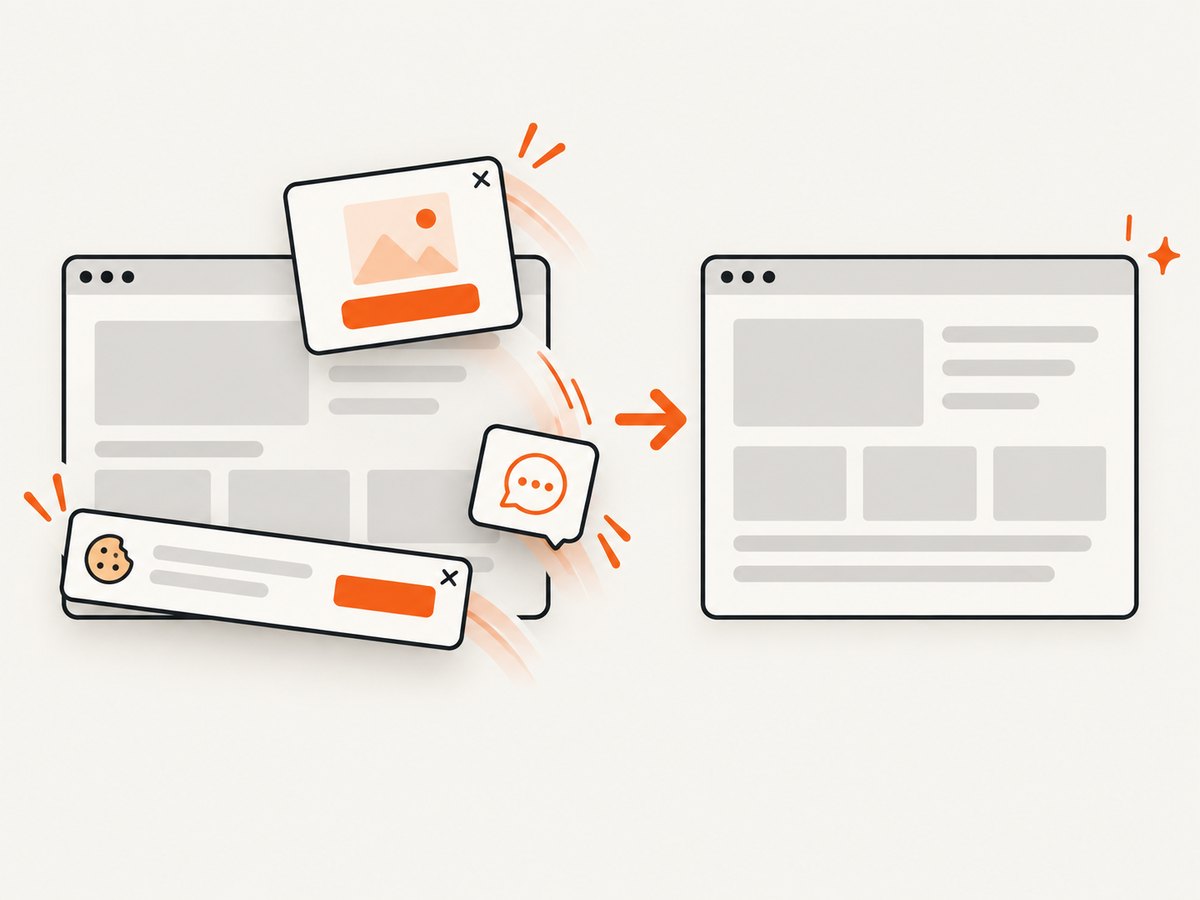
const image = Buffer.from(await res.arrayBuffer());Cookie banners, newsletter popups, and chat widgets are removed before the shot; bot checks, blank pages, failed loads, timeouts, and cache hits are not billed, and response headers identify the page verdict and billing result. An MCP server lets Claude, Cursor, and other MCP clients call take_screenshot, get_page_info, and capture_pdf. The Free plan includes 1,000 screenshots per month with no card; paid plans start at $5 for 3,000 shots. Create a free ScreenshotNeo account.
12. Performance, reliability, and cost checklist
- Choose the smallest correct
bbox. - Measure capture and downstream stages independently.
- Test Retina 1× versus 2× output when applicable.
- Do not enable all monitors or layered windows unless required.
- Document the display backend and Pillow version used by your benchmark.
- Use repeated samples and report image dimensions with timings.
- For web screenshots, account for browser startup, page waits, failed loads, and retries when estimating throughput and cost.
FAQ
Does bbox always make ImageGrab.grab() faster?
No. It always limits the returned image, but the native capture path can still read a larger surface before cropping. Measure on your operating system.
What is the best first optimization?
Replace a full-screen capture with the smallest region the task actually uses, then profile the rest of the pipeline.
Can ImageGrab capture a single window?
Current Pillow documentation supports window for Windows and macOS. Treat it as a capability, then benchmark it against a tight rectangle.
Should I use scale_down=True on every Mac?
Use it when 1× output is sufficient. It changes output scale; Pillow does not promise that it reduces native capture time.
When should I use a web screenshot API instead?
Use one when the input is a URL and you need repeatable browser rendering, page cleanup, PDF output, or server-side automation instead of the local desktop pixels.


