How to Speed Up Rotativa PDF Downloads in Production
Diagnose slow Rotativa PDFs in production by measuring the full pipeline, checking resource loading, and tuning wkhtmltopdf settings safely.
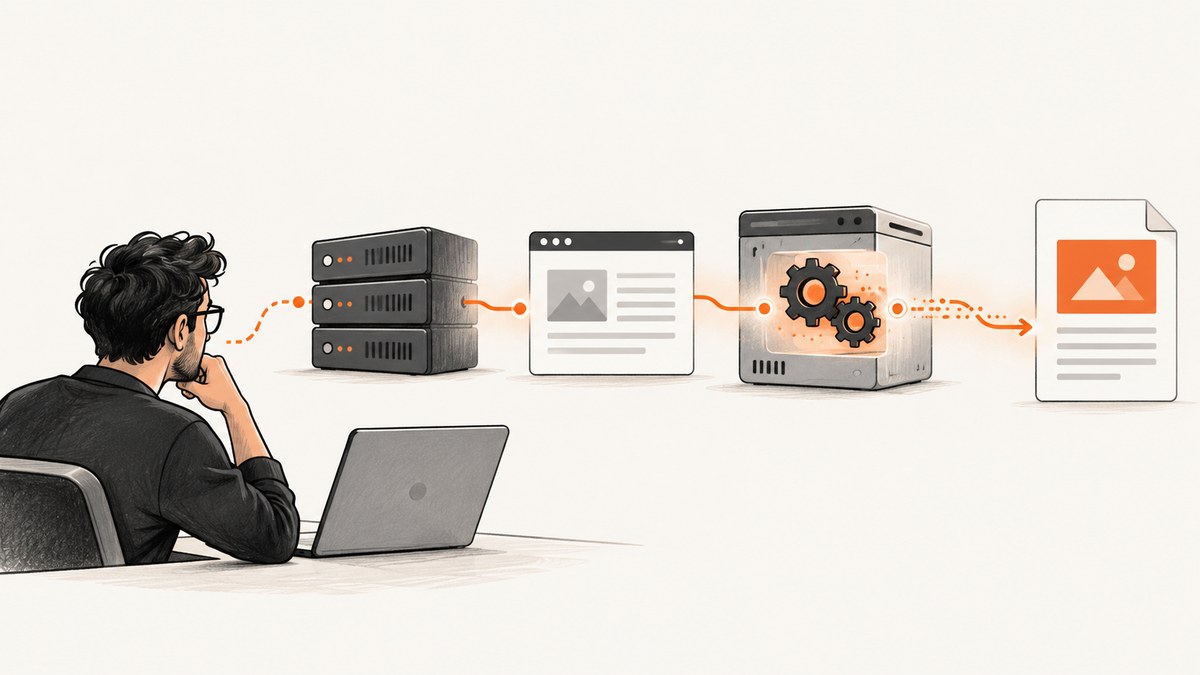
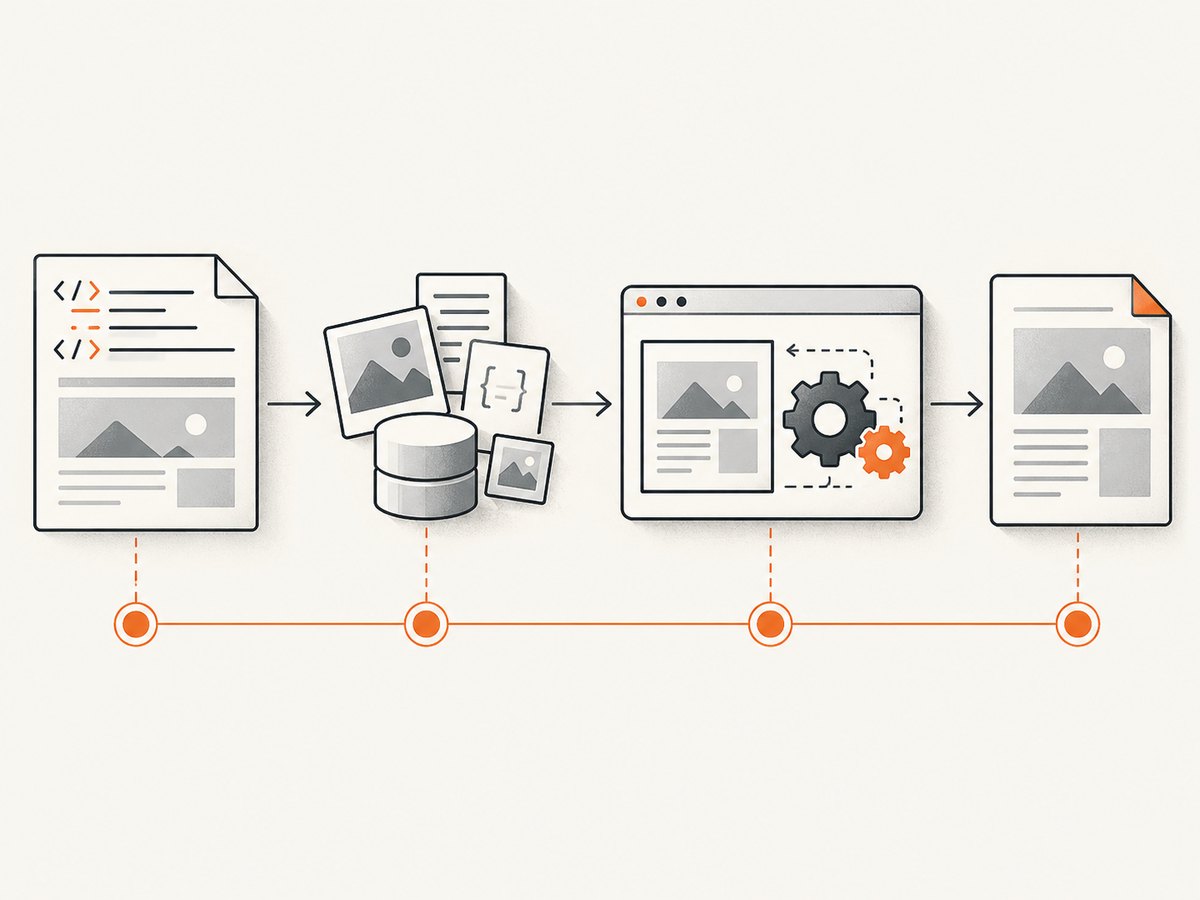
Rotativa wraps wkhtmltopdf to turn a rendered Razor view into a PDF. When downloads take minutes in production, start by measuring the stages: view preparation, resource loading, renderer execution, and delivery to the client. There is no universal Rotativa switch that reliably fixes production latency. A slow PDF can reflect unreachable CSS or images, unnecessary page scripts, a slow renderer process, or an HTTP gateway timeout. Identify the slow stage in the production environment before changing settings.
Rotativa.AspNetCore documents that it converts Razor views to PDFs and requires the wkhtmltopdf executable to be accessible to the application process. Production must have the expected binary, permissions, runtime dependencies, and resource access. [Rotativa.AspNetCore README]
1. Measure where the time goes
Record separate durations for each stage rather than timing only the controller action. That tells you whether to investigate application code, remote assets, wkhtmltopdf, or the HTTP path.
| Stage | What to record | What a delay may suggest |
|---|---|---|
| View and model preparation | Elapsed time before HTML is ready; database or service timings | Slow data access, expensive view logic, or synchronous work |
| HTML rendering | Time to produce the exact HTML passed to Rotativa | View rendering or data preparation overhead |
| Resource loading | CSS, images, fonts, scripts, status codes, hostnames and durations | Bad URLs, DNS or network egress issues, TLS, auth, or slow dependencies |
| Renderer | Process start and exit, duration, exit status, stderr and binary version | Renderer delay, process failure, dependency mismatch, or a stuck process |
| Response | Time from PDF completion to response finish, output size, gateway status | Large output, slow transfer, buffering, or proxy/request limits |
Log request ID, host and OS version, application identity, renderer version, relevant settings, output size, and concurrency with each capture. Avoid recording sensitive document contents or credentials in diagnostic logs. Compare normal requests with slow ones and distinguish cold and warm behavior if caching exists in your application. These measurements are diagnostic data, not a benchmark by themselves.
2. Reproduce the conversion on the production host
Save the generated HTML and its required assets in a controlled, non-sensitive test case. Run the same wkhtmltopdf binary on the production host with the same process identity, arguments, and access to files and networks. Compare the direct process duration with the duration of the full HTTP request.
- Record the exact executable path and version. Confirm the application can execute it under its service account.
- Capture the full command line or Rotativa configuration, the process exit code, stderr, and whether the process exits after conversion.
- Check that production and local environments use the same HTML, assets, base URL, and renderer options.
- Run at representative concurrency. Note CPU and memory pressure, process count, and output size.
- Compare direct conversion with the controller request. If direct conversion is quick but the request is slow, inspect application work, response transfer, and proxy or hosting limits.
Historical reports describe production cases with missing linked CSS and long waits, and a separate community report attributes an improvement to removing unnecessary JavaScript and CSS from a PDF layout. These are useful diagnostic examples, not proof that assets or scripts cause every slow conversion. [wkhtmltopdf issue tracker]
3. Make a PDF-specific view and check every dependency
A browser page often loads analytics, navigation, interactive widgets, web fonts, and scripts that a static PDF does not need. Create a focused PDF layout that includes only content and assets required for the document. Remove an item only after checking that it does not affect the final output.
- Inspect the generated HTML and identify all linked stylesheets, images, fonts, scripts, and frames.
- Check the URLs from the production worker, not just from a developer workstation. Verify DNS, outbound network access, TLS certificates, authentication, and redirects.
- Use stable absolute URLs or a correct base URL for relative references. Confirm that the service identity can read local files that the document needs.
- Look for dependencies that wait on JavaScript or use lazy loading. A page can appear complete in a browser while the renderer still waits or captures before a resource is ready.
- Compare a minimal PDF layout with the full view for both duration and visual correctness.
Inline CSS appearing while linked CSS is missing is a clue to investigate URL resolution and reachability. It is not a reason to silently ignore resource failures: the resulting PDF may be incomplete.
4. Tune wkhtmltopdf options against a measured need
wkhtmltopdf documents controls for JavaScript, post-load delay, slow scripts, resource errors, image loading, and local-file access. Rotativa exposes renderer arguments through its integration and version; check the configuration API for the exact package you use before applying a switch. [wkhtmltopdf usage and settings]
| Option area | When to consider it | Tradeoff to verify |
|---|---|---|
| JavaScript enablement | The PDF layout does not need script-generated content | Disabling it may remove charts, totals, or other rendered content |
| Delay after page load | Known client-side rendering needs a short, predictable wait | A longer delay adds time to every conversion; a shorter delay can capture incomplete output |
| Slow-script handling | A script stalls the renderer and is not required for the PDF | Changing the behavior can hide a broken dependency or alter output |
| Load-error behavior | You have an explicit policy for missing assets and a way to detect failures | Ignoring failures can produce a PDF that looks successful but is missing content |
| Images | The document does not need images, or image loading is the measured bottleneck | Disabling images changes the document; large images can increase render time and file size |
| Local-file access | The PDF needs local resources and the setting is constrained to known files | Broad access increases exposure; do not grant it to untrusted HTML |
Make one change at a time. Compare the output and timings on representative documents, including long pages and documents with images. Keep a rollback path and record the chosen settings with the renderer version. Do not copy a collection of “fast” flags from an unrelated environment without checking what each one does.
5. Diagnose timeouts and hanging processes separately
A request that ends in a 504 is not enough to identify the cause. The renderer may still be working, the application may be waiting on it, or a proxy may have stopped waiting. Historical issue reports include a shared-hosting 504 and an IIS hanging-process report, but neither establishes a universal root cause. [wkhtmltopdf issue tracker]
Compare the renderer’s measured start-to-exit duration with application logs and gateway logs. Check whether the process exits, whether a timeout cancels it, and whether abandoned conversions accumulate. Set request and process timeouts deliberately for your workload, and ensure timed-out work is cleaned up rather than left consuming resources. If the direct command also hangs, investigate the HTML, resources, binary, host dependencies, and process identity. If it completes promptly, investigate the application and HTTP path.
6. Check deployment compatibility and security
Do not assume the production executable matches your workstation. Record its version and platform and verify runtime libraries, file permissions, process limits, and deployment packaging. The wkhtmltopdf downloads page lists 0.12.6 as its stable series with a June 11, 2020 release date; because that project page may be stale, verify the current release state before making a deployment decision. The project status page also describes its Qt/WebKit foundations as old. [wkhtmltopdf downloads] [wkhtmltopdf status]
The project warns against using wkhtmltopdf with untrusted HTML. HTML rendering can involve local and network resources, so treat user-supplied HTML and URLs as untrusted input. Restrict what the rendering process can access, run it with limited privileges, and review the project’s confinement guidance for your host. Its AppArmor notes discuss confinement and point to SELinux for Red Hat systems. [wkhtmltopdf security warning] [AppArmor guidance]
7. Improve throughput without hiding failures
Once one conversion is understood, measure throughput at realistic concurrency. Multiple renderer processes can compete for CPU and memory, and large image-heavy PDFs can make both rendering and transfer slower. There is no source-supported universal concurrency limit or speed target; determine safe limits for your host and document sizes.
- Track queue depth, process count, CPU, memory, duration, error rate, and output bytes.
- Cap concurrent conversions based on observed resource use. Queue excess work rather than allowing unbounded process creation.
- Separate transient failures from invalid input and renderer errors. Retry only failures that are safe to retry, and avoid retry storms.
- Keep representative fixtures so a performance or configuration change can be checked for fidelity.
- Consider whether the request needs a synchronous download. For long jobs, a queued workflow may provide a more reliable user experience, depending on the application.
8. Compare alternatives with a representative template
If the renderer’s compatibility, maintenance, deployment, or security profile does not fit your workload, compare alternatives with the same Razor output and assets. Evaluate fidelity, cold and warm latency under realistic concurrency, deployment dependencies, access to local and network resources, monitoring and failure recovery, data handling, and total cost. These are evaluation criteria, not claims that a particular alternative is faster.
Rotativa.AspNetCore identifies Rotativa.io as a hosted API that avoids running the conversion process on your application server. Verify its current capabilities, terms, data handling, and costs directly; the README alone does not establish current pricing or service guarantees. [Rotativa.AspNetCore README]
Or skip the browser setup
For website screenshots or a page capture that can be represented as an image, ScreenshotNeo provides a screenshot API and MCP server. It does not replace a general Razor-to-PDF conversion workflow; its API returns screenshots or PDFs of web pages. The example below requests a screenshot of the page URL:

curl -G "https://api.screenshotneo.com/v1/shot" -d access_key=YOUR_API_KEY --data-urlencode url=https://stripe.com -o shot.webpSee the ScreenshotNeo API documentation for request options. Cookie banners, popups, and chat widgets are removed before the shot. Bot checks, blank pages, and failed loads are never billed. Its MCP server lets AI agents take screenshots. The free plan includes 1,000 screenshots a month with no card; paid plans start at $5 for 3,000. Sign up for free and try 1,000 screenshots a month with no card.
Troubleshooting checklist
| Symptom | Likely causes to check | Next step |
|---|---|---|
| Fast locally, minutes in production | Different binary, resource reachability, host limits, process identity, or production load | Compare versions and run the saved conversion on the production host under the service identity |
| PDF arrives without linked CSS | Bad base URL, blocked outbound request, TLS/DNS issue, auth requirement, or inaccessible file | Check resource requests from the production worker; test with a PDF-specific layout and explicit URLs |
| PDF is incomplete after scripts are disabled | Required content was generated by JavaScript | Restore scripts or render required content server-side; verify the final output |
| Long delay followed by a 504 | Renderer duration, app timeout, gateway timeout, or stalled resource | Correlate process, application, and proxy timestamps; do not infer the source from status code alone |
| Processes remain after requests end | Hung conversion, cancellation not propagated, or process cleanup issue | Capture process state and stderr; inspect lifecycle behavior and prevent unbounded accumulation |
| Intermittent failures under load | Resource contention, too many concurrent processes, or unstable dependencies | Measure concurrency and host resources; bound work and monitor queue depth |
| Local images fail in production | Different working directory, permissions, path, or local-file policy | Use a controlled absolute path and least-privilege access; avoid broad local access |
Frequently asked questions
Will upgrading Rotativa automatically make PDFs faster?
Not necessarily. Measure the renderer and resource stages first, then compare versions with the same templates and host conditions. Confirm compatibility and output fidelity before deploying a change.
Should I turn off JavaScript for every PDF?
Only when the document does not depend on client-side rendering. Test the generated PDF for missing charts, totals, or other script-generated content.
Is wkhtmltopdf 0.12.6 definitely the latest version?
The cited downloads page lists 0.12.6 and a 2020 release date, but the page may be stale. Check the project’s current release information before treating it as current.
When should I move conversion off the web request?
Consider a queued or hosted workflow when measured conversion time, concurrency, or request timeouts make synchronous downloads unreliable. Compare security, data handling, fidelity, operations, and cost for your actual workload.


