How to Speed Up Selenium Screenshots in Node.js
Measure each screenshot stage, capture only what you need, and tune waits, viewports and Base64 handling for faster Selenium screenshots in Node.js.
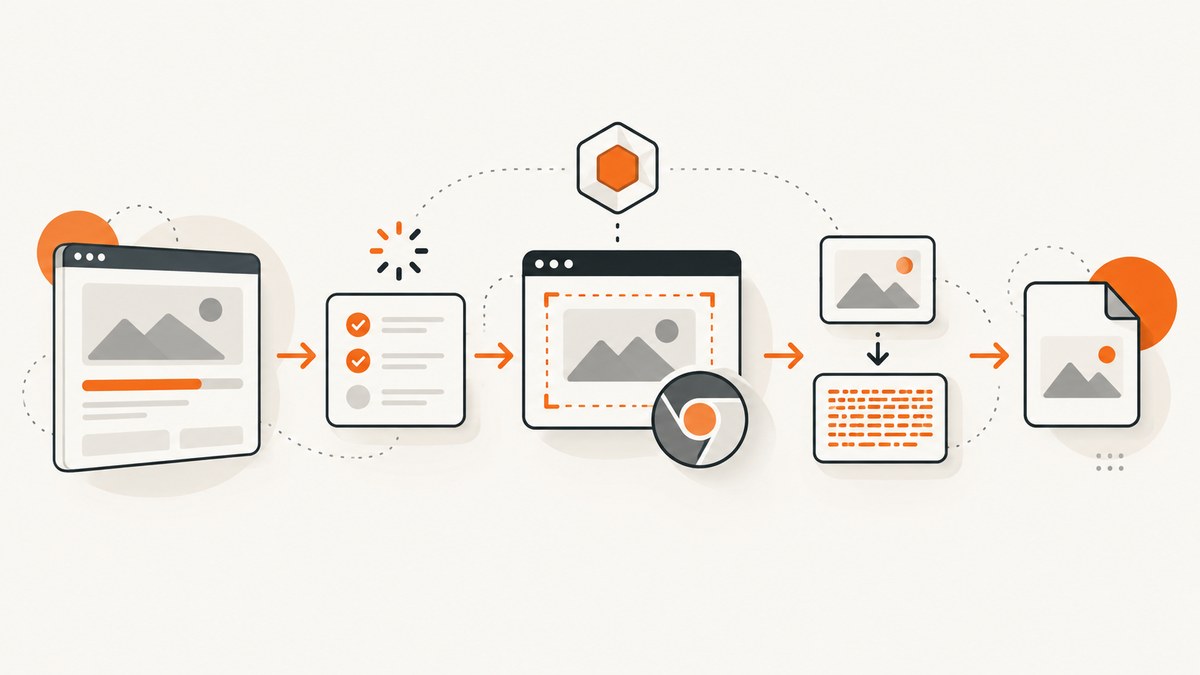
Fast Selenium screenshots come from measuring the whole pipeline. Time page readiness, the WebDriver screenshot call, Base64 handling and file output separately. Then capture a smaller scope, use the smallest correct viewport, replace unnecessary sleeps with a precise readiness condition, and avoid copying image data through extra formats. Selenium returns a Base64-encoded image, so browser capture and Node.js processing are separate costs.
There is no universal fastest browser, driver or headless setting. The best change depends on your page, viewport, remote-driver distance, output size and correctness requirements. The workflow below gives you a repeatable way to find the bottleneck without sacrificing content.
1. Measure the screenshot pipeline before changing it
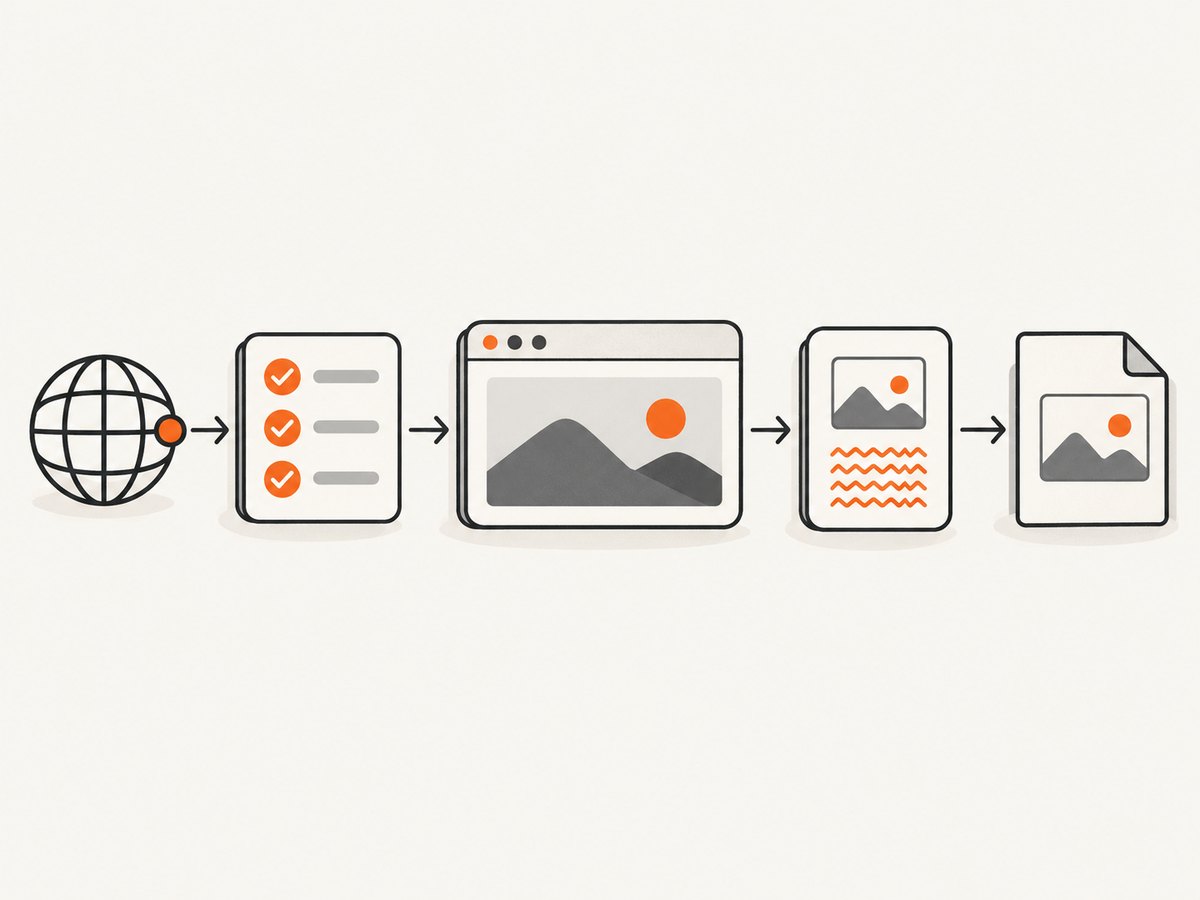
Use a monotonic clock and record each stage independently. Keep browser and driver versions, headless or headed mode, viewport, screenshot scope, image dimensions and output destination with every run. Compare repeated runs using a median and a spread; one unusually fast capture is not a benchmark.
const { Builder, By, until } = require('selenium-webdriver');
const chrome = require('selenium-webdriver/chrome');
const fs = require('node:fs');
const { performance } = require('node:perf_hooks');

async function main() {
  const options = new chrome.Options()
    .addArguments('--headless=new', '--window-size=1280,900');

  const driver = await new Builder()
    .forBrowser('chrome')
    .setChromeOptions(options)
    .build();

  const timings = {};
  try {
    let t = performance.now();
    await driver.get('https://example.com/dashboard');
    timings.navigationMs = performance.now() - t;

    t = performance.now();
    await driver.wait(until.elementLocated(By.css('[data-ready="true"]')), 15000);
    timings.readinessMs = performance.now() - t;

    t = performance.now();
    const base64 = await driver.takeScreenshot();
    timings.screenshotMs = performance.now() - t;

    t = performance.now();
    fs.writeFileSync('dashboard.png', base64, 'base64');
    timings.writeMs = performance.now() - t;

    console.log({ timings, bytes: fs.statSync('dashboard.png').size });
  } finally {
    await driver.quit();
  }
}

main().catch(err => { console.error(err); process.exitCode = 1; });
The WebDriver screenshot endpoint returns Base64 data, so time decoding, allocation, transfer and writing separately from the browser operation. Selenium’s JavaScript examples use await driver.takeScreenshot() and write the returned Base64 with Node’s filesystem API. See the Selenium screenshot documentation.
2. Capture only the pixels you need
A full viewport screenshot does more work than an element screenshot when the requirement is a card, chart or header. Selenium supports screenshots on a located element:
const element = await driver.findElement(By.css('#revenue-chart'));
const base64 = await element.takeScreenshot(true);
require('node:fs').writeFileSync('chart.png', base64, 'base64');
Use element capture when you do not need surrounding layout. Verify the crop on your browser and driver combination: screenshot behavior can vary, and nonconformant drivers are best effort according to Selenium’s TakesScreenshot API.
| Requirement | Capture choice | Checks |
|---|---|---|
| One component | element.takeScreenshot(true) |
Crop, borders, shadows and overflow |
| Visible page | driver.takeScreenshot() |
Viewport dimensions and responsive breakpoints |
| Long document | Full-page method supported by your driver or application | Lazy images, sticky headers and duplicated content |
3. Set the smallest correct viewport
Viewport dimensions affect layout, image size and rendering work. Set a consistent viewport that matches the requirement instead of using a larger window by habit.
const options = new chrome.Options()
  .addArguments('--headless=new', '--window-size=1024,768');
Chrome documents the same idea for its headless CLI with --window-size=412,892. That CLI reference demonstrates capability, not a WebDriver speed benchmark; measure your own workload. A smaller viewport can also trigger a different responsive layout, so check that the result is still the intended image.
4. Replace fixed sleeps with a valid readiness condition
A long sleep delays every capture, while an early capture can miss fonts, images or application updates. Wait for the specific state required by the image.
await driver.get('https://example.com/report');
await driver.wait(until.elementLocated(By.css('.report-chart')), 15000);
await driver.wait(async () => {
  return driver.executeScript(() => document.fonts ? document.fonts.status === 'loaded' : true);
}, 10000);
await driver.wait(async () => {
  return driver.executeScript(() => {
    const el = document.querySelector('.report-chart');
    return el && el.getBoundingClientRect().width > 0;
  });
}, 10000);
const image = await driver.takeScreenshot();
Use a fixed delay only when the page has no observable readiness signal. Chrome’s headless CLI has a --timeout maximum wait option; with Selenium, implement an equivalent bounded wait and fail clearly when the condition never arrives.
Readiness checklist
- Wait for the selector that proves the required component exists.
- Wait for data rendering, not only the initial DOM node.
- Ensure fonts are loaded when text metrics matter.
- Account for lazy-loaded images and scrolling if they are in scope.
- Freeze or disable animations when intermediate frames are unacceptable.
- Keep a timeout so a broken page does not hold the queue forever.
5. Keep Base64 and file handling lean in Node.js
Selenium gives Node.js a Base64 string. If the next step is a file, decode once directly to disk. If it needs bytes, convert once to a Buffer. Avoid Base64-to-data-URL-to-Buffer-to-Base64 cycles and unnecessary JSON copies.
const base64 = await driver.takeScreenshot();
// File output: one decode performed by the filesystem API.
fs.writeFileSync('shot.png', base64, 'base64');

// Byte output: keep one Buffer for downstream processing.
const bytes = Buffer.from(base64, 'base64');
await upload(bytes);
Benchmark filesystem writes, network uploads and image transformations in your actual workload. The Selenium documentation establishes the Base64 response format but does not rank Node.js buffering strategies.
6. Separate cold and warm runs
Browser startup, driver creation, navigation and screenshot capture have different costs. For repeated captures, keep one driver session alive when isolation and resource limits allow it, then measure navigation and capture independently from startup.
async function captureMany(driver, urls) {
  for (const url of urls) {
    await driver.get(url);
    await driver.wait(until.elementLocated(By.css('main')), 15000);
    const image = await driver.takeScreenshot();
    fs.writeFileSync(`shots/${encodeURIComponent(url)}.png`, image, 'base64');
  }
}
A persistent session reduces repeated setup work, but clean up sessions and limit concurrency. Too many simultaneous browsers can increase CPU, memory pressure and queue time. Measure one-at-a-time, a small pool and your production concurrency separately.
7. A complete optimized Selenium example
Install Selenium’s Node.js bindings and ensure Chrome and a compatible driver are available:
npm install selenium-webdriverconst { Builder, By, until } = require('selenium-webdriver');
const chrome = require('selenium-webdriver/chrome');
const fs = require('node:fs');
const { performance } = require('node:perf_hooks');
async function screenshot() {
const options = new chrome.Options()
.addArguments('--headless=new', '--window-size=1280,900');
const driver = await new Builder().forBrowser('chrome').setChromeOptions(options).build();
try {
const start = performance.now();
await driver.get('https://example.com');
const afterNavigation = performance.now();
const target = await driver.wait(
until.elementLocated(By.css('main')),
15000,
'main content did not appear'
);
await driver.wait(async () => driver.executeScript(
el => el.getBoundingClientRect().width > 0 && el.getBoundingClientRect().height > 0,
target
), 10000, 'main content is not visible');
const afterReady = performance.now();
const base64 = await target.takeScreenshot(true);
const afterCapture = performance.now();
fs.writeFileSync('main.png', base64, 'base64');
const afterWrite = performance.now();
console.log({
navigationMs: afterNavigation - start,
readinessMs: afterReady - afterNavigation,
screenshotMs: afterCapture - afterReady,
writeMs: afterWrite - afterCapture,
totalMs: afterWrite - start
});
} finally {
await driver.quit();
}
}
screenshot().catch(error => {
console.error(error);
process.exitCode = 1;
});8. Troubleshooting slow or incorrect screenshots
| Symptom | Likely cause | Fix |
|---|---|---|
| Most time is before capture | Navigation, network, JavaScript or an overly broad wait | Time navigation and readiness separately; wait for the required selector and inspect network or application state. |
| Screenshot call is slow | Large viewport, large page, remote WebDriver transport or browser resource pressure | Capture an element, reduce the required viewport, check driver location and compare a warm session. |
| File writing dominates | Large Base64 image or slow destination | Write once, avoid representation changes, and measure local disk versus remote storage. |
| Blank or partially rendered image | Capture raced fonts, data, lazy images or animations | Add a bounded condition for the actual content, wait for fonts, scroll/load lazy content and disable animations where appropriate. |
| Element not found | Wrong selector, iframe, shadow DOM or late rendering | Wait for the element, switch to the correct frame, use the component’s stable selector or expose a readiness marker. |
| Timeout errors | Page or readiness condition never completes | Set an explicit timeout, capture diagnostics, and treat the URL as failed instead of sleeping indefinitely. |
| Different crop across environments | Browser/driver differences, viewport or device scale changes | Pin compatible versions, set the viewport explicitly and validate the chosen screenshot API. |
| Flaky results | Animations, rotating content, ads or nondeterministic data | Freeze time/data where possible, hide unstable elements and capture only after a deterministic state. |
| Memory growth in long jobs | Too many concurrent browsers or sessions not closed | Bound concurrency, reuse sessions carefully, call quit() on every error path and monitor process memory. |
9. Reliability and correctness checks
- Record URL, browser version, driver version, viewport, mode, scope and timings with each capture.
- Validate output existence, byte size, dimensions and expected selectors before publishing it.
- Retry transient navigation or remote-driver failures with a limit and backoff; do not hide deterministic selector or authentication errors.
- Keep screenshots from failed runs for diagnosis when storage permits.
- Use separate browser profiles or sessions when cookies and local storage can affect the image.
- Check authentication, consent banners, bot checks and rate limits before interpreting a slow page as a screenshot bottleneck.
10. Performance and cost considerations
Measure the full cost you operate: browser CPU and memory, driver transport, navigation bandwidth, image bytes, storage and any remote WebDriver charges. A smaller crop may reduce transfer and storage, while a shorter wait can reduce latency only if the resulting image remains correct. Do not assume headless mode, a specific browser or a particular driver is universally fastest; compare repeated runs in the same environment.
11. Or skip the browser setup
ScreenshotNeo provides a website screenshot API and MCP server. One GET request returns a PNG, JPEG, WebP or PDF. Cookie and consent banners are accepted and removed before capture, along with 60+ known consent platforms, newsletter popups and chat widgets; each step can be turned off. Bot checks, blank pages, timeouts, failed loads and cache hits are not billed, and response headers identify the page verdict and billing status.
See the ScreenshotNeo API documentation for all options, including full-page screenshots with lazy images, element capture by CSS selector, dark mode, device presets, custom viewports, retina scale, waits, request blocking, headers, cookies, user agents, authorization, timezone, geolocation, custom CSS and JavaScript, caching, signed links, asynchronous jobs, bulk capture and usage data.
curl -G "https://api.screenshotneo.com/v1/shot" -d access_key=YOUR_API_KEY --data-urlencode url=https://stripe.com -o shot.webpimport requests
r = requests.get("https://api.screenshotneo.com/v1/shot", params={"access_key": "YOUR_API_KEY", "url": "https://stripe.com"}, timeout=90)
open("shot.webp", "wb").write(r.content)const q = new URLSearchParams({ access_key: 'YOUR_API_KEY', url: 'https://stripe.com' });
const res = await fetch(`https://api.screenshotneo.com/v1/shot?${q}`);An MCP server lets Claude, Cursor and other MCP clients call take_screenshot, get_page_info and capture_pdf. The Free plan includes 1,000 screenshots each month with no card; paid plans start at $5 for 3,000 shots, and every feature is available on every plan.
Create a free ScreenshotNeo account and get 1,000 screenshots a month with no card.
12. FAQ
Does headless Chrome always make Selenium screenshots faster?
No. It changes the execution environment, but the result depends on the page, browser, driver and machine. Compare repeated cold and warm runs.
Should I use a fixed sleep or an explicit wait?
Prefer an explicit, bounded condition tied to the content required in the image. Use a fixed delay only when no reliable readiness signal exists.
Why does Node.js receive a string instead of image bytes?
The WebDriver screenshot endpoint returns Base64. Decode it once when writing a file or convert it once to a Buffer for byte-based processing.
When is an element screenshot better than a full screenshot?
When the deliverable is one component and does not need surrounding page context. Confirm the crop and browser behavior meet your visual requirements.
How should I report screenshot speed?
State the browser and driver versions, mode, viewport, capture scope, readiness rule, environment and output destination, then report repeated-run medians and spread.
Can I avoid paying for failed captures with an API?
ScreenshotNeo does not bill bot checks, blank pages, timeouts, failed loads or cache hits, and returns verdict and billing headers with each response.


