How to Speed Up Slow Selenium Screenshots in Python
Find the slow stage in Selenium screenshots, measure it correctly, and choose faster workflows without changing the image you need.
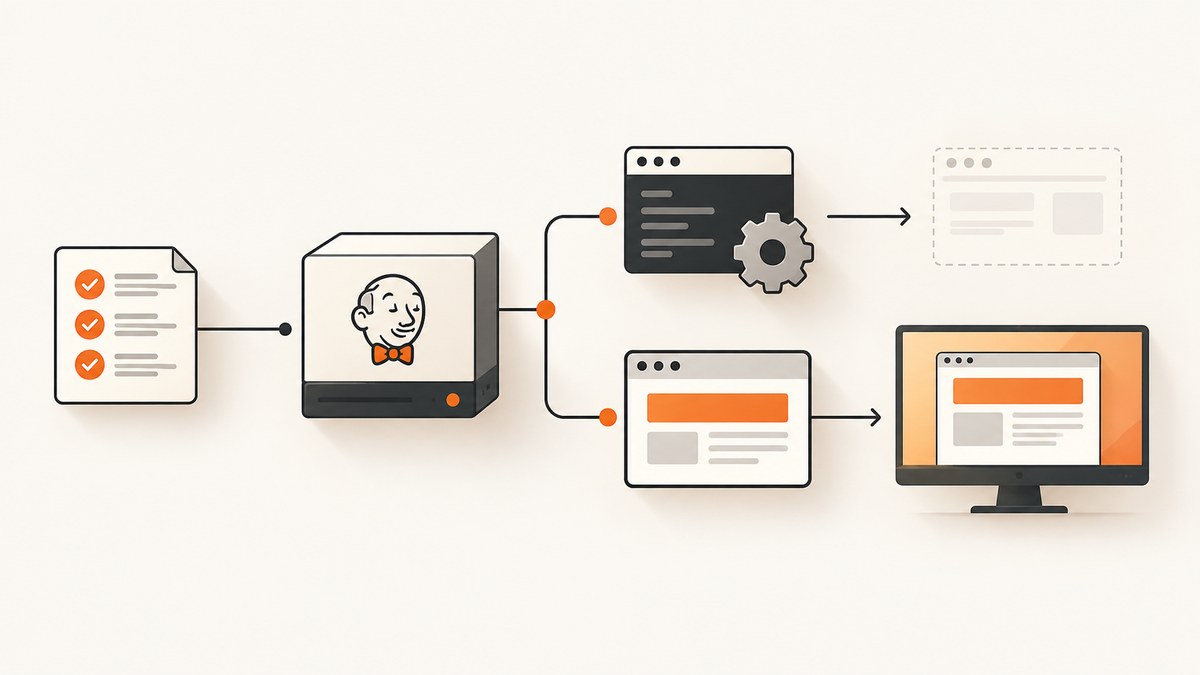
Selenium screenshots feel slow for different reasons: the page may still be loading, the WebDriver command may be slow, or your code may spend time writing, converting, compressing, uploading, or attaching the image after capture. The reliable way to speed up the workflow is to measure those stages separately, keep the requested image constant, and optimize the stage that actually dominates.
Selenium’s Python API provides PNG bytes, base64 text, and PNG-file methods for a screenshot of the current browser window. The API does not publish a universal screenshot latency target, so there is no safe “this method is always faster” switch. Establish a baseline on your own page and environment first.
1. Measure the slow Selenium screenshot correctly
Before changing code, record the browser and driver versions, Selenium version, operating system, local or remote session, viewport dimensions, page state, screenshot method, destination, and number of repetitions. A screenshot of a large page, a remote browser, and a local headless browser are different workloads.

Use a monotonic clock and time each stage:
- Navigation and page readiness, if included in your workflow.
- The WebDriver screenshot command.
- Image decoding, resizing, or compression.
- Filesystem writing.
- Uploading or attaching the image to a report.
The file API performs the write internally, so it cannot tell you how much time was spent capturing versus writing. Retrieve PNG bytes when you need a stage boundary.
from __future__ import annotations

import statistics
import time
from pathlib import Path
from selenium import webdriver
from selenium.webdriver.chrome.options import Options

URL = "https://example.com"
REPETITIONS = 5
OUT_DIR = Path("shots")
OUT_DIR.mkdir(exist_ok=True)

options = Options()
options.add_argument("--headless=new")
options.add_argument("--window-size=1440,900")

driver = webdriver.Chrome(options=options)
try:
    driver.get(URL)
    # Make page state consistent before every comparison.
    driver.set_window_size(1440, 900)

    capture_times = []
    write_times = []
    for index in range(REPETITIONS):
        started = time.perf_counter()
        png_bytes = driver.get_screenshot_as_png()
        captured = time.perf_counter()

        (OUT_DIR / f"shot-{index}.png").write_bytes(png_bytes)
        finished = time.perf_counter()

        capture_times.append(captured - started)
        write_times.append(finished - captured)

    print(f"capture mean: {statistics.mean(capture_times):.4f}s")
    print(f"write mean:   {statistics.mean(write_times):.4f}s")
finally:
    driver.quit()
This script measures byte retrieval and file writing separately. It does not claim that get_screenshot_as_png() is intrinsically faster than save_screenshot(); it makes the stages visible so you can test an equivalent workflow.
2. Pick the output that matches the next step
The common Python WebDriver API documents these forms:
| Method | Result | Use it when |
|---|---|---|
get_screenshot_as_png() |
PNG bytes | You will upload, hash, inspect, or transform the image in Python. |
get_screenshot_as_base64() |
Base64 text | You actually need to embed the image in HTML or another text payload. |
get_screenshot_as_file(path) |
Boolean success value | You need a PNG file and do not need to separate capture from the write. |
save_screenshot(path) |
Alias of the file method | Your existing code uses the conventional name. |
Selenium’s API reference describes file methods as saving PNG data and returning True or False for I/O success. The current Python implementation retrieves PNG bytes, opens the requested path in binary mode, writes the bytes, and returns False on an OSError; save_screenshot delegates to that method. Treat implementation details as version-sensitive and verify them against your installed release. See the Selenium Python WebDriver API reference and the Selenium Python source.
Use a file when a file is the actual requirement
ok = driver.get_screenshot_as_file("artifacts/login.png")
if not ok:
    raise OSError("Selenium could not write the screenshot")
Use a .png filename. Selenium warns when the extension is not PNG, and the standard API returns PNG output.
Use bytes for uploads and image processing
png = driver.get_screenshot_as_png()
# Pass png directly to an HTTP client, object-storage SDK, or image decoder.
Keeping bytes in memory avoids an unnecessary temporary file when the next operation accepts bytes. Measure it in your environment rather than assuming a speed improvement.
Use base64 only for text embedding
import base64

encoded = driver.get_screenshot_as_base64()
html = f'<img src="data:image/png;base64,{encoded}">'
Base64 increases payload size. It is appropriate when the receiving format requires text, not as a general performance setting.
3. Make the comparison fair
Changing the image changes the work. Keep the viewport, browser, page state, device scale, and required output fixed while comparing methods.
- Set a known window size with
set_window_size(width, height)and verify it withget_window_size(). - Use the same browser and driver binary for every trial.
- Run the same number of repetitions and report mean and spread, not one lucky call.
- Warm up the session before recording samples.
- Decide whether navigation, waits, and JavaScript setup belong inside the measured interval.
- Do not compare a viewport PNG with a full-document image.
The Selenium API documents window dimension controls; it does not rank screenshot routes by speed. Window size is a test condition you must hold constant, not a published optimization.
4. Viewport versus full-page screenshots
The general WebDriver screenshot API describes the current window. If you need the entire document, confirm that your browser-specific driver supports it and benchmark that path separately.
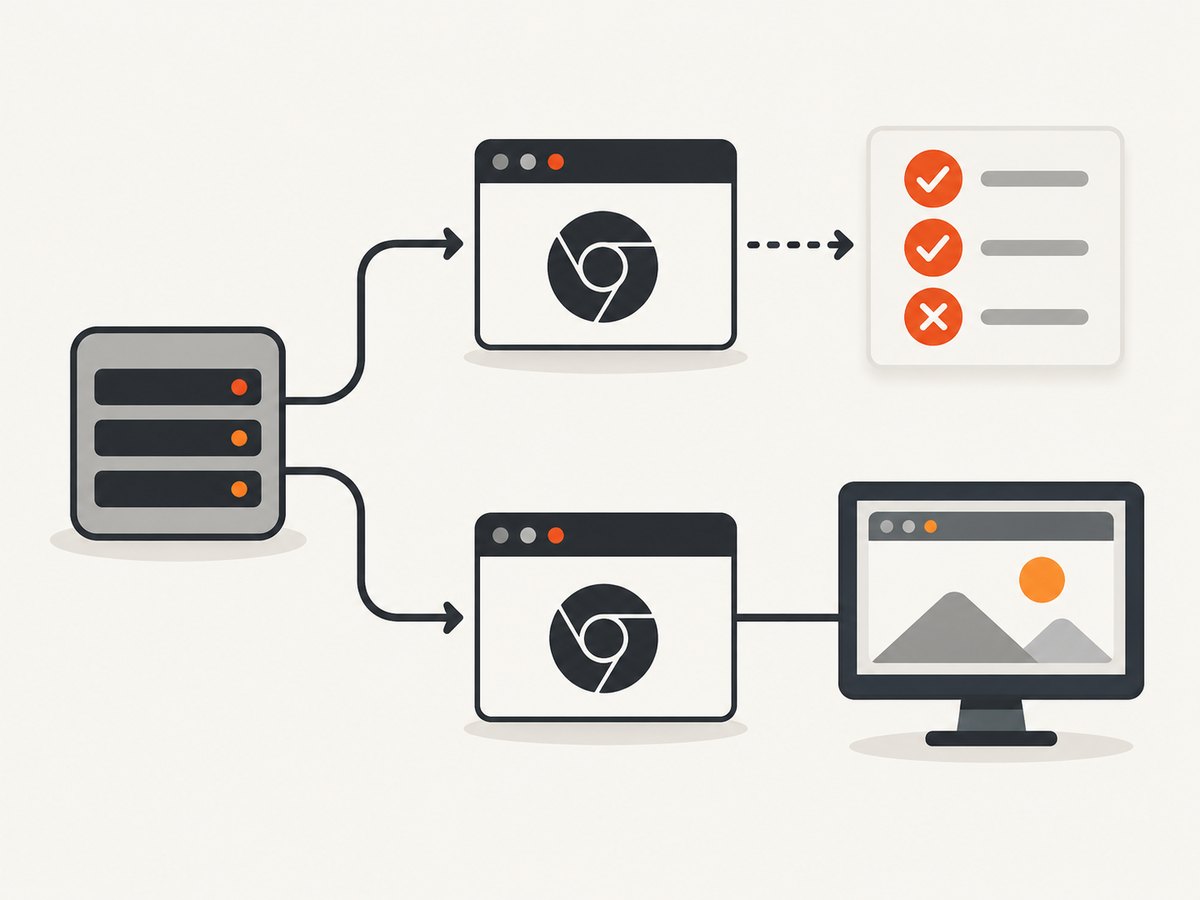
Firefox’s Python API documents get_full_page_screenshot_as_file, save_full_page_screenshot, and full-page PNG and base64 variants. Those methods are Firefox-specific documentation entries; do not assume identical full-page behavior for every browser. See the Firefox WebDriver API reference.
# Firefox-specific full-document API; verify support in your Selenium release.
full_page = driver.get_full_page_screenshot_as_png()
with open("full-page.png", "wb") as output:
    output.write(full_page)
Full-page captures can involve a substantially taller image and more browser work. If a viewport image satisfies the requirement, do not silently switch to a full-page capture while chasing a timing number.
5. Check page readiness before blaming screenshots
A screenshot command can be quick while the overall workflow is slow because the page is not ready. Define readiness explicitly for your application:
from selenium.webdriver.common.by import By
from selenium.webdriver.support.ui import WebDriverWait

wait = WebDriverWait(driver, 20)
driver.get("https://example.com/dashboard")
wait.until(lambda d: d.execute_script("return document.readyState") == "complete")
wait.until(lambda d: d.find_element(By.CSS_SELECTOR, "main.dashboard"))

started = time.perf_counter()
png = driver.get_screenshot_as_png()
print(f"capture: {time.perf_counter() - started:.4f}s")
Use a selector that represents usable content rather than an arbitrary sleep. If the page intentionally streams data or lazy-loads images, document that state and keep it identical across runs.
6. Remote sessions, uploads, and report attachments
With a remote WebDriver session, the screenshot response travels from the browser to the client. Your measured time can include network latency and server queueing. Capture locally and upload later if you need to distinguish those costs, or time the upload as a separate stage.
started = time.perf_counter()
png = driver.get_screenshot_as_png()
capture_finished = time.perf_counter()

# Example boundary only; use your own HTTP client or storage SDK.
response = upload_png(png)
upload_finished = time.perf_counter()

print("webdriver capture:", capture_finished - started)
print("upload:", upload_finished - capture_finished)
Do not reduce image dimensions or quality unless the consumer allows it. A smaller artifact may transfer faster but is not an equivalent screenshot for visual regression, audit evidence, or pixel comparison.
7. WebDriver BiDi: an option to benchmark, not a promise
Selenium’s remote WebDriver documentation shows a WebDriver BiDi browsing-context capture_screenshot route. API availability does not establish a speed advantage. Confirm browser and session support, then compare it with your current method on the same page, viewport, and output requirement. See the Selenium BiDi API documentation.
# API shape can vary with Selenium and browser support; verify your installed version.
result = driver.browsing_context.capture_screenshot()
# Inspect the returned value in your version before writing it.
Keep this experiment isolated. If the route is unavailable, fall back to the standard WebDriver screenshot API and record the unsupported capability.
8. Troubleshooting slow or failing screenshots
| Symptom | Likely cause | Fix |
|---|---|---|
| The whole test is slow, but capture timing is low | Navigation, waits, JavaScript, or image upload is included. | Time navigation, readiness, capture, processing, and upload separately. |
save_screenshot returns False |
Filesystem I/O failed. | Check the directory, permissions, path, disk space, and filename; catch and log the result. |
| Output is unexpectedly cropped | You captured the current viewport, not the full document. | Decide whether viewport or full-page output is required; use a browser-supported full-page API where appropriate. |
| Timings vary widely | Page state, network, cache, browser startup, or remote queueing varies. | Warm up, fix dimensions, stabilize readiness, increase repetitions, and report the environment. |
| Screenshot is blank | Capture happened before content rendered, or the page failed. | Wait for a meaningful selector and inspect browser logs, navigation errors, and page state. |
| BiDi call is missing | Browser, driver, or Selenium version lacks the capability. | Check support for the exact installed versions and benchmark the standard route instead. |
| Base64 payload is large | Base64 expands binary data and embeds it in text. | Use PNG bytes or a file when the receiver supports binary data. |
9. A repeatable benchmark checklist
- Choose one representative slow page and define the required image: viewport or full document, dimensions, and format.
- Record Selenium, browser, driver, OS, local or remote mode, and window size.
- Warm up the browser and run several repetitions.
- Measure readiness, WebDriver capture, file writing, transformation, and upload separately.
- Compare one variable at a time: output form, browser route, local versus remote session, or page readiness strategy.
- Keep the page state and dimensions fixed.
- Save raw timings and report only results from the tested environment.
- Recheck version-sensitive APIs after upgrading Selenium or the browser.
10. Or skip the browser setup
If your goal is a clean image rather than browser automation, ScreenshotNeo provides a website screenshot API. One GET request returns PNG, JPEG, WebP, or PDF output. Its capture flow accepts cookie and consent banners like a visitor, then removes more than 60 known consent platforms plus newsletter popups and chat widgets before the shot. Each step can be turned off.
Only clean shots are billed. Bot checks or CAPTCHAs, blank pages, timeouts, failed loads, and cache hits cost nothing, and response headers identify the page verdict and whether it was billed. ScreenshotNeo also offers an MCP server with take_screenshot, get_page_info, and capture_pdf for Claude, Cursor, and other MCP clients.
See the ScreenshotNeo API documentation for the complete option list. The basic Python call is:
import requests

r = requests.get(
    "https://api.screenshotneo.com/v1/shot",
    params={
        "access_key": "YOUR_API_KEY",
        "url": "https://stripe.com",
    },
    timeout=90,
)
r.raise_for_status()
open("shot.webp", "wb").write(r.content)
Equivalent cURL:
curl -G "https://api.screenshotneo.com/v1/shot" \
  -d access_key=YOUR_API_KEY \
  --data-urlencode url=https://stripe.com \
  -o shot.webp
Equivalent Node.js:
const q = new URLSearchParams({
  access_key: 'YOUR_API_KEY',
  url: 'https://stripe.com'
});
const res = await fetch(`https://api.screenshotneo.com/v1/shot?${q}`);
if (!res.ok) throw new Error(`HTTP ${res.status}`);
const fs = await import('node:fs/promises');
await fs.writeFile('shot.webp', Buffer.from(await res.arrayBuffer()));
ScreenshotNeo options relevant to slow capture workflows
- Full-page capture with lazy images loaded, or one element selected by CSS.
- Dark mode, 12 device presets, custom viewport, and retina scale.
- Wait for a selector, a delay, or network idle.
- Custom CSS and JavaScript, click an element, and hide selectors.
- Block ads, trackers, requests, or resource types.
- Custom headers, cookies, user agent, Authorization, timezone, and geolocation.
- Transparent backgrounds, image resizing, and a cache TTL you choose.
- PDF paper size, margins, landscape mode, and page ranges.
- Async jobs with signed webhooks, bulk capture for up to 100 URLs per call, signed links for public
<img>tags, a usage API, and an OpenAPI specification.
Parameter names used by other screenshot APIs also work, which can simplify migration. The Free plan includes 1,000 shots per month with no card. Paid plans start at $5 for 3,000 shots; every feature is available on every plan, and yearly billing gives two months free. Create a free ScreenshotNeo account.
11. Performance, reliability, and cost notes
Selenium gives you control of the browser, which is useful when a test must interact with application state. That control also means you own browser startup, driver compatibility, page readiness, network conditions, screenshot transfer, and artifact storage. A hosted screenshot endpoint can remove browser setup from a service that only needs rendered images, but you should still define timeouts, retries, cache policy, and the exact image requirement.
For Selenium, avoid making claims from one machine. A local result can change with browser version, CPU load, page cache, remote session distance, and image dimensions. For ScreenshotNeo, inspect X-Page-Verdict and X-Billed on responses so your cost accounting distinguishes clean shots from non-billable failures and cache hits.
FAQ
Is get_screenshot_as_png() faster than save_screenshot()?
The reviewed Selenium documentation and source describe different output handling, not a universal speed ranking. Measure capture and writing separately for your workload.
Why does changing the window size change timing?
It changes the image dimensions and therefore the browser and transfer work. Keep dimensions fixed when comparing methods.
Can Selenium screenshots be JPEG or WebP?
The standard Python screenshot methods documented here return PNG output. Convert afterward only if your downstream requirement permits a different artifact.
Should I use a full-page screenshot?
Only when the consumer needs the entire document. Full-page methods are browser-specific in the reviewed Selenium documentation and should be benchmarked separately.
What should I send when asking for help?
Include browser and version, Selenium version, local or remote mode, the exact screenshot call, viewport dimensions, page type, repetitions, and separate timings for capture, file handling, and upload.


