How to Speed Up wkhtmltopdf and pdfkit for Long Webpages with Many Images
A measured, practical guide to speeding up image-heavy wkhtmltopdf and PDFKit jobs without breaking layout, scripts, or image quality.
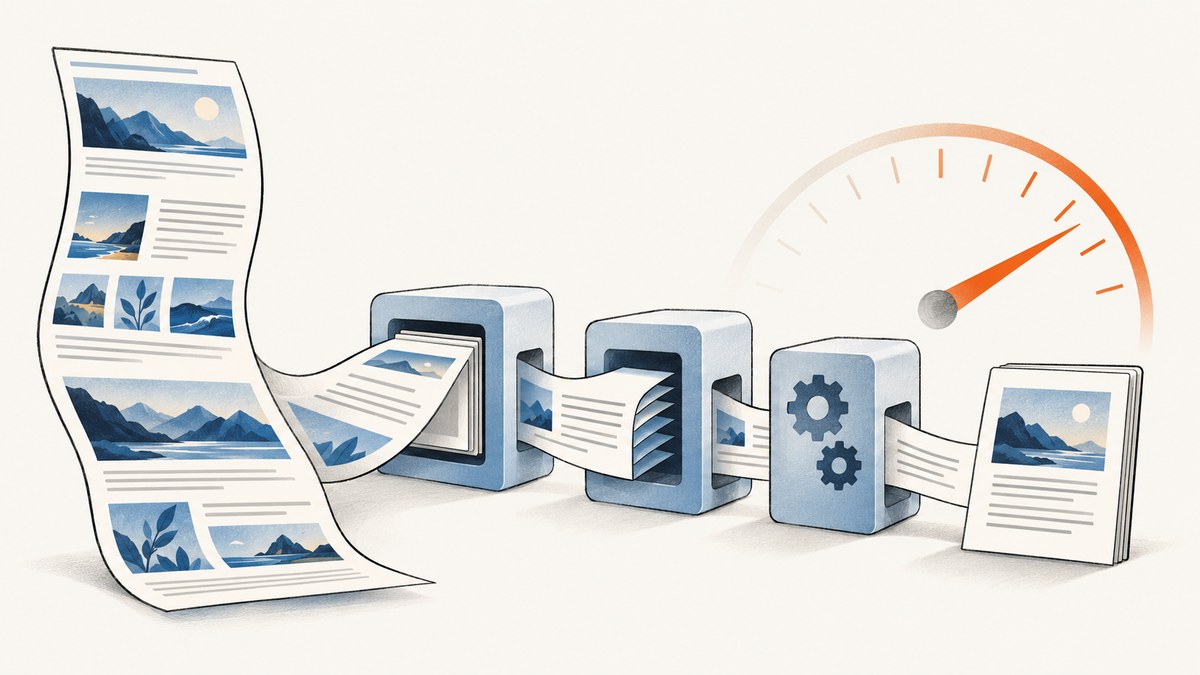
Short answer: measure one representative document first, then identify whether time is spent fetching images, running JavaScript, rendering the page, encoding images, writing the PDF, or repeatedly starting a process. For wkhtmltopdf, test appropriately sized images, lower image DPI, JPEG quality, JavaScript and delay settings, and batch mode. For PDFKit, profile image reads and decoding, resizing, PDF generation, and output streams separately. Every change must be checked for elapsed time, PDF size, image quality, and missing or shifted content. There is no official percentage speedup for this exact workload, so treat each result as a benchmark from your own documents.
1. Establish a baseline before changing settings
Use the same long page, the same network conditions, and the same renderer version for every comparison. Record:
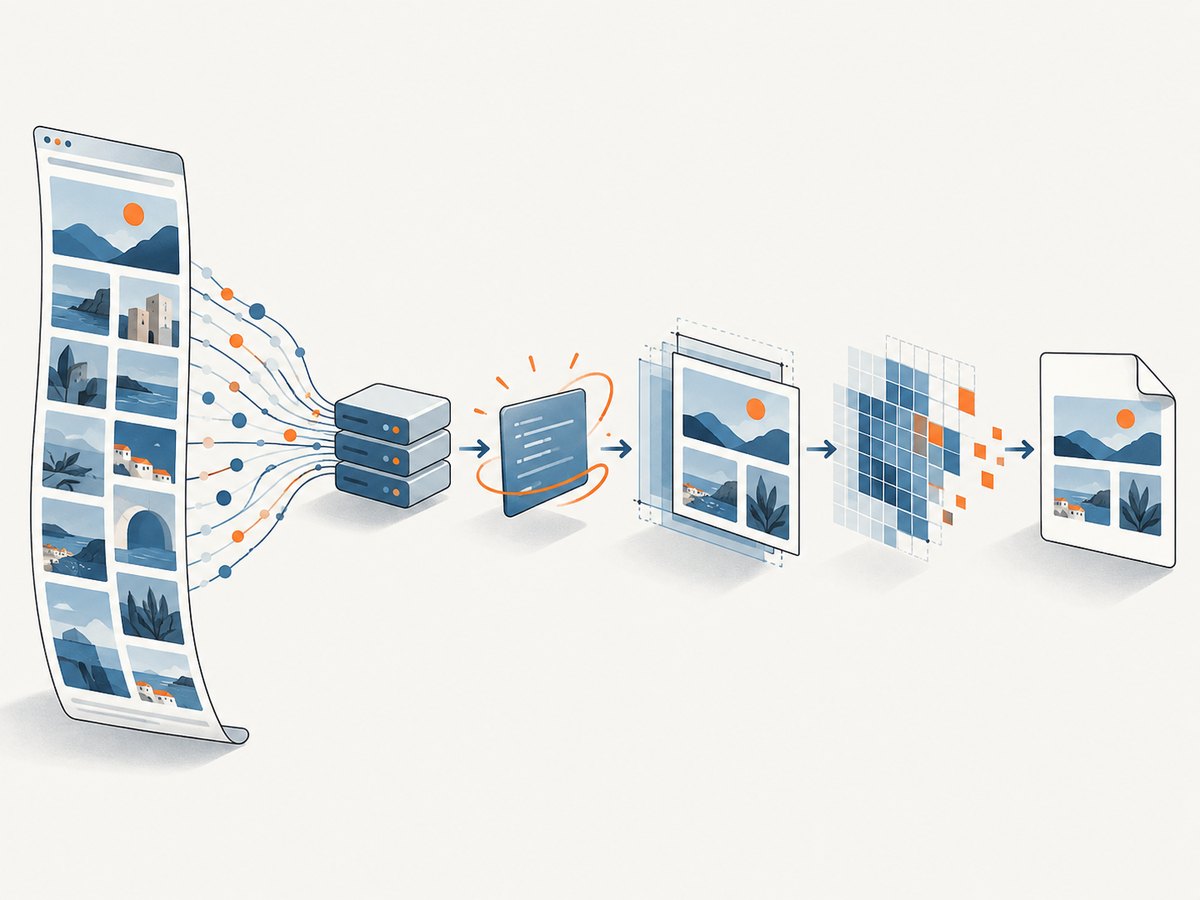
- Total wall-clock time, including process startup.
- Output PDF size.
- Number of images and their pixel dimensions.
- Whether images are remote URLs, local files, data URLs, or a mixture.
- Whether JavaScript creates or changes content.
- Peak memory, if your operating system or container exposes it.
- Visual checks: missing images, changed resolution, layout shifts, blank pages, and incomplete script-generated content.
Run at least three times when practical and keep the input fixed. A change that makes a warm-cache run faster may not help a cold run. Save the command, renderer version, options, timing, output size, and visual result in a small benchmark log.
/usr/bin/time -v wkhtmltopdf \
  --enable-local-file-access \
  page.html output.pdf

pdfinfo output.pdf | sed -n '1,15p'
This is an evaluation protocol inferred from the configurable loading, JavaScript, image, and output settings documented by the wkhtmltopdf manual. The manual does not publish a general speed benchmark for long pages with many images.
2. Understand where wkhtmltopdf spends time
wkhtmltopdf renders HTML with Qt WebKit, so a run can include network requests, HTML parsing, JavaScript execution, style and layout work, image decoding, painting, pagination, and PDF encoding. The official project identifies Qt WebKit as its rendering engine. A slow result may therefore be caused by the page rather than by PDF writing itself.
2.1 Reduce image work when fidelity allows
Resize source images to the dimensions they actually occupy in the PDF. A 4,000-pixel photograph displayed at 600 pixels still incurs unnecessary download, decode, and memory work. Generate appropriately sized derivatives before conversion, and prefer modern, correctly compressed source assets where your compatibility requirements permit.
The manual documents an image-DPI default of 600 and JPEG quality default of 94. Test a lower --image-dpi for documents that do not need print-resolution output. Test --image-quality or --lowquality when a smaller file is acceptable. Use --no-images only when images are genuinely unnecessary. These options clearly change image loading or output quality and size; the manual does not promise that any one always reduces rendering time.
wkhtmltopdf \
  --image-dpi 150 \
  --image-quality 80 \
  page.html output-150dpi.pdf
Compare the output at its real viewing or printing size. A smaller PDF is not automatically a faster render, because image decoding and page layout can still dominate.
2.2 Separate remote image loading from rendering
Run a copy of the page with images stored locally, or replace remote images with known local fixtures. If local inputs are much faster or more reliable, investigate DNS, TLS, origin latency, redirects, authentication, rate limits, and failed requests. The manual and library settings expose image loading and media-error behavior, including web.loadImages and configurable load-error handling.
wkhtmltopdf \
  --load-error-handling ignore \
  --load-media-error-handling ignore \
  page.html output.pdf
Ignoring errors can produce a PDF with missing media. Use it only when that result is acceptable and record missing-image checks in your benchmark.
2.3 Control JavaScript and arbitrary waits
JavaScript is enabled by default, and the command-line manual documents a default JavaScript delay of 200 ms. Disable scripts or shorten the delay only when the HTML and images are ready without them. A shorter wait can make a run appear faster while silently dropping content created after page load.
# Static HTML with no script-generated content
wkhtmltopdf --disable-javascript page.html static.pdf

# Dynamic page whose content is ready sooner than the default delay
wkhtmltopdf --javascript-delay 50 page.html short-wait.pdf
For pages that need JavaScript, make readiness deterministic in the page itself: render the final content, set image dimensions to prevent layout changes, and avoid timers that keep mutating the DOM. The library API exposes corresponding settings such as web.enableJavascript, load.jsdelay, and load.stopSlowScript; use the API equivalent when embedding wkhtmltopdf.
2.4 Use batch mode for repeated conversions
If you convert many documents, process startup can become a measurable part of total time. The manual documents --read-args-from-stdin: each input line is handled as a separate invocation whose arguments are combined with the main command.
wkhtmltopdf --read-args-from-stdin < jobs.txtA jobs.txt file can contain lines such as:
page-a.html page-a.pdf
--image-dpi 150 page-b.html page-b.pdf
--disable-javascript page-c.html page-c.pdf
This targets repeated launch overhead. It does not guarantee that one individual long page renders faster.
2.5 Treat smart shrinking as layout control
Smart shrinking is enabled by default and changes the pixel-to-DPI relationship used for page scaling. Use --disable-smart-shrinking or its inverse only to solve a predictable sizing or layout problem. There is no evidence in the reviewed sources that changing it is a general speed optimization.
3. A repeatable wkhtmltopdf tuning sequence
- Capture a baseline with the original command and archive the PDF.
- Measure image dimensions and create a version with oversized images resized.
- Compare local and remote image inputs to isolate network cost.
- Test image DPI and JPEG quality one at a time, then inspect text, diagrams, and photographs.
- Test JavaScript disabled, then test a shorter delay if the page is dynamic.
- For many documents, compare individual process launches with
--read-args-from-stdin. - Keep the fastest configuration that preserves required content and fidelity.
Do not stack several changes before measuring. If output changes, retain a known-good command so a later optimization can be reverted quickly.
4. Speeding up PDFKit: profile the application around it
PDFKit generates a PDF document from your application’s data; it does not load and render a webpage like wkhtmltopdf. In a long, image-heavy job, profile image reads, network downloads, image decoding and resizing, PDFKit calls, and the destination stream separately.
PDFKit normally flushes pages to the output as new pages are created. The official guide documents bufferPages: true for revisiting earlier pages, such as adding page numbers, and identifies it as available from version 0.7.0 onward. Buffering is a page-editing feature, not a documented speed optimization; it can increase memory use.
const PDFDocument = require('pdfkit');
const fs = require('node:fs');

const doc = new PDFDocument({ autoFirstPage: true });
const out = fs.createWriteStream('report.pdf');
doc.pipe(out);

doc.fontSize(18).text('Image report');
doc.image('images/hero.jpg', { fit: [500, 300], align: 'center' });
for (let i = 0; i < 100; i += 1) {
  doc.addPage().fontSize(11).text(`Page ${i + 1}`);
  doc.image('images/photo.jpg', { fit: [480, 320] });
}
doc.end();

out.on('finish', () => console.log('PDF written'));
Measure each stage with timers. Cache or prefetch remote assets outside the PDF generation loop, reuse already decoded or appropriately resized files where your memory budget allows, and avoid decoding a large image repeatedly when the same asset appears on many pages. Keep the output stream flowing instead of accumulating the entire PDF in memory unless later processing requires a buffer.
const { performance } = require('node:perf_hooks');
const start = performance.now();
// download and prepare images
console.log('assets ms', performance.now() - start);
// create and write the PDF
console.log('total ms', performance.now() - start);
When page numbers or a table of contents require revisiting pages, enable buffering deliberately and monitor peak memory. Otherwise use the normal streaming behavior described in the PDFKit getting-started guide.
5. Common failures and their fixes
| Symptom | Likely cause | Fix |
|---|---|---|
| Images are missing | Remote request failed, local access is blocked, or image loading was disabled. | Test the image URL independently, enable the required local-file access, inspect redirects and credentials, and compare with a local fixture. |
| Dynamic content is absent | JavaScript was disabled or the delay ended before rendering completed. | Keep JavaScript enabled, use a measured delay, or make the page expose final content before conversion. |
| Output is fast but wrong | Lower DPI, quality, or wait time changed fidelity. | Inspect representative pages and restore the last setting that preserved requirements. |
| One job is slow, every job is slow to start | Per-process startup overhead. | Use batch mode for repeated conversions; it does not change the cost of rendering one page. |
| PDFKit memory rises sharply | Buffered pages or oversized decoded images. | Remove bufferPages unless needed, resize assets earlier, and stream output. |
| Layout shifts between runs | Late image dimensions, asynchronous scripts, or changing remote content. | Set width and height, freeze inputs, and make readiness deterministic. |
6. Reliability, security, and operating cost
Pin renderer versions and fonts in production, because a dependency or font change can alter pagination. Set process timeouts and retain stderr so failed loads are diagnosable. For remote pages, decide whether a failed image should fail the document or produce a visibly incomplete PDF.
If users can submit HTML, sanitize it before passing it to wkhtmltopdf. The project’s downloads page warns not to use wkhtmltopdf with untrusted HTML because unsanitized HTML or JavaScript can lead to complete server takeover: project security warning. Run conversion with least-privilege filesystem and network access.
Track cost in the same units as your workload: CPU time, memory, network transfer, storage, and process count. A lower-quality PDF may reduce storage while increasing rework if readers reject it. A faster command that drops images can be more expensive operationally than a slower, correct document.
7. Or skip the browser setup
If your goal is a clean screenshot or PDF of a webpage rather than maintaining a browser-rendering pipeline, ScreenshotNeo provides one GET request. Its capture pipeline accepts cookie and consent banners like a visitor, then removes more than 60 known consent platforms, newsletter popups, and chat widgets before the shot; each step can be turned off. Only clean shots are billed: bot checks or CAPTCHAs, blank pages, timeouts, failed loads, and cache hits cost nothing, and the response identifies the result with X-Page-Verdict and X-Billed headers.

See the complete option list and request details in the ScreenshotNeo API documentation.
curl -G "https://api.screenshotneo.com/v1/shot" -d access_key=YOUR_API_KEY --data-urlencode url=https://stripe.com -o shot.webpimport requests
r = requests.get("https://api.screenshotneo.com/v1/shot", params={"access_key": "YOUR_API_KEY", "url": "https://stripe.com"}, timeout=90)
open("shot.webp", "wb").write(r.content)const q = new URLSearchParams({ access_key: 'YOUR_API_KEY', url: 'https://stripe.com' });
const res = await fetch(`https://api.screenshotneo.com/v1/shot?${q}`);Relevant controls include full-page capture with lazy images loaded, CSS-element capture, dark mode, device presets or custom viewports, retina scale, PDF paper and margin settings, custom CSS and JavaScript, clicks, selector waits, delays, network-idle waits, request blocking, headers, cookies, user agents, Authorization, timezone, geolocation, transparent backgrounds, resizing, cache TTLs, signed links, asynchronous jobs with signed webhooks, bulk capture for 100 URLs per call, a usage API, and an OpenAPI specification. An MCP server provides take_screenshot, get_page_info, and capture_pdf for Claude, Cursor, and other MCP clients.
Plans include 1,000 screenshots each month free with no card; paid plans start at $5 for 3,000 shots. Create a free ScreenshotNeo account.
8. FAQ
Does disabling JavaScript always make wkhtmltopdf faster?
No. It can remove script work, but it can also remove the content you need. Benchmark a static and a dynamic version and inspect both PDFs.
Should I always lower image DPI from 600?
No. Lower it when your print or viewing requirement permits, then check fine text, diagrams, and photographs at their actual output size.
Is PDFKit a replacement for wkhtmltopdf?
They solve different problems. wkhtmltopdf renders HTML with Qt WebKit; PDFKit creates a PDF from application code and assets.
Will PDFKit’s bufferPages option improve speed?
It is documented for revisiting pages, such as adding page numbers. Treat it as a layout feature and measure memory and runtime before keeping it.
What is the first diagnostic when images are slow?
Compare the same document with local images and remote images, while recording image dimensions and failed requests. That separates loading problems from rendering and encoding work.


