How to Split Long HTML Content Across PDF Pages
Learn how CSS page breaks, Puppeteer, and WeasyPrint split long HTML into readable PDF pages without clipped or missing content.

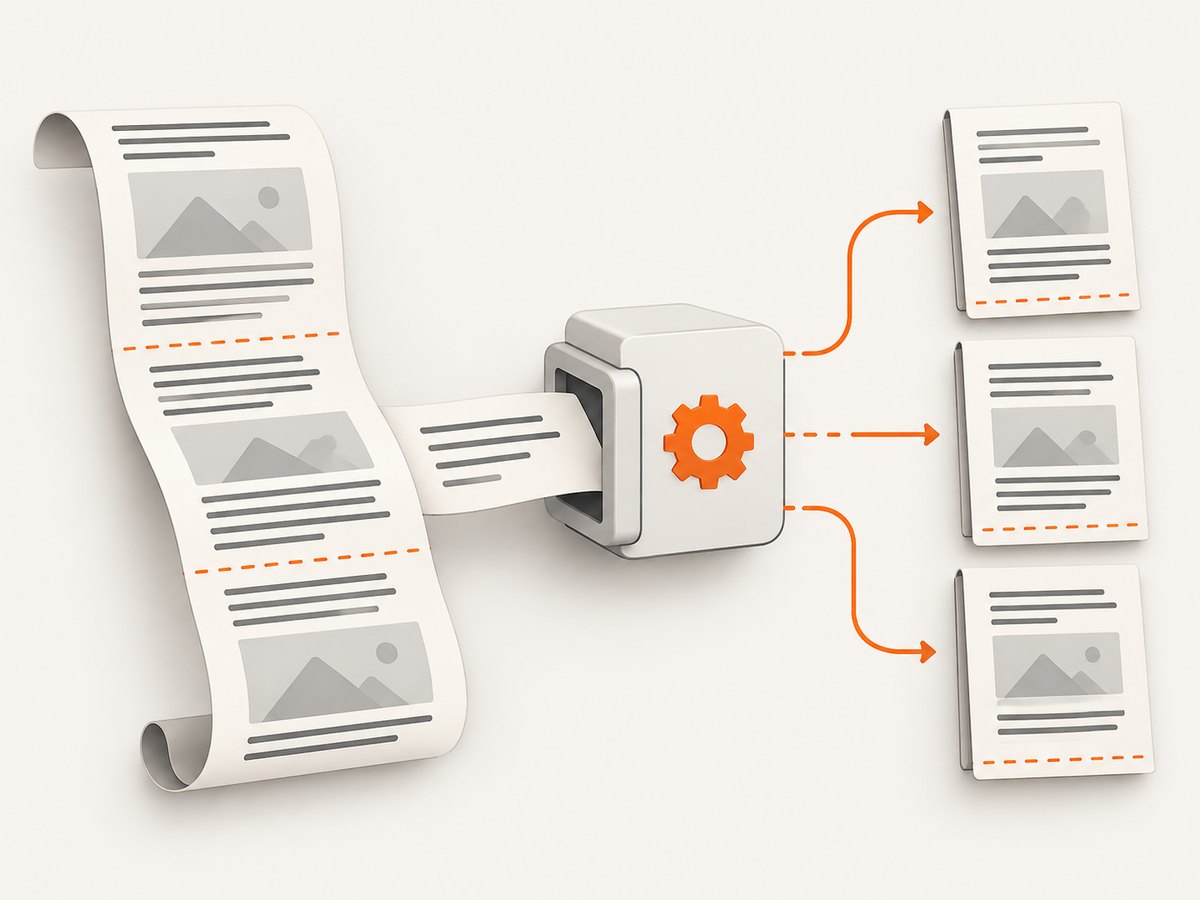
Long HTML becomes a PDF through paged-media fragmentation: a continuous document is divided into page boxes. The reliable approach is to define print CSS and page dimensions, then guide fragmentation with break-before, break-after, and break-inside. Keep short components together when they fit, but allow long paragraphs, lists, tables, and panels to continue onto the next page.
Start with this pattern:
@page {
  size: A4;
  margin: 18mm 16mm 20mm;
}

@media print {
  .chapter { break-before: page; }
  .figure, .card, .callout { break-inside: avoid; }
  h2, h3 { break-after: avoid; }
  p, ul, ol, table { break-inside: auto; }
}
The same rules work with US Letter by changing size. The key limitation is that a break rule guides pagination; it cannot make content taller than a page fit on one page. If an element is longer than the available page area, the renderer must print part of it and continue on a later page. The W3C paged-media specification describes this page-box model and the related break properties.
1. Build a print-friendly HTML document
Keep screen and PDF concerns separate. Your screen layout can use grids, sticky controls, and wide containers; your print stylesheet should remove navigation, set colors for paper, and establish predictable widths.
<!doctype html>
<html lang="en">
<head>
  <meta charset="utf-8">
  <title>Quarterly report</title>
  <style>
    :root { color-scheme: light; }
    body {
      font-family: system-ui, sans-serif;
      line-height: 1.45;
      color: #1b1b1b;
      margin: 0;
    }
    .screen-only { display: block; }
    .report { max-width: 760px; margin: 0 auto; }
    .chapter { margin-top: 3rem; }
    figure, .callout, table { margin: 1rem 0; }

    @page {
      size: A4;
      margin: 18mm 16mm 20mm;
    }

    @media print {
      .screen-only { display: none !important; }
      .report { max-width: none; }
      .chapter { break-before: page; }
      h1, h2, h3 { break-after: avoid; }
      figure, .callout, .card { break-inside: avoid; }
      p, ul, ol, table { break-inside: auto; }
      thead { display: table-header-group; }
      tr { break-inside: avoid; }
      a { color: inherit; text-decoration: none; }
    }
  </style>
</head>
<body>
  <nav class="screen-only">Interactive navigation</nav>
  <main class="report">
    <h1>Quarterly report</h1>
    <section class="chapter">
      <h2>Revenue</h2>
      <p>Long content can continue naturally across pages.</p>
    </section>
  </main>
</body>
</html>
Choose the right break property
| Property | Use it for | Example |
|---|---|---|
break-before: page |
Starting a chapter or major report section on a new page | .chapter { break-before: page; } |
break-after: page |
Ending a cover, appendix, or intentionally separated unit | .cover { break-after: page; } |
break-inside: avoid |
Keeping a small figure, card, or callout together | figure { break-inside: avoid; } |
break-inside: auto |
Allowing normal flow through long content | article { break-inside: auto; } |
Older engines may still use the aliases page-break-before, page-break-after, and page-break-inside. WeasyPrint documents both modern fragmentation properties and legacy aliases in its API reference. Include an alias only when you must support an older renderer.
2. Prevent headings, figures, and rows from becoming orphaned
A heading at the bottom of a page is hard to read when its paragraph starts on the next page. Ask the renderer to avoid breaking after headings, and use widow/orphan controls where supported:
@media print {
  h2, h3 {
    break-after: avoid;
    page-break-after: avoid;
  }
  p, li {
    orphans: 3;
    widows: 3;
  }
  figure, .metric-card {
    break-inside: avoid;
    page-break-inside: avoid;
  }
}
These are preferences, not promises. If avoiding a break would leave an unusable page, the renderer can split the content. Never put break-inside: avoid on every article wrapper: a long wrapper can exceed a page, and the renderer still has to fragment it. The CSS Print Profile explains that oversized content is printed as much as possible and resumed on following pages.
3. Handle tables, lists, and long components
Tables are a frequent source of blank space and clipped rows. Let the table split between rows, repeat its header, and avoid splitting an individual row where the renderer supports it.
@media print {
  table { width: 100%; border-collapse: collapse; }
  thead { display: table-header-group; }
  tfoot { display: table-footer-group; }
  tr { break-inside: avoid; page-break-inside: avoid; }
  td, th { padding: 4pt 6pt; vertical-align: top; }
}
A very wide table may still overflow horizontally. Reduce columns, allow wrapping with overflow-wrap: anywhere, or create a landscape section. Do not rely on browser scrolling: PDF pages have fixed dimensions.
@page landscape-report {
  size: A4 landscape;
  margin: 14mm;
}

@media print {
  .wide-table-section { page: landscape-report; }
  code, pre { overflow-wrap: anywhere; white-space: pre-wrap; }
}
For lists, avoid placing an unbreakable wrapper around the entire list. A long ordered list should continue naturally; a short checklist can use break-inside: avoid if it fits.
4. Generate the PDF with Puppeteer
Puppeteer renders the page with print CSS when you call page.pdf(). Its official options include preferCSSPageSize, which gives your CSS @page size priority over JavaScript width, height, or format options. See the Page.pdf() documentation.
import puppeteer from 'puppeteer';

const browser = await puppeteer.launch({ headless: true });
try {
  const page = await browser.newPage();
  await page.goto('http://localhost:3000/report', {
    waitUntil: 'networkidle0',
    timeout: 60000
  });
  await page.emulateMediaType('print');
  await page.pdf({
    path: 'report.pdf',
    printBackground: true,
    preferCSSPageSize: true,
    displayHeaderFooter: false,
    margin: { top: '18mm', right: '16mm', bottom: '20mm', left: '16mm' }
  });
} finally {
  await browser.close();
}
Use waitUntil: 'networkidle0' only when the page eventually becomes quiet. Applications with analytics, WebSockets, or polling may never become idle; in those cases wait for a specific selector and a short delay instead.
await page.goto(url, { waitUntil: 'domcontentloaded', timeout: 60000 });
await page.waitForSelector('#report-ready', { timeout: 30000 });
await page.evaluate(() => document.fonts.ready);
await new Promise(resolve => setTimeout(resolve, 300));
await page.pdf({ path: 'report.pdf', preferCSSPageSize: true, printBackground: true });
5. Generate with WeasyPrint
WeasyPrint is a document-oriented HTML/CSS renderer with documented support for page fragmentation, @page, margin boxes, widows, and orphans. It does not behave exactly like Chromium, so verify the features your template depends on against the version you deploy.
from pathlib import Path
from weasyprint import HTML

html = HTML(
    filename='report.html',
    base_url=str(Path('report.html').parent.resolve())
)
html.write_pdf('report.pdf')
Use a correct base_url so relative stylesheets, fonts, and images resolve. If your page requires JavaScript to build content, render that content first in a browser or server-side application, then pass the resulting HTML to WeasyPrint.
6. Diagnose pagination problems
| Symptom | Likely cause | Fix |
|---|---|---|
| A heading is alone at the page bottom | No keep-together rule | Set break-after: avoid on headings and check widows/orphans. |
| A card creates a large blank area | break-inside: avoid on a group that is too tall |
Apply avoidance only to units that fit on one page; let long groups split. |
| Content is missing | Capture occurred before async content loaded | Wait for a ready selector, fonts, images, and application data. |
| CSS page size is ignored | Renderer options override @page |
In Puppeteer, use preferCSSPageSize: true; remove conflicting width or format settings. |
| Rows are clipped or overlap | Fixed heights, transforms, or unsupported table fragmentation | Remove fixed heights in print CSS, allow wrapping, and test the target renderer. |
| Fonts or images are absent | Relative URLs, blocked resources, or late loading | Set a base URL, wait for document.fonts.ready, and verify resource access. |
| PDF hangs indefinitely | Network-idle never occurs because of polling or sockets | Use domcontentloaded plus a readiness selector and bounded delay. |
7. Test the actual renderer and content
- Test the shortest and longest realistic documents.
- Include a component slightly shorter than a page and another taller than a page.
- Check tables with repeated headers, long URLs, code blocks, and images.
- Test A4 and Letter if users can choose paper size.
- Open the PDF in more than one viewer and inspect page boundaries at 100% zoom.
- Record the renderer and version; CSS support changes over time.
There is no universal “best” engine. Compare fragmentation support, print media behavior, page sizing, headers and footers, JavaScript needs, and operational constraints. Puppeteer is a browser workflow; WeasyPrint is a paged-document workflow. Choose based on the features your document requires rather than an unverified speed or fidelity claim.
8. Performance, reliability, and cost considerations
Pagination itself is deterministic, but generation time depends on browser startup, fonts, images, JavaScript, network requests, and document length. Reuse a Puppeteer browser process for multiple jobs, cap navigation and selector timeouts, and avoid waiting for network idle on pages with perpetual background traffic. Inline critical print CSS when possible and optimize oversized images.
For reliable output, make readiness explicit in the application, log the renderer version and page URL, and retain failed HTML or a trace identifier for debugging. Treat external resources as failure points: a third-party font or image can delay or change layout.
Cost depends on where rendering runs: self-hosted Chromium or WeasyPrint consumes your compute, while a hosted API charges according to its plan and billing rules. Measure your own document mix; the supplied references do not establish a controlled benchmark.
Or skip the browser setup
ScreenshotNeo provides a hosted screenshot and PDF API. It can capture a page as a PDF while handling the browser infrastructure and the page state options around it. The API supports PDF paper size, margins, landscape mode, and page ranges, plus waits for selectors, delays, or network idle. You can also provide custom CSS and JavaScript when a page needs print-specific preparation.
One GET request is enough:
curl -G "https://api.screenshotneo.com/v1/shot" \
  -d access_key=YOUR_API_KEY \
  --data-urlencode url=https://stripe.com \
  -o report.pdf
Python:
import requests

r = requests.get(
    "https://api.screenshotneo.com/v1/shot",
    params={"access_key": "YOUR_API_KEY", "url": "https://stripe.com"},
    timeout=90,
)
r.raise_for_status()
open("report.pdf", "wb").write(r.content)
Node.js:
const q = new URLSearchParams({ access_key: 'YOUR_API_KEY', url: 'https://stripe.com' });
const res = await fetch(`https://api.screenshotneo.com/v1/shot?${q}`);
if (!res.ok) throw new Error(`HTTP ${res.status}`);
const data = Buffer.from(await res.arrayBuffer());
require('fs').writeFileSync('report.pdf', data);
See the ScreenshotNeo API documentation for the complete option list. Cookie banners, newsletter popups, and chat widgets are removed before the shot; bot checks, blank pages, failed loads, timeouts, and cache hits are not billed. Response headers identify the page verdict and whether the request was billed. An MCP server exposes take_screenshot, get_page_info, and capture_pdf for Claude, Cursor, and other MCP clients. The Free plan includes 1,000 shots per month with no card; paid plans start at $5 for 3,000 shots. Create a free ScreenshotNeo account.
FAQ
Will break-inside: avoid keep any element intact?
Only when the element can fit in the remaining or a fresh page. Oversized content is fragmented so content is not lost.
Should I use page-break-before or break-before?
Use the modern break-* properties and add legacy aliases when supporting older engines.
Why does my PDF differ between Puppeteer and WeasyPrint?
They implement different rendering stacks and feature sets. Verify the exact versions and test the CSS features your document needs.
Can CSS create a table of contents with page numbers?
Basic links are straightforward, but generated page-number content and running headers depend on renderer-specific paged-media support. Check the chosen engine’s current documentation.
How do I force a new page for every chapter?
Give each chapter break-before: page, while leaving the chapter’s internal paragraphs and lists splittable.


