How to Split an Image Across Two PDF Pages With jsPDF
Crop a tall image into page-sized pieces and place each piece on its own jsPDF page without seams or distortion.
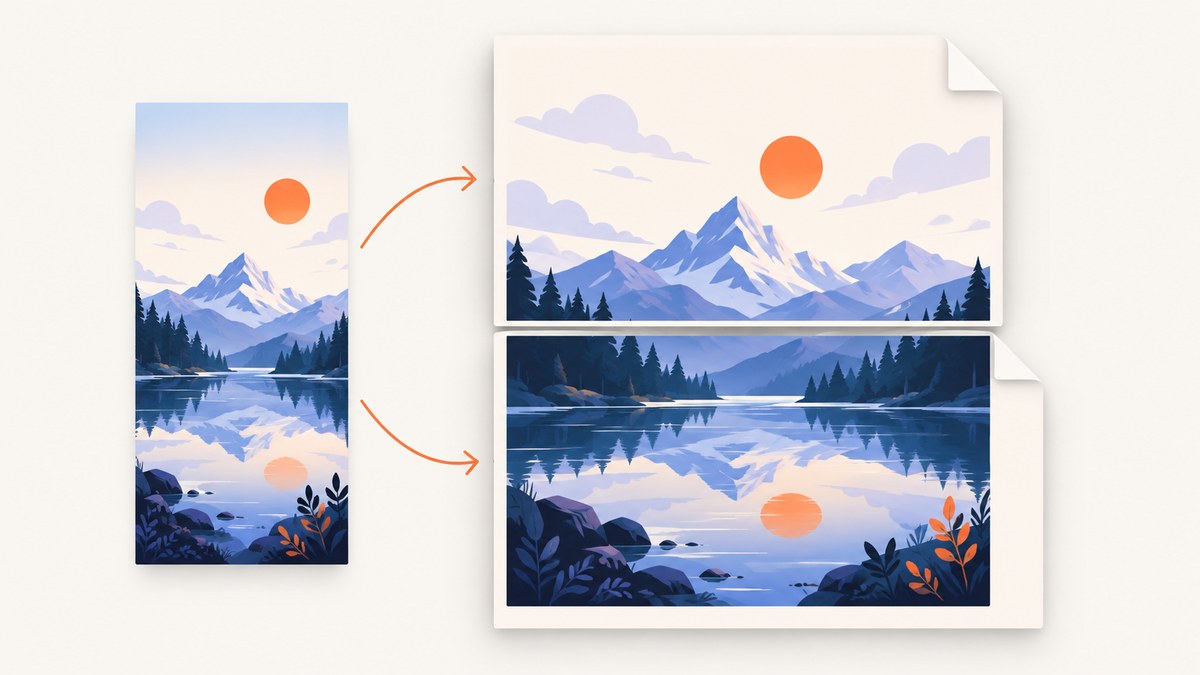
A tall image does not automatically flow across pages when you pass it to jsPDF’s addImage. The reliable method is to crop the source into two page-sized pieces, then add one crop to each page at the same display width. The first crop contains the top of the image; the second starts at exactly the next source pixel and contains the remainder.
addImage accepts image data plus explicit x and y coordinates and explicit width and height in the units configured on the jsPDF instance. The documented API does not expose an automatic image-splitting parameter. See the addImage documentation and jsPDF constructor and page APIs.
What you will build
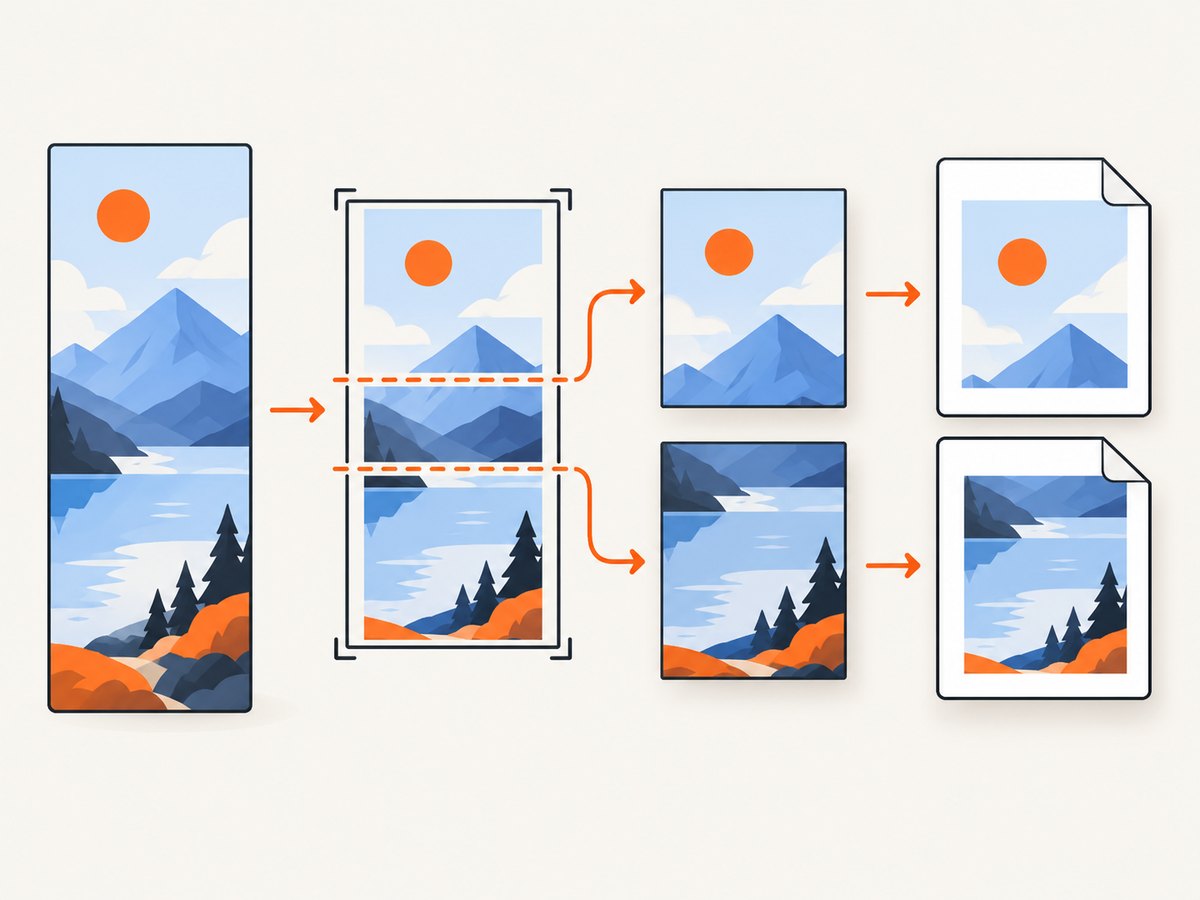
The example below takes a source image, draws the first portion into a temporary canvas, puts that crop on page one, creates a second page, and draws the remaining portion there. It supports margins, standard paper formats, portrait or landscape orientation, and any jsPDF unit. The crop math preserves the original aspect ratio and keeps the seam continuous.
- Load the image and wait for its natural pixel dimensions.
- Create the PDF with the final page format, orientation, and unit.
- Calculate the usable page width and height after margins.
- Convert the usable display height into source pixels using the image’s aspect ratio.
- Copy the first source rectangle into a crop canvas and add it to page one.
- Copy the remaining source rectangle into another crop canvas, call
addPage, and add it to page two.
Complete browser example
Install jsPDF with npm, or load the browser bundle from your normal build system:
npm install jspdfThis module example is runnable in a browser application. It assumes an image URL that can be loaded by the page. If the image is hosted on another origin, that server must permit CORS; otherwise the canvas becomes tainted and cannot be exported.
import { jsPDF } from 'jspdf';

function loadImage(url) {
  return new Promise((resolve, reject) => {
    const image = new Image();
    image.crossOrigin = 'anonymous';
    image.onload = () => resolve(image);
    image.onerror = () => reject(new Error(`Could not load image: ${url}`));
    image.src = url;
  });
}

function canvasCrop(image, sourceY, sourceHeight) {
  const crop = document.createElement('canvas');
  crop.width = image.naturalWidth;
  crop.height = sourceHeight;
  const context = crop.getContext('2d');
  context.drawImage(
    image,
    0, sourceY, image.naturalWidth, sourceHeight,
    0, 0, crop.width, crop.height
  );
  return crop.toDataURL('image/jpeg', 0.92);
}

export async function splitImageAcrossTwoPages(imageUrl) {
  const image = await loadImage(imageUrl);

  // millimetres, A4 portrait, with a 15 mm margin on every side
  const pdf = new jsPDF({
    orientation: 'portrait',
    unit: 'mm',
    format: 'a4',
    compress: true
  });

  const margin = 15;
  const pageWidth = pdf.internal.pageSize.getWidth();
  const pageHeight = pdf.internal.pageSize.getHeight();
  const displayWidth = pageWidth - margin * 2;
  const displayHeight = pageHeight - margin * 2;

  // At this display width, this is the source height that fits on one page.
  const sourcePixelsPerUnit = image.naturalWidth / displayWidth;
  const firstSourceHeight = Math.min(
    image.naturalHeight,
    Math.floor(displayHeight * sourcePixelsPerUnit)
  );
  const secondSourceHeight = image.naturalHeight - firstSourceHeight;

  const firstDisplayHeight = firstSourceHeight / sourcePixelsPerUnit;
  const firstCrop = canvasCrop(image, 0, firstSourceHeight);
  pdf.addImage(
    firstCrop,
    'JPEG',
    margin,
    margin,
    displayWidth,
    firstDisplayHeight
  );

  if (secondSourceHeight > 0) {
    const secondCrop = canvasCrop(image, firstSourceHeight, secondSourceHeight);
    const secondDisplayHeight = secondSourceHeight / sourcePixelsPerUnit;
    pdf.addPage('a4', 'portrait');
    pdf.addImage(
      secondCrop,
      'JPEG',
      margin,
      margin,
      displayWidth,
      secondDisplayHeight
    );
  }

  pdf.save('split-image.pdf');
}

splitImageAcrossTwoPages('/images/tall-report.jpg');
The source rectangle form of drawImage copies pixels from sourceY for sourceHeight pixels. The destination rectangle passed to addImage uses PDF units, not source pixels. Keeping displayWidth unchanged on both pages means the image has the same scale across the seam.
How the crop calculation works
Assume the image is W pixels wide and H pixels high. The PDF content area is Dw units wide and Dh units high. The scale is:
sourcePixelsPerUnit = W / Dw
firstSourceHeight = min(H, floor(Dh * sourcePixelsPerUnit))
secondSourceHeight = H - firstSourceHeight
firstDisplayHeight = firstSourceHeight / sourcePixelsPerUnit
secondDisplayHeight = secondSourceHeight / sourcePixelsPerUnit
This preserves the aspect ratio because both crops use the full source width and are displayed at the same width. If the image is shorter than one page, firstSourceHeight equals H and no second page is created. If the image is exactly two page-content heights tall, the second crop fills the available area. Rounding down the first source height avoids reading beyond the canvas; the remaining pixels are assigned to page two.
Select the paper size, orientation, unit, and margins before calculating any crop dimensions. jsPDF supports standard formats such as A4 and letter, custom dimensions, and portrait or landscape orientation. The page-size accessors return the active dimensions in your selected unit.
Custom paper, landscape, and different margins
For US letter in inches, construct the document with unit: 'in' and use inch margins. For landscape A4, pass orientation: 'landscape'. The crop algorithm does not change; only the page dimensions and available content area do.
const pdf = new jsPDF({
  orientation: 'landscape',
  unit: 'pt',
  format: [792, 612], // custom 11 x 8.5 inch page in points
  compress: true
});
const margin = 36; // half an inch in points
const width = pdf.internal.pageSize.getWidth() - margin * 2;
const height = pdf.internal.pageSize.getHeight() - margin * 2;
Use the same page definition in addPage as in the constructor. A mismatch can change the available height and make the two crops appear at different scales or positions.
Image format, quality, and transparency
JPEG is usually smaller for photographs, while PNG preserves sharp edges and transparency. The example exports JPEG for predictable size. To retain an alpha channel, export the crop as PNG and pass 'PNG' to addImage:
const pngData = crop.toDataURL('image/png');
pdf.addImage(pngData, 'PNG', margin, margin, displayWidth, displayHeight);
Do not stretch each crop independently to the full page height. That changes the scale at the seam. Derive each destination height from its source height, as shown above. A one-pixel difference caused by rounding is normally invisible; a different width or independently calculated scale is not.
Handling very large images
Canvas operations allocate memory proportional to pixel count. A phone screenshot stitched to tens of thousands of pixels can exceed browser memory limits even when the final PDF is modest. Crop one piece at a time, release references after adding each image, and avoid creating a second full-size canvas. If the source is larger than the required output resolution, resize it before cropping. The reviewed jsPDF references do not provide a universal memory threshold or performance benchmark, so validate with the dimensions used by your application.
For a long image, you can generalize the two-page method to any number of pages by looping while sourceY < image.naturalHeight. Each iteration computes the source height that fits, creates one crop, adds it, and calls addPage before the next crop. Keep a page counter and stop when the remaining height is zero.
let sourceY = 0;
let page = 0;
while (sourceY < image.naturalHeight) {
  const remaining = image.naturalHeight - sourceY;
  const sourceHeight = Math.min(remaining, Math.floor(displayHeight * sourcePixelsPerUnit));
  const data = canvasCrop(image, sourceY, sourceHeight);
  const destinationHeight = sourceHeight / sourcePixelsPerUnit;
  if (page > 0) pdf.addPage('a4', 'portrait');
  pdf.addImage(data, 'JPEG', margin, margin, displayWidth, destinationHeight);
  sourceY += sourceHeight;
  page += 1;
}
pdf.save('long-image.pdf');
When an image is the wrong abstraction
This technique rasterizes everything represented by the image. Text will not remain selectable, and vector lines can look soft if the source resolution is too low. If your input is HTML or structured text and selectable output matters, build the PDF content directly or use jsPDF’s HTML flow features. The type declarations include an autoPaging option for HTML rendering, but that option does not establish automatic pagination for arbitrary image data passed to addImage.
Browser and PDF viewer checks
- Open the generated file in at least one browser viewer and the PDF viewer used by your users.
- Zoom into the seam and confirm that lines and text continue without a jump.
- Check the final page when the image height is just below, exactly equal to, and just above one page.
- Verify transparent images against the intended page background.
- Compare output size when switching between PNG and JPEG.
Troubleshooting
The second page is blank
Cause: the remaining source height is zero, or the second crop was created with a zero height. Fix: guard the second-page code with secondSourceHeight > 0 and log the natural image dimensions before calculating.
The seam repeats or skips a strip
Cause: the second crop starts at a rounded display coordinate rather than the exact source pixel where the first crop ended. Fix: use the integer firstSourceHeight as the second crop’s sourceY; never recompute it from the displayed height.
The image is stretched on page two
Cause: both crops were forced to the full content height. Fix: keep the same destination width and calculate each destination height from its source height and the shared scale.
Canvas export throws a security error
Cause: the image came from another origin without an appropriate CORS header. Fix: serve the image with an allowed origin, proxy it through your own server, or use a same-origin asset. Setting crossOrigin after assigning src is too late; set it first.
The PDF is blurry
Cause: the source image has too few pixels for the requested display width, or JPEG compression is too aggressive. Fix: use a higher-resolution source, export PNG for line art, or raise the JPEG quality value. Increasing PDF page size cannot restore missing source detail.
Memory usage spikes
Cause: multiple full-resolution canvases or data URLs are held at once. Fix: process one crop at a time, remove temporary canvas references, and downscale oversized inputs before splitting.
Or skip the browser setup
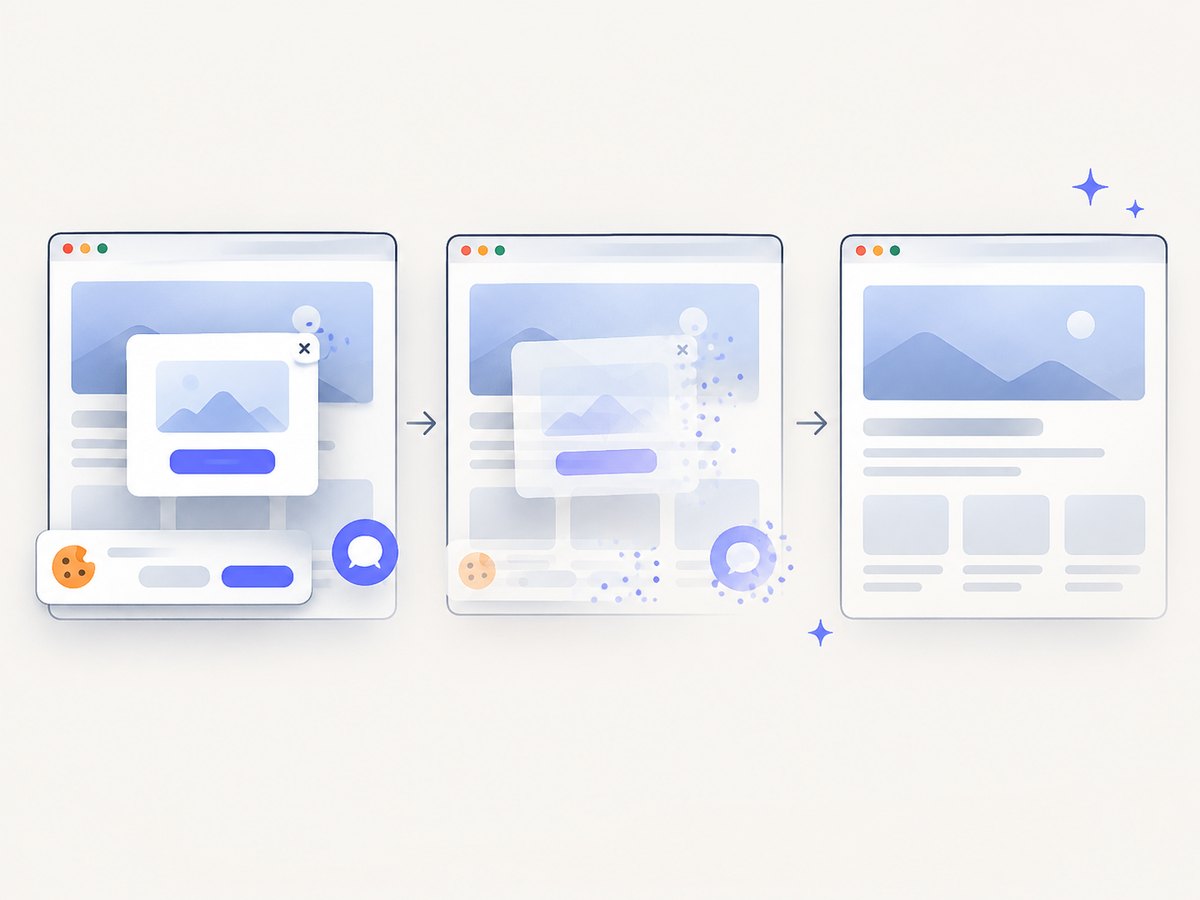
If your source is a web page rather than a local image, ScreenshotNeo can capture it and return a clean image or PDF through one request. It accepts cookie and consent banners before capture and removes more than 60 known consent platforms, newsletter popups, and chat widgets. Bot checks, blank pages, timeouts, failed loads, and cache hits are not billed, and the response reports the result with X-Page-Verdict and X-Billed headers. See the ScreenshotNeo API documentation for all options.
cURL
curl -G "https://api.screenshotneo.com/v1/shot" \
  -d access_key=YOUR_API_KEY \
  --data-urlencode url=https://stripe.com \
  -o shot.webp
Python
import requests

r = requests.get(
    "https://api.screenshotneo.com/v1/shot",
    params={"access_key": "YOUR_API_KEY", "url": "https://stripe.com"},
    timeout=90,
)
r.raise_for_status()
open("shot.webp", "wb").write(r.content)
Node.js
const q = new URLSearchParams({ access_key: 'YOUR_API_KEY', url: 'https://stripe.com' });
const res = await fetch(`https://api.screenshotneo.com/v1/shot?${q}`);
if (!res.ok) throw new Error(`Screenshot failed: ${res.status}`);
const bytes = await res.arrayBuffer();
await Bun.write('shot.webp', bytes);
ScreenshotNeo also supports full-page capture with lazy images loaded, element selection, dark mode, device presets, custom viewports, retina scale, PDF paper sizes and margins, custom CSS and JavaScript, click and wait actions, request blocking, headers, cookies, user agents, authorization, timezone, geolocation, transparent backgrounds, resizing, caching, signed links, asynchronous jobs, webhooks, bulk capture, usage reporting, and an OpenAPI specification. An MCP server exposes take_screenshot, get_page_info, and capture_pdf to Claude, Cursor, and other MCP clients.
There are 1,000 screenshots per month on the free plan with no card. Paid plans start at $5 for 3,000 shots, and every feature is available on every plan. Create a free ScreenshotNeo account to try it.
Performance, reliability, and cost notes
For local jsPDF generation, runtime and memory are dominated by image decoding, canvas cropping, and PDF encoding. Avoid repeatedly decoding the original image and avoid unnecessary PNG conversion for photographic content. For server-side or automated capture, reuse a browser process when you control the infrastructure, set explicit timeouts, and record failures separately from successful files.
With ScreenshotNeo, cache settings let you choose a TTL, and cache hits are not billed. Async jobs and signed webhooks are useful when a page takes longer to load than a synchronous request window. Bulk capture accepts up to 100 URLs per call. Check the usage API when you need to reconcile requests with billed clean shots. Do not assume a failed load produced a usable file; inspect the response status and the verdict headers.
FAQ
Can addImage split an image automatically?
No documented option performs that split. Crop the source yourself and call addImage once per page.
Do both pages need identical heights?
No. They need the same display width and scale. The second page is often shorter because it contains the remainder.
Can I preserve selectable text?
Not after flattening the content into an image. Generate text and vector elements as PDF content when selection and search are requirements.
Why does my crop look different in a PDF viewer?
Viewers can apply different interpolation and color management. Compare at 100% zoom and inspect the source and exported dimensions before changing the crop math.
How do I capture a web page before splitting it?
Use a browser capture service such as ScreenshotNeo to obtain a full-page image or PDF, then apply the crop-per-page method when you need a fixed two-page layout.


