How to Split Pages After Adding Images with html2canvas and jsPDF
Split an html2canvas render into predictable jsPDF pages with correct units, margins, image handling, CORS fixes, and production-ready code.
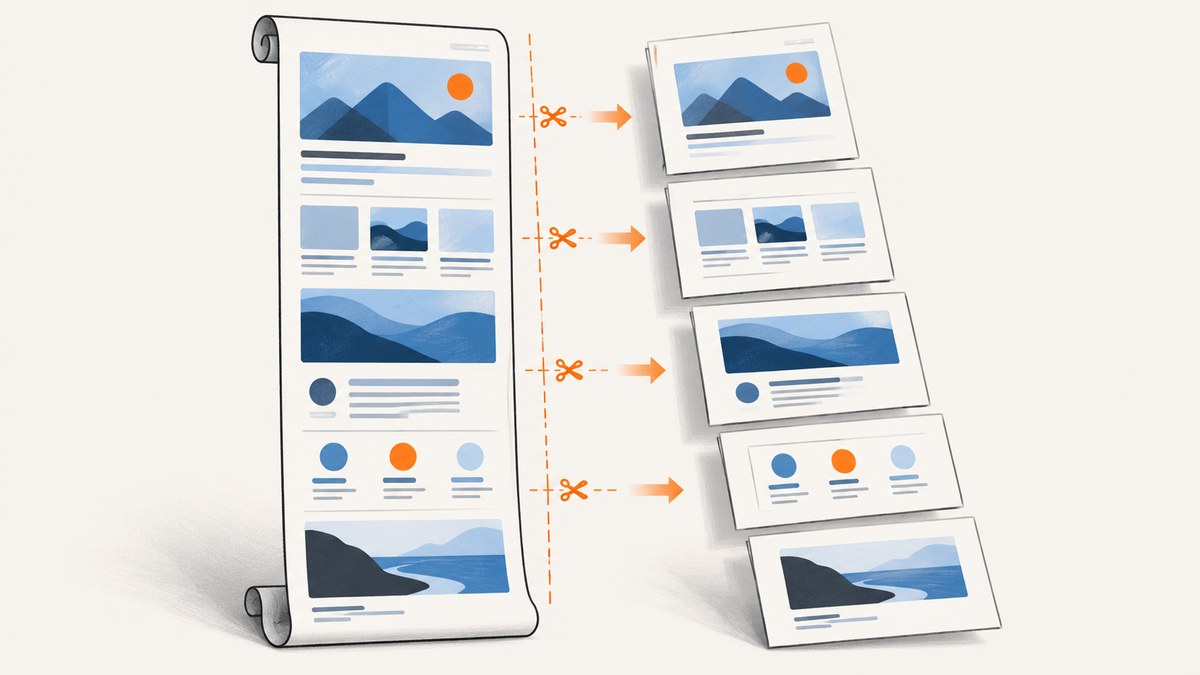
To split a long html2canvas capture into predictable jsPDF pages, render the target element once, calculate how many source canvas pixels fit in the PDF’s usable page height, crop the canvas into those slices, and add one slice per PDF page. The critical detail is converting between canvas pixels and jsPDF units such as millimeters. Never subtract a PDF height in millimeters directly from a canvas height in pixels.
This approach gives you an explicit page boundary. It avoids repeatedly placing one very tall image at negative y offsets, which can create awkward breaks around small images. The trade-off is that a fixed pixel boundary can cut through an image or other block. Later sections show how to move breaks to measured DOM boundaries when that matters.
1. The page-splitting formula
Assume the canvas is canvas.width pixels wide and you place it in a PDF with a usable width of usableWidth units. The rendered image height is:
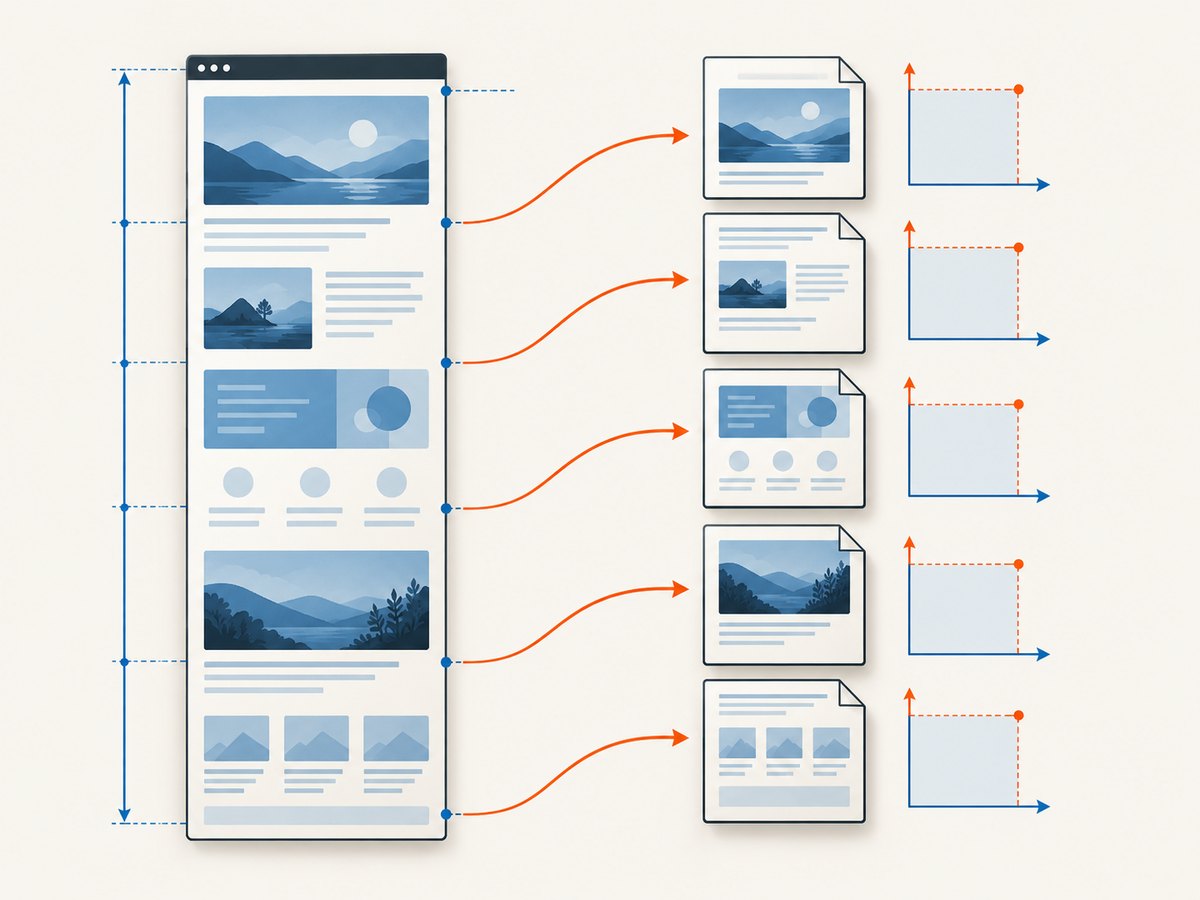
pdfImageHeight = canvas.height * usableWidth / canvas.widthThat ratio tells you how many source pixels correspond to one PDF unit:
sourcePixelsPerPdfUnit = canvas.width / usableWidthMultiply the PDF’s usable height by that ratio to get the source crop height:
sourceSliceHeight = usableHeight * sourcePixelsPerPdfUnitCrop the canvas from sourceY to sourceY + sourceSliceHeight, add the crop at the top margin, and call addPage() before every slice after the first. The final crop is normally shorter.
2. Minimal browser setup
Load compatible browser builds of html2canvas and jsPDF, then identify the element to capture. The element should be fully laid out before you call html2canvas; wait for fonts and important images if their dimensions affect pagination.
<script src="https://cdn.jsdelivr.net/npm/html2canvas@1.4.1/dist/html2canvas.min.js"></script>
<script src="https://cdn.jsdelivr.net/npm/jspdf@2.5.1/dist/jspdf.umd.min.js"></script>

<button id="download">Create PDF</button>
<article id="report">
  <h1>A long report</h1>
  <img src="/images/chart.png" alt="Chart">
  <p>Content continues for several pages...</p>
</article>
3. Complete crop-and-add implementation
The following function captures one element, reserves equal margins on every page, and creates a PDF in A4 portrait format. It uses PNG slices so text and thin lines remain as sharp as possible in the rasterized output.
async function elementToPdf(element) {
  const canvas = await html2canvas(element, {
    windowWidth: element.scrollWidth,
    windowHeight: element.scrollHeight,
    useCORS: true,
    backgroundColor: '#ffffff'
  });

  const { jsPDF } = window.jspdf;
  const pdf = new jsPDF({
    orientation: 'p',
    unit: 'mm',
    format: 'a4',
    compress: true
  });

  const margin = 10;
  const pageWidth = pdf.internal.pageSize.getWidth();
  const pageHeight = pdf.internal.pageSize.getHeight();
  const usableWidth = pageWidth - (2 * margin);
  const usableHeight = pageHeight - (2 * margin);

  // Convert the printable PDF height back into source canvas pixels.
  const sourcePixelsPerPdfUnit = canvas.width / usableWidth;
  const sourceSliceHeight = Math.floor(
    usableHeight * sourcePixelsPerPdfUnit
  );

  if (sourceSliceHeight < 1) {
    throw new Error('The calculated source slice height is zero.');
  }

  for (let sourceY = 0; sourceY < canvas.height; sourceY += sourceSliceHeight) {
    const sliceHeight = Math.min(
      sourceSliceHeight,
      canvas.height - sourceY
    );

    const pageCanvas = document.createElement('canvas');
    pageCanvas.width = canvas.width;
    pageCanvas.height = sliceHeight;

    const context = pageCanvas.getContext('2d');
    context.drawImage(
      canvas,
      0, sourceY, canvas.width, sliceHeight,
      0, 0, canvas.width, sliceHeight
    );

    if (sourceY > 0) {
      pdf.addPage();
    }

    const renderedHeight = sliceHeight / sourcePixelsPerPdfUnit;
    const imageData = pageCanvas.toDataURL('image/png');
    pdf.addImage(
      imageData,
      'PNG',
      margin,
      margin,
      usableWidth,
      renderedHeight,
      undefined,
      'FAST'
    );
  }

  pdf.save('report.pdf');
}

document.getElementById('download').addEventListener('click', () => {
  elementToPdf(document.getElementById('report')).catch(console.error);
});
jsPDF’s addImage API accepts image data, coordinates, width, and height in the units selected when the document was created. addPage() creates the next page, so the loop controls the pagination directly.
4. Keep page breaks aligned with content
Pixel slicing is exact geometrically but not semantically. If a break lands through a small image, heading, table row, or card, that item will be divided between pages. Test a boundary that passes through a small image before shipping.
For important blocks, measure their canvas-space positions before slicing. A practical method is:
- Collect elements that should remain intact, such as
figure,h2, or.card. - Read each element’s
getBoundingClientRect()relative to the captured element’s rectangle. - Multiply the vertical offset by the capture scale (the ratio between canvas pixels and CSS pixels).
- If a proposed slice would cross a block, move the slice start to the block’s top, provided the block still fits on one page.
When a block is taller than a whole page, allow it to split. Otherwise, you can create an infinite adjustment loop or leave a large blank area. For highly structured documents, capture each section separately and place sections in a small layout engine rather than flattening the entire document first.
5. Margins, headers, footers, and orientation
Reserve every non-content area before calculating sourceSliceHeight. For a 10 mm top margin, 10 mm bottom margin, a 6 mm header, and a 6 mm footer, use:
const usableHeight = pageHeight - 10 - 10 - 6 - 6;After adding the image slice at marginTop + headerHeight, draw the header and footer separately. This keeps repeated page furniture sharp and prevents content from covering it. For landscape output, construct jsPDF with orientation: 'l'; the same ratio calculation still applies because it reads the page dimensions from internal.pageSize.
Choose one unit system for PDF coordinates. Millimeters are convenient for printed A4 and Letter documents; points are useful when matching typography specifications. Canvas crop coordinates always remain pixels.
6. Capture options that affect pagination
| Option | Why it matters |
|---|---|
windowWidth, windowHeight |
Set them to the target’s scroll dimensions so responsive layout and long content are included. |
useCORS: true |
Allows images that explicitly grant CORS access; it cannot override a server that omits the required header. |
scale |
Higher scale improves detail but increases memory use and canvas dimensions. Keep the same scale for all captures. |
backgroundColor |
Set a color when transparent areas should become printable paper. |
foreignObjectRendering |
May improve some complex CSS in supported browsers, but test it because support varies. |
ignoreElements |
Exclude controls such as download buttons that should not appear in the PDF. |
Wait for images with decode() where available and wait for web fonts before measuring. If content changes after capture starts, the measured offsets and the rendered pixels no longer agree.
7. Remote images and CORS
Cross-origin images are a frequent cause of missing content or a tainted canvas. The image host must send an appropriate Access-Control-Allow-Origin header, and the image element must be requested in a CORS-compatible way. useCORS: true only tells html2canvas to attempt that request; it does not grant permission.
If you control the application, proxy remote images through your own origin and add caching. If you do not control the host, replace the image with a same-origin copy or accept that it cannot be safely rasterized. The html2canvas FAQ documents this limitation and the browser canvas size constraints.
8. Very long pages and canvas limits
Browsers impose implementation-dependent maximum canvas dimensions. A single extremely tall canvas can be blank, truncated, or fail during allocation. There is no universal numeric limit to rely on.
Mitigate this by reducing scale, capturing bounded sections, or paginating the DOM before rendering. A section-based workflow can render one group of blocks at a time, crop that smaller canvas, and append its slices to the same PDF. Keep an eye on memory: each temporary page canvas is another pixel buffer, so release references after calling toDataURL.
9. Troubleshooting checklist
| Symptom | Cause | Fix |
|---|---|---|
| Pages are too short or too tall | Pixels and millimeters were mixed. | Compute sourcePixelsPerPdfUnit and derive the crop height from usableHeight. |
| Content touches the footer | Header/footer space was not removed from usable height. | Subtract every reserved area before calculating the slice. |
| Images are missing | Cross-origin response lacks CORS permission. | Enable server CORS, use a same-origin proxy, or use same-origin assets. |
| Capture is blank or truncated | The canvas exceeded browser limits. | Lower scale and render smaller sections with bounded dimensions. |
| Text looks blurry | The canvas was rendered at too small a scale or enlarged in the PDF. | Increase scale moderately, keep proportional dimensions, and avoid enlarging slices. |
| Break cuts a card or image | Fixed slicing has no semantic awareness. | Move the boundary to measured element tops or capture sections independently. |
| Layout differs from the page | Responsive CSS used a different viewport during capture. | Set windowWidth and windowHeight explicitly and use a stable capture viewport. |
| Fonts change after capture | Web fonts were still loading. | Await document.fonts.ready before calling html2canvas. |
10. Performance, reliability, and cost
Runtime and memory grow with canvas pixel area. A two-times scale multiplies both dimensions and can require roughly four times as many pixels. Use the lowest scale that preserves the detail your users need, and avoid keeping every intermediate canvas in an array.
For repeatable output, freeze the viewport, wait for network-dependent content, and capture after animations are disabled. Add a timeout around your own preparation steps and report a useful error when an image cannot be loaded. If PDFs are generated on a server, isolate browser work per job and cap concurrent captures so one large document cannot exhaust memory.
Canvas output is rasterized. Text in the resulting PDF is an image and is not selectable or searchable. If selectable text, semantic headings, or accessible reading order is required, use a DOM-aware PDF workflow instead of one flattened screenshot. That is a design choice based on the image-based addImage pipeline, not a limitation on every jsPDF feature.
11. Or skip the browser setup
When you need a clean website capture rather than a local DOM-to-PDF pipeline, ScreenshotNeo provides a GET endpoint that returns PNG, JPEG, WebP, or PDF. Its capture options include full-page screenshots with lazy images loaded, element selectors, custom CSS and JavaScript, wait conditions, device presets, dark mode, PDF paper size, margins, landscape mode, and page ranges. See the ScreenshotNeo API documentation for the complete parameter list.
cURL:
curl -G "https://api.screenshotneo.com/v1/shot" -d access_key=YOUR_API_KEY --data-urlencode url=https://stripe.com -o shot.webpPython:
import requests
r = requests.get("https://api.screenshotneo.com/v1/shot", params={"access_key": "YOUR_API_KEY", "url": "https://stripe.com"}, timeout=90)
open("shot.webp", "wb").write(r.content)
Node.js:
const q = new URLSearchParams({ access_key: 'YOUR_API_KEY', url: 'https://stripe.com' });
const res = await fetch(`https://api.screenshotneo.com/v1/shot?${q}`);
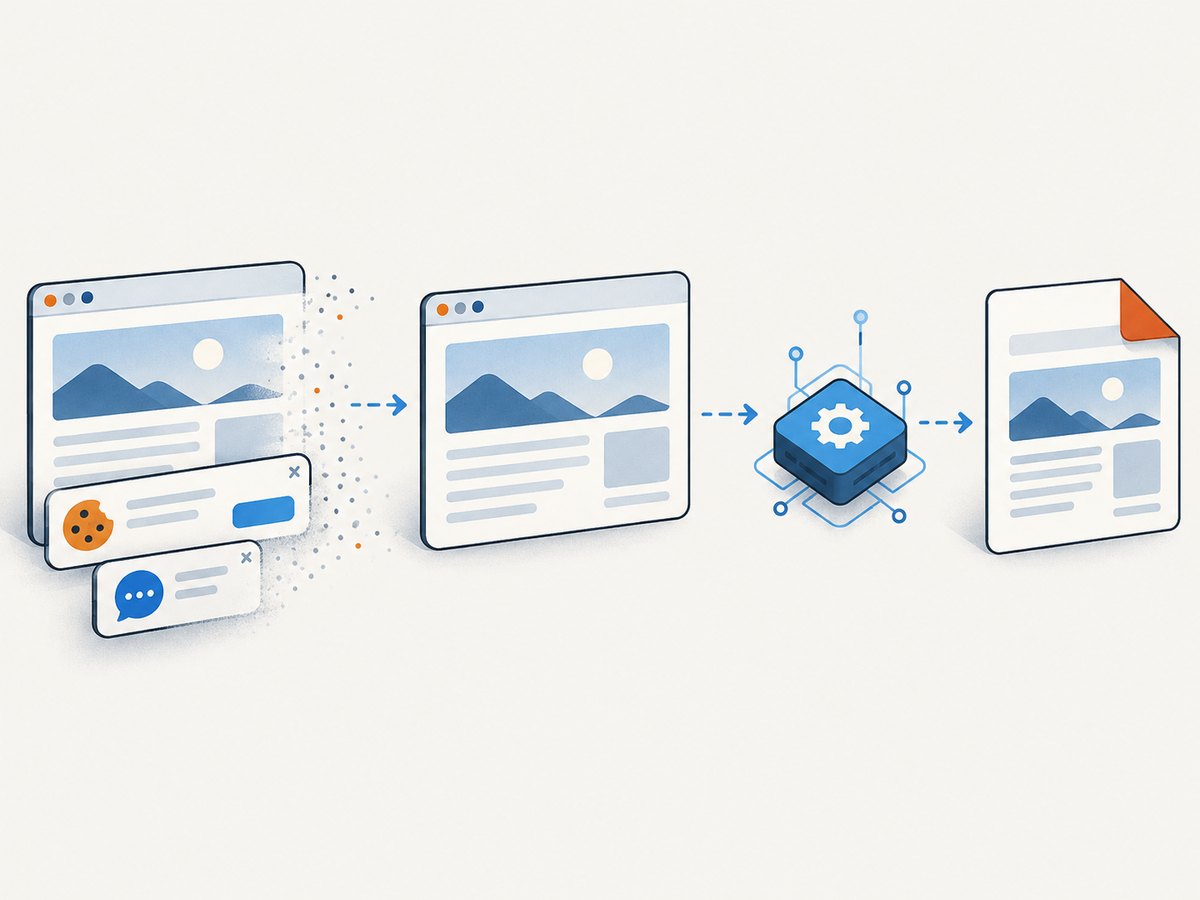
Cookie banners, newsletter popups, and chat widgets are removed before the shot. Bot checks, blank pages, failed loads, timeouts, and cache hits are not billed, and response headers identify the page verdict and whether the request was billed. ScreenshotNeo also offers an MCP server so Claude, Cursor, and other MCP clients can call take_screenshot, get_page_info, and capture_pdf. The free plan includes 1,000 screenshots a month with no card; paid plans start at $5 for 3,000 shots. Create a free ScreenshotNeo account.
12. FAQ
Can I split at a fixed CSS height?
Yes, but convert that CSS height to canvas pixels using the capture scale, then convert the resulting crop to the PDF’s usable height. A CSS pixel, canvas pixel, and PDF millimeter are different units.
Why does the last page have extra whitespace?
The final slice is shorter than a full page. That is expected. You can add a footer or leave the remaining printable area empty.
Can this preserve selectable text?
No. html2canvas produces pixels and jsPDF adds those pixels as an image. Use a text-oriented PDF generator when selection and search are requirements.
Should I use JPEG instead of PNG?
JPEG can reduce file size for photographic pages, while PNG usually preserves text and line art better. Choose based on the content and test the resulting PDF size.
How do I prevent a single huge image from being split?
Measure its position before slicing and move the break to its top when it fits on a page. If it is taller than a page, splitting is unavoidable unless you resize or capture it separately.


