How to Split a Multi-Page PDF Into Single-Page PDFs
Learn how to split every page of a PDF into its own file with local desktop tools, Acrobat, web workflows, scripts, and verification steps.
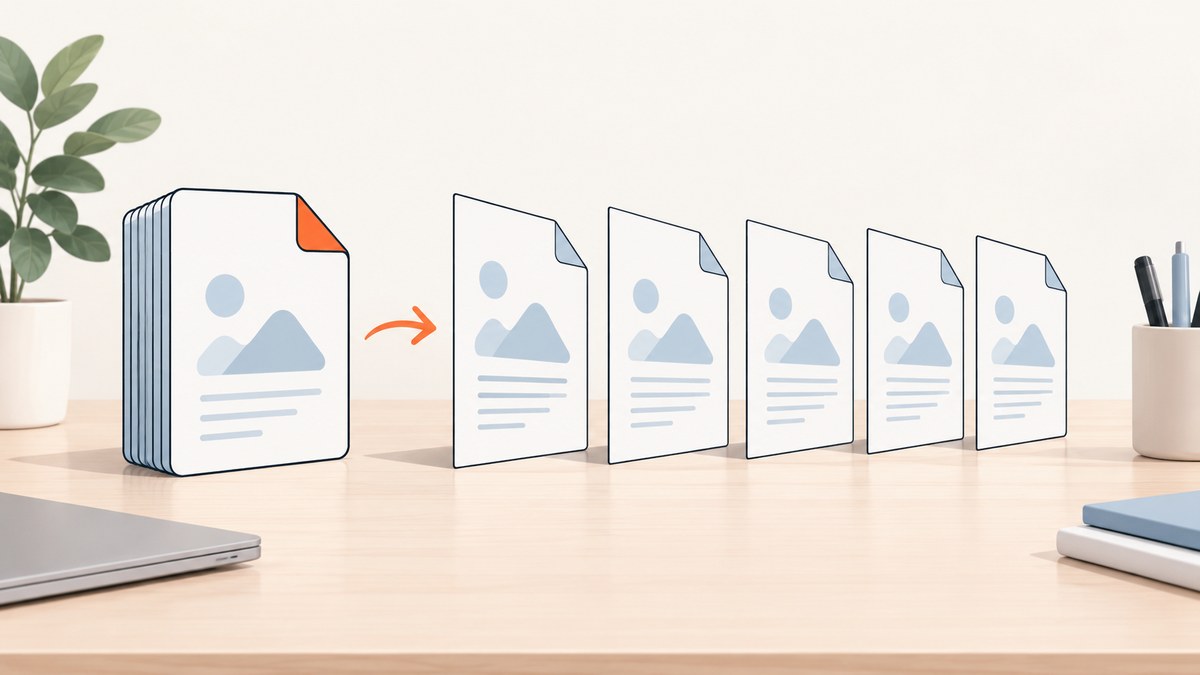
To split a multi-page PDF into single-page PDFs, choose a workflow called split every page, extract pages as separate files, or burst pages. The result is one PDF for each page in the source document. If your goal is to create a few grouped files, such as pages 1–5 and 6–10, use a page-range or page-count split instead.
For a free local workflow, PDFsam Basic is the clearest choice: add the PDF, select the option to split at every page, choose an output folder, and run the operation. PDFsam lists Windows, macOS, and Linux support and says processing happens locally on your computer. See PDFsam’s splitter documentation.
Choose the right kind of split
Before opening a tool, decide which output pattern you need:
| Goal | Setting to use | Result |
|---|---|---|
| One file per page | Every page / separate files | Page-001.pdf, Page-002.pdf, and so on |
| Groups of a fixed size | Every N pages or page count | Several files containing equal page ranges |
| Specific sections | Page numbers or custom ranges | Files for ranges you define |
| Files below a size limit | Split by file size | Groups whose size is within the chosen limit |
| Chapter-based files | Top-level bookmarks | One file per bookmark section |
This article focuses on one output per page. Keep the original PDF unchanged until you have checked the generated files.
Method 1: PDFsam Basic (Windows, macOS, and Linux)
PDFsam Basic is free and open source. Its splitter supports every-page, odd/even, page-number, every-N-pages, size, and bookmark rules. PDFsam states that files remain local and are not uploaded.
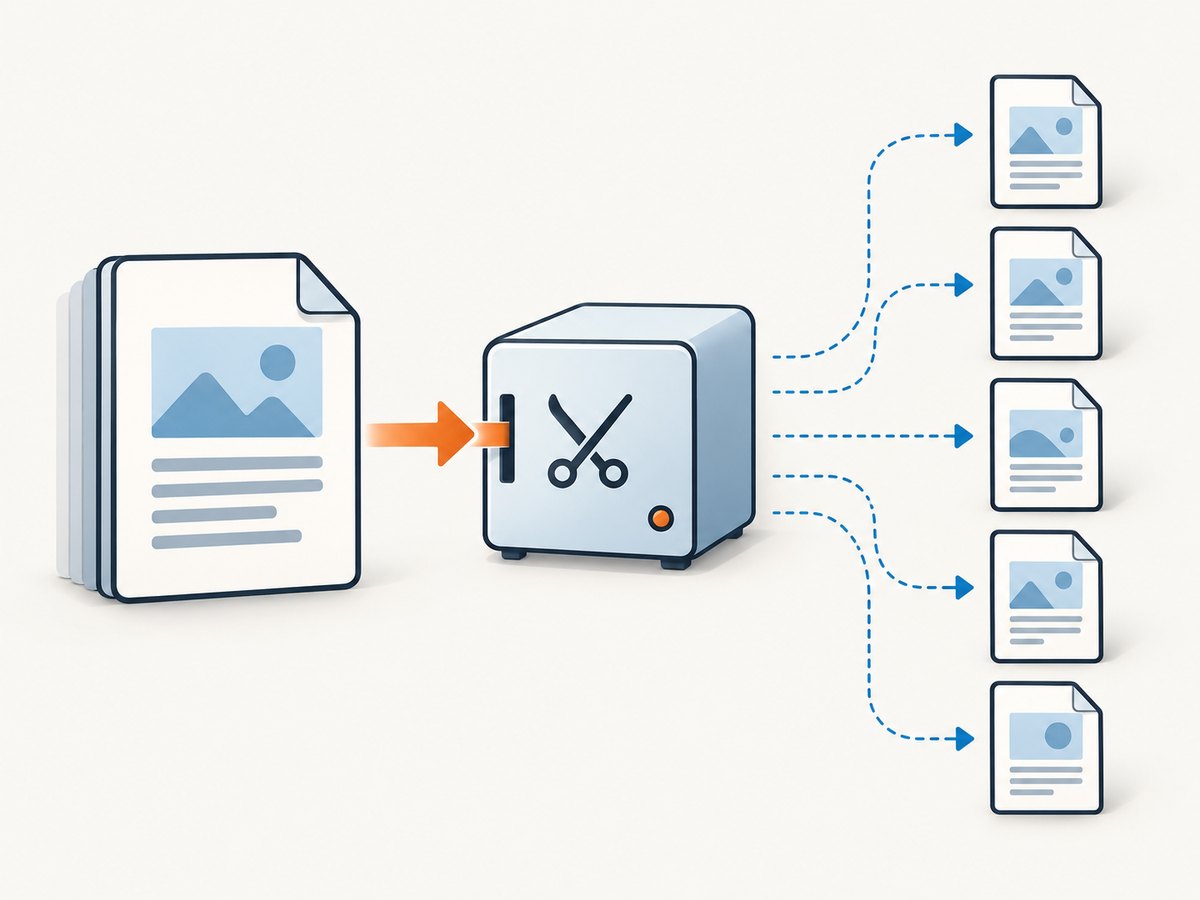
- Install and open PDFsam Basic.
- Open the Split tool and add your source PDF.
- Set the split mode to Every page (the interface may describe this as splitting at every page).
- Choose an output directory. Use a new, empty folder so old files cannot be mistaken for new output.
- Choose a filename prefix or numbering pattern if the dialog offers one.
- Run the split.
- Count the output PDFs and open several files, including the first and last. Each should contain exactly one page.
If the source has 120 pages, the expected output count is 120, unless the document contains structural restrictions that prevent processing. A count check catches skipped pages and accidental reuse of an old output folder.
Useful PDFsam split patterns
- Every N pages: creates regular groups, such as 10 pages per file.
- Odd or even pages: separates the two sides of a duplex scan.
- Page numbers: creates files at boundaries you specify.
- File size: useful when a recipient imposes a maximum attachment size.
- Bookmarks: creates sections based on the document outline when bookmarks are reliable.
Method 2: Adobe Acrobat desktop
Acrobat desktop has two related workflows. Use Organize Pages > Extract when you want selected pages as individual files. Use Organize Pages > Split when you want to divide by page count, file size, or top-level bookmarks. Adobe documents the extraction label Extract pages as separate files and provides controls for the destination and filename convention. Adobe’s extraction instructions describe the page-preservation behavior and limitations.
- Open the PDF in Acrobat desktop.
- Choose Organize Pages.
- Select Extract.
- Select all pages, or the range you need.
- Enable Extract pages as separate files.
- Choose the output location and filename settings.
- Extract the pages, then verify the number and contents of the resulting PDFs.
For a grouped split, choose Split instead. Select page count, file size, or top-level bookmarks as the split method, then set the destination and naming convention. Adobe notes that page extraction preserves page content, form fields, comments, and links, but associated bookmarks or article threads are not extracted with the page.
Method 3: Acrobat on the web
Acrobat’s online split workflow is convenient when uploading the document is allowed. Open Adobe’s Split PDF tool, upload the file, place divider lines where you want new files, and download or save the results. Adobe’s help page says the interface supports up to 22 divider lines depending on the page count. The web workflow saves the output in Adobe cloud storage, so review your organization’s data-handling rules before uploading confidential records.
The divider-line model is designed for a limited number of groups. If you need hundreds of one-page files, a local desktop splitter is usually easier to control and verify.
Method 4: macOS Preview
On a Mac, Preview can extract pages without installing a separate splitter. Open the PDF, choose View > Thumbnails, select a page thumbnail, and drag it to the desktop or another folder. Repeat for each page you need. This creates a PDF containing the selected page. For a large document, PDFsam or Acrobat provides more useful batch naming and verification controls. Interface details can vary by macOS version, so confirm the current Preview behavior on your system before processing an important file.
Verify that every output contains one page
Do not rely only on filenames. Use this checklist:
- The number of generated PDFs equals the number of source pages.
- Filenames sort in page order (zero-padded numbers such as 001, 002, and 010 avoid alphabetic misordering).
- The first, a middle page, and the final page each open successfully.
- Each sampled output reports one page in its viewer.
- Text, images, form fields, comments, and links appear as expected.
- The original file is still present and has not been overwritten.
For automated pipelines, record the source page count before splitting and compare it with the output count. Also calculate a checksum for the original if you must prove that it was not modified.
Privacy, permissions, and document restrictions
A local application keeps the file on your computer during processing. PDFsam makes that local-processing statement for PDFsam Basic; it is a vendor statement rather than an independent security audit. An online Acrobat workflow uploads the document and stores outputs in Adobe cloud storage. Choose the data path that matches your organization’s policy.
Password protection and usage restrictions can prevent extraction. In Acrobat, inspect the document’s Security properties to see whether copying or page extraction is allowed. Do not attempt to bypass restrictions on a document you are not authorized to process. Ask the owner for an unrestricted copy or an approved export.
Troubleshooting
The output count is lower than the source count
Confirm that the split mode is every page, not every N pages or bookmark boundaries. Empty or stale output folders can also make the count look wrong; write to a new folder and count only files created by the current run.
Several pages are still in one PDF
You selected a grouped split. Return to the split rule and choose every page or enable Extract pages as separate files. In Acrobat, Split and Extract are separate commands with different controls.
Some pages are blank or appear damaged
Open the source at the affected page and try exporting that page alone. A malformed object, embedded font, or damaged source stream can expose a problem during extraction. If multiple tools fail on the same page, obtain a fresh copy of the source or ask the document owner to regenerate it.
Bookmarks disappeared
This is expected for Acrobat page extraction: Adobe says bookmarks and article threads associated with pages are not extracted. If navigation matters, preserve the original PDF as the master and create a separate index, or split by top-level bookmarks with Acrobat’s Split command.
The tool refuses to extract pages
Check the PDF’s security settings, whether a password is required, and whether you have write permission for the destination folder. Choose a local output directory with sufficient free space and a filename pattern that does not overwrite the source.
The web tool cannot accept the document
Large files, network interruptions, browser extensions, or organizational upload controls can interrupt an online operation. Save a local copy, retry from a supported browser, or use a desktop splitter so the file never leaves the machine.
Performance and reliability notes
Splitting is usually limited by disk I/O and the PDF’s internal structure rather than CPU. Local processing avoids upload and download time and is easier to repeat for sensitive files. For thousands of pages, use a fast local disk, ensure ample free space, and write to a dedicated output directory. Keep a log containing the source filename, page count, output directory, and completion status.
Run a small sample first when the PDF contains forms, signatures, annotations, layers, or unusual fonts. Page extraction can preserve visible content while changing document-level navigation. If legal or archival fidelity matters, retain the original and treat the single-page files as derived copies.
Or skip the browser setup
ScreenshotNeo captures webpages as images or PDFs through one API request. It does not split an existing PDF; use it when your pipeline starts with web pages and you need clean PDF captures before a later local splitting step. The API removes cookie banners, newsletter popups, and chat widgets before capture. Bot checks, blank pages, failed loads, timeouts, and cache hits are not billed, and each response identifies the result with X-Page-Verdict and X-Billed headers. Its MCP server provides take_screenshot, get_page_info, and capture_pdf tools for Claude, Cursor, and other MCP clients.
See the ScreenshotNeo API documentation for authentication and options. The same request works from cURL, Python, or Node.js:
curl -G "https://api.screenshotneo.com/v1/shot" -d access_key=YOUR_API_KEY --data-urlencode url=https://stripe.com -o shot.webpimport requests
r = requests.get("https://api.screenshotneo.com/v1/shot", params={"access_key": "YOUR_API_KEY", "url": "https://stripe.com"}, timeout=90)
open("shot.webp", "wb").write(r.content)const q = new URLSearchParams({ access_key: 'YOUR_API_KEY', url: 'https://stripe.com' });
const res = await fetch(`https://api.screenshotneo.com/v1/shot?${q}`);ScreenshotNeo includes full-page capture, lazy-image loading, element capture, custom CSS and JavaScript, waits, request blocking, headers, cookies, user-agent, timezone, geolocation, caching, signed links, async jobs, webhooks, bulk capture, usage data, and PDF capture. Every plan includes every feature. The Free plan includes 1,000 screenshots per month with no card; paid plans start at $5 for 3,000 shots. Create a free ScreenshotNeo account.
Cost and tool selection
| Situation | Best fit | Why |
|---|---|---|
| Sensitive document | PDFsam Basic or Acrobat desktop | Processing stays local when using the desktop workflow. |
| A few custom groups | Acrobat web or desktop | Divider lines and page-range controls are quick for small jobs. |
| Hundreds of one-page files | PDFsam Basic | Every-page splitting and a local output folder scale without repeated uploads. |
| Web pages that must become PDFs first | ScreenshotNeo, then a local splitter | Clean capture API plus local page extraction. |
Desktop PDF splitting has no per-page service charge beyond the software you choose. Online tools may require an account, upload bandwidth, and cloud storage. ScreenshotNeo pricing is separate because it captures webpages: Free includes 1,000 shots monthly, Starter is $5 for 3,000, Growth $15 for 15,000, Pro $39 for 60,000, Scale $99 for 250,000, and Business $249 for 1,000,000; yearly billing gives two months free.
FAQ
What is the difference between splitting and extracting?
Splitting divides a document according to rules such as every page, size, or bookmarks. Extracting selects pages and saves them as new files. The “extract pages as separate files” option combines selection with one-file-per-page output.
Will splitting reduce PDF quality?
Page extraction normally reuses the page content rather than rasterizing it, so text and vector graphics remain available. Always inspect a sample when the source contains forms, signatures, or unusual fonts.
Can I recombine the pages later?
Yes. Most PDF editors and command-line PDF tools can merge the single-page files in filename order. Zero-padded filenames help preserve the original sequence.
Should I delete the original after splitting?
Keep it until the output count and sample contents are verified. For records or signed documents, retain the original as the authoritative copy.


