How to Start a Browser Automation Task
Plan a browser task, choose a framework, install its browser, and build a small, observable first run with Playwright. Includes runnable setup, troubleshooting, and screenshot options.
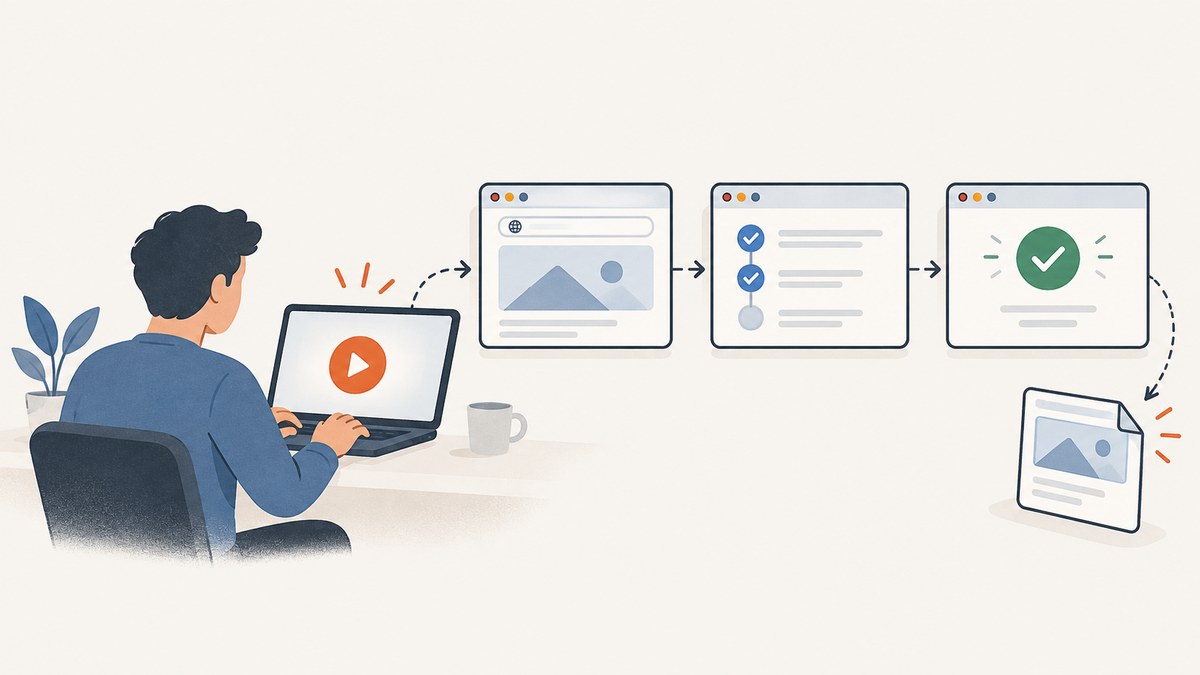
To start a browser automation task, define the page, the actions to perform, and the visible result that will prove it worked. Then choose a framework and browser that fit your language and target, install the framework’s matching browser binaries, and make a small first run that you can observe and debug.
This guide uses Playwright with JavaScript for a concrete end-to-end example. Playwright is not the only valid choice: Puppeteer is a JavaScript option for Chrome and Firefox automation, while Playwright documents projects for Chromium, Firefox, WebKit, Chrome, and Edge. Pick based on your project and target environment rather than assuming one tool is best for every task. Playwright documentation · Puppeteer documentation
1. Define what the task must accomplish
Write one sentence before writing code. It should identify the starting page, the actions, and the success condition. For example: “Open the search page, submit a query, and confirm that the results heading contains the query.” For a repetitive browser task, the success condition might be a downloaded file or a saved record. For a test, it is usually an expected application state.
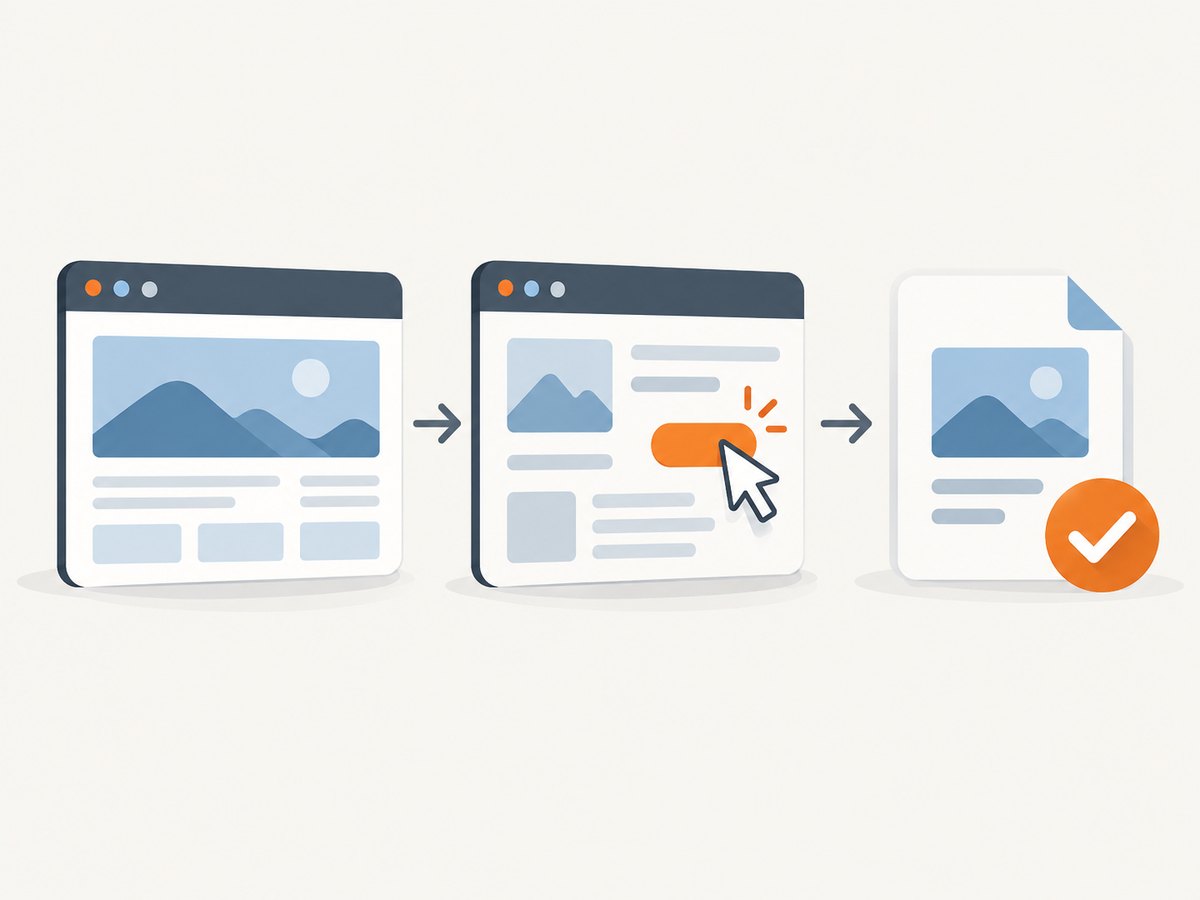
A useful task definition answers these questions:
- Where does the run start? A public page, a local development server, or an application that requires a sign-in?
- What are the essential actions? Keep the first run to one or two interactions.
- What proves success? Prefer a visible heading, URL, status, or saved artifact over “the script did not crash.”
- What should be retained? Decide whether screenshots, logs, downloads, or other outputs are useful for review.
Start with a safe page or test environment. Avoid automating a consequential action such as submitting a payment or deleting data while you are still checking selectors and browser setup.
2. Choose a framework and browser
Choose a framework that works with the language and browser you need. Playwright documents automation and testing across Chromium, Firefox, and WebKit. Its projects can also target Google Chrome or Microsoft Edge. Puppeteer is a JavaScript library for automating Chrome and Firefox using CDP or WebDriver BiDi, as described by Chrome for Developers. These options differ in browser coverage and project fit; the available evidence does not establish a universal speed or quality winner.
| Decision | Practical starting point |
|---|---|
| Language | Use a framework that fits the language already used by the project and its scripts. |
| Browser | Start with the framework’s default browser unless you need to represent a specific browser used by your audience. |
| Test versus one-off task | For an application test, define an assertion for the expected state. For a one-off task, define the output to save or inspect. |
| Visible or headless | Use a visible browser while learning or debugging. Playwright runs headlessly by default, which suits many background runs. |
Playwright’s documentation says its default setup with the latest Chromium is a good choice much of the time. If you need the branded browser itself, configure a project for Chrome or Edge rather than assuming a Chromium build is identical to that channel. Playwright browser and installation guide
3. Create a small Playwright project
The following JavaScript example uses Node.js and npm. It opens a page, performs one search, checks a result, and saves a screenshot. The example targets DuckDuckGo’s public search page; if its page structure changes, update the locator to match the current page.
- Create a directory and initialize a package:
mkdir browser-task
cd browser-task
npm init -y
npm install --save-dev playwright- Install the compatible Chromium binary:
npx playwright install chromiumPlaywright versions require matching browser binaries. Re-run browser installation after updating Playwright if its supported browser revision changes. On Linux CI or a minimal container, system libraries may also be required; Playwright provides dependency installation commands, including npx playwright install --with-deps chromium for supported Linux environments. Consult the installation page for the operating system and browser you actually deploy.
- Save this as
task.mjs:
import { chromium } from 'playwright';

const browser = await chromium.launch({ headless: false });
const page = await browser.newPage();

try {
  await page.goto('https://duckduckgo.com/', {
    waitUntil: 'domcontentloaded',
    timeout: 30_000,
  });

  const search = page.getByRole('combobox', { name: /search/i });
  await search.fill('Playwright browser automation');
  await search.press('Enter');

  const resultsHeading = page.getByRole('heading', {
    name: /playwright browser automation/i,
  });
  await resultsHeading.waitFor({ state: 'visible', timeout: 15_000 });

  await page.screenshot({ path: 'result.png', fullPage: true });
  console.log('Search results appeared; saved result.png');
} catch (error) {
  await page.screenshot({ path: 'failure.png', fullPage: true }).catch(() => {});
  console.error('Browser task failed:', error);
  process.exitCode = 1;
} finally {
  await browser.close();
}
Run it with:
node task.mjsThe browser is visible because headless is set to false. Once the workflow is understandable, set it to true for a background run. The screenshot is diagnostic evidence: it can show whether navigation reached the expected page and what appeared when a later step failed.
4. Make the run observable and dependable
A robust first workflow has three observable checkpoints: navigation reached the intended page, the action took effect, and the expected result appeared. Prefer locators tied to accessible meaning, such as a role and name, over brittle selectors based on incidental layout. A locator should describe the control the task intends to use.
- Wait for a specific result. Use a locator wait or assertion tied to the expected state. Avoid fixed sleeps as the main synchronization method; network and page timing vary.
- Use bounded timeouts. A timeout turns a stuck step into a diagnosable failure rather than an indefinite run. Set values according to the site and environment.
- Capture evidence on failure. Save a screenshot and useful error text. In a test suite, consider preserving traces or logs using the framework’s documented facilities.
- Debug visibly. Playwright runs headlessly by default, but headed mode, the Playwright Inspector, and browser developer tools can help locate the step that is failing.
- Keep state intentional. A fresh browser context is useful for a clean run. If the task requires a signed-in account, decide explicitly how authentication state is supplied and protected.
Do not treat attaching to a browser already used by a person as the normal first step. Playwright can connect to an existing Chromium-based browser through CDP, but its API reference describes that connection as significantly lower fidelity than Playwright’s own protocol connection. CDP attachment is limited to Chromium-based browsers. Chrome DevTools documentation also warns that an attached agent inherits the browser’s active accounts, cookies, and other data. Use it only when access to that existing session is required and intended. Playwright CDP API · Chrome DevTools remote debugging
5. Adapt the starter for your task
Testing an application
Run the application in a test environment, navigate to its page, perform a representative interaction, and assert the application state. The assertion should match user-visible behavior, such as a confirmation heading or updated value. Keep the environment and test data controlled so a repeat run has a meaningful result.
Collecting or saving information
Identify the specific data needed and where it should be written. Handle missing fields and empty results explicitly. Check the site’s terms and access rules before collecting data, and avoid high request rates. A browser script is not a reason to bypass access controls or bot checks.
Automating a repeated browser action
Make the operation safe to retry where possible. Record which step completed and which failed, and avoid repeating irreversible actions without checking their current state. If a human login is required, keep credentials out of source code and logs.
Changing browser and page behavior
Playwright can create pages with explicit viewport settings and browser contexts with isolated state. Set these deliberately when viewport size, cookies, or locale affects the result. Read the relevant framework API before adding configuration: settings that make one test representative can make another less so.
6. Run in CI and account for performance
Local success does not guarantee CI success. A hosted runner may have different fonts, libraries, network access, browser binaries, or resource limits. Install the browser version matching the locked Playwright package in the CI setup, and install required OS dependencies for that environment. Pin and update dependencies deliberately, then re-install the matching browser after an update.
Keep the workflow economical and diagnosable:
- Use the smallest browser and action sequence that establishes the outcome.
- Wait for the required element or state, not for every network request to stop if the page keeps polling.
- Use headless mode for unattended runs, but preserve screenshots or other diagnostics when failures need investigation.
- Do not create a new browser for every tiny action; reuse a browser process where the task runner allows it, while isolating independent sessions with separate contexts.
- For parallel work, ensure tasks do not mutate shared accounts or data in conflicting ways.
There is no benchmark in the sources for how long a particular automation should take. Actual performance depends on the page, network, browser, machine, and synchronization choices. Track your own run duration and failure causes instead of assuming a published generic speed estimate applies.
7. Troubleshooting common first-run failures
| Symptom | Likely cause | What to do |
|---|---|---|
| Executable missing or browser fails to launch | The browser binary was not installed, or it does not match the package version. | Run npx playwright install chromium after installing or updating Playwright. On Linux, install documented system dependencies for the environment. |
| Navigation times out | The host is slow or unreachable, the selected load event is too strict, or the page is waiting on long-running resources. | Check the URL and connectivity. Wait for domcontentloaded or a task-specific locator where appropriate, and choose a bounded timeout that reflects the environment. |
| Locator finds no element | The page changed, the locator name differs, or the control has not appeared yet. | Inspect the page in headed mode and use the Inspector or developer tools. Prefer a role and accessible name that match the current control; wait for its expected state. |
| Works locally but fails in CI | Different browser revision, missing OS libraries, font/layout differences, or restricted network access. | Install the matching browser and CI dependencies, inspect the failure screenshot and logs, and verify that the runner can reach the site. |
| Unexpected sign-in or personalized page | The run uses a different or persisted browser state than expected. | Use a fresh context for a clean run, or provide an explicitly managed authentication state. Never attach to a personal browser profile by accident. |
| Screenshot is blank or incomplete | The capture happened before content rendered, or content is lazy-loaded. | Wait for a visible content locator before capturing. For long pages, inspect whether scrolling is needed to load deferred content. |
| CDP attach behaves differently | CDP support is Chromium-only and lower fidelity than Playwright’s own connection. | Use a framework-launched browser unless an existing Chromium session is required; check the CDP endpoint and intended session access. |
8. Screenshot a page without maintaining browser setup
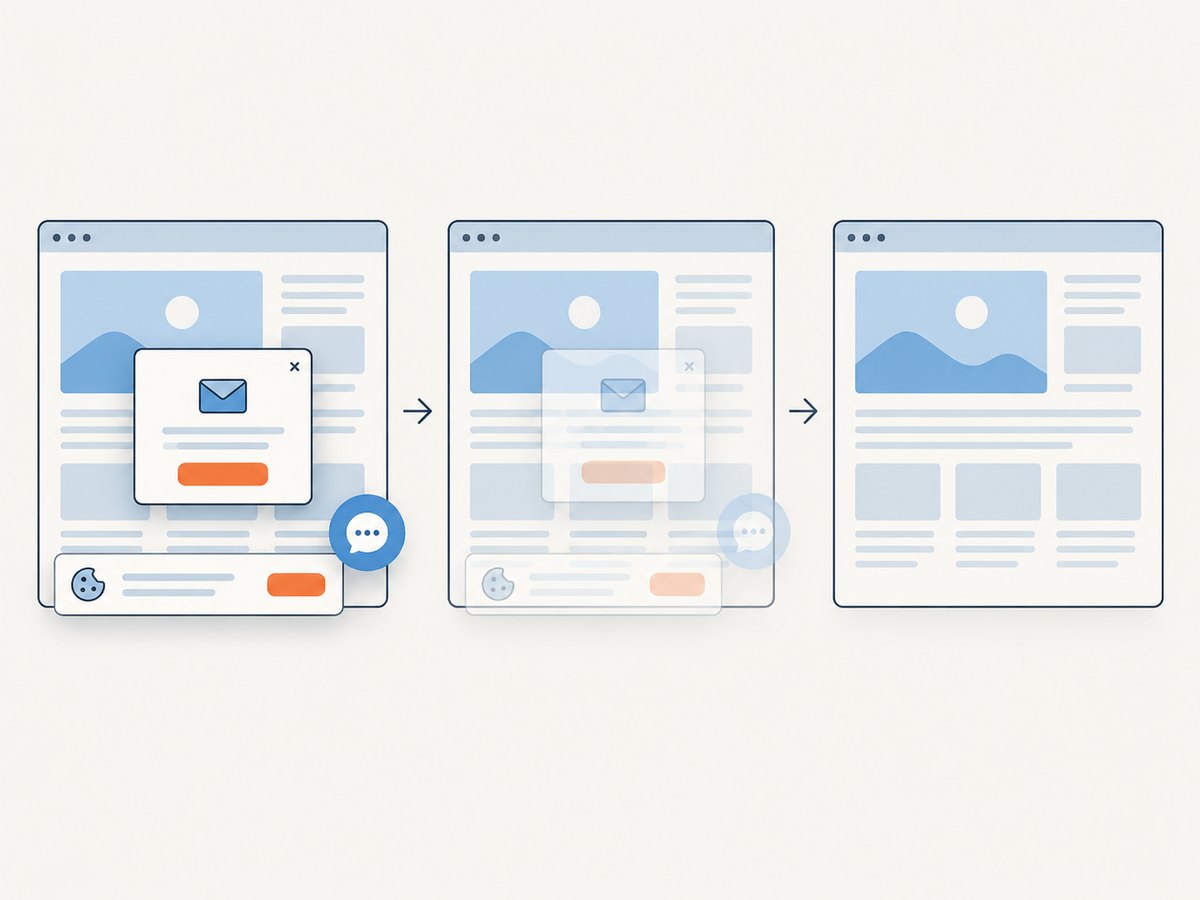
A browser framework is the right path when the task needs custom interaction, assertions, or control over a browser session. If the output you need is simply a screenshot or PDF, ScreenshotNeo is a website screenshot API and MCP server from Yorker Media. It returns PNG, JPEG, WebP, or PDF from one GET request. Its clean-capture flow accepts consent banners like a visitor and removes more than 60 known consent platforms, newsletter popups, and chat widgets; each step can be turned off. Only clean shots are billed: bot checks or CAPTCHAs, blank pages, timeouts, failed loads, and cache hits cost nothing, and the response identifies outcomes with X-Page-Verdict and X-Billed headers.
Or skip the browser setup:
See the ScreenshotNeo API documentation for request options and response details. Use your API key in place of the placeholder:
curl -G "https://api.screenshotneo.com/v1/shot" -d access_key=YOUR_API_KEY --data-urlencode url=https://stripe.com -o shot.webpimport requests
r = requests.get(
"https://api.screenshotneo.com/v1/shot",
params={"access_key": "YOUR_API_KEY", "url": "https://stripe.com"},
timeout=90,
)
open("shot.webp", "wb").write(r.content)const q = new URLSearchParams({ access_key: 'YOUR_API_KEY', url: 'https://stripe.com' });
const res = await fetch(`https://api.screenshotneo.com/v1/shot?${q}`);
if (!res.ok) throw new Error(`Screenshot request failed: ${res.status}`);
await Bun.write('shot.webp', res);The Node.js example uses Bun’s file writer for a concise runnable save step; with Node.js, write the returned bytes with fs/promises:
import { writeFile } from 'node:fs/promises';
const q = new URLSearchParams({ access_key: 'YOUR_API_KEY', url: 'https://stripe.com' });
const res = await fetch(`https://api.screenshotneo.com/v1/shot?${q}`);
if (!res.ok) throw new Error(`Screenshot request failed: ${res.status}`);
await writeFile('shot.webp', Buffer.from(await res.arrayBuffer()));- Cookie banners, popups, and chat widgets are removed before the shot.
- Bot checks, blank pages, and failed loads are never billed.
- An MCP server lets AI agents, including Claude, Cursor, and any MCP client, use
take_screenshot,get_page_info, andcapture_pdf. - 1,000 screenshots a month are free with no card; paid plans start at $5 for 3,000.
Create a free ScreenshotNeo account for 1,000 screenshots a month, with no card required.
9. ScreenshotNeo options, reliability, and cost
For screenshot tasks, the API supports full-page captures with lazy images loaded, CSS-selector element capture, dark mode, 12 device presets or a custom viewport, and retina scale. It can produce PDF with paper size, margins, landscape orientation, and page ranges; convert HTML and CSS to an image; apply custom CSS or JavaScript; click an element before capture; hide selectors; and wait for a selector, delay, or network idle. Request controls include blocking ads, trackers, requests, or resource types; custom headers, cookies, user agent, and Authorization; timezone and geolocation; transparent backgrounds; image resizing; and a chosen caching TTL. It also supports signed links for public <img> tags, async jobs with signed webhooks, bulk capture of 100 URLs per call, a usage API, and an OpenAPI spec. Parameter names used by other screenshot APIs also work to make migration easier. Each feature is available on every plan.
| Plan | Monthly screenshots | Price |
|---|---|---|
| Free | 1,000 | $0, no card |
| Starter | 3,000 | $5 |
| Growth | 15,000 | $15 |
| Pro | 60,000 | $39 |
| Scale | 250,000 | $99 |
| Business | 1,000,000 | $249 |
Yearly billing gives two months free. For reliable integrations, check the response status and the outcome headers, set a client timeout suited to the task, and avoid treating every returned artifact as a successful page capture without inspecting its verdict. Caching can reduce repeated work when the chosen TTL fits the freshness requirement. Bulk or asynchronous jobs can suit larger batches; signed webhooks let a job report back without keeping a request open. The right plan depends on monthly volume; no uptime or speed claim is assumed here.
10. First-run checklist
- Write down the start page, actions, and observable success condition.
- Choose a framework and target browser that fit the language and environment.
- Install the framework and its matching browser binary.
- Make one small run with a visible browser and a clear result check.
- Save a screenshot or logs when they help explain a failure.
- Use deliberate browser state and protect account credentials.
- Install matching browser and OS dependencies in CI.
- Choose browser automation for interactive workflows; choose a screenshot API when the deliverable is a capture.
FAQ
Should I use Playwright or Puppeteer?
Choose by language, browser coverage, and project needs. The cited documentation describes Playwright projects across Chromium, Firefox, and WebKit plus branded Chrome and Edge, while Puppeteer is a JavaScript library for Chrome and Firefox automation. The sources do not establish a universal winner.
Do I need to see the browser window?
No. Playwright is headless by default. A visible run is often easier to learn from and debug; switch to headless when the workflow is clear and suited to unattended execution.
Can I automate a browser that is already open?
Playwright can attach to Chromium over CDP, but that connection is lower fidelity than its normal protocol connection and inherits the existing browser’s data. Use a launched browser unless the existing session is a deliberate requirement.
When is a screenshot API enough?
Use one when the required output is a page image or PDF and you do not need a custom multi-step browser interaction. For interactive workflows and application assertions, browser automation gives you direct control of the actions and checks.


