How to Stop Cloudflare from Repeatedly Asking You to Verify
A Cloudflare challenge loop can come from browser settings, extensions, network conditions, or the site’s security rules. Use these checks to narrow it down safely.

If Cloudflare keeps asking you to verify, you are probably caught in a challenge loop: the check reappears without completing. There is no guaranteed visitor-side fix. Start by checking that your browser can run the challenge, then compare another browser or network. If the loop continues, send the website administrator the displayed error code and Ray ID so they can investigate the request and their security rules.
Cloudflare lists several possible causes, including unstable network connectivity, browser configuration or extensions blocking challenge scripts, an unsupported or outdated browser, disabled JavaScript, and detection errors. Some VPNs and proxies can also interfere. These are possibilities to investigate, not a diagnosis of your particular case. See Cloudflare’s challenge solve troubleshooting and general challenge troubleshooting.
1. What a repeated verification prompt means
A Cloudflare challenge is a check a website can use to distinguish legitimate visitors from automated or suspicious traffic. In a loop, the challenge keeps appearing instead of reaching the page. Cloudflare’s documentation describes this as a challenge that “keeps reappearing without being solved.” The prompt alone does not tell you whether the cause is your browser, connection, or the website’s security configuration.
Some challenge flows rely on JavaScript and browser capabilities to finish. If a required script is blocked, JavaScript is disabled, or browser storage is unavailable, the check may not complete. Network interruptions, filtering, or a browser that Cloudflare does not support can also affect the result.
Website owners control security settings that may challenge visitors. Cloudflare names threat scoring, IP reputation, bot detection, custom Web Application Firewall (WAF) rules, and Browser Integrity Check among features that can lead to challenges. A legitimate visitor can therefore be challenged because of a site-side rule or detection result, even after basic browser checks.
2. Work through visitor checks in order
Change one factor at a time where practical. That makes comparisons more useful: if the page starts working after you switch browsers, for example, browser configuration becomes a stronger lead. A successful comparison narrows possibilities; it does not prove the underlying cause.
Step 1: Update and restart your browser
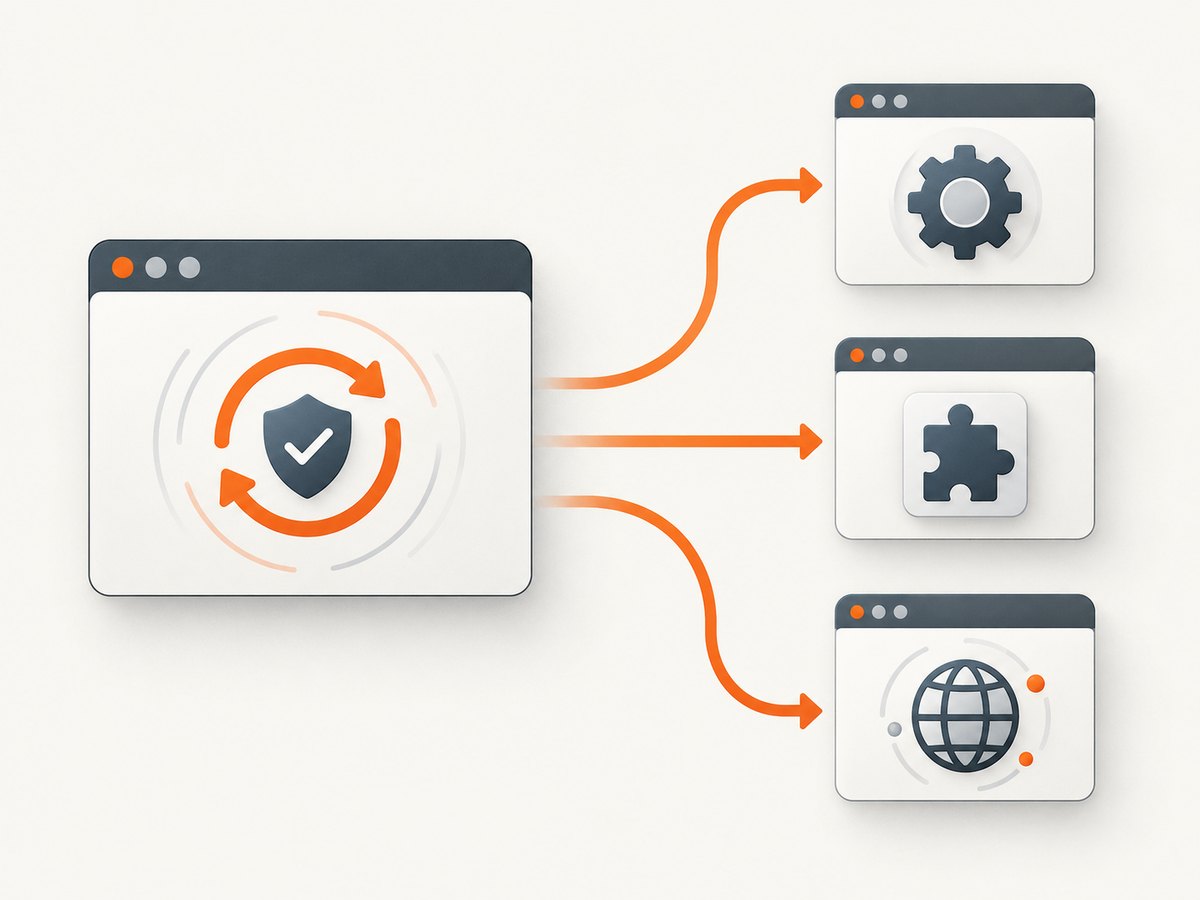
Use a current version of a modern browser and restart it before trying again. Cloudflare says challenges are not supported by Internet Explorer. If you are using an old browser, an embedded browser, or an in-app web view, try opening the same page in a current standalone browser.
Step 2: Check JavaScript and site data
Make sure JavaScript is enabled for the affected site. Check that your browser is not blocking the cookies or storage the site and challenge need to complete. Privacy settings that block site data can be relevant, but do not assume that deleting all cookies is a universal fix. If you choose to clear site data, treat it as a limited diagnostic: it may sign you out or remove saved preferences, and it may not address the cause.
If the page is open in a native app’s WebView, check whether that WebView supports JavaScript, DOM storage, and cookies. Cloudflare also identifies access to challenges.cloudflare.com and a changing User Agent during a session as things to investigate in WebView cases.
Step 3: Test content-blocking extensions
For the affected site, temporarily disable extensions that filter scripts or content, such as an ad blocker or privacy extension, and reload. This is a diagnostic, not a recommendation to leave protections off. If the challenge works, re-enable extensions one at a time and test again to find a conflict. Browser settings or other filtering tools can have similar effects.
Step 4: Compare networks and VPN settings
Retry on a stable connection. If available, compare your usual network with mobile data or a hotspot. You can also temporarily test without a VPN or proxy. Cloudflare says some VPNs or proxies may interfere with Turnstile; shared VPN addresses and corporate proxies may also have poor IP reputation. A VPN is not a general-purpose fix and switching to one can make the result worse.
If the site works on one network but loops on another, that points toward investigating the original connection, filtering, proxy, or IP reputation. It does not establish which one is responsible.
Step 5: Compare a different browser or device
Try the page in another current browser, then on another device if one is available. If the same device works in a different browser, focus on the original browser’s extensions, JavaScript, and site-data settings. If several browsers fail on one network but work elsewhere, the network is a more useful lead. If the loop follows you across browsers and networks, the site owner may need to review the request and their rules.
Step 6: Contact the website administrator
If these checks do not resolve the loop, contact the site through its support channel. Cloudflare specifically advises visitors to provide the error code and Ray ID shown on the challenge page, or to submit feedback through the Turnstile widget when that option is available.
Include the time and time zone, the page you were trying to open, what you were doing, your browser and device, and which browser or network comparisons you tried. Say whether the challenge repeats every time or only sometimes. The Ray ID is associated with a request passing through Cloudflare and can help the site owner investigate a security event; it is not itself an explanation of the cause. See Cloudflare’s Ray ID reference.
3. What the site owner can investigate
Visitors cannot change a website’s Cloudflare rules. The owner or support team can use the time, affected URL, error code, and Ray ID to locate the relevant request and review security events. They can investigate whether a threat score, IP reputation, bot detection, custom WAF rule, or Browser Integrity Check caused a legitimate visitor to be challenged. Cloudflare’s WAF troubleshooting FAQ also provides guidance for visitors and site owners.
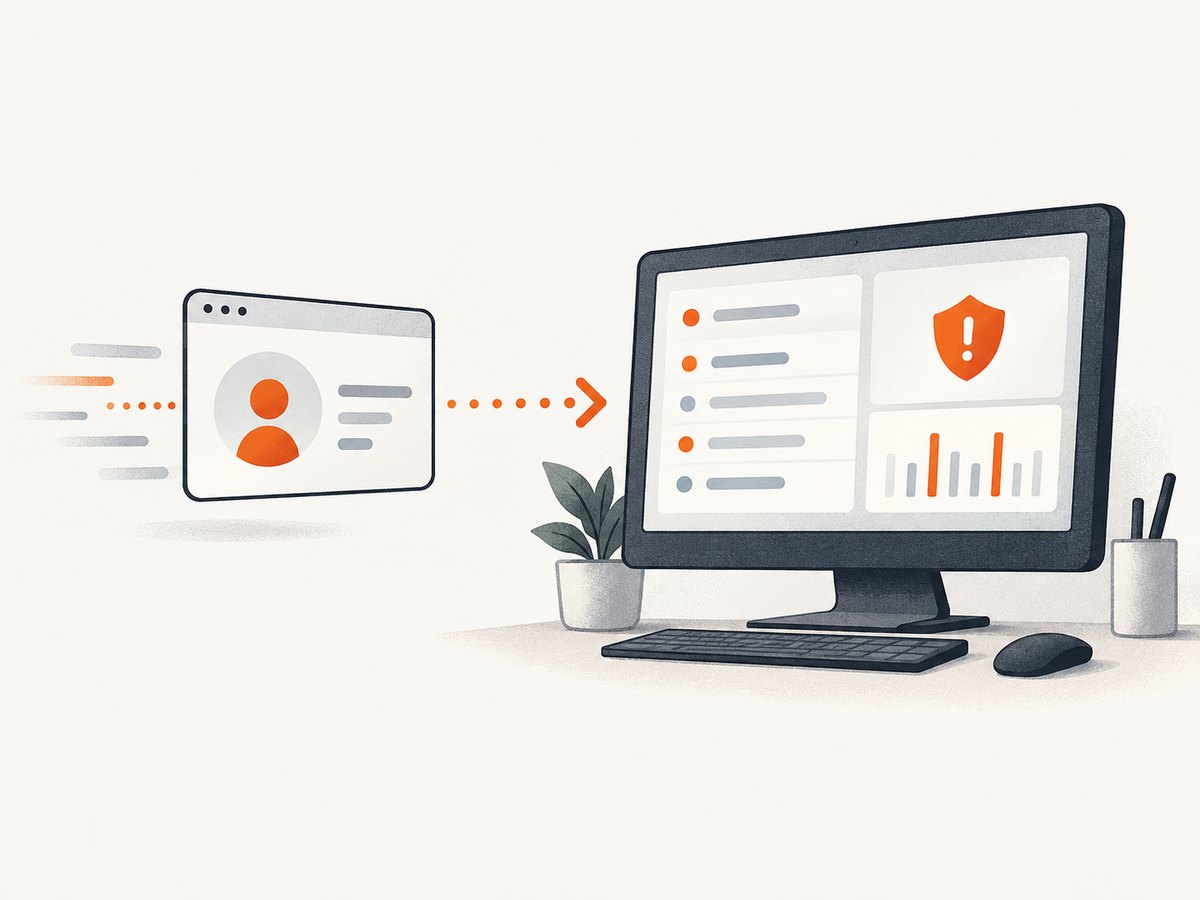
For a difficult-to-reproduce loop, Cloudflare recommends using browser developer tools with Preserve log enabled. A support team may ask for a HAR file and browser console log. A HAR can help show requests that failed or were blocked; console output can reveal JavaScript errors, CORS issues, or other browser-side failures. These files may include session or personal data. Share them only with the site owner or support channel that needs them, and avoid posting them publicly.
Site owners may also review their challenge configuration and passage mechanisms, which can reduce repeat challenges in some configurations. The right adjustment depends on the request and the site’s security policy; a visitor should not be promised that a challenge will disappear after a fixed wait or after one particular setting changes.
4. Common errors and misleading fixes
| What you observe | Possible explanation | Useful next step |
|---|---|---|
| The challenge reloads without finishing | A required script or browser capability may be blocked, or the challenge may encounter a detection error. | Check JavaScript and site data, then test without filtering extensions for that site. |
| It works in another browser | The first browser’s settings, extensions, or version may be involved. | Update it and re-enable extensions one at a time after a diagnostic test. |
| It works on mobile data but not Wi-Fi | The original connection, proxy, filtering, or IP reputation may be relevant. | Give the site owner both results and ask them to investigate the Ray ID. |
| A VPN makes the loop worse | Some VPNs and proxies interfere, and shared addresses may have poor IP reputation. | Test briefly without the VPN or proxy, if your situation allows. |
| A WebView loops while a full browser works | The embedded browser may lack JavaScript, DOM storage, cookies, or access to challenge resources. | Ask the app developer to check WebView capabilities and whether the User Agent changes. |
| A Private Access Token request returns 401 | This alone does not prove the challenge failed. Cloudflare says a browser, device, or network may be unable to issue a token, after which the page falls back to a standard challenge. | Continue troubleshooting the visible challenge; do not treat that response alone as the root cause. |
Avoid treating any one check as a guaranteed cure. Clearing all cookies is not Cloudflare’s universal recommendation for challenge loops. Buying or switching to a VPN is not a reliable fix. Do not attempt to bypass or defeat the challenge; if the site keeps rejecting a legitimate visit, the administrator needs to review its security events and rules.
5. If you are debugging a page capture
A challenge loop can also affect a developer trying to document or capture a page. A screenshot of a challenge is evidence of what the browser displayed, but it does not explain why Cloudflare issued it or make the protected page available. Do not use an automated capture as a way to bypass the site’s check.
For an authorized reproduction, record the browser, device, network, time, visible error code, and Ray ID. If the issue is in your own site or app, reproduce it in a normal browser session and inspect the network log and console. Preserve logs before reloading, then share HAR or console files only with the team investigating the problem, because they can contain sensitive session data.
6. Or skip the browser setup
If your task is to capture a page that is accessible to the screenshot service, ScreenshotNeo provides a website screenshot API. It does not resolve a Cloudflare challenge or grant access to a protected page: bot checks and failed loads are identified in the response and are not billed. For ordinary page captures, a single GET request returns an image or PDF. See the ScreenshotNeo API documentation.
curl -G "https://api.screenshotneo.com/v1/shot" -d access_key=YOUR_API_KEY --data-urlencode url=https://stripe.com -o shot.webpimport requests
r = requests.get(
"https://api.screenshotneo.com/v1/shot",
params={"access_key": "YOUR_API_KEY", "url": "https://stripe.com"},
timeout=90,
)
open("shot.webp", "wb").write(r.content)const q = new URLSearchParams({ access_key: 'YOUR_API_KEY', url: 'https://stripe.com' });
const res = await fetch(`https://api.screenshotneo.com/v1/shot?${q}`);ScreenshotNeo accepts cookie and consent banners and removes more than 60 known consent platforms, newsletter popups, and chat widgets before a shot; each cleanup step can be turned off. Bot checks, blank pages, timeouts, failed loads, and cache hits cost nothing, and response headers indicate the page verdict and billing status. Its MCP server lets AI agents use take_screenshot, get_page_info, and capture_pdf. The free plan includes 1,000 screenshots a month with no card; paid plans start at $5 for 3,000. Plans include every feature. ScreenshotNeo is made by Yorker Media. Learn more at ScreenshotNeo, or sign up for 1,000 free screenshots a month with no card.
7. Performance, reliability, and cost notes
For visitor troubleshooting, the fastest useful approach is usually to change one variable at a time: browser, extension state, then network. Trying many changes together can make the page work without revealing which factor mattered. A single successful retry also does not guarantee the issue is fixed if the connection or site-side detection changes.
For site support, include enough context to find the request without sending unnecessary personal information. A timestamp with time zone and the Ray ID are more actionable than a report that only says “Cloudflare is broken.” A HAR or console log can add diagnostic detail, but should be shared selectively because it may expose session data.
For screenshot automation, use an authorized target and inspect the response’s verdict and billing headers instead of assuming every request produced a clean page. ScreenshotNeo states that bot checks, blank pages, timeouts, failed loads, and cache hits are not billed. Its listed monthly plans are Free: 1,000 shots with no card; Starter: $5 for 3,000; Growth: $15 for 15,000; Pro: $39 for 60,000; Scale: $99 for 250,000; and Business: $249 for 1,000,000. Yearly billing gives two months free. These API costs do not change the site’s Cloudflare rules or solve an access challenge.
8. Frequently asked questions
Will waiting make Cloudflare stop asking?
There is no wait-time guarantee in the cited troubleshooting guidance. If the challenge continues, compare browser and network conditions, then contact the site administrator with the displayed details.
Does a Ray ID mean I did something wrong?
No. It is an identifier associated with a request passing through Cloudflare. Provide it to the site owner so they can investigate; it is not a verdict about your intent.
Should I turn off my ad blocker permanently?
No. Temporarily disabling a content-filtering extension for the affected site can help identify a conflict. If that changes the outcome, re-enable extensions one at a time to find the specific setting or extension involved.
Can ScreenshotNeo get past the verification for me?
No. ScreenshotNeo is for capturing pages the service can access. Its non-billed bot-check and failed-load outcomes are not a way to bypass Cloudflare or retrieve content behind a challenge.


