How to Stop JavaScript Execution in Puppeteer Before Capturing a Page
Disable page JavaScript before navigation with Puppeteer’s setJavaScriptEnabled(false). Learn the right timing, runnable capture code, and how to troubleshoot it.
To stop page JavaScript in Puppeteer before capturing a page, disable it before navigating to the page:
await page.setJavaScriptEnabled(false);
await page.goto(url);
The setting takes effect on the next navigation. It does not undo scripts that already ran in the current document. Set it before page.goto() (or before a reload or other navigation that creates the document you will capture). Puppeteer documents this behavior in its Page.setJavaScriptEnabled() API reference.
Here is a complete Node.js example that opens a page with JavaScript disabled and saves a screenshot:
const puppeteer = require('puppeteer');

(async () => {
  const browser = await puppeteer.launch({ headless: true });
  try {
    const page = await browser.newPage();
    await page.setJavaScriptEnabled(false);
    await page.goto('https://example.com', {
      waitUntil: 'domcontentloaded',
      timeout: 30000,
    });
    await page.screenshot({ path: 'page.png', fullPage: true });
  } finally {
    await browser.close();
  }
})();
The URL is a placeholder; replace it with the page you need. Choose a navigation wait condition that fits the capture. With scripts disabled, a page may never reach a state that depends on JavaScript, so waiting for application-specific content or network idleness can be inappropriate.
1. What disabling JavaScript changes
page.setJavaScriptEnabled(false) controls whether JavaScript is enabled for the page. When disabled before navigation, scripts in the newly loaded document do not execute. That can be useful when you need a screenshot of the server-rendered HTML and CSS without client-side script changes.
It does not mean the browser stops downloading every script file, block every network request, or reverse changes made before you disabled it. It is a page-level JavaScript setting. If you need to control which resources the browser requests, use request interception for that separate job.
Disabling scripts can materially change what you capture. Client-rendered applications may show an empty shell, a loading placeholder, or a fallback state. Some consent dialogs, menus, images, or page content may also depend on scripts. Inspect the intended output before adopting this setting for a batch or production workflow.
2. Correct sequencing and navigation waits
- Create the page. Get a Puppeteer
Pagefrom a browser context or browser. - Disable JavaScript. Await
page.setJavaScriptEnabled(false). - Navigate. Call
page.goto(), or reload/navigate to create the document you want to capture. - Capture. Save the screenshot or perform another operation once the relevant document state is available.
For example:

const page = await browser.newPage();
await page.setJavaScriptEnabled(false);
const response = await page.goto(url, { waitUntil: 'domcontentloaded' });
await page.screenshot({ path: 'capture.png', fullPage: true });
Puppeteer does not prescribe one universal wait condition for every screenshot. domcontentloaded is a useful starting point for a document capture that should not wait for every subresource. If the screenshot needs stylesheets and images that load after parsing, wait for an appropriate condition or for a specific non-script-dependent selector. Pick based on the site and test what appears in the resulting image.
A timeout is not proof that JavaScript is still running. It can mean the selected wait condition never occurred, a network resource stalled, or navigation itself took too long. In particular, avoid assuming that an app-specific element will appear when its creation depends on scripts that you have disabled.
3. Runnable examples
CommonJS: save a full-page screenshot
Install Puppeteer in your project using the installation instructions for the version you use. This example uses its Node.js API:
const puppeteer = require('puppeteer');

async function captureWithoutPageJavaScript(url, outputPath) {
  const browser = await puppeteer.launch({ headless: true });
  try {
    const page = await browser.newPage();
    await page.setViewport({ width: 1440, height: 900 });
    await page.setJavaScriptEnabled(false);

    const response = await page.goto(url, {
      waitUntil: 'domcontentloaded',
      timeout: 30000,
    });

    if (response && !response.ok()) {
      throw new Error(`Navigation returned HTTP ${response.status()}`);
    }

    await page.screenshot({ path: outputPath, fullPage: true });
  } finally {
    await browser.close();
  }
}

captureWithoutPageJavaScript('https://example.com', 'page.png')
  .catch((error) => {
    console.error(error);
    process.exitCode = 1;
  });
Using finally closes the browser even if navigation or capture fails. The HTTP response check is optional; it makes an unsuccessful document response visible to the caller instead of silently saving a screenshot.
ES modules
If your project uses ES modules, the sequence is identical; only the import syntax changes:
import puppeteer from 'puppeteer';

const browser = await puppeteer.launch({ headless: true });
try {
  const page = await browser.newPage();
  await page.setJavaScriptEnabled(false);
  await page.goto('https://example.com', {
    waitUntil: 'domcontentloaded',
    timeout: 30000,
  });
  await page.screenshot({ path: 'page.png', fullPage: true });
} finally {
  await browser.close();
}
Reuse a page carefully
When reusing a page, set the flag before each navigation whose document should have JavaScript disabled. If the page already loaded, toggling the flag does not rewind that document. Navigate or reload after changing it, then capture the newly created document:
await page.goto(firstUrl);
// This affects the next document, not scripts already run above.
await page.setJavaScriptEnabled(false);
await page.goto(secondUrl);
await page.screenshot({ path: 'second.png' });
For predictable behavior, set the flag before every relevant navigation rather than relying on a prior page state.
4. Choose the right Puppeteer control
| Goal | API | When it applies |
|---|---|---|
| Disable JavaScript in the next page document | page.setJavaScriptEnabled(false) |
Set before the navigation that creates the document to capture. |
| Change the JavaScript environment before page scripts run | page.evaluateOnNewDocument(fn) |
Runs after a document is created and before its scripts; useful for environment changes, not the documented JavaScript-disable switch. |
| Allow, answer, or abort selected network requests | page.setRequestInterception(true) |
Controls requests, not page-level script execution. Every intercepted request must be resolved. |
Puppeteer describes evaluateOnNewDocument() as a way to amend the JavaScript environment before page scripts run. It also applies to navigations and attached or navigated child frames. Use it when that is the requirement, rather than treating it as equivalent to disabling JavaScript. See the evaluateOnNewDocument() reference.
Request interception has a different purpose. When interception is enabled, a request stalls until the code continues, responds to, aborts it, or it completes from cache. Leaving one unresolved can hang a page. The Puppeteer request interception guide explains the request lifecycle.
5. Common options and capture considerations
The JavaScript setting does not choose the screenshot size, file type, or page area. Those are separate screenshot and page configuration choices:
- Viewport: configure width and height with
page.setViewport()before navigation when the page layout depends on viewport dimensions. - Full page: pass
fullPage: trueto include the full document height. Very long documents can produce large images and take longer to rasterize. - Output format: the path extension and screenshot options determine how you save the image. Puppeteer supports screenshot configuration through its Page API; consult documentation for the installed version.
- Navigation timeout: set an explicit timeout suited to your environment. Handle timeout errors rather than assuming the page is ready.
- Wait condition: choose a condition aligned with the content you expect. A page with JavaScript disabled may not satisfy conditions tied to client-side rendering.
For exact supported screenshot options and types, use the API documentation matching your installed Puppeteer release. The research sources identify some references as Next documentation and the request interception guide as version 25.12.0; do not assume those labels match every project installation. See the Page API overview.
6. Edge cases to check
Scripts ran before the flag changed
If the target document is already open, scripts may have changed the DOM, started requests, or populated state. Disabling JavaScript afterward does not roll those effects back. Navigate again after setting the flag to capture a fresh document without page script execution.
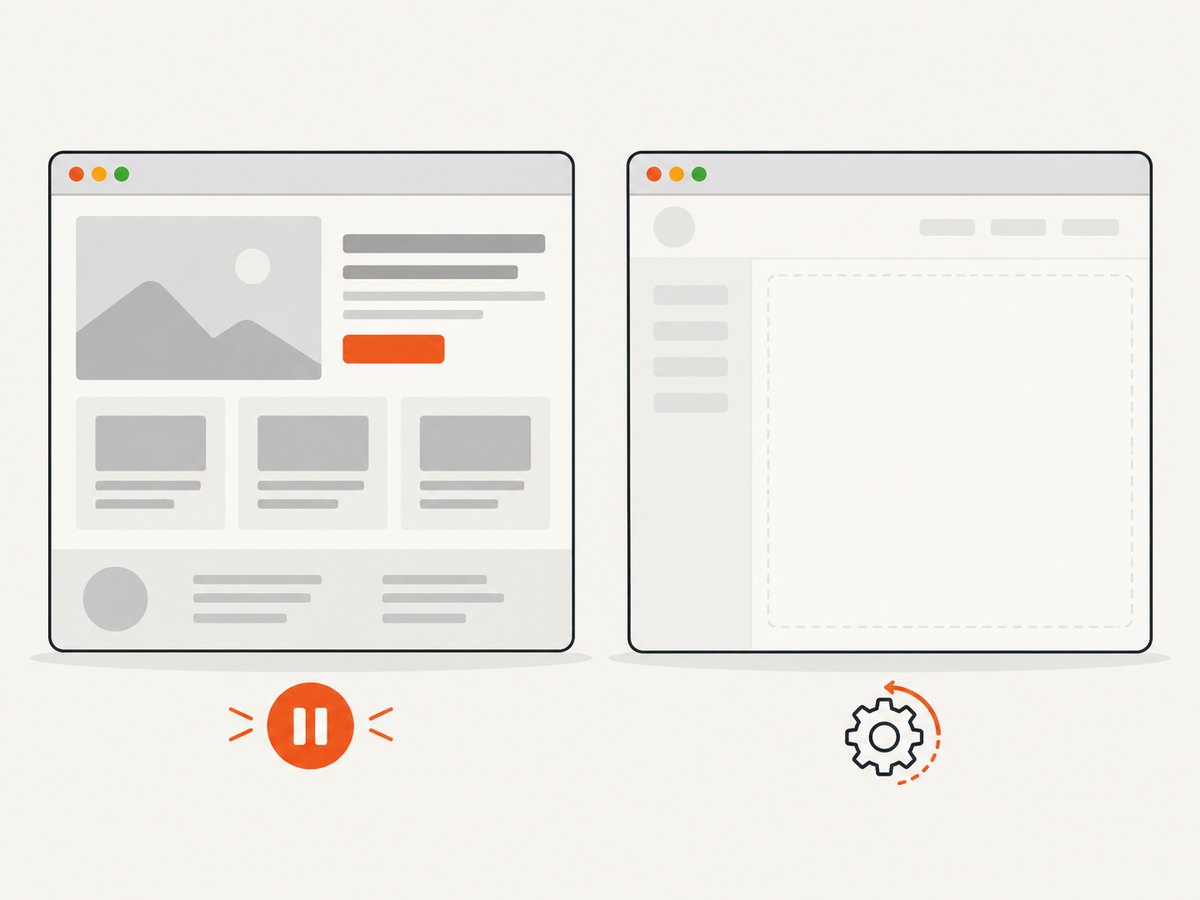
The page is blank or incomplete
A blank screenshot can be the expected result when the site depends on JavaScript to render. Compare with a capture where JavaScript is enabled, or inspect the server-rendered HTML and choose which state your use case needs. Do not add arbitrary waits to solve content the page never creates with scripts disabled.
Frames and embedded content
Pages can contain child frames with separate documents. Verify the captured result when embedded content matters. If you are using evaluateOnNewDocument() for a distinct environment adjustment, Puppeteer documents that hook for child-frame navigations too; that behavior is not a substitute for the page JavaScript switch.
Pages that need script-driven consent or state
Some sites only reveal content after client-side actions or consent state changes. Disabling JavaScript may prevent those actions. If the goal is a clean screenshot of a functioning site, disabling all page scripts may be the wrong control; consider handling the particular overlay or resource instead.
7. Troubleshooting
| Symptom | Likely cause | Fix |
|---|---|---|
| Page behavior did not change | The flag was set after the document loaded, so scripts already executed. | Set it before goto() and navigate again. |
| Screenshot is empty or shows a shell | The page relies on JavaScript for rendering. | Decide whether the server-rendered state is acceptable; otherwise enable JavaScript for the capture. |
goto() times out |
The chosen wait condition was never reached, a resource stalled, or navigation exceeded the timeout. | Use a wait condition suited to a non-script-rendered document, inspect the URL and response, and set a realistic timeout. |
| Styles or images are missing | Subresources may not have finished loading when capture began, or the site may require scripts to load them. | Wait for relevant resources or a suitable selector; verify whether the resource is script-dependent. |
| Request interception appears to hang | An intercepted request was left unresolved. | Ensure every intercepted request is continued, answered, or aborted, or disable interception if you only meant to disable page JavaScript. |
| Type or behavior differs from an example | The project uses a different Puppeteer version than the cited Next API page. | Check the API reference and types for the installed version. |
8. Performance, reliability, and cost
Disabling JavaScript can avoid client-side execution for the new document, but the cited Puppeteer documentation does not publish a universal speedup or reliability improvement. Results depend on the page, its resources, and the wait condition. Measure the actual workload before claiming a performance gain.
Capture reliability improves when the automation’s expected page state matches what the site can provide without scripts. If the screenshot needs client-rendered content, turning JavaScript off makes that state unavailable. For repeatable captures, keep navigation and screenshot errors visible, close browser resources in a finally block, and record the URL and failure cause in your own job logs.
Cost depends on where the browser runs and how your application provisions it; the Puppeteer API behavior itself does not establish a price. Account for browser runtime, image storage, retries, and the size and number of captures in your own environment. Avoid automatic retries for a deterministic blank result caused by disabled scripts; fix the capture settings instead.
Or skip the browser setup
If you need a screenshot without managing Puppeteer and browser lifecycle, ScreenshotNeo is a website screenshot API and MCP server for developers. One GET request returns an image or PDF, and the ScreenshotNeo docs describe the API.
curl -G "https://api.screenshotneo.com/v1/shot" -d access_key=YOUR_API_KEY --data-urlencode url=https://stripe.com -o shot.webpimport requests
r = requests.get(
"https://api.screenshotneo.com/v1/shot",
params={"access_key": "YOUR_API_KEY", "url": "https://stripe.com"},
timeout=90,
)
open("shot.webp", "wb").write(r.content)const q = new URLSearchParams({ access_key: 'YOUR_API_KEY', url: 'https://stripe.com' });
const res = await fetch(`https://api.screenshotneo.com/v1/shot?${q}`);- Cookie banners are accepted and removed before capture; 60+ known consent platforms, newsletter popups, and chat widgets can be removed, and each step can be turned off.
- Bot checks, blank pages, timeouts, failed loads, and cache hits are not billed; response headers report the page verdict and billing status.
- An MCP server provides
take_screenshot,get_page_info, andcapture_pdffor Claude, Cursor, and other MCP clients. - The Free plan includes 1,000 screenshots a month with no card. Paid plans start at $5 for 3,000 screenshots; every feature is available on every plan.
Sign up for ScreenshotNeo’s free 1,000 screenshots a month, with no card required.
9. Frequently asked questions
Can I disable JavaScript only for one navigation?
Set the flag before that navigation. If you later want JavaScript enabled, set it to true before the next navigation you want to run scripts. The setting applies to future document loading, so treat each transition deliberately.
Does disabling JavaScript block JavaScript files from downloading?
The API setting controls whether JavaScript is enabled on the page. It is not the request interception API for deciding which network resources to fetch or abort.
Can evaluateOnNewDocument() stop scripts from running?
Puppeteer documents it as a hook to run code after document creation and before page scripts. It is useful for adjusting the environment, but the documented switch for disabling page JavaScript is setJavaScriptEnabled(false).
Should I use this for every screenshot?
Only if the desired capture is the page state available without client-side JavaScript. Many applications need scripts to render their content or interactions.


