How to Stop Protractor Bringing Windows to the Foreground During Screenshots
Use Chrome headless mode to keep Protractor screenshots from stealing focus, with headed-browser options, version checks, troubleshooting, and an API alternative.
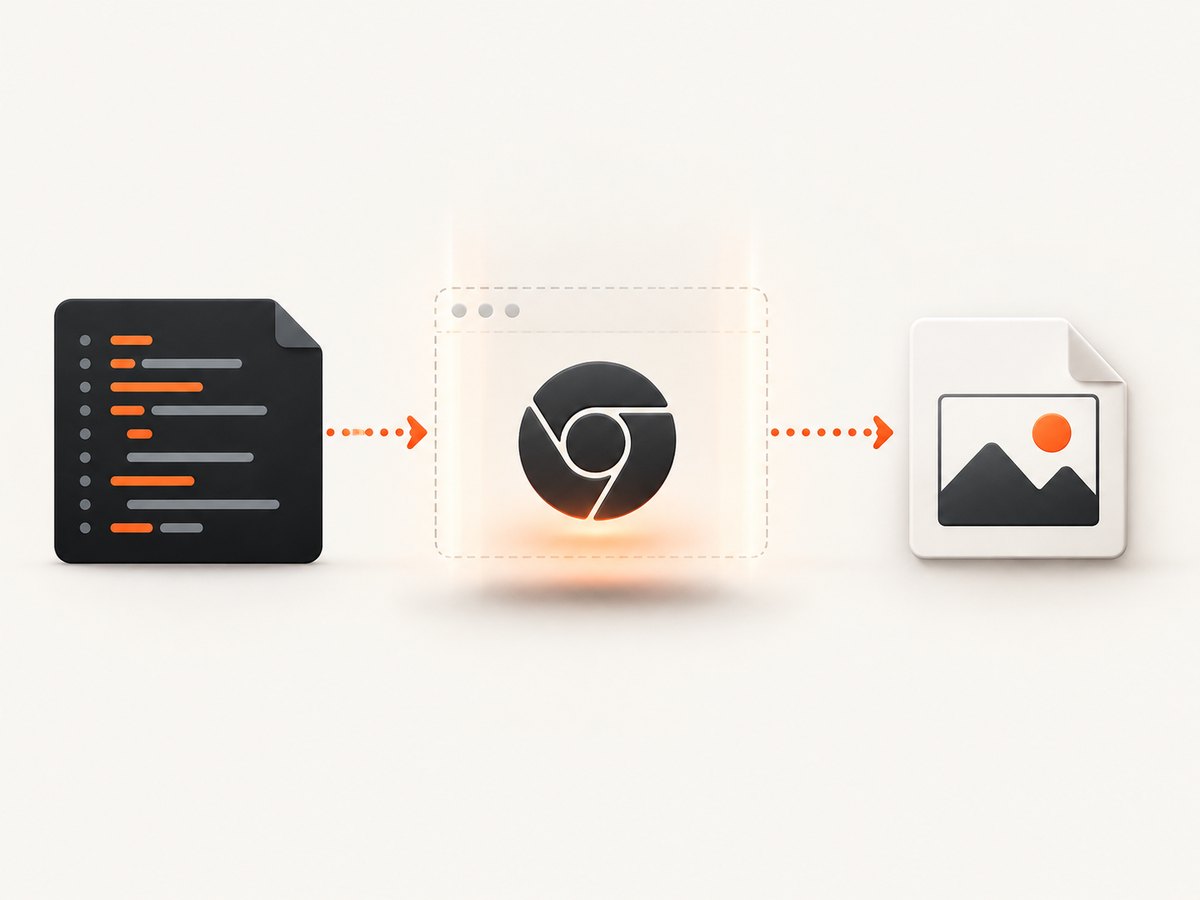
Use Chrome headless mode when your Protractor screenshots do not require a visible browser. Headless Chrome runs without visible UI, so taking a screenshot cannot bring a browser window to the foreground. Add the headless argument to Protractor’s Chrome options, then verify that your Chrome and driver versions support the mode you selected. Chrome documents the --headless flag and Selenium documents headless options alongside screenshot workflows. Chrome Headless documentation Selenium window documentation
1. Configure Protractor to run Chrome headlessly
In protractor.conf.js, add --headless to Chrome’s arguments. A window size is useful because responsive layouts otherwise may differ from your headed runs.
exports.config = {
  specs: ['e2e/**/*.spec.js'],
  capabilities: {
    browserName: 'chrome',
    chromeOptions: {
      args: [
        '--headless',
        '--window-size=1440,900'
      ]
    }
  },
  directConnect: true
};
If your Protractor setup uses chromeOptions under capabilities, keep the setting there. If it uses a shared capabilities object or a Selenium Grid, apply the equivalent Chrome arguments in that object or node configuration.
Headless flags and compatibility
| Setting | Use | Notes |
|---|---|---|
--headless |
Run without displayed browser UI | Preferred general solution when no visible window is needed. |
--window-size=WIDTH,HEIGHT |
Fix the viewport used by screenshots | Choose dimensions that match the layout you want to test. |
--disable-gpu |
Legacy workaround sometimes used in old environments | Do not add it automatically; first verify your browser and driver versions. |
Chrome’s headless implementation changed in Chrome 112. The newer mode can create platform windows without displaying them, so confirm the installed Chrome, ChromeDriver, Selenium, and Protractor versions before copying older snippets. Chrome explains the version change.
2. Complete Protractor screenshot example
// protractor.conf.js
exports.config = {
  framework: 'jasmine',
  specs: ['e2e/**/*.spec.js'],
  capabilities: {
    browserName: 'chrome',
    chromeOptions: {
      args: ['--headless', '--window-size=1440,900']
    }
  },
  directConnect: true,
  onPrepare: async function () {
    await browser.waitForAngularEnabled(true);
  }
};
// e2e/home.spec.js
describe('home page', function () {
it('captures the page without displaying Chrome', async function () {
await browser.get('https://example.com');
await browser.takeScreenshot();
});
});Protractor’s screenshot call captures the current browsing context. It does not provide a universal switch that controls desktop focus for every operating system and driver. Keep browser capture and operating-system window control as separate concerns.
3. If the browser must remain visible
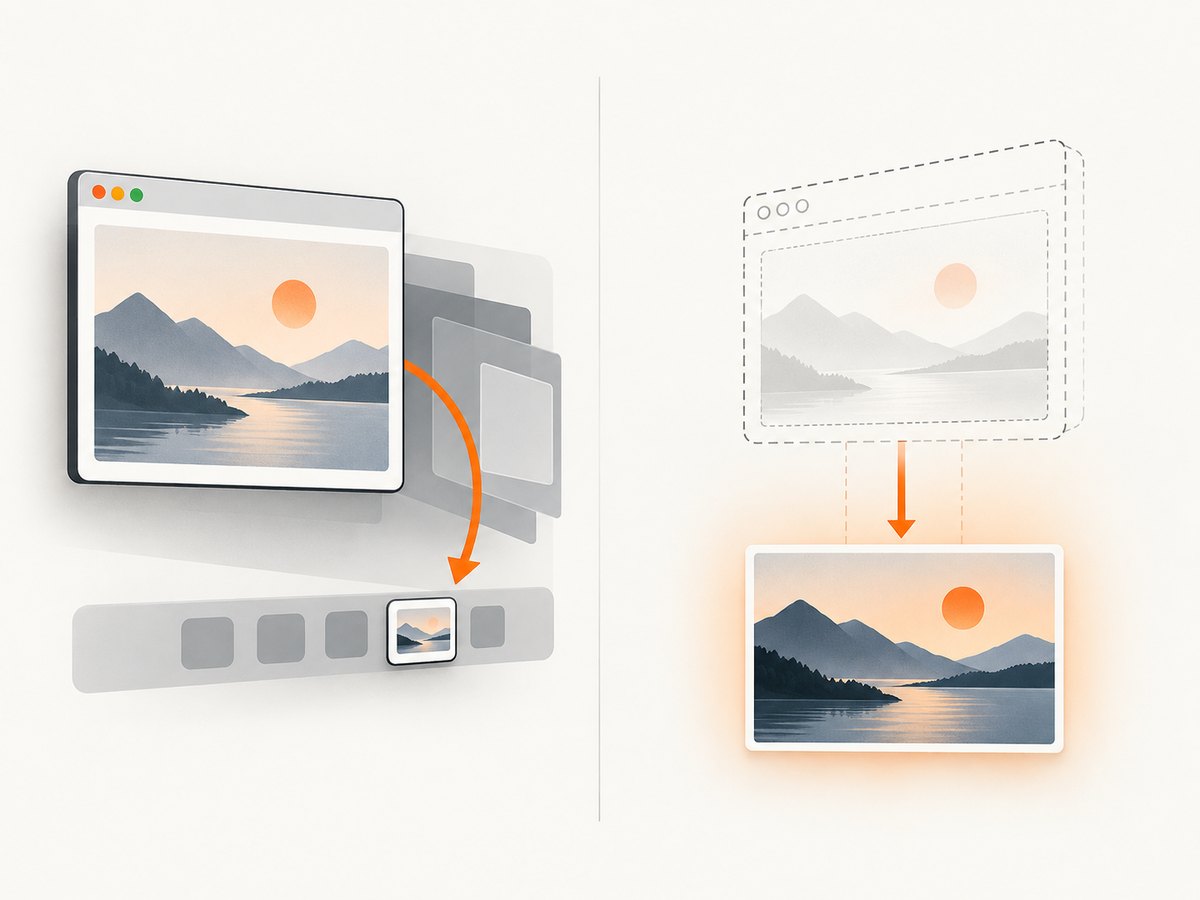
When a person needs to watch the run, headless mode is not appropriate. Selenium exposes window minimization as a separate command:
it('minimizes the headed browser before capture', async function () {
  await browser.get('https://example.com');
  await browser.driver.manage().window().minimize();
  await browser.takeScreenshot();
});
Selenium states that minimize behavior depends on the window manager and that this command is available with Selenium 4 and later. It may reduce disruption, but it is not a guaranteed background mode on every desktop environment. See Selenium’s window commands.
Choosing between the two approaches
| Requirement | Recommended approach | Dependency |
|---|---|---|
| No visible UI required | Headless Chrome | Chrome and driver support for the selected headless mode. |
| A person must observe the test | Headed Chrome, optionally minimized | Operating-system window manager and Selenium version. |
| Stable screenshots in CI | Headless Chrome with explicit viewport | Consistent browser, driver, fonts, and viewport configuration. |
4. Version and environment checklist
- Record the versions of Protractor, Selenium, Chrome, and ChromeDriver.
- Ensure ChromeDriver matches the installed Chrome version and architecture.
- Run one test with only
--headlessand an explicit window size. - Compare the screenshot with the headed result for viewport, fonts, animations, and lazy content.
- In CI, check the display and sandbox requirements of the runner before adding environment-specific flags.
The original report does not identify an operating system, browser, driver, or capture method, so no single component can be blamed universally. Treat the headless configuration as the supported general fix and investigate version-specific behavior when it does not work.
5. Troubleshooting
Chrome still appears or steals focus
Cause: The headless argument was applied to the wrong capabilities object, ignored by an older driver, or the test is actually launching a second headed session.
Fix: Inspect the effective capabilities, remove duplicate browser launches, and verify ChromeDriver and Chrome versions. Start with --headless and only then test additional flags.
The test fails with an unknown argument
Cause: An old browser or driver does not recognize the selected headless syntax.
Fix: Check the versions and use the headless option documented for that combination. Do not assume a flag from an old Protractor issue applies to current Chrome.
Screenshots have the wrong layout
Cause: Headless and headed sessions use different viewport dimensions, device scale factors, fonts, or window state.
Fix: Set --window-size, install the same fonts in CI and locally, and keep browser and driver versions aligned.
Dynamic content is missing
Cause: The screenshot runs before navigation, Angular rendering, images, or web fonts finish.
Fix: Wait for the page condition your test needs before calling takeScreenshot(). For example, wait for a key element to be present and visible, then capture.
const hero = element(by.css('[data-test="hero"]'));
await browser.wait(ExpectedConditions.visibilityOf(hero), 10000);
await browser.takeScreenshot();
Minimize does nothing
Cause: Selenium delegates minimize behavior to the operating-system window manager.
Fix: Use headless mode when visibility is unnecessary. If the browser must be headed, test the minimize command on the same desktop session and window manager used by the run.
CI cannot start Chrome
Cause: The runner may lack required libraries, permissions, a display server, or a compatible browser binary.
Fix: Validate the browser binary path, driver path, and runner dependencies. Keep environment-specific launch arguments isolated so they do not hide a version mismatch.
6. Screenshot reliability and performance
- Use a fixed viewport: It makes responsive breakpoints and pixel comparisons repeatable.
- Wait for a condition: Waiting for a meaningful element is usually more reliable than a short arbitrary sleep.
- Keep versions pinned: Browser updates can change rendering and headless behavior.
- Reduce unnecessary launches: Reuse a session when your test isolation rules allow it; browser startup is often more expensive than the screenshot call.
- Record failures: Save the page URL, effective capabilities, browser version, driver version, and test logs with the failed artifact.
- Expect headed differences: Window-manager focus, desktop scaling, animations, and user profile state can affect headed captures.
7. Or skip the browser setup
If you only need a clean screenshot from a URL, ScreenshotNeo provides a single HTTP request and avoids managing Chrome, ChromeDriver, and desktop focus.
curl -G "https://api.screenshotneo.com/v1/shot" -d access_key=YOUR_API_KEY --data-urlencode url=https://stripe.com -o shot.webpimport requests
r = requests.get("https://api.screenshotneo.com/v1/shot", params={"access_key": "YOUR_API_KEY", "url": "https://stripe.com"}, timeout=90)
open("shot.webp", "wb").write(r.content)const q = new URLSearchParams({ access_key: 'YOUR_API_KEY', url: 'https://stripe.com' });
const res = await fetch(`https://api.screenshotneo.com/v1/shot?${q}`);See the ScreenshotNeo API documentation for request options. Cookie and consent banners, newsletter popups, and chat widgets are removed before the shot. Bot checks, blank pages, failed loads, timeouts, and cache hits are not billed, and each response reports its page verdict and billing status in X-Page-Verdict and X-Billed headers. ScreenshotNeo also provides an MCP server for AI agents, including Claude and Cursor, with take_screenshot, get_page_info, and capture_pdf tools. The Free plan includes 1,000 screenshots per month with no card; paid plans start at $5 for 3,000 screenshots.
Create a free ScreenshotNeo account and start with 1,000 screenshots per month at no charge.
8. FAQ
Does Protractor itself always bring Chrome to the foreground?
No universal rule establishes that every Protractor screenshot call raises a window. Foreground behavior depends on the browser, driver, operating system, window manager, and how the session was launched.
Can I take screenshots in headless mode?
Yes. Headless Chrome supports screenshot workflows; set an explicit viewport so the captured layout is predictable.
Will minimizing Chrome make screenshots run in the background?
It may, but Selenium documents minimize as window-manager-dependent. Use headless mode when you need dependable non-visible execution.
Should I use old flags copied from Protractor examples?
Only after checking the versions in your environment. Chrome’s headless implementation changed in Chrome 112, so old combinations may be unnecessary or unsupported.
What should I log when diagnosing focus problems?
Log the effective capabilities, Chrome and ChromeDriver versions, operating system and window manager, whether the session is headed or headless, and the exact screenshot command.


