How to Stop Puppeteer Waiting Once a Target Element Appears
Puppeteer’s waitForSelector resolves when a selector matches. Learn how to wait for presence or visibility, set a timeout, cancel a pending wait, and choose a locator instead.

await page.waitForSelector(selector) already stops waiting as soon as a matching element appears. If the element is present before the call, the promise resolves immediately. Use { visible: true } when it must be visible, set a finite timeout to bound the wait, or pass an AbortSignal if surrounding code may need to cancel it. For an interaction such as clicking, a locator usually handles waiting and action preconditions in one step.
This guide covers Puppeteer’s selector wait, visibility, timeouts, cancellation, custom conditions, navigation, and common failure cases. It also shows a separate way to take website screenshots without setting up Puppeteer.
1. What “stop waiting once the element appears” means
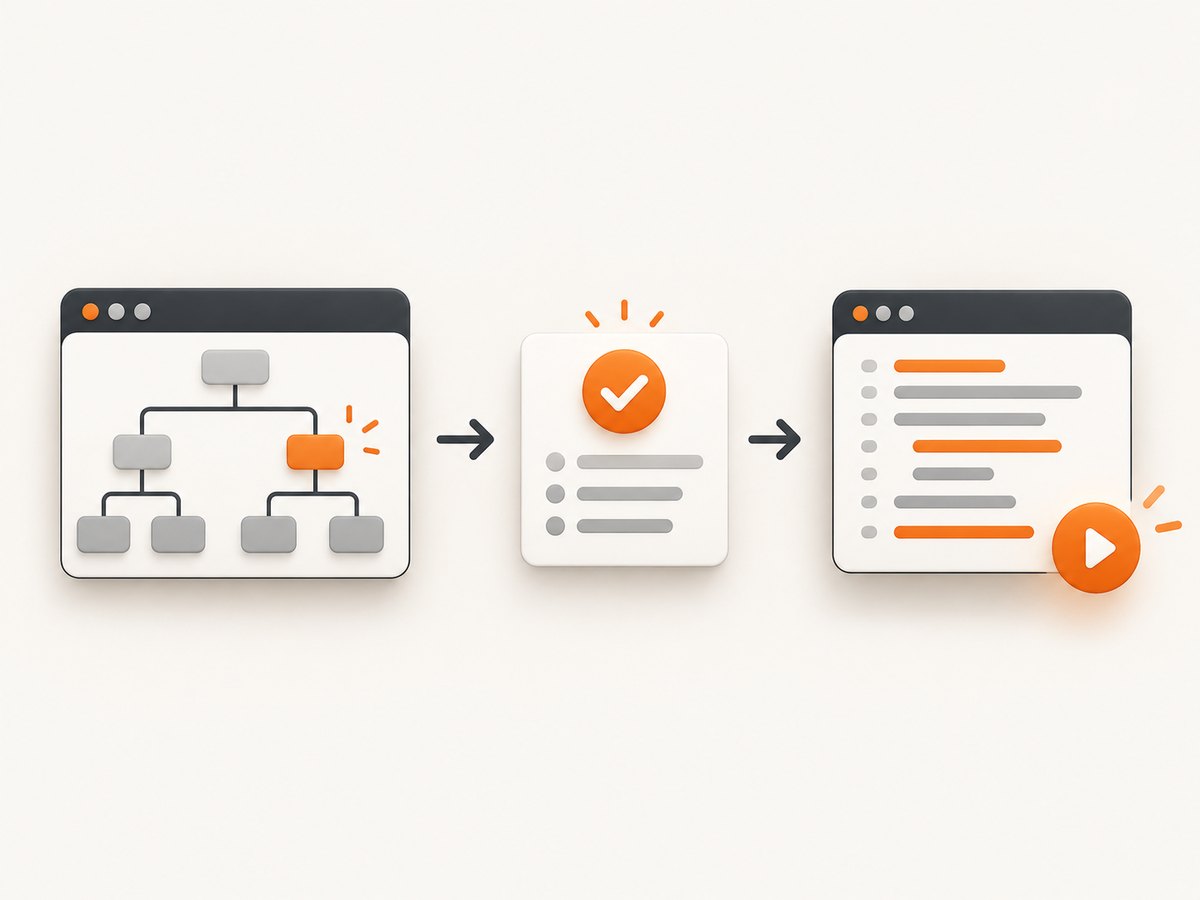
A selector wait is condition based, not a fixed sleep. Puppeteer waits for a matching DOM element and resolves the promise when that condition is satisfied. You do not need to send a separate “stop” command when the element appears; reaching the condition is what completes the wait.
const element = await page.waitForSelector('.target');The call also succeeds immediately if .target already matches. This makes it suitable when a page may render an element either before or after your code starts waiting.
“Appears” can mean different things in an automation task. A selector can match an element that exists in the DOM but is hidden. A match can also exist before its content is ready for your next step. Choose the condition that matches the action you intend to perform:
| Need | Use | What it waits for |
|---|---|---|
| DOM presence | waitForSelector(selector) |
A matching element in the DOM |
| Visible element | waitForSelector(selector, { visible: true }) |
A match that is in the DOM and not hidden by display: none or visibility: hidden |
| Element to disappear | waitForSelector(selector, { hidden: true }) |
The match becoming absent or hidden |
| Custom page state | waitForFunction(predicate) |
A JavaScript predicate becoming true |
| Navigation or reload | waitForNavigation() |
A page navigation, not a selector match |
hidden: true is the opposite condition from waiting for a target to appear. It can resolve with null if the selector is not found. Don’t use it as a substitute for a presence or visibility wait.
2. A complete Puppeteer example
This CommonJS example opens a page, waits for a visible target, reads its text, and closes the browser even if navigation or the selector wait fails. Install Puppeteer in your project with npm install puppeteer, save the code as capture.js, and run node capture.js.
const puppeteer = require('puppeteer');

async function main() {
  const browser = await puppeteer.launch({ headless: true });
  try {
    const page = await browser.newPage();
    await page.goto('https://example.com', {
      waitUntil: 'domcontentloaded',
      timeout: 30_000,
    });

    const selector = 'h1';
    const element = await page.waitForSelector(selector, {
      visible: true,
      timeout: 10_000,
    });
    if (!element) {
      throw new Error(`No visible element matched ${selector}`);
    }

    const text = await element.evaluate(node => node.textContent?.trim() ?? '');
    console.log(text);
  } finally {
    await browser.close();
  }
}

main().catch(error => {
  console.error(error);
  process.exitCode = 1;
});
The explicit null check makes the control flow safe if you later change the options to a condition, such as hidden: true, that can resolve without an element handle. With visible: true, the intended result is a visible match. Keep the browser cleanup in a finally block so a timeout does not leave a browser process running.
3. Presence versus visibility
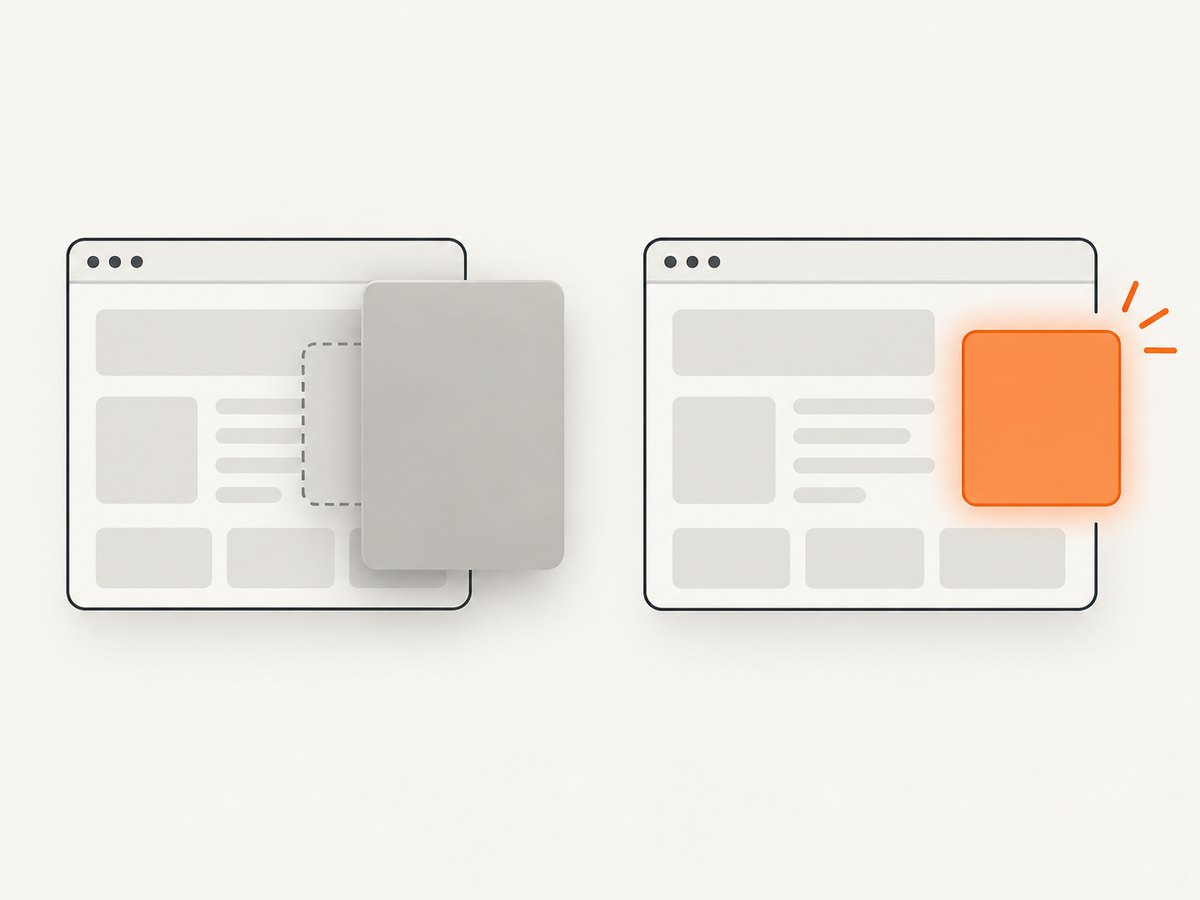
By default, waitForSelector waits for a selector match; it does not require that match to be visible. A page may create a hidden dialog, inactive tab panel, or template node before showing it. If your next action requires something a person could see, make that requirement explicit:
const button = await page.waitForSelector('#continue', {
  visible: true,
  timeout: 8_000,
});
Puppeteer’s documented visibility check means the element is in the DOM and is not hidden by display: none or visibility: hidden. It is not a general guarantee that the element is unobstructed, enabled, stable, or ready for every interaction. If your actual goal is to click, prefer a locator and let the action wait for its preconditions.
4. Use a locator when the next step is an interaction
For a click or other action, a separate selector wait is often unnecessary. Puppeteer’s locator guide recommends locators because they wait for element presence and the preconditions relevant to the action. A locator click checks viewport presence, visibility, enabled state, and a stable bounding box.
await page.locator('#continue').click();This combines “find the target” and “perform the action” more directly than waiting for an element handle and then clicking it. It also avoids a gap in which the page could change between the explicit wait and the interaction. Use waitForSelector when you specifically need the element handle or want a low-level wait before some other work; use a locator when the purpose of waiting is to interact.
5. Set a timeout that fits the task
The selector wait’s default timeout is 30,000 milliseconds. You can override it for one wait or change the default for a page. A finite positive timeout lets your script report a failure instead of waiting indefinitely.
// Override the timeout for this selector wait.
await page.waitForSelector('.result', { timeout: 12_000 });

// Change the default timeout for waits on this page.
page.setDefaultTimeout(12_000);
Setting timeout: 0 disables the selector wait timeout. That can be appropriate only when an external mechanism guarantees the wait will end or when an unbounded wait is truly intended. Otherwise, use a finite timeout: pages can fail to load the expected state because of network errors, application bugs, authentication, or changed markup.
Choose the timeout based on the operation, not as a way to make an incorrect selector appear reliable. A longer timeout gives a slow page more time but also delays detection of a broken assumption. A short timeout fails quickly but may be too strict for variable environments. Keep navigation and selector timeouts conceptually separate: the page can finish navigation while the target is still absent, or the target can appear without a new navigation.
6. Cancel a pending wait with AbortSignal
If another branch of your program can make a selector wait unnecessary, pass an AbortSignal and abort its controller. The wait must still be pending for cancellation to matter. Aborting rejects the pending wait, so catch or propagate that rejection according to your control flow.
const controller = new AbortController();
const pending = page.waitForSelector('.target', {
  visible: true,
  timeout: 20_000,
  signal: controller.signal,
});

try {
  // Example: other application logic decides the target is no longer needed.
  const element = await pending;
  console.log(await element.evaluate(node => node.textContent));
} catch (error) {
  if (controller.signal.aborted) {
    console.log('Selector wait was cancelled');
  } else {
    throw error;
  }
}
To trigger cancellation from surrounding logic, retain the controller and call controller.abort() when that other condition occurs. Do not abort immediately after creating the promise unless immediate cancellation is what you intend. Cancellation does not mean the element appeared; it means the caller stopped waiting.
7. Wait for a custom condition
Sometimes an element exists before the state you need is ready. For example, an application can insert a result container and fill it later. If no selector accurately expresses readiness, use waitForFunction with a predicate that describes the needed page state.
await page.waitForFunction(() => {
  const result = document.querySelector('#result');
  return result !== null && result.textContent.trim().length > 0;
}, { timeout: 10_000 });
The function wait supports polling by animation frames, DOM mutations, or a numeric interval. Pick based on what changes the condition: a DOM mutation observer fits DOM updates, while an interval can suit state that changes without a mutation. The animation-frame option checks along browser rendering frames. As with selector waits, include a finite timeout if the predicate may never become true.
Keep the predicate specific and cheap. A broad condition can become true too early; a costly calculation repeated frequently can waste page time. If a locator action already represents the real goal, use that rather than building a custom predicate and then repeating the action.
8. Navigation is a different wait
waitForNavigation waits for navigation or reload. It does not wait for an element to appear. When a click is expected to navigate, start the navigation wait and click together so a fast navigation cannot happen before the wait is registered:
const [response] = await Promise.all([
  page.waitForNavigation({ waitUntil: 'domcontentloaded' }),
  page.locator('a.next-page').click(),
]);
console.log('Navigation response:', response?.status());
After navigation, you may still need a selector wait if your next step depends on application content that renders afterward. Conversely, when an element appears dynamically without navigation, use a selector, locator, or custom condition; don’t wait for navigation that will never occur.
9. Troubleshooting common failures
| Symptom | Likely cause | Fix |
|---|---|---|
| Timeout waiting for selector | The selector is wrong, the page is not in the expected state, or the element never appeared before the timeout. | Confirm the current URL and selector, inspect whether the element is created later, and verify login or consent state. Increase the timeout only if the page legitimately needs more time. |
| The wait resolves, but clicking fails | The selector matched a hidden or otherwise unsuitable element, or the page changed before the click. | Require visible: true when visibility matters; use a locator for the click so action preconditions are waited for. |
| Wait resolves too early | The element exists before its content or application state is ready. | Wait for the actual ready condition with waitForFunction, or use a more specific selector that only matches the usable state. |
| Wait never seems to finish | Timeout was set to 0, the default timeout was changed, or the awaited condition is not attainable. |
Use a finite timeout, check setDefaultTimeout, and ensure the condition can become true. Use an AbortSignal when another branch should cancel it. |
Wait for hidden returns null |
hidden: true can complete when no matching element exists. |
That is expected for a disappearance wait. Use the default wait or visible: true to wait for appearance. |
| Navigation wait times out while content changes | The action updates the page dynamically instead of navigating. | Wait for the resulting selector or application condition, not navigation. |
| Navigation happens but the script misses it | The code started waiting after triggering the action. | Register the wait and trigger the action together with Promise.all. |
| Abort causes an unhandled rejection | The signal cancelled the wait, but the rejection was not handled. | Catch the cancellation where it is expected, and rethrow errors that are not cancellation. |
When diagnosing a timeout, inspect the state at the point of failure rather than repeatedly increasing the limit. Record the URL, the selector, whether a matching element exists, and whether it is hidden. Those facts distinguish a slow page from a selector mismatch or a wait for the wrong kind of condition.
10. Performance, reliability, and cost
A condition wait is generally more responsive than sleeping for a fixed duration: it can continue as soon as the condition is met instead of always consuming the full sleep. A fixed delay is also fragile: too short can race the page, while too long wastes time. Use sleeps only when you deliberately need a delay that is not expressible as a page condition.
Reliability depends on waiting for the state your next step actually needs. Presence, visibility, nonempty content, a successful navigation, and a clickable control are different conditions. Choose a stable selector, set a finite timeout, handle timeout and cancellation paths, and close the browser in cleanup code. Avoid disabling timeouts globally unless every wait is bounded by another mechanism.
For cost, the selector-wait API itself has no separate per-wait price described in the cited Puppeteer documentation. In a hosted browser environment, runtime, browser, and infrastructure charges depend on that provider’s terms; this research does not establish a universal cost. Local scripts mainly consume the machine’s time and resources. Reduce wasted runs by failing clearly on impossible conditions and by avoiding arbitrary long delays.
11. Or skip the browser setup
If your goal is to capture a website screenshot rather than interact with its DOM, ScreenshotNeo offers a single GET request that returns an image or PDF. Its API can handle cookie banners, newsletter popups, and chat widgets before the shot; each step can be turned off. Bot checks, blank pages, and failed loads are not billed, and the response identifies the page verdict and billing status in headers. ScreenshotNeo also provides an MCP server with screenshot, page-info, and PDF tools for AI agents. Read the ScreenshotNeo API docs for request options and setup.
curl -G "https://api.screenshotneo.com/v1/shot" \
  -d access_key=YOUR_API_KEY \
  --data-urlencode url=https://stripe.com \
  -o shot.webp
There is a free plan with 1,000 shots per month and no card required. Paid plans start at $5 for 3,000 shots; every feature is on every plan. See ScreenshotNeo for the product and plan details. Sign up for 1,000 free screenshots a month, with no card.
12. FAQ
Does waitForSelector stop by itself when the target appears?
Yes. The promise resolves as soon as the selector matches, or immediately if it already matches. No manual stop call is needed.
Does visible mean the element is clickable?
Not necessarily. Visibility is narrower than all interaction preconditions. Use a locator for the action so Puppeteer waits for the relevant conditions.
Can I cancel only after a timeout?
A finite timeout ends the wait by failing if its condition is not met in time. An AbortSignal lets surrounding code cancel a still-pending wait for another reason.
Should I wait for navigation after every click?
No. Wait for navigation only when the action is expected to navigate or reload. For dynamic updates, wait for the resulting element or page condition.


