How to Stop Selenium Chrome from Overwriting Downloads in Python
Chrome’s download folder setting does not choose what happens when filenames collide. Use isolated folders or wait for each download to finish before renaming it in Python.
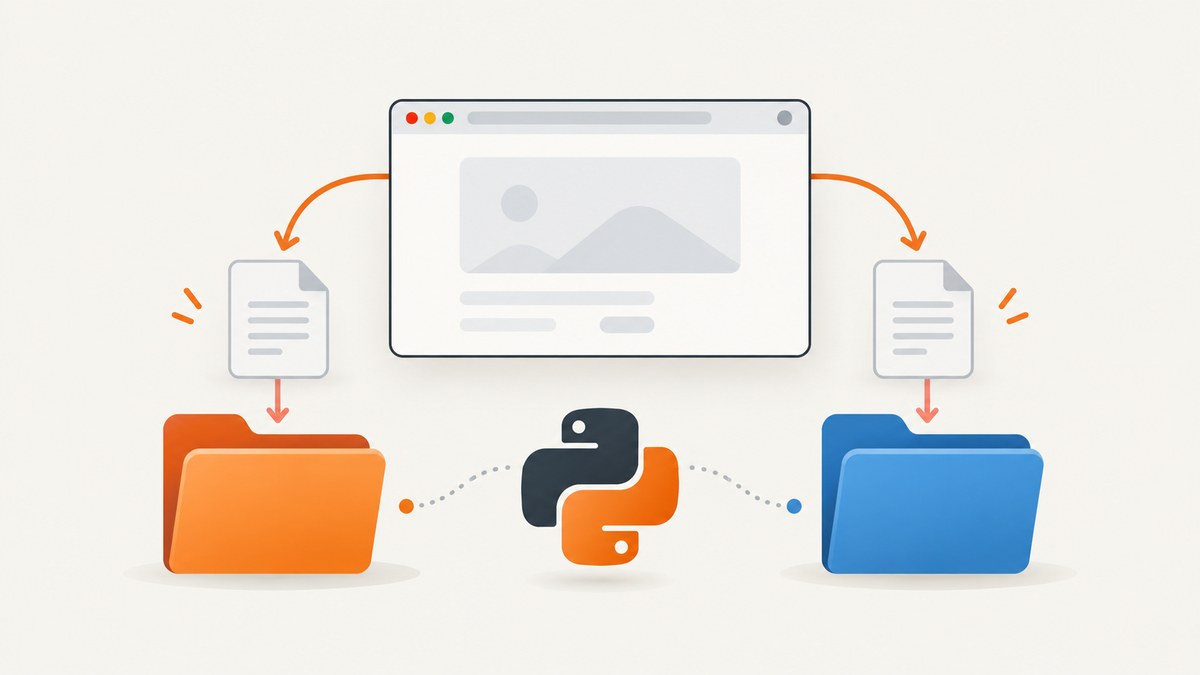
To stop Selenium-controlled Chrome downloads from colliding, save them in a dedicated absolute directory and give each run or download its own destination, or wait for each download to finish and rename it in Python before triggering another download with the same server-provided filename. The Chrome preference download.default_directory selects a folder; it is not a documented “never overwrite” or “save as (1)” setting. ChromeDriver also does not wait for an active download when you call driver.quit(), so completion handling matters as much as choosing a folder. ChromeDriver’s download guidance documents the folder setting and these caveats.
This guide uses three practical policies: isolate downloads by run, isolate them by file, or reuse one folder and rename completed files. Choose the first for most automation jobs. It preserves Chrome’s suggested filename while avoiding collisions between runs and parallel workers.
1. Why Chrome downloads collide
A website usually supplies a filename through its response headers or through the browser’s interpretation of the file type and URL. If the same script saves multiple downloads with that same name into one directory, the result depends on the browser’s download handling, the exact workflow, and any extensions or custom protocol behavior involved. Selenium’s standard ChromeOptions documentation provides a way to configure the destination directory, but it does not document a preference for choosing between overwrite and filename uniquification.
That distinction is important: changing the destination folder may separate files from other work, but it does not by itself make repeated same-name downloads unique inside that folder. If you require names such as report-001.pdf and report-002.pdf, make that naming policy explicit in your Python code or give each download a separate directory.
2. Set a dedicated absolute download directory
Install Selenium if it is not already in the environment:
python -m pip install seleniumThen configure Chrome with an absolute folder path. This complete example starts Chrome, visits a page, and leaves a clearly marked place for your download action:
from pathlib import Path
from selenium import webdriver

# A task-specific folder. resolve() makes it absolute.
download_dir = Path("downloads").resolve()
download_dir.mkdir(parents=True, exist_ok=True)

options = webdriver.ChromeOptions()
options.add_experimental_option(
    "prefs",
    {"download.default_directory": str(download_dir)},
)

driver = webdriver.Chrome(options=options)
try:
    driver.get("https://example.com")
    # Locate and click your download control here.
    # Wait for the file to finish before leaving the try block.
finally:
    driver.quit()
The example sets the folder only. It does not guarantee unique filenames. Prefer a task-specific directory without special operating-system meaning. ChromeDriver warns that some folders are disallowed, specifically the Desktop folder and, on Linux, the home directory; the complete blocked list can change. It recommends full paths because relative paths may not work consistently. On Windows, the documentation advises using Windows path separators. Python’s Path.resolve() supplies an absolute platform-appropriate path.
3. Pick a collision policy
| Policy | Best for | Filename result | Trade-off |
|---|---|---|---|
| One directory per run | Batch jobs and repeatable test runs | Chrome’s suggested name is preserved | Organize or clean up run folders afterward |
| One directory per download | Parallel tasks or strict isolation | Chrome’s suggested name is preserved | More directories to manage |
| Rename after completion | One shared destination with meaningful output names | Your Python code controls the final name | Must identify the right completed file and avoid races |
| Replace intentionally after completion | Only the latest version is needed | Python performs the replacement | Previous content is deliberately discarded |
Option A: use a different directory per run
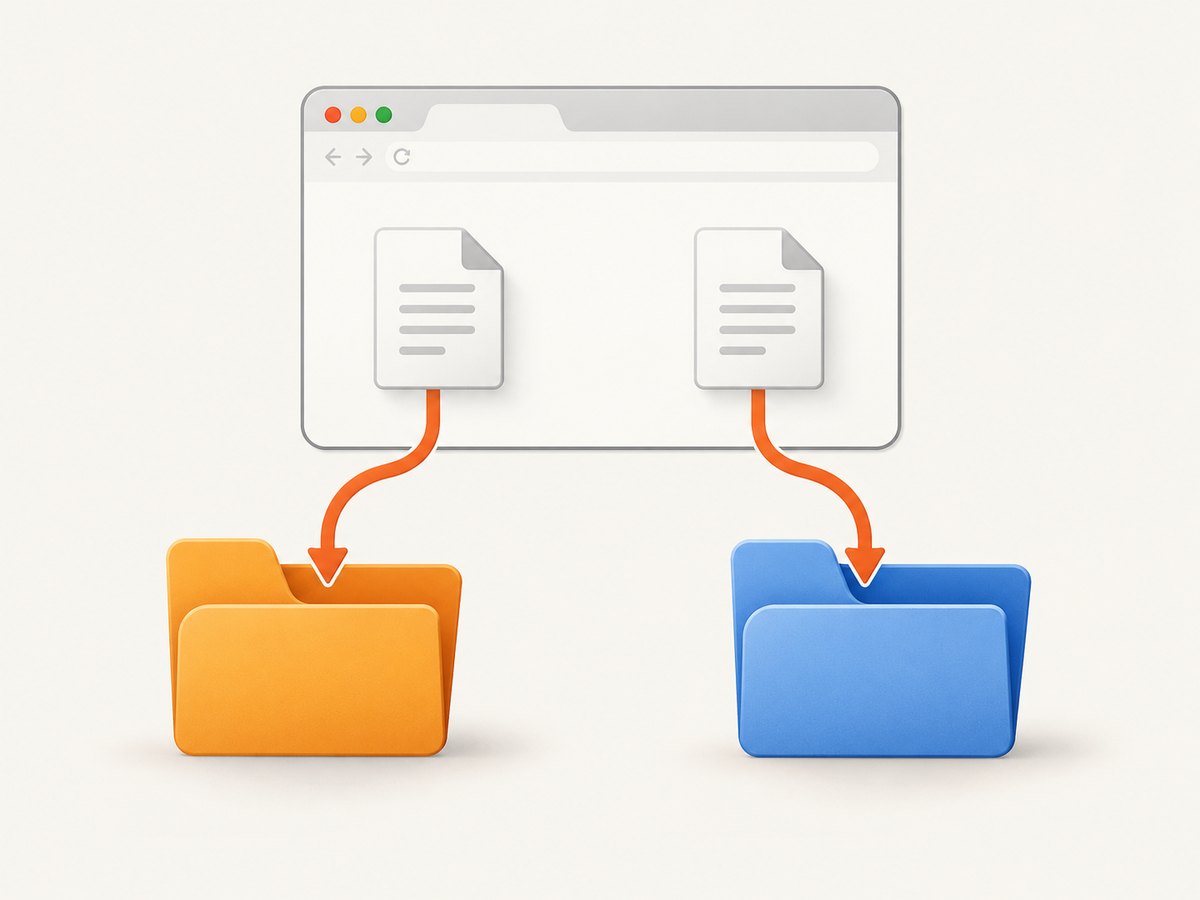
This is generally the simplest reliable choice. Include a run identifier, timestamp, or task name in the directory name. The source filename can stay unchanged, while output from separate runs cannot share the same path.
from datetime import datetime, timezone
from pathlib import Path
from selenium import webdriver

run_id = datetime.now(timezone.utc).strftime("%Y%m%dT%H%M%SZ")
download_dir = (Path("downloads") / run_id).resolve()
download_dir.mkdir(parents=True, exist_ok=False)

options = webdriver.ChromeOptions()
options.add_experimental_option(
    "prefs", {"download.default_directory": str(download_dir)}
)
driver = webdriver.Chrome(options=options)
try:
    driver.get("https://example.com")
    # Trigger the download and wait for completion here.
finally:
    driver.quit()
exist_ok=False makes an unexpected reused run identifier visible instead of silently reusing the directory. If your system launches many jobs at once, use a unique job ID from the scheduler or add a random identifier rather than relying on a timestamp with coarse resolution.
Option B: wait, then rename in Python
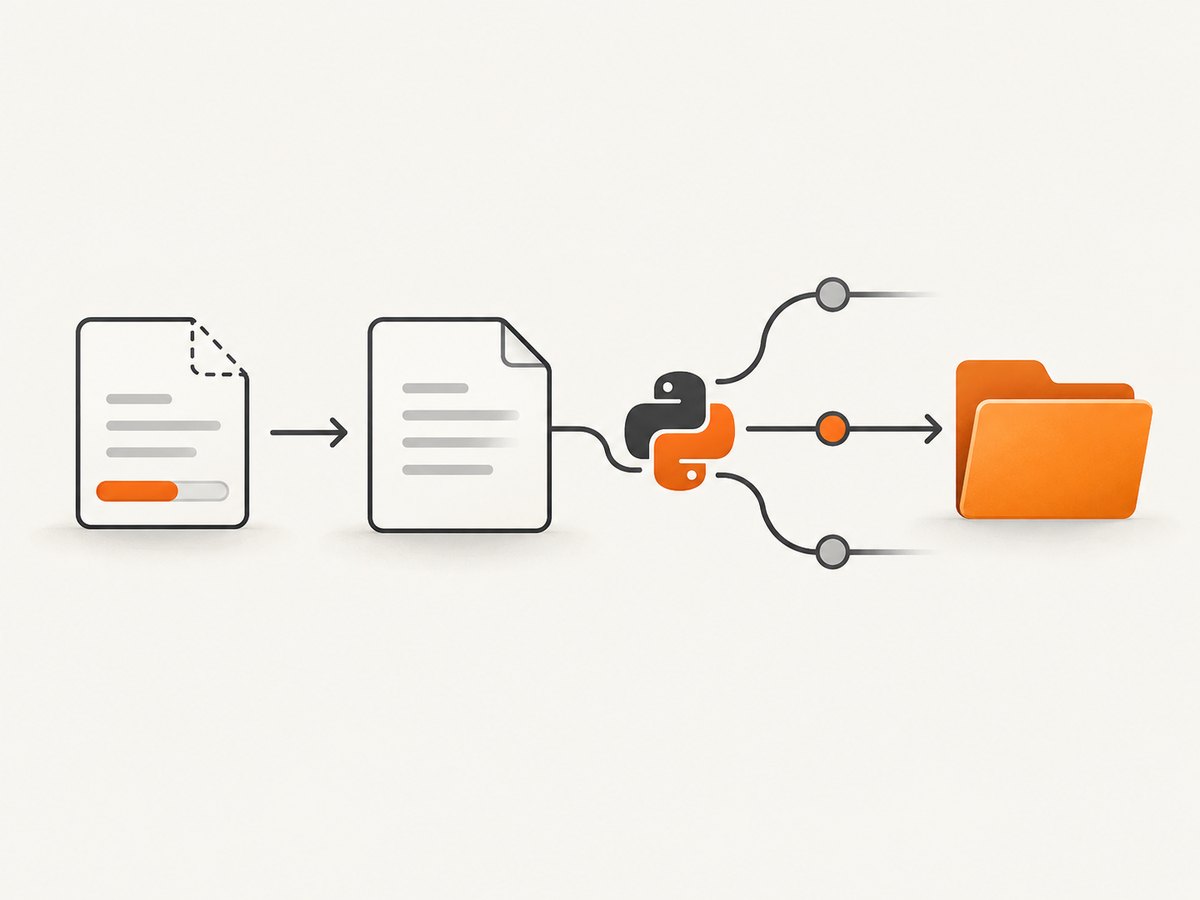
When a site always returns the same filename, wait until the download is complete, then move it to the name your application needs. Chrome commonly uses a temporary .crdownload file while writing a download. A script can poll for the expected file while checking that no partial file is present. This is a practical script-level completion pattern, not a Selenium-provided download-complete event or a guarantee about every browser configuration.
import time
from pathlib import Path
from selenium import webdriver

folder = Path("downloads").resolve()
folder.mkdir(parents=True, exist_ok=True)
expected_name = "report.pdf"
expected_file = folder / expected_name

options = webdriver.ChromeOptions()
options.add_experimental_option(
    "prefs", {"download.default_directory": str(folder)}
)
driver = webdriver.Chrome(options=options)
try:
    driver.get("https://example.com")
    # Trigger a download whose final name is report.pdf here.

    deadline = time.monotonic() + 90
    while time.monotonic() < deadline:
        partials = list(folder.glob("*.crdownload"))
        if expected_file.exists() and not partials:
            break
        time.sleep(0.25)
    else:
        raise TimeoutError(f"Download did not finish: {expected_file}")

    destination = folder / "report-2026-09-30.pdf"
    expected_file.rename(destination)
finally:
    driver.quit()
Adjust the timeout for the file size and expected network speed. The sample assumes that the expected filename is predictable and that one download is in progress in the directory. If filenames vary, snapshot the directory before clicking, then find the new completed file after the click. If several downloads may occur together, match each task to a dedicated directory or coordinate them explicitly; simply waiting for every .crdownload file to disappear can confuse concurrent operations.
Use Path.rename() only after the file has finished. For a replacement workflow, make the decision explicit after completion. On platforms where the destination already exists, replacement behavior can differ; use a deliberate destination policy, such as a unique output name or a platform-appropriate replace operation, and never delete a previous file until the new download is known to be valid.
Option C: isolate every download
If a worker processes multiple URLs or runs downloads in parallel, assign a new directory to each work item and configure the Chrome session before starting it. That avoids cross-session filename collisions and makes cleanup and retry logic easier. Do not have multiple Chrome sessions write to the same shared path if their downloads may use the same name. Isolation is a workflow recommendation based on the configured-folder behavior; it is not a special Selenium duplicate-name switch.
4. Advanced alternatives and their limits
Chrome’s extensions API has a conflictAction field with uniquify, overwrite, and prompt actions. uniquify appends a counter before the extension; overwrite replaces the existing file; and prompt asks the user. These options belong to extension-managed downloads through the chrome.downloads API. They are not ordinary Selenium Python preferences. See the Chrome downloads extension API reference.
The Chrome DevTools Protocol documents an experimental Browser.setDownloadBehavior mode named allowAndName. It names downloads using their download GUIDs and requires a download path. This can avoid raw filename collisions, but it changes the names and is an experimental protocol mechanism. It should not be presented as a generally guaranteed Selenium solution that preserves the server’s suggested filenames. Review the DevTools Protocol definition and validate it with the exact Chrome and Selenium versions used by your workflow before depending on it.
Selenium’s Chromium options API also exposes download enablement for supported sessions. That capability concerns whether downloads are enabled; its API description does not specify a duplicate-filename conflict policy. See the Selenium Chromium options API.
5. Reliability, speed, and storage
- Wait for the file, not a fixed short sleep. Network time, server response, and file size vary. Polling for a known final path and absence of a partial file is more useful than sleeping for an arbitrary interval, although it still needs a timeout and assumptions about filenames and concurrency.
- Keep browser shutdown after completion. ChromeDriver does not automatically wait before
driver.quit(). Quitting early can interrupt a file, leaving no final file or an incomplete temporary download. - Make parallel work isolated. Give each session or task its own folder. This avoids two jobs writing the same path and simplifies associating results with the right job.
- Set timeouts from the workload. A small PDF and a large archive need different upper bounds. Report a timeout as a failed download rather than quietly treating a partial file as complete.
- Plan cleanup. Per-run directories prevent collisions but accumulate. Delete old run folders only after downstream processing succeeds and after applying the retention requirements for your files.
- Control retries. If a download fails, use a fresh task directory or remove only artifacts known to belong to that failed attempt. A retry should not accidentally consume a stale file left by an earlier run.
These strategies add little browser overhead; the main cost is filesystem space and the time to wait for actual downloads. The greater reliability risk is a false completion check: for example, seeing a file with the expected name that existed before the click, or seeing no partial suffix while another worker is still writing a different file. Capture the directory contents before triggering the action, use unique task directories where possible, and verify the resulting file is usable for your application.
6. Troubleshooting
| Symptom | Likely cause | Fix |
|---|---|---|
| File still appears in the usual Downloads folder | The preference was not passed to this Chrome session, or the path is invalid | Set download.default_directory before creating the driver; resolve the path, create the directory, and confirm it is writable. |
| Chrome saves in a different folder or ignores the configured folder | The path is relative, special, or blocked | Use an absolute task-specific directory. Avoid Desktop and, on Linux, the home directory; verify the restrictions for your environment. |
| Second download replaces or conflicts with the first | Both use the same final path; the folder preference does not define collision handling | Use a per-run/per-download directory, or wait for completion and rename before starting the next download. |
Output is missing or ends in .crdownload |
The browser was closed too early, the transfer failed, or the completion check timed out | Wait before quitting, increase a workload-appropriate timeout, and inspect whether the download control or server response succeeded. |
| Renamed file contains old content | The script saw a pre-existing file and mistook it for the new download | Use a fresh folder or snapshot contents before clicking and identify a newly created completed file. |
| Two workers sometimes get the wrong file | They share a download directory or completion checks see each other’s files | Give each worker an isolated directory and keep its expected filename and output mapping local to that job. |
| ChromeDriver fails to start or behaves unexpectedly | Chrome and ChromeDriver major versions do not match, or the selected browser is not the expected binary | Align their major versions and check the browser binary and session options. Selenium’s Chrome guide documents the version requirement. |
7. Setup checklist
- Resolve the target folder to an absolute path and create it before Chrome starts.
- Use a folder dedicated to the run or download, outside special system locations.
- Pass
ChromeOptionstowebdriver.Chrome(options=options). - Do not interpret the folder preference as a filename conflict policy.
- Wait for the correct download to finish before renaming, replacing, processing, or quitting Chrome.
- For parallel jobs, separate their directories and verify that the output belongs to the intended task.
- Keep Chrome and ChromeDriver major versions aligned.
Or skip the browser setup
If your job is to capture a page rather than download a file through an interactive browser workflow, ScreenshotNeo provides a website screenshot API and MCP server. A GET request with a URL returns a PNG, JPEG, WebP, or PDF. See the ScreenshotNeo site and API documentation for the request options.
curl -G "https://api.screenshotneo.com/v1/shot" -d access_key=YOUR_API_KEY --data-urlencode url=https://example.com -o shot.webpimport requests
r = requests.get(
"https://api.screenshotneo.com/v1/shot",
params={"access_key": "YOUR_API_KEY", "url": "https://example.com"},
timeout=90,
)
open("shot.webp", "wb").write(r.content)
const q = new URLSearchParams({ access_key: 'YOUR_API_KEY', url: 'https://example.com' });
const res = await fetch(`https://api.screenshotneo.com/v1/shot?${q}`);
ScreenshotNeo accepts cookie and consent banners and removes more than 60 known consent platforms, newsletter popups, and chat widgets before capture; each of those steps can be turned off. Bot checks, blank pages, timeouts, failed loads, and cache hits are not billed, and the response identifies page verdict and billing status in headers. Its MCP server gives AI agents tools for screenshots, page information, and PDF capture. The free plan includes 1,000 shots a month with no card; paid plans start at $5 for 3,000 shots. This API captures pages; it is not a drop-in way to download arbitrary files via Selenium.
Create a free ScreenshotNeo account for 1,000 screenshots a month with no card.
FAQ
Can I make Selenium save duplicate downloads as file (1).pdf?
There is no documented standard Selenium Python Chrome preference in the cited ChromeDriver guide for choosing that conflict action. Use separate directories or rename completed downloads yourself. The extension API’s uniquify action is for extension-managed downloads.
Does download.default_directory prevent overwrites?
No. It configures the destination folder. Your workflow still needs a collision policy when two files target the same name in that folder.
Can I safely quit Chrome right after clicking Download?
Not reliably. ChromeDriver does not automatically wait for completion. Wait until the file is complete or use a separate download-completion mechanism before quitting.
Should I use allowAndName?
Only when GUID-named files and experimental protocol behavior fit your use case, and after validating it against your Chrome and Selenium setup. For portable filename control, use Python-side handling or isolated directories.


