How to Stop Selenium WebDriver from Jumping Between Form Fields
Stop Selenium from typing into the wrong field with reliable locators, waits, context checks, and keyboard-state debugging.
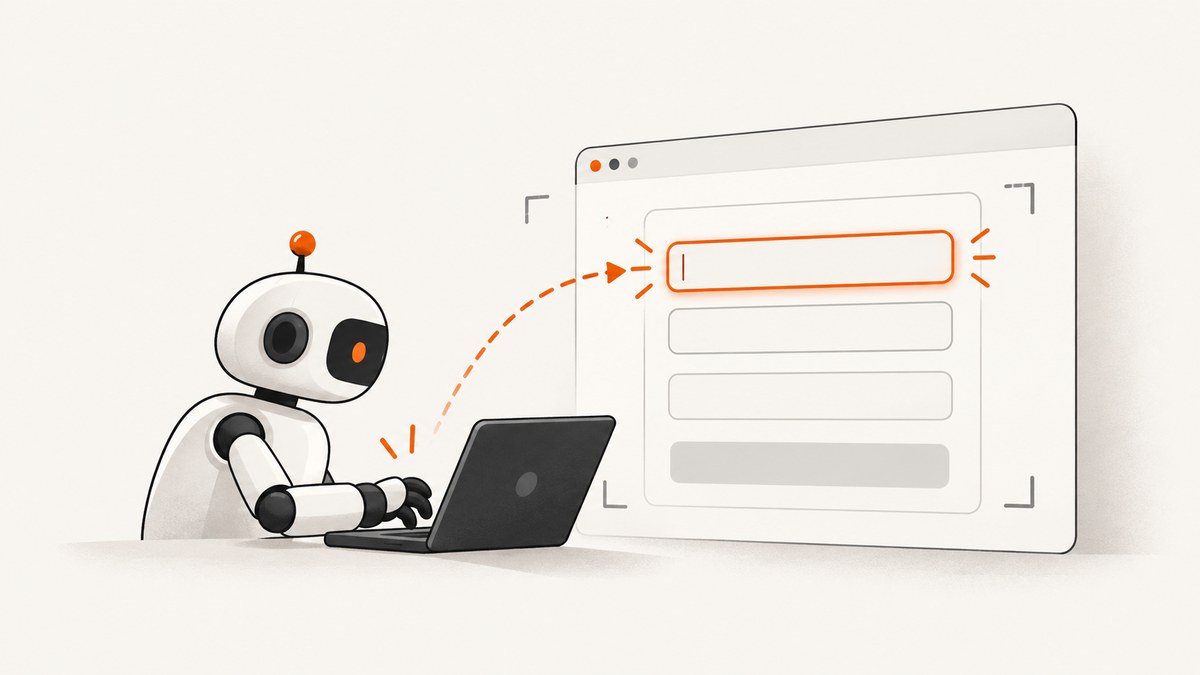
Short answer: Selenium usually appears to “jump” between form fields for one of four reasons: the locator targets the wrong or duplicated element, the page rerenders after you locate the field, the script is in the wrong iframe or window, or keyboard input state is leaking between Actions commands. Send keys to a unique, keyboard-interactable control, wait for the application state you need, reacquire elements after rerenders, restore the correct browsing context, and release any held keys.
Selenium’s send_keys command is meant for text inputs, textareas, and other keyboard-interactable elements. A page reaching its normal load state does not mean that JavaScript has finished rebuilding the form. Selenium describes timing races between browser state and commands as “one of the primary causes of flaky tests.” Selenium waiting strategies explain why.
1. Identify what “jumping” means
Different symptoms point to different fixes:
| Symptom | First checks |
|---|---|
| Text consistently appears in another field | Locator uniqueness, hidden duplicates, and the element receiving send_keys |
| It works sometimes, then types elsewhere after a click or update | Explicit waits and application state races |
| It fails after navigation, a frame switch, or a reactive rerender | Window/frame context and stale element references |
| Characters are missing, shifted, or interpreted incorrectly | Actions key state and, with ChromeDriver, keyboard layout |
2. Make the locator target exactly one editable control
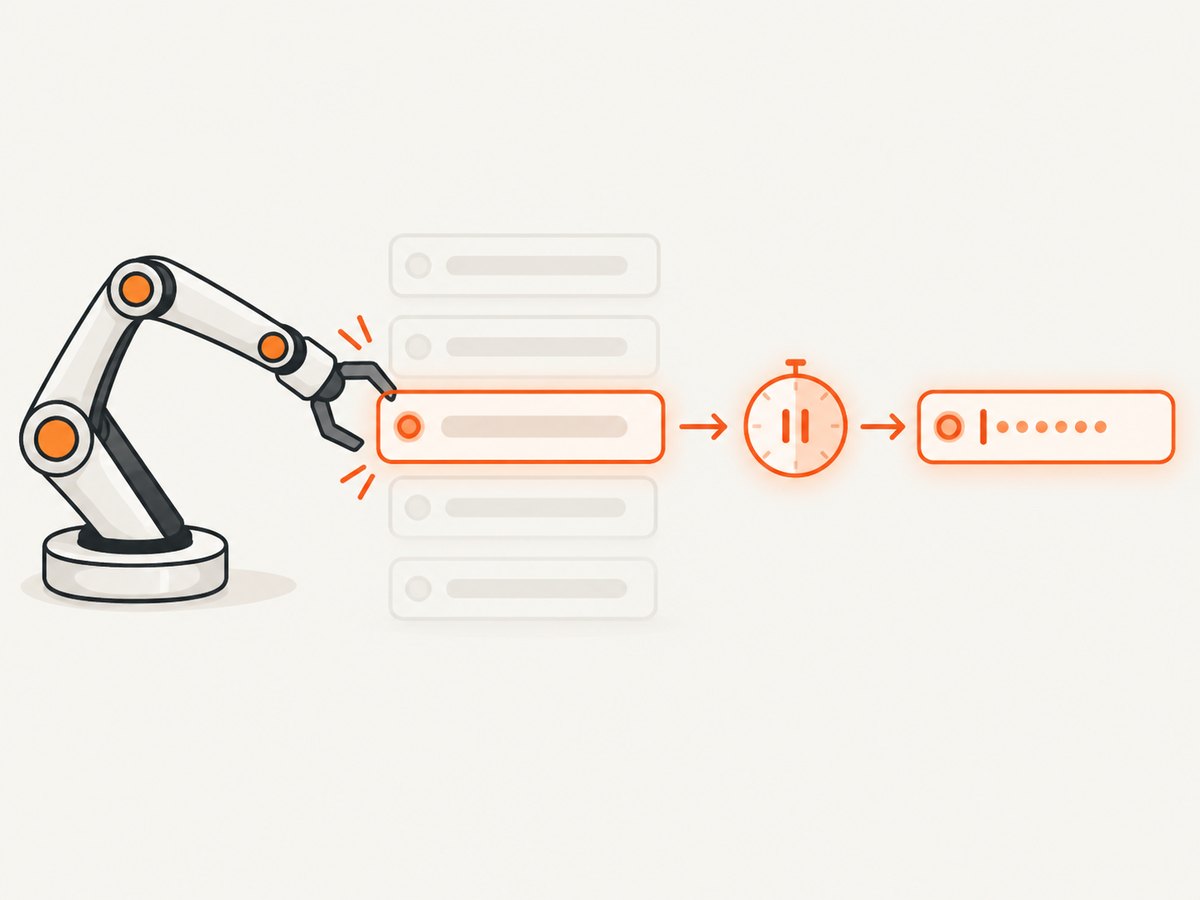
Start by proving that your selector identifies the intended input, textarea, or contenteditable element. Avoid broad selectors such as input when a form contains several fields. Prefer a stable id, a unique name, or a dedicated test attribute.
from selenium.webdriver.common.by import By

email = driver.find_element(By.ID, "email")
email.clear()
email.send_keys("dev@example.com")
If you use CSS or XPath, count matches before typing:
matches = driver.find_elements(By.CSS_SELECTOR, "input[name='email']")
assert len(matches) == 1, f"Expected one email field, found {len(matches)}"
field = matches[0]
assert field.is_displayed() and field.is_enabled()
field.send_keys("dev@example.com")
A duplicate hidden field can be produced by responsive layouts, modal forms, or a frontend framework retaining an old node. Selenium’s common-errors documentation covers interaction failures and stale references. Do not “fix” a duplicate by selecting the first match; make the selector unambiguous.
3. Inspect focus immediately before typing
Focus diagnostics distinguish a locator problem from a page script that moves focus. Run this JavaScript immediately before send_keys:
active = driver.execute_script("""
const e = document.activeElement;
return e ? {
  tag: e.tagName,
  id: e.id,
  name: e.getAttribute('name'),
  type: e.getAttribute('type'),
  aria: e.getAttribute('aria-label')
} : null;
""")
print(active)
You can also inspect the target’s identifying attributes:
target_info = driver.execute_script("""
const e = arguments[0];
return { tag: e.tagName, id: e.id, name: e.name, value: e.value };
""", field)
print(target_info)
This diagnostic is an inference from Selenium’s requirement that keys go to the intended keyboard-interactable element; there is no universal Selenium command that explains every focus change.
4. Wait for the application state, not only page load
Single-page applications often replace or enable fields after navigation. Use an explicit wait for the specific field and condition you need.
from selenium.webdriver.support.ui import WebDriverWait
from selenium.webdriver.support import expected_conditions as EC
from selenium.webdriver.common.by import By

wait = WebDriverWait(driver, 15)
email = wait.until(EC.element_to_be_clickable((By.ID, "email")))
email.clear()
email.send_keys("dev@example.com")
If a loading overlay disappears before the field is usable, wait for both conditions:
wait.until(EC.invisibility_of_element_located((By.CSS_SELECTOR, ".loading-overlay")))
email = wait.until(EC.visibility_of_element_located((By.ID, "email")))
wait.until(lambda d: email.is_enabled())
email.send_keys("dev@example.com")
Prefer a state that represents your application’s readiness, such as a form-specific class or a completed API result, over an arbitrary sleep. A fixed delay can be too short on a slow run and wasteful on a fast one.
5. Reacquire fields after rerenders
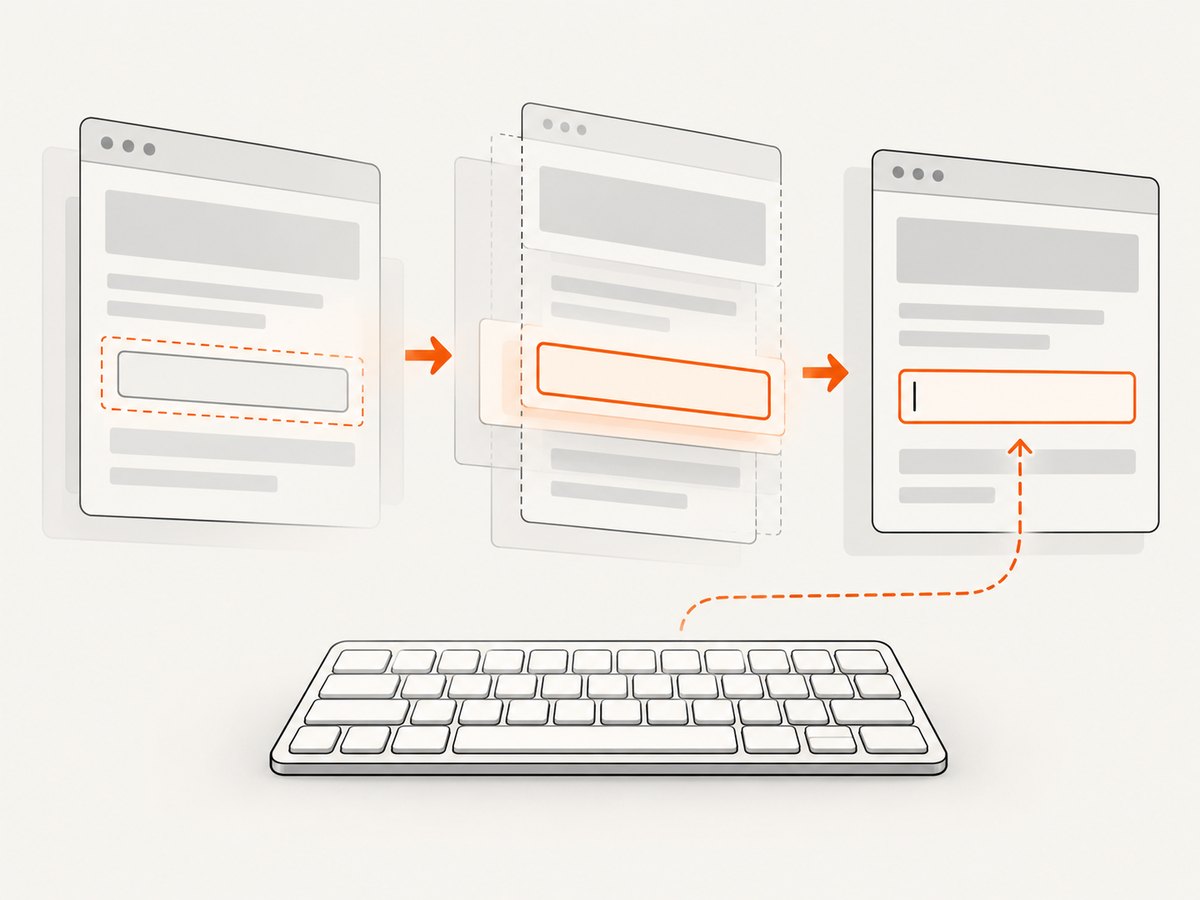
When a frontend replaces a DOM node, the old Selenium reference still points to the previous node. Selenium explains that the driver stores an element reference tied to a particular place in the DOM. Locate the element again after the update.
from selenium.common.exceptions import StaleElementReferenceException

locator = (By.ID, "email")
for attempt in range(3):
    try:
        field = WebDriverWait(driver, 10).until(
            EC.element_to_be_clickable(locator)
        )
        field.clear()
        field.send_keys("dev@example.com")
        break
    except StaleElementReferenceException:
        if attempt == 2:
            raise
Do not cache WebElement objects across actions that trigger a React, Vue, Angular, or other DOM update. Cache the locator instead.
6. Restore the correct window and iframe
A locator is evaluated in the current browsing context. If a test opened a tab or entered an iframe, switch back before locating the field.
# Return to the main document
 driver.switch_to.default_content()

# Or enter the intended iframe
frame = WebDriverWait(driver, 10).until(
    EC.presence_of_element_located((By.CSS_SELECTOR, "iframe#checkout"))
)
driver.switch_to.frame(frame)

field = WebDriverWait(driver, 10).until(
    EC.element_to_be_clickable((By.NAME, "cardholder"))
)
field.send_keys("Ada Lovelace")
For windows, retain the handle you intend to use and switch explicitly:
main = driver.current_window_handle
# ... action that opens another window ...
driver.switch_to.window(main)
If the field is inside nested frames, switch into each frame in order. If it is outside the frame, call default_content() first.
7. Control keyboard state when using Actions
The Actions API keeps input-device state across commands. A prior key_down can leave Shift, Control, Alt, or another key logically pressed and change later input.
from selenium.webdriver.common.action_chains import ActionChains
from selenium.webdriver.common.keys import Keys

actions = ActionChains(driver)
actions.key_down(Keys.SHIFT).send_keys("a").key_up(Keys.SHIFT).perform()

# Reset all input sources when a test fails or a modifier may remain held.
driver.release_actions()
Use element-level send_keys for ordinary text entry. Use Actions for deliberate keyboard choreography, and pair every key_down with key_up. See Selenium’s Actions API documentation.
8. Check ChromeDriver keyboard layout when characters are wrong
ChromeDriver documents support for systems configured with a US keyboard: “At this time, ChromeDriver only supports systems that have a US keyboard configured.” A non-US layout can produce lost or incorrectly interpreted keys. Treat this as an environment check when characters differ; it does not explain a locator that consistently targets another field.
- Record the operating-system keyboard layout in CI and locally.
- Reproduce with a US layout if the symptom is character translation.
- Prefer direct element
send_keysfor text rather than a long sequence of global key events.
Reference: ChromeDriver keyboard support.
9. A complete reliable Selenium example
from selenium import webdriver
from selenium.webdriver.common.by import By
from selenium.webdriver.support.ui import WebDriverWait
from selenium.webdriver.support import expected_conditions as EC
from selenium.common.exceptions import StaleElementReferenceException

URL = "https://example.com/form"
EMAIL = (By.ID, "email")

options = webdriver.ChromeOptions()
# options.add_argument("--headless=new")
driver = webdriver.Chrome(options=options)
wait = WebDriverWait(driver, 15)

try:
    driver.get(URL)
    driver.switch_to.default_content()

    for attempt in range(3):
        try:
            field = wait.until(EC.element_to_be_clickable(EMAIL))
            matches = driver.find_elements(*EMAIL)
            if len(matches) != 1:
                raise RuntimeError(f"Expected one email field, found {len(matches)}")
            field.clear()
            field.send_keys("dev@example.com")
            break
        except StaleElementReferenceException:
            if attempt == 2:
                raise
finally:
    driver.quit()
10. Troubleshooting checklist
| Error or symptom | Cause | Fix |
|---|---|---|
ElementNotInteractableException |
Hidden, disabled, or unsupported target | Wait for visibility and enabled state; target an input, textarea, or contenteditable element. |
StaleElementReferenceException |
Frontend replaced the node | Reacquire using the locator after the update. |
| Text goes to a hidden or different field | Non-unique selector or duplicate form | Count matches and use a stable unique attribute. |
| Works only after adding sleep | Race with asynchronous JavaScript | Replace sleep with an explicit wait for the required state. |
| Fields vanish after a click | Window or iframe context changed | Switch to the intended window and frame before locating. |
| Uppercase or symbols are wrong | Held modifier or keyboard layout | Release actions and verify the machine’s keyboard layout. |
11. A minimal reproduction procedure
- Record browser, driver, Selenium binding, and operating-system versions.
- Save the exact locator and count its matches.
- Log
document.activeElementimmediately before typing. - Log the current window handle and frame path.
- Capture the command immediately before the unexpected focus change.
- Reduce the test to navigation, one wait, one field lookup, and one
send_keyscall.
This separates a deterministic selector defect from an intermittent timing, context, or keyboard-state defect.
12. Performance and reliability considerations
- Use explicit waits with a reasonable timeout and a polling condition; avoid long global implicit waits combined with explicit waits.
- Keep locators stable and short. Repeatedly searching a large DOM is slower and harder to diagnose than targeting a unique attribute.
- Reacquire only after an operation that can rerender the field. Blind retries can hide real application failures.
- Reset state between tests: close extra windows, return to the default frame, and release actions.
- For CI, record screenshots and HTML when a failure occurs so you can see whether the field was duplicated, disabled, or replaced.
13. Or skip the browser setup
If your goal is a reliable page image for a test report, visual regression check, or debugging artifact, ScreenshotNeo can capture the page with one request. Its cleanup steps accept cookie or consent banners and remove more than 60 known consent platforms, newsletter popups, and chat widgets before capture; each step can be turned off. Only clean shots are billed: bot checks, blank pages, timeouts, failed loads, and cache hits cost nothing, and the response identifies the result with X-Page-Verdict and X-Billed headers.
See the ScreenshotNeo API documentation for all options.
curl -G "https://api.screenshotneo.com/v1/shot" -d access_key=YOUR_API_KEY --data-urlencode url=https://example.com -o shot.webpimport requests
r = requests.get("https://api.screenshotneo.com/v1/shot", params={"access_key": "YOUR_API_KEY", "url": "https://example.com"}, timeout=90)
open("shot.webp", "wb").write(r.content)const q = new URLSearchParams({ access_key: 'YOUR_API_KEY', url: 'https://example.com' }); const res = await fetch(`https://api.screenshotneo.com/v1/shot?${q}`);ScreenshotNeo also provides an MCP server with take_screenshot, get_page_info, and capture_pdf tools for Claude, Cursor, and other MCP clients. It includes full-page capture, element selectors, device presets, custom waits, headers, cookies, blocking rules, caching, signed links, asynchronous jobs, bulk capture, and a usage API. The free plan includes 1,000 screenshots per month with no card; paid plans start at $5 for 3,000.
Create a free ScreenshotNeo account and start with 1,000 screenshots a month at no charge.
14. FAQ
Should I click the field before calling send_keys?
Usually element-level send_keys targets the element directly. Clicking can help when the application requires a real focus event, but it can also trigger rerenders; wait and reacquire afterward if needed.
Can JavaScript set the value instead?
It can change the DOM value, but many applications rely on keyboard and input events. Use Selenium keyboard input when you are testing the user flow; use JavaScript only when the test explicitly targets programmatic state.
Is an implicit wait enough?
It can help with element lookup, but it does not express that a specific asynchronous update has completed. An explicit wait for the required state is easier to reason about.
Why does the problem happen only in headless CI?
CI can differ in timing, viewport, keyboard layout, fonts, and available resources. Log the active element, selector match count, context, and browser versions in the failing run.


