How to Store Cypress DOM Snapshots and Logs in CI for Debugging
Keep Cypress screenshots, videos, DOM data, console logs, and test output after CI failures with artifacts or Cypress Cloud Test Replay.
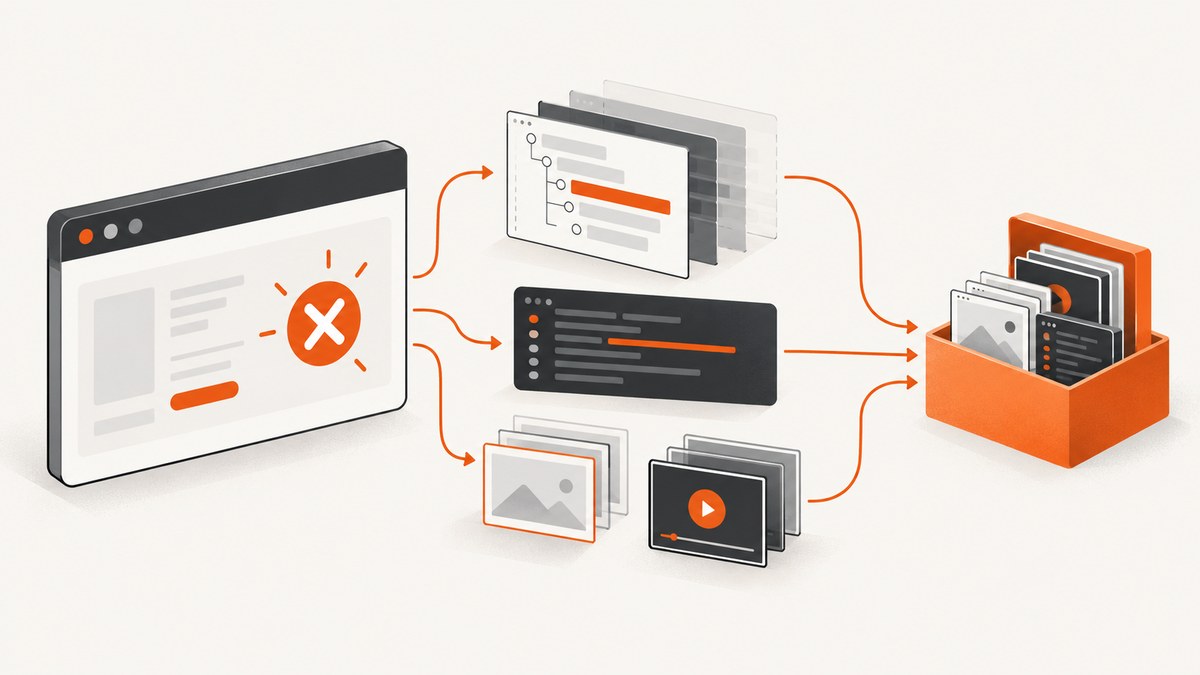
Direct answer: enable Cypress failure screenshots, optionally record videos, upload the generated folders and test output as CI artifacts in an always-run post-test step, and use Cypress Cloud recording with Test Replay when you need retained DOM, CSS, network, console, and command history. Treat every captured file as potentially sensitive and apply masking or runner-UI suppression before sharing it.
What Cypress captures in CI
When you run cypress run, Cypress automatically takes a screenshot when a test fails. The default directory is cypress/screenshots. Cypress clears that directory before each run unless trashAssetsBeforeRuns is set to false.
Video recording is disabled by default. Set video: true to create one video per spec during cypress run; the default directory is cypress/videos. That directory is also cleared before a run unless asset cleanup is disabled.
A screenshot is visual evidence, not a DOM snapshot. Screenshots cannot preserve the rendered HTML tree, CSS state, network requests, console output, or Cypress command timeline. For those details, use Test Replay capture or export your own diagnostic data.
Choose a retention method
| Method | What it keeps | Best for | Trade-offs |
|---|---|---|---|
| Native CI artifacts | Screenshots, videos, stdout, reports, and any files you explicitly upload | Provider-controlled retention, access policy, and portability | You must configure upload and organize files yourself; no automatic DOM or network history |
| Cypress Cloud recording | Standard output, test results, test definitions, Cypress configuration excluding environment variables, screenshots, videos, and CI/git metadata | Hosted run history and searchable failure context | Requires recording setup, a record key, and project access controls |
| Test Replay | Rendered DOM and CSS, Cypress command events, network traffic, browser console logs, JavaScript errors, and element rendering at the failure point | Debugging failures that screenshots and logs cannot explain | Captures more application data, so masking, access, and retention need review |
Minimal Cypress configuration
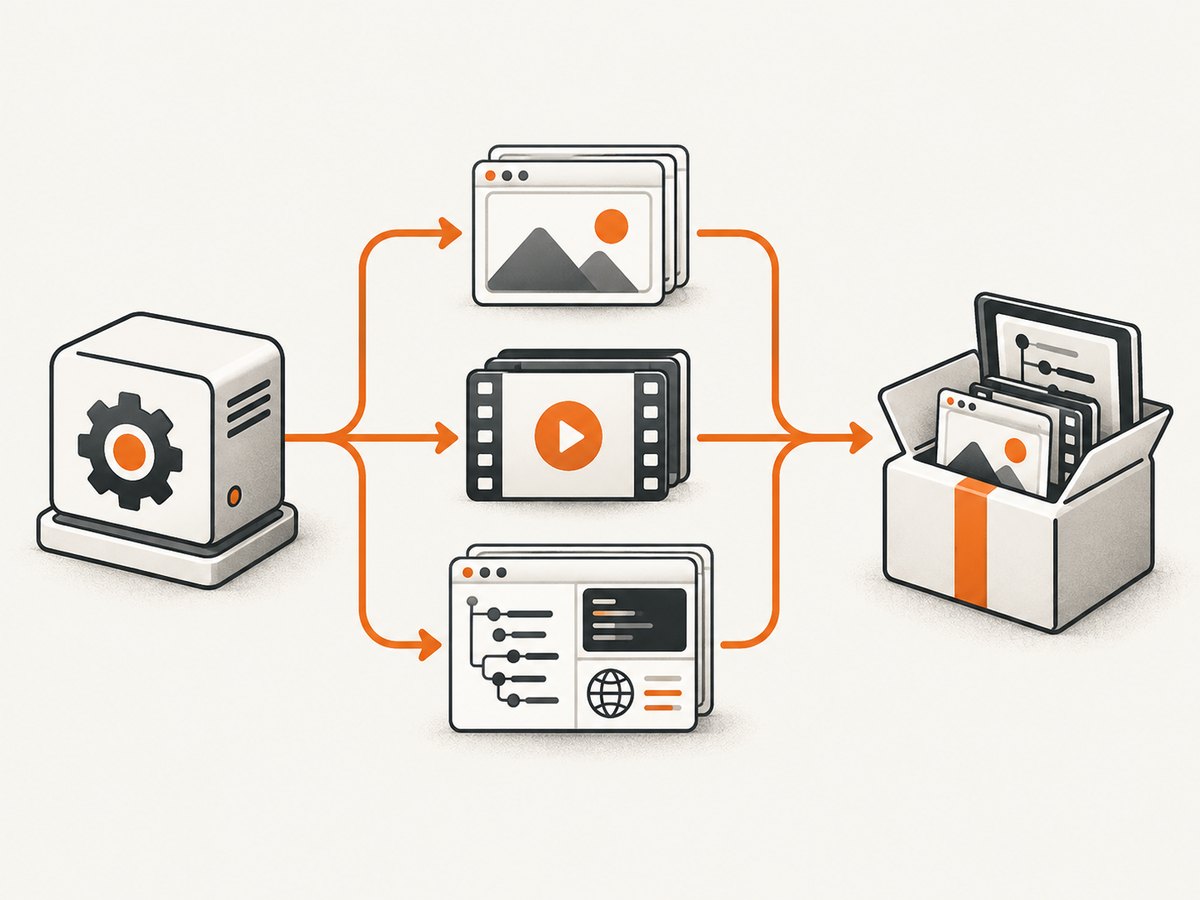
Put these settings in cypress.config.js or cypress.config.ts. Failure screenshots are already enabled by default, but setting the option explicitly makes the CI behavior clear.
const { defineConfig } = require('cypress');

module.exports = defineConfig({
  e2e: {
    screenshotOnRunFailure: true,
    screenshotsFolder: 'cypress/screenshots',
    video: true,
    videosFolder: 'cypress/videos',
    trashAssetsBeforeRuns: true,
  },
});
Set video: false when videos do not help triage. Set trashAssetsBeforeRuns: false only when you deliberately need files from multiple runs in one workspace; otherwise old evidence can be mistaken for the current run.
Save useful screenshots and diagnostic files
Automatic failure screenshots
Run Cypress in CI mode:
npx cypress runAfter a failure, Cypress writes the screenshot beneath cypress/screenshots. Keep the path stable so your CI uploader can collect it.
Manual screenshots at important checkpoints
describe('checkout', () => {
  it('shows the confirmation state', () => {
    cy.visit('/checkout');
    cy.get('[data-testid="pay-button"]').click();
    cy.screenshot('checkout-confirmation');
  });
});
Use deterministic names and avoid putting secrets, tokens, or personal data in the page state captured at that point.
Capture a DOM snapshot when you need one
If you need the exact HTML for a failure, write it to a file from a Cypress task. This is separate from a screenshot and should be enabled only for the tests where it is useful.
// cypress.config.js
const { defineConfig } = require('cypress');
const fs = require('fs');
const path = require('path');

module.exports = defineConfig({
  e2e: {
    setupNodeEvents(on) {
      on('task', {
        saveDom({ name, html }) {
          const dir = path.join(process.cwd(), 'cypress', 'dom');
          fs.mkdirSync(dir, { recursive: true });
          fs.writeFileSync(path.join(dir, `${name}.html`), html, 'utf8');
          return null;
        },
      });
    },
  },
});
// In a spec
cy.document().then((document) => {
cy.task('saveDom', {
name: 'checkout-failure',
html: document.documentElement.outerHTML,
});
});HTML alone does not reproduce the full rendered state. If the problem depends on computed CSS, requests, console errors, or the Cypress command timeline, Test Replay provides deeper context.
Upload artifacts in GitHub Actions
The upload step must run even when Cypress exits with a failure. Use if: ${{ always() }} and include screenshots, videos, DOM files, stdout, and test reports.
name: Cypress

on: [push, pull_request]

jobs:
  e2e:
    runs-on: ubuntu-latest
    steps:
      - uses: actions/checkout@v4

      - uses: actions/setup-node@v4
        with:
          node-version: 20
          cache: npm

      - run: npm ci
      - run: npm start &
      - run: npx wait-on http://localhost:3000

      - name: Run Cypress
        run: npx cypress run 2> cypress-stderr.log | tee cypress-stdout.log

      - name: Upload Cypress evidence
        if: ${{ always() }}
        uses: actions/upload-artifact@v4
        with:
          name: cypress-${{ github.run_id }}-${{ github.sha }}
          path: |
            cypress/screenshots
            cypress/videos
            cypress/dom
            cypress/results
            cypress-stdout.log
            cypress-stderr.log
          if-no-files-found: ignore
          retention-days: 14
Include the commit SHA, workflow run ID, browser, and spec shard in artifact names when parallel jobs produce separate evidence. Set retention to the shortest period that still supports triage, and restrict who can download artifacts.
Upload artifacts in other CI systems
The principle is the same for CircleCI, GitLab CI, Jenkins, AWS CodeBuild, and other providers:
- Run
npx cypress run. - Collect
cypress/screenshots,cypress/videos, any DOM or report directory, and terminal output. - Run the upload action in a post-test or always-run section.
- Give each upload a run-specific name and apply an explicit retention policy.
Provider syntax differs, so keep the Cypress paths consistent and map them to your CI system’s artifact feature.
Record runs in Cypress Cloud
Cypress Cloud recording preserves standard output, test results, test definitions, Cypress configuration excluding environment variables, screenshots, videos, and CI/git-related operating-system environment variables. Record from CI with a secret record key:
export CYPRESS_RECORD_KEY="$CYPRESS_RECORD_KEY"
npx cypress run --record
Store CYPRESS_RECORD_KEY as a masked CI secret. Never commit it to the repository or print it in logs.
When Test Replay capture is enabled, Cypress can retain the rendered DOM and CSS, Cypress command events, network traffic, browser console logs, JavaScript errors, and element rendering at the failure point. This is the appropriate option when “save the DOM snapshot and logs” means reconstructing what the browser showed and did, rather than merely storing a PNG.
GitHub Actions with the official Cypress Action
The official Cypress GitHub Action supports recording, failure reports, screenshots, videos, contextual details, and optional parallelization. A typical setup passes the record key through a secret:
- name: Cypress run
  uses: cypress-io/github-action@v6
  with:
    record: true
    parallel: true
  env:
    CYPRESS_RECORD_KEY: ${{ secrets.CYPRESS_RECORD_KEY }}
You can still upload local folders with actions/upload-artifact when your team requires a provider-controlled copy in addition to Cloud.
Capture hooks for custom naming and uploads
The after:screenshot and after:spec Node events expose resolved screenshot and video paths. Use them to copy files into a run-specific directory or pass paths to an artifact uploader.
const { defineConfig } = require('cypress');
const fs = require('fs');
const path = require('path');

module.exports = defineConfig({
  e2e: {
    setupNodeEvents(on) {
      on('after:screenshot', (details) => {
        console.log(`Screenshot saved: ${details.path}`);
        return details;
      });

      on('after:spec', (spec, results) => {
        if (results?.video) {
          console.log(`Video saved: ${results.video}`);
        }
      });
    },
  },
});
Protect captured test data
- Assume DOM, screenshots, videos, network payloads, and console output may contain credentials, personal data, or production-like records.
- Use Cypress masking controls where available for sensitive fields.
- Use
--no-runner-uiwhen you need to suppress the Cypress Command Log and application-under-test content in screenshots or videos. - Use test accounts with synthetic data and revoke or rotate credentials after a run.
- Limit artifact and Cloud project access to the people who debug the suite.
- Set deletion dates and review whether pull-request artifacts should be retained as long as main-branch artifacts.
Performance, reliability, and cost considerations
| Decision | Effect |
|---|---|
| Enable video only when useful | Reduces file creation, upload time, and storage volume. |
| Upload on every failure | Preserves evidence when the Cypress process exits non-zero or a later step is skipped. |
| Use deterministic, run-specific names | Prevents parallel jobs from overwriting evidence and makes triage faster. |
| Keep local artifacts and Cloud selectively | Provides a fallback copy, but duplicates storage and access-control work. |
| Enable Test Replay for targeted suites | Provides richer debugging data while limiting the amount of captured application content. |
| Use short retention for high-volume branches | Controls storage while keeping longer retention for release and main-branch runs. |
There is no universal retention period or pricing figure for this workflow. Your CI provider and Cypress Cloud plan determine storage and retention costs, so measure artifact size per spec and set limits deliberately.

Common errors and fixes
| Symptom | Cause | Fix |
|---|---|---|
| No screenshot after a failed test | You ran in interactive mode, disabled failure screenshots, or looked in the wrong folder. | Use npx cypress run, set screenshotOnRunFailure: true, and verify screenshotsFolder. |
| Videos are missing | Video recording is off by default or the run did not use cypress run. |
Set video: true and check videosFolder. |
| Artifacts disappear when the job fails | The upload step is skipped after the test command exits non-zero. | Guard the upload with the CI provider’s always-run condition, such as if: ${{ always() }}. |
| Only old files are uploaded | Paths are wrong or a previous workspace is being reused. | Print the directory tree before upload and include the configured folders exactly. |
| DOM is not available in a screenshot | A PNG or video does not contain a structured DOM snapshot. | Capture HTML with a task or enable Test Replay. |
| Cypress Cloud shows no failed run | The run was not recorded, or the record key is missing or invalid. | Pass --record, set CYPRESS_RECORD_KEY as a secret, and verify project identification. |
| Secrets appear in evidence | Inputs, network payloads, console output, or runner UI contain sensitive values. | Mask fields, use synthetic data, suppress runner UI where appropriate, and restrict access. |
| Parallel jobs overwrite files | All shards upload the same artifact name. | Include run ID, commit SHA, browser, and shard in each artifact name. |
Or skip the browser setup
If your goal is a clean image of a page for debugging or documentation, ScreenshotNeo provides a single HTTP request instead of maintaining browser capture code. It removes cookie and consent banners, newsletter popups, and chat widgets before capture. Bot checks, blank pages, failed loads, timeouts, and cache hits are not billed, and each response identifies the result with X-Page-Verdict and X-Billed headers. Its MCP server lets Claude, Cursor, and other MCP clients call take_screenshot, get_page_info, and capture_pdf.
See the ScreenshotNeo API documentation for all options.
curl -G "https://api.screenshotneo.com/v1/shot" -d access_key=YOUR_API_KEY --data-urlencode url=https://stripe.com -o shot.webpimport requests
r = requests.get("https://api.screenshotneo.com/v1/shot", params={"access_key": "YOUR_API_KEY", "url": "https://stripe.com"}, timeout=90)
open("shot.webp", "wb").write(r.content)const q = new URLSearchParams({ access_key: 'YOUR_API_KEY', url: 'https://stripe.com' });
const res = await fetch(`https://api.screenshotneo.com/v1/shot?${q}`);There are 1,000 screenshots per month on the free plan with no card. Paid plans start at $5 for 3,000 shots, and every feature is available on every plan. Create a free ScreenshotNeo account.
FAQ
Does Cypress automatically save a DOM snapshot?
No. It automatically captures failure screenshots during cypress run; a structured DOM snapshot requires Test Replay or a custom export.
Should CI artifacts replace Cypress Cloud?
Use artifacts when provider-controlled retention and portability are priorities. Use Cloud and Test Replay when searchable hosted history and browser-level debugging are more valuable. Some teams keep both for important release runs.
Can I retain console logs without recording video?
Yes. Upload stdout and test reports as artifacts, or use Test Replay for browser console history. Video recording is independent and can remain disabled.
Why do screenshots contain the Cypress runner?
The captured image may include runner UI or application content. Review masking controls and use --no-runner-ui when suppressing that content is appropriate.
How long should evidence remain available?
Keep it long enough to investigate failures and compare fixes, then delete it according to your access and data-retention policy. Use longer retention for release evidence than for short-lived pull requests.


