How to Store Generated Images in Your Own Cloud Storage
Save original generated images, preserve provenance, and build a reliable cloud-plus-offline backup workflow.

Direct answer: save the original generated image file, organize it in a predictable folder, upload or sync that folder to a cloud account, verify the cloud copy opens, and keep a second copy offsite. Cloud sync makes files available; it is not a complete recovery plan.
This workflow works for images made by an AI image generator, design tool, or screenshot service. It also protects provenance information when the file contains Content Credentials. Treat the original download as the source of truth and every later copy as a recoverable replica.
1. Download the original before organizing
Use the generator’s download or export control and keep the resulting PNG, JPEG, WebP, or other original file. Do not rely on a screenshot of the preview. Google Drive guidance says screenshots, resizing or resaving, some third-party sharing, and export can remove or alter credential history. If provenance matters, preserve the untouched file and make working copies for edits.
Record useful context in a sidecar text file or project note: generator name, model or preset, prompt, seed if exposed, creation date, and license terms. A sidecar does not modify image metadata.
Use a stable folder structure
image-archive/
  2026/
    2026-09-project-name/
      originals/
      edits/
      exports/
      notes/
Use names such as 2026-09-29-forest-concept-v01.png. Avoid names such as final-final2.png. Keep originals read-only when practical. Keep one canonical original and use shortcuts or references when an image belongs to several projects.
2. Validate the local copy
Open each file and check dimensions, transparency, and color profile. A checksum lets you confirm that a later copy is byte-for-byte identical.
# macOS or Linux
sha256sum image-archive/2026/2026-09-project-name/originals/*.png

# macOS alternative
shasum -a 256 image-archive/2026/2026-09-project-name/originals/*.png
On Windows PowerShell, use Get-FileHash .\image.png -Algorithm SHA256. Save the output in notes/checksums.txt. A changed checksum may be an intentional edit, but it identifies which copy matches the recorded original.
3. Upload or sync to your cloud service
Google Drive documents storing image media and metadata such as names, MIME types, and creation or modification times. Microsoft documents uploading photos and files to OneDrive and backing up selected folders. Dropbox describes online storage, organization, synchronization, and collaboration. Follow the provider’s current instructions and inspect which folders are selected.
Google Drive
- Create an archive folder and upload the project folder.
- Keep filenames and MIME types intact when provenance or downstream tooling depends on them.
- Open the uploaded image from the web interface and download one copy to confirm readability.
- Review sharing and use restricted access by default.
Drive’s developer documentation covers creating files with media content. Check current API terms before building an application whose primary purpose is provider-wide backup; some developer backup use cases have restrictions. Ordinary personal uploads are a different situation.
OneDrive
- Upload the archive or enable backup for the specific local folder containing originals.
- Confirm whether files are local or cloud-only on each device.
- Wait for sync completion before disconnecting the source disk.
- Open a file from the web and verify dimensions and transparency.
Dropbox
- Place the archive in the Dropbox folder or upload it from the web.
- Wait for the desktop sync indicator to show completion.
- Check what Backup includes, how restore works on your plan, and what deletion does to other locations.
- Restore one image to a temporary folder as a test.
Do not assume that a feature or retention period described for one provider applies to another. Settings, plan limits, deletion behavior, and restore windows can change.
4. Storage is not the same as backup
Storage keeps files online for access, sharing, and synchronization. Backup is a separate copy intended to restore files after loss. A synchronized deletion can propagate to every synchronized device, so a second recovery copy matters.
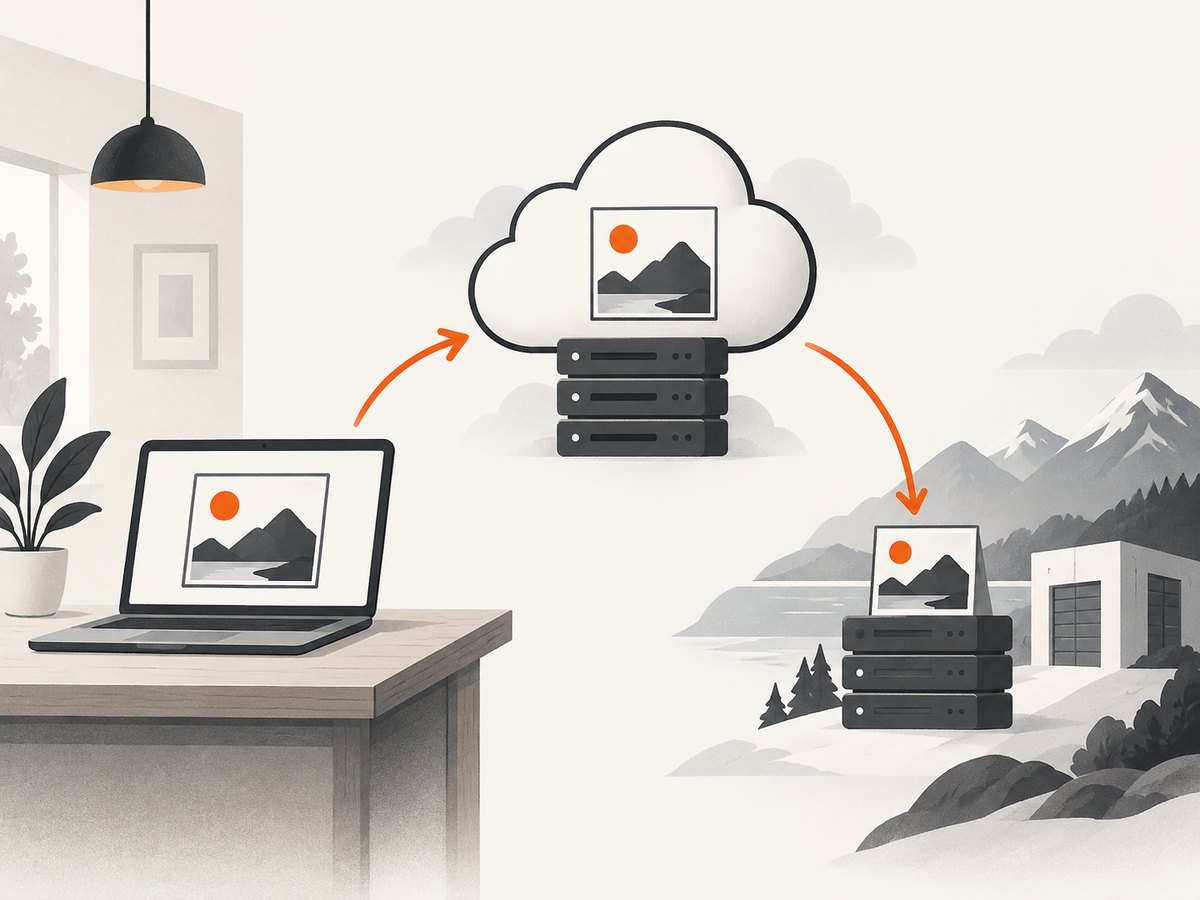
The California Privacy Protection Agency recommends the 3-2-1 approach: three copies, on two media types, with one copy offsite. A practical arrangement is the working disk, a cloud copy, and an external drive stored somewhere else. An external drive beside the computer can be lost, stolen, or damaged with it.
| Copy | Purpose | Check |
|---|---|---|
| Working disk | Fast editing | Open originals and inspect free space |
| Cloud folder | Access and offsite copy | Open from the provider website |
| External or offsite disk | Recovery | Mount periodically and sample files |
Once a month, restore several files to a temporary directory and compare checksums. Keep the folder map and checksum list in the cloud too, but do not store the only copy of account recovery codes inside the archive.
5. Protect Content Credentials and provenance
Content Credentials can describe media history, including that a compatible tool created or changed a file. Google explains that credentials can be lost or altered by screenshots, editing that resizes or resaves, certain third-party sharing, and downloading or exporting. Keep the original download untouched when that history matters.
Credentials have limits. Google states that they cannot tell you whether a photo or video is real or fake. C2PA, the open provenance standard described by OpenAI, records origin and history but does not guarantee accuracy, legal ownership, or context. A missing SynthID signal does not prove that another AI system did not generate an image.
- Archive the original download.
- Make edits in a separate
edits/folder. - Do not describe provenance metadata as proof of truth or ownership.
- Keep prompt and license notes with the project.
6. Privacy, sharing, and account access
Use private folders until you deliberately need a public link. Review inherited permissions and remove old collaborators. Secure the controlling email account with a strong unique password and multifactor authentication.
Privacy promises are product-specific. Google’s Workspace Gemini guidance describes Workspace data handling and notes a separate notice for users enrolled in Workspace Experiments. Do not generalize that language to every personal Drive account, storage provider, or image generator.
7. Automate the local preparation
This Python script creates archive folders and a checksum manifest without modifying image bytes. It does not upload anything.
from pathlib import Path
import hashlib
from datetime import date

root = Path('image-archive')
project = root / str(date.today().year) / f'{date.today()}-new-project'
for name in ('originals', 'edits', 'exports', 'notes'):
    (project / name).mkdir(parents=True, exist_ok=True)

manifest = project / 'notes' / 'checksums.txt'
with manifest.open('w', encoding='utf-8') as out:
    for path in sorted((project / 'originals').rglob('*')):
        if path.is_file():
            digest = hashlib.sha256(path.read_bytes()).hexdigest()
            out.write(f'{digest}  {path.relative_to(project)}\n')
print(f'Archive ready at {project}')
Run it where you want the archive created. Copy originals into the printed folder, rerun the manifest step, then upload or sync the complete project folder through your provider’s supported client.
8. Troubleshooting checklist
| Symptom | Cause | Fix |
|---|---|---|
| Cloud copy is missing | Sync pending or folder not selected | Check status and selected-folder settings, then verify on the web |
| Image opens locally but not online | Partial upload or preview limitation | Download the cloud file and compare checksum; use a local viewer if needed |
| Credentials disappeared | Screenshot, resave, resize, export, or third-party transformation | Return to the untouched original and keep edits separate |
| Files vanished everywhere | Deletion propagated through sync | Use version or restore features, then recover from the offsite copy |
| Storage fills unexpectedly | Large lossless files, duplicate exports, or trash retention | Remove redundant exports and review storage and trash settings |
| Collaborator can edit originals | Folder permission inherited too broadly | Move originals to a restricted folder and share a read-only export |
9. Or skip the browser setup
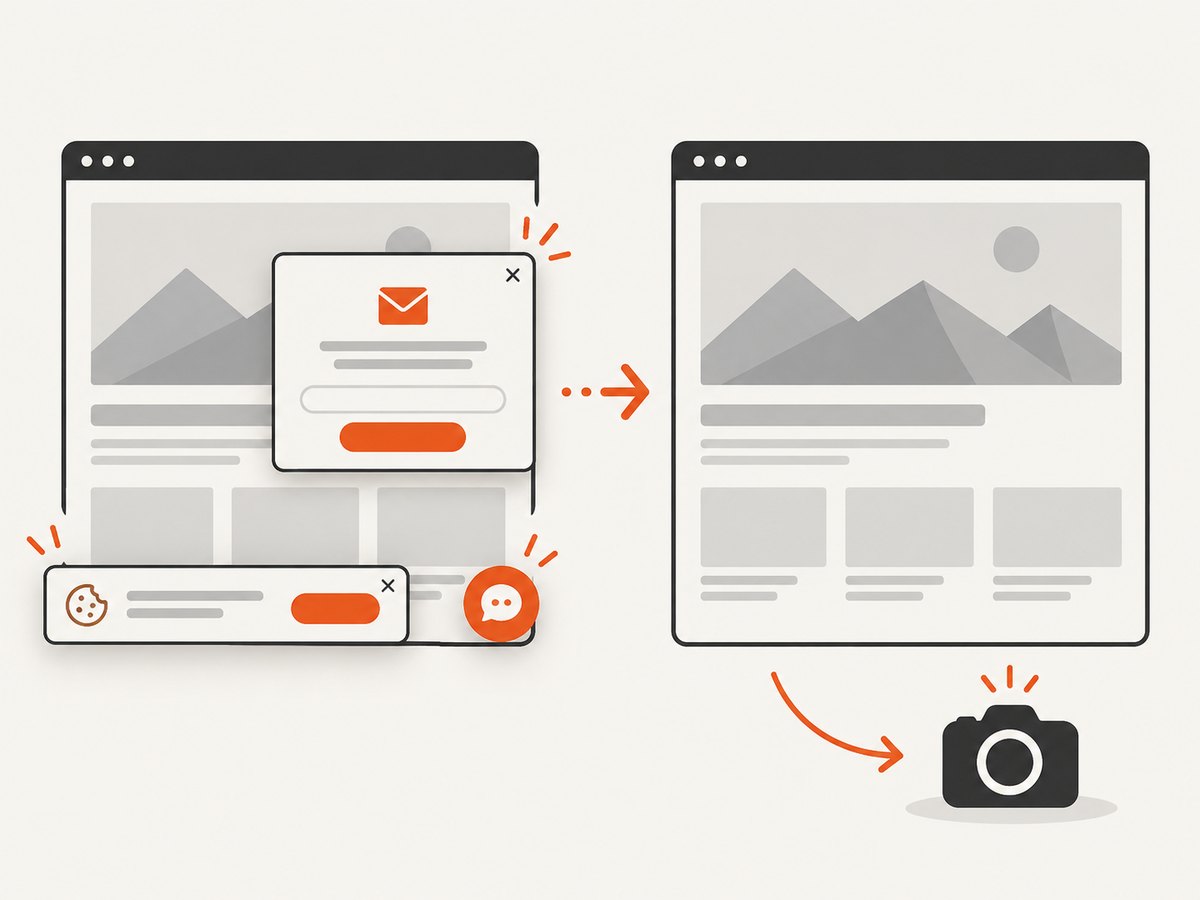
If your images begin as web pages, dashboards, or previews, ScreenshotNeo returns a clean image or PDF from one GET request. It accepts consent banners before capture and removes more than 60 known consent platforms, newsletter popups, and chat widgets; each step can be turned off. Bot checks, blank pages, timeouts, failed loads, and cache hits are not billed, and responses identify the result with X-Page-Verdict and X-Billed headers. Its MCP server provides take_screenshot, get_page_info, and capture_pdf for Claude, Cursor, and other MCP clients.
See the ScreenshotNeo API documentation for all 63 options, including full-page lazy-image capture, CSS selectors, device presets, retina scale, custom CSS and JavaScript, waits, request blocking, headers, cookies, user agent, timezone, geolocation, transparent backgrounds, resizing, TTL caching, signed links, async webhooks, bulk capture, usage data, and OpenAPI compatibility.
cURL
curl -G 'https://api.screenshotneo.com/v1/shot' -d access_key=YOUR_API_KEY --data-urlencode url=https://stripe.com -o shot.webpPython
import requests
r = requests.get('https://api.screenshotneo.com/v1/shot', params={'access_key': 'YOUR_API_KEY', 'url': 'https://stripe.com'}, timeout=90)
open('shot.webp', 'wb').write(r.content)
Node.js
const q = new URLSearchParams({ access_key: 'YOUR_API_KEY', url: 'https://stripe.com' });
const res = await fetch(`https://api.screenshotneo.com/v1/shot?${q}`);
Save the returned file into originals/, record response headers beside it, and apply the same cloud workflow. ScreenshotNeo’s Free plan includes 1,000 shots each month with no card; paid plans start at $5 for 3,000 shots. Every feature is on every plan. Create a free ScreenshotNeo account.
10. Performance, reliability, and cost
- Performance: sync many small files less efficiently than a consolidated project folder, but do not zip originals if you need previews or per-file sharing. Leave the source disk attached until completion.
- Reliability: verify a sample after migrations, retain the offsite copy, and test restore rather than trusting a sync icon.
- Cost: avoid duplicate full-resolution exports and review storage, trash, and version retention. Provider prices and limits change.
- Capture cost: ScreenshotNeo bills only clean shots; cache hits and failed captures are free. Use TTL caching for repeated URLs and bulk capture for up to 100 URLs when appropriate.
FAQ
Should I store PNG or JPEG?
Keep the generator’s original format. Export JPEG or WebP as a separate delivery copy when required.
Is a synced folder enough?
No. Sync mirrors changes, including deletions. Keep another copy on different media with one copy offsite.
Can provenance metadata prove authenticity?
No. It can describe origin and edits, but it does not prove truth, ownership, or context.
Can I make a cloud link public?
Yes when needed, but use a separate export folder so private originals are not exposed.
How do I preserve a screenshot as evidence?
Save the original capture and response metadata, checksum it, and store the evidence folder with restricted access and an offsite copy.