How to Store a Screenshot Created With html2canvas
Learn how to download, convert, upload, and troubleshoot html2canvas screenshots with practical browser code and a server-side alternative.
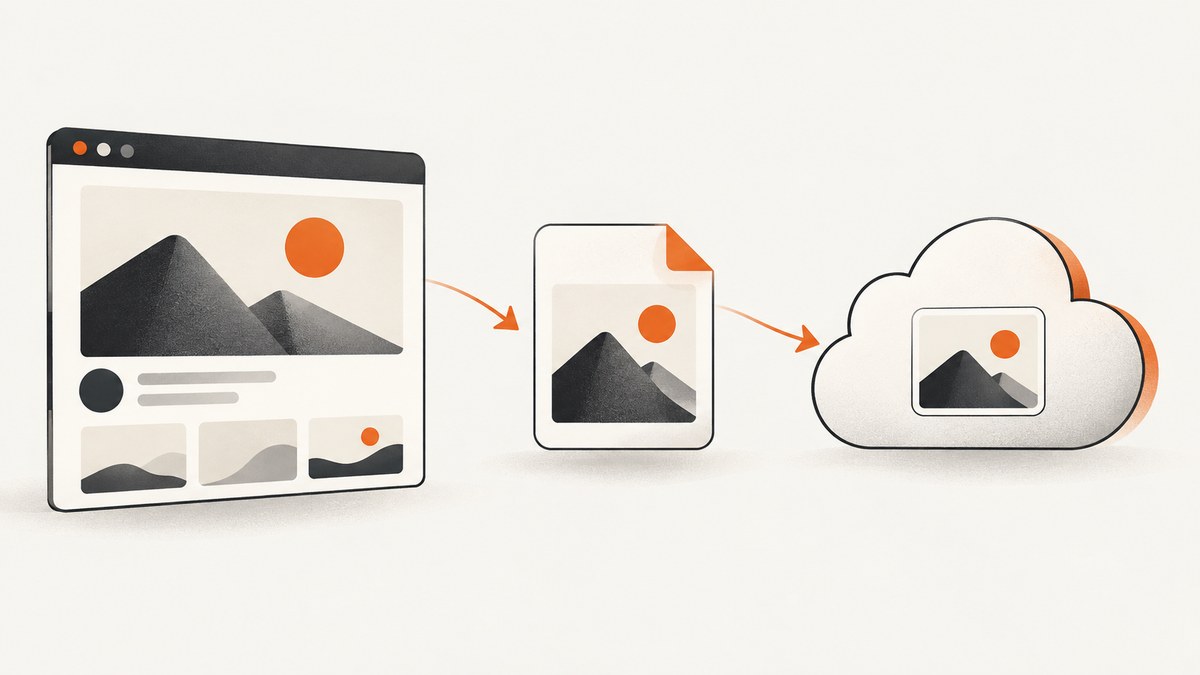
Direct answer: html2canvas(element) returns a Promise that resolves to an HTMLCanvasElement. To save it locally, export the canvas as a PNG data URL, put that URL on an anchor with a filename, and trigger a click. For large images or uploads, export a Blob with toBlob() and use an object URL instead.
html2canvas(document.body).then(canvas => {
  const link = document.createElement('a');
  link.download = 'screenshot.png';
  link.href = canvas.toDataURL('image/png');
  link.click();
});
The important distinction is that html2canvas creates the canvas; the browser’s canvas export methods handle storage or download. This guide covers local downloads, memory-safe Blob exports, uploads to your own backend, image formats, cross-origin failures, large pages, and a hosted alternative when you do not want to operate a browser.
1. Install html2canvas and capture an element
Load html2canvas in a browser page, select the element to capture, and await the returned Promise. The library runs in the browser and reconstructs a visual representation from the DOM rather than taking a native browser screenshot. See the html2canvas documentation for its rendering model.
<button id='save'>Save card</button>
<section id='card'>
  <h1>Quarterly report</h1>
  <p>This section becomes an image.</p>
</section>
<script src='https://cdn.jsdelivr.net/npm/html2canvas@1.4.1/dist/html2canvas.min.js'></script>
<script>
document.querySelector('#save').addEventListener('click', async () => {
  const element = document.querySelector('#card');
  const canvas = await html2canvas(element);
  console.log(canvas.width, canvas.height);
});
</script>
Capture the smallest useful element when possible. Capturing document.body can produce a very large canvas, consume more memory, and include content that users did not intend to save.
2. Quick local download with toDataURL()
toDataURL() serializes the complete image into a string. That makes it convenient for a one-click download and small canvases.
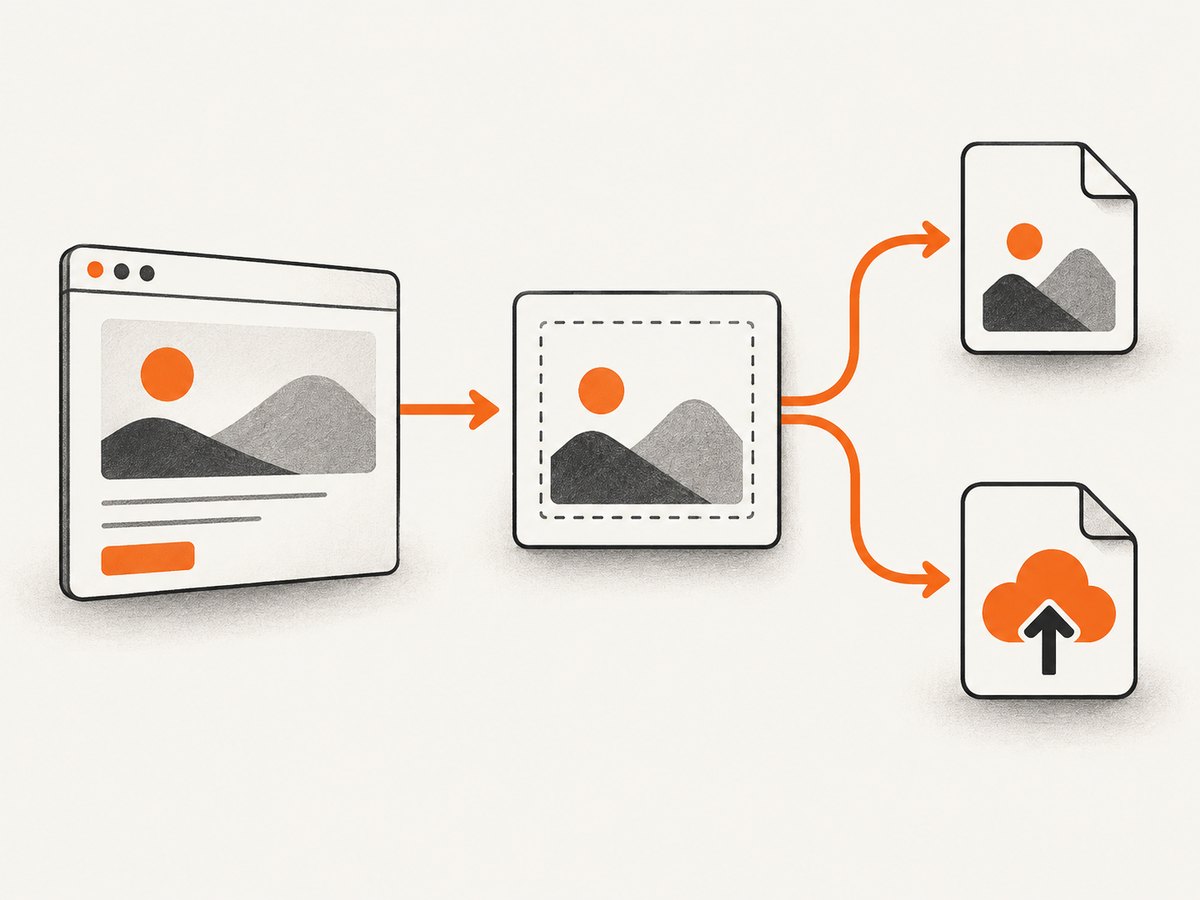
async function downloadPng(element, filename = 'screenshot.png') {
  const canvas = await html2canvas(element);
  const dataUrl = canvas.toDataURL('image/png');

  const link = document.createElement('a');
  link.download = filename;
  link.href = dataUrl;
  link.click();
}

document.querySelector('#save').addEventListener('click', () => {
  downloadPng(document.querySelector('#card'));
});
Format and quality arguments
The first argument is the MIME type. PNG is the dependable default and preserves text and transparency. JPEG is useful for photographic content and accepts a quality value from 0 to 1 where supported. WebP can be smaller, but encoder support depends on the browser.
const png = canvas.toDataURL('image/png');
const jpeg = canvas.toDataURL('image/jpeg', 0.85);
const webp = canvas.toDataURL('image/webp', 0.85);
If a requested format is not supported, browsers can fall back to PNG. Check the returned prefix when the exact format matters:
const dataUrl = canvas.toDataURL('image/webp', 0.85);
if (!dataUrl.startsWith('data:image/webp')) {
  console.warn('WebP export was not selected; use PNG instead.');
}
3. Prefer toBlob() for large screenshots and uploads
MDN describes HTMLCanvasElement.toBlob() as creating a Blob that represents the image in the canvas. A Blob avoids keeping the entire encoded image in a JavaScript string, so it is usually a better handoff for large screenshots and network uploads. The callback receives null if the browser cannot create the Blob.
function canvasToBlob(canvas, type = 'image/png', quality) {
  return new Promise((resolve, reject) => {
    canvas.toBlob(blob => {
      if (blob) resolve(blob);
      else reject(new Error('Canvas export returned no Blob'));
    }, type, quality);
  });
}

async function downloadBlob(element, filename = 'screenshot.png') {
  const canvas = await html2canvas(element);
  const blob = await canvasToBlob(canvas, 'image/png');
  const url = URL.createObjectURL(blob);

  const link = document.createElement('a');
  link.download = filename;
  link.href = url;
  link.click();

  setTimeout(() => URL.revokeObjectURL(url), 1000);
}
Revoke the object URL after the download has been handed to the browser. If you revoke it immediately, some browsers may cancel the download.
4. Upload the screenshot to your own server
For durable storage, send the Blob to an endpoint you control or to a storage service selected as part of your application architecture. html2canvas only creates the image; it does not choose a provider, bucket, database, retention policy, or authentication scheme.
async function uploadScreenshot(element) {
  const canvas = await html2canvas(element);
  const blob = await canvasToBlob(canvas, 'image/png');

  const form = new FormData();
  form.append('screenshot', blob, 'report.png');

  const response = await fetch('/api/screenshots', {
    method: 'POST',
    body: form
  });

  if (!response.ok) {
    throw new Error(`Upload failed: ${response.status}`);
  }

  return response.json();
}

uploadScreenshot(document.querySelector('#card'))
  .then(result => console.log('Stored as', result))
  .catch(error => console.error(error));
Keep uploads authenticated, validate the declared and detected content type, enforce a maximum byte size, and generate storage names on the server. Do not trust a filename supplied by the browser as a database key or filesystem path.
5. Make the output predictable
Capture timing
Call html2canvas after the content you need is present. For images, wait for the image load event or use an application-level “ready” state before capturing. If fonts or data are still loading, the canvas can contain fallback text or empty areas.
Element versus full page
An element capture is easier to size and store. A full-page capture can be much taller than the viewport and may expose browser memory limits. If a page is long, capture meaningful sections separately and combine them in your own document or image pipeline.
Pixel density
The canvas dimensions determine output pixels. A high-density display or a deliberately enlarged canvas produces a sharper image but increases memory and encoding cost. Start with the element’s rendered size and increase only when the output requires it.
Choosing PNG, JPEG, or WebP
| Format | Use it when | Trade-off |
|---|---|---|
| PNG | UI, text, diagrams, transparency | Larger files for photographs |
| JPEG | Photographic content and smaller files | Lossy; transparency is not preserved |
| WebP | Your browser and consumers support it | Encoder support is not universal |
6. Cross-origin images, iframes, and blank output
A common reason for a blank export or SecurityError is a tainted canvas. An image loaded from another origin must permit cross-origin use through the appropriate headers. html2canvas documents a useCORS option and a proxy option for resources that cannot be loaded same-origin.
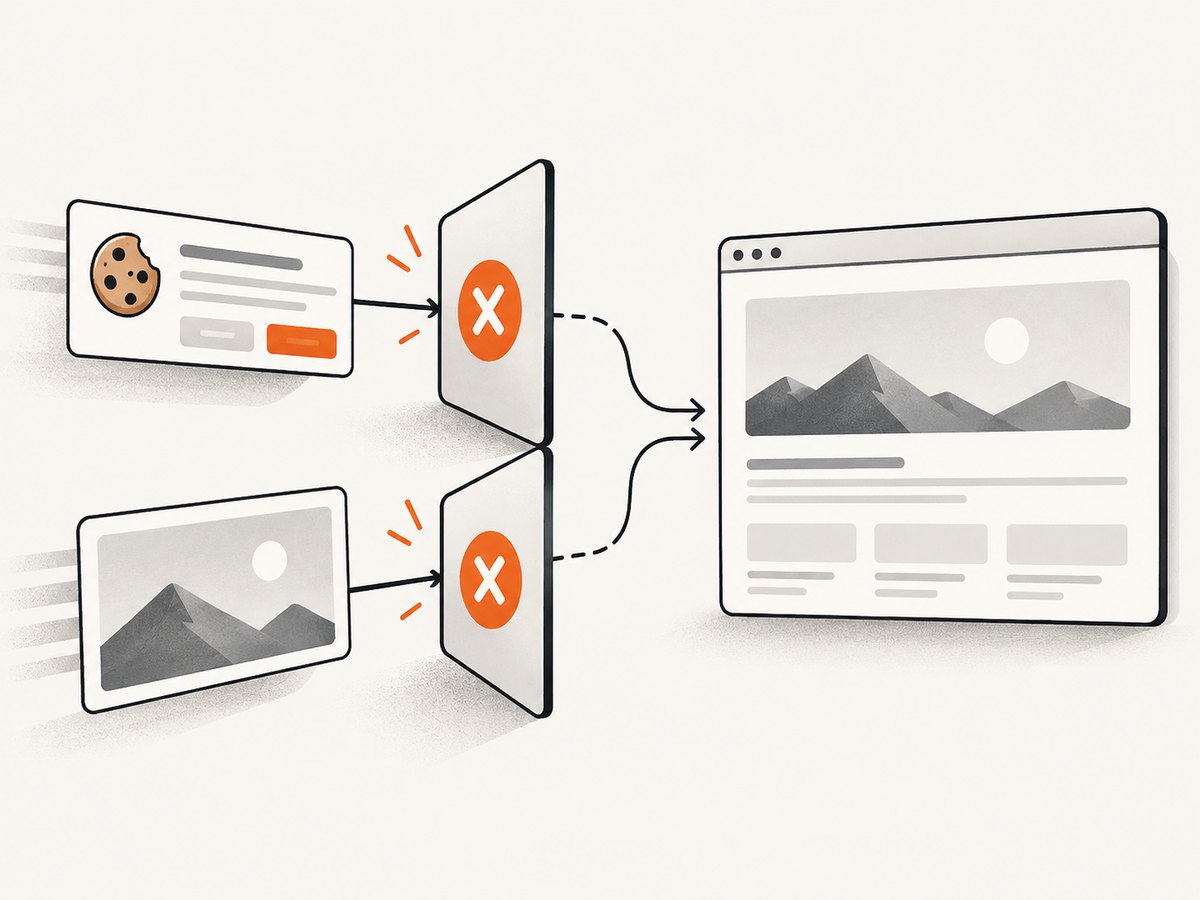
const canvas = await html2canvas(document.querySelector('#card'), {
  useCORS: true,
  proxy: '/html2canvas-proxy'
});
These options cannot override a server that refuses cross-origin access. Configure the image server to send the required CORS headers, or proxy the resource through a server you control while respecting that resource’s access rules.
Cross-origin iframes are a separate limitation. The page cannot access the iframe’s contentDocument, so html2canvas cannot render its contents. Capture the iframe’s page from an origin you control, or use a server-side browser capture that can navigate to the URL directly.
7. What html2canvas does not reproduce
html2canvas traverses the DOM and builds an image from properties it understands. It is not a native browser screenshot, so unsupported CSS, browser-rendered effects, plugins, and some complex layouts can differ from what a user sees. Treat the output as a DOM-based rendering, not a pixel-perfect record of the compositor.
When exact browser output matters, compare the generated image against the page at the same viewport and state. Remove animations, freeze dynamic data, and wait until fonts and images are ready. These steps improve repeatability but cannot make unsupported CSS or inaccessible frames render.
8. Troubleshooting checklist
| Symptom | Cause | Fix |
|---|---|---|
| Blank image | Images failed to load, content was not ready, or the canvas was tainted | Wait for assets, inspect network errors, configure CORS, and try useCORS or a proxy |
SecurityError on export |
Cross-origin content tainted the canvas | Serve the asset with CORS headers or proxy it |
| Iframe is missing | The iframe is cross-origin | Capture from an allowed origin or use a server-side capture |
| Text or layout differs | DOM reconstruction does not support every browser-rendered detail | Simplify unsupported styles and freeze page state |
| Tab freezes or crashes | Canvas or data URL is too large | Capture a smaller element, reduce pixel dimensions, and use toBlob() |
| Downloaded file has the wrong extension | Filename and MIME type do not match | Use .png for PNG, .jpg for JPEG, and .webp only after checking support |
9. Performance, reliability, and cost considerations
Browser capture work runs on the user’s device. Large DOM trees, long pages, high pixel density, and image encoding all consume memory. Prefer a targeted selector, avoid unnecessary captures, and release object URLs after use. For repeated exports, queue captures so several large canvases are not encoded at once.
Reliability also depends on the page state. A capture can differ when network data, animations, consent dialogs, or responsive breakpoints change. Record the viewport and application state used for each export, and retry only failures that are plausibly transient.
There is no html2canvas storage charge: the browser creates the image locally. Durable storage, bandwidth, processing, and retention costs come from the backend or storage service you choose. The research sources do not establish a particular provider, endpoint, or price, so treat those as architecture decisions.
10. Or skip the browser setup
If you need a screenshot of a public URL rather than the current user’s DOM, ScreenshotNeo provides a website screenshot API. It accepts one GET request and returns PNG, JPEG, WebP, or PDF. Cookie and consent banners, newsletter popups, and chat widgets are removed before capture. Bot checks, blank pages, timeouts, failed loads, and cache hits are not billed, and response headers report the page verdict and billing result.
See the ScreenshotNeo API documentation for request options. A minimal call looks like this:
cURL
curl -G 'https://api.screenshotneo.com/v1/shot' \
  -d access_key=YOUR_API_KEY \
  --data-urlencode url=https://stripe.com \
  -o shot.webp
Python
import requests

r = requests.get(
    'https://api.screenshotneo.com/v1/shot',
    params={'access_key': 'YOUR_API_KEY', 'url': 'https://stripe.com'},
    timeout=90,
)
r.raise_for_status()
open('shot.webp', 'wb').write(r.content)
Node.js
const q = new URLSearchParams({
  access_key: 'YOUR_API_KEY',
  url: 'https://stripe.com'
});
const res = await fetch(`https://api.screenshotneo.com/v1/shot?${q}`);
if (!res.ok) throw new Error(`Screenshot failed: ${res.status}`);
const bytes = Buffer.from(await res.arrayBuffer());
require('node:fs').writeFileSync('shot.webp', bytes);
ScreenshotNeo also supports full-page capture with lazy images loaded, CSS-selector element capture, dark mode, device presets and custom viewports, retina scale, custom CSS and JavaScript, clicks and waits, request blocking, headers, cookies, user agents, authorization, timezone and geolocation, transparent backgrounds, resizing, TTL caching, signed links, asynchronous jobs with signed webhooks, bulk capture of up to 100 URLs per call, a usage API, and an OpenAPI specification. Its MCP server exposes take_screenshot, get_page_info, and capture_pdf for Claude, Cursor, and other MCP clients.
There is a free plan with 1,000 shots per month and no card. Paid plans start at $5 for 3,000 shots; yearly billing gives two months free, and every feature is available on every plan. Create a free ScreenshotNeo account to try it.
11. FAQ
Does html2canvas save files by itself?
No. It resolves to a canvas. You choose toDataURL() or toBlob(), then download or upload the result.
Is toBlob() always better?
Use toBlob() for large images and uploads. toDataURL() is simpler for small, immediate downloads.
Can I store the screenshot permanently without a server?
You can download it locally, but durable shared storage requires a backend or storage service.
Why does my screenshot not match the page exactly?
html2canvas reconstructs the DOM and supported styles; it does not capture the browser compositor pixel for pixel.
Can it capture a third-party iframe?
No. A cross-origin iframe’s document is inaccessible to the page, so html2canvas cannot render it.
Which format should I use for a dashboard?
Start with PNG for readable text and transparency. Consider JPEG or WebP when smaller photographic images matter and your consumers support the format.


