How to Store Website Screenshots in Supabase Storage
Store screenshot files in Supabase Storage, protect them with RLS, and keep searchable capture metadata in Postgres.
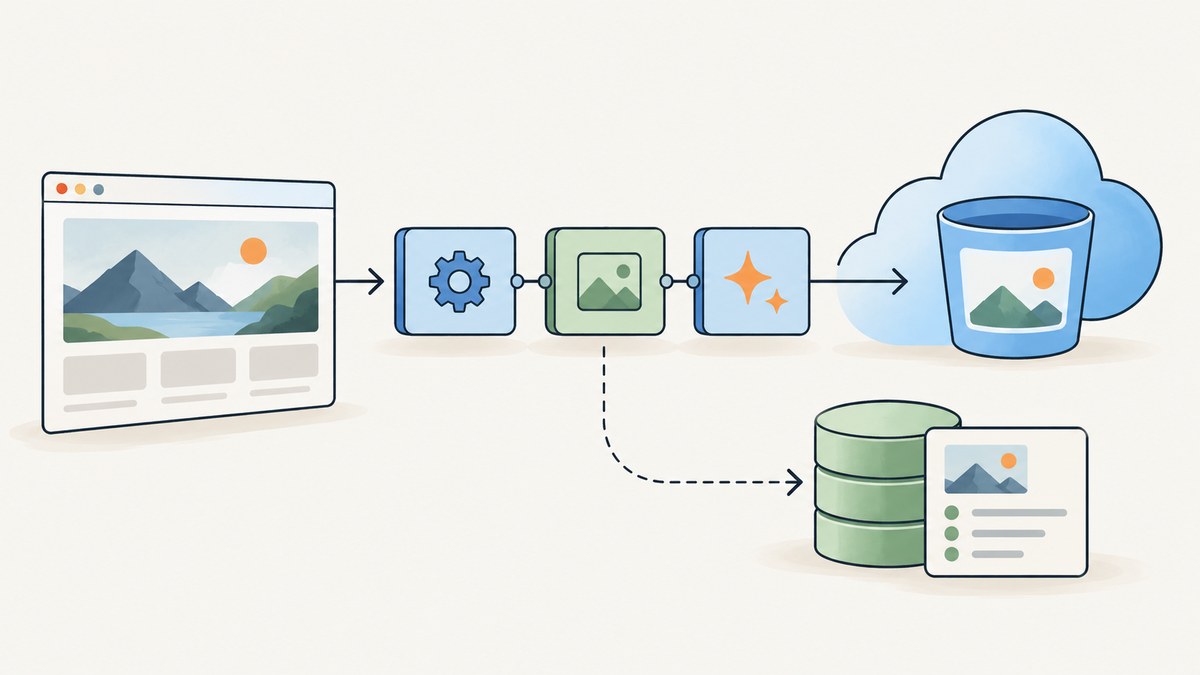
Store the screenshot bytes as image objects in a dedicated Supabase Storage bucket. Store searchable metadata—such as the page URL, capture time, owner, viewport, and object path—in a Postgres table. Keep the bucket private unless the images are intentionally public, and enforce ownership with policies on storage.objects.
This split keeps large media files out of database rows while letting your application query screenshots efficiently. Supabase describes Storage as the place for media files and recommends keeping large files outside the database. Read the Storage overview.
1. Choose the storage design
| Data | Recommended location | Example |
|---|---|---|
| Screenshot bytes | Supabase Storage object | user-id/site-id/2026/09/29/uuid.png |
| Searchable metadata | Postgres table | URL, owner, viewport, format, created time |
| Access decision | Bucket setting plus policies | Private by default; public only for intentional public assets |
A bucket is a container for files and folders. Bucket-level restrictions can include maximum file size and allowed content types. The object path is relative to the bucket and must include a file name, so use stable, collision-resistant paths with a safe extension.
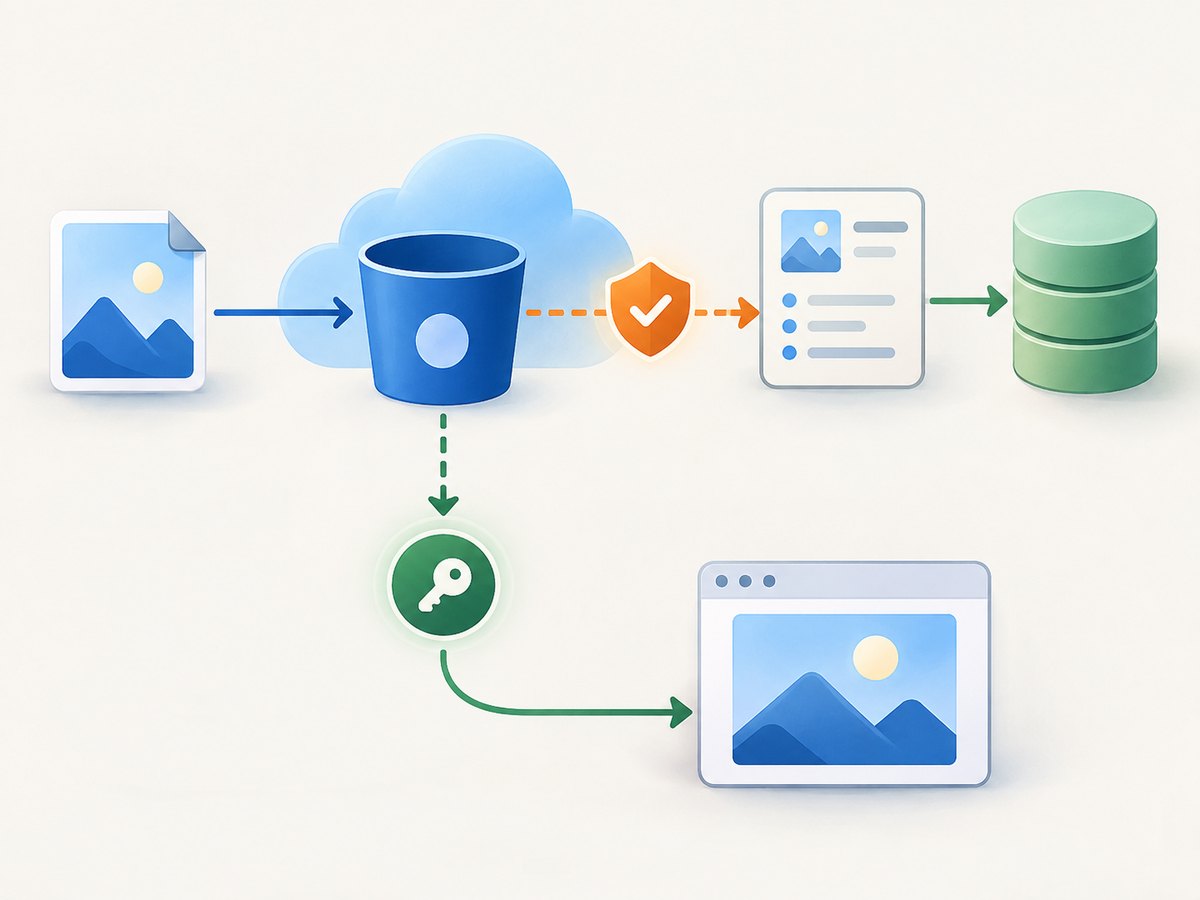
Public or private?
| Decision | Public bucket | Private bucket |
|---|---|---|
| Who can retrieve it? | Anyone with the asset URL | Only an authorized request or valid signed URL |
| URL method | getPublicUrl(path) or the public object URL |
createSignedUrl(path, seconds) or an authorized download |
| Good fit | Public portfolio, documentation, blog images | User uploads, internal captures, customer or authenticated content |
| Main concern | URL disclosure exposes the image | Your server must authorize and sign access |
Buckets are private by default. A public setting controls retrieval; it does not replace upload authorization. For customer data or authenticated pages, start with a private bucket.
2. Create the screenshot bucket
- Open the Supabase Dashboard for your project.
- Open Storage and choose New bucket.
- Name it
website-screenshots. - Leave it private unless every object is meant to be publicly reachable.
- Set a maximum file size appropriate for your capture process.
- Restrict content types to formats you actually accept, such as
image/png,image/jpeg, andimage/webp.
Use a path such as user-id/site-id/year/month/day/uuid.png. Keep the user ID as the first segment when policies will use the folder name to enforce ownership. Generate the final UUID on the trusted side of your application or with crypto.randomUUID() in a browser session.
3. Keep metadata in a database table
The object is the source of truth for image bytes. A table gives you filtering, joins, pagination, and application-level relationships.
create table public.website_screenshots (
  id uuid primary key default gen_random_uuid(),
  owner_id uuid not null references auth.users(id) on delete cascade,
  page_url text not null,
  object_path text not null,
  content_type text not null,
  viewport_width integer,
  viewport_height integer,
  captured_at timestamptz not null default now(),
  created_at timestamptz not null default now()
);

alter table public.website_screenshots enable row level security;

create policy "owners can read their screenshot metadata"
on public.website_screenshots
for select
using (auth.uid() = owner_id);

create policy "owners can insert their screenshot metadata"
on public.website_screenshots
for insert
with check (auth.uid() = owner_id);

create policy "owners can delete their screenshot metadata"
on public.website_screenshots
for delete
using (auth.uid() = owner_id);
Keep object_path bucket-relative. Do not put a public URL in the table as your only identifier: public/private policy changes and signed URLs can make that URL obsolete. Store the path, then derive a retrieval URL for each request.
4. Upload from a trusted browser session
With @supabase/supabase-js, pass a browser File or Blob to the bucket’s upload method. The client must be signed in, and the Storage policy must permit the insert.
import { createClient } from '@supabase/supabase-js'

const supabase = createClient(
  import.meta.env.VITE_SUPABASE_URL,
  import.meta.env.VITE_SUPABASE_ANON_KEY
)

const input = document.querySelector('input[type=file]')
const file = input.files[0]
if (!file) throw new Error('Choose a screenshot first')

const { data: { user }, error: userError } = await supabase.auth.getUser()
if (userError) throw userError
if (!user) throw new Error('Sign in before uploading')

const extension = file.type === 'image/jpeg' ? 'jpg' :
  file.type === 'image/webp' ? 'webp' : 'png'
const path = `${user.id}/site-123/2026/09/29/${crypto.randomUUID()}.${extension}`

const { data, error } = await supabase.storage
  .from('website-screenshots')
  .upload(path, file, {
    contentType: file.type || 'image/png',
    cacheControl: '31536000',
    upsert: false
  })

if (error) throw error

const { error: metadataError } = await supabase
  .from('website_screenshots')
  .insert({
    owner_id: user.id,
    page_url: 'https://example.com',
    object_path: data.path,
    content_type: file.type || 'image/png',
    viewport_width: 1440,
    viewport_height: 900
  })

if (metadataError) throw metadataError
console.log('Uploaded:', data.path)
The upload options used here are documented by Supabase: contentType sets the MIME type, cacheControl controls cache headers, and upsert determines whether an existing object may be replaced. Use upsert: false with UUID paths when captures should be immutable.
Storage INSERT policy
Uploading requires an INSERT policy on storage.objects. Scope it to your bucket and to the first path segment, which is the authenticated user ID.
create policy "users can upload into their own folder"
on storage.objects
for insert
to authenticated
with check (
  bucket_id = 'website-screenshots'
  and (storage.foldername(name))[1] = (select auth.uid()::text)
);
Your exact policy should match your authentication model. If organizations own screenshots, replace the user-folder check with a membership check against your organization table. Keep the bucket condition: without it, the policy could unintentionally apply to other buckets.
5. Use signed uploads for less-trusted clients
If a browser should not receive broad Storage permissions, create a signed upload URL on a trusted server. Supabase documents signed upload URLs as valid for two hours. The server authorizes the user, chooses the object path, creates the capability, and returns only the path and token to the browser.
// Trusted server: create the signed upload capability
const { data, error } = await supabase.storage
  .from('website-screenshots')
  .createSignedUploadUrl(path)
if (error) throw error
// Return data.path and data.token to the browser

// Browser: complete the transfer
const { data: uploaded, error: uploadError } = await supabase.storage
  .from('website-screenshots')
  .uploadToSignedUrl(data.path, data.token, file)
if (uploadError) throw uploadError
Do not let an untrusted client choose arbitrary paths or mint signed URLs. Authorize the owner first, then persist the same path in your metadata row after the upload succeeds.
Uploading to an existing signed URL with Python
This small script is useful when your trusted backend has already issued a signed upload URL and token. The URL and token are capabilities; keep them short-lived and private.
import requests

signed_upload_url = "PASTE_THE_SIGNED_UPLOAD_URL"
image_path = "shot.png"

with open(image_path, "rb") as image_file:
    response = requests.put(
        signed_upload_url,
        params={"token": "PASTE_THE_SIGNED_UPLOAD_TOKEN"},
        data=image_file,
        headers={"Content-Type": "image/png"},
        timeout=90,
    )
response.raise_for_status()
print("Upload completed")
The exact signed URL returned by your server must be used. Never put a service-role key in this script or in browser JavaScript.
6. Serve a screenshot
Public bucket
const { data } = supabase.storage
  .from('website-screenshots')
  .getPublicUrl('user-id/site-123/2026/09/29/uuid.png')

console.log(data.publicUrl)
You can also use Supabase’s documented public object URL form: /storage/v1/object/public/{bucket}/{asset}. Anyone who obtains that URL can retrieve the object.
Private bucket
const { data, error } = await supabase.storage
  .from('website-screenshots')
  .createSignedUrl(path, 3600)

if (error) throw error
console.log(data.signedUrl)
Create signed download URLs only after checking that the current user owns the metadata row or is authorized through your application. The URL expires after the number of seconds you provide. For server-rendered pages, generate it on the trusted server rather than exposing broad credentials.
7. Capture screenshots without maintaining a browser
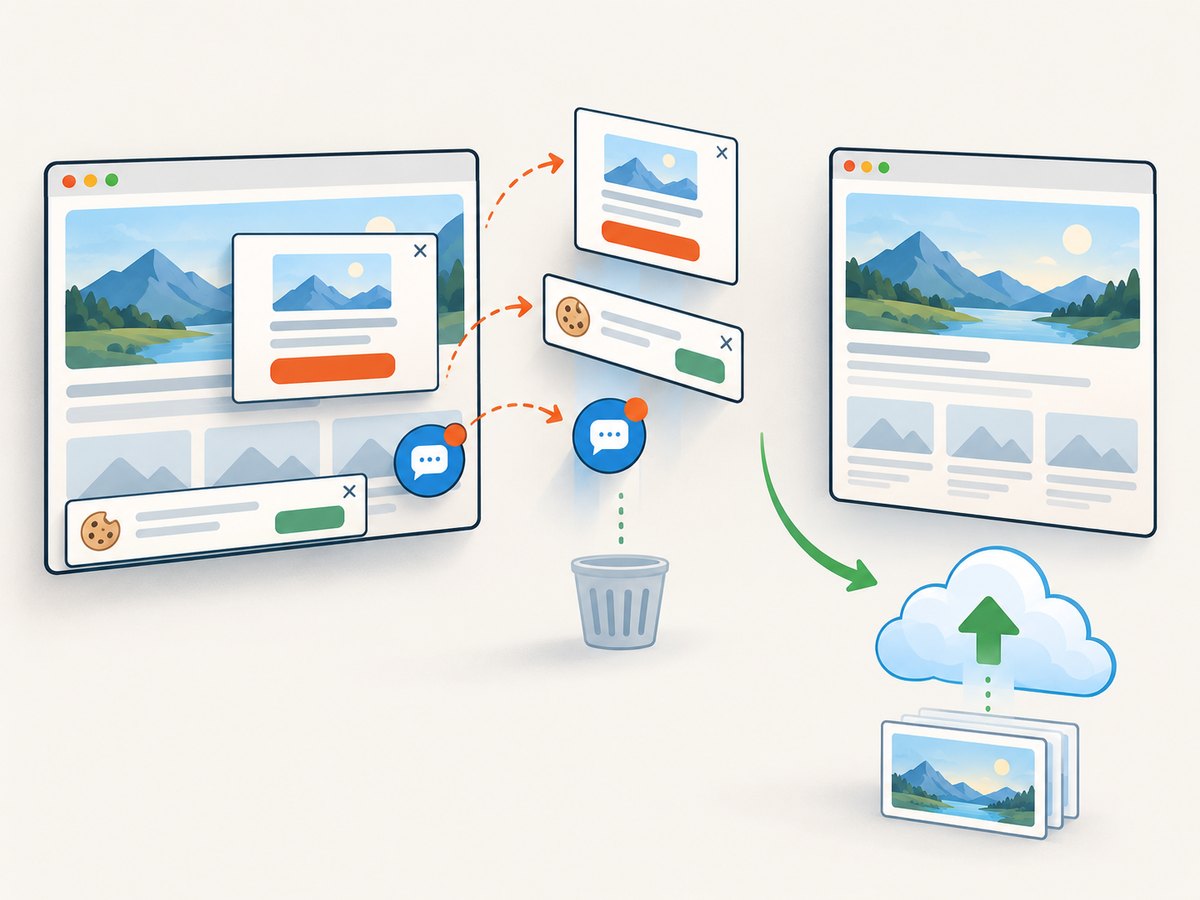
You can run Playwright or another browser tool yourself, save the resulting bytes, and upload them with the workflow above. That approach gives you complete browser control but requires browser binaries, concurrency limits, navigation timeouts, cookie handling, and cleanup of popups or consent dialogs.
Or skip the browser setup
ScreenshotNeo returns a screenshot or PDF from one GET request, so your server can stream the response into Supabase Storage. See the ScreenshotNeo API documentation for all options.
curl -G "https://api.screenshotneo.com/v1/shot" -d access_key=YOUR_API_KEY --data-urlencode url=https://stripe.com -o shot.webpimport requests
r = requests.get("https://api.screenshotneo.com/v1/shot", params={"access_key": "YOUR_API_KEY", "url": "https://stripe.com"}, timeout=90)
open("shot.webp", "wb").write(r.content)const q = new URLSearchParams({ access_key: 'YOUR_API_KEY', url: 'https://stripe.com' }); const res = await fetch(`https://api.screenshotneo.com/v1/shot?${q}`);Save the response bytes to a unique path such as user-id/site-id/2026/09/29/uuid.webp, then call Supabase Storage’s upload method with contentType: 'image/webp'. ScreenshotNeo removes cookie and consent banners, newsletter popups, and chat widgets before capture. Bot checks, blank pages, timeouts, failed loads, and cache hits are not billed, and the response identifies the result with X-Page-Verdict and X-Billed headers. Its MCP server lets Claude, Cursor, and other MCP clients call take_screenshot, get_page_info, and capture_pdf. The free plan includes 1,000 screenshots per month without a card; paid plans start at $5 for 3,000.
Create a free ScreenshotNeo account and connect the returned bytes to your Supabase upload pipeline.
8. Troubleshooting
“New row violates row-level security policy”
Storage rejected the insert because no matching policy exists. Confirm that an INSERT policy targets storage.objects, uses the authenticated role when appropriate, checks bucket_id = 'website-screenshots', and permits the first folder segment for the current user. Also verify that the browser session is actually signed in.
Upload succeeds but the image cannot be viewed
A private object will not load through a public URL. Use createSignedUrl or an authorized download. If the bucket is public, check that the path is bucket-relative and that you did not accidentally include the bucket name twice.
Objects are overwritten unexpectedly
upsert: true allows replacement when the path already exists. Use UUID paths and upsert: false for immutable captures. If replacement is intentional, make it explicit and update the metadata row accordingly.
The browser reports an incorrect content type
Pass the actual image MIME type in contentType, and ensure the bucket’s allowed content types include every format your capture service emits. A file extension alone does not reliably communicate its type.
Signed links expire too soon
The expiration is part of the signed URL. Generate a new URL when the viewer needs access, and choose a lifetime that matches the page’s caching and security requirements. Do not turn a private bucket public just to avoid refreshing links.
9. Performance, reliability, and cost considerations
- Keep metadata small: store the object path and capture attributes in Postgres, not the binary image.
- Use immutable paths: UUID-based names avoid overwrite races and make retries safe.
- Set cache headers deliberately: a long
cacheControlvalue suits immutable screenshots; use a shorter value when the same path can change. - Validate before upload: check file size, MIME type, and dimensions before sending bytes to Storage.
- Retry safely: retry network failures with the same immutable path, then check whether the object already exists before creating a duplicate metadata row.
- Separate capture and storage failures: record the capture result before upload, and keep an error state for failed Storage writes so a worker can retry.
- Protect credentials: browser code may use the anon key with RLS; service-role credentials belong only on trusted servers.
- Budget for both systems: screenshot generation, Storage objects, database rows, downloads, and signed URL requests have separate operational costs. Measure your image size and capture frequency before selecting limits.
10. Practical checklist
- Create a dedicated
website-screenshotsbucket. - Keep it private for customer, internal, or authenticated content.
- Restrict maximum size and allowed image MIME types.
- Use a stable path beginning with the owner or organization identifier.
- Store URL, viewport, capture time, owner, format, and object path in Postgres.
- Enable RLS on the metadata table.
- Add a bucket-scoped INSERT policy on
storage.objects. - Use signed upload URLs when the client should have limited capability.
- Use signed download URLs for private objects.
- Choose
upsertdeliberately and make retries idempotent.
FAQ
Should I put the screenshot in a Postgres bytea column?
Use Supabase Storage for the image object and a database row for metadata. This keeps large media outside the relational table while preserving queryable relationships.
Does making a bucket public allow anyone to upload?
No. Public status controls retrieval. Uploads still need an appropriate policy on storage.objects.
Can I use one bucket for every user?
Yes, if paths and policies isolate owners correctly. A shared bucket with user-prefixed paths is often simpler than creating a bucket per user.
When should I use signed upload URLs?
Use them when the browser should upload one specific object without receiving broad Storage permissions. The capability is time-limited and can be issued after your server authorizes the request.
How do I make a screenshot URL private?
Keep the bucket private and create a signed URL only after authorization, or download the object through an authenticated server endpoint.


