How to Style Divs Generated by html2pdf.js
Style the HTML and CSS first, then control html2pdf.js pagination with break rules, selectors, and export-specific fixes.

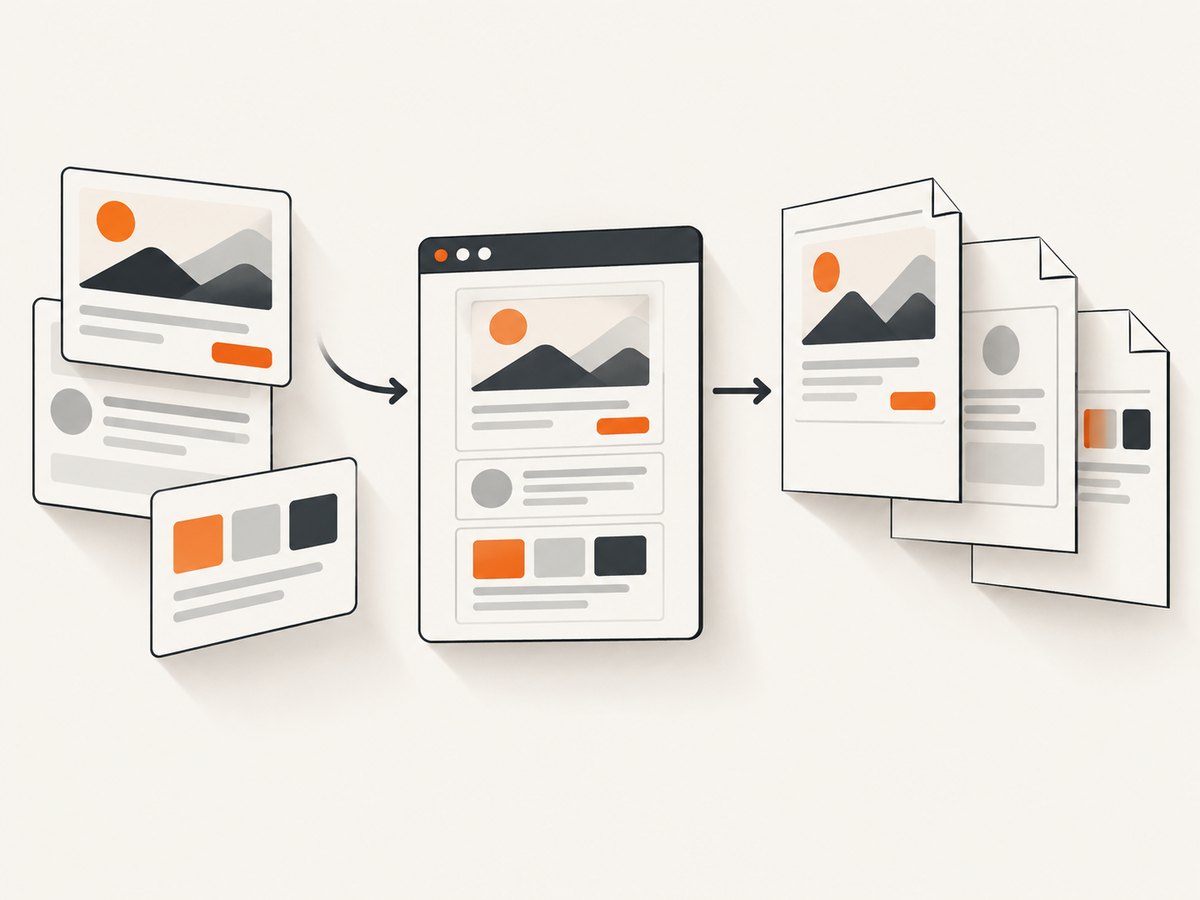
Direct answer: style the source <div> elements with ordinary HTML and CSS, then pass their containing element to html2pdf.js. Use CSS break-before, break-after and break-inside for normal pagination, and the pagebreak option for selector-based rules or broad modes such as avoid-all. html2pdf.js renders in the browser through html2canvas and jsPDF, so the PDF reflects what the renderer can clone and paint rather than every behavior of the live DOM.
1. A complete working example
This example styles invoice sections, keeps a card together, and starts the totals section on a new page.
<button id='download'>Download PDF</button>

<main id='invoice'>
  <section class='card avoid-break'>
    <h1>Acme invoice</h1>
    <p class='muted'>Invoice #1042 · 30 September 2026</p>
  </section>

  <section class='card avoid-break'>
    <h2>Items</h2>
    <table>
      <thead><tr><th>Description</th><th>Amount</th></tr></thead>
      <tbody>
        <tr><td>Design work</td><td>$900</td></tr>
        <tr><td>Implementation</td><td>$1,400</td></tr>
      </tbody>
    </table>
  </section>

  <div class='page-two' aria-hidden='true'></div>

  <section class='card totals avoid-break'>
    <h2>Totals</h2>
    <p>Subtotal: $2,300</p>
    <p>Tax: $230</p>
    <p class='grand-total'>Total: $2,530</p>
  </section>
</main>

<script src='https://cdnjs.cloudflare.com/ajax/libs/html2pdf.js/0.10.1/html2pdf.bundle.min.js'></script>
<script>
  document.querySelector('#download').addEventListener('click', () => {
    const element = document.querySelector('#invoice');

    html2pdf().set({
      margin: 0.5,
      filename: 'invoice.pdf',
      image: { type: 'jpeg', quality: 0.95 },
      html2canvas: { scale: 2, useCORS: true },
      jsPDF: { unit: 'in', format: 'letter', orientation: 'portrait' },
      pagebreak: {
        mode: ['css', 'legacy'],
        before: '.page-two',
        avoid: ['.avoid-break']
      }
    }).from(element).save();
  });
</script>
/* Exported root: give the renderer explicit dimensions and colors. */
#invoice {
box-sizing: border-box;
width: 100%;
padding: 24px;
background: #fff;
color: #222;
font: 14px/1.5 Arial, sans-serif;
}
.card {
padding: 16px;
margin-bottom: 16px;
border: 1px solid #d8d8d8;
border-radius: 8px;
background: #fff;
}
.muted { color: #666; }
table { width: 100%; border-collapse: collapse; }
th, td { padding: 8px; border-bottom: 1px solid #eee; text-align: left; }
.grand-total { font-size: 18px; font-weight: 700; }
.avoid-break { break-inside: avoid; page-break-inside: avoid; }
.page-two { break-before: page; page-break-before: always; }The html2pdf.js documentation describes CSS break support, selector-based pagebreak settings, avoid-all, and the legacy html2pdf__page-break class.
2. Style the source divs normally
html2pdf.js does not provide a separate styling language. Put layout, typography, borders, spacing, colors and backgrounds on the HTML that you export.
Set an export root
Give the root a predictable width, background and box sizing. Avoid depending on a transparent body, an inherited color, or a width that changes with the browser viewport.
Use export-specific classes
A class such as pdf-only can simplify the printed layout. Apply it before calling from(), or include a stylesheet that is loaded by the page. Keep the capture element visible while rendering.
Fonts and images
Wait until web fonts and images have loaded before exporting. Cross-origin images may require appropriate CORS headers and useCORS: true. Inspect the resulting PDF for missing glyphs, images or backgrounds instead of assuming the live page and export are identical.
3. Control page breaks with CSS
Start an element on a new page
.chapter { break-before: page; page-break-before: always; }End a page after an element
.chapter { break-after: page; page-break-after: always; }Keep a block together
.card,
.callout,
.small-table {
  break-inside: avoid;
  page-break-inside: avoid;
}
Use both the modern break-* property and its older page-break-* equivalent when supporting different rendering behavior.
4. Use html2pdf.js pagebreak options
html2pdf().set({
  pagebreak: {
    mode: ['css', 'legacy'],
    before: ['.new-page', '#summary'],
    after: '.end-section',
    avoid: ['.card', '.keep-together']
  }
}).from(document.querySelector('#content')).save();| Setting | Use it when |
|---|---|
mode: 'css' |
You want CSS break-* rules. |
mode: 'legacy' |
You need the legacy html2pdf__page-break behavior. |
mode: 'avoid-all' |
You prefer broad keep-together behavior. |
before |
Matching elements must begin on a fresh page. |
after |
Matching elements must end a page. |
avoid |
Matching elements should not be split. |
For the legacy method, insert an empty element after the section that should end, for example <div class='html2pdf__page-break'></div>.
5. Why the PDF can look different from the page
html2pdf.js clones the content before passing it to html2canvas. The project documentation identifies CSS cloning as buggy in some situations. A live layout can therefore change during export.
- Prefer explicit widths, padding, colors and backgrounds.
- Avoid viewport-only positioning and layouts that depend on animation.
- Use simpler dimensions for the exported tree when a complex layout is unstable.
- Check the generated PDF itself for clipping, missing fonts and misplaced images.
6. Common recipes
Keep a heading with the following content
.section-heading {
  break-after: avoid;
  page-break-after: avoid;
}
.section-body {
  break-before: avoid;
  page-break-before: avoid;
}
Prevent a large table row from splitting
tr { break-inside: avoid; page-break-inside: avoid; }Very tall rows still cannot fit on one page. In that case, split the content into smaller rows or sections.
Use a different layout only for export
.pdf-layout .toolbar,
.pdf-layout .interactive-control { display: none; }
.pdf-layout .columns { display: block; }
.pdf-layout .column { width: 100%; }
Add pdf-layout to the root before export and remove it afterward if the same page remains interactive.
7. Troubleshooting
| Symptom | Cause | Fix |
|---|---|---|
| CSS is ignored | The rule is not present in the cloned tree or is overridden. | Put the rule on the exported element, use a specific class, and inspect the export. |
| A card splits across pages | No keep-together rule, or the card is taller than a page. | Apply break-inside: avoid and pagebreak.avoid; split oversized content. |
| The forced break does nothing | The selector does not match, or the mode excludes CSS rules. | Use mode: ['css', 'legacy'] and verify the selector. |
| Blank or missing images | Images were not loaded or are blocked by cross-origin restrictions. | Wait for image loading and configure image CORS; use useCORS: true where appropriate. |
| Text or backgrounds are clipped | Unexpected width, overflow, or a cloned layout difference. | Set explicit widths, remove problematic overflow rules, and simplify export CSS. |
| Fonts look wrong | Web fonts were still loading or are unavailable to the renderer. | Wait for font readiness and verify the font is accessible before calling html2pdf. |
| Pages are unexpectedly long | avoid-all keeps too many blocks together. |
Use CSS mode with selector-specific avoid rules instead. |
8. Performance, reliability and output quality
- Scale: Increasing
html2canvas.scaleimproves sharpness but increases canvas memory and processing time. Start at 1 or 2 and raise it only when needed. - Document size: Long pages and large images consume significant browser memory. Break a report into smaller exports when one canvas becomes unstable.
- Determinism: Disable animations, wait for data rendering, fonts and images, and export only after the final layout is present.
- Pagination: Use specific
avoidselectors for predictable results. Broadavoid-allis convenient but can create large blank areas. - Validation: Treat the generated PDF as the source of truth. Check page count, breaks, images, fonts, margins and links in a representative browser.
9. Or skip the browser setup
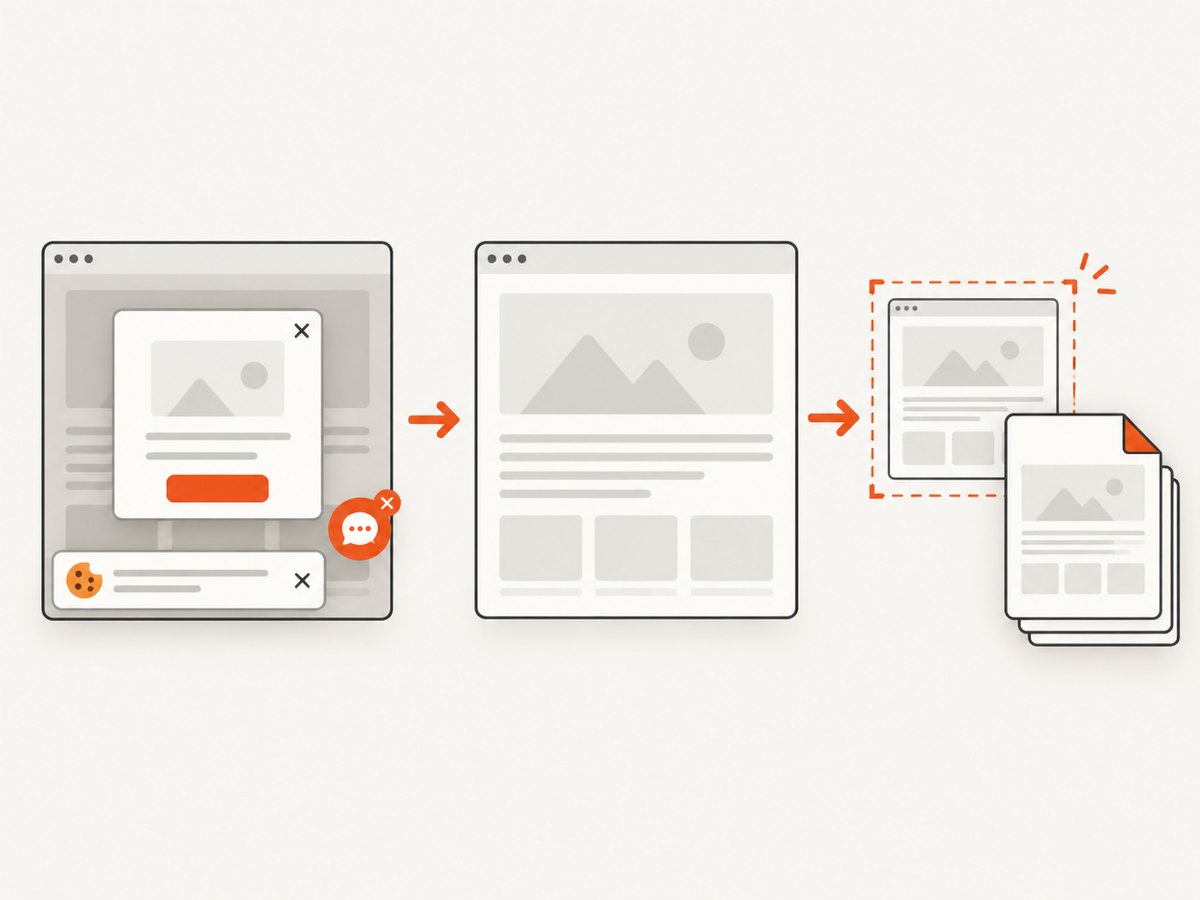
If you need a screenshot or PDF from a URL rather than a client-side export, ScreenshotNeo provides a single request API. Cookie and consent banners, newsletter popups and chat widgets are removed before capture. Bot checks, blank pages and failed loads are not billed, and the response identifies the result with X-Page-Verdict and X-Billed headers. It also offers an MCP server for AI agents and supports PDF options such as paper size, margins, landscape mode and page ranges. See the ScreenshotNeo API documentation for parameters.
curl -G 'https://api.screenshotneo.com/v1/shot' \
  -d access_key=YOUR_API_KEY \
  --data-urlencode url=https://stripe.com \
  -o shot.webp
import requests
r = requests.get(
'https://api.screenshotneo.com/v1/shot',
params={'access_key': 'YOUR_API_KEY', 'url': 'https://stripe.com'},
timeout=90,
)
r.raise_for_status()
open('shot.webp', 'wb').write(r.content)const q = new URLSearchParams({
access_key: 'YOUR_API_KEY',
url: 'https://stripe.com'
});
const res = await fetch(`https://api.screenshotneo.com/v1/shot?${q}`);
if (!res.ok) throw new Error(`HTTP ${res.status}`);
const bytes = new Uint8Array(await res.arrayBuffer());
await Bun.write('shot.webp', bytes);ScreenshotNeo includes 1,000 screenshots per month free with no card; paid plans start at $5 for 3,000 shots. Create a free ScreenshotNeo account.
10. FAQ
Should I style the div or the PDF configuration?
Style the div and its descendants with HTML and CSS. Use the PDF configuration for filename, page format, margins, image quality and pagination behavior.
Which page-break mode should I choose?
Use css for standards-based rules, legacy for the legacy class, and avoid-all only when broad keep-together behavior is acceptable.
Can every div be kept on one page?
Only if it fits. A block taller than the printable page must be split or redesigned.
Why does a selector in avoid not work?
Check that the selector matches an element inside the exported root and that the pagebreak option is passed before from().
Is html2pdf.js server-side?
No. Its normal pipeline runs in the browser through html2canvas and jsPDF. A URL-based service such as ScreenshotNeo removes that browser setup.


