How to Generate Styled PDFs from HTML Strings in .NET Core Blazor
Convert styled HTML into downloadable PDFs in Blazor with server-side rendering, streams, CSS guidance, troubleshooting, and deployment notes.

To generate a styled PDF from an HTML string in .NET Core Blazor, run an HTML-to-PDF renderer in server-side .NET code, pass it the HTML and CSS, save the resulting PDF to a MemoryStream or byte array, and stream that data to the browser. The renderer executes on the server; Blazor then hands the PDF to the browser as a download or Blob URL.
This guide uses Syncfusion’s HTML-to-PDF converter as the concrete example. Its current Blazor documentation supports server-side Blazor and excludes Blazor WebAssembly. Check the API overloads and deployment requirements for the exact package version you install.
1. Understand the HTML-to-PDF pipeline
The conversion path has five stages:
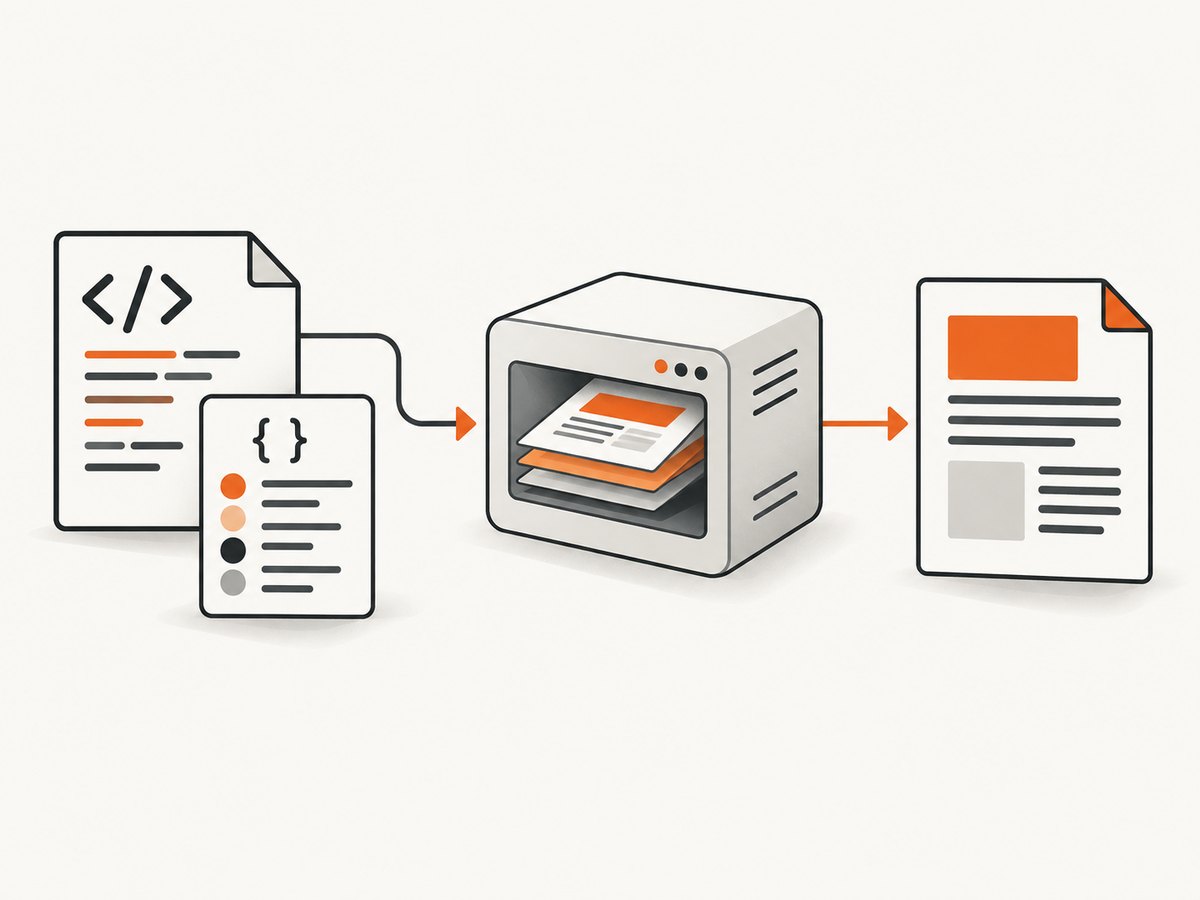
- Build or receive an HTML string containing your markup and styles.
- Run an HTML rendering engine in server-side .NET code.
- Configure page size, margins, viewport, resource access, and other converter settings.
- Save the generated PDF document to a stream or byte array.
- Return the bytes from an endpoint or stream them to the Blazor browser client.
Blazor’s render mode and the converter’s runtime support are separate decisions. Microsoft describes Interactive Server as rendering and handling events on the server, while Interactive WebAssembly runs client-side. Syncfusion states that its documented HTML-to-PDF conversion is supported only in Blazor Server-side, not Blazor WebAssembly (WASM). See Microsoft’s render-mode documentation and Syncfusion’s Blazor HTML-to-PDF documentation.
HTML string + CSS
        |
        v
Server-side HTML renderer
        |
        v
PdfDocument / MemoryStream / byte[]
        |
        +-- HTTP response: application/pdf
        |
        +-- Blazor JS interop: Blob URL and download
2. Choose the hosting model before writing code
| Hosting model | Where conversion runs | Fit for the documented Syncfusion workflow |
|---|---|---|
| Blazor Server or Interactive Server | Server | Supported by the documented converter |
| Blazor WebAssembly | Browser | Not supported by the documented Syncfusion Blazor converter |
| WebAssembly front end plus server API | Browser requests; server converts | Possible architecture; verify the converter and deployment requirements for your version |
If your application is WebAssembly, keep the conversion behind an authenticated server endpoint. The browser posts the HTML or a document identifier, and the server returns application/pdf. That architecture follows from the runtime restriction, but the reviewed sources do not provide a complete WebAssembly-to-API sample.
3. Install and configure Syncfusion
Syncfusion’s current walkthrough identifies the Syncfusion.HtmlToPdfConverter.Net.Windows NuGet package, Blink as the conversion engine, and .NET 8.0 and later compatibility. The documentation also describes license-key registration for assemblies obtained through trial setup or the NuGet feed beginning with version 16.2.0.x. Confirm the package version, operating-system support, container requirements, and license procedure before deployment.
dotnet add package Syncfusion.HtmlToPdfConverter.Net.WindowsRegister the license during application startup according to the version you installed. Do not copy a license example between Syncfusion versions without checking the matching documentation.
using Syncfusion.Licensing;

var builder = WebApplication.CreateBuilder(args);

// Register your Syncfusion license here when required by your package version.
// SyncfusionLicenseProvider.RegisterLicense(builder.Configuration["Syncfusion:LicenseKey"]);

builder.Services.AddRazorComponents()
    .AddInteractiveServerComponents();

builder.Services.AddScoped();

var app = builder.Build();
app.MapRazorComponents<App>()
   .AddInteractiveServerRenderMode();
app.Run();
4. Convert an HTML string with styling
Syncfusion lists HTML strings, URLs, local HTML files, MHTML, authenticated pages, and HTTP GET/POST content as supported input types. Its displayed Blazor walkthrough uses URL conversion, so check the exact HTML-string overload and option names in the API reference for your installed package. The following service shows the conversion shape and keeps the package-specific call in one place.
using Syncfusion.HtmlConverter;
using Syncfusion.Pdf;
using Syncfusion.Pdf.Graphics;

public sealed class HtmlPdfService
{
    public byte[] CreatePdf(string html)
    {
        if (string.IsNullOrWhiteSpace(html))
            throw new ArgumentException("HTML cannot be empty.", nameof(html));

        var converter = new HtmlToPdfConverter(HtmlRenderingEngine.Blink);
        var settings = new BlinkConverterSettings
        {
            ViewPortSize = new Size(1280, 0),
            Orientation = PdfPageOrientation.Portrait,
            PdfPageSize = PdfPageSize.A4,
            Margin = new PdfMargins
            {
                Top = 36,
                Bottom = 36,
                Left = 36,
                Right = 36
            }
        };

        converter.ConverterSettings = settings;

        // Verify the HTML-string overload name for your Syncfusion package version.
        // The documented Blazor sample demonstrates converter.Convert(url).
        using PdfDocument document = converter.Convert(html);
        using var output = new MemoryStream();
        document.Save(output);
        document.Close(true);
        return output.ToArray();
    }
}
The settings shown are representative Blink settings documented by Syncfusion. The precise property names can vary by package version. If your version exposes a separate HTML-string method, use that overload while keeping the same sequence: configure, convert, save, dispose.
Keep CSS inside the input or make resources resolvable
For predictable output, include critical CSS in a <style> element inside the HTML string. If you reference external stylesheets, images, fonts, or scripts, the server-side renderer must be able to resolve those URLs. Check authentication, DNS, firewall rules, relative paths, and certificate validation in the hosting environment.
var html = """
Quarterly report
Generated from a server-side Blazor action.
Item Total Subscriptions $12,400
""";5. Return PDF bytes from a server endpoint
A normal HTTP endpoint is the simplest delivery method. It returns a PDF with the correct content type and a download disposition. This also works when a Blazor WebAssembly client calls a server API.
app.MapPost("/api/reports/pdf", (ReportRequest request, HtmlPdfService pdfs) =>
{
    var bytes = pdfs.CreatePdf(request.Html);
    return Results.File(bytes, "application/pdf", "report.pdf");
});

public sealed record ReportRequest(string Html);
For user-controlled HTML, validate the input and apply your application’s authorization and content policies. Do not allow arbitrary server-side URLs or untrusted scripts unless you have isolated the renderer and understand its network and file-access behavior.
6. Stream the PDF to a Blazor browser client
For an interactive Blazor Server component, save the document to a stream and pass it to JavaScript through DotNetStreamReference. Microsoft documents this Blob-object-URL pattern in its Blazor document guidance.
window.downloadStream = async (fileName, contentType, streamReference) => {
  const arrayBuffer = await streamReference.arrayBuffer();
  const blob = new Blob([arrayBuffer], { type: contentType });
  const url = URL.createObjectURL(blob);
  const anchor = document.createElement('a');
  anchor.href = url;
  anchor.download = fileName;
  anchor.click();
  anchor.remove();
  URL.revokeObjectURL(url);
};
@inject IJSRuntime JS
@inject HtmlPdfService Pdfs
@code {
private async Task Download()
{
var html = """
<html><head><style>body{font-family:Arial}</style></head>
<body><h1>Blazor report</h1><p>Styled HTML content.</p></body></html>
""";
var bytes = Pdfs.CreatePdf(html);
await using var stream = new MemoryStream(bytes);
using var reference = new DotNetStreamReference(stream);
await JS.InvokeVoidAsync("downloadStream", "report.pdf", "application/pdf", reference);
}
}For large documents, prefer an HTTP endpoint instead of keeping a large byte array in a circuit. The endpoint can stream or return the file response according to your hosting and framework version.
7. Control page layout and resource behavior
Page size, orientation, and margins
Set page size and orientation in converter settings or print CSS, then inspect the result at the target paper size. Do not assume browser viewport dimensions map directly to physical paper dimensions.
Long tables and page breaks
- Use
thead { display: table-header-group; }when your renderer supports repeated headers. - Use
break-inside: avoidfor rows or cards that should stay together. - Test very long cells, nested tables, and rows that cannot fit on one page.
Fonts and images
Use fonts installed or packaged for the server environment, or provide resolvable font resources. Confirm that image URLs work from the server, not only from your development browser. Embedded data URLs can remove a network dependency for small assets.
JavaScript and timing
HTML-to-PDF engines differ in JavaScript support and timing. If your HTML depends on client-side rendering, charts, or delayed data, use the converter’s documented wait or rendering settings where available and validate the output in your deployment environment.
8. Troubleshoot common failures
| Symptom | Likely cause | Fix |
|---|---|---|
| Converter fails in WebAssembly | The selected converter requires server-side execution. | Move conversion to Blazor Server or a server API and call it from WebAssembly. |
| Missing CSS or images | Relative URLs, authentication, DNS, or blocked outbound requests. | Use absolute resolvable URLs, inline critical CSS, or configure resource access for the server. |
| PDF is blank | Conversion ran before content was available, or the HTML string was empty. | Validate the input, wait for generated content when supported, and log the HTML length and renderer errors. |
| Fonts fall back | The server cannot find the requested font. | Install or package the font and verify the renderer’s font configuration. |
| Downloaded file is corrupt | Text was returned instead of binary data, or the stream was closed too early. | Return application/pdf, write the complete stream, and dispose objects after the response has consumed them. |
| License exception | The installed Syncfusion version requires license registration. | Register the key as required by that version and verify the package references. |
| Layout differs from Chrome | Renderer CSS support and print behavior differ from a browser. | Use print CSS, simplify unsupported rules, and inspect page breaks in the target renderer. |
| Works locally but fails in production | Missing native dependencies, unsupported OS or architecture, restricted network, or different fonts. | Check the package’s deployment prerequisites for the target host and test a production-like environment. |
9. Performance, reliability, and cost considerations
- Reuse expensive resources where supported. Register the converter service with an appropriate lifetime and avoid unnecessary initialization per click.
- Limit input size. Large HTML, embedded images, and long documents consume memory while the PDF is built.
- Prefer streams for delivery. A stream avoids extra copies when the library and response pipeline support it.
- Make failures observable. Log conversion duration, input size, exception type, and deployment environment. Avoid logging sensitive document contents.
- Validate dependencies. The reviewed Syncfusion sources identify a Windows package but do not establish support for every OS, container, or architecture.
- Do not claim a benchmark without measuring your workload. The sources reviewed publish no general rendering-speed, page-limit, fidelity, or cost benchmark.
10. Test the result before shipping
- Compare the PDF with the intended paper size and margins.
- Check headings, tables, page breaks, images, fonts, and hyperlinks.
- Test empty data, unusually long text, missing assets, and multiple pages.
- Run the same conversion in the deployment OS, container, architecture, and network policy.
- Test concurrent downloads and cancellation behavior for your expected traffic.
- Verify that authorization prevents one user from downloading another user’s document.
11. Or skip the browser setup
If your source is already a public or authenticated web page and you need a clean capture or PDF response, ScreenshotNeo provides a single HTTP request. Its API accepts a URL and returns an image or PDF; see the ScreenshotNeo API documentation for the current output settings.

curl -G "https://api.screenshotneo.com/v1/shot" -d access_key=YOUR_API_KEY --data-urlencode url=https://stripe.com -o shot.webpimport requests
r = requests.get(
"https://api.screenshotneo.com/v1/shot",
params={"access_key": "YOUR_API_KEY", "url": "https://stripe.com"},
timeout=90,
)
r.raise_for_status()
open("shot.webp", "wb").write(r.content)const q = new URLSearchParams({ access_key: 'YOUR_API_KEY', url: 'https://stripe.com' });
const res = await fetch(`https://api.screenshotneo.com/v1/shot?${q}`);
if (!res.ok) throw new Error(`Screenshot failed: ${res.status}`);
const bytes = Buffer.from(await res.arrayBuffer());
require('fs').writeFileSync('shot.webp', bytes);ScreenshotNeo removes cookie and consent banners, newsletter popups, and chat widgets before capture. Bot checks, blank pages, failed loads, timeouts, and cache hits are not billed, and the response identifies the result with X-Page-Verdict and X-Billed headers. Its MCP server lets Claude, Cursor, and other MCP clients call take_screenshot, get_page_info, and capture_pdf. The free plan includes 1,000 screenshots per month with no card; paid plans start at $5 for 3,000 shots. Create a free ScreenshotNeo account.
12. FAQ
Can I convert an HTML string in Blazor WebAssembly?
Not with the documented Syncfusion Blazor converter workflow. Put the conversion in a server-side service or API and call it from the WebAssembly client.
Should I return a byte array or a stream?
Both work. A byte array is straightforward for small documents; a stream is preferable when you want to reduce copies or use Blazor’s stream-to-JavaScript pattern.
Does HTML-to-PDF guarantee pixel-identical browser output?
No. Rendering engines differ. Validate CSS, fonts, images, scripts, and page breaks with the exact converter and deployment environment you will ship.
Can I use a URL instead of an HTML string?
Yes. Syncfusion lists URLs among its supported input types, and its Blazor walkthrough demonstrates URL conversion. Check the installed package’s overloads and authentication settings.
Where should I put the conversion code?
Keep it in a server-side service or endpoint, separate from the Razor component. That makes authorization, logging, resource configuration, and deployment checks easier to manage.
What should I verify when upgrading the converter?
Recheck the HTML-string overload, converter settings, native runtime requirements, license registration, CSS behavior, and output delivery code against that version’s documentation.
Sources: Syncfusion Blazor HTML-to-PDF documentation; Syncfusion ASP.NET Core HTML-to-PDF documentation; Microsoft Blazor render modes; Microsoft Blazor file and stream downloads.


