How to Submit Forms with PhantomJS WebDriver and Java
Learn the historical PhantomJS WebDriver flow for submitting HTML forms with Java, handling waits and uploads, and choosing a maintained alternative.
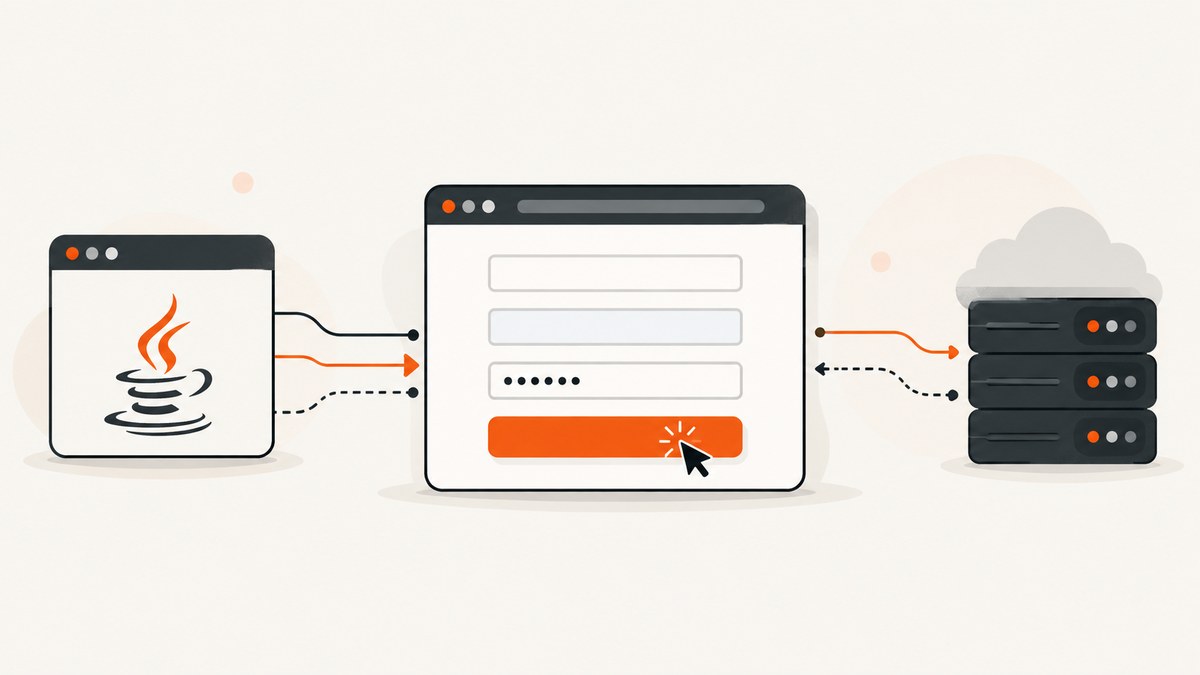
Short answer: start PhantomJS in WebDriver mode, connect Java through GhostDriver, locate the rendered form controls, enter values, activate the submit control, wait for a page-specific success condition, and quit the session. The stack is historical: PhantomJS is archived, so evaluate a maintained headless Chrome or Firefox driver for new automation.
GhostDriver is the WebDriver server implementation associated with PhantomJS, and its project includes Java bindings. The documented launch pattern is phantomjs --webdriver=PORT; a Java RemoteWebDriver client then sends commands to that endpoint. See the GhostDriver project documentation and the PhantomJS 1.8 release notes.
1. Decide whether WebDriver is the right submission method
| Approach | Use it when | What it exercises |
|---|---|---|
| Rendered WebDriver form | You need browser-like behavior | JavaScript validation, events, dynamic controls, navigation, and the visible form flow |
| Direct POST | You only need to send an HTTP request | Request handling, without relying on browser-side validation or event handlers |
A direct POST is not equivalent to submitting an interactive form. PhantomJS’s WebPage.open API accepts a method and data argument, including POST, but that API bypasses parts of the rendered browser interaction. Use WebDriver when the page’s JavaScript and user-like sequence are part of what you need to verify.
2. Install the historical components
- Install a PhantomJS binary appropriate for the legacy environment.
- Choose matching Selenium Java and GhostDriver versions. GhostDriver’s README documents the historical Maven coordinate
com.github.detro:ghostdriverand a 2.1.0 example, but there is no current compatibility matrix in the supplied sources. - Make sure the PhantomJS executable is on
PATH, or set its explicit path in the Java configuration.
Do not assume old coordinates work with current Java or Selenium releases. Pin the versions in your build and verify them together.
3. Start PhantomJS’s WebDriver server
phantomjs --webdriver=8910The server listens on the selected port. Keep this process running while the Java client connects. The exact command is documented in the historical PhantomJS and GhostDriver material; choose a free local port if 8910 is already in use.
4. Submit a rendered form with Java
The following is a complete interaction outline. It uses stable selectors, waits for a success condition, and always closes the session. Confirm imports and dependency compatibility for the exact legacy versions you select.
import java.time.Duration;

import org.openqa.selenium.By;
import org.openqa.selenium.WebDriver;
import org.openqa.selenium.WebElement;
import org.openqa.selenium.remote.DesiredCapabilities;
import org.openqa.selenium.remote.RemoteWebDriver;
import org.openqa.selenium.support.ui.ExpectedConditions;
import org.openqa.selenium.support.ui.WebDriverWait;

import java.net.MalformedURLException;
import java.net.URL;

public class SubmitFormWithPhantomJS {
    public static void main(String[] args) throws MalformedURLException {
        String formUrl = "https://example.com/contact";
        String email = "dev@example.com";
        String password = "replace-with-a-test-password";

        DesiredCapabilities capabilities = new DesiredCapabilities();
        capabilities.setBrowserName("phantomjs");

        WebDriver driver = new RemoteWebDriver(
            new URL("http://127.0.0.1:8910"),
            capabilities
        );

        try {
            driver.get(formUrl);

            WebDriverWait wait = new WebDriverWait(driver, Duration.ofSeconds(20));
            WebElement emailField = wait.until(
                ExpectedConditions.visibilityOfElementLocated(By.name("email"))
            );
            WebElement passwordField = wait.until(
                ExpectedConditions.visibilityOfElementLocated(By.name("password"))
            );

            emailField.clear();
            emailField.sendKeys(email);
            passwordField.clear();
            passwordField.sendKeys(password);

            WebElement submit = wait.until(
                ExpectedConditions.elementToBeClickable(
                    By.cssSelector("form button[type='submit']")
                )
            );
            submit.click();

            // Replace this selector with the page's real success condition.
            wait.until(ExpectedConditions.visibilityOfElementLocated(
                By.cssSelector(".success, [data-submit-status='success']")
            ));

            System.out.println("Form submitted successfully");
        } finally {
            driver.quit();
        }
    }
}
The selectors above are examples. Replace them with the actual field names and a success marker that only appears after a successful submission. A URL change, confirmation heading, or server-rendered status element is usually more reliable than a fixed sleep.
Use a locally managed PhantomJSDriver
GhostDriver’s Java binding also documents a PhantomJSDriver convenience class that can manage the process lifecycle. The shape is:
WebDriver driver = new PhantomJSDriver();
try {
    driver.get("https://example.com/contact");
    driver.findElement(By.name("email")).sendKeys("dev@example.com");
    driver.findElement(By.name("password")).sendKeys("replace-with-a-test-password");
    driver.findElement(By.cssSelector("form button[type='submit']")).click();
} finally {
    driver.quit();
}
This is a historical outline. Depending on the selected versions, you may need to configure the PhantomJS executable path or use the remote endpoint explicitly.
5. Locate, fill, and submit controls safely
- Prefer stable attributes: use an ID, name, or dedicated data attribute instead of a fragile positional XPath.
- Clear existing values: call
clear()beforesendKeys()when a field may be prefilled. - Trigger the real control: click the submit button when its event handlers matter. A form submit operation can be appropriate for a plain form, but it may skip code attached to a particular button.
- Wait for state: wait for the target element, URL, or server response state after submission. Do not treat the click call returning as proof of success.
- Handle client validation: if submission does not navigate, inspect whether a required field, pattern, or custom JavaScript validator rejected the values.
6. Upload a file
File inputs are a special PhantomJS case. The PhantomJS WebPage API documents uploadFile(selector, filename) for assigning a file to an input in headless mode. See the uploadFile API documentation.
// PhantomJS WebPage API example (JavaScript, not a standard Selenium Java call)
page.uploadFile("input[type='file']", "/absolute/path/report.pdf");
Do not automatically translate this into a Selenium Java sendKeys recipe. The supplied documentation describes the PhantomJS WebPage API, not the exact behavior of every Java binding. Check the binding and version you use before relying on file uploads.
7. Direct POST with PhantomJS
When browser-side behavior is irrelevant, PhantomJS can open a URL with a method and data payload. The WebPage.open documentation describes this form. A conceptual call looks like this:
page.open('https://example.com/submit', 'post',
  'email=dev%40example.com&message=hello', function (status) {
    console.log(status);
    phantom.exit();
  });
This sends a request; it does not reproduce field focus, JavaScript validation, click handlers, or other browser interactions. Choose it only when those behaviors are outside the requirement.
8. Remote versus local execution
| Setup | Java code | Operational concern |
|---|---|---|
| Remote server | RemoteWebDriver(new URL("http://host:port"), capabilities) |
You own process startup, port availability, and server logs. |
| Local convenience driver | new PhantomJSDriver() |
The binding manages more of the process lifecycle, but executable and version configuration still matters. |
Keep the server and client versions aligned, reserve a unique port per concurrent session, and always call quit() in a finally block.
9. Troubleshooting
| Symptom | Likely cause | Fix |
|---|---|---|
| Connection refused | PhantomJS is not running, or the port is wrong. | Start phantomjs --webdriver=PORT, verify the host and port, and check firewall or container networking. |
| Session cannot be created | Incompatible PhantomJS, GhostDriver, Selenium, or Java versions. | Pin a known historical combination and avoid assuming current Selenium compatibility; the sources provide no maintained matrix. |
| Element not found | The selector is wrong or the page has not rendered the control. | Use a stable ID/name, wait for visibility, and confirm the form is in the main document rather than an iframe. |
| Click does nothing | Client validation failed, the control is covered, or a handler expects a different event. | Wait until clickable, fill every required field, inspect validation messages, and click the actual submit control. |
| Script times out after submit | The expected success selector does not match the real response. | Choose a page-specific URL, heading, status element, or other durable success condition. |
| File upload fails | A native file dialog is unavailable or the wrong API is being used. | Use the documented PhantomJS WebPage uploadFile API and verify the exact Java binding behavior. |
| Blank or incomplete page | The page depends on browser features PhantomJS does not implement, or resources fail to load. | Capture logs and network errors, simplify the test page, or migrate the flow to a maintained browser driver. |
| Process remains after a test | The session was not closed on an exception. | Put driver.quit() in finally and clean up orphaned PhantomJS processes in the runner. |
10. Performance, reliability, and cost considerations
- Performance: avoid arbitrary long sleeps; wait for the smallest reliable condition. Reuse a session only when state isolation is safe, and avoid parallel sessions on one WebDriver port.
- Reliability: use deterministic test data, explicit timeouts, stable selectors, and a success assertion after every submit. Record the URL and a diagnostic screenshot or page source when a flow fails.
- Maintenance: PhantomJS’s repository is archived and read-only. A 2018 issue records the Selenium deprecation discussion and mentions headless Chrome or Firefox as alternatives. Treat PhantomJS as legacy work, not a default for new automation. See the archived repository.
- Cost: a self-hosted PhantomJS process has infrastructure and maintenance costs rather than a per-screenshot API charge. Account for CI runners, debugging time, and migration work when comparing approaches.
Or skip the browser setup
If your goal is to document or monitor the result of a submitted form, ScreenshotNeo returns a screenshot or PDF from one GET request. It is not a form-submission engine, so submit the form with your application first, then capture the resulting URL.
ScreenshotNeo removes cookie and consent banners, newsletter popups, and chat widgets before capture. Bot checks, blank pages, failed loads, timeouts, and cache hits are not billed, and response headers identify the page verdict and billing status. Its MCP server provides take_screenshot, get_page_info, and capture_pdf for Claude, Cursor, and other MCP clients. The Free plan includes 1,000 screenshots each month with no card; paid plans start at $5 for 3,000 shots.
See the ScreenshotNeo API documentation for all options.
curl -G "https://api.screenshotneo.com/v1/shot" -d access_key=YOUR_API_KEY --data-urlencode url=https://example.com/confirmation -o confirmation.webpimport requests
r = requests.get("https://api.screenshotneo.com/v1/shot", params={"access_key": "YOUR_API_KEY", "url": "https://example.com/confirmation"}, timeout=90)
open("confirmation.webp", "wb").write(r.content)const q = new URLSearchParams({ access_key: 'YOUR_API_KEY', url: 'https://example.com/confirmation' });
const res = await fetch(`https://api.screenshotneo.com/v1/shot?${q}`);Create a free ScreenshotNeo account with 1,000 screenshots a month and no card.
FAQ
Is PhantomJS still supported?
The repository is archived and read-only. Use it for legacy compatibility only and evaluate a maintained driver for new projects.
Should I use RemoteWebDriver or PhantomJSDriver?
Use RemoteWebDriver when a PhantomJS WebDriver server is managed separately. Use PhantomJSDriver when your historical Java binding can manage the local process.
Can a direct POST test JavaScript validation?
No. A direct POST tests request handling. Use rendered WebDriver interaction when browser-side validation or event handlers matter.
How do I know submission really succeeded?
Wait for a page-specific success condition such as a confirmation heading, URL, or status element. A completed click call alone is insufficient.
Can ScreenshotNeo submit the form?
No. It captures a URL. Submit the form with your application or browser automation, then use ScreenshotNeo to capture the resulting page or create a PDF.


