How to Take Full-Page Screenshots in SvelteKit
Capture an entire SvelteKit page with Playwright, wait for dynamic content, choose image formats, troubleshoot failures, or use ScreenshotNeo.
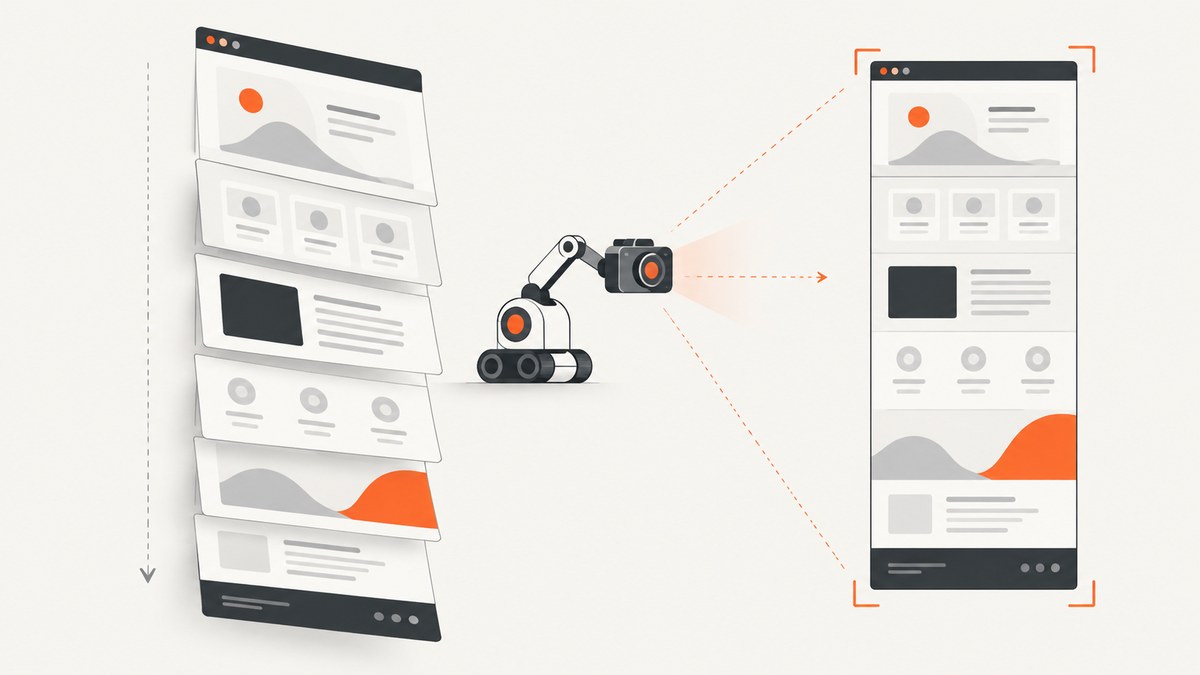
Use Playwright and set fullPage: true. That option changes the capture from the visible viewport to the complete scrollable document. Run the browser code in a Node.js script, Playwright test, CI job, or server-side worker that can launch Chromium. Do not call chromium.launch() from ordinary browser client code.
For a SvelteKit route running locally, the smallest working script is:
import { chromium } from 'playwright';

const browser = await chromium.launch();
const page = await browser.newPage();

await page.goto('http://localhost:5173/example');
await page.screenshot({
  path: 'screenshot.png',
  fullPage: true
});

await browser.close();
Playwright defines a full-page screenshot as a screenshot of the full scrollable page, as if the page were displayed on a very tall screen. The fullPage option defaults to false, so set it explicitly whenever the complete document is required. See the Playwright screenshot guide and the Page API reference.
1. Install Playwright and prepare the SvelteKit page
Install Playwright as a development dependency in the SvelteKit project or in a separate capture worker:
npm install -D playwright
npx playwright install chromium
Start SvelteKit before running a capture. In development, that usually means:
npm run dev -- --host 0.0.0.0Then point Playwright at the route, including any required query parameters. A deployed SvelteKit URL works the same way:
await page.goto('https://app.example.com/docs/getting-started');Keep the capture process separate from browser client code. A Svelte component runs in a user’s browser and cannot safely or reliably launch a local Chromium process. Use a Node script, Playwright test, server-side job, or worker instead. The exact SvelteKit adapter and endpoint arrangement depends on your deployment and security model.
2. Wait for the state you want to capture
Navigation finishing does not guarantee that a SvelteKit page has finished rendering its visual state. Data loaded in load, client-side requests, images, lazy sections, fonts, and transitions may still be changing the page. Wait for an application-specific condition before taking the screenshot.

A robust script waits for a meaningful locator:
import { chromium } from 'playwright';

const browser = await chromium.launch();
const page = await browser.newPage({ viewport: { width: 1440, height: 900 } });

await page.goto('http://localhost:5173/catalog', {
  waitUntil: 'domcontentloaded'
});

await page.getByRole('heading', { name: 'Product catalog' }).waitFor();
await page.locator('[data-catalog-ready="true"]').waitFor();

await page.screenshot({
  path: 'catalog.png',
  fullPage: true,
  scale: 'css'
});

await browser.close();
Add a stable readiness marker in the Svelte component when your data and layout are ready:
<script lang="ts">
  import { onMount } from 'svelte';

  let ready = false;

  onMount(async () => {
    await loadCatalog();
    ready = true;
  });
</script>

<main data-catalog-ready={ready ? 'true' : 'false'}>
  <h1>Product catalog</h1>
  <!-- page content -->
</main>
Use a fixed delay only when you have no better signal. A delay can hide races while still being too short on a slow CI runner:
await page.waitForTimeout(1000);For lazy-loaded images, scroll through the page before capturing so intersection observers have a chance to load content:
await page.evaluate(async () => {
  await new Promise<void>((resolve) => {
    let y = 0;
    const step = 600;
    const timer = setInterval(() => {
      window.scrollBy(0, step);
      y += step;
      if (y >= document.body.scrollHeight) {
        clearInterval(timer);
        window.scrollTo(0, 0);
        resolve();
      }
    }, 50);
  });
});

await page.screenshot({ path: 'lazy-page.png', fullPage: true });
Prefer a page-level readiness flag when possible. It is deterministic, faster, and easier to diagnose than guessing how long a page needs.
3. Capture the complete scrollable document
The essential option is fullPage: true:
await page.screenshot({
  path: 'full-page.png',
  fullPage: true
});
Without it, Playwright captures only the current viewport. A tall viewport is not equivalent: it can change responsive breakpoints, increase memory use, and still fail to include content rendered only after scrolling.
Set the viewport explicitly so responsive CSS is predictable:
await page.setViewportSize({ width: 1280, height: 800 });
await page.screenshot({
  path: 'desktop-page.png',
  fullPage: true,
  scale: 'css'
});
Useful screenshot options include:
| Option | Purpose | Practical guidance |
|---|---|---|
fullPage |
Captures the entire scrollable document | Set true for a complete page |
path |
Writes the image to a file | Use a deterministic output name in CI |
type |
Selects png, jpeg, or webp |
Choose based on quality and file size |
quality |
Controls JPEG or WebP quality | Use only with lossy formats |
scale |
Controls CSS-pixel or device-pixel output | css gives predictable dimensions; device preserves device-pixel detail |
clip |
Captures a rectangle | Do not combine with a full-document requirement |
mask |
Hides sensitive or changing regions | Mask timestamps, ads, or account details in tests |
For a predictable artifact, use CSS-pixel scaling:
await page.screenshot({
  path: 'page.webp',
  fullPage: true,
  type: 'webp',
  quality: 85,
  scale: 'css'
});
Use scale: 'device' when you specifically need device-pixel fidelity. The documented API default is device scale, which can produce larger images on high-DPI environments.
4. Handle fixed headers, animations, and print-like pages
A fixed navigation bar remains fixed while Playwright creates the tall capture. That is usually correct for a web screenshot, but it can visually cover content. Hide or restyle it temporarily with an injected stylesheet:
await page.addStyleTag({
  content: `
    header.sticky,
    .chat-widget,
    .cookie-banner {
      display: none !important;
    }
    *, *::before, *::after {
      animation: none !important;
      transition: none !important;
    }
  `
});

await page.screenshot({ path: 'stable.png', fullPage: true });
For a one-off capture, you can disable animations with a short script. Avoid changing production styles permanently just to support screenshots. If the page is intended for printing, generate a PDF with a print stylesheet instead of treating a very tall PNG as a document.
Very long pages can exceed image or memory limits. Split the document into sections, reduce the viewport width, use CSS scaling, or produce a PDF. Check whether the page itself is accidentally growing because of an image with no dimensions, an overflowing flex child, or a repeated component.
5. A reusable TypeScript capture script
This script accepts a URL and output path, waits for an optional readiness selector, selects an image format, and closes the browser even when capture fails:
import { chromium, type Browser } from 'playwright';

const url = process.argv[2] ?? 'http://localhost:5173/example';
const output = process.argv[3] ?? 'screenshot.webp';
const readySelector = process.env.READY_SELECTOR;

let browser: Browser | undefined;

try {
  browser = await chromium.launch();
  const page = await browser.newPage({
    viewport: { width: 1440, height: 900 },
    deviceScaleFactor: 1
  });

  await page.goto(url, { waitUntil: 'domcontentloaded', timeout: 60_000 });

  if (readySelector) {
    await page.locator(readySelector).waitFor({ state: 'visible', timeout: 30_000 });
  }

  await page.screenshot({
    path: output,
    fullPage: true,
    type: output.endsWith('.png') ? 'png' : output.endsWith('.jpg') || output.endsWith('.jpeg') ? 'jpeg' : 'webp',
    quality: output.endsWith('.png') ? undefined : 85,
    scale: 'css'
  });

  console.log(`Saved ${output}`);
} finally {
  await browser?.close();
}
Run it with:
READY_SELECTOR='[data-catalog-ready="true"]' \
node --experimental-strip-types capture.ts \
http://localhost:5173/catalog catalog.webp
6. CLI alternative
For an operational script, Playwright CLI supports a full-page screenshot:
npx playwright screenshot --full-page \
  --filename=full-page.png \
  https://example.com
The CLI also supports the documented image type options. It is convenient for a single URL or a shell pipeline. Use a Node script when you need SvelteKit-specific readiness checks, authentication, cookies, custom headers, or preprocessing.
7. Troubleshooting common failures
| Symptom | Likely cause | Fix |
|---|---|---|
| Only the visible area is captured | fullPage is missing or false |
Set fullPage: true explicitly. |
| Blank or partially rendered page | Capture runs before client data or hydration finishes | Wait for a locator or application readiness marker. |
| Lazy images are missing | They load only after entering the viewport | Scroll the document or expose a deterministic preload/readiness signal. |
Timeout on goto |
Server is unavailable, route is slow, or network never settles | Confirm the URL manually, use domcontentloaded, and set a considered timeout. |
| Chromium executable not found | Browser binaries were not installed in the environment | Run npx playwright install chromium during setup or image build. |
| Different dimensions in CI | Viewport, device scale, or browser defaults differ | Set viewport, deviceScaleFactor, and scale explicitly. |
| Content hidden behind a sticky header | Fixed positioning persists through the tall capture | Hide or restyle the header with addStyleTag for the capture. |
| Screenshot never finishes on a huge page | Excessive document height or runaway layout | Inspect page height, fix overflow, split captures, or use PDF output. |
| Fonts or images differ from local development | External resources are blocked or still loading | Wait for the required resources, verify network access, and avoid relying on third-party assets without a fallback. |
8. Performance, reliability, and cost considerations
Launching Chromium for every URL is simple but expensive in time. For batches, keep one browser process alive and create a fresh page or context per capture. Close contexts after each job so cookies and storage do not leak between URLs.
Use a stable viewport and CSS scaling to keep output dimensions predictable. PNG preserves sharp text but can be large. JPEG and WebP reduce size with quality trade-offs. Capture only after the required state is ready; waiting for a generic network-idle condition can be unreliable on pages with analytics, polling, or open connections.
For reliable jobs:
- Use a bounded navigation and readiness timeout.
- Record the URL, viewport, browser version, output format, and readiness selector.
- Retry transient navigation failures with a limit and backoff.
- Save an HTML trace, console output, or failure screenshot when diagnosing CI problems.
- Isolate credentials and cookies per browser context.
- Validate that the output file exists and has a non-zero size.
Self-hosted Playwright has no per-screenshot API charge, but you pay for compute, browser maintenance, storage, and operational work. A hosted capture service can be simpler when you need many URLs, scheduled jobs, consistent rendering, or a public API.
9. Or skip the browser setup
ScreenshotNeo provides a website screenshot API and MCP server. One GET request returns a PNG, JPEG, WebP, or PDF, so you do not need to install Chromium for a basic full-page capture. The ScreenshotNeo documentation lists the options and response behavior.
cURL
curl -G "https://api.screenshotneo.com/v1/shot" \
  -d access_key=YOUR_API_KEY \
  --data-urlencode url=https://stripe.com \
  -o shot.webp
Python
import requests

r = requests.get(
    "https://api.screenshotneo.com/v1/shot",
    params={"access_key": "YOUR_API_KEY", "url": "https://stripe.com"},
    timeout=90,
)
r.raise_for_status()
open("shot.webp", "wb").write(r.content)
Node.js
const q = new URLSearchParams({
  access_key: 'YOUR_API_KEY',
  url: 'https://stripe.com'
});
const res = await fetch(`https://api.screenshotneo.com/v1/shot?${q}`);
if (!res.ok) throw new Error(`Screenshot failed: ${res.status}`);
const buffer = Buffer.from(await res.arrayBuffer());
await Bun.write('shot.webp', buffer);
ScreenshotNeo accepts full-page capture, CSS element capture, dark mode, device presets or custom viewports, retina scale, custom CSS and JavaScript, clicks, selector waits, delays, network-idle waits, blocked ads and trackers, custom headers and cookies, user agents, authorization, timezone, geolocation, transparent backgrounds, resizing, caching with a chosen TTL, signed image links, asynchronous jobs with signed webhooks, bulk capture of up to 100 URLs per call, a usage API, and an OpenAPI specification. Parameter names used by other screenshot APIs also work, which can simplify migration.
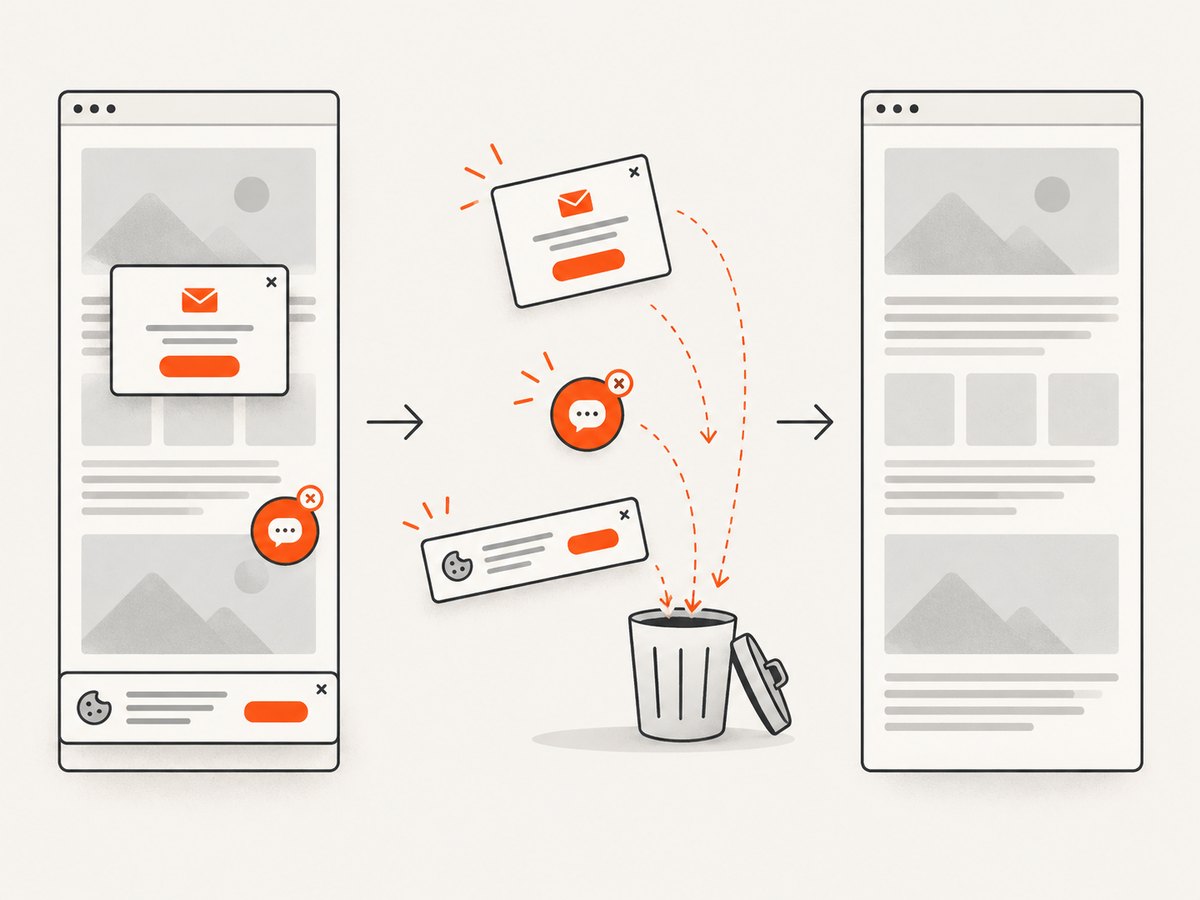
It removes known cookie and consent banners, newsletter popups, and chat widgets before capture; each cleanup step can be disabled. Bot checks and CAPTCHAs, blank pages, timeouts, failed loads, and cache hits are not billed. The response identifies the result with X-Page-Verdict and X-Billed headers. Its MCP server exposes take_screenshot, get_page_info, and capture_pdf for Claude, Cursor, and other MCP clients.
The free plan includes 1,000 screenshots each month with no card. Paid plans start at $5 for 3,000 shots; yearly billing gives two months free. Create a free ScreenshotNeo account to try the API.
10. FAQ
Why does Playwright capture only the viewport?
fullPage defaults to false. Set fullPage: true in the screenshot call.
Should I use networkidle for SvelteKit?
Only when it matches your application. Analytics, polling, and open connections can prevent network idle. A visible locator or application readiness marker is usually more deterministic.
Can I run this inside a SvelteKit endpoint?
You can run browser automation in a server-capable deployment that includes Chromium and permits child processes. Confirm that your adapter, runtime, memory limits, and security model support it.
Which format should I choose?
Use PNG for lossless text and UI detail, JPEG for broadly compatible smaller photographs, and WebP for a modern size-quality balance. Set the format explicitly when reproducibility matters.
How do I capture one component instead of the entire page?
Locate the element and use its screenshot method, for example await page.locator('.invoice').screenshot({ path: 'invoice.png' }). Use fullPage: true when the requirement is the complete scrollable document.


