How to Switch Between Headless and Headed Chrome in Selenium
Configure Selenium to run Chrome visibly or headlessly, handle version differences, troubleshoot failures, and automate screenshots without browser setup.
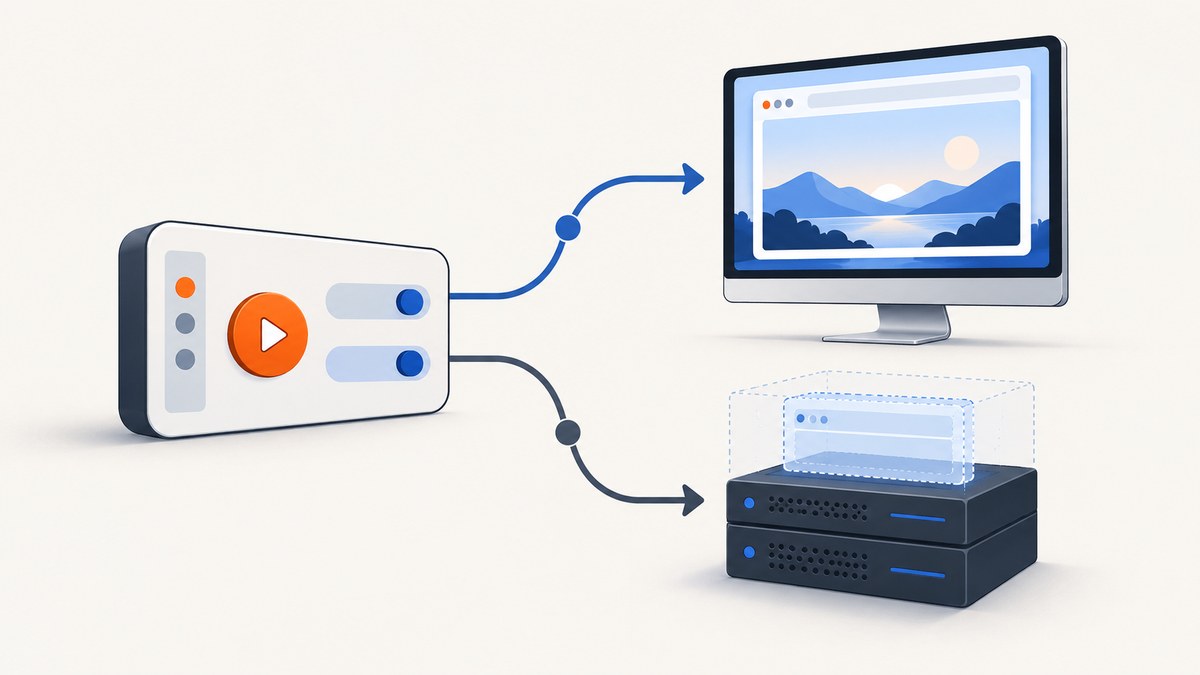
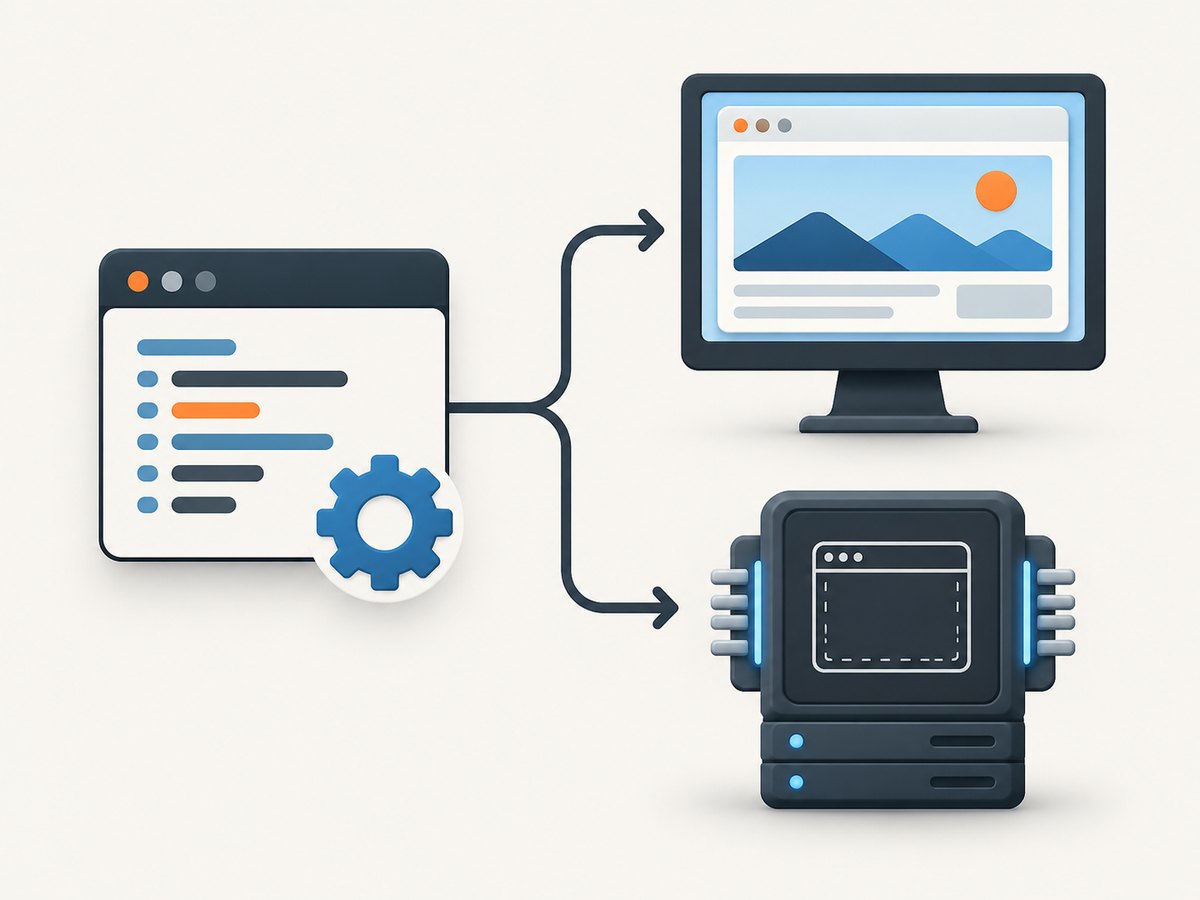
Short answer: Chrome’s display mode is chosen when Selenium starts a WebDriver session. Add a headless argument to Chrome options for an invisible browser; omit that argument for the normal visible (headed) browser. To change modes, quit the current driver and create a new session with different options. Selenium does not document switching an already-running Chrome process between modes in place.
Current Chrome documentation uses --headless and describes Headless and headful Chrome as unified modes. Older examples may show --headless=chrome for Chrome 96–108 or --headless=new for Chrome 109 and later. Treat those spellings as version-specific guidance rather than a flag you must use everywhere. The Selenium convenience method setHeadless(true) was deprecated in Selenium 4.8.0 and removed in 4.10.0, so configure command-line arguments through the browser options object instead.
Headless vs headed Chrome: what changes?
| Mode | How to select it | Typical reason to use it | What to watch |
|---|---|---|---|
| Headless | Add --headless to Chrome options |
CI, containers, scheduled jobs, parallel automation, server machines without a display | Set an explicit window size when layout matters; inspect screenshots and logs when diagnosing visual issues |
| Headed | Do not add a headless argument | Watching a test, debugging selectors, manually observing authentication or redirects | Requires a graphical environment or display forwarding on Linux |
Neither mode is universally faster or more reliable. The appropriate choice depends on whether you need to see and interact with a window, and on the Chrome version and runtime environment you support. Chrome’s official Headless mode documentation and Selenium’s 2023 headless guidance explain the flag history and API changes.
Prerequisites and version checks
- Install a current Selenium binding for your language.
- Install Chrome or Chromium and a compatible driver. Selenium Manager can resolve drivers in supported Selenium versions, but your environment still needs a browser.
- Check versions when behavior differs between a laptop and CI:
google-chrome --version
chromedriver --version
python -c "import selenium; print(selenium.__version__)"
Chrome 132.0.6793.0 is the documented milestone after which the old, separate Headless implementation is available only as the chrome-headless-shell binary. Current Chrome’s unified implementation is selected with --headless. See the Chrome documentation for the compatibility details.
Switch modes in Python
One function that creates either mode
from selenium import webdriver
from selenium.webdriver.chrome.options import Options


def create_driver(headless: bool) -> webdriver.Chrome:
    options = Options()
    if headless:
        options.add_argument("--headless")
    options.add_argument("--window-size=1440,1000")
    options.add_argument("--disable-gpu")
    return webdriver.Chrome(options=options)


# Headless session
driver = create_driver(headless=True)
try:
    driver.get("https://example.com")
    print(driver.title)
finally:
    driver.quit()

# Headed session: omit --headless
driver = create_driver(headless=False)
try:
    driver.get("https://example.com")
    input("Press Enter to close the visible browser...")
finally:
    driver.quit()
--disable-gpu is not required by current Chrome on every platform. Keep it only if your environment needs it; the mode switch itself is the --headless argument. An explicit window size makes responsive breakpoints predictable in either mode.
Recreate the driver when a test changes mode
def restart_driver(driver, headless: bool):
    if driver is not None:
        driver.quit()
    return create_driver(headless)


driver = create_driver(True)
driver.get("https://example.com")
# Later, restart visibly for debugging:
driver = restart_driver(driver, False)
driver.get("https://example.com")
driver.quit()
Always call quit() before creating the replacement session. Otherwise orphaned Chrome processes can consume memory and leave a stale driver port.
Switch modes in JavaScript (Node.js)
import { Builder } from "selenium-webdriver";
import chrome from "selenium-webdriver/chrome.js";

async function createDriver(headless) {
  const options = new chrome.Options();
  if (headless) options.addArguments("--headless");
  options.addArguments("--window-size=1440,1000");
  return new Builder()
    .forBrowser("chrome")
    .setChromeOptions(options)
    .build();
}

let driver = await createDriver(true);
try {
  await driver.get("https://example.com");
  console.log(await driver.getTitle());
} finally {
  await driver.quit();
}

driver = await createDriver(false);
try {
  await driver.get("https://example.com");
  await new Promise(resolve => setTimeout(resolve, 5000));
} finally {
  await driver.quit();
}
The official Selenium JavaScript example uses Chrome options and adds --headless before building the driver. For a visible run, leave that argument out.
Switch modes in Java
import org.openqa.selenium.WebDriver;
import org.openqa.selenium.chrome.ChromeDriver;
import org.openqa.selenium.chrome.ChromeOptions;

public class ModeSwitch {
  static WebDriver createDriver(boolean headless) {
    ChromeOptions options = new ChromeOptions();
    if (headless) {
      options.addArguments("--headless");
    }
    options.addArguments("--window-size=1440,1000");
    return new ChromeDriver(options);
  }

  public static void main(String[] args) {
    WebDriver driver = createDriver(true);
    try {
      driver.get("https://example.com");
      System.out.println(driver.getTitle());
    } finally {
      driver.quit();
    }

    driver = createDriver(false);
    try {
      driver.get("https://example.com");
      Thread.sleep(5000);
    } catch (InterruptedException e) {
      Thread.currentThread().interrupt();
    } finally {
      driver.quit();
    }
  }
}
Switch modes in other Selenium bindings
The pattern is the same in C#, Ruby, Kotlin and other bindings: instantiate the language’s Chrome options class, add --headless only for the headless run, pass the options to the driver constructor, and create a fresh driver when changing mode. Do not rely on the removed setHeadless(true) convenience API.
Useful Chrome options for stable captures
Window size and device scale
Headless Chrome may start with a small default viewport. Set a size explicitly:
options.add_argument("--window-size=1920,1080")For high-density screenshots, use Selenium’s device emulation or Chrome’s scale-related options carefully and verify the resulting CSS viewport. A larger bitmap does not automatically mean a larger layout viewport.
Linux servers and containers
Headed Chrome needs a display. On a server, use a desktop session, X forwarding, or a virtual display such as Xvfb. If you do not need to observe the browser, headless mode avoids that display dependency. Containerized runs may also need a writable temporary directory and adequate shared memory; failures in those areas often look like a browser crash rather than a mode-selection error.
Authentication, profiles and extensions
Use a dedicated temporary user-data directory for parallel sessions. Reusing one profile across processes can lock the profile or leak cookies between tests. Extensions and profile-dependent behavior should be validated in both modes because a headed debugging profile may not match a clean CI profile.
Waiting for real page state
Headless mode does not guarantee that a page is ready when get() returns. Wait for a meaningful element, a document state, or application-specific network completion. Fixed sleeps are useful for diagnosis but are brittle as a synchronization strategy.
Common errors and fixes
| Error or symptom | Likely cause | Fix |
|---|---|---|
SessionNotCreatedException |
Chrome and ChromeDriver versions are incompatible, or an unsupported flag is being passed | Print both versions, update the driver/browser pair, and remove historical flags such as --headless=chrome unless your target Chrome version requires them. |
setHeadless is missing |
Selenium 4.10.0 or newer removed the convenience method | Use options.add_argument("--headless") (or the equivalent binding API). |
| Headed run fails with “cannot open display” | No graphical display is available | Run headless, configure Xvfb/desktop forwarding, or execute on a machine with a display. |
| Screenshot is blank or layout is wrong | Viewport is too small, the page is still loading, or content is lazy-loaded | Set --window-size, wait for a target element, scroll to trigger lazy content, and capture after the page reaches its required state. |
| Chrome exits immediately in a container | Sandbox, shared-memory, permissions, or temporary-directory constraints | Read the browser’s stderr, provide a writable temporary directory, increase shared memory, and apply container-specific flags only when required by your security model. |
| Different behavior between modes | Different profile, viewport, display scale, permissions, or timing | Log capabilities and viewport dimensions, use the same test data and explicit options, then compare page readiness rather than assuming headless is defective. |
Old tutorials recommend --headless=new |
The tutorial targets Chrome 109+ during the transition | For current Chrome, start with documented --headless; retain the historical spelling only when your pinned browser version and documentation call for it. |
A practical debugging checklist
- Print Selenium, Chrome and ChromeDriver versions.
- Run the same URL with a fixed viewport in both modes.
- Save a screenshot and page source immediately after navigation.
- Log browser console errors and driver service output.
- Replace arbitrary sleeps with waits for a selector or document condition.
- Confirm that the headed machine has a display and that the headless machine has writable temporary storage.
- Quit every driver in a
finallyblock.
Performance, reliability and cost considerations
Headless mode can simplify infrastructure because it does not require a visible desktop, but the sources do not establish a universal speed advantage. Measure the workload that matters: navigation time, JavaScript completion, screenshot time, memory use and failure rate on your own pages.
For reliability, pin compatible browser and driver versions, make viewport and locale explicit, isolate profiles, and collect artifacts on failure. Recreating a session is the supported practical way to change modes, but it also means cookies and in-memory state must be transferred deliberately if your workflow needs them.
For cost, a self-hosted Selenium setup consumes your own compute and maintenance time. A screenshot API can move browser operations to a managed endpoint, which is useful for batch captures, public image URLs or systems where installing Chrome is undesirable.
Or skip the browser setup
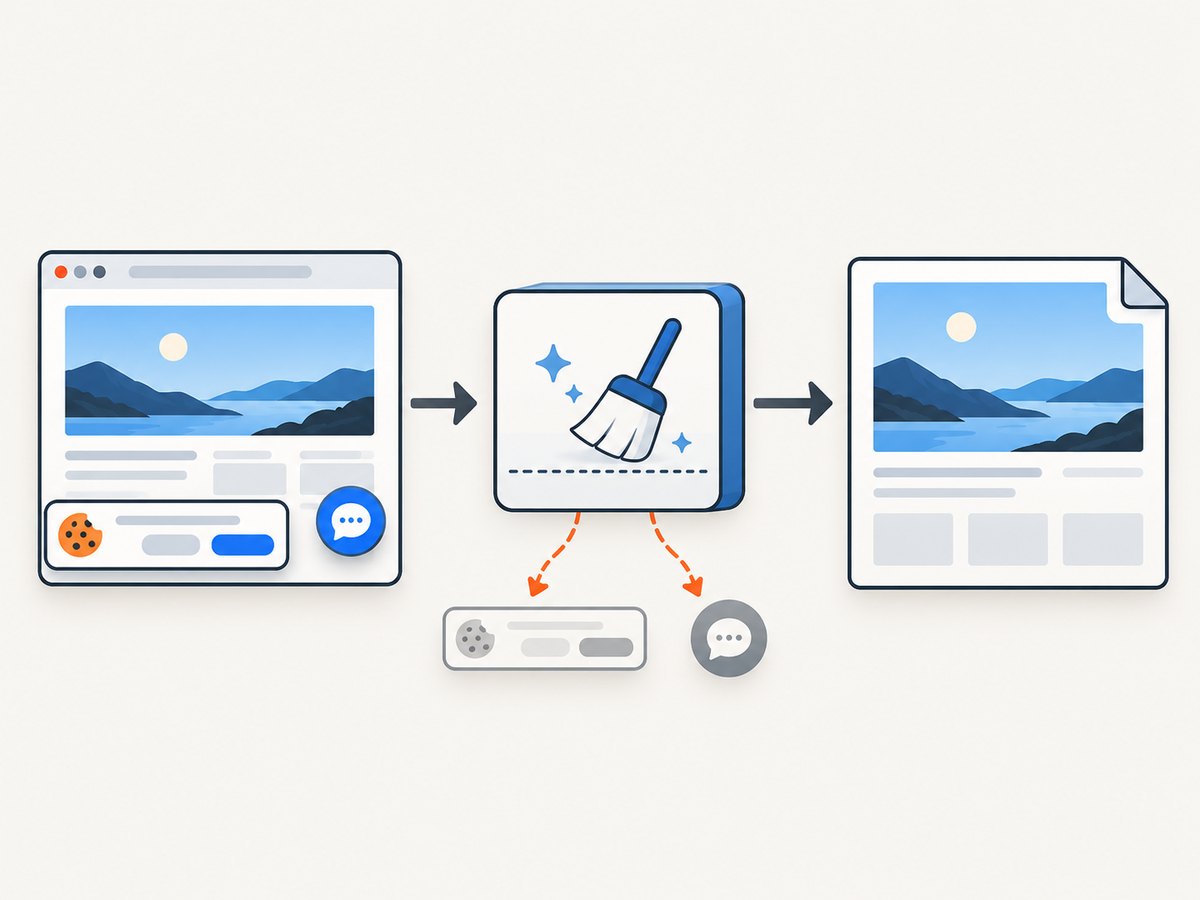
ScreenshotNeo provides a one-request website screenshot API. It removes cookie and consent banners, newsletter popups and chat widgets before capture. Bot checks, blank pages, timeouts, failed loads and cache hits are not billed, and response headers identify the page verdict and billing status. It also offers an MCP server with take_screenshot, get_page_info and capture_pdf for Claude, Cursor and other MCP clients.
See the ScreenshotNeo API documentation for all options. A minimal call is:
curl -G "https://api.screenshotneo.com/v1/shot" -d access_key=YOUR_API_KEY --data-urlencode url=https://stripe.com -o shot.webpimport requests
r = requests.get("https://api.screenshotneo.com/v1/shot", params={"access_key": "YOUR_API_KEY", "url": "https://stripe.com"}, timeout=90)
open("shot.webp", "wb").write(r.content)const q = new URLSearchParams({ access_key: 'YOUR_API_KEY', url: 'https://stripe.com' });
const res = await fetch(`https://api.screenshotneo.com/v1/shot?${q}`);Beyond the basic request, ScreenshotNeo supports full-page and element captures, dark mode, device presets, retina scale, PDFs, custom CSS and JavaScript, clicks, selector or network-idle waits, request blocking, headers, cookies, user agents, timezone and geolocation, transparent backgrounds, resizing, chosen cache TTLs, signed links, asynchronous jobs with signed webhooks, bulk capture of up to 100 URLs per call, a usage API and an OpenAPI specification. Its parameter names also match those used by other screenshot APIs, which helps when migrating.
The Free plan includes 1,000 screenshots per month with no card. Paid plans start at $5 for 3,000 shots; yearly billing gives two months free, and every feature is available on every plan. Create a free ScreenshotNeo account.
FAQ
Can I turn headless mode on after the driver starts?
Configure it at startup. Quit the existing driver and create a new one with the desired Chrome options.
Should I use --headless=new?
It is a historical transition flag documented for Chrome 109 and later. Current Chrome documentation uses --headless; follow the guidance for the Chrome version you pin.
Why does a headed test pass locally but fail in CI?
CI often has no display and may use different profiles, viewport sizes, permissions or browser versions. Compare those inputs and run headless or provide a virtual display.
Does headless Chrome hide all visual differences?
No. Rendering can still differ with viewport, scale, fonts, GPU behavior, timing and profile state. Make those variables explicit and compare captured artifacts.
Is Selenium required for a single screenshot?
No. If you only need an image or PDF and do not need browser-level test control, an API such as ScreenshotNeo can handle the capture request without managing a Chrome process.


