How to Insert Page Breaks After Elements in Syncfusion PDF Reports
Learn conditional and forced page breaks in Syncfusion PDF reports, including PdfTextElement, PdfGrid, row integrity, pagination, and troubleshooting.
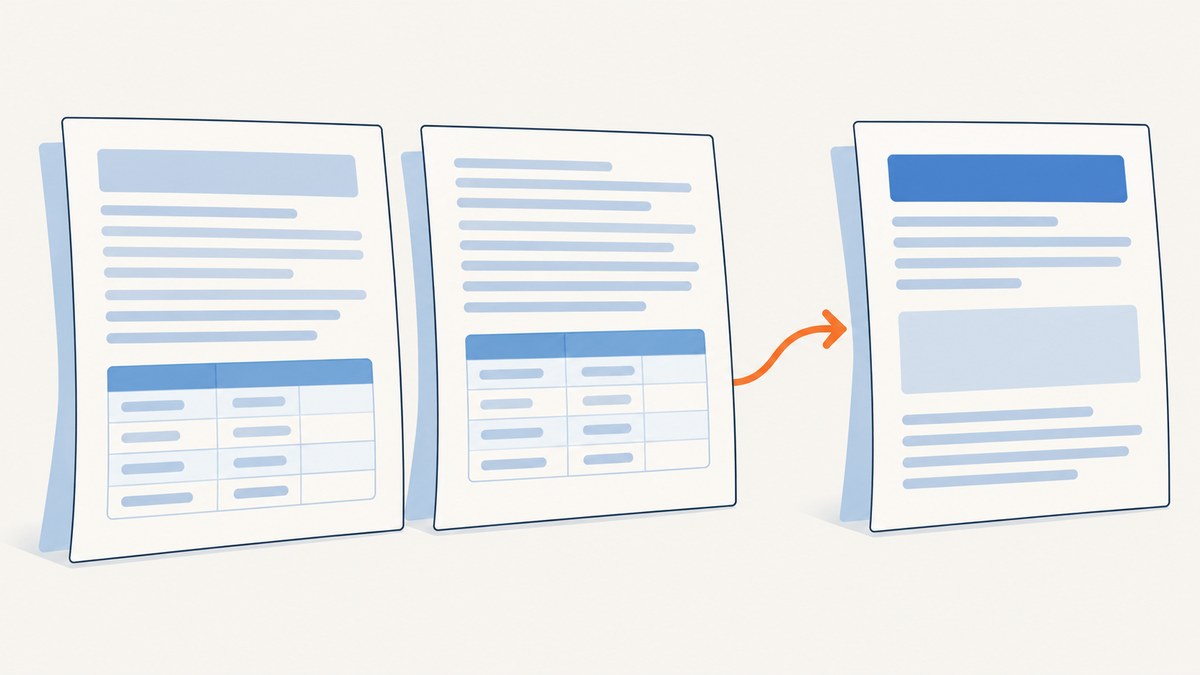
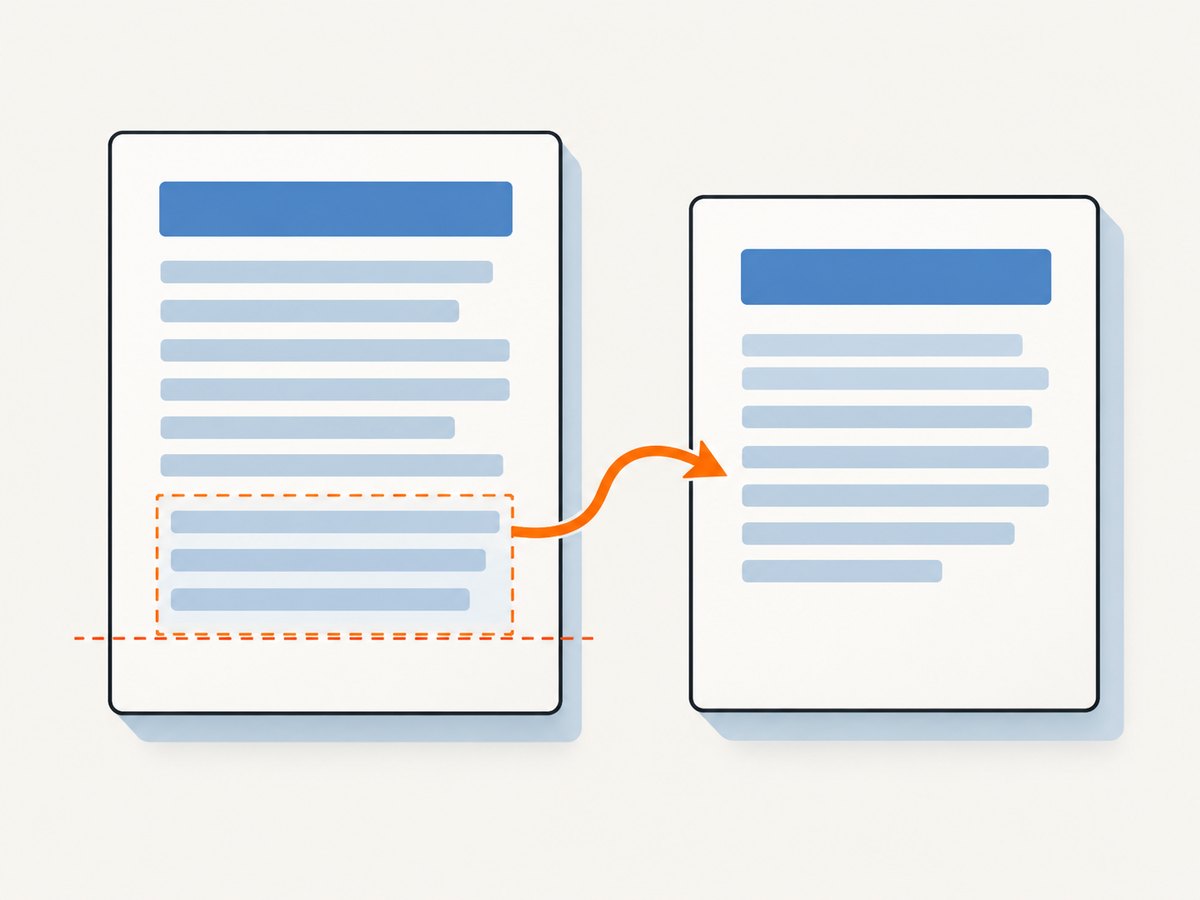
To insert a page break after an element in a Syncfusion Essential PDF report, draw the current element with a paginating layout, inspect the returned PdfLayoutResult, and then either continue on result.Page or explicitly add a new page. Use PdfLayoutType.Paginate with PdfLayoutBreakType.FitPage for normal flow. Add a page with document.Pages.Add() when the next section must always start on a fresh page.
The important distinction is whether the break is conditional or unconditional:
- Conditional pagination: Syncfusion places the next content wherever it fits and creates pages as needed.
- Unconditional break: Syncfusion finishes the current element, then you create a new
PdfPagebefore drawing the next section.
1. The basic pattern for text and other elements
Syncfusion layout elements return a PdfLayoutResult from Draw. That result tells you the page where drawing ended and the rectangle occupied by the element. Use result.Bounds.Bottom as the starting point for the next element so content does not overlap.
using Syncfusion.Pdf;
using Syncfusion.Pdf.Graphics;
using Syncfusion.Pdf.Grid;
using System.Drawing;

PdfDocument document = new PdfDocument();
PdfPage page = document.Pages.Add();

PdfFont font = new PdfStandardFont(PdfFontFamily.Helvetica, 14);
PdfLayoutFormat layout = new PdfLayoutFormat
{
    Layout = PdfLayoutType.Paginate,
    Break = PdfLayoutBreakType.FitPage
};

PdfTextElement first = new PdfTextElement(
    "Section 1: Overview", font, PdfBrushes.Black);

RectangleF bounds = new RectangleF(40, 40, 515, 700);
PdfLayoutResult result = first.Draw(page, bounds, layout);

PdfTextElement next = new PdfTextElement(
    "Section 2: Details", font, PdfBrushes.Black);

next.Draw(
    result.Page,
    new RectangleF(
        bounds.X,
        result.Bounds.Bottom + 10,
        bounds.Width,
        bounds.Height),
    layout);

document.Save("report.pdf");
document.Close(true);
If the first element reaches the bottom of the page, Syncfusion creates or selects the next page during pagination. The second element is drawn on result.Page, not necessarily on the original page. This is why hard-coding the original page variable after a paginated draw can produce misplaced content.
Choosing the next vertical position
PdfLayoutResult.Bounds.Bottom is the bottom edge of the rendered element. Add your desired spacing to it:
float gap = 12;
float nextY = result.Bounds.Bottom + gap;

PdfTextElement paragraph = new PdfTextElement(
    "The next paragraph starts after the previous element.",
    font,
    PdfBrushes.Black);

paragraph.Draw(
    result.Page,
    new RectangleF(bounds.X, nextY, bounds.Width, bounds.Height),
    layout);
Do not use a fixed coordinate such as y = 100 after a variable-height element. Wrapped text, font changes, and page transitions all change the final bounds.
2. Always begin the next section on a new page
For a guaranteed section break, finish drawing the current element and append a page explicitly. This is appropriate for appendices, chapter covers, invoice sections, or any layout where the next heading must never share the previous page.
PdfLayoutResult result = current.Draw(page, bounds, layout);

PdfPage newPage = document.Pages.Add();

PdfTextElement nextSection = new PdfTextElement(
    "Section 2: New Page", font, PdfBrushes.Black);

nextSection.Draw(
    newPage,
    new RectangleF(40, 40, 515, 700),
    layout);
The returned result remains useful for the current element, but it is not used to position the next section because the next section intentionally starts at the top of a new page. If you want standard margins, define them once and reuse the same rectangle on every newly created page.
Conditional versus unconditional breaks
| Requirement | Use | Why |
|---|---|---|
| Continue naturally after a heading or paragraph | Paginate plus FitPage |
Uses available space and creates pages when required |
| Keep a chapter or report section together from its first element | document.Pages.Add() |
Guarantees a fresh page even when space remains |
| Continue a table across pages | PdfGridLayoutFormat |
Applies pagination rules to grid rows |
| Prevent a row from splitting | AllowRowBreakAcrossPages = false |
Moves the complete row to the next page when needed |
3. Paginating a PdfGrid
Tables use PdfGridLayoutFormat, which provides the same pagination settings for a grid. Set Layout to Paginate and Break to FitPage, then pass the format to PdfGrid.Draw.
PdfGrid grid = new PdfGrid();
grid.DataSource = new[]
{
    new { Id = 1, Name = "Alpha", Amount = 125.50m },
    new { Id = 2, Name = "Beta", Amount = 240.00m },
    new { Id = 3, Name = "Gamma", Amount = 89.75m }
};

grid.AllowRowBreakAcrossPages = false;

grid.Style.CellPadding = new PdfPaddings(6, 4, 6, 4);

grid.Style.Font = new PdfStandardFont(PdfFontFamily.Helvetica, 10);

PdfGridLayoutFormat gridLayout = new PdfGridLayoutFormat
{
    Layout = PdfLayoutType.Paginate,
    Break = PdfLayoutBreakType.FitPage
};

PdfLayoutResult titleResult = title.Draw(page, bounds, layout);
PdfLayoutResult gridResult = grid.Draw(
    titleResult.Page,
    new RectangleF(
        bounds.X,
        titleResult.Bounds.Bottom + 12,
        bounds.Width,
        bounds.Height),
    gridLayout);
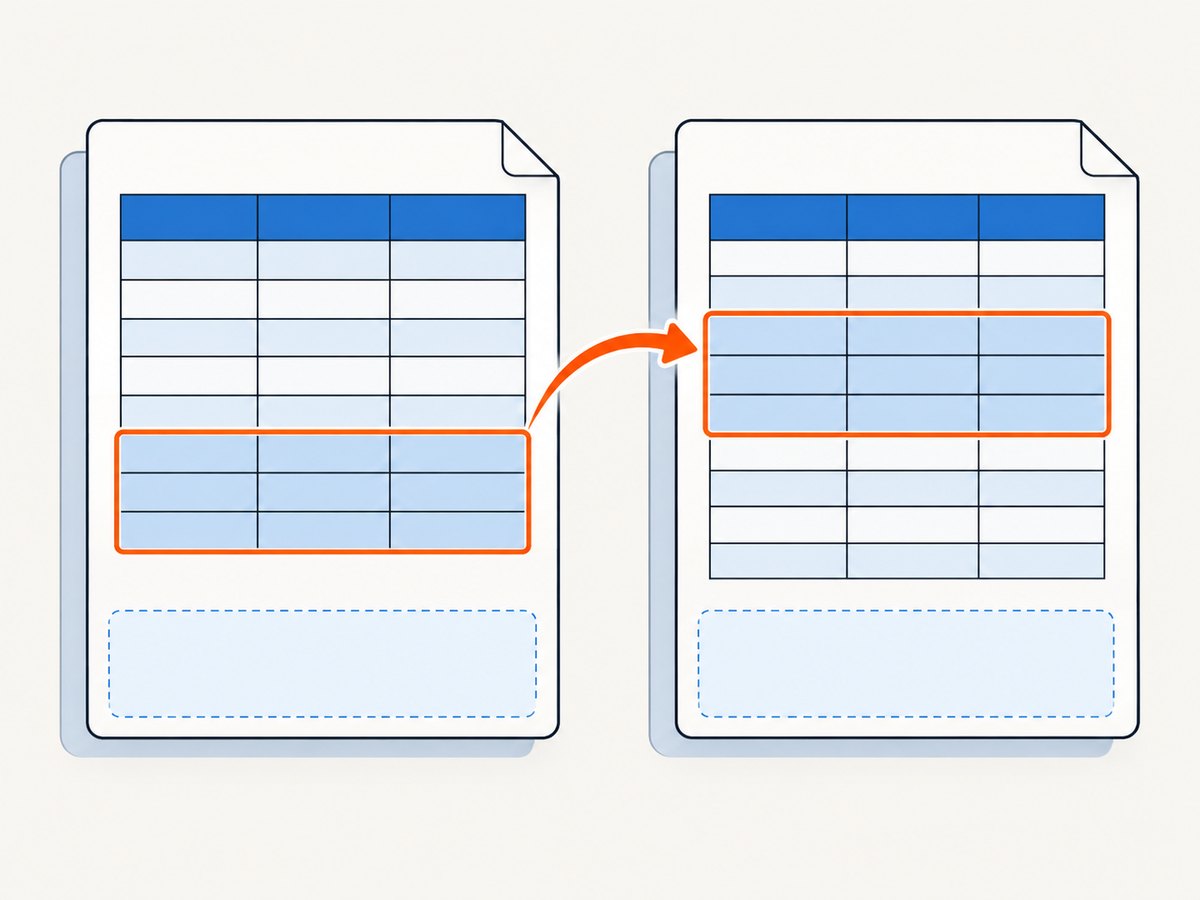
AllowRowBreakAcrossPages = false keeps each row intact. A row that cannot fit in the remaining region moves to the next page. This can leave extra white space, but it prevents a reader from seeing the first cells of a row on one page and the remaining cells on another.
Restricting the pagination region
Use PdfLayoutFormat.PaginateBounds when the grid or element must stay inside a specific content region, such as a page with a header and footer. The region should exclude those reserved areas.
PdfLayoutFormat layout = new PdfLayoutFormat
{
    Layout = PdfLayoutType.Paginate,
    Break = PdfLayoutBreakType.FitPage,
    PaginateBounds = new RectangleF(40, 90, 515, 620)
};
Set the pagination bounds consistently for every continuation draw. Otherwise, a later page can use a different printable area and cause content to collide with a footer.
4. Drawing a title followed by a table
A common report requirement is a title, explanatory paragraph, and table. Draw each item in sequence and carry forward the page and bottom coordinate from the previous result.
PdfPage currentPage = document.Pages.Add();
RectangleF content = new RectangleF(40, 50, 515, 680);

PdfLayoutResult titleResult = title.Draw(currentPage, content, layout);

PdfLayoutResult descriptionResult = description.Draw(
    titleResult.Page,
    new RectangleF(
        content.X,
        titleResult.Bounds.Bottom + 8,
        content.Width,
        content.Height),
    layout);

PdfLayoutResult tableResult = grid.Draw(
    descriptionResult.Page,
    new RectangleF(
        content.X,
        descriptionResult.Bounds.Bottom + 12,
        content.Width,
        content.Height),
    gridLayout);

PdfTextElement closingNote = new PdfTextElement(
    "End of section", font, PdfBrushes.Black);

closingNote.Draw(
    tableResult.Page,
    new RectangleF(
        content.X,
        tableResult.Bounds.Bottom + 12,
        content.Width,
        content.Height),
    layout);
Notice that every draw uses the previous result’s page. This matters when the title or description pushes the table onto another page. The table can also span multiple pages, and the closing note must start after the final page returned by tableResult.
5. A reusable helper for “draw after” behavior
Repeated report code is easier to maintain when the page, rectangle, and spacing rules are centralized. The helper below returns the new layout result and applies the same margin and gap for every element.
static PdfLayoutResult DrawAfter(
    PdfTextElement element,
    PdfLayoutResult previous,
    float left,
    float width,
    float height,
    float gap,
    PdfLayoutFormat format)
{
    RectangleF nextBounds = new RectangleF(
        left,
        previous.Bounds.Bottom + gap,
        width,
        height);

    return element.Draw(previous.Page, nextBounds, format);
}
For grids, create an overload that accepts PdfGrid and PdfGridLayoutFormat. Keep the helper focused on placement. Decisions such as “must start on a new page” should remain explicit at the call site so the report structure is easy to review.
6. Common errors and fixes
The next element overlaps the previous one
Cause: The next element uses a fixed Y coordinate or the original element’s requested height instead of the rendered bounds.
Fix: Use result.Bounds.Bottom + gap and draw on result.Page.
The next element appears on the wrong page
Cause: The first draw paginated to a new page, but the next draw still uses the original PdfPage variable.
Fix: Pass result.Page to the next Draw call.
A table row is split across pages
Cause: Row breaks are allowed by default or by the current grid configuration.
Fix: Set grid.AllowRowBreakAcrossPages = false. If the row is taller than the usable page region, reduce cell padding, font size, or content length; an indivisible row still needs enough room to render.
The table runs into the footer
Cause: Pagination is using the full page instead of the content region above the footer.
Fix: Set PaginateBounds to a rectangle that excludes the header and footer, and use that region consistently on continuation pages.
A forced break creates an unexpected blank page
Cause: The current element already ended on a newly created page, and code then adds another page unconditionally.
Fix: Use normal pagination when a break is conditional. Add a page only when the business rule requires a fresh page regardless of remaining space. If your report builder can already detect that the current page has no content after the previous break, avoid adding a second page.
Content is clipped instead of paginated
Cause: The element was drawn with a non-paginating layout or with bounds that do not describe a usable content region.
Fix: Set Layout = PdfLayoutType.Paginate, set Break = PdfLayoutBreakType.FitPage, and provide realistic width and height values.
7. Performance and reliability considerations
- Use pagination results as the source of truth. They account for wrapping, font metrics, row heights, and page transitions.
- Reuse fonts and layout objects where appropriate. Creating the same font repeatedly adds code overhead and makes consistent styling harder.
- Keep content regions stable. A fixed margin and footer reservation make page counts predictable.
- Choose row integrity deliberately. Disabling row breaks improves readability but may leave larger gaps and increase the page count.
- Test boundary cases. Include an element that ends near the bottom, a multi-page grid, a very tall row, an empty data set, and long unbroken text.
- Save only after all draws finish. A PDF saved before the final continuation draw will appear complete but omit later content.
For large reports, process data in a streaming or paged fashion before assigning it to the grid, and avoid building unnecessarily large strings for individual cells. The pagination API controls placement, but it does not make an oversized single element fit automatically. Split very long content into smaller elements when it needs to flow around other sections.
8. A practical decision checklist
- Do you need the next element to start on a fresh page every time? If yes, call
document.Pages.Add(). - Otherwise, create a
PdfLayoutFormatwithPaginateandFitPage. - Draw the current element and store its
PdfLayoutResult. - Use
result.Pagefor the next draw. - Use
result.Bounds.Bottom + gapfor the next Y coordinate. - For grids, use
PdfGridLayoutFormat. - Set
AllowRowBreakAcrossPagestofalsewhen rows must remain whole. - Set
PaginateBoundswhen headers or footers reserve space. - Verify the final page count and inspect the first and last rows of every multi-page table.
9. Or skip the browser setup
If your workflow also needs screenshots of report previews, hosted documentation, or generated HTML, ScreenshotNeo provides a single website screenshot request. It accepts the cookie or consent banner like a visitor, removes more than 60 known consent platforms along with newsletter popups and chat widgets before capture, and lets you turn each cleanup step off. Bot checks, blank pages, timeouts, failed loads, and cache hits cost nothing, and the response identifies the result with X-Page-Verdict and X-Billed headers. Its MCP server exposes take_screenshot, get_page_info, and capture_pdf for Claude, Cursor, and other MCP clients.
See the ScreenshotNeo API documentation for the complete option list. A basic call is:
curl -G "https://api.screenshotneo.com/v1/shot" -d access_key=YOUR_API_KEY --data-urlencode url=https://stripe.com -o shot.webpimport requests
r = requests.get("https://api.screenshotneo.com/v1/shot", params={"access_key": "YOUR_API_KEY", "url": "https://stripe.com"}, timeout=90)
open("shot.webp", "wb").write(r.content)const q = new URLSearchParams({ access_key: 'YOUR_API_KEY', url: 'https://stripe.com' }); const res = await fetch(`https://api.screenshotneo.com/v1/shot?${q}`);ScreenshotNeo supports full-page and element captures, dark mode, device presets, custom viewports, retina scale, PDF paper settings, custom CSS and JavaScript, clicks, waits, blocked resources, headers, cookies, user agents, authorization, timezone, geolocation, transparent backgrounds, resizing, caching, signed links, asynchronous jobs, webhooks, bulk capture, usage reporting, and an OpenAPI specification. Parameter names used by other screenshot APIs also work, which can simplify migration. The Free plan includes 1,000 screenshots each month with no card; paid plans start at $5 for 3,000 shots.
Create a free ScreenshotNeo account and start with 1,000 screenshots per month at no charge.
10. FAQ
Can I insert a page break without drawing an empty placeholder?
Yes. Draw the current content, call document.Pages.Add(), and draw the next element on the returned page.
Does PdfLayoutResult.Page always differ from the input page?
No. It is the page where the draw operation ended. It remains the original page when the element fits.
Should I use a hard-coded page height for every element?
Use a realistic available height, but calculate the next Y position from the returned bounds. The rendered height can differ because of wrapping and pagination.
Can a grid continue after a forced page break?
Yes. Draw the grid on the new page with PdfGridLayoutFormat; it can continue across later pages according to its pagination settings.
What is the safest way to keep a report section together?
Add a page before the section, then draw each element using the returned page and bounds. For a table, also disable row breaks when each row must remain intact.


