Take a Scrolling Screenshot
Capture more than fits on screen with the built-in full-page screenshot tools for iPhone, Android, Chrome, Edge, and Firefox.

A scrolling screenshot captures content below the part of a page currently visible on screen. On iPhone, take a screenshot and choose Full Page. On Android 12 and later, take a screenshot and choose Capture more when that option is available. For browser-specific steps, Chrome on Android has Long screenshot in its Share flow, Edge offers Capture full page, and Firefox offers Save full page. The exact route depends on your device, operating system, and browser.
These built-in options cover ordinary personal captures without buying a product. If you need repeatable website captures from code, a server, or an AI agent, see the ScreenshotNeo option after the device and browser instructions below.
1. iPhone: capture a full webpage in Safari
Apple documents full-page screenshots as a way to capture an entire webpage in Safari, including content beyond the visible screen. Use the screenshot preview to switch from the ordinary screen capture to the longer page capture.
- Open the webpage or content you want to capture.
- Quickly press and release Side button + Volume Up. On an iPhone with a Home button, press and release Home + Side.
- Tap the screenshot thumbnail if it appears.
- Choose Full Page in the preview.
- Review the longer capture and crop it if needed, then choose the save option. Apple says screenshots saved through this preview flow go to Photos.
If the preview only shows the visible screen, check that you opened the screenshot thumbnail and that the content is a supported page. Apple’s documented example is a Safari webpage; the available full-page option can depend on what you captured. See the [Apple iPhone User Guide](https://support.apple.com/guide/iphone/take-a-screenshot-iphc872c0115/ios) for the current instructions.
2. Android: use Capture more
Google documents Android’s standard scrolling screenshot flow for Android 12 and later, on most screens that allow scrolling. That qualification matters: the option is not guaranteed to appear in every app or on every device.
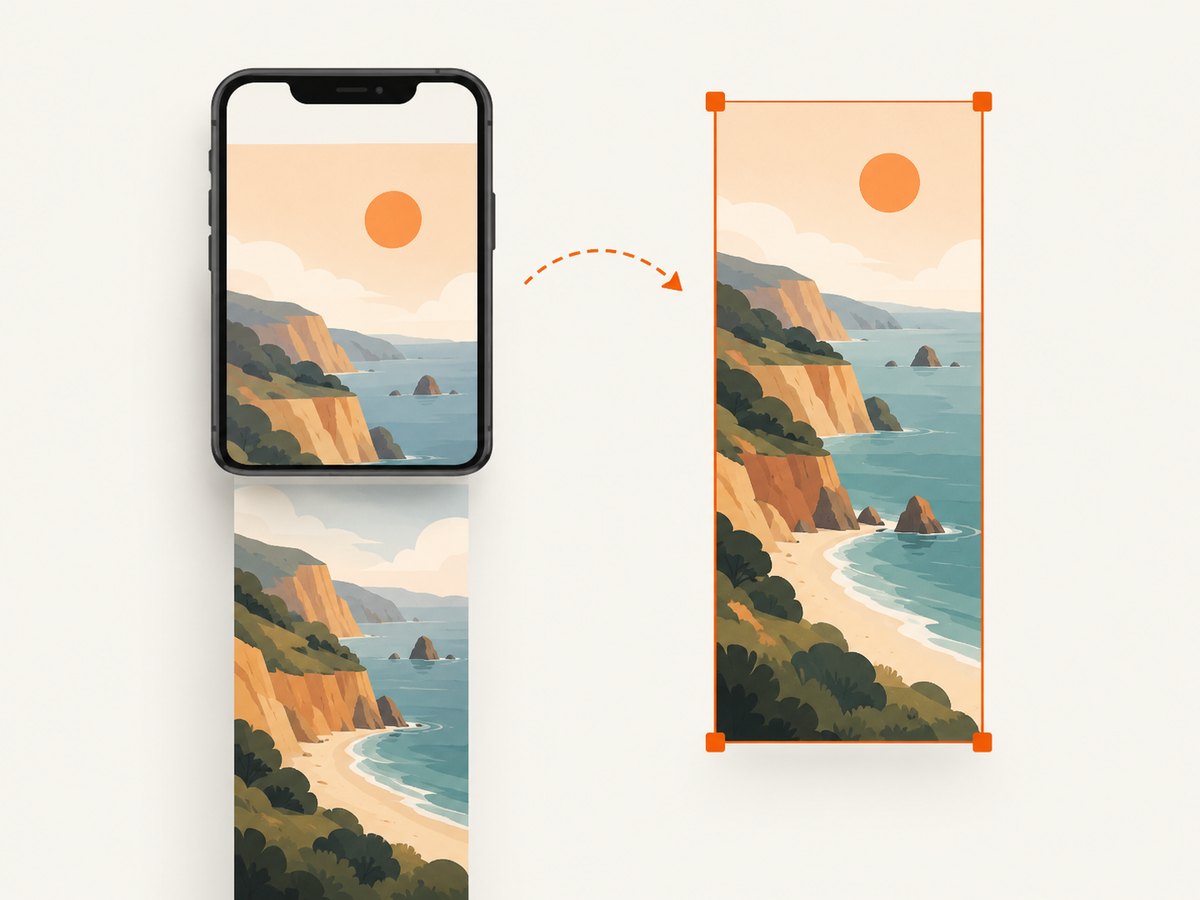
- Open the screen you want to capture.
- Press Power + Volume Down.
- Tap Capture more at the bottom of the screen, if it appears.
- Adjust the crop guidelines to include the content you need.
- Save or share the resulting capture using the controls shown on your phone.
If you do not see Capture more, the screen may not support scrolling capture, or your device’s Android version and manufacturer may use different controls. Check the phone maker’s support instructions for your model. Google’s guidance describes this as an Android 12-and-later feature for most scrollable screens, not every screen. See [Google’s Android screenshot instructions](https://support.google.com/android/answer/9075928).
3. Chrome on Android: use Long screenshot
Chrome for Android has a separate long-capture route in its Share menu. This is useful when you want to capture a page open in Chrome and adjust exactly how much of it the image includes.
- Open the webpage in Chrome.
- Tap More beside the address bar.
- Tap Share, then choose Long screenshot.
- Drag the crop handles to set the length of the capture.
- Tap Confirm, then save or share the result.
This is a Chrome-specific Android flow, distinct from the Android system’s Capture more option. If you do not see Long screenshot, check that you are using Chrome on Android and consult Chrome Help for the steps applicable to your version. See [Chrome Help](https://support.google.com/chrome/answer/15086890).
4. Microsoft Edge: capture a full page on desktop
In Edge, Web Capture can save an entire webpage. Open it from the browser menu or press Ctrl+Shift+S, then select Capture full page. Review the result before saving.
- Open the webpage in Edge.
- Open Web Capture from the browser menu, or press Ctrl+Shift+S.
- Choose Capture full page.
- Review the capture and save it.
Web Capture also provides selected-area capture, markup, copying, and saving. Microsoft notes that availability and functionality can vary by device, market, and browser version, so menu labels or options may differ. See Microsoft’s [Edge Web Capture instructions](https://www.microsoft.com/en-us/edge/features/web-capture) and its [availability notes](https://support.microsoft.com/en-us/microsoft-edge/use-web-capture-to-capture-screenshots-in-edge-80aafae2-6e8e-4b7a-a8c4-3c9e5b0c3e9c).
5. Mozilla Firefox: save a full page
Firefox’s screenshot tool includes Save full page. You can open the tool from the page context menu or use a keyboard shortcut, then download the image or copy it.
- Right-click an empty part of the page and select Take Screenshot. Alternatively, use Ctrl+Shift+S on Windows or Linux, or Command+Shift+S on macOS.
- Choose Save full page.
- Download the image or copy it to the clipboard.
Firefox DevTools provides another route for developers: enable the full-page screenshot toolbar button, or run :screenshot --fullpage in the Web Console. DevTools can also capture an individual page element with Screenshot Node. Use the user-facing screenshot tool for a quick capture; use DevTools when you need a developer workflow. See [Mozilla Support](https://support.mozilla.org/en-US/kb/take-screenshots-firefox) and [Firefox Source Docs](https://firefox-source-docs.mozilla.org/devtools-user/take_screenshots/).
6. Choose the method that matches your device
| Device or browser | Full-page route | Where to look for the result | Important limit |
|---|---|---|---|
| iPhone | Screenshot preview → Full Page | Photos through the screenshot preview flow | Apple’s example is a webpage in Safari. |
| Android 12+ | Screenshot → Capture more | Phone’s save or share controls | Available on most scrollable screens, not all. |
| Chrome on Android | More → Share → Long screenshot | Save or share after Confirm | Chrome’s browser flow, separate from Android Capture more. |
| Microsoft Edge | Web Capture → Capture full page | Review, then save or copy | Availability can vary by device, market, and version. |
| Firefox | Take Screenshot → Save full page | Download or clipboard | Menu labels and shortcut behavior may vary by platform. |
For a single image of a page, choose the explicit full-page or long-capture option. A normal screenshot usually captures only what is visible at that moment. If you only need one section, use an area-selection tool where available; it avoids including a long, irrelevant page. If you need the same page captured regularly, or want the image produced by code, a browser’s one-off screenshot controls may not fit the job.
Chrome desktop’s exact full-size screenshot sequence was not established by the official guidance reviewed for this article. For documented desktop browser steps, use Edge’s Web Capture or Firefox’s full-page screenshot tool.
7. Troubleshooting a scrolling screenshot
| What happened | Likely cause | What to try |
|---|---|---|
| The result contains only the visible screen. | You completed an ordinary screenshot without switching to the full-page option. | Open the screenshot preview or browser capture tool and choose Full Page, Capture more, Long screenshot, or Save full page. |
| Capture more is missing on Android. | The device may be below Android 12, the screen may not support scrolling capture, or the maker uses a different interface. | Check Android version and phone model. Try a scrollable screen, Chrome’s Long screenshot flow, or your device maker’s instructions. |
| Long screenshot is missing in Chrome. | You may be outside Chrome on Android, or the menu can differ with app version or device. | Open the page in Chrome and look under More → Share. Check Chrome Help for your version. |
| Edge’s shortcut or menu differs. | Web Capture availability and behavior vary by device, market, and browser version. | Look for Web Capture in the browser menu and check Edge’s current support information. |
| Firefox does not show the screenshot tool. | The shortcut or menu may differ by operating system, or the context click was on a control rather than an empty page area. | Right-click empty page space, use the platform-specific shortcut, or use Firefox DevTools’ full-page route. |
| The saved image is longer or shorter than intended. | The crop handles or full-page selection include more or less content than needed. | Review the preview and adjust the crop controls before saving. For a focused excerpt, use selected-area capture where available. |
When an option is absent, note three details before troubleshooting: device model, operating system version, and browser name/version. Those details determine which instructions apply and help distinguish an unsupported screen from a changed menu.
8. Developer workflow: capture a scrolling webpage with an API
Built-in controls are convenient for occasional manual captures. For a repeatable website screenshot in a script or service, use a screenshot API: send the target URL and capture options, then save the returned image bytes. The examples below save a full-page WebP. See the [ScreenshotNeo documentation](https://screenshotneo.com/docs/) for the API options and [ScreenshotNeo](https://screenshotneo.com) for the product overview.
Set YOUR_API_KEY to your API key. The API base is https://api.screenshotneo.com/v1/shot.
cURL
curl -G "https://api.screenshotneo.com/v1/shot" \
  -d access_key=YOUR_API_KEY \
  --data-urlencode url=https://stripe.com \
  -d full_page=true \
  -d format=webp \
  -o shot.webp
Python
import requests

params = {
    "access_key": "YOUR_API_KEY",
    "url": "https://stripe.com",
    "full_page": "true",
    "format": "webp",
}
response = requests.get(
    "https://api.screenshotneo.com/v1/shot",
    params=params,
    timeout=90,
)
response.raise_for_status()
with open("shot.webp", "wb") as image_file:
    image_file.write(response.content)
Node.js
const params = new URLSearchParams({
  access_key: 'YOUR_API_KEY',
  url: 'https://stripe.com',
  full_page: 'true',
  format: 'webp',
});
const response = await fetch(
  `https://api.screenshotneo.com/v1/shot?${params}`
);
if (!response.ok) {
  throw new Error(`Screenshot request failed: ${response.status}`);
}
const image = Buffer.from(await response.arrayBuffer());
await import('node:fs/promises').then(fs => fs.writeFile('shot.webp', image));
Use the API’s documented parameter names for the options you need. The sample sets full-page capture and WebP output; confirm accepted option values in the docs before adapting a request. Use the returned response headers as well as the body: ScreenshotNeo reports page verdict and billing status using X-Page-Verdict and X-Billed.
9. Or skip the browser setup
ScreenshotNeo is a website screenshot API and MCP server from Yorker Media. One GET request takes a URL and returns a clean PNG, JPEG, WebP, or PDF. Here is the one-call WebP example:
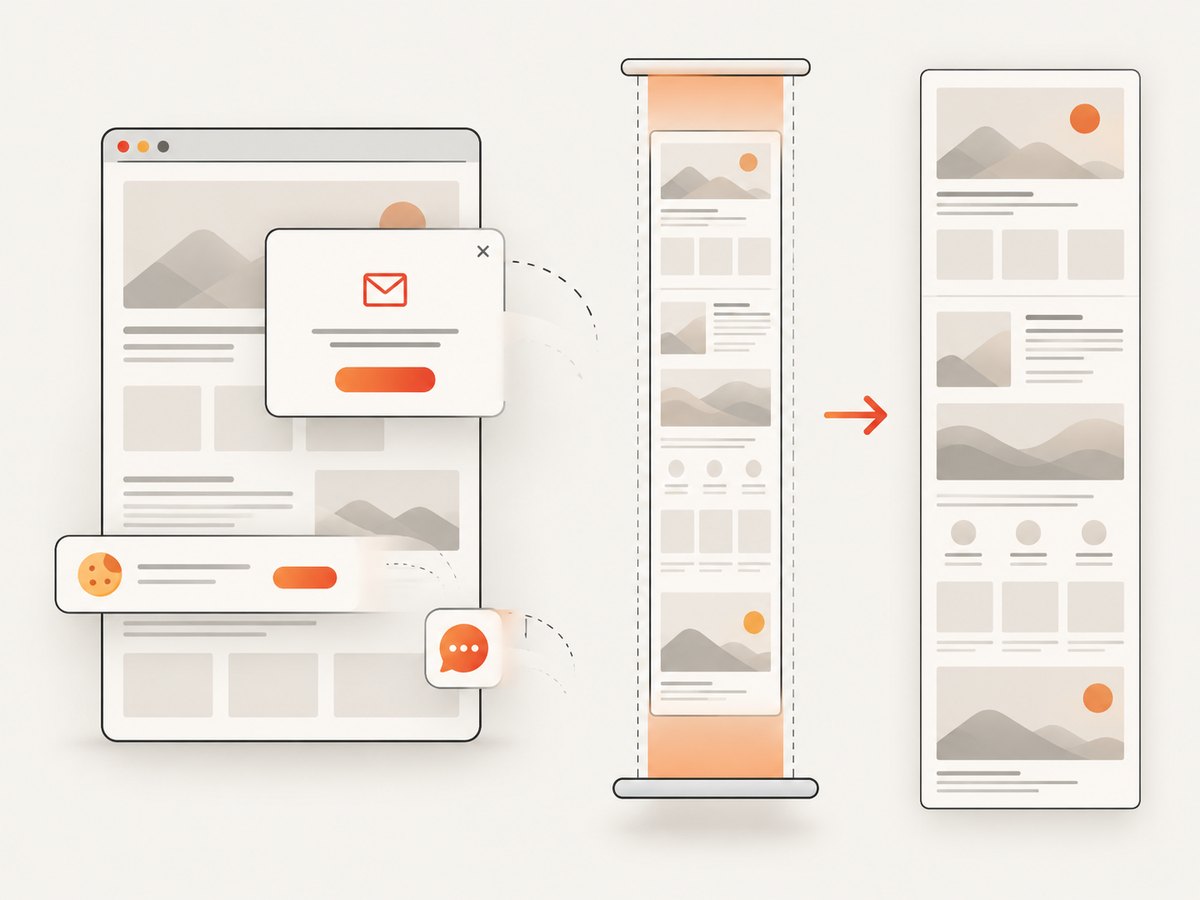
curl -G "https://api.screenshotneo.com/v1/shot" -d access_key=YOUR_API_KEY --data-urlencode url=https://stripe.com -o shot.webpIt accepts cookie and consent banners like a visitor and removes 60+ known consent platforms, newsletter popups, and chat widgets before the shot; you can turn each step off. Bot checks and CAPTCHAs, blank pages, timeouts, failed loads, and cache hits cost nothing, and each response identifies the page verdict and billing status. Its MCP server gives Claude, Cursor, and other MCP clients the take_screenshot, get_page_info, and capture_pdf tools. The free plan includes 1,000 screenshots a month with no card; paid plans start at $5 for 3,000.
For API setup and available capture options, see the [ScreenshotNeo docs](https://screenshotneo.com/docs/). [Sign up free](https://screenshotneo.com/account/sign-up/) for 1,000 screenshots a month with no card.
10. Performance, reliability, and cost
For a manual capture, the main cost is your time: open the right menu, review the result, and save or share it. A long page can take longer to process than a short visible-screen capture, and a very tall result may be harder to inspect or share. Crop to the relevant content when the complete page is unnecessary.
For scripted captures, account for page loading and image transfer. A page with delayed content may need an appropriate wait condition before capture; a full-page image also contains more pixels than a viewport image. Choose a useful output format and size for the destination, and avoid recapturing unchanged pages when caching suits the use case. For robust automation, check the HTTP result and response headers, set a timeout, and decide how your job handles failed loads and retries. Do not treat a failed capture as a valid image simply because a response body was returned.
ScreenshotNeo supports waits for a selector, a delay, or network idle; caching with a TTL you choose; image resizing; and formats including PNG, JPEG, and WebP. It also supports async jobs with signed webhooks and bulk capture of up to 100 URLs per call. Its free tier is 1,000 shots monthly; paid tiers are Starter $5 for 3,000, Growth $15 for 15,000, Pro $39 for 60,000, Scale $99 for 250,000, and Business $249 for 1,000,000. Yearly billing gives two months free, and every feature is on every plan. Review current plan details and usage through the product documentation before building a budget.
11. FAQ
Is a scrolling screenshot the same as a full-page screenshot?
In ordinary use, both describe capturing page content beyond the current viewport. Product labels vary: Apple uses Full Page, Android uses Capture more, and Chrome on Android uses Long screenshot.
Can I take a scrolling screenshot of any app?
No. Google’s Android instructions cover most scrollable screens on Android 12 and later. Browser-specific tools target webpages, and support can vary by device and version.
Will the capture include content that only loads after scrolling?
That depends on the tool and page. For API captures, use a supported wait option when page content loads asynchronously, and verify the resulting image includes the expected sections.
What should I use for automated or repeated webpage screenshots?
Use a scripted browser or screenshot API when captures need to run on a schedule, in bulk, or inside an application. ScreenshotNeo provides a URL-based API and MCP tools; see its [documentation](https://screenshotneo.com/docs/) for request options.


