How to Take a Full-Page Screenshot
Capture an entire webpage on desktop or mobile. Follow the steps for Firefox, Chrome, iPhone, and Android, or automate full-page captures with an API.
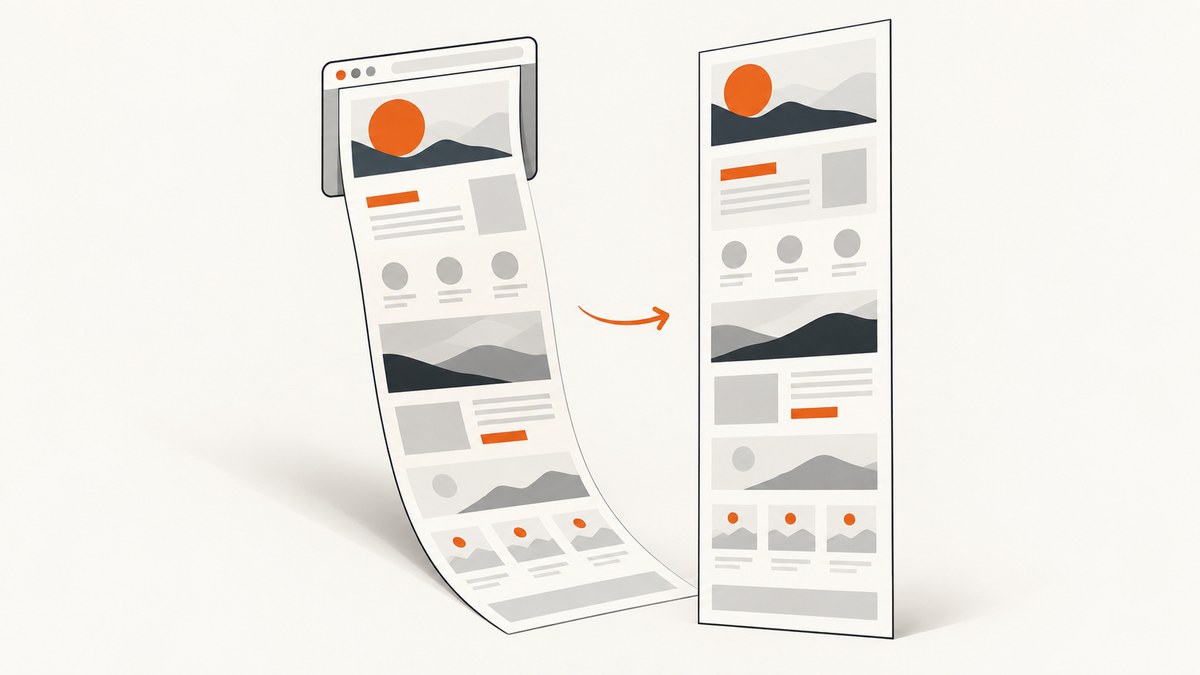
A full-page screenshot captures webpage content beyond what fits in the visible browser window. The steps depend on your browser and device: Firefox has a documented whole-page control in desktop Developer Tools, Chrome desktop has a DevTools command documented by its user community, iPhone offers a Full Page view for Safari pages, and Android supports scrolling screenshots on many devices. If you need repeatable captures from code, use a browser automation workflow or a screenshot API.
For a one-off capture, start with the steps below for your device. For a reliable image workflow, check the output format and review the resulting capture for missing or repeated content: very long pages, embedded scroll areas, and dynamically loaded sections may behave differently across sites.
1. Choose the capture method that fits
| Platform | Method | Output and caveats |
|---|---|---|
| Firefox desktop | Developer Tools screenshot control | Image saved to Downloads; control may need enabling |
| Chrome desktop | DevTools command menu | Community-documented route; command labels can change |
| iPhone Safari | Screenshot preview, then Full Page | Inspect and crop the webpage capture |
| Firefox on iPhone | Screenshot preview, Full Page, Save as PDF | PDF document, not necessarily a PNG or JPEG |
| Android 12+ | Screenshot, then Capture more | Works on most screens that allow scrolling; device support varies |
| Chrome for Android | More → Share → Long screenshot | Availability and labels can vary by app version and locale |
There is no single universal shortcut. First decide whether you need a long image or a document, and whether the capture is a one-off or part of a repeatable developer workflow.

2. Firefox on desktop
- Open the page you want to capture.
- Open Firefox Developer Tools.
- Look for the screenshot icon in the Developer Tools toolbar. If it is missing, open Developer Tools settings and find Available Toolbox Buttons.
- Enable Take a screenshot of the entire page.
- Click the screenshot icon to capture the page. Firefox saves the image in the browser’s Downloads directory.
Firefox also documents capturing an individual element. That is a different operation: choose it when you want one component, such as a chart or card, rather than the full document. See Mozilla’s Firefox Developer Tools screenshot documentation for the current details.
3. Chrome on desktop
The research for this guide found the following route in a Google Chrome Community response; it is community guidance rather than formal Chrome Help documentation, and the command name or availability may change between versions.
- Open the target page in Chrome.
- Open Developer Tools.
- Open the DevTools command menu.
- Search for Capture full size screenshot and select the command.
Check the saved file before sharing it. If you cannot find the command, confirm that Developer Tools is open and search the command menu for “screenshot.” For team documentation, verify the current Chrome version’s command rather than relying on a menu label copied from an older guide. The supporting Chrome Community response is not an official Chrome Help procedure.
4. iPhone: Safari and Firefox
Safari: save a Full Page screenshot
- Open the webpage in Safari and take a normal iPhone screenshot using the button combination supported by your model.
- Tap the screenshot preview before it disappears.
- Choose Full Page in the preview to inspect the page capture.
- Adjust the crop if needed, then save or share using the available options.
Button combinations vary by iPhone model. Apple also lists Siri, AssistiveTouch, and Back Tap as ways to take a screenshot. See Apple’s iPhone guide for device-specific instructions.
Firefox on iOS: save the full page as a PDF
- Take a standard iPhone screenshot while viewing the page in Firefox.
- Tap the screenshot thumbnail, then choose Full Page.
- Tap Done and select Save as PDF.
This Firefox route produces a PDF, which can be a better fit for preserving or sharing a long page as a document. It is not the same as exporting a single image file. Mozilla’s instructions were created in 2023, so check the current app interface if a label has changed: Save web pages as PDFs in Firefox for iOS.
5. Android: scrolling screenshots
Android system capture
Google documents scrolling screenshots on Android 12 and later for most screens that allow scrolling.
- Open a page that scrolls and take a screenshot with your device’s supported button action.
- Tap Capture more in the screenshot controls.
- Move the crop guides to include the additional page content you need.
- Save the finished capture.
The control is not available on every device or screen. If you do not see it, check your Android version, try a screen that actually scrolls, and consult the device manufacturer’s help. Google’s instructions are at Take a scrolling screenshot on Android.
Chrome for Android: Long screenshot
Chrome Help documents a separate route in Chrome for Android: open the page, tap More, choose Share, then Long screenshot. Drag the crop handles to extend the selection, then continue with the available save or share action. The menu wording and availability can depend on Chrome version and locale. See Chrome’s Long screenshot instructions.
6. Automate full-page screenshots with a browser
When captures need to run repeatedly, a browser automation library gives you control over viewport, page loading, and output location. Playwright’s screenshot option fullPage: true captures the full scrollable page. Install Playwright and its Chromium browser, then save this as full-page.mjs:
import { chromium } from 'playwright';

const url = process.argv[2] ?? 'https://example.com';
const browser = await chromium.launch({ headless: true });
try {
  const page = await browser.newPage({
    viewport: { width: 1440, height: 900 },
    deviceScaleFactor: 1,
  });
  await page.goto(url, { waitUntil: 'networkidle', timeout: 60_000 });
  await page.screenshot({ path: 'full-page.png', fullPage: true });
} finally {
  await browser.close();
}
Run it with node full-page.mjs https://example.com. This assumes Node.js and Playwright are installed and the target is publicly reachable. For a local setup, install the Playwright package and its browser using the commands in Playwright’s official getting-started guide. The script uses a 60-second navigation timeout and closes the browser even when navigation or capture fails.
Adjust the capture for your use case
- Viewport: set width and height to control responsive layout. A different width can change the page’s line wrapping and total height.
- Device scale: increase
deviceScaleFactorfor higher-density output, at the cost of larger images and memory use. - Wait condition:
networkidlecan help when a page loads assets asynchronously, but analytics or long polling may prevent it. For such pages, wait for a meaningful selector or a short explicit delay instead. - Output: change the filename extension and screenshot type for formats supported by your browser automation library. Use PDF generation when the desired result is a document with pages rather than one extremely tall raster image.
- Authentication: pass the required cookies or headers through a browser context when capturing pages that need a session. Protect credentials and avoid saving them in source control.
- Dynamic content: scroll or otherwise trigger lazy-loaded images before capture if the site does not load them until they approach the viewport. Review the output for missing sections.
Full-page browser screenshots can consume substantial memory on very long or high-resolution pages. If the page is enormous, consider a PDF, a narrower viewport, or capturing sections separately. A full-page screenshot represents the rendered page at capture time; it does not guarantee that an interactive embedded panel or every off-screen lazy asset has been expanded.
7. Or skip the browser setup
ScreenshotNeo is a website screenshot API and MCP server. Send one GET request with a URL and it returns a screenshot image or PDF. Its full-page capture loads lazy images, and its other options include viewport and device presets, CSS selectors, wait conditions, custom CSS and JavaScript, cookies and headers, and image format. See the ScreenshotNeo API documentation for request parameters.

curl -G "https://api.screenshotneo.com/v1/shot" \
  -d access_key=YOUR_API_KEY \
  --data-urlencode url=https://stripe.com \
  -d full_page=true \
  -o shot.webp
import requests
r = requests.get(
"https://api.screenshotneo.com/v1/shot",
params={
"access_key": "YOUR_API_KEY",
"url": "https://stripe.com",
"full_page": "true",
},
timeout=90,
)
r.raise_for_status()
with open("shot.webp", "wb") as f:
f.write(r.content)const q = new URLSearchParams({
access_key: 'YOUR_API_KEY',
url: 'https://stripe.com',
full_page: 'true',
});
const res = await fetch(`https://api.screenshotneo.com/v1/shot?${q}`);
if (!res.ok) throw new Error(`Screenshot request failed: ${res.status}`);
const bytes = new Uint8Array(await res.arrayBuffer());
await import('node:fs/promises').then(({ writeFile }) =>
writeFile('shot.webp', bytes)
);Replace YOUR_API_KEY with your key and set the target URL. The code examples save the response bytes; check the response and returned format when changing the requested output type. For a full-page capture, the option is full_page=true.
- Cookie banners are accepted and removed, along with supported newsletter popups and chat widgets, before the shot; each cleanup step can be turned off.
- Bot checks or CAPTCHAs, blank pages, timeouts, failed loads, and cache hits are not billed. Response headers report the page verdict and billing status.
- An MCP server exposes screenshot tools to AI agents, including Claude, Cursor, and other MCP clients.
- The free plan includes 1,000 shots each month with no card. Paid plans start at $5 for 3,000 shots; all features are on every plan.
Create a free ScreenshotNeo account for 1,000 screenshots a month with no card.
8. Troubleshooting full-page captures
| Symptom | Likely cause | What to try |
|---|---|---|
| No full-page control on Firefox desktop | The toolbox button is disabled | Open Developer Tools settings and enable Take a screenshot of the entire page. |
| No scrolling screenshot on Android | Older Android version, non-scrollable screen, or device limitation | Check for Android 12+, try a scrollable screen, and consult manufacturer documentation. |
| Chrome command is missing | Command label or availability varies | Search the DevTools command menu for screenshot and verify current Chrome guidance. |
| Capture ends before images or content load | Lazy loading or asynchronous rendering | Wait for a content selector, trigger scrolling to load sections, or use an appropriate delay before capture. |
| Automation hangs at network idle | Persistent connections or background requests | Use a selector-based wait or a bounded delay instead of waiting indefinitely for idle. |
| Very tall image is slow or fails | Large raster dimensions use significant memory | Reduce viewport width or device scale, capture sections, or export a PDF. |
| Embedded panel is absent | The panel may scroll independently from the document | Capture the element separately or interact with the panel before taking the screenshot. |
| Output is a PDF when an image was expected | Firefox on iOS uses a Save as PDF route for full-page capture | Use Safari’s Full Page capture or a desktop/API image workflow when you specifically need a raster image. |
For mobile controls, vendor instructions are device- and version-specific. In particular, this guide does not establish current official desktop capture steps for Edge or Safari on Mac, so verify those with the respective vendor before documenting exact menu paths.
9. Reliability, performance, and cost
For occasional personal captures, built-in browser and phone tools have no additional service cost. They are convenient, but the available controls vary by platform, and manual captures are difficult to reproduce exactly across devices or over time.
Browser automation is useful for repeatable captures and integration into a script or build workflow. You control the viewport and waits, but you also maintain the browser runtime, handle site-specific authentication, and account for network failures and dynamic content. Bound navigation and selector waits with timeouts, close browser processes on errors, and review captures when the source page changes.
An API can remove the need to manage a browser in your own script and can expose capture settings through request parameters. ScreenshotNeo offers 1,000 free shots per month, then plans from $5 for 3,000; larger listed plans are Growth $15 for 15,000, Pro $39 for 60,000, Scale $99 for 250,000, and Business $249 for 1,000,000. Yearly billing gives two months free. Only clean shots are billed; failed or non-page outcomes and cache hits are not. Check the product’s current plan details before budgeting because prices and service details can change.
For any method, long pages take longer to render and create larger files than viewport captures. Use only the resolution and page area you need, and avoid capturing the same unchanged page repeatedly when a cache or scheduled refresh can serve the workflow.
10. Frequently asked questions
What is the difference between a full-page and scrolling screenshot?
Both refer to capturing content beyond the visible screen. Some phone interfaces call the feature a scrolling screenshot; desktop developer tools may describe it as capturing the entire or full-size page.
Can I always save a full-page screenshot as PNG or JPEG?
No. The documented Firefox-on-iOS path here saves the full-page result as a PDF. Other tools may provide image output; check the save options before beginning if a specific format matters.
Can I capture a page that requires login?
Manual browser capture can use a page where you are already signed in. Automation needs the relevant authenticated browser context, cookies, or headers. Keep session secrets out of scripts committed to a repository.
Why does a full-page capture look different from what I saw while scrolling?
Responsive layout, animations, lazy loading, and page state can affect the rendered result. Set a consistent viewport, wait for important content, and inspect the saved file.
Does every browser offer the same built-in steps?
No. The documented procedures and controls differ by browser, device, and version. Follow the relevant vendor instructions and verify steps for platforms whose current procedure is not covered here.


