How to Take a Live Screenshot of a Website
Capture the visible page, the full scrollable document, or a single element with browser tools, Playwright, Puppeteer, or ScreenshotNeo.
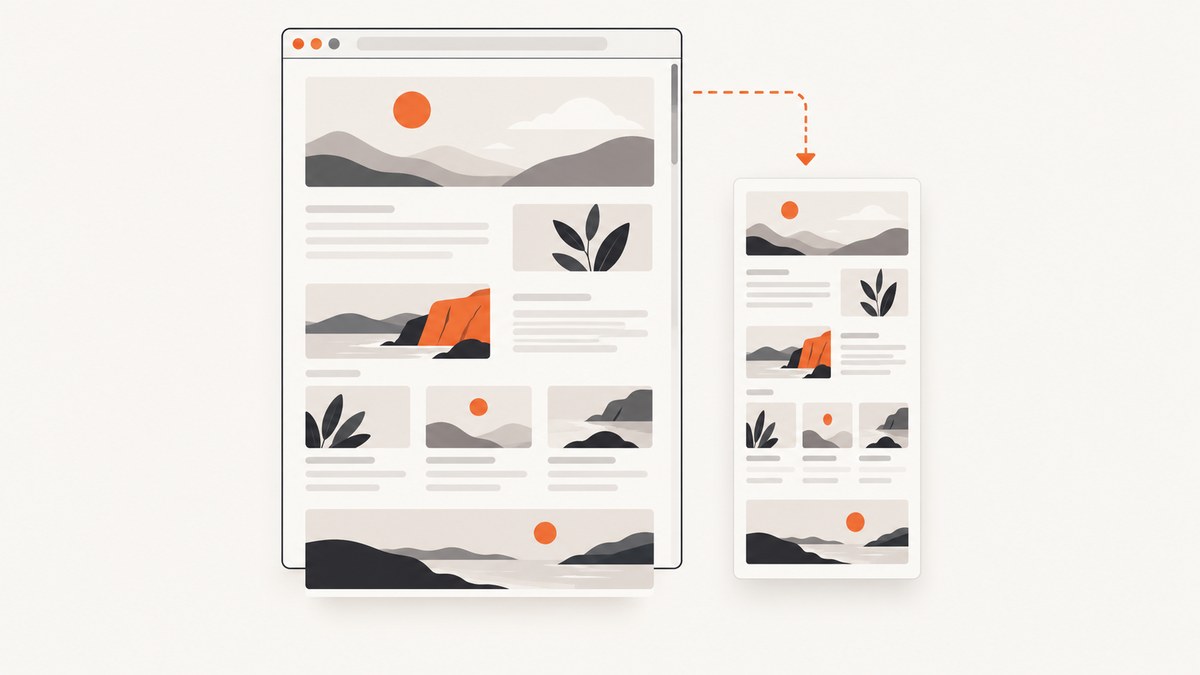
Quick answer: Open the exact page and state you want to preserve, then use your browser’s built-in screenshot or your operating system’s capture control. A viewport screenshot records only what is visible. Choose a full-page capture when content continues below the fold, or capture a selected element when you need one component such as a chart or form.
Browser menus and keyboard shortcuts vary by browser and operating system, so use the current screenshot or capture command exposed by your setup rather than relying on one universal shortcut. Save the result with a descriptive filename, such as pricing-page-2026-10-01.png.
Choose the right kind of capture
| Goal | Use | Trade-off |
|---|---|---|
| Show only what is on screen | Viewport screenshot | Content below the fold is omitted. |
| Preserve a long page | Full-page screenshot | The output can be very tall; it captures the full scrollable page. |
| Show one chart, form, or component | Element screenshot | You must identify the element. |
| Repeat captures in a script | Playwright or Puppeteer | Requires project setup, but produces repeatable files. |
A screenshot is a bitmap of the page as rendered at capture time. It is not an editable copy of the HTML and does not record later changes. “Full page” means the scrollable webpage, not the browser chrome or your desktop.
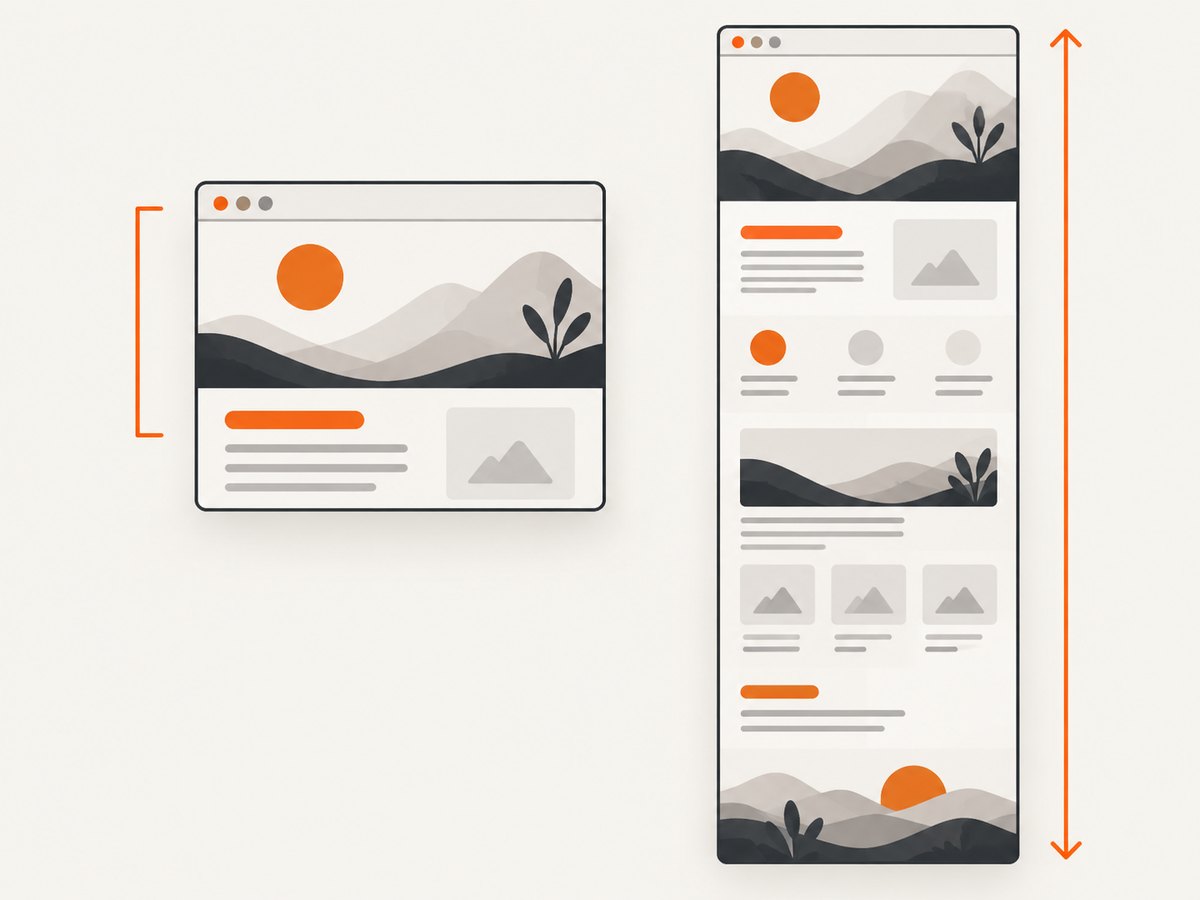
Capture one page with browser controls
- Navigate to the exact URL and put the page in the state you want to preserve. Open menus, expand sections, or dismiss overlays first.
- Choose the browser’s built-in screenshot or capture feature, or your operating system’s screenshot control.
- Select a visible-viewport mode for the current screen. If available, select a full-page or scrolling mode for content below the fold.
- Save to a known folder with a descriptive name and the format your workflow needs (PNG, JPEG, or WebP when offered).
Before you capture
- Wait for fonts, images, charts, and client-rendered content to finish loading.
- Set the browser zoom and window size deliberately; they change the rendered result.
- Close cookie banners, chat bubbles, newsletter popups, and other overlays if they obscure the page.
- For a page behind authentication, sign in first and check that the session is still active.
Automate screenshots with Playwright
Playwright can navigate to a URL and save either a viewport image or the full scrollable page. The documented fullPage option captures the full page rather than only the viewport. Check the API version installed in your project before publishing or deploying code because software APIs change. See the Playwright screenshot guide and Page API.
Install and run
mkdir live-shot
cd live-shot
npm init -y
npm install playwright
npx playwright install chromium
// screenshot.mjs
import { chromium } from 'playwright';
const browser = await chromium.launch();
const page = await browser.newPage({
viewport: { width: 1440, height: 900 },
deviceScaleFactor: 1
});
await page.goto('https://example.com', { waitUntil: 'networkidle' });
await page.screenshot({ path: 'example-full.png', fullPage: true });
await browser.close();node screenshot.mjsFor only the visible viewport, omit fullPage:
await page.screenshot({ path: 'example-viewport.png' });Capture one element
const card = page.locator('[data-testid="pricing-card"]');
await card.screenshot({ path: 'pricing-card.png' });
Element capture is useful for a chart, form, or other component. Playwright’s screenshot tool does not combine an element target with fullPage; choose the element or the complete page for that operation.
Wait for dynamic content
await page.goto('https://example.com/dashboard', { waitUntil: 'domcontentloaded' });
await page.locator('#report').waitFor({ state: 'visible' });
await page.waitForTimeout(500);
await page.screenshot({ path: 'report.png' });
Prefer a meaningful selector or a documented application-ready signal over an arbitrary delay when possible. A delay can help animations settle, but it also makes every capture slower.
Control resolution and device emulation
const page = await browser.newPage({
  viewport: { width: 390, height: 844 },
  deviceScaleFactor: 2,
  isMobile: true,
  hasTouch: true
});
The viewport uses CSS pixels. A device scale factor changes the number of output pixels, which matters when you need a high-resolution image versus an image that matches CSS layout dimensions.
Use Puppeteer when your JavaScript stack already uses it
Chrome for Developers describes Puppeteer as a JavaScript library for automating Chrome and Firefox and lists screenshots among its uses. It is a practical choice when the rest of your automation is already built around Puppeteer.
npm install puppeteer// puppeteer-shot.mjs
import puppeteer from 'puppeteer';
const browser = await puppeteer.launch();
const page = await browser.newPage();
await page.setViewport({ width: 1440, height: 900, deviceScaleFactor: 1 });
await page.goto('https://example.com', { waitUntil: 'networkidle2' });
await page.screenshot({ path: 'example-full.png', fullPage: true });
await browser.close();Common options for repeatable captures
- URL and navigation: Use the final URL and wait for the appropriate load state.
- Viewport: Set width and height explicitly so runs are comparable.
- Device scale: Choose CSS-pixel output for layout comparisons or a higher scale for sharper images.
- Full page: Include scrollable content when below-the-fold material matters.
- Element: Target a stable selector for one component.
- State: Reproduce authentication, cookies, query parameters, expanded panels, and selected tabs.
- Motion: Disable or wait for animations to avoid inconsistent frames.
- Output: Use PNG for lossless UI text, JPEG for smaller photographic files, or WebP when your downstream tools support it.
Troubleshooting
| Symptom | Likely cause | Fix |
|---|---|---|
| Only the top of a long page appears | Viewport mode was used. | Enable fullPage: true or the browser’s full-page mode. |
| Text or charts are missing | Capture ran before client rendering or fonts finished. | Wait for a specific selector, network idle, or the application’s ready signal. |
| Cookie or chat overlay covers content | The overlay is part of the rendered state. | Dismiss it before capture, or hide it with automation/CSS. |
| Element selector fails | The selector is unstable or the element is inside a frame. | Use a stable attribute, wait for visibility, and address the correct frame. |
| Images are blank or lazy-loaded | Images load only after scrolling or interaction. | Trigger the required state and wait for image completion before taking the shot. |
| Output dimensions differ between runs | Window, viewport, zoom, or device scale changed. | Set these values explicitly and keep the same browser version. |
| Navigation times out | The page or a dependency is slow or unavailable. | Check the URL and network, increase the timeout carefully, and retry with bounded backoff. |
| Login page appears instead of the target | Credentials or session cookies were not supplied. | Authenticate in the browser context and verify the target URL before capture. |
Performance, reliability, and cost
- Reuse one browser process for a batch of URLs, while creating isolated contexts when cookies or authentication must differ.
- Use a viewport capture when below-the-fold content is irrelevant; full-page stitching requires more rendering and produces larger files.
- Wait for the smallest reliable readiness condition. Waiting for every network request can be slow on pages with analytics or long-lived connections.
- Use deterministic viewport, timezone, locale, and device scale settings when comparing images.
- Retry transient navigation failures with a limit, record the URL and error, and avoid treating a partial image as success.
- Browser automation consumes compute and requires maintenance as browser versions and page implementations change. A one-off manual capture is usually cheaper than building a script; recurring jobs benefit from automation.
Or skip the browser setup
ScreenshotNeo provides a website screenshot API and MCP server. One GET request returns a PNG, JPEG, WebP, or PDF. Cookie and consent banners, newsletter popups, and chat widgets are removed before the shot; each cleanup step can be turned off. Bot checks or CAPTCHAs, blank pages, timeouts, failed loads, and cache hits are not billed, and response headers identify the page verdict and whether it was billed.

See the ScreenshotNeo API documentation for the complete parameter list.
curl -G "https://api.screenshotneo.com/v1/shot" \
  -d access_key=YOUR_API_KEY \
  --data-urlencode url=https://stripe.com \
  -o shot.webp
import requests
r = requests.get(
"https://api.screenshotneo.com/v1/shot",
params={"access_key": "YOUR_API_KEY", "url": "https://stripe.com"},
timeout=90,
)
r.raise_for_status()
open("shot.webp", "wb").write(r.content)const q = new URLSearchParams({ access_key: 'YOUR_API_KEY', url: 'https://stripe.com' });
const res = await fetch(`https://api.screenshotneo.com/v1/shot?${q}`);
if (!res.ok) throw new Error(`Screenshot failed: ${res.status}`);
const fs = await import('node:fs/promises');
await fs.writeFile('shot.webp', Buffer.from(await res.arrayBuffer()));ScreenshotNeo also supports full-page and element capture, dark mode, device presets or custom viewports, retina scale, custom CSS and JavaScript, clicks, selector waits, delays, network-idle waits, headers, cookies, user agents, authorization, timezone, geolocation, blocking rules, resizing, caching, signed links, asynchronous jobs, webhooks, bulk capture, usage reporting, PDFs, and HTML/CSS-to-image. Its MCP server exposes take_screenshot, get_page_info, and capture_pdf for Claude, Cursor, and other MCP clients.
There is a free tier of 1,000 screenshots per month with no card. Paid plans start at $5 for 3,000 shots; yearly billing gives two months free. Create a free ScreenshotNeo account to get started.
FAQ
Does a screenshot include the browser controls?
Normally it captures the webpage rendering, not the browser chrome or operating-system desktop. Check the mode selected by your browser or automation tool.
Should I use PNG or JPEG?
PNG is a good default for interface text and line art. JPEG can reduce file size for photographs; WebP is useful when your delivery pipeline supports it.
Can I capture a page that requires login?
Yes, if the browser context has a valid authenticated session. Supply the required cookies or headers in an automated workflow and confirm that the target page, rather than a login redirect, was rendered.
Why does my full-page image look different from what I saw?
Full-page capture renders the scrollable document and may trigger lazy loading or layout changes. Set a fixed viewport, wait for content, and disable moving elements when visual consistency matters.
Is a screenshot a recording?
No. It is one image of the page at a particular time and state.


