How to Take a Screenshot as a JPEG
Capture a screenshot on Windows, Mac, iPhone, or Android, then export it as JPEG. Learn when to keep PNG or HEIF and how to avoid a fake file conversion.
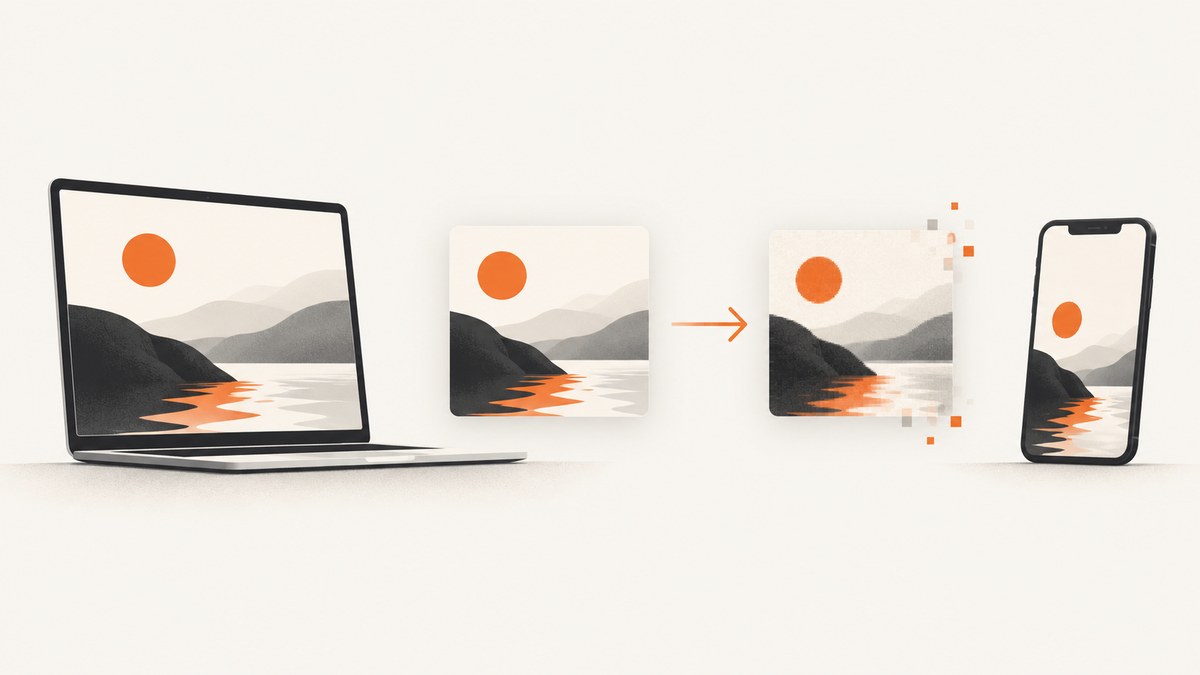
To take a screenshot as a JPEG, capture the screen with your device’s built-in screenshot tool, open the resulting image in an editor or preview app, then choose Export or Save As and select JPEG or JPG. Most screenshot tools save a native image first; JPEG is often a format you choose when exporting.
The steps vary by device. Windows and many Android devices commonly save screenshots as PNG, while Apple documents PNG for screenshots and HEIF for screenshots in HDR mode. You can convert those images by exporting them, but don’t simply rename the file extension: a PNG renamed to .jpg is still encoded as PNG.
1. Choose the right format before converting
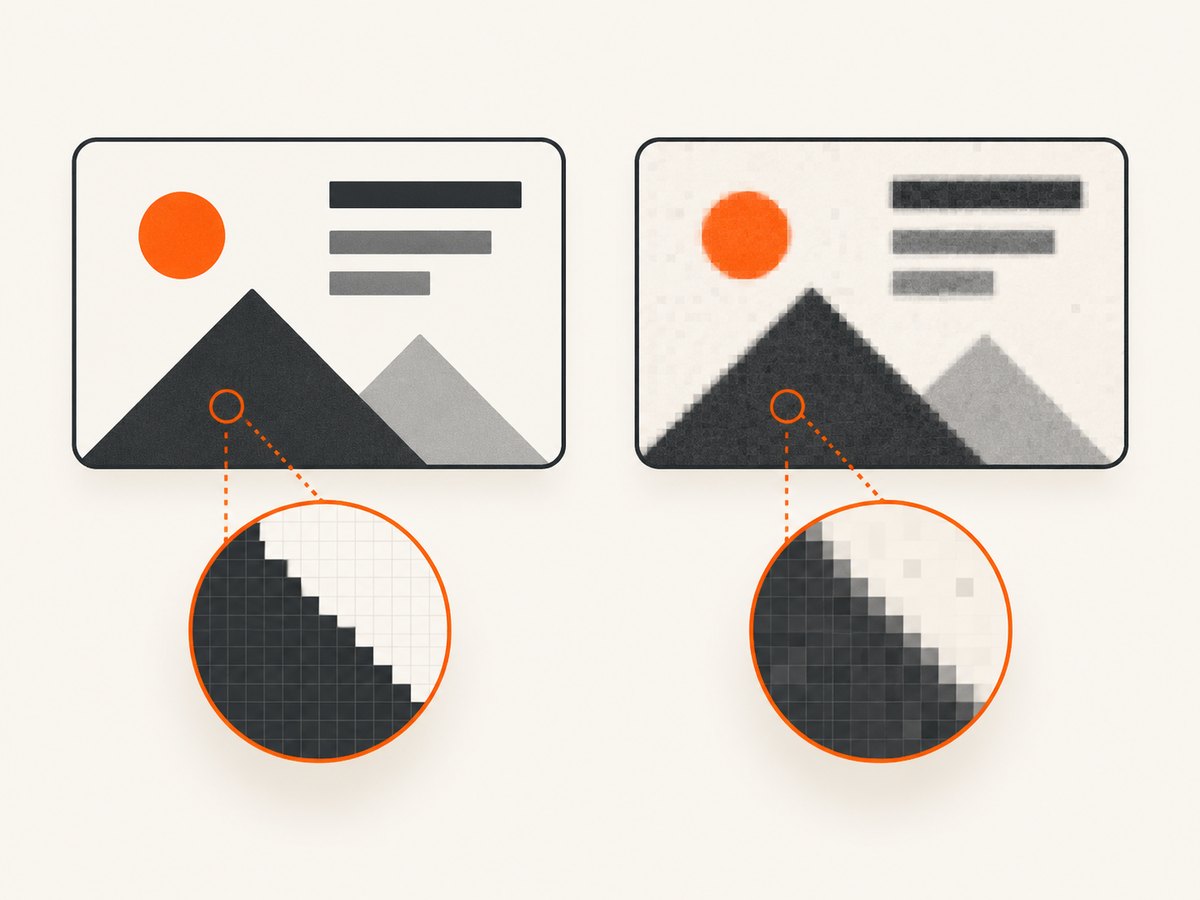
JPEG is useful when a website, upload form, or other destination specifically requires a JPG/JPEG file. It is a lossy format, so exporting can reduce image quality, particularly around small text, thin lines, and sharp interface edges. The resulting file size depends on the image and export-quality setting; there is no fixed size reduction.

| Format | Use it when | Trade-off |
|---|---|---|
| JPEG / JPG | A destination requires it, or you need a broadly accepted image format. | Lossy compression can make text or UI edges look soft or blocky. |
| PNG | The screenshot contains text, charts, interface details, or needs lossless editing. | File size varies by content and may be larger than a JPEG. |
| HEIF / HEIC | Your Apple workflow and destination support it, and you want to keep the original. | Some upload forms and older software may not accept it. |
If the recipient accepts PNG, keeping the original is often the simplest way to preserve sharp detail. Convert only when compatibility or a specific file requirement calls for JPEG.
2. Windows: capture, then save as JPEG
- Press Windows logo key + PrtScn to capture the screen. Microsoft says screenshots made this way are saved in Pictures > Screenshots. On applicable keyboards without a PrtScn key, Microsoft lists Fn + Windows logo key + Space Bar as an alternative. See Microsoft’s screenshot instructions.
- Alternatively, press Windows logo key + Shift + S to open Snipping Tool. Choose rectangular, free-form, window, or full-screen capture. The capture is copied to the clipboard and appears in Snipping Tool, where you can edit or save it. Microsoft describes these capture modes in its Snipping Tool guidance.
- Open the saved screenshot in Paint, Photos, or another installed image editor. If you used the clipboard shortcut, open the capture in Snipping Tool or paste it into an editor.
- Choose Save As or Export, select JPEG or JPG as the file type, choose a destination, and save. The exact menu wording depends on the app version.
Before sending the result, check the saved filename and open it once. A proper export should have JPEG encoding, rather than just a changed extension.
3. Mac: export a screenshot from Preview
- Capture the screen using the built-in macOS screenshot shortcuts or Screenshot utility. Use the capture mode that fits the area you need.
- Open the resulting image in Preview. If it opened in another app, use Finder’s Open With command to select Preview.
- Choose File > Export, then select JPEG in the format options. Choose a filename and location; adjust the quality control if it is shown.
- Save and reopen the exported file to confirm it looks right and has a JPEG format.
Apple’s ScreenCaptureKit documentation says its output image can be saved as HEIC, JPEG, or PNG. That is a capability of Apple’s screen-capture framework; the format choices and defaults shown in a particular macOS utility can vary. If the capture utility saved PNG, exporting from Preview is a straightforward conversion path. For text-heavy captures, compare the JPEG to the original at normal viewing size and use PNG if compression artifacts are distracting.
4. iPhone and iPad: capture, then export a JPEG copy
- On an iPhone with Face ID, quickly press and release the side button and volume-up button together. On Touch ID models, use the side or top button together with Home, following Apple’s screenshot instructions.
- Find the image in Photos under Collections > Media Types > Screenshots.
- Open it in Photos or an image editor. Use the app’s export, save-copy, or share workflow and choose JPEG if that format is offered. Menu labels and format controls vary by app and iOS version; if Photos does not expose the format you need, use an editor or converter that explicitly exports JPEG.
- Save the exported copy and check that the destination receives a JPEG file. Keep the original if you may need its full quality later.
Apple documents that screenshots use PNG and screen recordings use HEVC; in HDR mode, screenshots use HEIF. See Apple’s image format guidance. This is why an iPhone capture may not already be JPG. If a destination accepts the original PNG or HEIF, there is no need to convert just for the extension.
5. Android: capture, then convert with an editor
- Press Power + Volume down at the same time. On some phones, hold Power and tap Screenshot. Google lists both methods in its Android screenshot help.
- Find the image in Google Photos under Collections > On this device > Screenshots, or in the Gallery app’s Screenshots folder on devices without Photos.
- Open the screenshot in an editor or converter. Choose Save copy, Export, or Convert, then select JPEG/JPG. The available actions depend on the phone maker, Android version, and gallery app.
- Save the converted copy and verify it opens as an image. Keep the source file until you confirm the JPEG is acceptable.
Android screenshot format and export controls are not identical across manufacturers. If your gallery app has no JPEG option, use another installed editor that explicitly supports JPEG export. Avoid uploading private screenshots to an unknown online converter; an offline app is preferable for sensitive content.
6. Verify that the image is really JPEG
Extensions can be changed without changing image data. To confirm a conversion, open the exported file in an image app or inspect its file information. On Windows, the file’s Properties may show its type; on macOS, Finder’s Get Info shows its kind. These labels are useful checks, although applications can differ in how they display formats.
- Look for a file ending in
.jpgor.jpegafter using an export or conversion command. - Open the file in a viewer or editor and confirm it renders correctly.
- If a receiving service rejects it, check whether it requires JPEG specifically, limits dimensions or file size, or rejects a particular color profile.
- Do not rename
.pngor.heicto.jpgas a substitute for conversion.
7. Convert screenshots in a developer workflow
For an automated image pipeline, use an image library that decodes the source and writes JPEG pixels. The following examples assume the library is installed and the input file is a supported image. Conversion cannot recover detail that was absent from the source, and JPEG output is lossy.
Python with Pillow
from PIL import Image

source_path = "screenshot.png"
output_path = "screenshot.jpg"

with Image.open(source_path) as image:
    # JPEG does not support transparency. Composite transparent pixels onto white.
    if image.mode in ("RGBA", "LA") or (image.mode == "P" and "transparency" in image.info):
        rgba = image.convert("RGBA")
        background = Image.new("RGB", rgba.size, "white")
        background.paste(rgba, mask=rgba.getchannel("A"))
        image = background
    else:
        image = image.convert("RGB")

    image.save(output_path, format="JPEG", quality=90, optimize=True)

print(f"Wrote {output_path}")
Install Pillow with python -m pip install Pillow. The example flattens transparency onto white because JPEG has no alpha channel. Pick a quality appropriate to your use and inspect output around text and line art; quality values are encoder settings, not a promise of a particular file size.
Node.js with Sharp
import sharp from "sharp";

const inputPath = "screenshot.png";
const outputPath = "screenshot.jpg";

await sharp(inputPath)
  .flatten({ background: "#ffffff" })
  .jpeg({ quality: 90, mozjpeg: true })
  .toFile(outputPath);

console.log(`Wrote ${outputPath}`);
Install Sharp with npm install sharp. The flatten step gives transparent input a white background before encoding. If preserving transparency matters, JPEG is the wrong output format; use PNG or a supported format with alpha instead.
cURL and HTTP image services
cURL itself does not convert image encodings. It can download a screenshot, after which an image tool can convert the file. For a website screenshot service that returns JPEG directly, request its JPEG output option as documented by that service. ScreenshotNeo’s API accepts a URL and returns PNG, JPEG, WebP, or PDF; consult the ScreenshotNeo API docs for request options and output parameters.
8. Troubleshooting
| Problem | Likely cause | Fix |
|---|---|---|
| The screenshot is PNG or HEIC, not JPG | The operating system or capture tool saved its native format. | Open it in an editor and use Export or Save As to select JPEG. |
| The renamed .jpg file will not open | Only the filename changed; the data is still PNG or HEIC. | Convert through an image editor or library that decodes and re-encodes it. |
| The JPEG has a white or black background | JPEG cannot store transparency, so transparent pixels were flattened. | Choose the intended background color before conversion, or keep a format with transparency. |
| Small text looks fuzzy or has blocks | Lossy compression affected sharp edges, or the quality setting is too low. | Export at a higher quality or keep PNG for text-heavy screenshots. |
| Colors look different | The app may have converted color profiles or handled HDR differently. | Use the original for archival use; compare in a color-managed viewer and follow the destination’s format requirements. |
| The editor has no JPEG option | The app may only support saving its current format or may hide formats behind Export. | Look for Export, Save a Copy, or Convert; otherwise use another installed image editor. |
| The upload still fails | The form may enforce file size, dimensions, or MIME type in addition to extension. | Check the service’s requirements, export a genuine JPEG, and resize only if its rules require it. |
| Screenshot shortcut does nothing | Keyboard layout, hardware shortcuts, permissions, or device-specific behavior may differ. | Use the built-in Screenshot/Snipping Tool app and consult the device maker’s shortcut guidance. |
9. Performance, reliability, and storage
For a one-off conversion, using the device’s built-in editor is usually the fewest-step approach. Converting many images is more consistent with a script, where the format, quality, and background handling can be set explicitly. For reliable batch work, retain the original until the output has been checked, write results to a separate destination, and handle unsupported inputs as errors instead of silently changing file extensions.
JPEG output size depends on dimensions, image detail, and encoder settings. A screenshot with large flat areas may compress differently from one with gradients, photographs, or dense text. If storage or upload limits drive the conversion, check the actual exported size and the receiving service’s limits. Re-encoding a JPEG repeatedly can add compression loss, so start from the original source when possible.
10. Or skip the browser setup
If the screenshot you need is of a web page, ScreenshotNeo can capture the URL and return an image directly. Its API can return JPEG; see the API documentation for the available output and capture options.
curl -G "https://api.screenshotneo.com/v1/shot" \
  -d access_key=YOUR_API_KEY \
  --data-urlencode url=https://stripe.com \
  -o shot.jpg
import requests
r = requests.get(
"https://api.screenshotneo.com/v1/shot",
params={"access_key": "YOUR_API_KEY", "url": "https://stripe.com", "format": "jpeg"},
timeout=90,
)
r.raise_for_status()
open("shot.jpg", "wb").write(r.content)const q = new URLSearchParams({
access_key: 'YOUR_API_KEY',
url: 'https://stripe.com',
format: 'jpeg'
});
const res = await fetch(`https://api.screenshotneo.com/v1/shot?${q}`);
if (!res.ok) throw new Error(`Screenshot request failed: ${res.status}`);
await Bun.write('shot.jpg', res);Replace YOUR_API_KEY with your key. The Python example requires requests (python -m pip install requests); the Node example uses the built-in Fetch API and Bun’s file writer. If using Node.js rather than Bun, read the response body as bytes and write it with node:fs/promises. Confirm the documented format parameter for your request in the API docs.
- Cookie and consent banners, newsletter popups, and chat widgets are removed before the shot; each cleanup step can be turned off.
- Bot checks/CAPTCHAs, blank pages, timeouts, failed loads, and cache hits are not billed. Responses identify the page verdict and billing status in headers.
- An MCP server gives AI agents tools to take screenshots, inspect page information, and capture PDFs.
- The Free plan includes 1,000 screenshots per month with no card; paid plans start at $5 for 3,000. Every feature is on every plan.
Sign up for ScreenshotNeo’s free plan to get 1,000 screenshots a month with no card.
11. Frequently asked questions
Is JPG different from JPEG?
They refer to the same common image format. The extension may be .jpg or .jpeg.
Can I make my phone save every screenshot as JPEG?
Format behavior depends on the device and software. The cited Apple guidance documents PNG screenshots and HEIF screenshots in HDR mode; Android behavior and gallery controls vary by manufacturer. If there is no built-in setting, capture first and export a JPEG copy.
Will converting to JPEG make the screenshot smaller?
It may, but the result depends on the content, dimensions, and quality setting. Check the actual output rather than relying on a fixed savings estimate.
Can JPEG keep a transparent background?
No. JPEG has no transparency channel. Choose a background color when exporting or keep an image format that supports transparency.
Should I convert a screenshot before sharing it?
Only if the recipient requires JPEG or you have a specific compatibility reason. PNG preserves crisp screen details without JPEG’s lossy compression.


