How to Take a Screenshot in Edge Browser
Use Edge’s built-in Screenshot tool to capture a region or full webpage, plus reliable fallbacks and an API option for automation.
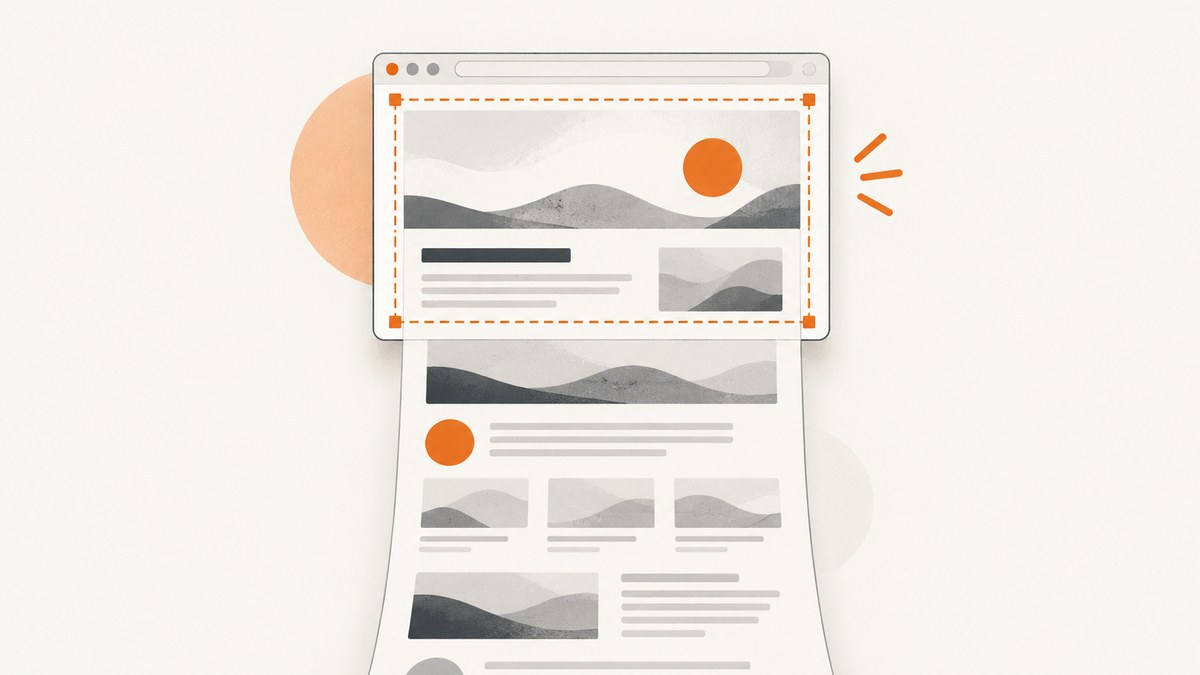
Quick answer: Open the page in Microsoft Edge, choose Settings and more > Screenshot (or right-click the page), then select Capture area or Capture full page. The documented keyboard shortcut is Ctrl+Shift+S. Use the controls Edge shows to copy or save the result.
1. Take a screenshot in Edge
- Open the webpage in Microsoft Edge.
- Start Screenshot from Settings and more (the three-dot menu), or open the page context menu and choose Screenshot.
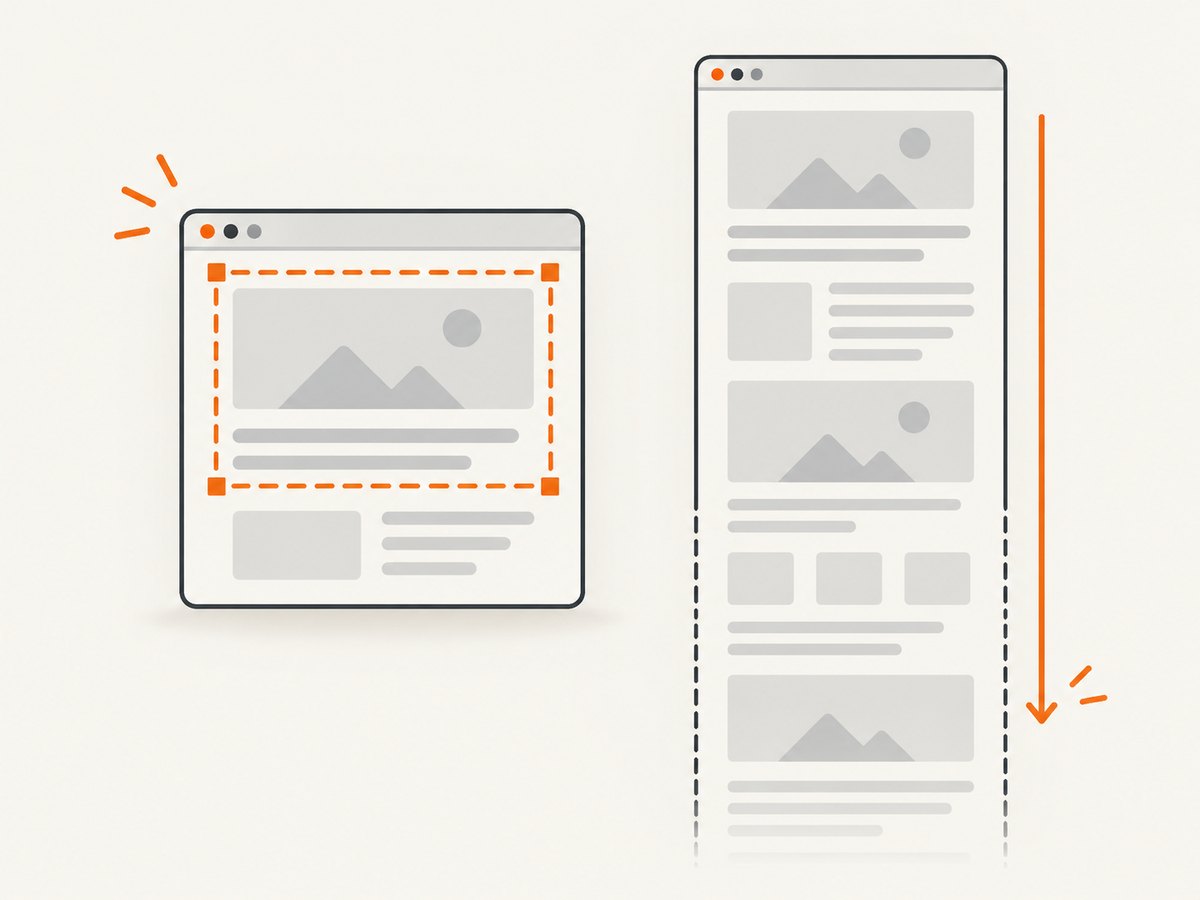
- Choose Capture area and drag over the portion you need, or choose Capture full page to include content below the visible viewport.
- Use Edge’s copy or save control to keep the image.
Microsoft previously called this feature Web Capture. Labels and the location of save or copy controls can change between Edge releases, but the two capture modes remain the key choices.
2. Capture an area or the entire webpage
| Mode | Use it for | What it captures |
|---|---|---|
| Capture area | A chart, paragraph, image, or other region | The rectangle you select |
| Capture full page | Long articles, documentation, and pages that scroll | The complete webpage in one capture, including content below the viewport |
Full-page capture is different from taking a screen image: it captures the webpage rather than only what is currently visible on your monitor. If the page is extremely long or continuously loads new content, wait until the content you need has appeared before starting the capture.
3. Keyboard shortcut and menu access
Microsoft Edge policy documentation associates Screenshot/Web Capture with Ctrl+Shift+S. You can also use the Settings and more menu or the page context menu. If the shortcut does nothing, use one of the menus; shortcut behavior can vary by platform, keyboard layout, or Edge build.
4. When Screenshot is missing
On managed work or school devices, an administrator can control the feature with the WebCaptureEnabled policy. Microsoft states that when this policy is enabled or not configured, Screenshot appears in the context menu, the Settings and more menu, and through Ctrl+Shift+S. If all three entry points are absent, ask your administrator whether the policy has been disabled.
- Update Edge and restart it, then check both menus again.
- Make sure you are right-clicking inside the webpage, not the tab strip or browser chrome.
- Try an InPrivate window to determine whether an extension is interfering.
- On a managed computer, contact IT before changing policy or installing capture software.
5. Windows and macOS alternatives
Windows 10 and Windows 11: Snipping Tool
Press Windows key + Shift + S to open Snipping Tool. It can capture a rectangular region, freeform region, window, or the whole screen, then let you edit, save, or share the snip. It captures screen content, so Edge’s Capture full page is usually the better choice for a webpage that extends below the viewport.
macOS screenshot shortcuts
- Shift + Command + 3: capture the entire screen.
- Shift + Command + 4: select a region.
- Shift + Command + 4, then press Space: capture a window or menu.
These are operating-system tools. Microsoft’s reviewed documentation does not establish that Edge’s Ctrl+Shift+S shortcut behaves identically on every macOS version, so use Edge’s menus if the shortcut is unavailable.
6. Choose the right capture method
| Need | Best choice | Reason |
|---|---|---|
| One visible region | Edge Capture area | Fast selection without editing a full screen image |
| A complete scrolling webpage | Edge Capture full page | Includes content below the viewport |
| Any visible desktop window | Snipping Tool or macOS shortcuts | Captures browser chrome and other apps |
| Repeatable screenshots in code | ScreenshotNeo API | One HTTP request, configurable rendering, and machine-readable verdict headers |
7. Troubleshooting common problems
Screenshot does not appear in either menu
Cause: The Edge policy may be disabled, or an extension or managed profile may be restricting it.
Fix: Check for browser updates, test InPrivate mode, and ask your administrator about WebCaptureEnabled.
Ctrl+Shift+S opens another command or does nothing
Cause: Platform, keyboard layout, Edge version, or another application may claim the shortcut.
Fix: Open Screenshot from Settings and more or the page context menu.
Only the visible viewport is captured
Cause: Capture area or an operating-system snip was used.
Fix: Start Edge Screenshot and select Capture full page.
The page looks incomplete
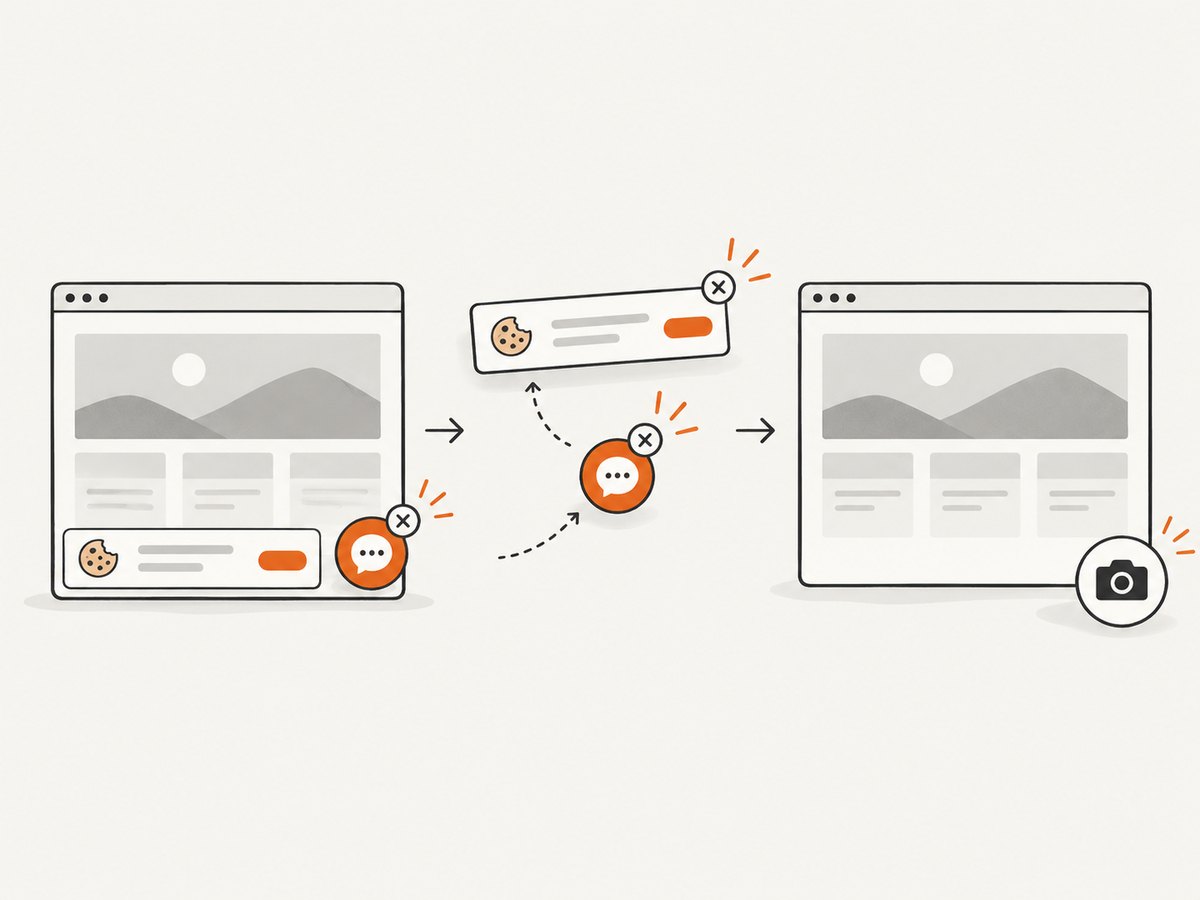
Cause: Lazy-loaded images, animations, consent dialogs, or content that appears only after scrolling may not have finished rendering.
Fix: Wait for the page to settle, dismiss overlays, scroll through important sections once, and capture again.
The result contains a cookie banner, popup, or chat widget
Cause: Edge captures what the page renders; it does not automatically clean third-party overlays.
Fix: Close the overlay before capture or use an automated renderer with controls for consent and widget removal.
The saved image is too large or hard to share
Cause: Full-page captures can be tall and high resolution.
Fix: Crop to the required section, or resize and convert the output in an image tool after saving.
8. Or skip the browser setup
ScreenshotNeo returns a PNG, JPEG, WebP, or PDF from one GET request. Its browser handles consent banners before capture and removes more than 60 known consent platforms, newsletter popups, and chat widgets; each step can be turned off. Bot checks, blank pages, timeouts, failed loads, and cache hits cost nothing, and the response identifies the result with X-Page-Verdict and X-Billed headers.
See the ScreenshotNeo API documentation for authentication and options.
cURL
curl -G "https://api.screenshotneo.com/v1/shot" -d access_key=YOUR_API_KEY --data-urlencode url=https://example.com -o shot.webpPython
import requests
r = requests.get("https://api.screenshotneo.com/v1/shot", params={"access_key": "YOUR_API_KEY", "url": "https://example.com"}, timeout=90)
open("shot.webp", "wb").write(r.content)
Node.js
const q = new URLSearchParams({ access_key: 'YOUR_API_KEY', url: 'https://example.com' });
const res = await fetch(`https://api.screenshotneo.com/v1/shot?${q}`);
Useful capture options
- Full-page capture with lazy images loaded, or one element selected by CSS selector.
- Dark mode, 12 device presets, custom viewport sizes, and retina scale.
- PDF paper size, margins, landscape mode, and page ranges.
- Custom CSS and JavaScript, click-before-capture, selector hiding, and waits for a selector, delay, or network idle.
- Ad, tracker, request, and resource-type blocking.
- Custom headers, cookies, user agent, Authorization, timezone, and geolocation.
- Transparent backgrounds, image resizing, configurable caching TTL, signed public image links, asynchronous jobs with signed webhooks, bulk capture for up to 100 URLs per call, usage API, and OpenAPI specification.
For automation, keep timeouts explicit, use a stable viewport and wait condition, and cache unchanged pages. The Free plan includes 1,000 screenshots per month with no card; paid plans start at $5 for 3,000 screenshots. Every feature is available on every plan. An MCP server also lets Claude, Cursor, and other MCP clients call take_screenshot, get_page_info, and capture_pdf.
Create a free ScreenshotNeo account for 1,000 screenshots a month with no card.
9. Performance, reliability, and cost notes
- For a one-off capture, Edge is the quickest path because no code or API key is required.
- For repeat jobs, an API avoids manual scrolling and gives you consistent viewport, device, wait, and output settings.
- Full-page captures require more rendering work than a viewport region, especially on pages with lazy images or heavy scripts.
- Use caching when the source page changes infrequently. ScreenshotNeo lets you choose the cache TTL, and cache hits are not billed.
- Check
X-Page-VerdictandX-Billedwhen you need to distinguish a clean billed image from a bot check, blank page, timeout, failed load, or cache hit.
10. FAQ
Is Edge Screenshot the same as Print to PDF?
No. Screenshot creates an image capture of a region or full webpage. Print to PDF creates a document using the print layout.
Can Edge capture a full webpage without scrolling manually?
Yes. Choose Capture full page; Microsoft describes it as capturing the page at once.
Why is Web Capture not listed?
Microsoft now identifies the feature as Screenshot. Older documentation and installations may still use the Web Capture name.
Can I automate Edge Screenshot from a script?
The built-in menu is intended for interactive use. For scripted captures, use a browser automation framework or an API such as ScreenshotNeo.
Will Windows key + Shift + S capture an entire scrolling webpage?
It opens Snipping Tool for screen regions, windows, or the screen. For a long webpage, use Edge’s Capture full page mode.


