How to Take a Screenshot from a URL
Learn browser, command-line, and API methods to capture any URL as a viewport, full-page, or element screenshot.
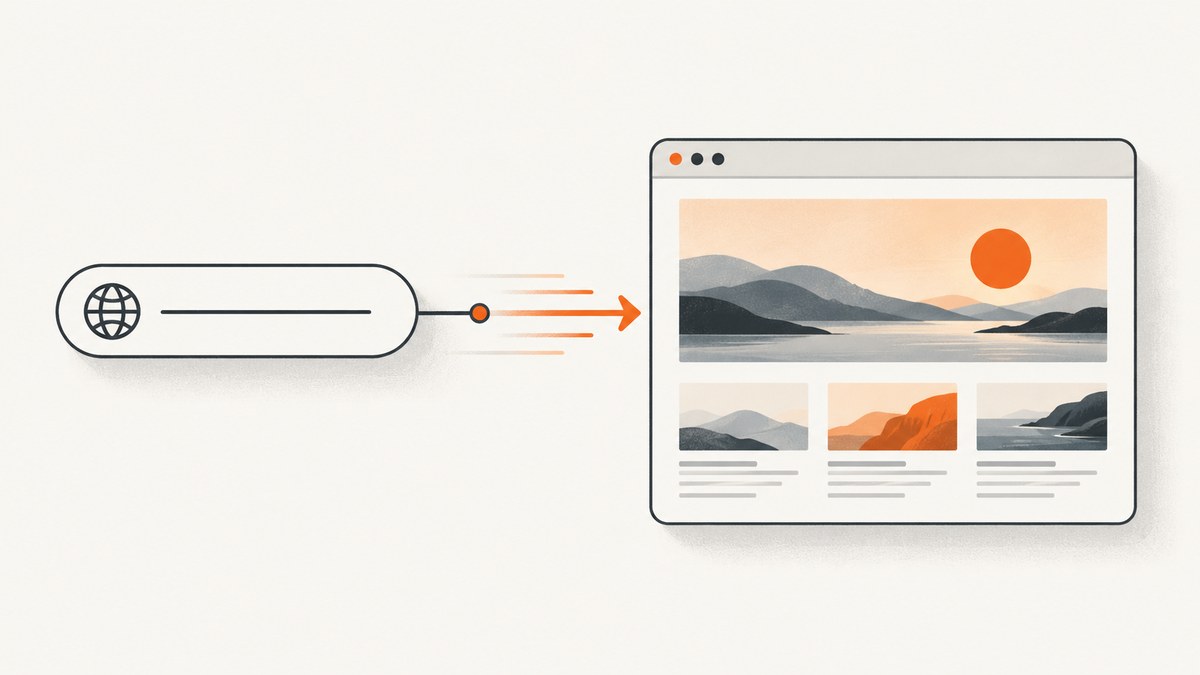
To take a screenshot from a URL, load the URL in a browser context and capture the rendered page. For a one-off image, use your browser’s built-in screenshot command. For repeatable automation, use Playwright or Chrome Headless. Choose a viewport capture for what is visible, a full-page capture for the entire scrollable document, or an element capture for one component.
This guide covers manual capture, Playwright, Chrome Headless, output formats, responsive viewports, dynamic pages, common failures, performance, reliability, and a hosted API option with ScreenshotNeo.
Choose the right screenshot method
| Need | Best starting point | Why |
|---|---|---|
| One image occasionally | Browser screenshot controls | No setup; useful for a quick visual check. |
| Repeatable script or tests | Playwright | Navigate, control the browser, wait for content, and save files in code. |
| Simple command-line job | Chrome Headless | A direct --screenshot command with a chosen window size. |
| Scheduled, bulk, or serverless capture | ScreenshotNeo | A URL request returns an image or PDF without maintaining browser infrastructure. |
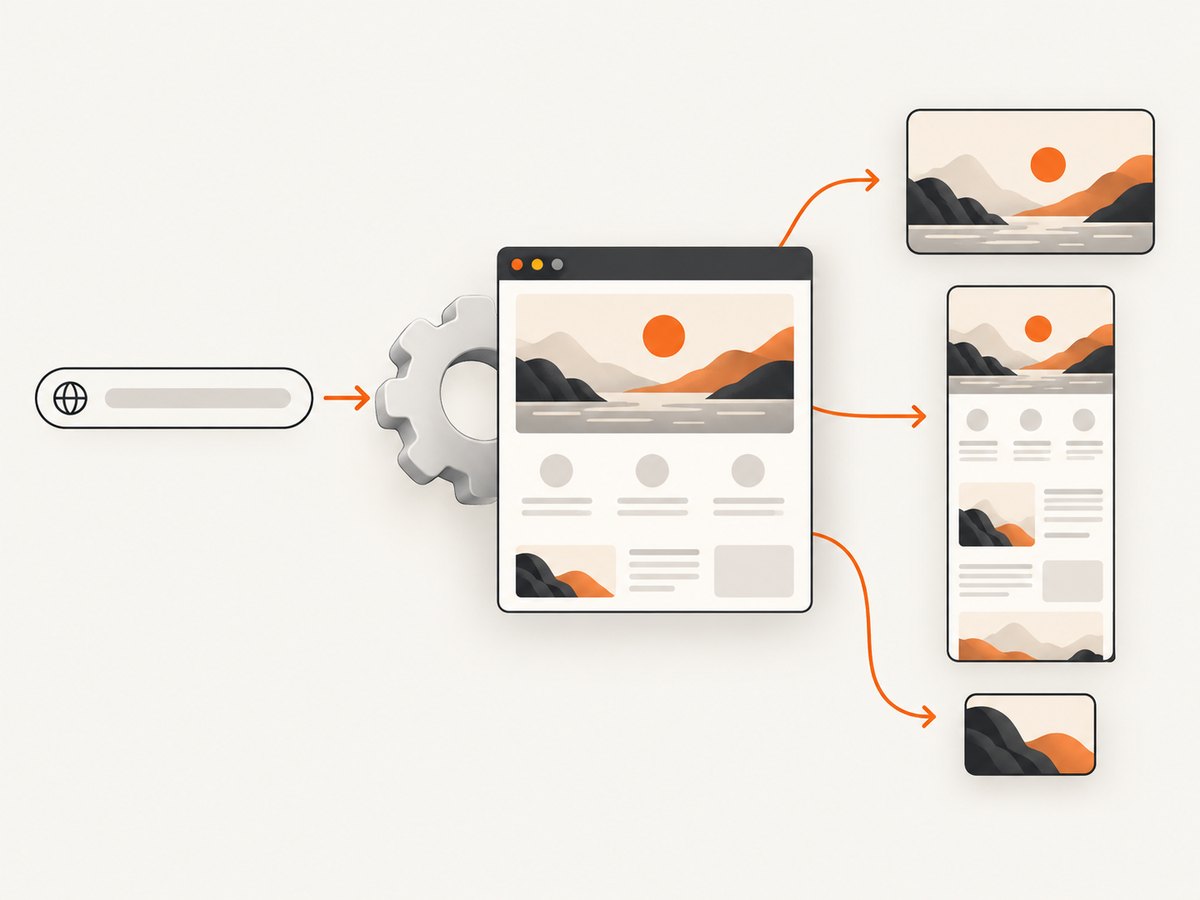
Take a screenshot manually in a browser
- Open the URL in Chrome, Edge, Firefox, or another modern browser.
- Wait for the page to finish rendering. Scroll through the page if lazy content appears only after scrolling.
- Open the browser’s developer tools or screenshot command. In Chromium, open DevTools, press
Ctrl/Cmd+Shift+P, and search for “screenshot”. - Choose a visible-area, full-page, or element capture when available.
- Save the PNG and check the result at its natural dimensions.
Manual capture is affected by your current viewport, zoom level, logged-in state, extensions, cookies, and device pixel ratio. For a reproducible result, record the URL, viewport dimensions, browser version, and whether the page was authenticated.
Automate a URL screenshot with Playwright
Playwright’s Page API demonstrates the core sequence: launch a browser, create a page, navigate with page.goto(), call page.screenshot(), and close the browser. Install the package and a browser, then run this complete Node.js example.
npm install playwright
npx playwright install chromium
const { chromium } = require('playwright');
(async () => {
const browser = await chromium.launch({ headless: true });
const page = await browser.newPage({
viewport: { width: 1440, height: 900 },
deviceScaleFactor: 1
});
await page.goto('https://example.com', {
waitUntil: 'networkidle',
timeout: 60_000
});
await page.screenshot({
path: 'screenshot.png',
type: 'png',
fullPage: true
});
await browser.close();
})();Playwright’s Page documentation describes navigation and screenshot options. The exact options can vary by Playwright version, so check the installed version’s API reference before relying on a new setting.
Viewport, full-page, and element captures
A normal screenshot captures the current viewport. Set fullPage: true to include the page’s scrollable content. For one component, locate it and call the locator screenshot method.
const hero = page.locator('[data-testid="hero"]');
await hero.screenshot({ path: 'hero.png', type: 'png' });
Element screenshots are useful for product cards, charts, invoices, and regression tests. They fail when the selector matches nothing, the element is hidden, or the element changes size while it is being captured.
Control dimensions, format, and quality
await page.setViewportSize({ width: 1280, height: 720 });
await page.screenshot({
  path: 'page.webp',
  type: 'webp',
  quality: 82,
  fullPage: false,
  animations: 'disabled'
});
PNG is lossless and preserves text and transparency. JPEG is smaller for photographic pages but does not support transparency. WebP usually provides a smaller file than PNG at comparable visual quality. JPEG and WebP quality settings apply when supported by your Playwright version.
Wait for dynamic content
Use a navigation condition for the initial load, then wait for a stable selector or a short delay for client-rendered content.
await page.goto('https://example.com/dashboard', { waitUntil: 'domcontentloaded' });
await page.waitForSelector('.dashboard-ready', { state: 'visible', timeout: 30_000 });
await page.waitForTimeout(500);
await page.screenshot({ path: 'dashboard.png', fullPage: true });
networkidle can be unsuitable for pages with analytics, polling, WebSockets, or advertisements that never stop making requests. A selector that represents the finished UI is usually more reliable.
Capture authenticated pages
Use a browser context with the required cookies or storage state. Keep credentials outside source control.
const context = await browser.newContext({ storageState: 'auth-state.json' });
const page = await context.newPage();
await page.goto('https://example.com/account', { waitUntil: 'domcontentloaded' });
await page.screenshot({ path: 'account.png', fullPage: true });
await context.close();
For a first login, automate the form or save storage state once in a controlled environment. Never put session cookies in logs or public artifacts.
Handle lazy loading and fixed elements
Full-page capture can expose images that load only after scrolling. Scroll through the page before capture, or use the browser’s full-page behavior and verify that every image is present.
await page.evaluate(async () => {
  await new Promise(resolve => {
    let last = 0;
    const timer = setInterval(() => {
      window.scrollBy(0, 700);
      const current = document.documentElement.scrollTop;
      if (current === last) { clearInterval(timer); resolve(); }
      last = current;
    }, 100);
  });
});
await page.screenshot({ path: 'long-page.png', fullPage: true });
Sticky headers, cookie banners, chat launchers, and animation can cover content. Hide or remove them with page CSS or JavaScript before capture, and disable animations when visual consistency matters.
Use Chrome Headless from the command line
Chrome for Developers documents a --headless mode with the --screenshot flag. This saves screenshot.png in the current working directory.
google-chrome \
  --headless \
  --disable-gpu \
  --window-size=412,892 \
  --screenshot \
  https://example.com
Use the executable name installed on your system, such as chromium or chrome. Verify that your installed Chrome version accepts the flags. The window size controls the viewport used for the capture; it does not automatically produce a full-page image in every version. For advanced waits, authentication, element selection, or full-page behavior, Playwright gives you a programmable API.
Or skip the browser setup
ScreenshotNeo is a website screenshot API and MCP server. One GET request returns a PNG, JPEG, WebP, or PDF. See the ScreenshotNeo documentation for the complete parameter reference.
curl -G "https://api.screenshotneo.com/v1/shot" -d access_key=YOUR_API_KEY --data-urlencode url=https://stripe.com -o shot.webpimport requests
r = requests.get("https://api.screenshotneo.com/v1/shot", params={"access_key": "YOUR_API_KEY", "url": "https://stripe.com"}, timeout=90)
open("shot.webp", "wb").write(r.content)const q = new URLSearchParams({ access_key: 'YOUR_API_KEY', url: 'https://stripe.com' });
const res = await fetch(`https://api.screenshotneo.com/v1/shot?${q}`);ScreenshotNeo removes cookie and consent banners, newsletter popups, and chat widgets before capture; each cleanup step can be turned off. Bot checks or CAPTCHAs, blank pages, timeouts, failed loads, and cache hits cost nothing, and response headers identify the result with X-Page-Verdict and X-Billed. Its MCP server provides take_screenshot, get_page_info, and capture_pdf for Claude, Cursor, and other MCP clients.
Options cover full-page capture with lazy images, CSS-selector element capture, dark mode, 12 device presets or a custom viewport, retina scale, PDF paper and page settings, custom CSS and JavaScript, clicks, selector or network-idle waits, request blocking, headers, cookies, user agents, Authorization, timezone, geolocation, transparent backgrounds, resizing, selectable cache TTLs, signed image links, asynchronous jobs with signed webhooks, bulk capture of up to 100 URLs per call, a usage API, and an OpenAPI specification. Parameter names used by other screenshot APIs also work, which helps when switching.
The free plan includes 1,000 screenshots per month with no card. Paid plans start at $5 for 3,000 shots; every feature is available on every plan. Create a free ScreenshotNeo account.
Troubleshooting common screenshot failures
| Symptom | Likely cause | Fix |
|---|---|---|
| Blank or white image | Page failed, blocked scripts, or captured before rendering. | Check the URL in a normal browser, wait for a ready selector, and inspect console or network errors. |
| Timeout | Slow origin, endless requests, or an overly short timeout. | Increase the timeout, use domcontentloaded, and wait for one stable selector instead of global network idle. |
| Missing images | Lazy loading or blocked third-party resources. | Scroll before capture, wait for image completion, and allow required resource domains. |
| Cookie banner covers content | Consent UI remains visible. | Accept or remove it with a selector/script, or use ScreenshotNeo’s consent cleanup. |
| Element not found | Selector is wrong, iframe content is separate, or rendering is delayed. | Confirm the selector, wait for visibility, and access the correct frame. |
| Different fonts or layout | Fonts are still loading, viewport differs, or device scale changes. | Wait for fonts, set an explicit viewport and device scale, and use the same browser version in CI. |
| Access denied or CAPTCHA | The site is protecting automated browsers. | Respect the site’s access rules, use authorized credentials, and do not attempt to bypass a CAPTCHA. |
Performance and reliability practices
- Reuse one browser process for multiple pages instead of launching Chrome for every URL.
- Set explicit viewport, timezone, locale, and device scale so output is reproducible.
- Wait for application readiness rather than an arbitrary long delay.
- Block analytics, video, ads, or other nonessential resources when they are not part of the image.
- Limit concurrency to what your CPU, memory, and target sites can handle; too many pages cause contention and timeouts.
- Retry transient navigation failures with backoff, but avoid repeatedly retrying deterministic HTTP errors.
- Store the URL, capture options, browser version, timestamp, and failure reason with each artifact.
- Use caching for unchanged URLs. ScreenshotNeo lets you choose a cache TTL and reports cache hits without billing them.
Large full-page images consume more memory and take longer to encode than viewport shots. Element captures are usually the smallest and fastest. If a page changes during capture, freeze animations, wait for fonts and images, and capture at a known state.
Cost and operational considerations
Self-hosted Playwright and Chrome Headless have no per-shot API charge, but you operate browser binaries, dependencies, memory, concurrency, retries, and network access. A hosted API trades that maintenance for usage billing and an external request dependency. ScreenshotNeo’s free tier is 1,000 shots per month without a card; Starter is $5 for 3,000, Growth $15 for 15,000, Pro $39 for 60,000, Scale $99 for 250,000, and Business $249 for 1,000,000. Yearly billing gives two months free. Only clean shots are billed, while failed loads, bot checks, blank pages, timeouts, and cache hits are not.
FAQ
Can I screenshot a URL without opening it visibly?
Yes. Playwright and Chrome Headless run without a visible window, and ScreenshotNeo captures through an API request.
What is the difference between full-page and viewport screenshots?
A viewport screenshot contains the visible browser area. A full-page screenshot extends through the document’s scrollable content.
Which format should I choose?
Use PNG for lossless text or transparency, JPEG for photographic images without transparency, and WebP for compact modern web delivery.
Why does my automated image differ from my browser image?
Compare viewport, device scale, browser version, fonts, cookies, authentication, animations, and page timing. Any difference can change layout or content.
Can I capture a PDF instead of an image?
Yes. Browser automation can print a page to PDF, and ScreenshotNeo provides PDF capture with paper size, margins, orientation, and page-range options.


