How to Take a Screenshot of Gmail
Capture a Gmail screen using Android or Chromebook’s built-in screenshot controls, find the saved image, and learn what to do with long emails and confidential mode.
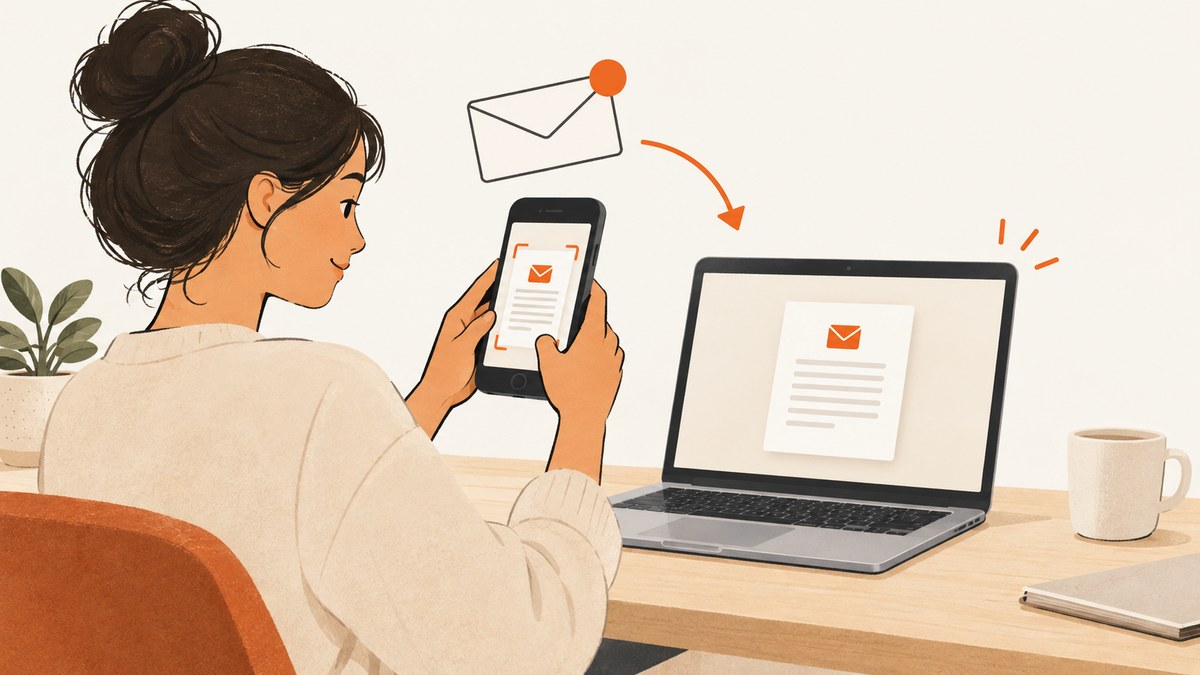
To take a screenshot of Gmail, open the message or inbox you want to capture and use your device’s screenshot controls. On Android, press Power and Volume down together. On a Chromebook, press the Screenshot key if available, or press Shift + Ctrl + Show windows and choose a full-screen, partial-screen, or window capture. Gmail does not require a special screenshot command.
Take a Gmail screenshot on Android
- Open Gmail and display the message or screen you want to save.
- Press Power and Volume down at the same time. Hold briefly, then release.
- Use the screenshot preview to view or edit the capture if your device shows one.
- Find the saved screenshot in Google Photos under Collections > On this device > Screenshots. If Photos is not available, check the Gallery app’s Screenshots folder.
If the button combination does not work, press and hold the Power button for a few seconds and tap Screenshot, if that option appears. Button behavior can vary by device; consult the phone manufacturer’s instructions if neither method works. See Android Help: take a screenshot or record your screen.
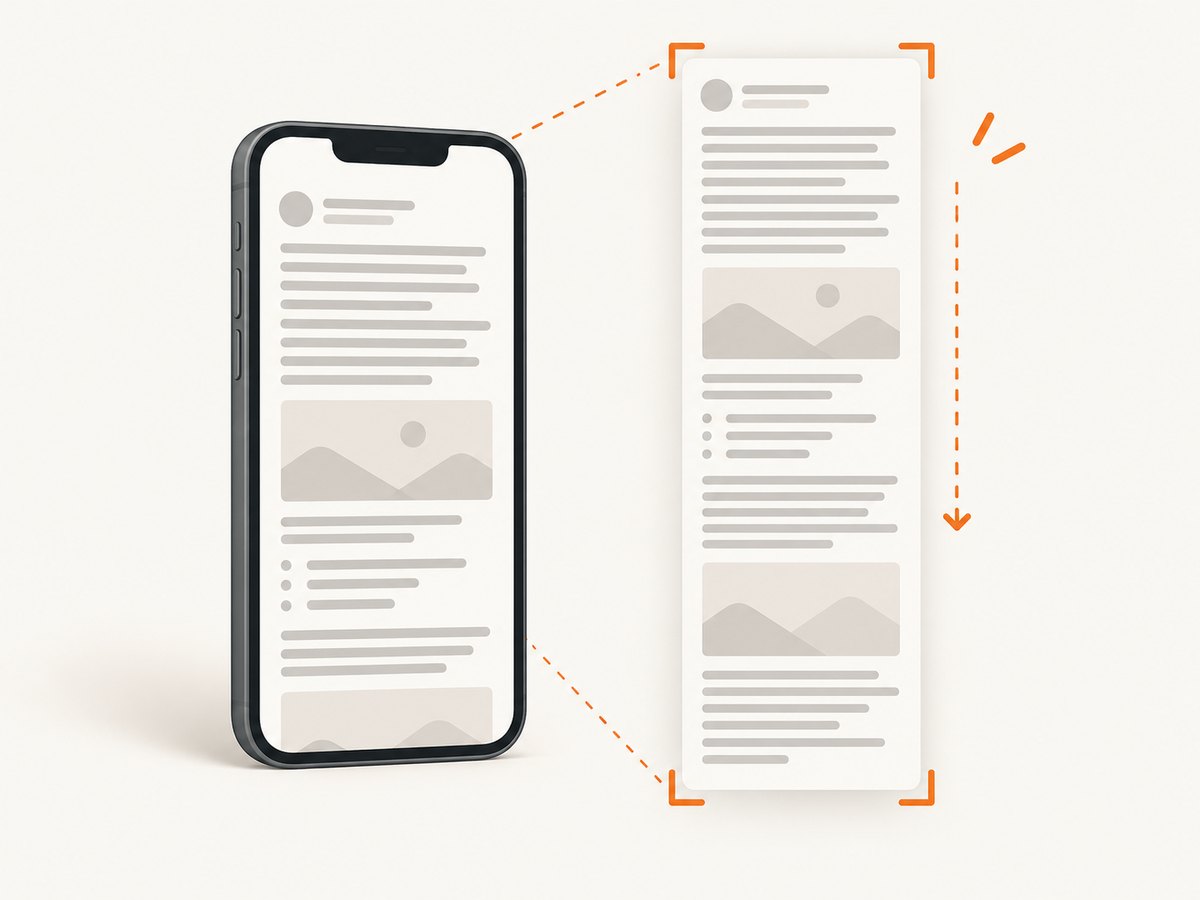
Capture a long email with a scrolling screenshot
On Android 12 and later, scrolling screenshots are available on most screens that allow scrolling. Take a screenshot, tap Capture more, then adjust the crop guides to include the rest of the content. The option may not appear for every message or screen. If it is absent, capture the visible portions separately or use another way to preserve the message.
Take a Gmail screenshot on Chromebook
- Open Gmail and show the inbox area or message you want.
- Press the Screenshot key if your Chromebook has one. Otherwise, open Settings > Screen Capture, or press Shift + Ctrl + Show windows.
- In the capture toolbar, choose full screen, partial screen, or window capture. For a partial capture, select the area to include.
- Complete the capture. Screenshots are copied to the clipboard and saved to Downloads by default. You can change the save folder in capture settings.
If an external keyboard does not have a Show windows key, Google documents Ctrl + Shift + F5 as an alternative. See Chromebook Help: take a screenshot or record your screen.
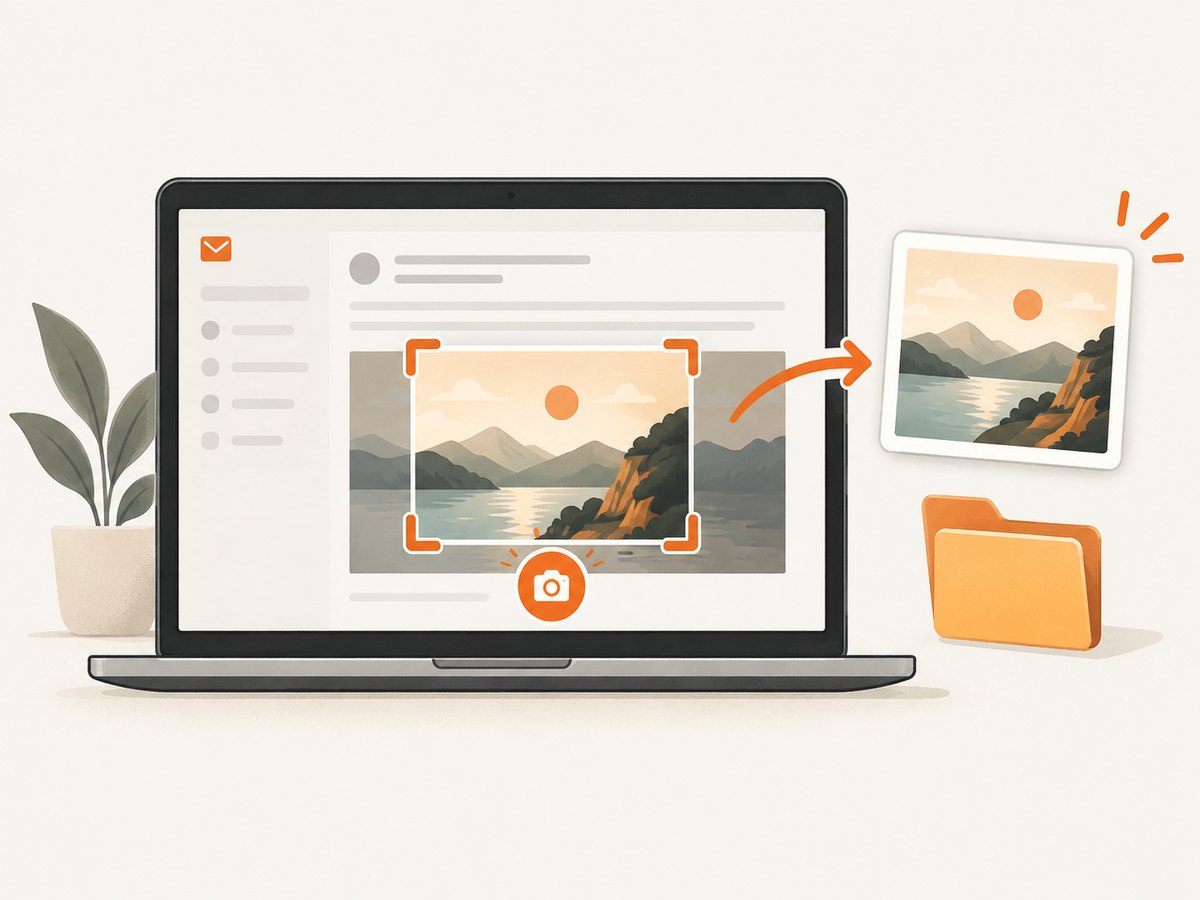
Choose the right capture for the email
| What you need | Android | Chromebook |
|---|---|---|
| What to capture | Capture the screen with the message open. | Choose full screen, partial screen, or a window. |
| Long, scrollable message | Try Capture more on Android 12 or later; availability depends on the screen. | Capture visible portions as needed; the documented capture toolbar offers screen, region, or window capture. |
| Where it goes | Photos’ Screenshots collection, or the Gallery Screenshots folder. | Downloads by default, and the clipboard. |
Before capturing, scroll to the part you need, close unrelated panels if they obscure the message, and check the preview or saved file to make sure the important content is readable.
Confidential mode does not prevent screenshots
Gmail confidential mode can limit recipients’ options to copy, print, download, or forward message text and attachments. It does not prevent screenshots or photos. Google Gmail Help says: “While confidential mode can help prevent recipients from accidentally sharing emails, they can still take screenshots or photos of your emails.” Treat a screenshot as a copy that may be shared, and avoid capturing private information you do not have permission to disclose. See Gmail Help: send & open confidential emails.
Or skip the browser setup
If you need a screenshot of Gmail as rendered in a browser for documentation or a workflow, ScreenshotNeo is a website screenshot API and MCP server. Its one-request API can return an image or PDF. For example, this cURL request captures a Gmail page as WebP:
curl -G "https://api.screenshotneo.com/v1/shot" -d access_key=YOUR_API_KEY --data-urlencode url=https://mail.google.com -o shot.webpSee the ScreenshotNeo API documentation for setup and options. ScreenshotNeo accepts cookie or consent banners and removes more than 60 known consent platforms, newsletter popups, and chat widgets before capture; each of those steps can be turned off. Bot checks, blank pages, failed loads, timeouts, and cache hits are not billed, and the response identifies the page verdict and billing status in headers. Its MCP server provides take_screenshot, get_page_info, and capture_pdf tools for Claude, Cursor, and other MCP clients. The Free plan includes 1,000 screenshots a month with no card; paid plans start at $5 for 3,000 screenshots.
Sign up for 1,000 free screenshots a month, with no card.
Print an email instead of taking a screenshot
If you need a printable copy rather than an image, open the email on a computer, click More, then choose Print. This is a separate option, not a screenshot method. Confidential mode may prevent printing message text and attachments. Android also supports printing a message or conversation; printing from a phone or tablet requires a printer able to receive data over Wi-Fi or a mobile network. See Gmail Help: print Gmail messages and Gmail Help on printing from Android.
Troubleshooting
Android button shortcut does nothing
Press Power and Volume down together briefly. If it still does not work, hold Power and tap Screenshot if offered. Device-specific button behavior varies, so check the manufacturer’s instructions.
There is no “Capture more” option
Scrolling capture is documented for Android 12 and later on most scrollable screens, not every screen. Confirm the screen can scroll and that the device supports the feature; otherwise capture sections separately.
Chromebook capture controls do not open
Use the Screenshot key if present, open Settings > Screen Capture, or try Shift + Ctrl + Show windows. With an external keyboard that lacks Show windows, try Ctrl + Shift + F5.
The Chromebook screenshot is missing
Check Downloads, the default save location, and the clipboard. If the folder was changed in capture settings, check that selected location.
The capture omits part of a long message
A regular screenshot captures the visible screen. On supported Android screens, use Capture more; otherwise reposition the message and take additional captures. On Chromebook, partial-screen capture only includes the region selected.
FAQ
Does Gmail have its own screenshot button?
The documented workflows use the device’s screenshot controls after Gmail is open; they do not identify a Gmail-specific screenshot command.
Can someone screenshot an email sent in confidential mode?
Yes. Confidential mode can restrict some actions, but Google says recipients can still take screenshots or photos.
How do I save a Gmail message as a paper copy?
Use Gmail’s Print option on a computer, or the Android print workflow when a compatible network printer is available. Printing is distinct from saving a screenshot.


