How to Take a Screenshot in Rust
Capture a display or region in Rust with XCap, choose the right crate for your platform, and troubleshoot permissions and Linux dependencies.
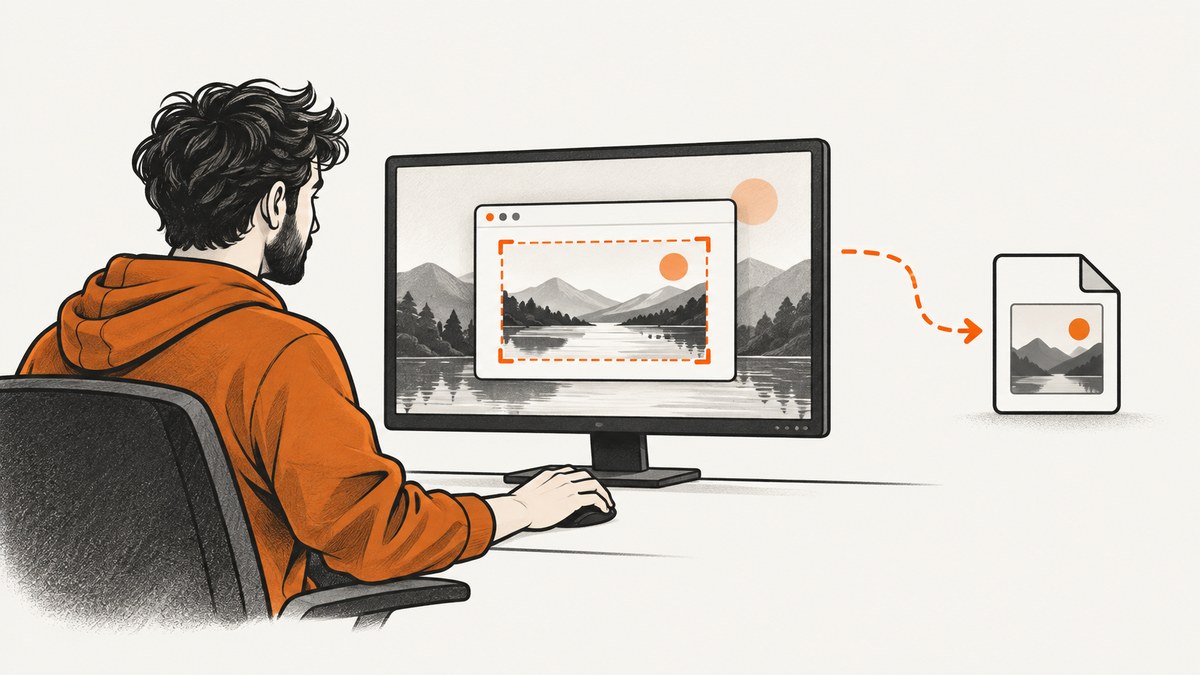
For a basic still screenshot in Rust, start with XCap: enumerate monitors, call capture_image(), and save the returned image. XCap documents Linux X11, macOS, and Windows 8.1+ support. Linux Wayland support has limitations in some scenarios, so check the crate’s current platform notes before choosing it. Its API is version-sensitive; confirm the current crate documentation when copying code.
This guide focuses on capturing a desktop display or region. If you mean a screenshot of a website rendered in a browser, skip to ScreenshotNeo; desktop-capture crates and browser screenshot APIs solve different problems.
1. Choose the capture approach
| Need | Starting point | What to check |
|---|---|---|
| A still image of a monitor, with a straightforward capture and save flow | XCap | Current API, operating system support, Linux session type, and native development dependencies. |
| Configurable capture setup, target enumeration, or explicit permission checks | Scap | Its documented support and permission flow, and whether its capture-pipeline model fits a one-shot screenshot. |
| macOS-specific capture using Apple’s ScreenCaptureKit | ScreenCaptureKit-rs | macOS deployment floor, screenshot API availability, and the user’s screen-recording permission. |
Existing code using the older screenshots crate |
Review its README and migration notes | The README says “Move to XCap,” so treat it as context for existing projects rather than the default for new ones. |
These projects have different scopes. Compare the target operating systems and session types, whether you need a display, window, region, or stream, how permission is handled, and which native libraries your build needs. Do not assume that similarly named capture features behave identically across platforms.
2. Capture and save a monitor image with XCap
Create a Rust project
cargo new rust-screenshot
cd rust-screenshot
cargo add xcap
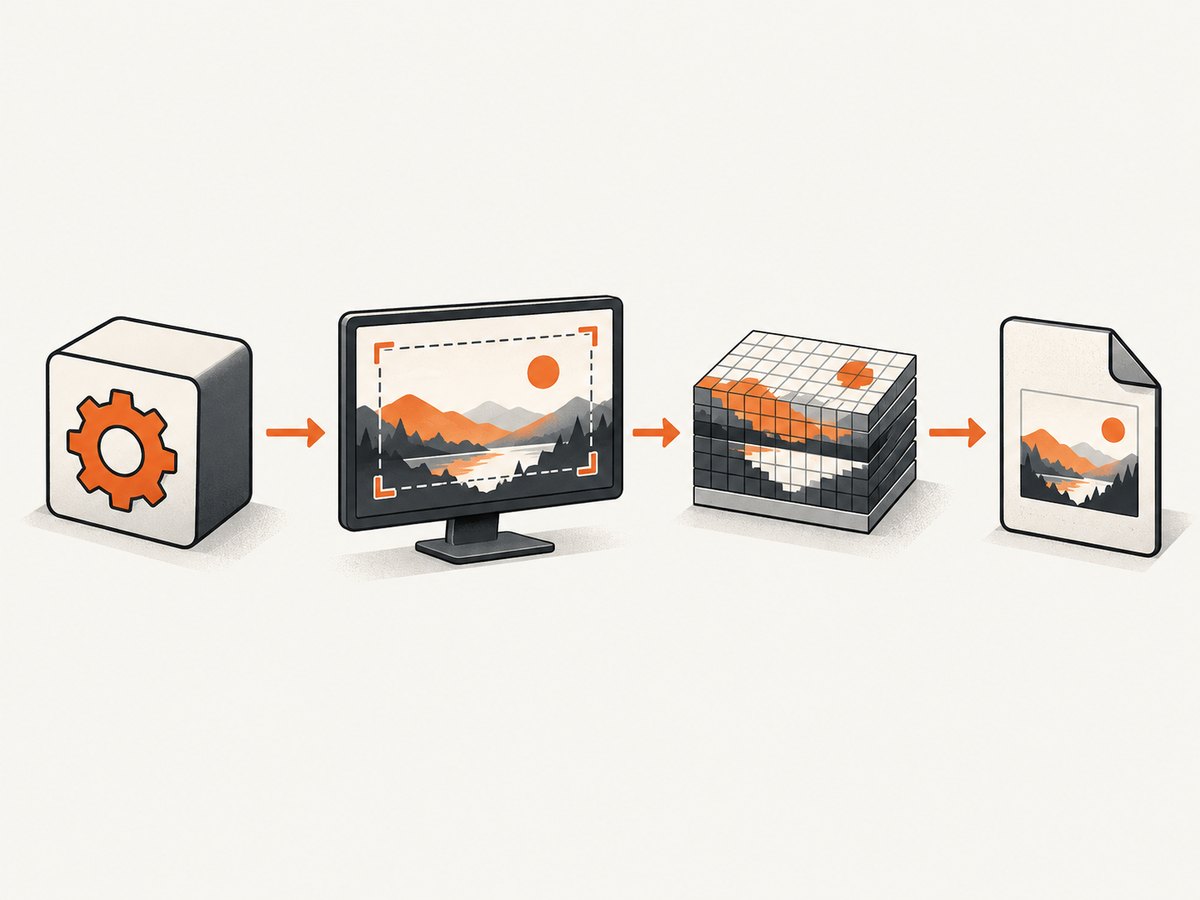
cargo add selects the version available to your configured registry at the time you run it. Check the current XCap README and crate documentation for the API matching that version and your target platform. The example below follows the README’s monitor enumeration, capture_image(), and save flow. If the current release has changed its API, adapt the imports and calls to its documentation.
Runnable example
use std::error::Error;
use xcap::Monitor;

fn main() -> Result<(), Box<dyn Error>> {
    let monitors = Monitor::all()?;
    let monitor = monitors
        .first()
        .ok_or("No monitors were found")?;

    let image = monitor.capture_image()?;
    image.save("screenshot.png")?;

    println!("Saved screenshot.png");
    Ok(())
}
Put this in src/main.rs and run cargo run from the project directory. The example chooses the first monitor returned by the library. That is a simple default, not a guarantee that it is the primary display: if your application needs a particular display, inspect the available monitor information in the current XCap API and select the intended one.
The example returns errors to the caller instead of using unwrap(). This matters for real applications: there may be no accessible display, the capture backend may be unavailable, or saving may fail. For a command-line tool, displaying the error and exiting is often enough. A GUI application may want to report the failure in its normal error UI.
Select a monitor deliberately
First inspect the monitor information supplied by the installed version of XCap. Then choose by a stable property your application can explain to users, such as the monitor’s reported name or dimensions. Monitor ordering may differ between systems, so avoid silently treating index zero as “the primary display” unless the API explicitly guarantees that behavior.
For example, the selection logic should follow this shape; fill in the property accessors using the current crate documentation for your pinned version:
let monitors = Monitor::all()?;
for (index, monitor) in monitors.iter().enumerate() {
    // Inspect the properties exposed by your XCap version.
    println!("Monitor candidate {index}: {monitor:?}");
}
// Select the intended monitor using documented properties, then capture it.
Keep selection and capture errors distinct in your application. “No monitors found” points toward session or backend availability; “capture failed” can also indicate permission or platform support; “save failed” is usually an output path or filesystem problem.
3. Capture a region
XCap’s README also includes region-capture examples. Use its documented region API when the requirement is a rectangle, such as a fixed screen area. Confirm how the current release defines coordinates and dimensions. In multi-monitor layouts, coordinates can extend into negative positions or reflect display scaling, depending on the backend; do not assume every coordinate is relative to the top-left of the first display.
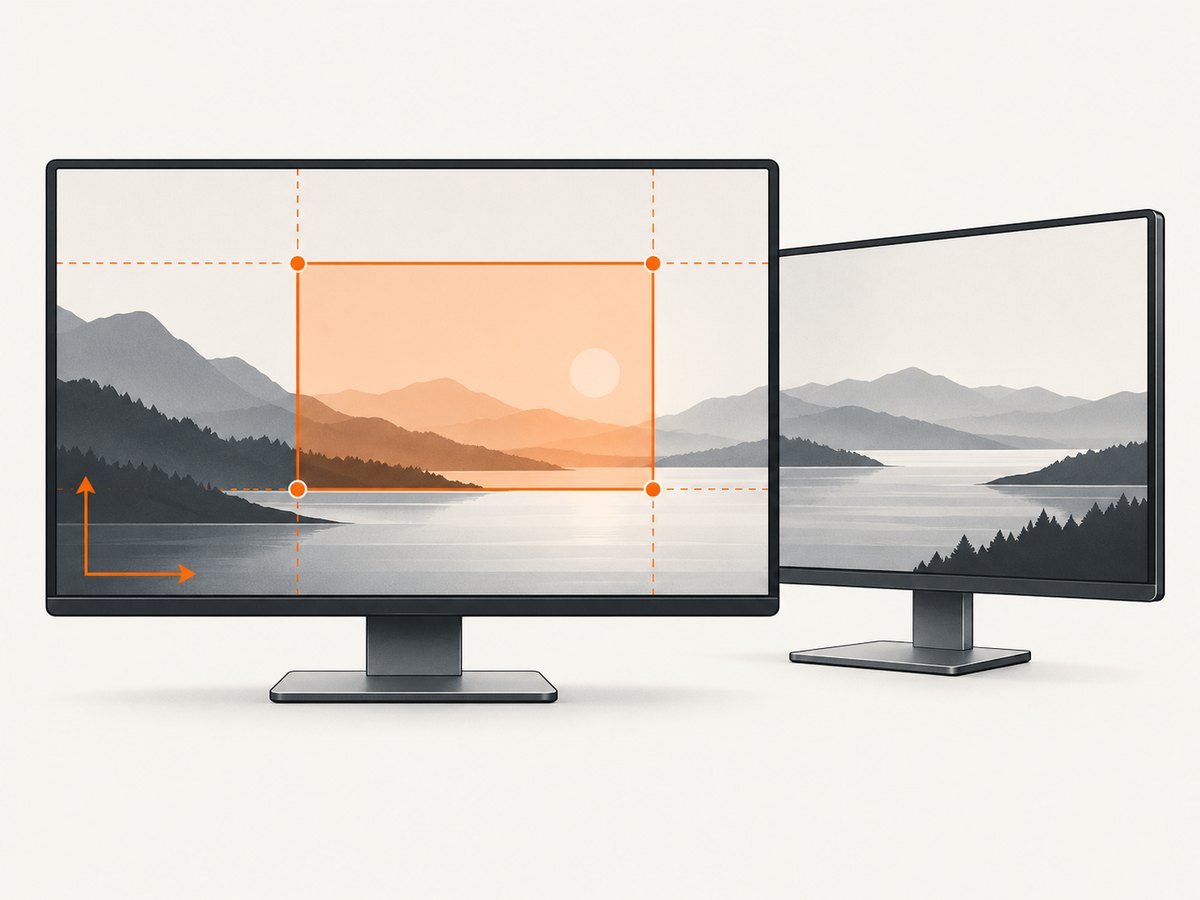
A region workflow is:
- Enumerate monitors and identify the coordinate system expected by the current API.
- Choose the rectangle in that coordinate system, including a positive width and height.
- Capture the region using the documented method.
- Save the resulting image and handle capture and file errors separately.
Validate rectangle inputs before capture. Reject zero or negative sizes, and check that the requested region is within the intended display bounds if your application depends on predictable output. If users can move, resize, or scale displays, recalculate the region when the layout changes rather than reusing stale coordinates.
4. Platform setup and permissions
Linux: X11, Wayland, and native dependencies
XCap documents Linux X11 and Wayland support, but its platform table warns that Wayland capture is not fully supported in some special scenarios. Test under the actual compositor and session type you intend to support. A program that works in an X11 session may not behave the same way under Wayland.
Linux builds may require native development packages. The XCap 0.9.8 documentation lists Debian and Ubuntu packages including pkg-config, libclang-dev, XCB and XRandR, D-Bus, PipeWire, Wayland, and EGL development packages. This is not a universal install command: requirements vary with distribution, features, and build configuration. Follow the current crate instructions for your environment rather than installing this list blindly.
The older screenshots README lists Linux dependencies including libxcb, libxrandr, and dbus. If maintaining an existing project, consult its documented requirements; for a new project, its README points readers toward XCap.
macOS: user permission and OS versions
macOS screen capture can require the user to grant screen-recording permission in System Settings. For ScreenCaptureKit-rs specifically, the crate documentation gives a macOS 13.0 deployment floor, while its single-frame screenshot APIs are listed for macOS 14.0 and later. The user grants permission under System Settings → Privacy & Security → Screen Recording. After enabling the application or binary, restart it as documented.
Do not generalize ScreenCaptureKit-rs’s version requirements to every capture library. Check the crate you chose and the API it uses. When distributing an application, explain the permission step in context and make a denied or missing permission a recoverable error.
Windows
XCap documents Windows 8.1 and later. Verify the current crate documentation and test against the Windows versions your application supports. Permission behavior and available targets can differ by capture backend and application context, so handle capture errors even on documented platforms.
5. When to use Scap or ScreenCaptureKit-rs
Scap is worth investigating when your application needs more than a minimal still-image call: its documented flow checks platform support, checks or requests capture permission, enumerates display and window targets, configures options, and starts capture. Its README identifies ScreenCaptureKit on macOS, Windows.Graphics.Capture on Windows, and PipeWire on Linux as underlying APIs. Follow its current examples for the exact types and configuration; do not treat it as automatically the simplest choice for a single screenshot.
ScreenCaptureKit-rs is the targeted route when you need Apple’s ScreenCaptureKit through Rust on macOS. Its documented OS floor and single-frame API availability matter when setting a deployment target. Plan for user-granted screen-recording access and the restart step. It is not a cross-platform substitute for XCap.
6. Reliability, performance, and output
A still capture is a snapshot of a particular display state. If your application needs a fresh image after a window changes, capture after that change has actually appeared onscreen; a fixed sleep may be unreliable when rendering time varies. Capture cost and image size depend on the display dimensions and backend. The reviewed project documentation does not provide comparative performance benchmarks, so measure on the hardware, operating systems, and session types that matter to your application.
- Choose output deliberately. The example saves PNG. Select the image format based on the consumers and file-size needs of your application, and confirm that the image library in the current API supports the chosen format.
- Keep file I/O explicit. Use an absolute or application-controlled output path in production; relative paths are resolved from the process’s working directory.
- Surface failures. Preserve the underlying error for logs or diagnostics, while showing users a clear next step for missing permission or unsupported capture.
- Avoid unnecessary captures. Capture only when the image is needed, especially in a loop. For continuous video or repeated frames, investigate a capture-pipeline API such as Scap rather than assuming a still-screenshot flow is appropriate.
- Test deployment conditions. A developer session may have libraries, permissions, and a display server that are absent in a container, service, remote session, or end user’s machine.
7. Troubleshooting
| Symptom | Likely cause | What to try |
|---|---|---|
| Build fails while compiling native dependencies on Linux | Missing development headers, toolchain components, or pkg-config metadata. |
Read the current XCap instructions for your distribution and install the packages relevant to your target and features. Check the first native build error for the missing library or header. |
| No monitors are returned | No accessible graphical session, unavailable backend, or unsupported runtime environment. | Run in the intended desktop session; check whether it is X11 or Wayland; verify documented support and inspect the returned error. |
| Capture fails on Linux Wayland | The specific compositor or scenario may fall into XCap’s documented Wayland limitations. | Test against the current support notes and your actual desktop environment. Consider whether another documented capture approach fits the platform and permission model. |
| macOS capture is blank or denied | Screen-recording permission has not been granted, or the process has not restarted after permission was enabled. | Enable the app or binary under System Settings → Privacy & Security → Screen Recording, then restart it. Check the chosen crate’s OS and API availability requirements. |
| Screenshot saves to an unexpected place | The relative output path is based on the process working directory. | Log or display the resolved path, or use a known application-controlled absolute path. |
| Region is offset or clipped | Coordinates were interpreted in a different monitor or scaling coordinate space, or the display layout changed. | Recheck the current API’s coordinate convention, monitor bounds, scaling, and region dimensions. |
| Example code does not compile | The crate version differs from the documentation snapshot or the API has changed. | Check the installed version in Cargo.lock and use the matching current crate documentation. Avoid copying an old example without checking its version. |
8. Or skip the browser setup
If the goal is a screenshot of a website, a desktop capture crate is the wrong layer: you would need to start and control a browser, navigate to the page, wait for it, and save the output. ScreenshotNeo is a website screenshot API and MCP server from Yorker Media. One GET request takes a URL and returns an image or PDF. See the ScreenshotNeo API documentation for request options.
curl -G "https://api.screenshotneo.com/v1/shot" \
  -d access_key=YOUR_API_KEY \
  --data-urlencode url=https://stripe.com \
  -o shot.webp
Cookie banners are accepted and removed before the shot, along with supported newsletter popups and chat widgets; each cleanup step can be turned off. Bot checks, blank pages, timeouts, failed loads, and cache hits cost nothing, and response headers report the page verdict and billing status. Its MCP server gives AI agents tools for screenshots, page information, and PDF capture. The free plan includes 1,000 shots a month with no card; paid plans start at $5 for 3,000 shots.
Sign up for 1,000 free screenshots a month, with no card required.
9. Frequently asked questions
Can Rust capture a screenshot without saving a file?
The capture example returns an image value before saving it. Use the current crate’s image type and methods to process or encode it in memory if your application needs another destination.
Can I capture a window instead of a whole monitor?
Scap documents display and window target enumeration. Check the current XCap documentation for its target-specific capabilities and APIs before choosing a crate for window capture.
Is the screenshots crate suitable for a new project?
Its README contains monitor and region examples, but also says “Move to XCap.” For a new still-capture project, evaluate XCap first and verify its current platform support.
Does a screenshot crate capture a web page as a browser sees it?
Desktop capture records pixels on a display. A website screenshot API captures a URL through a browser rendering workflow, which is a separate use case.


