How to Take Screenshots in Django
Capture Django pages with a real browser, choose between one-off screenshots and visual regression tests, and learn when Django’s test client is enough.

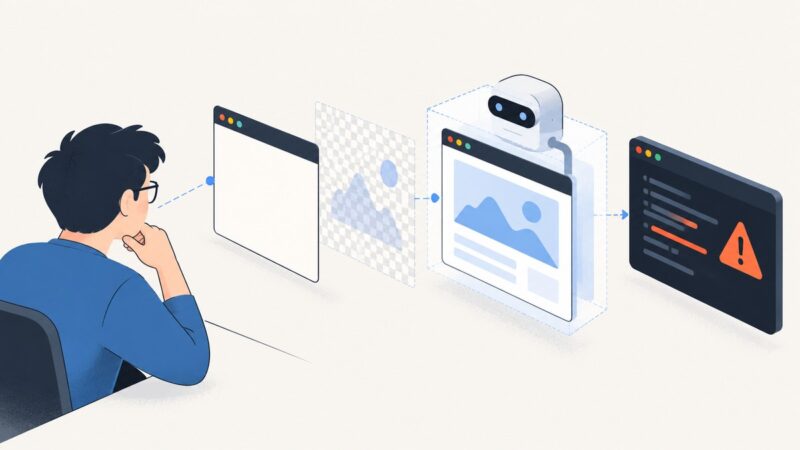
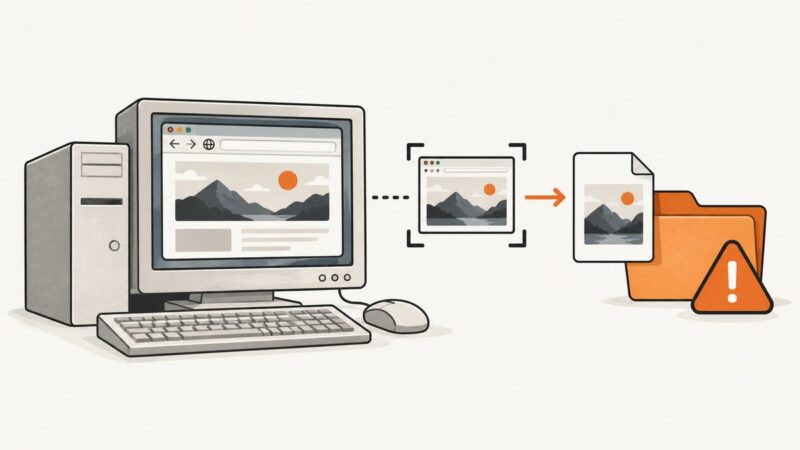
To screenshot a Django page as a user sees it, open the running application in a real browser and capture the rendered page with Selenium or Playwright. Django’s test client is useful for checking HTTP responses and templates, but it does not render a page in a browser. Django also documents screenshot helpers for its own contributor test suite; those helpers are not general-purpose utilities included for every Django application.
First decide what you need: a file to inspect, a repeatable visual regression check, or a request/response test. The right tool depends on that goal.
| Goal | Use | What it captures |
|---|---|---|
| Check status, headers, response content, or template output | Django test client | An HTTP response, without browser rendering |
| Save a rendered page or element | Playwright or Selenium | A real browser view of the running Django app |
| Check for unintended visual changes | Playwright Test screenshot assertion | A screenshot compared with a stored baseline |
| Work on Django’s own admin UI tests | Django contributor screenshot workflow | Named screenshots across documented display and appearance cases |
1. Django’s documented screenshot tests
Django’s contributor guide documents a Selenium-based workflow for testing Django itself. A test class declares screenshot cases and calls self.take_screenshot() at the point it wants to capture. The test navigates to a live test server, such as the admin login page. Run the Django test runner with --screenshots to save images under tests/screenshots/.

from django.test.selenium import SeleniumTestCase, screenshot_cases


@screenshot_cases('desktop_size', 'mobile_size', 'dark')
class AdminLoginScreenshotTests(SeleniumTestCase):
    def test_login_page(self):
        self.selenium.get(f'{self.live_server_url}/admin/login/')
        self.take_screenshot('admin-login')
The documented case names include desktop_size, mobile_size, small_screen_size, rtl, dark, and high_contrast. Django notes that high-contrast screenshots are generated when using Chrome. The example above illustrates the helper names and shape of the test; check the contributor guide for the exact setup and supported options for the Django version and branch you are working on.
These helpers belong to Django’s own contributor tests. An application project should not assume that importing SeleniumTestCase and screenshot_cases gives it a supported, built-in screenshot framework. For your application’s end-to-end tests, choose a browser automation framework and configure it as part of your project.
2. Capture your application with Playwright
A practical application-level flow is: start a Django live test server, launch a browser, visit a route, wait for the page to be ready, and capture the viewport, an element, or the full page. The following standalone Python script uses Playwright’s synchronous API. Install Playwright and its browser first; then start Django separately so the local page is available.
# Install once:
# python -m pip install playwright
# playwright install chromium
# Start Django in another terminal:
# python manage.py runserver 8000

from pathlib import Path
from playwright.sync_api import sync_playwright

url = 'http://127.0.0.1:8000/'

with sync_playwright() as p:
    browser = p.chromium.launch(headless=True)
    page = browser.new_page(viewport={"width": 1440, "height": 900}, device_scale_factor=1)
    response = page.goto(url, wait_until='networkidle', timeout=30_000)
    if response is None or not response.ok:
        status = None if response is None else response.status
        raise RuntimeError(f'Page did not load successfully: HTTP {status}')
    page.screenshot(path='django-home.png', full_page=True)
    browser.close()
This is a manual capture script, not a Django test case. For a test suite, start the app through your test runner’s live server facility and pass its URL into the browser test. Django’s LiveServerTestCase exists to run a background server for functional browser tests; verify the API details against the documentation for your installed Django version.
Capture just the current viewport or one component
For a viewport-only image, omit full_page=True. To capture a component, locate it and take the screenshot from the locator:
page.locator('[data-testid="checkout-summary"]').screenshot(
    path='checkout-summary.png'
)
A selector that matches nothing or matches multiple elements can make a component capture fail or become ambiguous. Prefer a stable ID or test-specific attribute over a styling class that may change during a redesign. If the component appears only after interaction, perform that interaction and wait for the component before capturing it.
3. Turn screenshots into visual regression tests
A saved image is useful for inspection; a visual assertion makes the image part of a repeatable check. With Playwright Test, use expect(page).toHaveScreenshot(). The first run creates a reference image, and later runs compare against it. This API belongs to the Playwright Test runner.
import { test, expect } from '@playwright/test';

test('home page visual baseline', async ({ page }) => {
  await page.goto('http://127.0.0.1:8000/');
  await expect(page).toHaveScreenshot('django-home.png', {
    fullPage: true,
  });
});
Run the test once to create the expected snapshot, then review and commit that baseline. When a planned design change should update the reference, use npx playwright test --update-snapshots, review the resulting image diff, and commit the changed baseline with the UI change. Updating snapshots without reviewing them can normalize an unintended regression.
Make captures repeatable
- Use the same browser engine and browser version in local development and continuous integration.
- Keep the viewport and device scale factor fixed.
- Use deterministic test data and predictable account state.
- Wait for a meaningful page condition, such as a heading or test marker, rather than sleeping for an arbitrary duration.
- Disable or freeze animations if they create inconsistent frames.
- Stabilize content that changes over time, such as timestamps, rotating banners, and randomized data.
- Use a consistent operating system and headless configuration for baseline generation and comparison.
Visual output can vary with operating system, browser version and settings, hardware, power source, and headless mode. A baseline generated on one environment may therefore differ slightly on another. Keep the comparison environment controlled, and treat baseline updates as reviewed code changes.
4. When the Django test client is enough
Use Django’s test client when you need to verify the server-side contract: a response status, redirect, header, rendered template content, or a form submission. It acts like a dummy browser for making requests and inspecting responses. It does not run page JavaScript, lay out pixels, load browser fonts, or exercise real browser interactions.
from django.test import TestCase


class HomeResponseTests(TestCase):
    def test_home_page_responds(self):
        response = self.client.get('/')
        self.assertEqual(response.status_code, 200)
        self.assertContains(response, '<title>Home</title>', html=False)
This type of test is fast and direct for request/response behavior. It cannot establish that the page looks right in Chrome or that a JavaScript menu opens correctly. For those checks, use a real browser. In practice, keep ordinary view and template assertions in Django tests and reserve browser screenshots for important visual states and workflows.
5. Screenshot choices and capture details
| Choice | Good fit | Things to check |
|---|---|---|
| Viewport screenshot | Header, above-the-fold layout, a single screen | Set viewport dimensions explicitly |
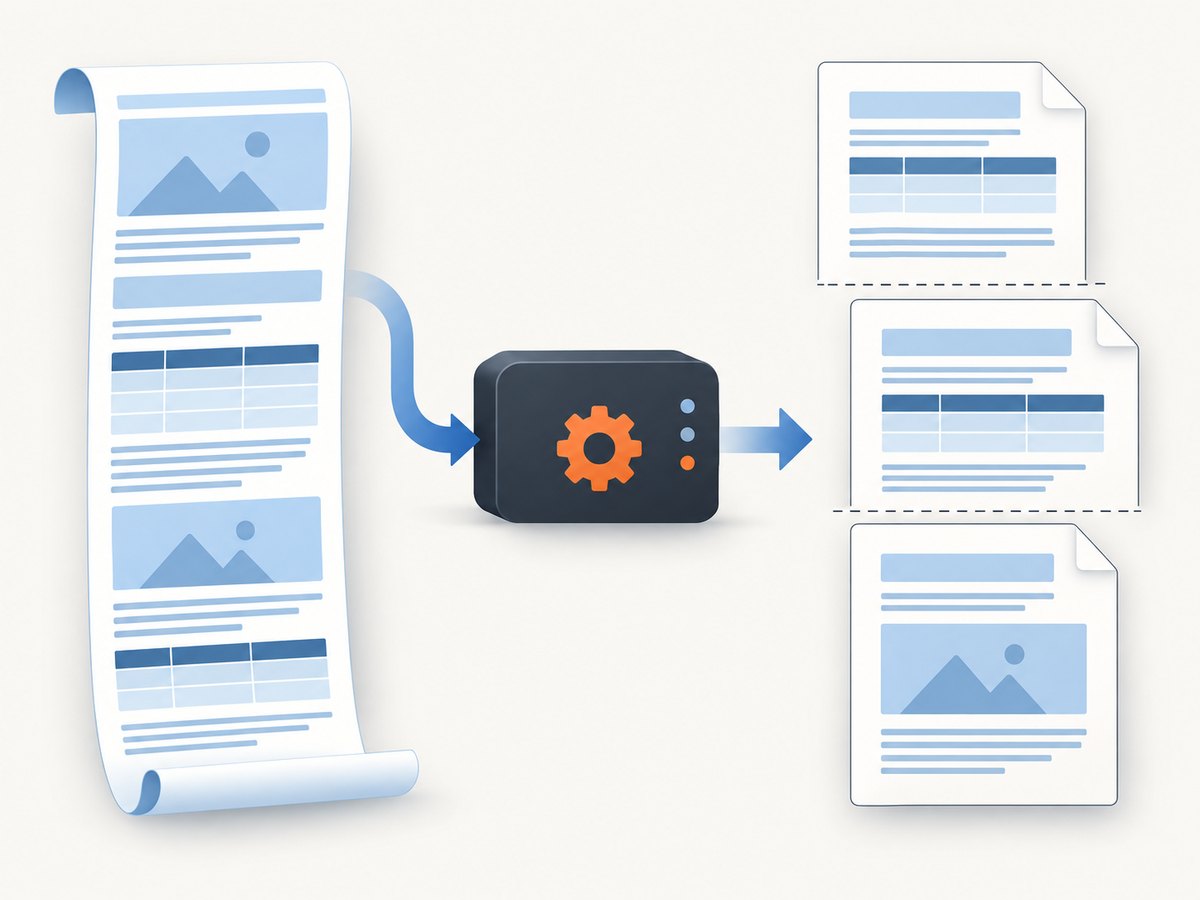
| Full-page screenshot | Long landing page or article | Lazy-loaded images may need scrolling or explicit readiness checks |
| Element screenshot | Widget, form, card, or component | Wait for a stable, unique locator |
| PNG | Visual comparison and sharp UI details | Pixel differences may be sensitive to environment changes |
| JPEG | Smaller photographic captures | Compression can make exact pixel comparison unsuitable |
| WebP | Compact image output where supported | Confirm the consumer supports the format |
Playwright’s page screenshot API supports viewport, element, and full-page capture, with PNG, JPEG, and WebP output. Consult the API reference for the exact options in your installed version. In any framework, decide whether the artifact is for human review, a visual test baseline, or downstream image processing; that determines format, dimensions, and whether lossy compression is acceptable.
6. Troubleshooting
| Symptom | Likely cause | Fix |
|---|---|---|
| Connection refused at the local URL | Django server is not running, or the browser test uses the wrong port | Start the server or use the live server URL supplied by the test case; confirm host and port. |
| Screenshot is blank or page content is missing | Navigation returned an error, the route requires authentication, or capture occurred before rendering completed | Check the response status, sign in through the test flow, and wait for a stable page locator before capture. |
| Images are missing in full-page capture | Images are lazy-loaded below the fold | Scroll through the page or wait for the image elements to load before capturing; verify the resulting artifact. |
| Visual test fails with a small image diff | Browser, OS, headless mode, fonts, animation, or dynamic content differs | Run comparisons in a consistent environment and stabilize time-varying content. Review diffs before updating baselines. |
| Playwright assertion cannot be imported | The project is using a different test runner or has not installed Playwright Test | Use the documented Playwright Test setup for toHaveScreenshot, or use the Page screenshot API for a simple capture. |
screenshot_cases import fails in an application project |
The code copied a helper documented for Django’s contributor test suite | Use a project-level Selenium or Playwright browser test instead. |
| Browser executable is missing | Playwright package is installed but its browser binary is not | Install the browser for the package version in use, and ensure CI uses the matching setup. |
| Screenshot differs on every run | Unstable content, animation, or variable test data | Seed data, freeze or disable animation, wait for explicit readiness, and mask or remove changing regions from the comparison workflow. |
7. Performance, reliability, and cost
Browser screenshots cost more time and resources than a direct test-client request because they start or control a browser, load assets, execute JavaScript, and render the page. Keep screenshot coverage focused on representative pages and states; use fast response tests for the many server-side cases that do not need pixels. Reuse a browser process where your test framework supports it, while keeping each test’s page state isolated.
Reliability depends on controlling external factors. Network-idle waits can take longer or never occur on pages with analytics, polling, or persistent connections; a specific selector or application-ready marker is often a better readiness condition. For pages dependent on third-party services, use test doubles or stable fixtures where practical. Keep screenshot artifacts and diffs available in CI so a failure can be diagnosed rather than treated as a mysterious boolean.
The code shown runs against your own browser and Django environment; its direct costs are your compute, CI time, and any infrastructure you use to serve the app. A hosted screenshot API is another option when you want a one-call capture without maintaining browser setup. Choose based on how much control your tests need and where captures must run.
Or skip the browser setup
For a one-off capture or a workflow that needs an image without managing browser binaries, ScreenshotNeo accepts a URL and returns an image or PDF. Its API can also capture a full page, an element, or a chosen viewport; the docs describe the available options. Cookie banners, popups, and chat widgets are removed before the shot. Bot checks, blank pages, and failed loads are never billed, and the response includes page-verdict and billing headers. An MCP server provides take_screenshot, get_page_info, and capture_pdf tools for AI agents.
curl -G "https://api.screenshotneo.com/v1/shot" \
  -d access_key=YOUR_API_KEY \
  --data-urlencode url=https://your-django-site.example \
  -o shot.webp
See the ScreenshotNeo API documentation for authentication and options. The free plan includes 1,000 screenshots a month with no card; paid plans start at $5 for 3,000 screenshots. Learn about ScreenshotNeo and sign up for 1,000 free screenshots a month, with no card.
FAQ
Can Django’s test client save a screenshot?
No. It tests HTTP request and response behavior without rendering the response in a real browser. Use browser automation for an image of rendered output.
Should I use Selenium or Playwright?
Either can automate a real browser. Pick the framework that fits your project and CI setup; the Django contributor screenshot example specifically uses Selenium, while Playwright documents screenshot assertions and page capture.
Do visual snapshots work across operating systems?
They can, but rendering differences can create image diffs. Generate and compare snapshots in a consistent browser and environment when possible.
What should I commit?
For visual regression tests, commit reviewed reference images alongside the tests so future runs have a baseline. For ad hoc inspection, keep the screenshot as a build artifact if it is useful to diagnose failures.
References
- Django 6.0 contributor guide: screenshot tests
- Django test tools (the cited version is unsupported; consult the matching docs for your installed version)
- Playwright visual comparisons
- Playwright Page screenshot API