How to Take Screenshots in Google Drive
Google Drive stores screenshots; your device captures them first. Learn how to capture a Chromebook screenshot and upload it to Drive on desktop or Android.
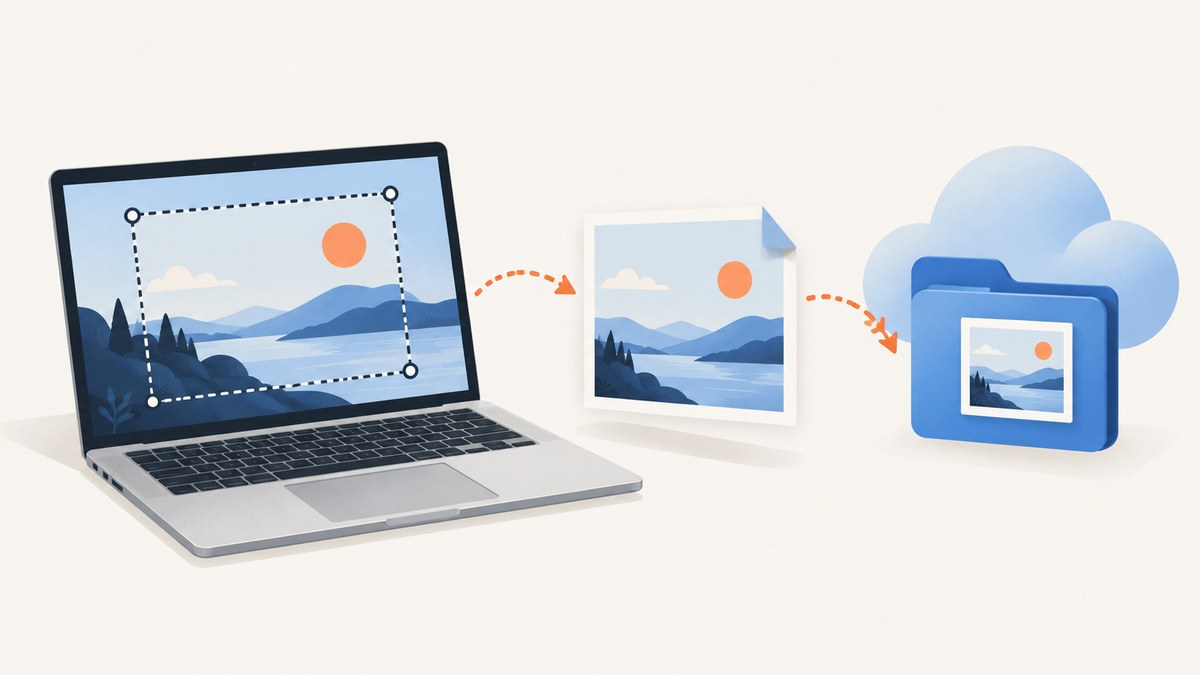
Google Drive does not take the screenshot for you. First capture the screen using your device, then upload the resulting image file to Drive. On a Chromebook, use Screen Capture to take a full-screen, partial-area, or window screenshot; it saves to Downloads by default. Then open Drive and upload that file. On Android, capture a screenshot with the phone, then use the Drive app’s New > Upload command.
This guide covers the complete capture-to-Drive workflow, how to find the saved image, how to choose a Drive folder, and what to check when the upload or capture seems to fail. Exact screenshot controls depend on your operating system. The official steps below focus on Chromebook and Android, which are documented in the sources linked here.
1. Understand the two steps
A screenshot is an image file created by your device. Google Drive is where you store that file after capture. Keeping those steps separate makes it easier to troubleshoot: if no image exists locally, solve the capture step; if the image exists but is missing from Drive, solve the upload or destination step.
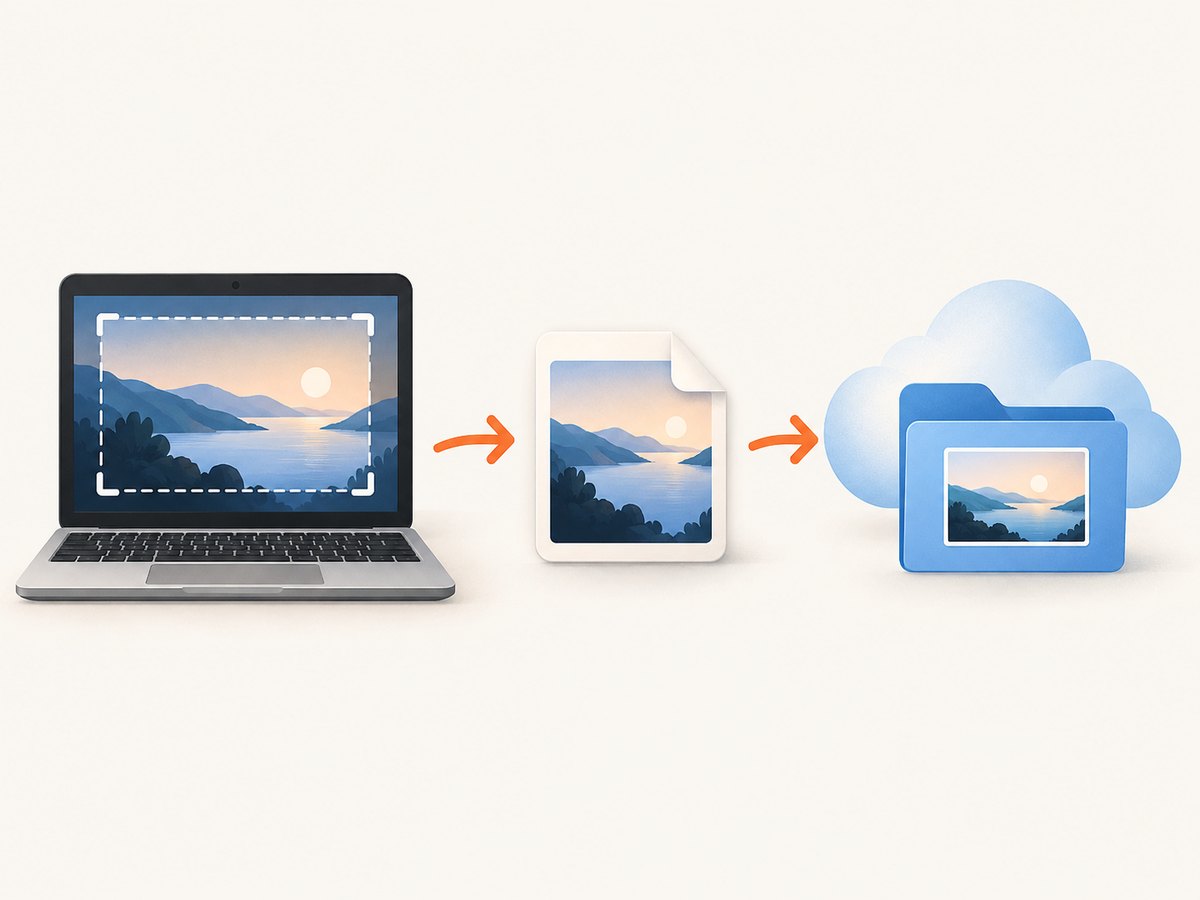
- Capture: use the device’s built-in screenshot controls and select the area you need.
- Locate: find the saved image, usually in the device’s screenshots location. On Chromebook, the default is Downloads.
- Upload: choose the file in Drive or drag it into the intended folder.
- Confirm: check that the item appears in the expected folder in the correct Google account.
Google notes that Chromebook screenshots are automatically copied to the clipboard as well as saved. Clipboard copying is useful for pasting into another app, but it does not place a file in Drive by itself. You still need to upload the saved image to keep it in Drive. Google Chromebook Help: take a screenshot.
2. Take a screenshot on a Chromebook
Open Screen Capture, choose the screenshot mode, and capture. Google documents the following ways to open the tool:
- If your Chromebook has a dedicated Screenshot key, press it.
- Otherwise, press Shift + Ctrl + Show windows.
- You can also select the time at the bottom right of the screen, then choose Screen capture, or open Settings > Screen Capture.
- If you use an external keyboard without a Show windows key, Google lists Ctrl + Shift + F5 as the fallback.
In the toolbar at the bottom, select Screenshot, then pick one of the capture modes:
| Mode | Use it for | What to do |
|---|---|---|
| Full screen | The entire visible display | Choose the full-screen capture option. |
| Partial | A specific region, such as a chart or error message | Choose partial capture, then select or resize the region. |
| Window | One application window | Choose window capture, then select the window. |
For a partial capture, Google documents keyboard controls for adjusting the selection: press Space to change the selected section. To resize the area with the keyboard, press Tab until a corner is highlighted, then use the arrow keys to adjust its height or width. These controls can help when pointer selection is difficult. See Google’s Screen Capture instructions.
Where Chromebook screenshots go
By default, screenshots are saved in Downloads. Open the Files app and look there if Drive’s upload picker does not immediately show the image. You can change the save destination from Screen Capture settings: open Screen Capture, select Settings, then Select folder. After changing it, remember which folder you selected when you upload the screenshot.
The capture is also copied to the clipboard. If you only need to paste it into a document or message, you may be able to paste directly. If your goal is to retain it in Drive as an image file, upload the saved file as described below.
3. Upload the screenshot to Drive on a computer
Once the image is saved, upload it from the computer to Drive. Google’s desktop help documents both the upload menu and drag-and-drop workflow. Google Drive Help: upload files and folders.
- In a browser, go to drive.google.com and sign in to the Google account where you want the screenshot stored.
- Open the destination folder first if you want the image placed inside it. You can also create a folder, then open it.
- Select New > File upload.
- In the file picker, navigate to the screenshot. On Chromebook, check Downloads unless you changed the Screen Capture destination.
- Select the image and complete the upload. Wait for Drive to finish before closing the tab or disconnecting.
You can also open the destination folder in Drive and drag the screenshot file from your computer’s file manager into the browser window. Uploading into a folder owned by someone else still uses Drive storage, according to Google’s help page. If storage is a concern, keep the image file size and the account’s available space in mind.
Choose the destination before uploading
Drive’s New > File upload action uploads into the current folder. If you start from My Drive, the screenshot will be placed there; if you want a project or shared folder, open that folder before selecting upload. Afterward, confirm the folder breadcrumb or navigate back to the folder and check that the image is listed. If you upload to the wrong place, use Drive’s move or organize controls to put it in the intended folder.
4. Upload a screenshot from Android
On Android, first take a screenshot using the phone’s built-in screen capture controls. The precise button combination can vary by device, so follow the phone manufacturer’s instructions if you do not know its capture gesture. Then upload the image from the Drive app:
- Open the Google Drive app and make sure the intended Google account is active.
- Tap New, then Upload.
- Choose the screenshot image from the file picker. Look in the screenshots or recent images location offered by your device.
- Wait for the upload to complete, then find the file in My Drive.
- Move it into another folder if needed.
Google’s Android Drive instructions specify New > Upload and say uploaded files appear in My Drive until you move them. Avoid assuming that selecting a folder in a phone’s screenshot gallery uploads it automatically; the Drive upload is a separate step. Google Drive Help: use Drive on mobile.
5. Screenshot a webpage instead of your device screen
The built-in Chromebook method captures what is currently visible on the display. If you need a website screenshot for documentation, monitoring, an automated workflow, or a page that is longer than the viewport, a screenshot API can capture the webpage directly. This is different from taking a screenshot of the Drive interface: it asks a service to load a URL and return an image or PDF.
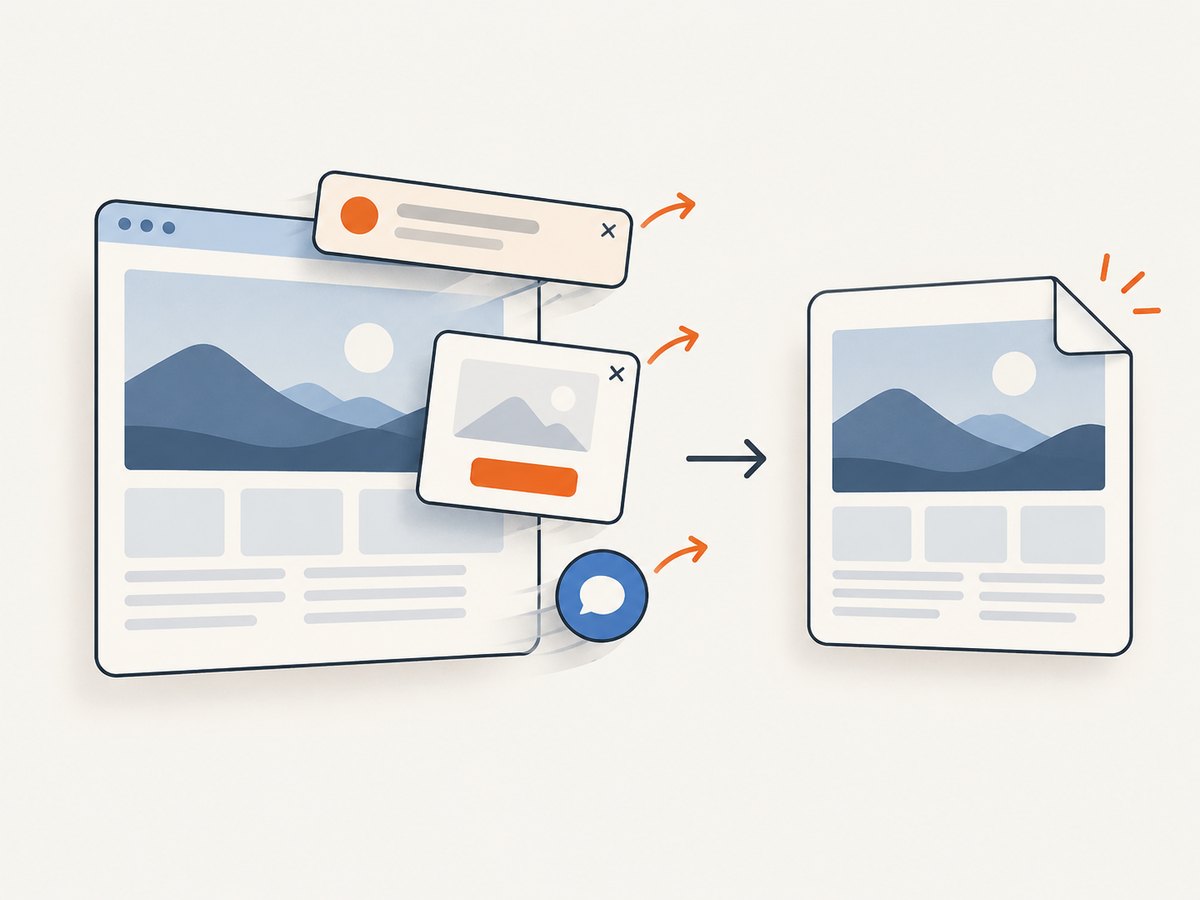
ScreenshotNeo is a website screenshot API and MCP server. Its API accepts a URL in one GET request and can return PNG, JPEG, WebP, or PDF. Use it when the screenshot target is a webpage rather than a local screen. The API accepts the parameters used by other screenshot APIs too, which can make switching easier. Documentation: ScreenshotNeo API docs.
6. Or skip the browser setup
For a webpage capture, ScreenshotNeo can return the image directly from one request. Replace the example URL with the page you need and put your API key in the request. The example saves the response as a WebP file; upload that output file to Drive using the computer or Android steps above.
curl -G "https://api.screenshotneo.com/v1/shot" -d access_key=YOUR_API_KEY --data-urlencode url=https://stripe.com -o shot.webpimport requests
r = requests.get(
"https://api.screenshotneo.com/v1/shot",
params={"access_key": "YOUR_API_KEY", "url": "https://stripe.com"},
timeout=90,
)
open("shot.webp", "wb").write(r.content)const q = new URLSearchParams({ access_key: 'YOUR_API_KEY', url: 'https://stripe.com' });
const res = await fetch(`https://api.screenshotneo.com/v1/shot?${q}`);
if (!res.ok) throw new Error(`Screenshot request failed: ${res.status}`);
await Bun.write('shot.webp', res);In Python and Node.js, check the response before treating its body as an image in production; handle non-success responses and avoid logging your API key. The Node example uses Bun’s file-writing helper; in a Node project, write the response bytes with Node’s filesystem API.
- Cookie and consent banners, newsletter popups, and chat widgets are removed before capture; each cleanup step can be turned off.
- Bot checks or CAPTCHAs, blank pages, timeouts, failed loads, and cache hits are not billed. Response headers identify the page verdict and billing status.
- An MCP server gives AI agents such as Claude, Cursor, or other MCP clients screenshot, page-info, and PDF tools.
- The free plan includes 1,000 screenshots a month with no card. Paid plans start at $5 for 3,000; every feature is on every plan.
Create a free ScreenshotNeo account and get 1,000 screenshots a month with no card.
7. Troubleshooting
| Problem | Likely cause | What to try |
|---|---|---|
| The Chromebook screenshot is missing from Drive | Capture saved locally, but upload was not completed. | Open Files and check Downloads. Then upload through Drive’s New > File upload menu. |
| You cannot find the screenshot on the Chromebook | The save location was changed, or you are looking only in Drive. | Open Screen Capture settings and check the selected folder. The default is Downloads. |
| The screenshot key or shortcut does not open capture | Your keyboard may lack the dedicated key or Show windows key. | Open Screen Capture from the time menu or Settings. For an external keyboard without Show windows, try Ctrl + Shift + F5. |
| The partial capture includes the wrong area | The selection was not positioned or resized as intended. | Use Space to change the selected section; use Tab and arrow keys to adjust the selection corners. |
| The upload appears in the wrong Drive folder | The upload began while another folder was open. | Open the intended folder before uploading, or move the uploaded file afterward. |
| The upload is not visible after choosing the file | The upload may still be running, or the Drive app/browser is using another account or folder. | Wait for completion, verify the account, then check My Drive or the folder where the upload started. |
| Drive reports a storage issue | Uploaded files use Drive storage, including uploads to folders owned by another person. | Check available account storage and remove or reorganize files if needed before retrying. |
| An API response is not a valid image | The capture may have returned an error or page verdict rather than the expected content. | Check the HTTP status and ScreenshotNeo’s X-Page-Verdict and X-Billed headers before saving or forwarding the body. |
8. Reliability, file management, and cost
For manual capture, verify both sides of the workflow: the local screenshot file exists and Drive shows the uploaded item in the expected account and folder. For API capture, treat a successful HTTP exchange and a valid screenshot as separate checks; inspect the response and billing headers, and use a longer timeout for pages that take time to render. If you are capturing many URLs, ScreenshotNeo supports bulk capture of up to 100 URLs per call, asynchronous jobs with signed webhooks, and a caching TTL you choose.
Drive uploads consume storage. Google explicitly notes this also applies when the destination folder belongs to someone else. Keep only the resolution and format you need for the task; a full-page capture or retina-scale image may produce a larger file than a small viewport screenshot. ScreenshotNeo supports PNG, JPEG, and WebP output, image resizing, and caching. The plan prices are Free for 1,000 shots per month, Starter $5 for 3,000, Growth $15 for 15,000, Pro $39 for 60,000, Scale $99 for 250,000, and Business $249 for 1,000,000; yearly billing gives two months free. The free plan requires no card.
9. Frequently asked questions
Can I take the screenshot inside Google Drive?
Drive stores uploaded image files. Capture the screen with your device, then upload the resulting file to Drive.
Does copying a Chromebook screenshot to the clipboard upload it?
No. Clipboard copying lets you paste the capture into another app. Upload the saved image file to have it in Drive.
Can I upload straight to a shared folder?
Yes, if you have access to upload there. Open that folder before using File upload or dragging in the file. The upload still uses Drive storage.
Can I use this process for a very long webpage?
A device screenshot captures the display area selected by the capture tool. For a webpage capture returned as a full-page image or PDF, use a screenshot API such as ScreenshotNeo and then upload its output to Drive.


