How to Take a Web Page Screenshot Programmatically
Capture viewport, full-page, or element screenshots with Playwright, Puppeteer, CDP, or ScreenshotNeo using production-ready code and troubleshooting tips.
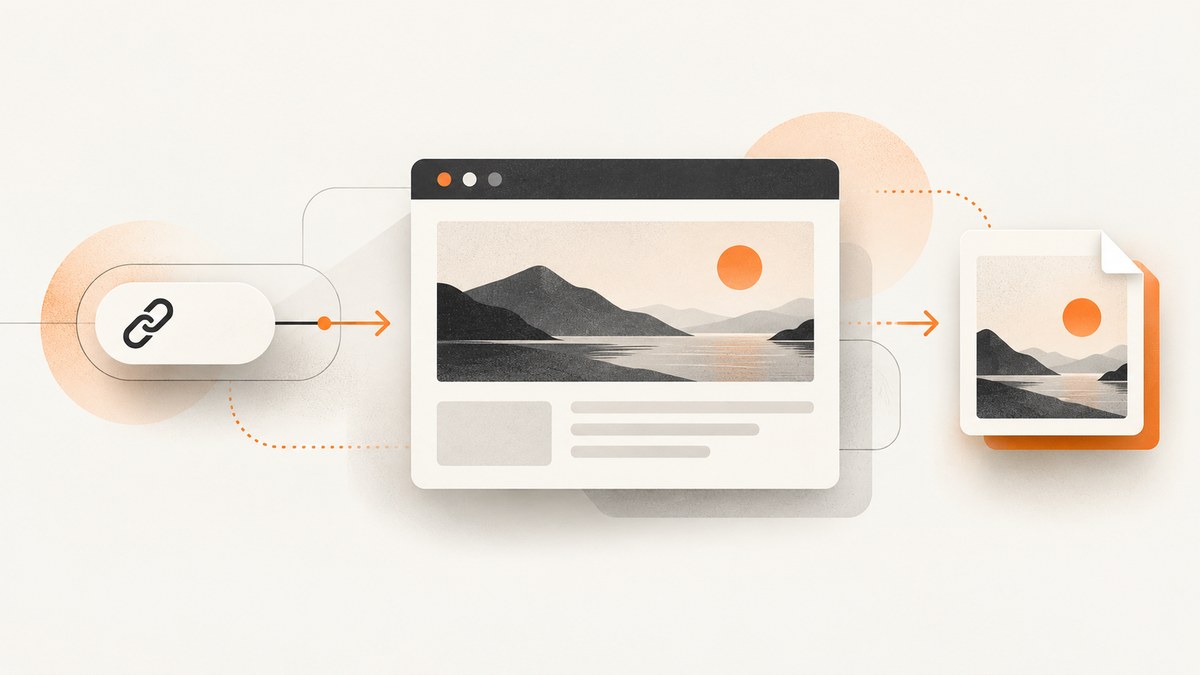
To take a web page screenshot programmatically, open the URL in a rendered browser and call that browser’s screenshot method. In Playwright, the core operation is await page.screenshot({ path: 'screenshot.png' }). Add fullPage: true for the entire scrollable document, or target a specific element when you need a focused image. Puppeteer exposes equivalent page and element methods, while the Chrome DevTools Protocol (CDP) provides the lower-level Page.captureScreenshot command.
This guide covers browser setup, viewport and full-page capture, element screenshots, masking, PDFs, dynamic pages, reliability, performance, security, troubleshooting, and a hosted alternative. The examples use current documented API patterns; verify option names against the version installed in your project.
1. Choose the capture method
| Method | Abstraction | Use it when | Typical control |
|---|---|---|---|
| Playwright | High-level automation library | You need robust browser workflows, multiple engines, or locator-based targeting | Viewport, full page, element, masking, formats, waits |
| Puppeteer | High-level JavaScript library | Your stack is Node.js and Chrome automation is sufficient | Page and element screenshots, browser scripting |
| Chrome DevTools Protocol | Low-level browser protocol | You need protocol-level control or already manage a CDP connection | Clip regions and capture parameters |
| ScreenshotNeo | Hosted screenshot API | You want one HTTP request without managing browsers | Full page, selectors, devices, waits, blocking, cookies, PDFs, jobs |
Playwright documents page screenshots, full-page capture, locator screenshots, masking, and image options in its API reference and screenshots guide (Playwright Page API, Playwright screenshots guide). Puppeteer’s guide covers Page.screenshot() and ElementHandle.screenshot() (Puppeteer screenshots guide), and Chrome’s protocol reference documents Page.captureScreenshot and its clipping controls (CDP Page.captureScreenshot).
2. Capture a page with Playwright
Install and run a minimal JavaScript example
import { chromium } from 'playwright';

const browser = await chromium.launch();
const page = await browser.newPage({ viewport: { width: 1440, height: 900 } });
await page.goto('https://example.com', { waitUntil: 'networkidle' });
await page.screenshot({ path: 'screenshot.png' });
await browser.close();
page.goto() navigates to the target, and page.screenshot() saves the rendered viewport. Use an absolute output path in CI if the process working directory is not predictable. Always close the browser in a finally block in production so failed captures do not leave browser processes behind.
Full-page screenshot
await page.screenshot({
  path: 'full-page.png',
  fullPage: true
});
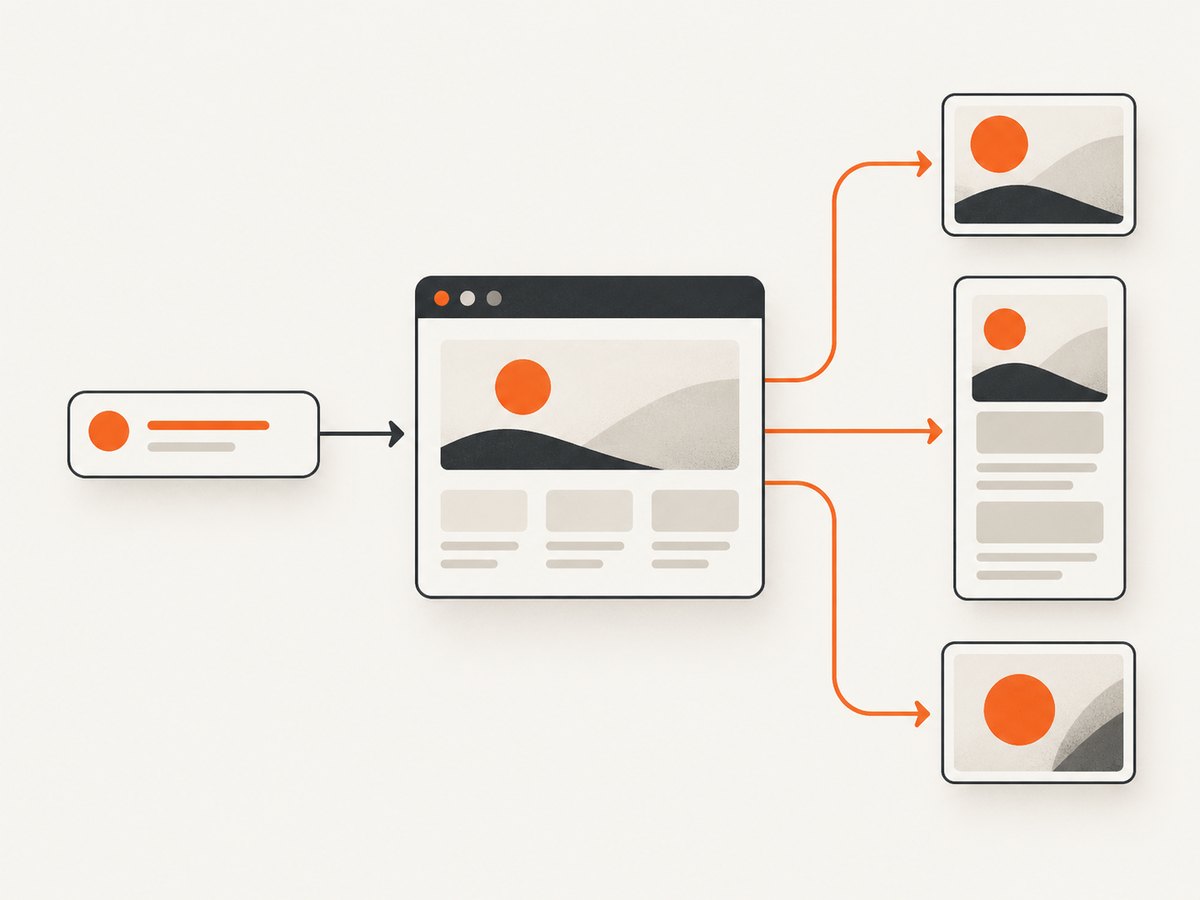
With fullPage: true, Playwright captures the full scrollable page instead of only the visible viewport. This is useful for documentation, visual regression baselines, and bug reports. Very tall pages can create large images; consider clipping a section or using a PDF for long documents.
Capture one element
const card = page.locator('[data-testid="pricing-card"]');
await card.screenshot({ path: 'pricing-card.png' });
Element screenshots avoid unrelated navigation and whitespace. Prefer a stable semantic selector such as a test ID. If the element is not visible, detached, or covered by an overlay, the call can fail; wait for it and remove or hide the obstructing UI first.
Mask dynamic or sensitive regions
await page.screenshot({
  path: 'masked.png',
  mask: [page.locator('.account-email'), page.locator('.live-price')],
  maskColor: '#777777'
});
Masking replaces selected locator regions in the saved image. It is useful for timestamps, rotating ads, personal data, and values that would otherwise make visual tests unstable. Keep selectors narrow so the mask does not hide content you need to inspect.
Control image output
await page.screenshot({
  path: 'hero.webp',
  type: 'webp',
  quality: 82,
  animations: 'disabled',
  caret: 'hide',
  scale: 'css'
});
PNG is lossless and suitable for pixel comparisons. JPEG and WebP are usually smaller; quality applies to lossy formats. Disable animations when deterministic output matters. The exact option set can vary by Playwright version, so check the API reference for your installed binding.
3. A complete Playwright workflow for reliable captures
import { chromium } from 'playwright';

const target = process.argv[2] ?? 'https://example.com';
const browser = await chromium.launch({ headless: true });

try {
  const context = await browser.newContext({
    viewport: { width: 1366, height: 768 },
    deviceScaleFactor: 1,
    colorScheme: 'light',
    locale: 'en-US',
    timezoneId: 'UTC'
  });
  const page = await context.newPage();
  page.setDefaultTimeout(15000);
  await page.goto(target, { waitUntil: 'domcontentloaded', timeout: 45000 });
  await page.waitForLoadState('networkidle', { timeout: 15000 }).catch(() => {});
  await page.locator('body').waitFor({ state: 'visible' });
  await page.screenshot({ path: 'capture.png', fullPage: true });
} finally {
  await browser.close();
}
domcontentloaded prevents a page with analytics or streaming connections from blocking forever. The optional network-idle wait gives late resources time to arrive but is bounded; pages with long-lived connections may never become idle. For a known application, wait for a meaningful selector instead:
await page.locator('[data-ready="true"]').waitFor({ state: 'visible', timeout: 20000 });For lazy-loaded images, scroll through the document before capturing:
await page.evaluate(async () => {
  await new Promise(resolve => {
    let y = 0;
    const step = 600;
    const timer = setInterval(() => {
      window.scrollBy(0, step);
      y += step;
      if (y >= document.body.scrollHeight) {
        clearInterval(timer);
        window.scrollTo(0, 0);
        resolve();
      }
    }, 100);
  });
});
await page.screenshot({ path: 'lazy-loaded.png', fullPage: true });
4. Python Playwright example
from playwright.sync_api import sync_playwright

with sync_playwright() as p:
    browser = p.chromium.launch()
    page = browser.new_page(viewport={"width": 1440, "height": 900})
    page.goto("https://example.com", wait_until="domcontentloaded", timeout=45000)
    page.locator("body").wait_for(state="visible")
    page.screenshot(path="screenshot.png", full_page=True)
    browser.close()
The asynchronous Python binding follows the same method names. Keep browser creation outside a per-URL loop when capturing many pages, and create a fresh context when cookies, locale, or permissions must be isolated.
5. Puppeteer and CDP alternatives
Puppeteer page and element capture
import puppeteer from 'puppeteer';

const browser = await puppeteer.launch({ headless: true });
try {
  const page = await browser.newPage();
  await page.setViewport({ width: 1440, height: 900 });
  await page.goto('https://example.com', { waitUntil: 'networkidle2', timeout: 45000 });
  await page.screenshot({ path: 'puppeteer-full.png', fullPage: true, type: 'png' });
  const element = await page.$('main');
  if (element) await element.screenshot({ path: 'main.png' });
} finally {
  await browser.close();
}
Puppeteer supports page screenshots and element screenshots. Its guide displayed version 25.12.0 in the research material; confirm the options for the version in your lockfile before deploying.
Chrome DevTools Protocol
CDP is lower level. After connecting to a running Chrome session and enabling the Page domain, call Page.captureScreenshot. The clip parameter limits the capture to a rectangle, while format and quality control the encoded image. Protocol details can evolve with browser versions, so pin and verify the Chrome version used by your service.
6. Viewport, device, and rendering decisions
- Viewport: Set width and height explicitly; responsive layouts otherwise change with the host environment.
- Device scale: A higher device scale factor produces sharper output but increases memory and file size.
- Mobile: Use a mobile viewport and user agent together when testing responsive breakpoints.
- Color scheme: Set light or dark mode to avoid different captures between runs.
- Fonts: Wait for
document.fonts.readywhen custom fonts affect layout. - Animations: Disable or pause transitions for visual regression tests.
- Geography: Locale, timezone, cookies, and geolocation can change dates, prices, consent dialogs, and content.
7. Authentication, privacy, and dynamic content
For authenticated pages, establish a context with the required cookies or storage state and never write credentials into screenshots or logs. Use request headers or basic authentication only when the target site permits it. If the page contains personal data, store images with restricted permissions and define a retention policy.
Dynamic pages need an explicit readiness rule. Network idle is only a heuristic: chat sockets, analytics, and advertisements can keep connections open. Prefer a selector, a known response, or a short bounded delay after the UI reaches its ready state. Hide cookie banners, chat launchers, and newsletter modals before capture when they are not part of the subject.
8. Troubleshooting
| Symptom | Likely cause | Fix |
|---|---|---|
| Navigation timeout | Slow origin, blocked resource, or never-ending connection | Increase the navigation timeout, use domcontentloaded, and wait for a specific selector instead of network idle. |
| Blank or partly blank image | Capture occurred before rendering or lazy loading | Wait for a visible ready selector, fonts, and images; scroll the page to trigger lazy content. |
| Element not found | Selector is wrong, frame is different, or content is client-rendered | Inspect the DOM, target the correct frame, and wait for the locator. |
| Layout differs in CI | Different viewport, fonts, browser version, timezone, or device scale | Pin browser versions, set context options explicitly, and install required fonts. |
| Overlay covers content | Consent, chat, or newsletter modal | Dismiss it by clicking the real close action or hide the selector before capture. |
| Huge output or memory pressure | Very tall full-page image or high device scale | Capture an element, reduce scale, use WebP/JPEG, or split the page into sections. |
| Missing images | Images are lazy, blocked, or cross-origin resources fail | Scroll to load them, inspect failed requests, and allow required resource types. |
| CAPTCHA or bot-check page | The site challenged automated traffic | Do not attempt to bypass the challenge; use an authorized environment or capture a permitted public page. |
9. Performance, reliability, and cost
Browser startup is expensive. Reuse one browser process, create isolated contexts per job, and limit concurrent pages to the CPU and memory available. Reusing a context can improve throughput, but isolate cookies and local storage when URLs belong to different users. Set hard timeouts, close pages, and retry only transient failures with exponential backoff. Record the URL, viewport, browser version, timing, and failure reason alongside each image.
Full-page captures require more layout and encoding work than viewport captures. Element screenshots are usually smaller and faster. Blocking unnecessary fonts, videos, trackers, and advertisements can reduce load time, but do not block resources that affect layout. Cache stable pages when your freshness requirements allow it, and use content hashes to avoid storing duplicate images.
Self-hosted automation costs compute, browser maintenance, and engineering time. A hosted API changes that to per-capture usage and removes browser provisioning. Compare total cost using your URL volume, required concurrency, image retention, and operational support needs.
10. Or skip the browser setup
ScreenshotNeo provides a website screenshot API and MCP server. One GET request returns a PNG, JPEG, WebP, or PDF. Before capture it accepts cookie and consent banners and removes more than 60 known consent platforms, newsletter popups, and chat widgets; each cleanup step can be turned off. Bot checks, blank pages, timeouts, failed loads, and cache hits are not billed, and the response identifies the result with X-Page-Verdict and X-Billed headers.
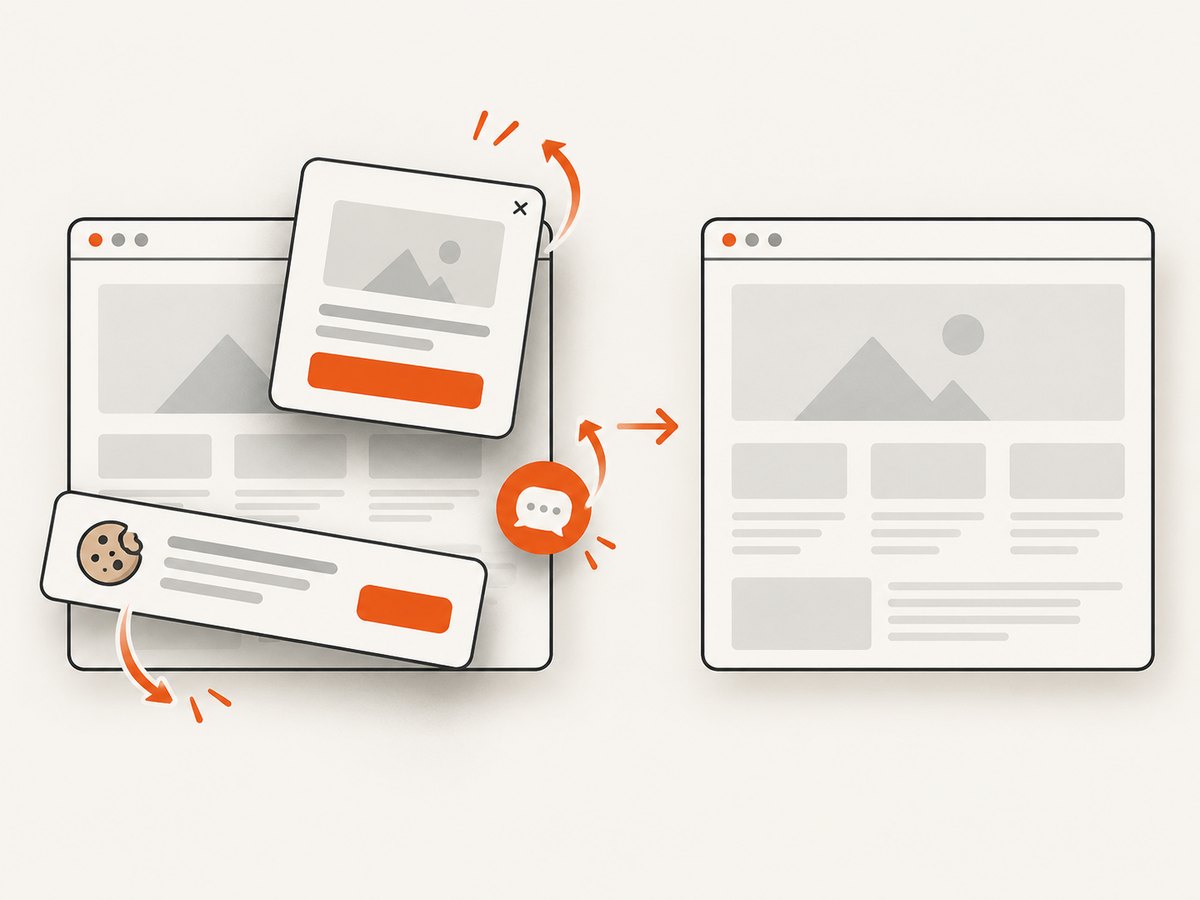
See the complete option list and parameter reference in the ScreenshotNeo documentation. The API supports full-page capture with lazy images loaded, CSS-selector element capture, dark mode, 12 device presets or any viewport, retina scale, PDF paper sizes and margins, custom CSS and JavaScript, clicks, selector waits, delays, network-idle waits, request blocking, headers, cookies, user agents, Authorization, timezone, geolocation, transparent backgrounds, resizing, selectable cache TTL, signed image links, asynchronous jobs with signed webhooks, bulk capture of up to 100 URLs per call, usage data, and an OpenAPI specification.
cURL
curl -G "https://api.screenshotneo.com/v1/shot" \
  -d access_key=YOUR_API_KEY \
  --data-urlencode url=https://stripe.com \
  -o shot.webp
Python
import requests

r = requests.get(
    "https://api.screenshotneo.com/v1/shot",
    params={"access_key": "YOUR_API_KEY", "url": "https://stripe.com"},
    timeout=90,
)
r.raise_for_status()
open("shot.webp", "wb").write(r.content)
Node.js
const q = new URLSearchParams({ access_key: 'YOUR_API_KEY', url: 'https://stripe.com' });
const res = await fetch(`https://api.screenshotneo.com/v1/shot?${q}`);
if (!res.ok) throw new Error(`Screenshot failed: ${res.status}`);
const fs = await import('node:fs/promises');
await fs.writeFile('shot.webp', Buffer.from(await res.arrayBuffer()));
ScreenshotNeo also includes an MCP server with take_screenshot, get_page_info, and capture_pdf tools for Claude, Cursor, and other MCP clients. Parameter names used by other screenshot APIs work as well, which helps when switching.
There is a free plan with 1,000 screenshots per month and no card. Paid plans start at $5 for 3,000 shots; every feature is available on every plan, and yearly billing gives two months free. Create a free ScreenshotNeo account.
11. Short FAQ
Should I capture the viewport or the full page?
Use a viewport capture for above-the-fold checks and a full-page capture for complete documents. Full-page images can become unwieldy for very long pages.
Can screenshots include a specific component?
Yes. Playwright locators and Puppeteer element handles can capture one DOM element. ScreenshotNeo accepts a CSS selector for the same use case.
Why does my screenshot differ between machines?
Rendering depends on viewport, device scale, fonts, browser version, locale, timezone, and page state. Set these values explicitly and pin the browser used in automation.
Is CDP better than Playwright?
CDP offers lower-level protocol control. Playwright provides a higher-level API with locator and masking features. Choose based on the control level and language already used by your service.
How do I avoid paying for failed captures?
With self-hosted browsers, stop and retry failed jobs according to your own policy. ScreenshotNeo identifies clean versus failed outcomes and bills only clean shots; bot checks, blank pages, timeouts, failed loads, and cache hits cost nothing.


