How to Take a Website Screenshot for Free
Capture a website for free with built-in Windows, Mac, browser, phone, and Linux tools. Learn when to use a full-page capture and how to check it before sharing.

You can take a website screenshot for free with the screenshot tools already built into your computer, browser, or phone. For a quick excerpt, capture the visible screen or a selected area. To capture an entire webpage that continues below the screen, use Microsoft Edge’s Capture full page or Firefox’s full-page screenshot tools. The device shortcuts are Windows Windows+Shift+S, macOS Command+Shift+3 for the whole screen or Command+Shift+4 for an area, iPhone/iPad Side button + Volume Up, and most Android phones Power + Volume Down. The exact phone behavior and browser features can vary by model and version.
1. Choose the right kind of screenshot
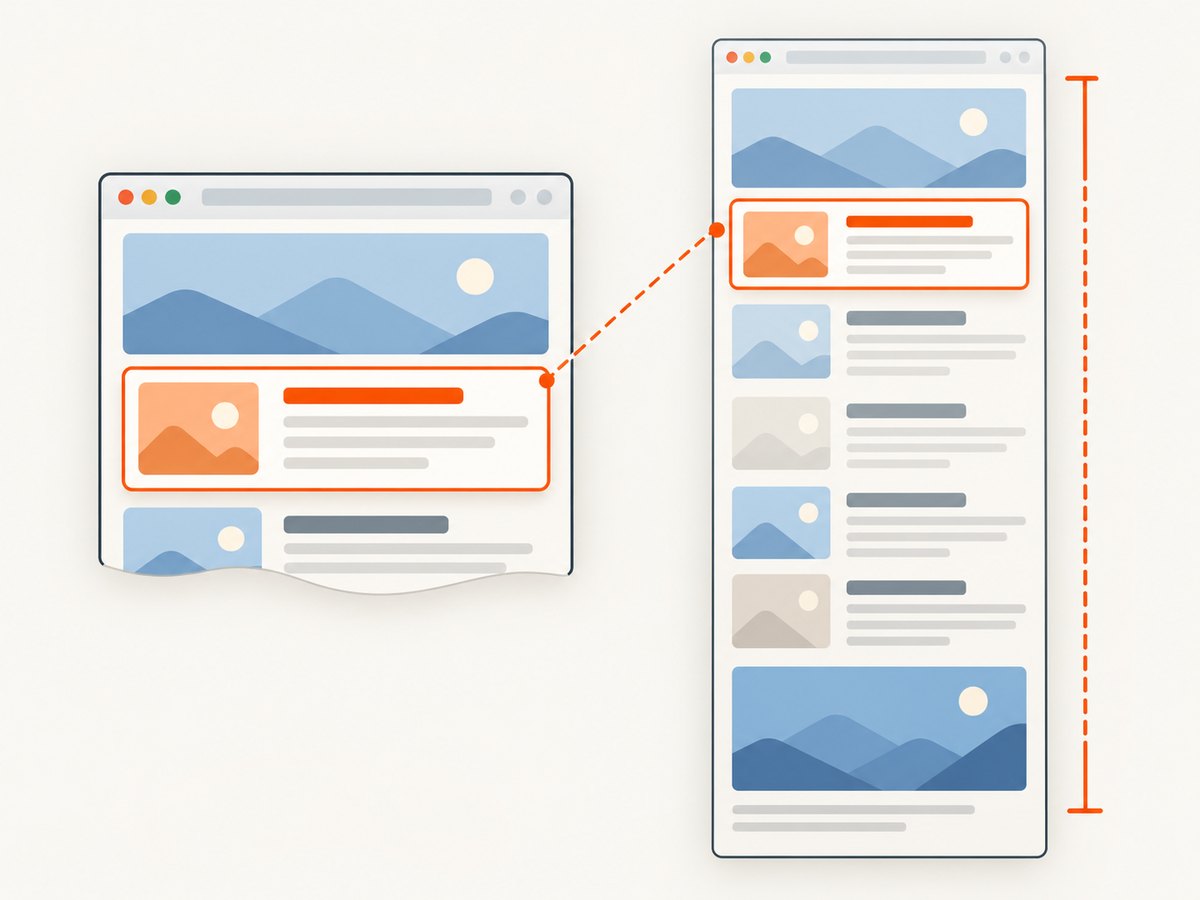
First decide what the image needs to show. A standard computer screenshot captures the visible screen. A browser full-page screenshot can include content further down the webpage, while an element capture can isolate a specific section such as a chart or card.
| What you need | Good starting point | What to check |
|---|---|---|
| A small excerpt to explain something | Area or rectangle capture | Keep unrelated tabs, notifications, and personal details out of frame. |
| The current application window | Window capture | Check whether the browser frame and tabs should be included. |
| An entire long webpage | Edge Capture full page or Firefox full-page capture | Inspect lazy-loaded images, sticky headers, and dynamic content. |
| A single webpage component | Firefox Developer Tools Screenshot Node | Confirm the selected element is the complete component. |
| A phone screen or mobile page | Use the device’s button shortcut; look for a scrolling option afterward | Long-page capture depends on the device, OS, and browser. |
For a clean excerpt or annotation, a selected-area capture is usually simplest. For a page you need to archive, review, or share as one image, use the browser’s whole-page option. On a mobile device, take the ordinary screenshot first and inspect its preview for a Full Page, Scrolling screenshot, or Capture more control.
2. Take a screenshot on Windows
Use Snipping Tool for an area, window, or screen
- Press Windows logo key + Shift + S to open the screen capture overlay.
- Choose the capture mode: rectangle, freeform, window, or full screen.
- Make the selection or choose the window. The capture is copied to the clipboard; open the Snipping Tool notification to annotate, crop, save, or share it.
- Save the image where you can find it, and check the crop before sending it.
For an immediate full-screen image copied to the clipboard, press Print Screen. Depending on your Windows settings, Print Screen may open the Snipping Tool instead. Snipping Tool also offers a 1–5 second delay, useful when a menu or tooltip disappears as soon as you press a key. Its local OCR and redaction tools can help find and cover email addresses or phone numbers; still inspect the finished image yourself before sharing.
Use Edge to capture a whole webpage
- Open the page in Microsoft Edge and wait for its important content to appear.
- Open the right-click menu and choose Screenshot, use the Settings menu, or press Ctrl + Shift + S.
- Choose Capture full page for the entire webpage, including content below the visible viewport, or Capture area for a selected region.
- Review the result, mark it up if needed, then copy or save it.
Edge’s full-page option is designed for long webpages that would otherwise require scrolling. If you do not see the feature, check the browser version and available menus; availability can vary by device, market, and browser version.
3. Capture a webpage in Firefox
Firefox has a quick page capture and more targeted options in Developer Tools.
Quick capture
- Open the webpage.
- Right-click an empty part of the page and choose Take Screenshot, or press Ctrl + Shift + S. On Mac, use Command + Shift + S.
- Choose the visible area or full-page option offered by the capture interface, then save or copy the image.
If the shortcut opens something else or is unavailable in your version, use the page’s right-click menu. Menus and feature availability can change between browser versions.
Full page or a single element with Developer Tools
Firefox Developer Tools can capture the whole page or a single element. To add a toolbar button for full-page capture, open Developer Tools settings and enable Take a screenshot of the entire page. For a particular DOM element, inspect it and use Screenshot Node. The Developer Tools command line also supports :screenshot --fullpage.
Screenshot command options include a delay, device-pixel ratio, filename, clipboard output, and CSS selector. These are useful when you need a specific element, a larger or smaller pixel output, or a capture after an animation settles. Refer to the Firefox version’s Developer Tools documentation for the exact syntax and available options before relying on a command in a script.
4. Take a screenshot on macOS
- Command + Shift + 3: capture the entire screen.
- Command + Shift + 4: drag to capture a selected area.
- Command + Shift + 4, then Space: capture a specific window.
macOS saves the screenshot as a PNG on the desktop by default. These shortcuts capture what is displayed; they do not automatically include the part of a long webpage below the browser viewport. For that, use a browser’s full-page capture, such as Edge’s or Firefox’s. When you only need a section of the page, area capture makes it easier to leave out browser chrome and surrounding desktop content.
5. Take a screenshot on iPhone or iPad
- On a device without a Home button, press the Side (Sleep/Wake) button + Volume Up together.
- On a device with a physical Home button, press Home + Sleep/Wake.
- Open the screenshot preview or Photos to crop, annotate, or share the image.
These button combinations capture the screen. If you want the entire webpage, check the post-capture interface for a Full Page option. Whether that option appears and how its output can be saved depends on the browser and iOS version, so verify the result on your device. A full-page capture may have different export behavior from a regular screenshot.
6. Take a screenshot on Android
- On most Android phones, press Power + Volume Down together.
- On some devices with a physical Home button, Home + Power may work instead.
- Open the preview. If you need a long webpage, look for a scrolling screenshot or Capture more control and extend the capture as needed.
Button behavior and long-page capture vary by manufacturer and Android version. Mozilla notes that stock Android 9 may offer Screenshot in the power menu. If the shortcut does not work, check the phone’s power menu or screenshot settings. A scrolling capture may stop at a page boundary or omit content that has not loaded yet, so review it before sharing.
7. Take a screenshot on Linux
Use your desktop environment’s screenshot application, such as the tool provided by GNOME or KDE. Common keyboard combinations include:
- Print Screen: capture the entire screen.
- Alt + Print Screen: capture the current window.
- Shift + Print Screen: select a rectangle.
Ubuntu includes a Take Screenshot utility. Names, options, and shortcuts depend on the desktop environment and its configuration. If a key does not open a capture tool, search the applications menu for “screenshot” and use the available controls to select a screen, window, or region. For a long webpage, use the full-page feature in your browser if available rather than stitching together several desktop captures.
8. Capture a whole webpage reliably
Full-page capture is different from taking repeated visible-screen screenshots. A browser tool can render a page beyond the current viewport as one image, but pages with dynamic behavior need a little preparation.
- Wait for the page to settle. Let text, images, and interactive content appear before starting.
- Handle lazy-loaded content. Some pages load images only as they approach the viewport. If lower images are missing, scroll through the page first, wait for them to load, then capture.
- Check sticky elements. A sticky header may appear once, repeat, or overlap content in a long capture. Inspect the result for duplicated bars or covered text.
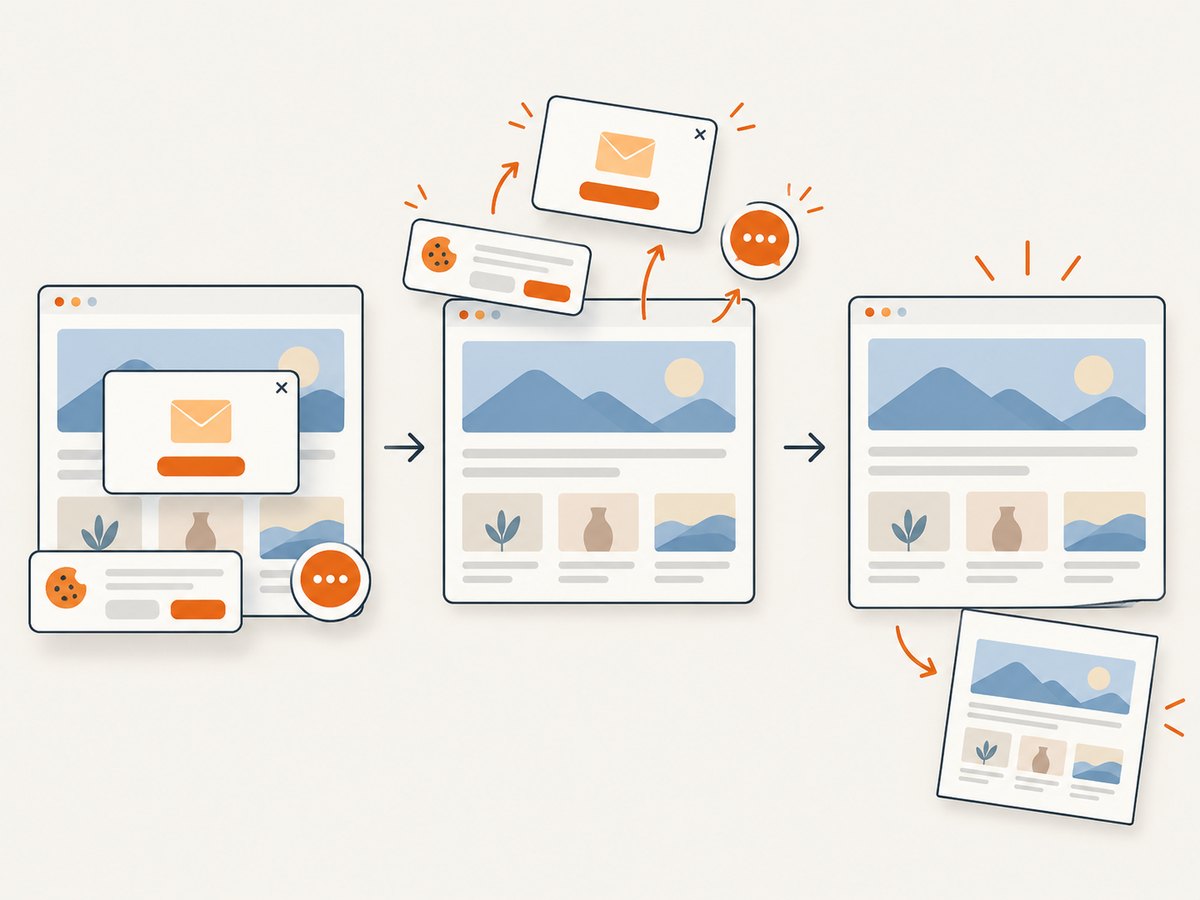
- Check consent and overlays. A cookie banner, newsletter popup, or chat widget can cover the content you wanted. Close it where appropriate, then capture again.
- Review the full result at readable zoom. Look for cut-off sections, blank regions, unexpected horizontal scrolling, or missing content near the bottom.
Dynamic content may render differently in a full-page capture than in a screenshot of the visible screen. If a browser capture does not preserve the page as expected, try loading the page again, scrolling through it to trigger lazy loading, or using another browser’s built-in full-page feature.
9. Troubleshooting common screenshot problems
| Problem | Likely cause | What to try |
|---|---|---|
| The shortcut does nothing | The operating system or browser uses a different shortcut, or the feature is unavailable. | Open the screenshot tool from the Start menu or app launcher; use the browser’s right-click menu. Check device and browser version. |
| The capture only shows the visible screen | You used a regular screen capture rather than a browser full-page feature. | In Edge choose Capture full page; in Firefox use its full-page capture or Developer Tools option. |
| Images are missing near the bottom | They are lazy-loaded and were not requested before capture. | Scroll down through the page, pause for images to load, return to the top if needed, and capture again. |
| A menu vanished before capture | The menu closed when focus changed. | On Windows, use Snipping Tool’s delay setting; in Firefox Developer Tools, use a screenshot delay option where supported. |
| A banner covers the page | A consent prompt, popup, or chat widget is layered over the content. | Dismiss it if appropriate and recapture. Do not include account or consent information you do not intend to share. |
| The full-page image has repeated or overlapping content | Sticky or animated page elements changed position during capture. | Wait for animations to finish, try another browser’s full-page tool, and inspect the output before relying on it. |
| A phone screenshot misses lower content | The normal shortcut captured only the visible screen, or scrolling capture is unsupported. | Check the preview for a scrolling or full-page option; availability depends on the device, OS, and browser. |
| The image is hard to read | The capture includes too much page, or the whole-page output is scaled down. | Capture a relevant area or element instead, or split a very long page into focused images. |
10. Check privacy and quality before sharing
A screenshot can expose information that is easy to overlook on screen. Before sending it, check for account names, email addresses, phone numbers, private page sections, browser tabs, bookmarks, notifications, and other personal details. Crop away anything unrelated and use an annotation or redaction tool when information must be obscured. Snipping Tool’s documented OCR and quick redaction features work locally on the device, but you should still inspect the saved image yourself: a redaction that misses part of a detail can leave it readable.
For long pages, verify that the final image includes the intended content and that sticky headers, banners, and interactive elements appear as expected. A screenshot records the rendered page at capture time; it is not a substitute for checking what a viewer will actually be able to see or interact with.
11. Automate website screenshots with an API
Built-in tools work well for occasional manual captures. If you need screenshots from a script, a repeated workflow, or an AI agent, an API can return an image from a URL without asking you to operate a browser by hand. ScreenshotNeo is a website screenshot API and MCP server from Yorker Media. See the ScreenshotNeo site and API documentation for request details.
cURL
curl -G "https://api.screenshotneo.com/v1/shot" \
  -d access_key=YOUR_API_KEY \
  --data-urlencode url=https://stripe.com \
  -o shot.webp
Python
import requests

r = requests.get(
    "https://api.screenshotneo.com/v1/shot",
    params={"access_key": "YOUR_API_KEY", "url": "https://stripe.com"},
    timeout=90,
)
open("shot.webp", "wb").write(r.content)
Node.js
const q = new URLSearchParams({
  access_key: 'YOUR_API_KEY',
  url: 'https://stripe.com'
});
const res = await fetch(`https://api.screenshotneo.com/v1/shot?${q}`);
if (!res.ok) throw new Error(`Screenshot request failed: ${res.status}`);
const image = Buffer.from(await res.arrayBuffer());
await import('node:fs/promises').then(fs => fs.writeFile('shot.webp', image));
Replace YOUR_API_KEY with your key and change the target URL. Keep the key on a server or in a secret store; do not put it in a public webpage. The cURL and Python examples save the response body to a file. The Node.js example checks the HTTP status before writing the returned bytes.
ScreenshotNeo supports PNG, JPEG, WebP, and PDF output, full-page capture with lazy images loaded, CSS selector element capture, device presets and custom viewports, dark mode, retina scale, and image resizing. Other controls include paper size and margins for PDFs, custom CSS or JavaScript, clicking or hiding elements, waits for a selector, delay, or network idle, request and resource blocking, headers, cookies, user agent, authorization, timezone, geolocation, transparent background, cache TTL, signed links, asynchronous jobs with signed webhooks, bulk capture for up to 100 URLs per call, usage API, and an OpenAPI spec. Each step in the consent and overlay cleanup can be turned off. Parameter names used by other screenshot APIs also work to make switching easier; see the docs for accepted parameters and exact syntax.
Or skip the browser setup
ScreenshotNeo accepts a URL and returns a screenshot in one API request. Cookie banners, popups, and chat widgets are removed before the shot. Bot checks, blank pages, timeouts, failed loads, and cache hits are not billed; the response identifies the page verdict and billing status in headers. An MCP server gives Claude, Cursor, and other MCP clients the take_screenshot, get_page_info, and capture_pdf tools. The Free plan includes 1,000 screenshots a month with no card; paid plans start at $5 for 3,000 screenshots. Every feature is available on every plan. See the docs for options and use the free sign-up to get 1,000 screenshots a month with no card.
12. Performance, reliability, and cost
For a one-off screenshot, a built-in device or browser tool has no per-capture service charge. For recurring or automated captures, consider the effort to keep a browser workflow working, the image size and format your pipeline stores, how many URLs it processes, and how failures are detected. A full-page image can be large; WebP or JPEG may use less storage than PNG for photographic pages, while PNG is useful where lossless pixels matter. Choose the format based on the destination and inspect a sample at the size people will view it.
Browser captures depend on the page finishing its dynamic behavior and on the browser’s full-page implementation. APIs add a network request and a plan or usage limit to consider. ScreenshotNeo’s stated monthly tiers are Free: 1,000 shots; Starter: $5 for 3,000; Growth: $15 for 15,000; Pro: $39 for 60,000; Scale: $99 for 250,000; and Business: $249 for 1,000,000. Yearly billing gives two months free. Its billing rules exclude bot checks or CAPTCHAs, blank pages, timeouts, failed loads, and cache hits from billing. Check the API’s X-Page-Verdict and X-Billed response headers when your automation needs to distinguish a successful capture from those outcomes.
Frequently asked questions
How do I screenshot a website for free?
Use the screenshot shortcut or app built into your device. For a long webpage, use a browser’s full-page screenshot feature rather than the ordinary screen capture shortcut.
How do I capture an entire webpage?
In Edge, open Screenshot and choose Capture full page. In Firefox, use its screenshot feature or enable the Developer Tools whole-page screenshot option. Scroll first if the page loads images only as they approach the viewport.
What is the shortcut for a screenshot on Windows or Mac?
On Windows, press Windows + Shift + S to open Snipping Tool. On Mac, press Command + Shift + 3 for the full screen or Command + Shift + 4 for an area.
How do I take a scrolling screenshot on my phone?
Take a screenshot with the phone’s button combination, then look in the preview for a scrolling or full-page control. Support and export options depend on the phone model, operating system, and browser.
Can I capture just one part of a webpage?
Yes. Use an area capture for a visual region, or Firefox Developer Tools’ Screenshot Node to capture a selected page element.


