How to Take a Screenshot of a Website in Rust
Render a live website in Rust with headless Chrome, wait for dynamic content, capture full pages or elements, troubleshoot failures, and compare ScreenshotNeo.

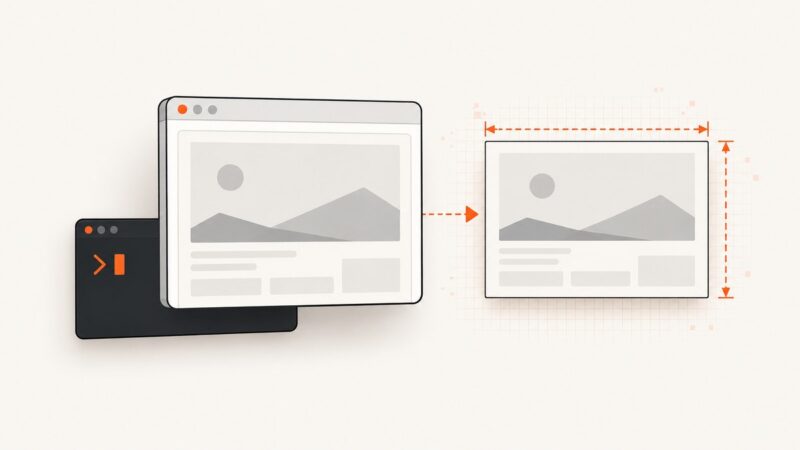
To take a screenshot of a website in Rust, run a headless Chrome or Chromium browser through the Chrome DevTools Protocol (CDP), navigate to the URL, wait until the page is ready, capture the viewport, full page, or a selected element, and write the returned bytes to a file. For a short synchronous program, headless_chrome is the simplest starting point. For an async application, chromiumoxide fits a Tokio-based runtime.
The browser does the rendering: JavaScript, CSS, fonts, images, and responsive layout are evaluated before the screenshot is encoded. Rust coordinates that work, chooses the capture area, and handles the resulting bytes.
Choose a Rust browser library
| Library | Execution style | Capture demonstrated in its documentation | Use it when |
|---|---|---|---|
headless_chrome |
Synchronous API | Whole browser window and an element | You want a compact utility, script, or synchronous service |
chromiumoxide |
Async API | Full-page PNG with ScreenshotParams |
Your application already uses Tokio or needs async browser work |
headless_chrome documentation describes control of headless Chrome or Chromium over CDP and shows navigation, waiting for an element, and JPEG/PNG capture. Its examples also show element screenshots. chromiumoxide documentation provides an async high-level CDP API with Page::screenshot and Page::save_screenshot; its documented full-page example sets full_page(true). Neither project establishes a universal performance winner, and headless_chrome says it is not 100% feature compatible with Puppeteer.
Prerequisites: Rust and a compatible browser
- Install a current Rust toolchain with
rustup. - Install Chrome or Chromium on the machine that runs the program, or use the browser-binary setup documented by your chosen crate.
headless_chromedocuments optional fetching of known-good binaries on Linux, macOS, and Windows; verify the behavior for the crate version and deployment image you use. - Make sure the process can launch the browser and write to the output directory. Containers often need extra shared libraries, a writable temporary directory, and sandbox configuration appropriate for their security model.
A browser version mismatch, missing shared library, or incorrect executable path usually appears before any screenshot code runs. Treat browser installation as a deployment dependency, not as part of the image API.

Basic screenshot with headless_chrome
Create a project and add the crate:
cargo new rust-shot
cd rust-shot
cargo add headless_chrome
The following program opens a tab, navigates to a URL, waits for a visible element, captures a PNG, and saves it. The API follows the crate’s documented quick-start pattern.
use headless_chrome::{protocol::page::ScreenshotFormat, Browser};
use std::error::Error;

fn main() -> Result<(), Box<dyn Error>> {
    let browser = Browser::default()?;
    let tab = browser.new_tab()?;

    tab.navigate_to("https://example.com")?;
    tab.wait_for_element("h1")?;

    let png = tab.capture_screenshot(ScreenshotFormat::PNG, None, true)?;
    std::fs::write("example.png", png)?;
    Ok(())
}
Run it with cargo run. The final boolean requests a capture of the full browser viewport in the documented API. If you need the browser window rather than a page element, use the capture method without an element selector. For an element shot, locate the element and call the element capture method shown in the crate examples:
let card = tab.wait_for_element(".pricing-card")?;
let bytes = card.capture_screenshot(ScreenshotFormat::PNG)?;
std::fs::write("pricing-card.png", bytes)?;
JPEG output and quality
PNG is lossless and useful for text, diagrams, and pixel comparisons. JPEG is smaller for photographic pages but introduces compression artifacts. The crate’s screenshot format supports PNG and JPEG; pass the format and, where the version exposes it, a quality value for JPEG. Confirm the exact enum and argument signatures against the version in your Cargo.lock.
Waiting for dynamic content
A navigation response only means that the initial document loaded. Single-page applications may still fetch data, replace placeholders, or decode images. Prefer a deterministic readiness condition:
tab.navigate_to("https://example.com/dashboard")?;
tab.wait_for_element("[data-report-ready]")?;
let bytes = tab.capture_screenshot(
    headless_chrome::protocol::page::ScreenshotFormat::PNG,
    None,
    true,
)?;
Waiting for a selector is generally more reliable than sleeping for an arbitrary number of milliseconds. If no stable selector exists, a bounded delay can be a fallback, but keep it explicit and expect it to vary with network speed.
Async full-page capture with chromiumoxide
For Tokio applications, add chromiumoxide and Tokio according to the versions selected by your project:
cargo new async-shot
cd async-shot
cargo add chromiumoxide
auto cargo add tokio --features full
The documented approach launches or connects to Chromium, creates a page, navigates, and saves a full-page PNG. The exact browser-launch builder can vary by crate version, so check the current API docs before pinning a command in production:
use chromiumoxide::browser::{Browser, BrowserConfig};
use chromiumoxide::page::ScreenshotParams;
use futures::StreamExt;
use std::error::Error;

#[tokio::main]
async fn main() -> Result<(), Box<dyn Error>> {
    let (mut browser, mut handler) = Browser::launch(
        BrowserConfig::builder().with_headless_mode(true).build()?
    ).await?;

    tokio::spawn(async move {
        while let Some(event) = handler.next().await {
            if let Err(error) = event {
                eprintln!("browser event: {error}");
            }
        }
    });

    let page = browser.new_page("https://example.com").await?;
    page.wait_for_navigation().await?;

    let params = ScreenshotParams::builder()
        .full_page(true)
        .build();
    page.save_screenshot(params, "example-full.png").await?;
    Ok(())
}
Use page.screenshot(params) when you want bytes in memory, or save_screenshot when a file is the natural boundary. For async readiness, wait for navigation and then wait for the application state your page exposes. A full-page image can be much taller than the viewport; verify downstream limits before returning it from an HTTP service.
Capture scope, viewport, and page state
Viewport versus full page
A viewport screenshot represents what a user sees without scrolling. A full-page screenshot stitches the page’s scrollable content into one image. Full-page capture can trigger lazy loading as the browser visits more of the document, and pages with sticky headers, infinite scrolling, or scroll-linked effects may require special handling.
Element screenshots
Element capture is useful for cards, charts, invoices, and regression tests. Wait for the selector, ensure it is visible, and capture its bounding box. An element outside the viewport, covered by a modal, or still animating can produce an unexpected result. Disable animations with injected CSS when visual stability matters:
tab.evaluate(r#"
  const style = document.createElement('style');
  style.textContent = '* { animation: none !important; transition: none !important; }';
  document.head.appendChild(style);
"#, false)?;
Responsive layout
Set the browser viewport before navigation when the page changes at breakpoints. Test the exact width and height your product needs; a desktop screenshot and a mobile screenshot are different renderings, not different crops of the same image.
Fonts, images, and lazy loading
Wait for a meaningful application selector and, when necessary, for fonts or images to finish. A page can report “loaded” while web fonts are still swapping. Remote assets may be blocked by a corporate proxy, a content security policy, or an expired certificate. If pixel consistency matters, use fixed browser and font versions and control the network inputs.
Browser configuration you will need in production
- Executable path: configure the Chrome/Chromium path when it is not on the default search path.
- Headless mode: use the mode supported by the browser version in your image. Some environments need a virtual display for non-headless operation.
- Sandbox: do not blindly add
--no-sandbox. In containers, understand the user, namespaces, and isolation policy first. - Timeouts: set navigation, selector, and capture deadlines. A page that never resolves should become a controlled failure.
- Isolation: use a fresh context or tab for untrusted pages when cookies, local storage, and authentication must not leak between jobs.
- Network policy: decide whether redirects, private IP ranges, mixed content, and third-party requests are allowed. Screenshot services can become an SSRF risk if arbitrary URLs are accepted.
- Concurrency: limit simultaneous browser tabs and processes. Each renderer consumes CPU and memory, and too much parallelism causes timeouts rather than higher throughput.
Common failures and fixes
| Symptom | Likely cause | Fix |
|---|---|---|
| Browser fails to start | Missing binary, shared library, or executable path | Install a compatible Chrome/Chromium, inspect the process error, and configure the path explicitly. |
| Blank or half-rendered image | Capture ran before JavaScript, fonts, or images finished | Wait for a stable selector, disable animations, and verify network requests. |
wait_for_element times out |
Selector is wrong, element is inside a frame, or the page returned an error | Inspect the DOM, account for iframes, and log the final URL and document title. |
| Full page is unexpectedly short | Lazy content has not been loaded or the page uses virtual scrolling | Scroll in controlled steps, wait after each step, or capture the relevant element instead. |
| Different result in CI | Different browser, fonts, viewport, timezone, locale, or network | Pin the browser image, set viewport and locale, and make external dependencies deterministic. |
| Access denied or CAPTCHA | Target site blocks automation | Respect the site’s rules, authenticate through an approved path, or use a managed capture service. Do not attempt to defeat a CAPTCHA. |
| Memory grows across jobs | Tabs or browser processes are not closed | Reuse a bounded browser pool, close pages, and recycle processes after a controlled number of jobs. |
Reliability, performance, and cost
Launching a browser for every request is simple but expensive in startup time and memory. A long-lived browser pool reduces startup overhead, while per-job contexts preserve isolation. Measure your own pages: the supplied sources do not provide a cross-library benchmark or universal throughput number.
Cache screenshots when the URL and rendering inputs are identical. Include viewport, device scale, cookies, headers, user agent, and relevant application state in the cache key. Retry only transient failures, with a cap and backoff; retrying a deterministic selector error wastes capacity. Record the target URL, final URL, browser version, viewport, elapsed stages, and failure category without logging secrets.
Self-hosted capture costs compute, browser maintenance, storage, and engineering time. A managed API can make billing and failure handling easier when you do not want to operate Chromium.
Or skip the browser setup
ScreenshotNeo provides a website screenshot API and MCP server. One GET request returns a PNG, JPEG, WebP, or PDF. It accepts the cookie or consent banner like a visitor, then removes more than 60 known consent platforms, newsletter popups, and chat widgets before capture; each step can be turned off. Bot checks, CAPTCHAs, blank pages, timeouts, failed loads, and cache hits are not billed, and the response identifies the result with X-Page-Verdict and X-Billed headers.

See the ScreenshotNeo API documentation for the complete parameter list. The basic call is:
curl -G "https://api.screenshotneo.com/v1/shot" -d access_key=YOUR_API_KEY --data-urlencode url=https://stripe.com -o shot.webpimport requests
r = requests.get(
"https://api.screenshotneo.com/v1/shot",
params={"access_key": "YOUR_API_KEY", "url": "https://stripe.com"},
timeout=90,
)
r.raise_for_status()
open("shot.webp", "wb").write(r.content)const q = new URLSearchParams({ access_key: 'YOUR_API_KEY', url: 'https://stripe.com' });
const res = await fetch(`https://api.screenshotneo.com/v1/shot?${q}`);
if (!res.ok) throw new Error(`Screenshot failed: ${res.status}`);
const bytes = new Uint8Array(await res.arrayBuffer());
await Bun.write('shot.webp', bytes);From Rust, use any HTTP client such as reqwest to make the same GET request and save the response bytes:
let client = reqwest::Client::new();
let response = client
    .get("https://api.screenshotneo.com/v1/shot")
    .query(&[("access_key", "YOUR_API_KEY"), ("url", "https://stripe.com")])
    .timeout(std::time::Duration::from_secs(90))
    .send()
    .await?
    .error_for_status()?;
let bytes = response.bytes().await?;
tokio::fs::write("shot.webp", &bytes).await?;
ScreenshotNeo includes full-page capture with lazy images loaded, CSS-selector element capture, dark mode, 12 device presets or any viewport, retina scale, PDF paper size/margins/landscape/page ranges, HTML/CSS-to-image, custom CSS and JavaScript, click and wait actions, blocked ads/trackers/requests/resource types, custom headers/cookies/user agents/Authorization, timezone and geolocation, transparent backgrounds, resizing, selectable cache TTLs, signed image links, async jobs with signed webhooks, bulk capture for 100 URLs per call, a usage API, and an OpenAPI specification. Parameter names used by other screenshot APIs also work, which helps when switching.
An MCP server exposes take_screenshot, get_page_info, and capture_pdf to Claude, Cursor, and other MCP clients. Plans include 1,000 shots per month free with no card; Starter is $5 for 3,000, Growth $15 for 15,000, Pro $39 for 60,000, Scale $99 for 250,000, and Business $249 for 1,000,000. Yearly billing gives two months free, and every feature is on every plan. Create a free ScreenshotNeo account and start with 1,000 screenshots a month at no charge.
FAQ
Can Rust take a screenshot without Chrome?
For a live, JavaScript-rendered website, you need a rendering engine somewhere. The Rust libraries in this guide control Chrome or Chromium through CDP; an image library alone cannot reproduce browser layout.
Should I use headless_chrome or chromiumoxide?
Match the library to your application style. Choose the documented synchronous API for a small utility and the async API for a Tokio service. Compare the exact crate versions and features you will deploy.
How do I screenshot a page behind a login?
Use an approved authentication flow, then set cookies or storage in the browser context before navigation. Keep credentials isolated per job and never put secrets in logs or URLs.
Why is my screenshot different on every run?
Animation, live data, ads, time-dependent content, remote fonts, and changing browser versions all affect pixels. Freeze the inputs, wait for a readiness condition, and disable motion where appropriate.
When is a screenshot API preferable?
Use one when browser installation, scaling, consent cleanup, failure classification, or AI-agent access would otherwise become part of your service. ScreenshotNeo provides those pieces behind one request.