How to Take Website Screenshots Automatically
Capture websites automatically with Playwright, Puppeteer, or Chrome Headless, then schedule repeat runs and make them more reliable.
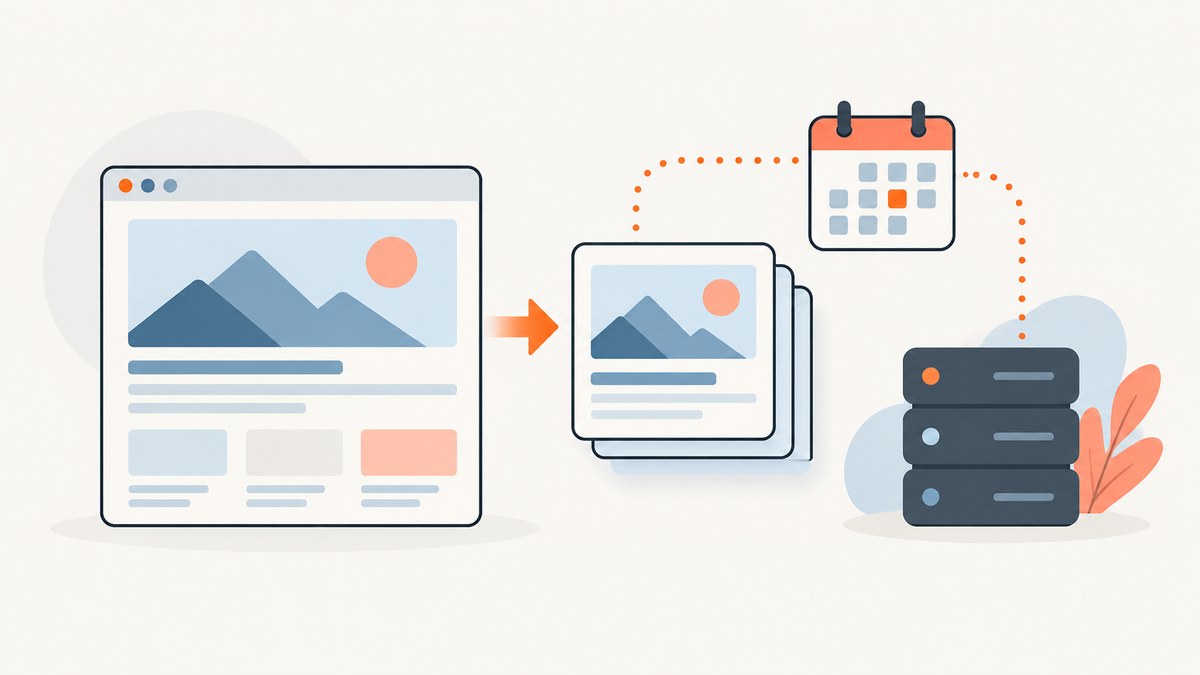
To take website screenshots automatically, use a browser automation script or a headless browser command to open a URL and save the rendered page as an image. Use Playwright or Puppeteer when you need interaction or precise control; use Chrome Headless for a simple command-line capture. To repeat captures, schedule the script or command with your operating-system scheduler or CI service. First decide whether you need the visible viewport, the whole page, or a specific region, and wait for the content you need before capturing.
This guide covers one-off captures, repeatable scripts, scheduling, options, troubleshooting, and operational considerations. The examples use a public page; adapt the URL and output path to your workflow.
1. Choose a capture method
| Method | Good fit | What you control |
|---|---|---|
| Playwright | Scripts that need page interaction or a choice among supported browser engines | Browser context, page state, viewport, screenshot format, clip area, and full-page capture |
| Puppeteer | JavaScript workflows centered on browser pages | Output path, image type, quality, clipping rectangle, transparent background, and full-page capture |
| Chrome Headless | A quick URL-to-image command | Screenshot output, window size, and maximum wait time |
No method is best for every job. Choose based on whether the page requires interaction, what portion you need to capture, and how you plan to run the job repeatedly. Browser automation examples establish image generation, not semantic extraction: a screenshot records pixels and does not make the page text or controls available as structured data.
2. Take a screenshot with Playwright
Playwright launches a browser, navigates to the page, and saves a screenshot. The example below is a runnable Node.js script. Install Playwright and its Chromium browser in the project first:
npm init -y
npm install playwright
npx playwright install chromium
// screenshot.mjs
import { chromium } from 'playwright';
const browser = await chromium.launch({ headless: true });
try {
const page = await browser.newPage({
viewport: { width: 1440, height: 900 },
deviceScaleFactor: 1
});
await page.goto('https://example.com', { waitUntil: 'load', timeout: 60000 });
await page.screenshot({ path: 'screenshot.png', fullPage: true });
} finally {
await browser.close();
}Run it with node screenshot.mjs. Change fullPage to false to capture the viewport. Set the viewport dimensions before navigation if page layout depends on screen size. To wait for a particular piece of dynamic content rather than assuming the initial load is ready, use a locator:
await page.goto('https://example.com', { waitUntil: 'domcontentloaded' });
await page.locator('main article').waitFor({ state: 'visible', timeout: 30000 });
await page.screenshot({ path: 'article.png', fullPage: true });
Use a selector that represents the content your capture depends on. A fixed delay can be useful for a known animation or delayed widget, but it may waste time on fast runs and still be too short on slow ones. A selector wait expresses the condition more directly.
3. Take a screenshot with Puppeteer
Puppeteer provides a similar page-oriented flow. Install it, save this as puppeteer-shot.mjs, and run it with Node.js:
npm install puppeteer// puppeteer-shot.mjs
import puppeteer from 'puppeteer';
const browser = await puppeteer.launch({ headless: true });
try {
const page = await browser.newPage();
await page.setViewport({ width: 1440, height: 900, deviceScaleFactor: 1 });
await page.goto('https://example.com', { waitUntil: 'load', timeout: 60000 });
await page.screenshot({ path: 'screenshot.png', fullPage: true, type: 'png' });
} finally {
await browser.close();
}Puppeteer documents a clipping rectangle, full-page capture, transparent background, output path, image type, and quality. Quality applies to JPEG and WebP, not PNG. For example, to capture a region instead of the whole page, pass a clipping rectangle:
await page.screenshot({
  path: 'region.png',
  clip: { x: 0, y: 0, width: 800, height: 600 }
});
Check the official API documentation for the current option names and supported formats when adapting this to a specific Puppeteer version.
4. Capture from the Chrome command line
For a one-off capture, Chrome Headless can take a screenshot without a browser automation script. A basic command is:
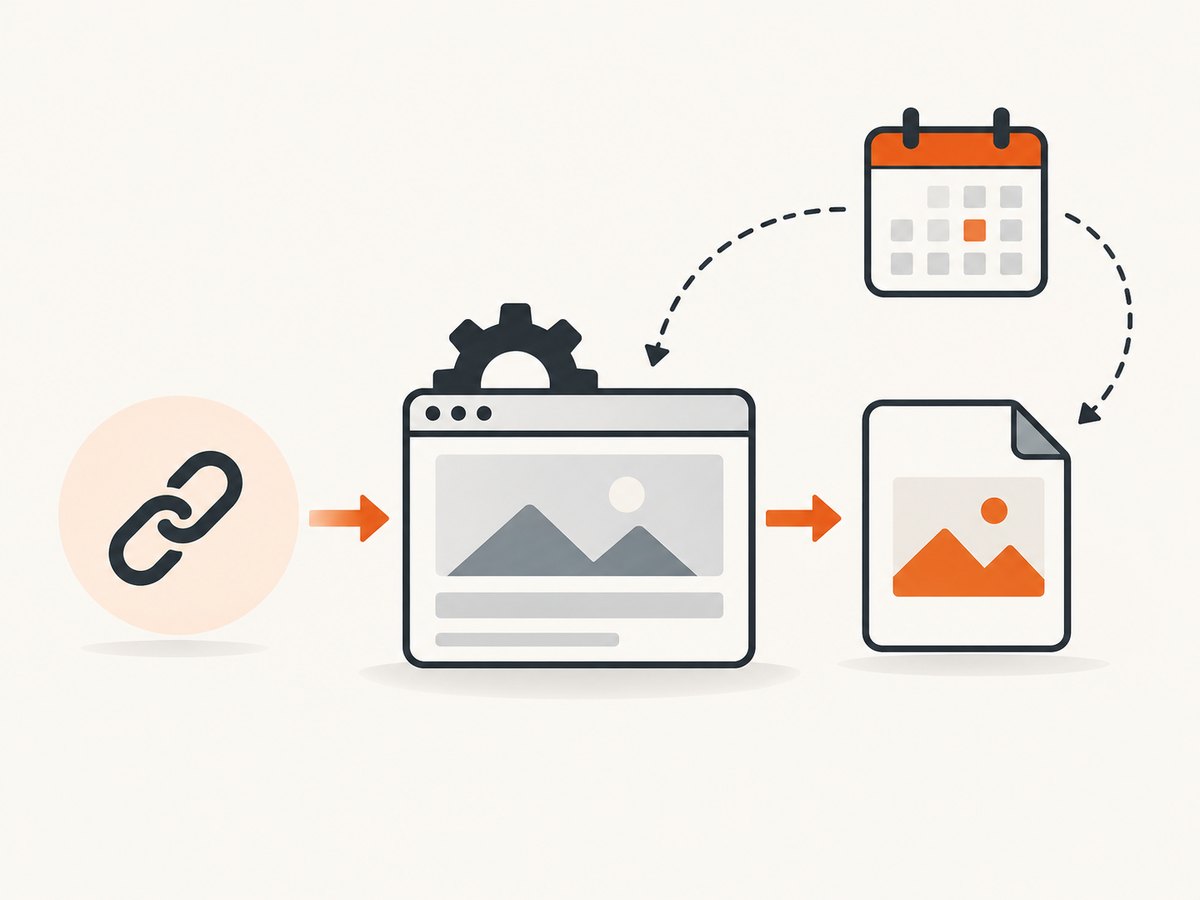
chrome --headless --screenshot=shot.png https://example.comIf the output viewport dimensions matter, set a window size:
chrome --headless --window-size=1440,900 --screenshot=shot.png https://example.comThe documented --timeout flag sets a maximum wait before screenshot commands proceed, even if a page is still loading. It is a time limit, not proof that a particular dynamic element is ready. Chrome binary names and available flags can vary by installation and version; consult the current Chrome Headless documentation if a command is rejected.
5. Schedule recurring captures
The browser script or Chrome command performs a capture. A scheduler runs it again on a cadence. The scheduler is a separate part of the workflow, so choose one that fits where the script runs: a machine you administer, a server, or a CI service. The browser documentation describes capture, not a particular scheduling product or setup.
- Make the capture deterministic. Choose a URL, viewport, format, wait condition, and output location.
- Make each run identifiable. Include a timestamp or other stable identifier in filenames so later runs do not overwrite earlier ones.
- Set a retention policy. Decide how long to keep captures and where they should be stored.
- Schedule the script or command. Configure your chosen scheduler to run it at the desired interval.
- Observe failures. Record exit status and errors, and arrange for failed runs to be visible to whoever maintains the workflow.
- Protect sensitive captures. A screenshot of a logged-in page can expose private information. Limit access to the page, output, and any stored browser credentials.
For repeatable visual comparisons, keep the browser version, operating system, settings, hardware where practical, and viewport consistent. Playwright notes that screenshot output can vary with these environmental factors, including headless mode and power source. A difference between two images may come from the capture environment rather than a change to the page.
6. Decide what and when to capture
Viewport, full page, or clip
A viewport screenshot contains the visible screen at the selected dimensions. A full-page screenshot includes content below the fold. A clipped screenshot records a rectangle, which can be useful when only a particular region matters. Playwright and Puppeteer document full-page capture, and both provide screenshot controls beyond a basic viewport capture.
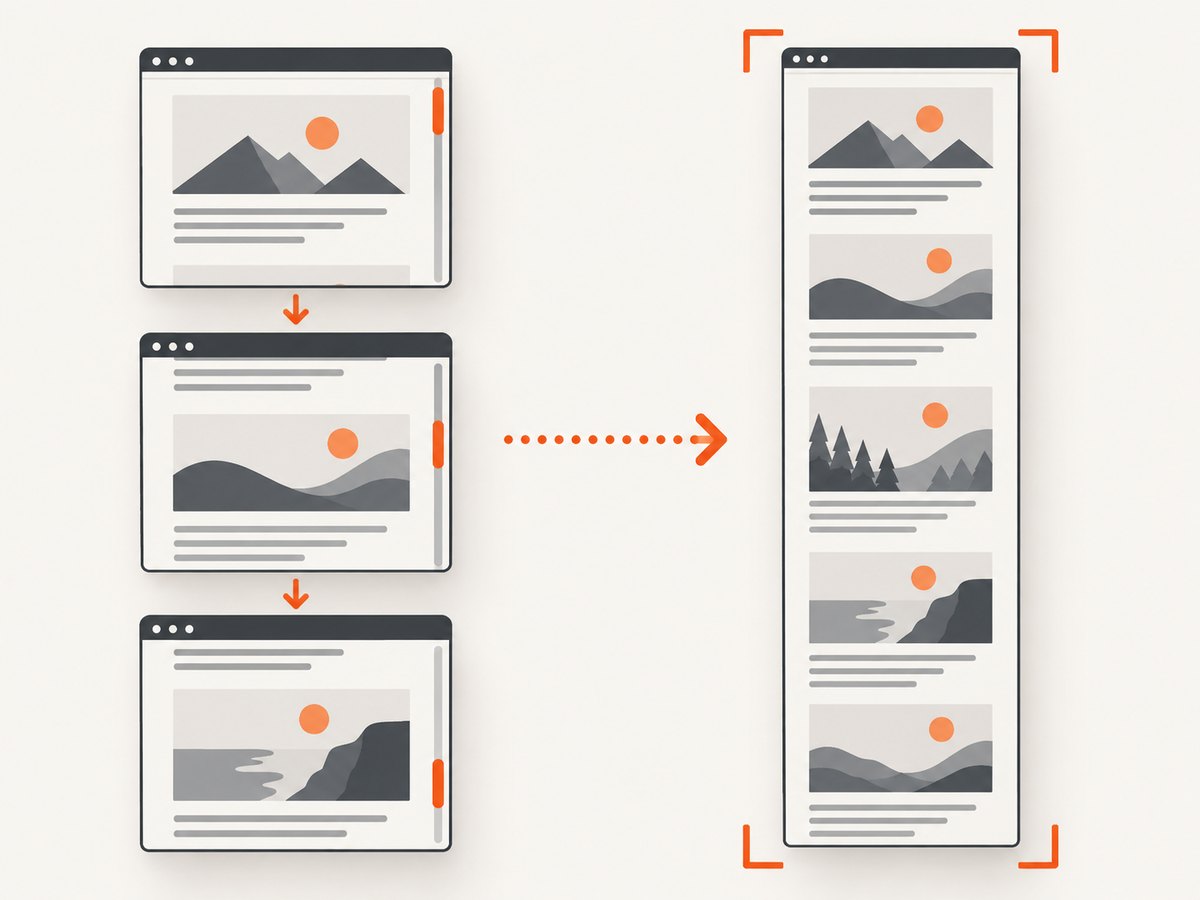
Do not assume a full-page option automatically handles every infinite-scroll page or loads every lazy image. A page may fetch content only after scrolling, or may continue to grow while the capture is being taken. If the required content is below the fold, determine what interaction makes it appear, perform that interaction in the script, and confirm the content is present before saving the image.
Choose a wait condition that matches the page
A page can finish its initial navigation before a chart, image, or application view is ready. Wait for the exact element or state that matters, when possible. If there is no useful selector, choose and document a delay appropriate to the site. Chrome’s timeout is a maximum wait, not an application-specific readiness check. For repeat runs, avoid capturing a transient loading state just because navigation returned.
Keep size and format intentional
Viewport width can change responsive layouts, while device scale factor affects pixel dimensions. Pick both deliberately and keep them stable across comparison runs. Use PNG when you need lossless output; JPEG or WebP may suit workflows where smaller image files matter. Puppeteer documents a quality option for JPEG and WebP but not PNG. The correct format depends on downstream storage and comparison needs.
7. Troubleshooting
| Symptom | Likely cause | What to try |
|---|---|---|
| Browser executable missing | The automation package is installed but its browser was not installed, or the runtime cannot find it. | Run the browser installation command for your framework and confirm the runtime has access to the installed browser. |
| Navigation times out | The site is slow, unreachable, or waiting for a load condition that never completes. | Check the URL from the same environment, set a suitable timeout, and wait for the needed content instead of assuming every resource must finish loading. |
| Screenshot shows a spinner or skeleton | The app rendered its initial shell but the relevant content was not ready. | Wait for a specific visible element or application state before calling the screenshot method. |
| Lower-page images are missing | Images may load lazily, or the page may require scrolling before requesting them. | Scroll through the content or trigger the interaction the page requires, then verify the images are loaded before capture. |
| Layout differs between runs | Viewport, browser version, operating system, fonts, hardware, settings, or headless mode may differ. | Pin and record the capture environment and use consistent viewport dimensions and settings. |
| Chrome rejects a flag | The installed Chrome version or binary may not support the command as written. | Check the current Chrome Headless reference and confirm which binary your environment invokes. |
| Output file is missing or overwritten | The process may lack write access, the path may be relative to an unexpected working directory, or every run may reuse one filename. | Use a known writable path, log the resolved destination, and generate a unique filename for each scheduled run. |
| Screenshot contains private page data | The capture runs in an authenticated session or includes information visible to that account. | Restrict access to the output and credentials, and capture only pages and data appropriate for the workflow. |
8. Performance, reliability, and cost
Every browser launch, navigation, wait, and image write adds work to a capture run. Reuse a browser process for batches of URLs when your script architecture supports it, while keeping page state isolated where needed. Set a timeout so one unresponsive page does not occupy a worker indefinitely. If a page is important, log the URL, start and finish times, output path, and error details so a failed scheduled run can be diagnosed.
Capture results depend on the target site and the browser environment. Network problems, bot checks, consent dialogs, dynamic content, and page changes can all affect what appears. Retries can help with transient failures, but repeated retries against a site that is consistently inaccessible will add work without fixing the underlying issue. When comparing images, first verify that both runs used the same viewport and capture environment.
Self-hosted browser automation has no per-screenshot API price in the examples above, but it still uses compute, storage, network, and maintenance time. A scheduled workflow should account for its browser runtime and retained image volume. No general benchmark or cost figure applies across sites and environments, so measure your own workload if resource planning matters.
9. Or skip the browser setup
If you want a URL-to-image request without installing and operating a browser, ScreenshotNeo is a website screenshot API and MCP server from Yorker Media. This is the direct request pattern; replace YOUR_API_KEY with your key and adapt the target URL. See the ScreenshotNeo API documentation for request options.
curl -G "https://api.screenshotneo.com/v1/shot" -d access_key=YOUR_API_KEY --data-urlencode url=https://stripe.com -o shot.webpimport requests
r = requests.get(
"https://api.screenshotneo.com/v1/shot",
params={"access_key": "YOUR_API_KEY", "url": "https://stripe.com"},
timeout=90,
)
open("shot.webp", "wb").write(r.content)const q = new URLSearchParams({ access_key: 'YOUR_API_KEY', url: 'https://stripe.com' });
const res = await fetch(`https://api.screenshotneo.com/v1/shot?${q}`);ScreenshotNeo accepts cookie and consent banners like a visitor and removes more than 60 known consent platforms, newsletter popups, and chat widgets before capture; each cleanup step can be turned off. Bot checks and CAPTCHAs, blank pages, timeouts, failed loads, and cache hits cost nothing, and response headers report the page verdict and billing status. Its MCP server provides take_screenshot, get_page_info, and capture_pdf tools for AI agents. The Free plan includes 1,000 screenshots a month with no card; paid plans start at $5 for 3,000. Every feature is on every plan.
Sign up free for 1,000 screenshots a month, with no card required.
10. Frequently asked questions
Can screenshots run without a visible browser window?
Yes. The Playwright and Puppeteer examples launch headless browsers, and Chrome offers Headless command-line capture.
Does a screenshot tell my script what text is on the page?
No. It saves a rendered image. If your workflow needs structured text or control state, collect that separately from the page.
Can I automatically capture a page every week?
Yes. Schedule the finished script or command to run weekly with an operating-system scheduler or CI service, and decide how each image will be named, stored, and retained.
Will a full-page screenshot include every item on an infinite-scroll page?
Not necessarily. The page may need to be scrolled to load more content. Trigger and verify the content your capture needs before saving.
Which approach should I start with?
Start with Chrome Headless for a simple one-off URL capture. Choose Playwright or Puppeteer when you need scripted waits, interaction, clipping, or repeatable browser control.


