How to Take Website Screenshots in Node.js
Capture viewport, full-page, or element screenshots in Node.js with Playwright or Puppeteer, then compare the tradeoffs with a hosted API.
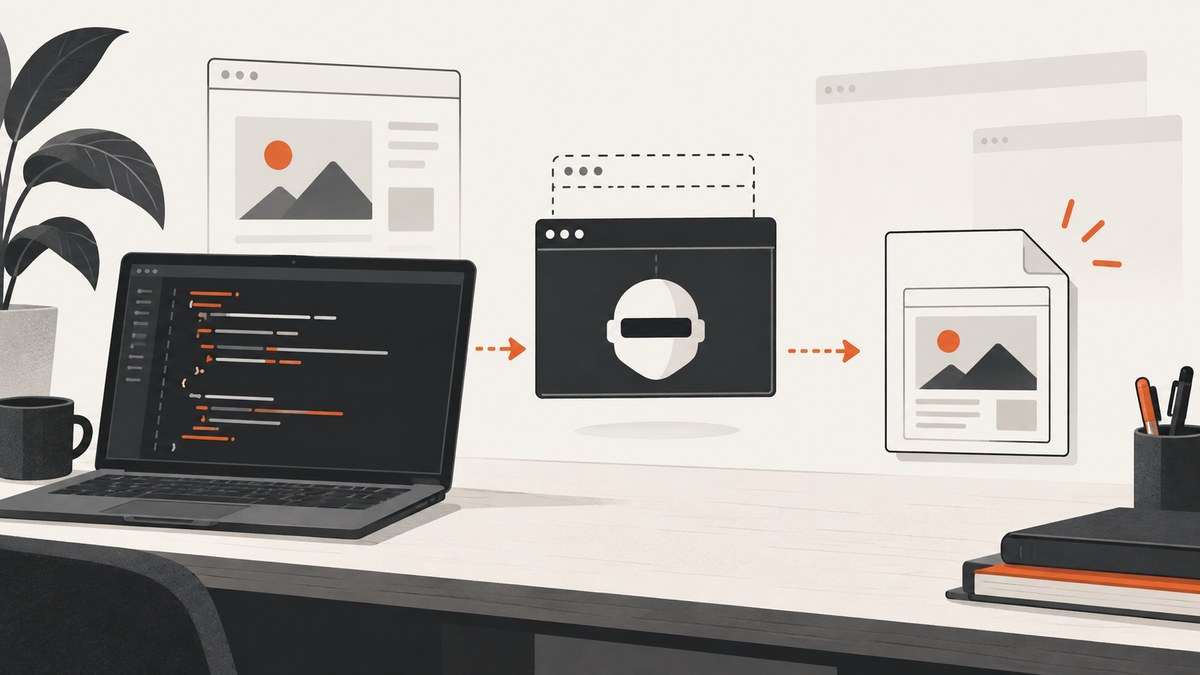
Yes. In Node.js, the dependable way to take a website screenshot is to launch a browser with Playwright or Puppeteer, navigate to the URL, wait for the page state you need, and call the page screenshot API. A normal capture is the current viewport; set fullPage: true for the entire scrollable document, or capture a locator or clip when you need one component.
This guide starts with a complete Playwright script, then covers Puppeteer, output formats, dynamic pages, repeatable visual tests, failure modes, and scaling decisions. At the end you will also see a one-request hosted option, ScreenshotNeo, when managing browsers is not useful for your project.
1. Set up a Node.js screenshot project
Use a current LTS Node.js release. Create a project and install Playwright:
mkdir node-screenshot
cd node-screenshot
npm init -y
npm install playwright
npx playwright install chromium
The install command downloads the browser binary used by the script. In a minimal Linux container you may need the browser dependencies listed by Playwright’s installer. Keep the browser version fixed in CI so pixels do not change unexpectedly.
2. Capture a viewport or full page with Playwright
This runnable CommonJS example follows Playwright’s documented page flow: launch, create a page, navigate, save, and close. The Playwright screenshots guide documents the screenshot modes and buffer output.
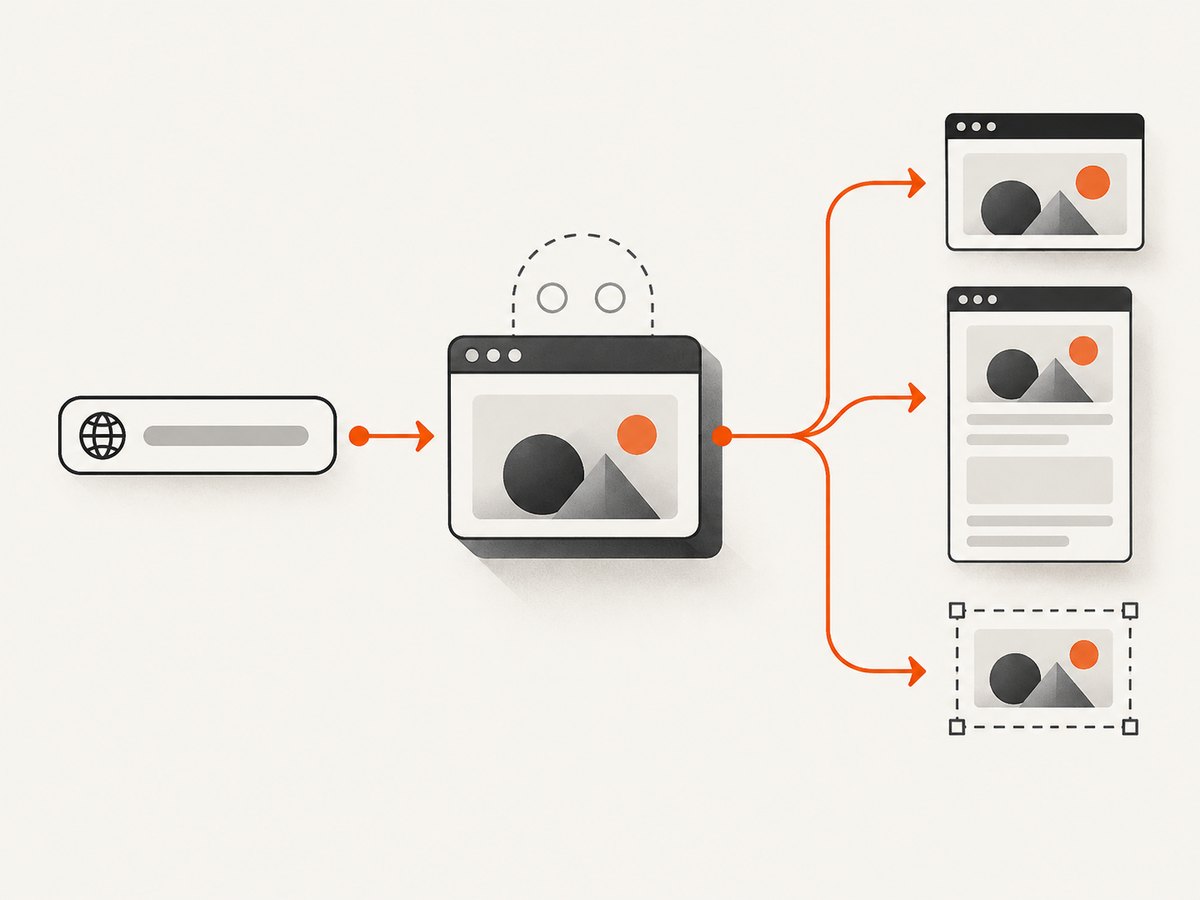
const { chromium } = require('playwright');

(async () => {
  const browser = await chromium.launch();
  try {
    const page = await browser.newPage({
      viewport: { width: 1440, height: 900 },
      deviceScaleFactor: 1
    });

    await page.goto('https://example.com', {
      waitUntil: 'networkidle',
      timeout: 60_000
    });

    await page.screenshot({
      path: 'example-full.png',
      fullPage: true,
      animations: 'disabled'
    });
  } finally {
    await browser.close();
  }
})();
Run it with node capture.js. Remove fullPage: true to save only the 1440×900 viewport. Playwright’s Page API defines navigation and screenshot options; the exact wait condition should match the site you capture.
Wait for the content that matters
networkidle is useful for pages that finish loading after their requests settle, but analytics or live updates can keep a connection open. A more deterministic pattern is to wait for a meaningful selector, optionally followed by a short delay:
await page.goto('https://example.com/dashboard', { waitUntil: 'domcontentloaded' });
await page.locator('[data-testid="report"]').waitFor({ state: 'visible', timeout: 30_000 });
await page.waitForTimeout(300);
await page.screenshot({ path: 'report.png', fullPage: true });
Prefer a selector that represents ready content over an arbitrary long sleep. If the page has lazy images, scroll it before the final capture so those images load:
await page.evaluate(async () => {
  await new Promise(resolve => {
    let y = 0;
    const step = () => {
      window.scrollBy(0, 600);
      y += 600;
      if (y >= document.body.scrollHeight) return resolve();
      setTimeout(step, 50);
    };
    step();
  });
});
await page.screenshot({ path: 'lazy-loaded.png', fullPage: true });
3. Choose viewport, full-page, or element capture
| Mode | Code | Use it when |
|---|---|---|
| Viewport | page.screenshot({ path }) |
You need exactly what a user sees without scrolling. |
| Full page | fullPage: true |
You need the complete scrollable document. |
| Element | page.locator('.card').screenshot({ path }) |
You need a component such as a chart, invoice, or hero. |
| Clip | clip: { x, y, width, height } |
You need a fixed rectangle in viewport coordinates. |
Element screenshots are documented in the screenshots guide. A locator must resolve to a visible element; wait for it first when the DOM is populated asynchronously.
const card = page.locator('.pricing-card').first();
await card.waitFor({ state: 'visible' });
await card.screenshot({ path: 'pricing-card.png', type: 'png' });
4. Control pixels, formats, and returned bytes
Set a fixed viewport, device scale factor, color scheme, locale, and timezone when screenshots will be compared. A retina-style capture uses a larger deviceScaleFactor:
const context = await browser.newContext({
  viewport: { width: 1280, height: 800 },
  deviceScaleFactor: 2,
  colorScheme: 'dark',
  locale: 'en-US',
  timezoneId: 'UTC'
});
const page = await context.newPage();
Playwright writes PNG by default when a path ends in .png. You can request JPEG or WebP where supported by your installed browser, and set quality for lossy formats. If another service needs the image in memory, omit path and receive a buffer:
const image = await page.screenshot({ type: 'png' });
require('fs').writeFileSync('in-memory-copy.png', image);
Use omitBackground: true in Puppeteer for transparency; for Playwright, make the page background transparent with CSS before capturing when your browser and format support it.
5. The equivalent Puppeteer workflow
Puppeteer exposes the same core sequence. Its Page.screenshot documentation describes path, fullPage, clip, type, quality, and omitBackground. Install it with npm install puppeteer.
const puppeteer = require('puppeteer');

(async () => {
  const browser = await puppeteer.launch({ headless: true });
  try {
    const page = await browser.newPage();
    await page.setViewport({ width: 1440, height: 900, deviceScaleFactor: 1 });
    await page.goto('https://example.com', {
      waitUntil: 'networkidle2',
      timeout: 60_000
    });
    await page.screenshot({
      path: 'puppeteer-full.jpg',
      fullPage: true,
      type: 'jpeg',
      quality: 85
    });
  } finally {
    await browser.close();
  }
})();
Puppeteer returns a Uint8Array when no path is supplied. Add encoding: 'base64' when an API specifically requires a base64 string. PNG ignores the quality setting; quality applies to formats that support lossy compression.
6. Interact with a page before the shot
Cookie dialogs, menus, tabs, and authenticated screens often require a short script. Perform the action, hide unstable elements, and then capture:
await page.goto('https://example.com', { waitUntil: 'domcontentloaded' });
const accept = page.getByRole('button', { name: /accept/i });
if (await accept.count()) await accept.click();
await page.addStyleTag({ content: '.chat-widget, .live-cursor { visibility: hidden !important; }' });
await page.locator('#results').waitFor({ state: 'visible' });
await page.screenshot({ path: 'clean-results.png', fullPage: true });
For login flows, create a browser context with credentials or a saved storage state, and never commit that state file. For pages that depend on a specific user agent or headers, set them on the context before navigation.
7. Make visual comparisons repeatable
Keep the operating system, browser version, viewport, device scale factor, fonts, locale, timezone, network data, and headless mode consistent. Playwright warns that screenshots can differ across operating systems, versions, settings, hardware, power source, and headless mode; see its visual comparisons documentation. Disable animations and mask timestamps, ads, rotating content, and user-specific data.
Playwright Test’s toHaveScreenshot() assertion belongs to the test runner. It waits for two consecutive screenshots to be stable before comparing the last capture with the stored snapshot. That stability check is useful for regression tests, but it does not make an arbitrary production capture deterministic.
8. Troubleshooting checklist
| Symptom | Likely cause | Fix |
|---|---|---|
TimeoutError in goto |
Slow server, never-ending requests, or a blocked resource. | Raise the timeout, use domcontentloaded, then wait for a specific ready selector. |
| Blank or half-rendered image | Capture ran before client-side rendering or fonts finished. | Wait for a visible content locator and, if needed, document.fonts.ready. |
| Lazy images are missing | Images load only after entering the viewport. | Scroll through the page before fullPage capture. |
| Element screenshot fails | Selector matches zero or hidden elements. | Use a stable test attribute and call waitFor({state:'visible'}). |
| Different pixels in CI | Fonts, browser, OS, timezone, or animations differ. | Pin the environment, set context options, disable motion, and review snapshot updates. |
| Browser will not launch in Docker | Missing browser binary or system libraries. | Run the library’s browser install command during image build and include its documented dependencies. |
| Huge output file | Very tall page, high device scale, or PNG compression limits. | Capture an element, reduce scale, choose JPEG or WebP where acceptable, or split the page. |
9. Performance, reliability, and cost
- Reuse browsers: Launch one browser per worker and create and close contexts per job. Browser startup is more expensive than a new page.
- Control concurrency: Limit parallel pages to available CPU and memory. Full-page and high-DPI images consume more memory.
- Bound every wait: Set navigation and selector timeouts, catch errors, and close the browser in a
finallyblock. - Cache deliberately: Cache by URL plus viewport, headers, cookies, and content version. A cached image is valid only while those inputs are unchanged.
- Retry selectively: Retry transient navigation or network failures with backoff. Do not blindly retry deterministic 4xx responses or bot challenges.
- Estimate cost: Self-hosted capture consumes compute, storage, and maintenance. A hosted API converts that work into per-shot billing; compare the total with your browser fleet and engineering time.
10. Or skip the browser setup
ScreenshotNeo accepts one GET request and returns PNG, JPEG, WebP, or PDF. Its API supports full-page and element capture, dark mode, device presets or custom viewports, retina scale, custom CSS and JavaScript, clicks, waits, blocked requests, headers, cookies, user agents, authorization, timezone, geolocation, resizing, caching, async jobs, bulk capture, signed links, and usage reporting. See the ScreenshotNeo documentation for parameter details.

curl -G "https://api.screenshotneo.com/v1/shot" -d access_key=YOUR_API_KEY --data-urlencode url=https://stripe.com -o shot.webpimport requests
r = requests.get("https://api.screenshotneo.com/v1/shot", params={"access_key": "YOUR_API_KEY", "url": "https://stripe.com"}, timeout=90)
r.raise_for_status()
open("shot.webp", "wb").write(r.content)const q = new URLSearchParams({ access_key: 'YOUR_API_KEY', url: 'https://stripe.com' });
const res = await fetch(`https://api.screenshotneo.com/v1/shot?${q}`);
if (!res.ok) throw new Error(`HTTP ${res.status}`);
require('fs').writeFileSync('shot.webp', Buffer.from(await res.arrayBuffer()));Consent banners, newsletter popups, and chat widgets are removed before capture. Bot checks, blank pages, timeouts, failed loads, and cache hits cost nothing; response headers X-Page-Verdict and X-Billed say what happened. An MCP server provides take_screenshot, get_page_info, and capture_pdf tools for Claude, Cursor, and other MCP clients. The free plan includes 1,000 screenshots each month with no card; paid plans start at $5 for 3,000 shots. Create a free ScreenshotNeo account.
11. Frequently asked questions
Can Node.js take a screenshot without a browser?
Not for a normally rendered website. You need a rendering engine such as Chromium, WebKit, or Firefox through Playwright or Puppeteer, or a hosted screenshot API.
Should I choose Playwright or Puppeteer?
Use the library your project already standardizes on. Both expose viewport, full-page, element or clip, file, and in-memory workflows; the sources do not establish a universal winner.
How do I capture a PDF instead?
Use a browser’s PDF API when you control Chromium options, or ScreenshotNeo’s PDF endpoint when you want paper size, margins, orientation, and page ranges as API parameters.
Why is my screenshot different on another machine?
Rendering depends on OS, browser, fonts, settings, hardware, and headless mode. Pin those inputs and generate and compare baselines in one consistent environment.


