How to Test Browser Automation with End-to-End, Snapshot, and Unit Tests
Learn which browser automation tests to use, how to write focused end-to-end and snapshot checks, and how to make visual comparisons dependable.
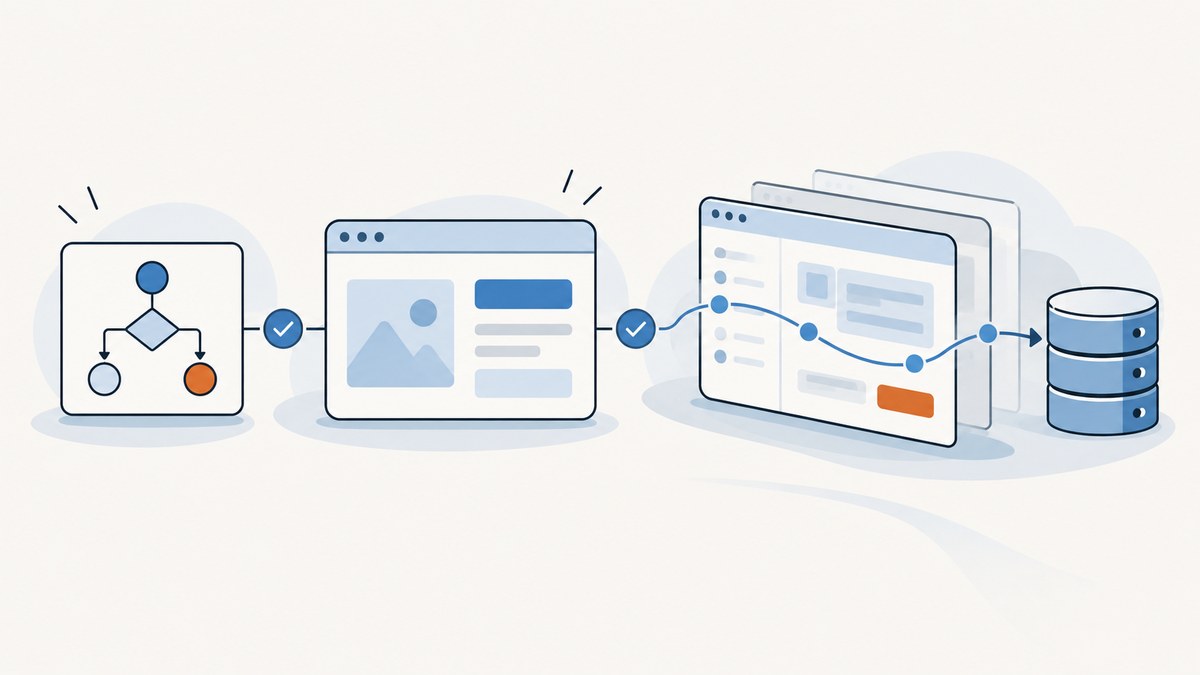
Use unit tests for deterministic logic, component tests for isolated UI behavior, end-to-end (E2E) browser tests for a small set of critical workflows, and snapshots for stable structural or visual output. These methods answer different questions. A useful suite combines them according to risk instead of trying to make every test a full browser journey or relying on snapshots to prove behavior.
This guide shows how to choose the right scope, write a focused Playwright E2E test and snapshot, control sources of visual noise, and troubleshoot failures. The examples use Playwright Test; the same test-design principles apply when using Cypress or Selenium.
1. Choose the test that answers the question
Start by stating what you need to know. Can a calculation produce the right result? Does a component show an error state? Can a user sign in and complete a purchase? Did an important page’s structure or appearance change? The narrowest test that gives you reliable evidence is usually the clearest and least costly to maintain.
| Test type | Use it for | What it cannot establish by itself |
|---|---|---|
| Unit | Pure logic, formatting rules, and deterministic functions | That a browser renders the UI or that application layers work together |
| Component | A component’s interactions and visual states in a controlled browser context | That the whole application and backend integrate correctly |
| E2E browser test | Critical user-visible workflows across the app and backend | That every isolated rule or UI state works; these tests are relatively costly to set up and maintain |
| Structural or accessibility snapshot | Broad, stable representations such as an accessible tree | That a user can successfully complete an interaction or workflow |
| Visual screenshot comparison | Meaningful rendered states and layout regressions | That all behavior is correct; output is sensitive to rendering conditions |
These are complementary forms of evidence, not a speed ranking. Selenium describes functional end-user tests as expensive to run; Cypress recommends a combination of test types. If a property can be verified without a full browser workflow, use a focused unit or component test. Reserve E2E coverage for behavior where integration itself matters.
2. Write a focused end-to-end browser test
Good E2E tests model a short user journey with known starting data and a user-visible result. Authentication, purchasing, and data that persists across screens are examples of workflows where browser coverage can provide useful integrated evidence. Avoid combining unrelated journeys into one long test: a failure should point to a small number of likely causes.
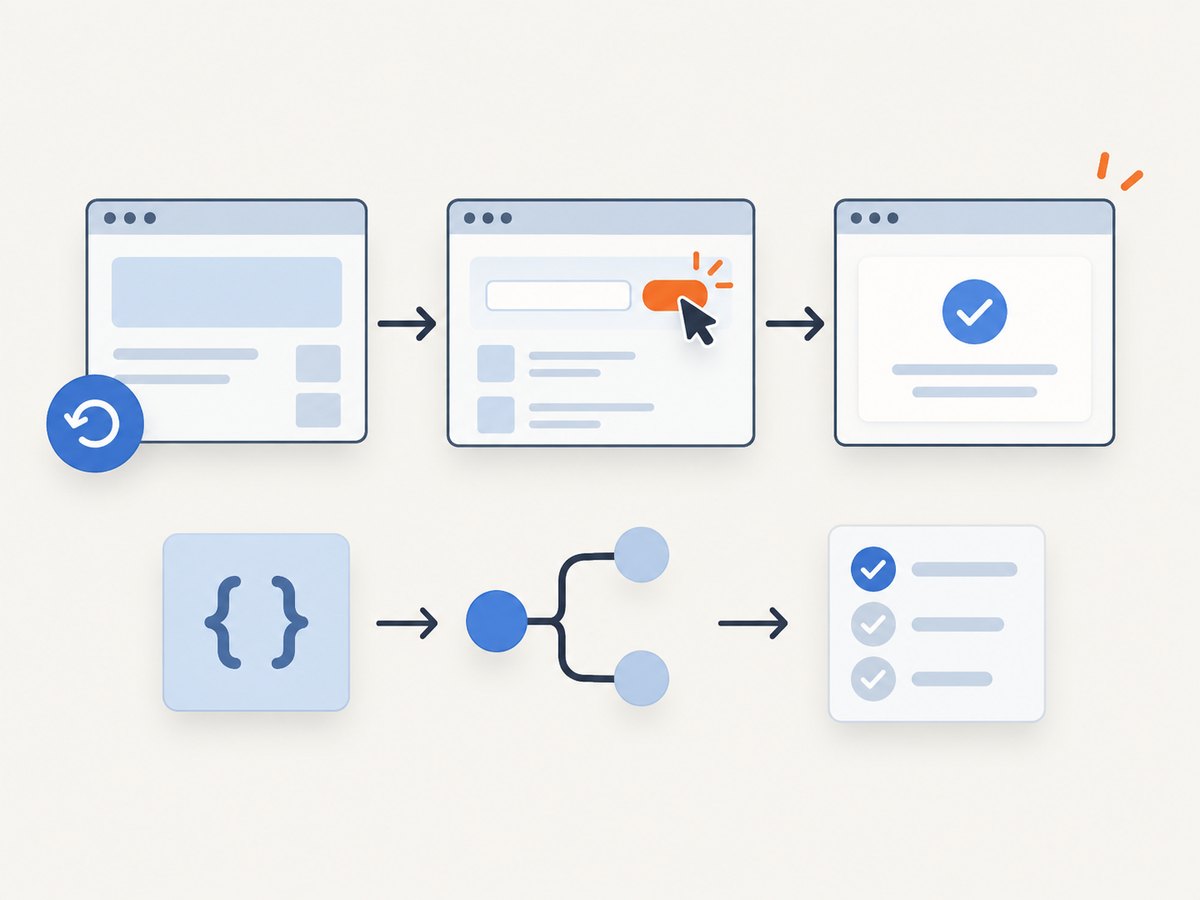
Set up Playwright Test
In a Node.js project, install Playwright Test and its browser binaries:
npm init -y
npm install --save-dev @playwright/test
npx playwright install
Add a configuration file at the project root. Set the base URL to your local or test deployment, and start the app in the test environment. The example uses a web server command that your project must provide:
// playwright.config.ts
import { defineConfig } from '@playwright/test';

export default defineConfig({
  testDir: './tests',
  use: {
    baseURL: 'http://127.0.0.1:3000',
    browserName: 'chromium',
    viewport: { width: 1280, height: 800 },
    trace: 'retain-on-failure',
  },
  webServer: {
    command: 'npm run dev',
    url: 'http://127.0.0.1:3000',
    reuseExistingServer: !process.env.CI,
  },
});
Create an E2E test for a real workflow. This example assumes the app exposes an accessible sign-in form, a test account, and a dashboard heading. Replace these labels and the test-data setup with the interface and fixtures in your application:
// tests/sign-in.spec.ts
import { test, expect } from '@playwright/test';

test('a user can sign in and reach the dashboard', async ({ page }) => {
  await page.goto('/login');
  await page.getByLabel('Email').fill(process.env.E2E_EMAIL ?? 'test@example.com');
  await page.getByLabel('Password').fill(process.env.E2E_PASSWORD ?? 'test-password');
  await page.getByRole('button', { name: 'Sign in' }).click();

  await expect(page).toHaveURL(/dashboard/);
  await expect(page.getByRole('heading', { name: 'Dashboard' })).toBeVisible();
});
Run it with npx playwright test. Keep credentials and other secrets in your CI environment rather than committing real account values. Use a test-only account and known data; reset that data between runs if the workflow changes server state.
Keep E2E checks independent and user-facing
- Establish the starting state. Create or reset required records through fixtures or a test setup path. Do not depend on a prior test leaving a cookie, database row, or local-storage value behind.
- Use accessible locators. Prefer roles, labels, and visible text that describe what a user sees or does. Avoid tying the test to private implementation details such as CSS classes.
- Assert the outcome. Verify a visible confirmation, destination, or persisted value rather than only checking that a click did not throw.
- Keep each test focused. A discrete action sequence and a clear assertion make failures easier to diagnose.
- Choose browser coverage deliberately. Add browsers and versions that reflect your audience and risk. Every additional browser, version, and operating-system combination adds maintenance and CI work.
3. Add snapshots for stable structures or important visuals
A targeted assertion checks a specific condition. A snapshot records a broader representation and compares it on later runs. Playwright supports snapshots of accessible structure as well as visual screenshot comparisons. Broad snapshots can reveal changes that individual assertions miss, but large or dynamic snapshots are harder to interpret. Use them for stable output that is worth reviewing, alongside behavior assertions.
Structural snapshot of an accessible tree
Use a structural snapshot when the accessible structure itself matters, for example, the controls and labels in a stable navigation component. First wait for the intended state; then record or compare the tree:
import { test, expect } from '@playwright/test';

test('navigation accessible structure stays stable', async ({ page }) => {
  await page.goto('/');
  const navigation = page.getByRole('navigation', { name: 'Main' });
  await expect(navigation).toBeVisible();
  await expect(navigation).toMatchAriaSnapshot(`
    - navigation "Main":
      - link "Home"
      - link "Pricing"
      - link "Documentation"
  `);
});
The accessible-tree snapshot format and supported assertions depend on the Playwright version in your project; consult the Playwright snapshot testing documentation. Keep expected structure purposeful. If the snapshot is long, split it into meaningful regions so reviewers can identify which component changed.
Visual comparison of a rendered state
Visual snapshots compare pixels, so stabilize the page before capturing it. Wait for the meaningful content, use a fixed viewport, and control time, API data, fonts, animations, and other sources of variation. Capture a specific region when that is where the risk lies:
import { test, expect } from '@playwright/test';

test('pricing card matches its reviewed appearance', async ({ page }) => {
  await page.setViewportSize({ width: 1280, height: 800 });
  await page.goto('/pricing');

  const card = page.getByRole('article', { name: 'Standard plan' });
  await expect(card).toBeVisible();
  await expect(card).toHaveScreenshot('standard-plan.png', {
    animations: 'disabled',
  });
});
Run the test once to generate the initial baseline, inspect that image, and commit it with the test. When the comparison reports a difference, inspect the diff and decide whether the application regressed or the intended design changed. Only then update the baseline, for example with npx playwright test --update-snapshots. Never treat a baseline update as a routine way to make a failing test pass.
For a screenshot of the whole page, use await expect(page).toHaveScreenshot('pricing.png', { fullPage: true }) after the page is ready. Whole-page images can be harder to review and may include unrelated dynamic areas. A component or element-level capture often gives a clearer diff and clearer ownership.
4. Make snapshot results dependable
Visual baselines depend on the browser and environment that produced them. A different operating system, browser build, viewport, font rasterization, or device scale can change rendered pixels without a meaningful application change. Generate and compare baselines under consistent conditions, such as the same CI image and browser version.
- Wait for readiness. Wait for the relevant heading, component, or page state. Avoid arbitrary sleeps when a user-visible readiness condition is available.
- Control inputs. Use stable fixtures or mock responses for data that otherwise changes between runs. Freeze time-dependent content if timestamps or dates appear in the captured region.
- Control rendering. Keep browser, operating system, viewport, scale, and fonts consistent. Disable animations for the capture when movement is not what you intend to test.
- Limit the capture. Snapshot the component or meaningful region that represents the risk. Use full-page captures when page-wide layout is the requirement.
- Mask unavoidable variation sparingly. If a region is inherently dynamic, mask or hide that region only. Broad masks can conceal real regressions.
- Review each change. Inspect the diff and understand it before updating the baseline. Snapshot tests are only useful when the expected output is reviewed.
Do not loosen comparison thresholds as the first response to noisy diffs. First identify whether timing, data, fonts, animation, or environment differs. A tolerance can be appropriate for known rendering variation, but it can also let genuine changes pass unnoticed.
5. Build a balanced test suite
Organize coverage around risk and the question each test answers. A practical suite might test formatting and business rules with unit tests, critical interaction states with component tests, a few integrated user journeys with E2E tests, and selected stable output with snapshots.
- Cover business rules with focused unit tests where inputs and outputs are deterministic.
- Use component tests for UI states that are cumbersome to reach through the entire app but need browser rendering or interaction.
- Choose a small set of E2E journeys that would seriously affect users if broken.
- Add structural or visual snapshots for pages and shared components where broad output changes are valuable to review.
- Keep API and accessibility checks purposeful; neither a screenshot nor a snapshot alone proves a workflow is usable or correct.
For visual testing services, evaluate support for your runner, browsers and viewports, baseline review workflow, dynamic-region controls, CI integration, and pricing and maintenance fit. Cypress documents integrations including Applitools Eyes, Argos, Chromatic, Happo, LambdaTest SmartUI, Percy, Sauce Labs Visual, SmartBear VisualTest, and Wopee.io. Treat these as optional tooling examples; the test design still determines whether a comparison provides useful evidence.
6. Troubleshooting common failures
| Symptom | Likely cause | Fix |
|---|---|---|
| Element not found or click times out | The page is not in the expected state, a locator is ambiguous, or the test assumes data that is absent | Check the trace and page state; establish fixture data; locate by role or label; wait for a meaningful visible condition |
| Test passes alone but fails in the suite | Tests share state or depend on execution order | Reset database records, cookies, and local storage; give each test independent data and setup |
| Screenshot diff changes between runs | Uncontrolled API data, time, animation, font loading, viewport, or environment | Stabilize those inputs, wait for the relevant state, and compare in a consistent browser and OS environment |
| Many small visual diffs after a CI image change | Browser, operating-system, or font rendering changed | Restore a consistent baseline environment or deliberately review and regenerate baselines in the new environment |
| Snapshot is huge or hard to review | The capture includes too much structure or unrelated page content | Snapshot a named region or component and retain focused assertions for specific behavior |
| Baseline update hides a regression | The new image was accepted without examining the change | Review the diff against the intended design and application change before updating; require review for baseline changes |
| Browser test fails in CI but not locally | Different browser version, missing dependencies, slower startup, or environment-specific data | Use the project’s installed Playwright browser, inspect traces, make data deterministic, and wait on state rather than guessed timing |
7. Performance, reliability, and cost
Unit tests are generally the narrowest in setup and scope. Component tests add browser rendering but isolate a smaller surface than a full application. E2E tests exercise integrated behavior and require more application setup, infrastructure, runtime, and maintenance. Snapshots can cover broad output compactly, but each baseline adds review and update work. These are qualitative tradeoffs, not benchmark results; actual cost depends on the app, suite, environment, and CI setup.
Improve reliability by controlling state, keeping workflows short, and avoiding hidden dependencies between tests. Improve failure clarity with a specific assertion close to the action that could break it, plus traces or screenshots on failure. Spend browser coverage where a cross-layer failure would matter to users. Running every test across every browser and operating-system combination may add substantial work; choose combinations based on audience and risk.
8. Capture screenshots without maintaining browser setup
For test baselines and repeatable CI comparisons, local browser automation gives you control over fixtures, timing, and the exact state being captured. For a standalone website screenshot, you can also call ScreenshotNeo, a screenshot API and MCP server from Yorker Media. Its API accepts a URL and returns an image or PDF; see the ScreenshotNeo API documentation for request options.
Or skip the browser setup
A single request captures a page. This cURL example saves a WebP image:
curl -G "https://api.screenshotneo.com/v1/shot" \
  -d access_key=YOUR_API_KEY \
  --data-urlencode url=https://stripe.com \
  -o shot.webp
Python:
import requests

r = requests.get(
    "https://api.screenshotneo.com/v1/shot",
    params={"access_key": "YOUR_API_KEY", "url": "https://stripe.com"},
    timeout=90,
)
open("shot.webp", "wb").write(r.content)
Node.js:
const q = new URLSearchParams({
  access_key: 'YOUR_API_KEY',
  url: 'https://stripe.com',
});
const res = await fetch(`https://api.screenshotneo.com/v1/shot?${q}`);
if (!res.ok) throw new Error(`Screenshot request failed: ${res.status}`);
await import('node:fs/promises').then(fs => fs.writeFile('shot.webp', Buffer.from(await res.arrayBuffer())));
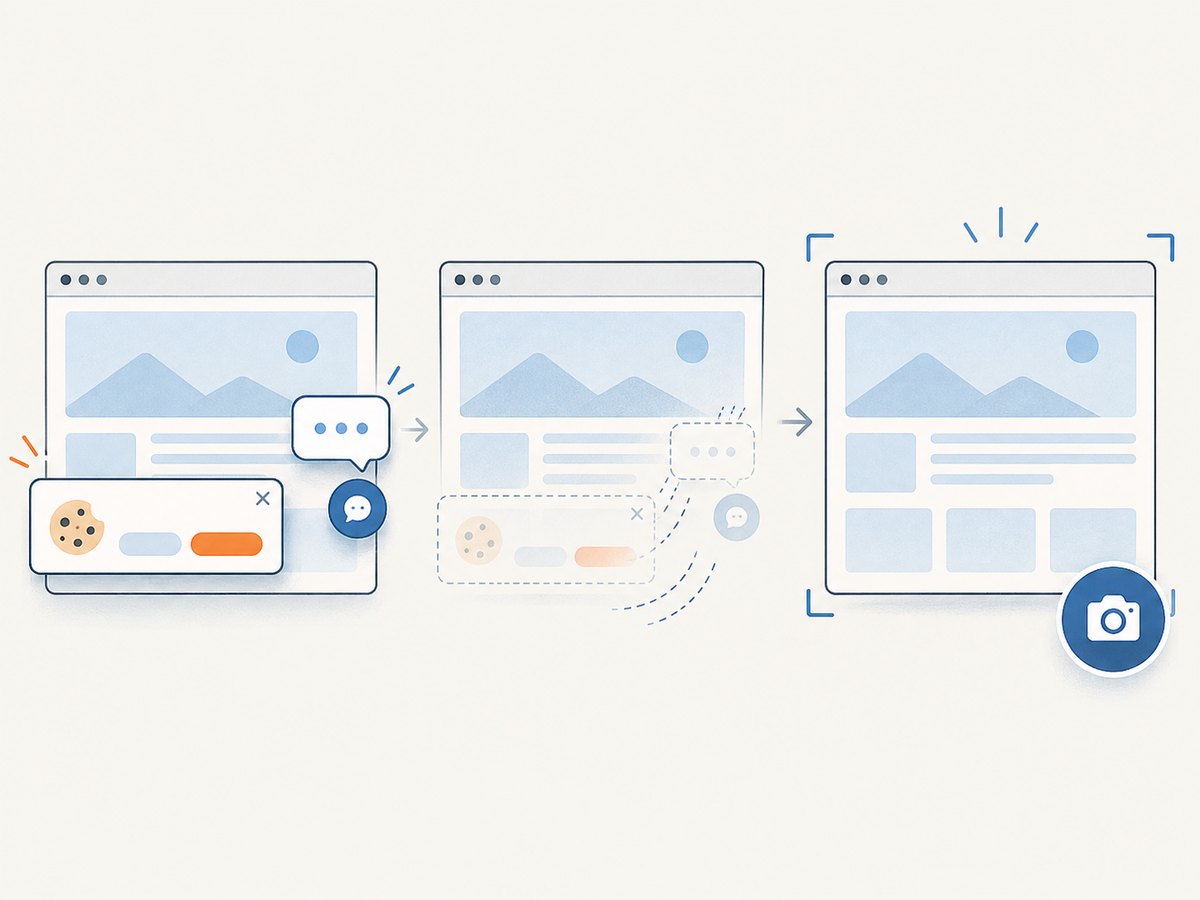
ScreenshotNeo accepts cookie or consent banners like a visitor and removes more than 60 known consent platforms, newsletter popups, and chat widgets before capture; each step can be turned off. Bot checks and CAPTCHAs, blank pages, timeouts, failed loads, and cache hits cost nothing, and response headers identify the page verdict and billing status. Its MCP server offers take_screenshot, get_page_info, and capture_pdf for Claude, Cursor, and other MCP clients. The free plan includes 1,000 screenshots a month with no card; paid plans start at $5 for 3,000 screenshots.
Sign up free for 1,000 screenshots a month, with no card required.
9. FAQ
What should E2E browser automation tests cover?
Cover a small set of important workflows where user-visible behavior needs to connect across the application and backend, such as signing in, purchasing, or seeing saved data on another screen.
Can a snapshot test replace an E2E test?
No. A snapshot shows that captured output changed; it does not by itself prove that a user can complete a workflow or that the backend persisted the expected result.
Should every page have a visual snapshot?
Usually not. Choose important pages, shared components, and meaningful states whose visual changes deserve review. A large collection of noisy baselines takes effort to maintain and can make meaningful changes harder to spot.
Why can the same screenshot differ across machines?
Rendering can vary with the browser, operating system, viewport, fonts, animation, data, and timing. Keep those conditions consistent before changing comparison thresholds.
What is the best mix of test types?
Use the smallest test that answers each question, then add browser-level coverage where integrated user behavior matters. The right mix depends on application risks and the environments your users rely on.


