CSS Selector Tester: Test Selectors on a Live Page
Test CSS selectors against a live page in DevTools. Check syntax, match count, and the exact element before relying on a selector.

To test a CSS selector on a live page, open the browser’s developer tools, inspect the element you want to target, and run document.querySelectorAll('YOUR_SELECTOR').length in the Console. A count of one confirms the selector matches one element; zero means it matches none, and a larger count means it matches several. Then verify that the matched node is actually the intended element in the Elements panel. Syntax, count, and the identity of the selected node are separate checks.
This workflow works in Chrome and other Chromium browsers such as Microsoft Edge. It tests against the page currently loaded in your browser, including the DOM as it exists after JavaScript has run.
1. Open DevTools and inspect the target element
- Open the page you want to test.
- Open DevTools. You can right-click the target and choose Inspect. In Chrome, the Inspect picker shortcut is Ctrl+Shift+C on Windows, Linux, and ChromeOS, or Cmd+Option+C on macOS. See Chrome’s Inspect mode documentation.
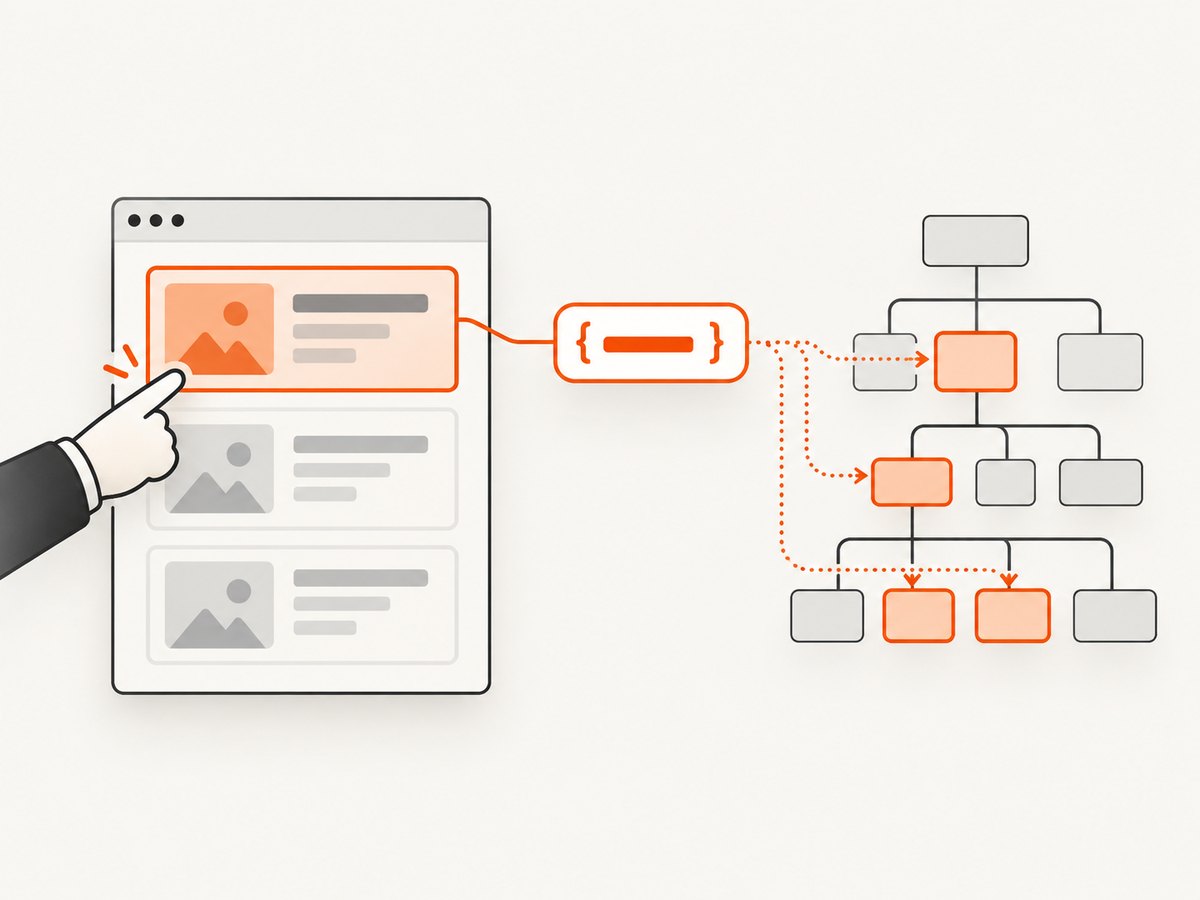
- With the picker active, hover over the element and click it. DevTools opens the corresponding node in the Elements panel.
- Open the Console tab. In Chromium DevTools, the Console is next to the webpage; you can also use
Escto open the drawer when DevTools is already open.
Inspecting first helps you understand the real markup and gives you a visual reference for checking results. A selector can be syntactically valid and still point at the wrong node.
2. Test whether the selector matches
Use querySelector to get the first match, or querySelectorAll to get every match and count them:
document.querySelector('main article h2')
document.querySelectorAll('main article h2').length
querySelector returns the first matching element, or null when no element matches. querySelectorAll returns a collection of all matches; its length is a quick way to check cardinality. These methods are documented in MDN’s querySelector reference.
| Result | What it means | Next step |
|---|---|---|
0 matches / null |
No element in the current document matches the selector. | Check spelling, markup, timing, and whether the element is in another frame or shadow root. |
1 match |
The selector is unique in the current document. | Inspect the returned node to confirm it is the intended target. |
More than 1 |
The selector matches multiple elements. | Narrow it with a stable attribute or a more specific relationship, then count again. |
In Chromium DevTools, $('main article h2') is a Console shortcut for the first match, and $$('main article h2') returns all matching nodes. For example:
$$('main article h2')
$$('main article h2').length
The aliases are convenient for interactive debugging. Use the standard document.querySelector and document.querySelectorAll methods in code that must run outside the DevTools Console. See Microsoft Edge’s documentation on Console utilities.
3. Verify the selected node visually
When the Console returns an element or collection, click the result or inspect it in DevTools to reveal the corresponding node in Elements. Check the page highlight and surrounding markup. A unique count is not proof that the selector identifies the right element: it may match one unintended element.
For a selector that should identify one node, keep both checks together:
const selector = 'main article h2';
const matches = document.querySelectorAll(selector);
console.log('count:', matches.length);
console.log('first match:', document.querySelector(selector));
If the count is one, confirm the highlighted heading is the one you meant to target. If the page has several similar regions, inspect their parent structure before changing the selector.
4. Choose a selector that can survive markup changes
Generated selectors can be long and brittle. Prefer a selector based on an explicit markup contract, when the page provides one. Useful starting points include a deliberate data-testid, a semantic element and meaningful attribute, or a narrow relationship to a stable parent.
// Explicit test hook
'[data-testid="checkout-submit"]'

// Semantic element and attribute
'button[type="submit"]'

// Narrow relationship within a known region
'form#checkout button[type="submit"]'
These are engineering heuristics, not guarantees. A class name may be stable if the application treats it as part of its contract; a test ID may change if the team does not maintain it. Check the application’s markup conventions and rerun the match count after page or application changes.
Be cautious with positional selectors such as div:nth-child(4) > span and long chains of generated class names. Small layout changes can make them stop matching or select a different node. Chrome’s Recorder documentation also describes customizing selectors when generated ones do not work.
5. Handle special identifiers and selector syntax
HTML permits identifier values that are not valid CSS identifiers. If you build a selector from a dynamic ID, escape the value with CSS.escape():
const idValue = 'user:42';
const element = document.querySelector('#' + CSS.escape(idValue));
console.log(element);
This is safer than inserting arbitrary identifier text directly into a selector. For example, punctuation in an ID can have special meaning in CSS. MDN’s selector method reference documents escaping and the error behavior for invalid selectors.
Remember that pseudo-elements such as ::before and ::after are not DOM elements that querySelector can return. Test the originating element instead, then inspect its computed styles to investigate generated content.
6. Run a reusable selector diagnostic
For quick comparisons, paste this helper into the Console and pass candidate selectors one at a time. It reports syntax errors separately from valid selectors with no matches:
function checkSelector(selector) {
  try {
    const matches = document.querySelectorAll(selector);
    console.log({ selector, count: matches.length, first: matches[0] ?? null });
    return matches;
  } catch (error) {
    console.error({ selector, name: error.name, message: error.message });
    return null;
  }
}

checkSelector('main article h2');
This helper is for interactive diagnosis. It does not decide whether the result is correct; inspect the first node or the returned collection and compare it with the target on the page.
7. Use the correct page context
A Console query runs against the document context selected in DevTools. If an element exists in an iframe, select that frame’s execution context in the Console before querying. A query in the top-level document does not automatically search every frame.
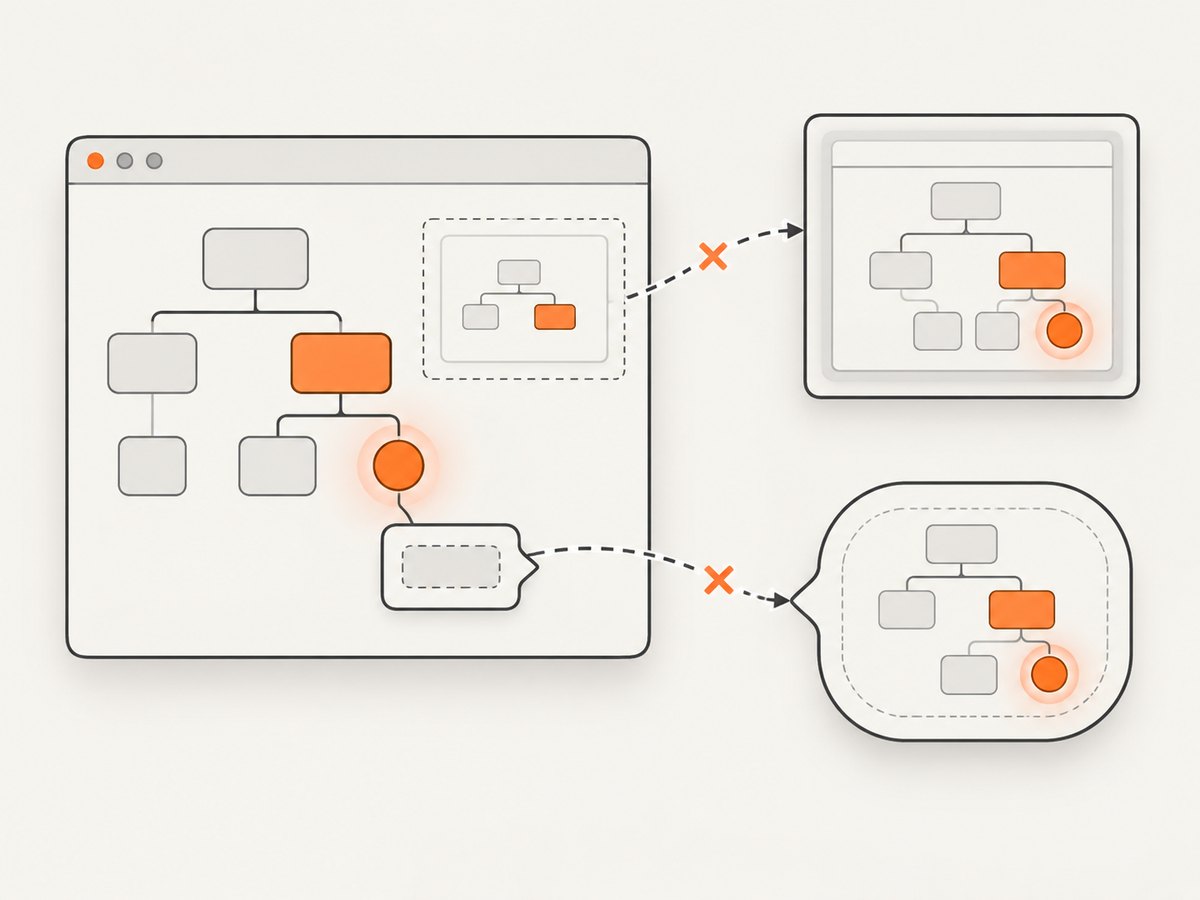
Similarly, ordinary document queries do not pierce a component’s shadow root. If DevTools shows the target under a shadow root, inspect and query that root directly where accessible:
const host = document.querySelector('my-widget');
const root = host?.shadowRoot;
root?.querySelectorAll('button').length;
Closed shadow roots are not exposed through host.shadowRoot. In that case, use the component’s documented interface or test hook. Also consider timing: if the page inserts the element asynchronously, run the query after it appears or wait for the application state that creates it.
8. Troubleshooting
| Symptom | Likely cause | Fix |
|---|---|---|
SyntaxError or “not a valid selector” |
The selector string is invalid CSS, or a dynamic identifier contains unescaped punctuation. | Check quotes, brackets, combinators, and pseudo-class syntax. Escape dynamic identifier values with CSS.escape(). |
querySelector returns null |
The valid selector matches no element in the current document context. | Inspect the live markup, verify the selected frame, check for a shadow root, and wait for dynamically inserted content if needed. |
querySelector returns an element, but it is the wrong one |
querySelector returns only the first match, and the selector may be too broad. |
Check querySelectorAll(selector).length, inspect all matches with $$(), and narrow the selector. |
| The count is greater than one | The selector describes a repeated type or class, such as every card button. | Scope it to a stable container or add a meaningful attribute. Verify the resulting count and highlighted node. |
| The selector worked before but now fails | The page markup, generated class names, load timing, or selected execution context changed. | Reinspect the live DOM and prefer stable attributes or documented test hooks over positional paths. |
| A visible icon or decoration cannot be selected | It may be CSS-generated content from ::before or ::after, not a DOM element. |
Select its originating element and inspect computed styles. |
A Console alias such as $$ is undefined in application code |
DevTools aliases are conveniences provided by the Console, not standard page APIs. | Use document.querySelectorAll() in application code. |
9. Performance, reliability, and cost
For a manual check in DevTools, selector testing has no service cost and does not require a dependency. A query checks the current DOM; its result can become stale if the page later changes, so rerun it after navigation, rerendering, or other relevant updates. For automated tests, avoid relying on a selector that only happened to be unique on one page load. Keep selectors tied to stable markup and assert the expected count or application behavior.
When a screenshot is needed to review a page state, visual confirmation adds context to selector diagnosis. A screenshot does not prove selector uniqueness or correctness; use the DOM query for that. ScreenshotNeo is a website screenshot API and MCP server from Yorker Media. It can capture an image or PDF from a URL, which is useful for recording a rendered page state alongside a selector investigation. Its capture options include waiting for a selector, a delay, or network idle, plus full-page capture and element capture.
Or skip the browser setup
If you need a screenshot of the page state you are inspecting, ScreenshotNeo takes one GET request. See the ScreenshotNeo API documentation for parameters and response details.
curl -G "https://api.screenshotneo.com/v1/shot" \
  -d access_key=YOUR_API_KEY \
  --data-urlencode url=https://stripe.com \
  -o shot.webp
import requests
r = requests.get(
"https://api.screenshotneo.com/v1/shot",
params={"access_key": "YOUR_API_KEY", "url": "https://stripe.com"},
timeout=90,
)
open("shot.webp", "wb").write(r.content)const q = new URLSearchParams({
access_key: 'YOUR_API_KEY',
url: 'https://stripe.com'
});
const res = await fetch(`https://api.screenshotneo.com/v1/shot?${q}`);
if (!res.ok) throw new Error(`Screenshot request failed: ${res.status}`);
await Bun.write('shot.webp', res);ScreenshotNeo accepts cookie or consent banners like a visitor and removes more than 60 known consent platforms, newsletter popups, and chat widgets before capture; each cleanup step can be turned off. Bot checks or CAPTCHAs, blank pages, timeouts, failed loads, and cache hits are not billed, and response headers say the page verdict and whether the request was billed. Its MCP server gives AI agents tools named take_screenshot, get_page_info, and capture_pdf. The free plan includes 1,000 screenshots a month with no card; paid plans start at $5 for 3,000.
Sign up free for 1,000 screenshots a month, with no card required.
FAQ
Can I test a selector without clicking an element first?
Yes. Open the Console and run document.querySelectorAll('selector').length. Inspecting first is helpful when you need to understand the markup or visually confirm which node matched.
Does a count of one prove my selector is correct?
No. It proves only that one element matches in the current document. Confirm that it is the intended element in the Elements panel.
Why does querySelector return only one result?
That method returns the first match by design. Use querySelectorAll when you need the full set or its count.
Can I select text created by CSS?
Not as a separate element when it comes from a pseudo-element such as ::before. Inspect the originating element and its styles instead.


