How to Test a jQuery-Triggered Checkbox in a Capybara and Selenium Modal
Test a checkbox in a JavaScript modal through Capybara’s real user interaction, then test jQuery-triggered behavior directly when that is the code path you need to cover.
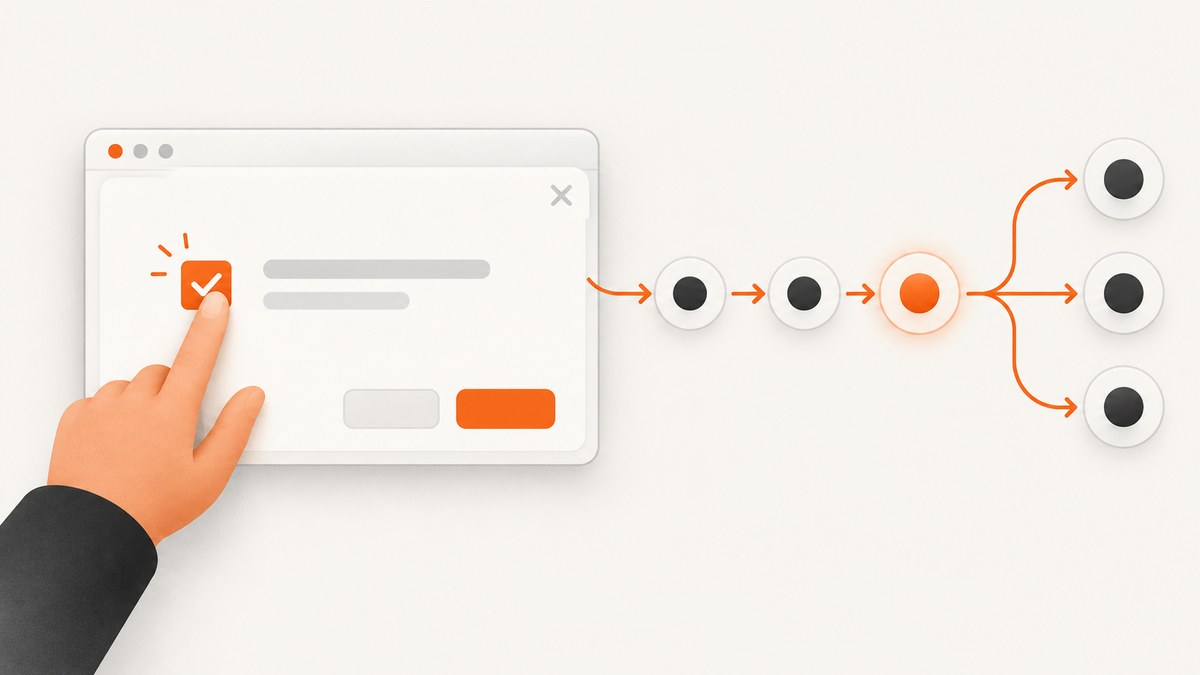
For a user-flow test, open the in-page modal, find the checkbox inside that visible dialog, use Capybara’s check or click interaction, and assert both that it is checked and that the application’s visible behavior changed. This exercises the browser interaction a user depends on. If the behavior under test is specifically code that assigns a value and calls jQuery .trigger('change'), test that programmatic path separately and assert its observable effect. Assigning a value alone does not fire jQuery’s change event.
This guide assumes “modal” means a dialog rendered in the page DOM, such as an application preferences dialog. Browser-native JavaScript alerts, confirms, and prompts use different Capybara helpers. The exact selectors and expected behavior depend on your application.
1. Pick the behavior the test should prove
Before writing selectors, decide whether the test is about a user using the form or about a particular JavaScript event path. These are related but distinct checks.
| Test goal | Action | Useful assertions |
|---|---|---|
| User-facing flow works | Open the DOM modal and use check or click on its checkbox |
Checked state and a visible downstream effect |
| Programmatic jQuery path works | Exercise application code that changes the control and triggers change |
The effect produced by the handler |
| Browser-native dialog appears | Cause the alert, confirm, or prompt to open | Use the matching Capybara system-dialog helper |
Use the first form for acceptance tests. Capybara is designed to exercise an application through a browser interface and supports Selenium as a driver. A programmatic trigger can be useful for a narrower code-path test, but it does not establish that a user can complete the interaction.
2. Set up a Selenium-backed Capybara feature test
In an RSpec project, configure the JavaScript-capable driver your application uses and mark the feature scenario to run with it. The following is an illustrative setup; use the versions and driver configuration pinned by your application. Capybara’s README documents Selenium support and driver configuration.
# spec/rails_helper.rb (or your equivalent test setup)
require "capybara/rspec"
require "selenium/webdriver"

Capybara.default_driver = :rack_test
Capybara.javascript_driver = :selenium_chrome_headless

# Use the application's normal RSpec and Rails setup around this configuration.
Driver names and browser installation details vary with project setup. Confirm that your selected Selenium driver is registered in the project and that its browser is available in CI. The scenario below assumes a button opens a DOM dialog, the dialog has an accessible name, and the checkbox has an associated label.
3. Test the checkbox as a user would
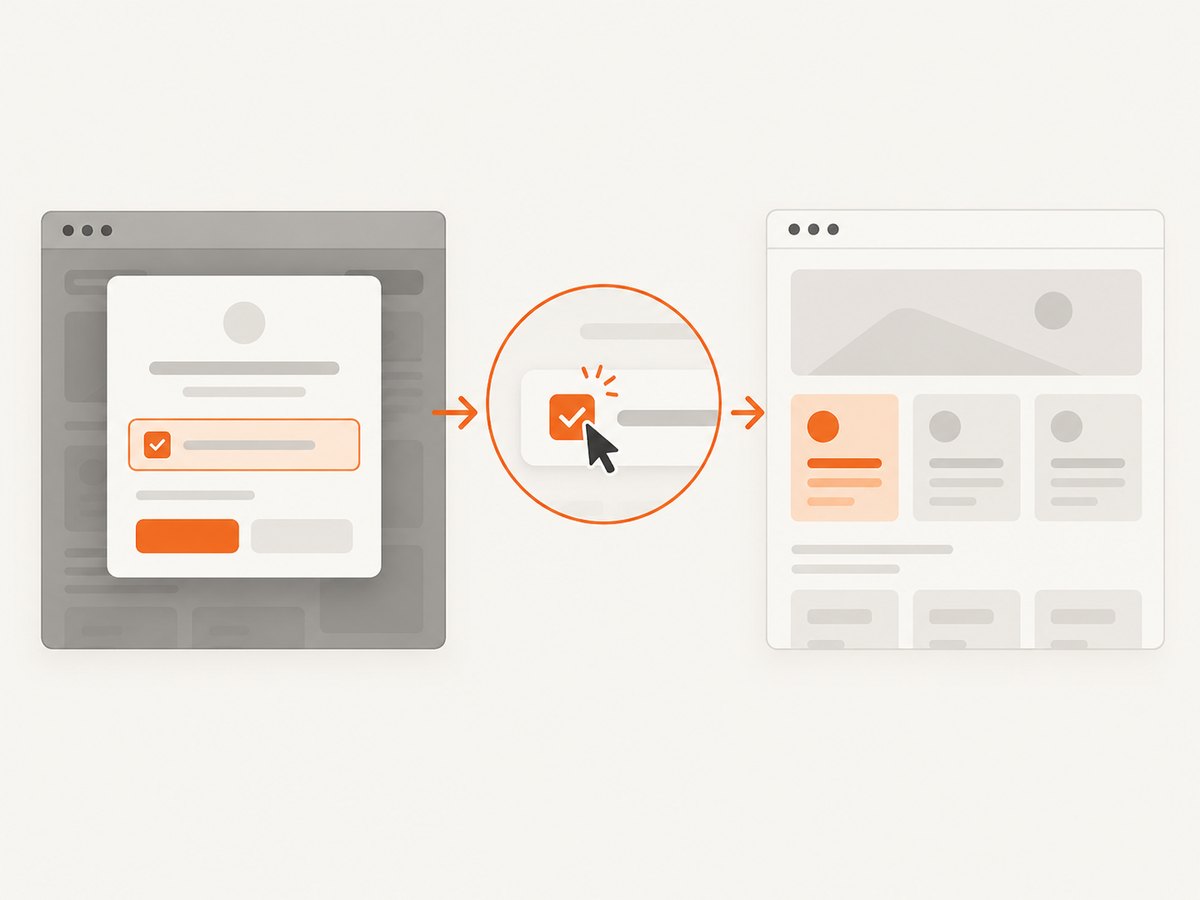
Scope the lookup to the visible modal. This matters when the page has a hidden template, a background form, or multiple controls with the same label. Prefer an accessible label over brittle positional selectors.
RSpec.describe "notification preferences", type: :feature do
  scenario "selecting updates in the dialog enables the update message", js: true do
    visit "/preferences"
    click_button "Edit preferences"

    within("[role='dialog']") do
      expect(page).to have_text("Notification preferences")
      check "Receive updates"

      expect(page).to have_checked_field("Receive updates")
      expect(page).to have_text("Updates enabled")
    end
  end
end
Replace the route, button text, dialog selector, label, and effect text with values from your app. If the modal uses a semantic <dialog> element or another stable selector, use that instead of [role='dialog']. The sample assumes the consequence appears inside the dialog; if it appears elsewhere, assert it in the appropriate scope after leaving within.
Why assert both state and effect?
have_checked_field confirms the control reached the selected state. The second assertion confirms the feature’s handler produced the outcome the user needs. An event firing by itself is weaker evidence: the handler might not update the page correctly, or the test might be exercising an artificial path that does not match the real interaction.
Capybara matchers wait for matching page state according to its synchronization behavior. Use those matchers for UI conditions instead of adding arbitrary sleeps. If the modal opens asynchronously, wait for its visible dialog content before interacting; the scoped within and subsequent find operations can synchronize on the page.
4. Test the explicit jQuery-triggered path
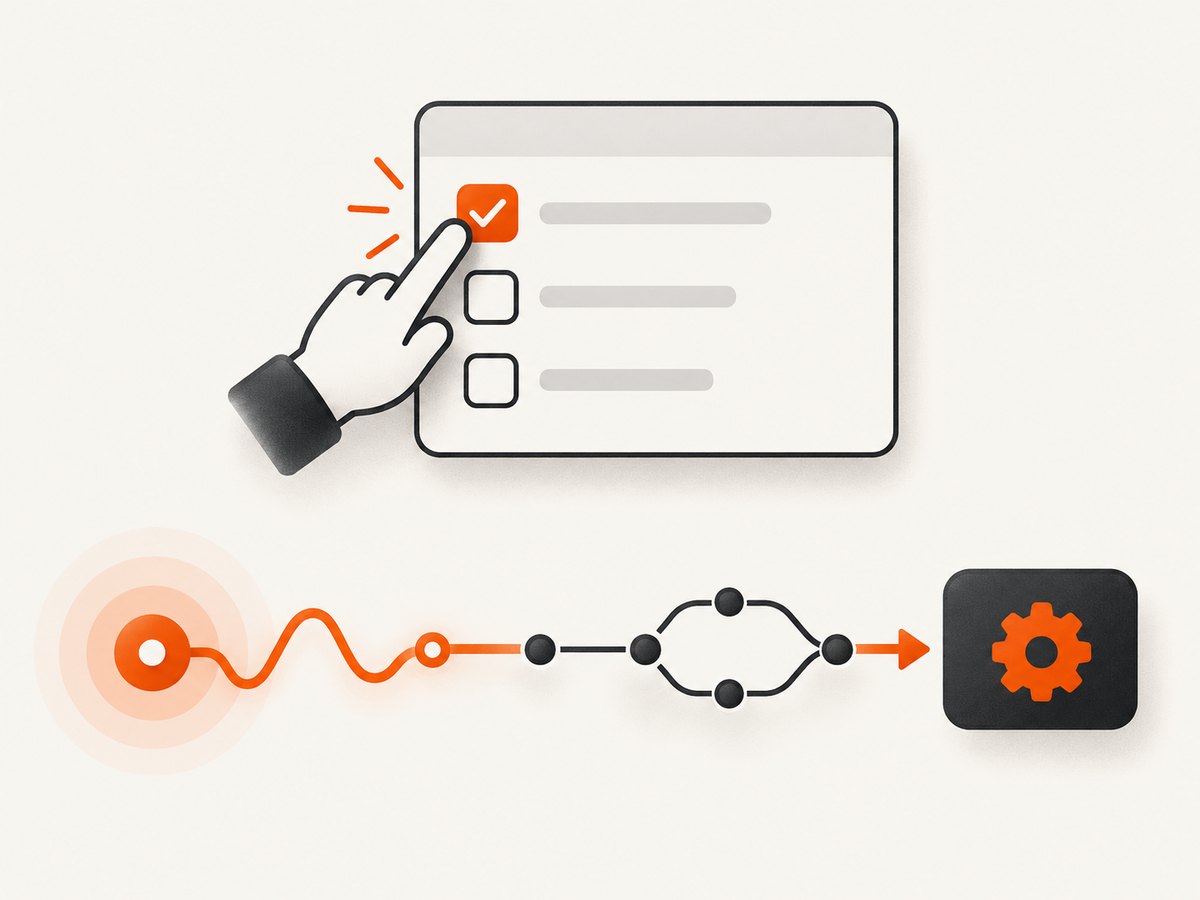
jQuery’s .val() changes a form control’s value but does not dispatch change. If application code deliberately sets a checkbox programmatically and then calls .trigger('change'), test the application path that does both, then check the same user-visible result. A focused browser-side script can illustrate the distinction, but should not replace a test of the production code path.
scenario "the application's programmatic selection updates the dialog", js: true do
  visit "/preferences"
  click_button "Edit preferences"

  within("[role='dialog']") do
    # Illustrative only: replace this with the actual app action or control
    # that invokes its production code path.
    page.execute_script(<<~JS)
      const checkbox = document.querySelector(
        "[role='dialog'] input[name='updates']"
      );
      checkbox.checked = true;
      window.jQuery(checkbox).trigger("change");
    JS

    expect(page).to have_checked_field("Receive updates")
    expect(page).to have_text("Updates enabled")
  end
end
For reliable coverage, prefer triggering the real application action that calls the handler rather than copying production behavior into the test. If the application exposes a button, function, or other supported entry point for that path, invoke it and assert the outcome. The example uses execute_script because it needs no returned value. Capybara documents execute_script and evaluate_script; complex return values can differ by driver, so inspect observable page state instead of returning jQuery objects.
Do not use Capybara element trigger as a shortcut with Selenium. The current Element API says it is unsupported by that driver and cautions that synthetic actions can allow actions a user could not perform or invalidate a test. jQuery’s own documentation also says .trigger() simulates activation but does not perfectly reproduce a naturally occurring event.
5. Locate the right checkbox in a modal
- Open the modal through the page. Click the button or link a user would use. Do not start with a hidden modal template unless that hidden-template behavior is the specific subject of the test.
- Wait for visible dialog content. Use an accessible role and name when possible, or a stable application selector. Avoid broad page-level searches when the background contains duplicate controls.
- Use its label. An associated label makes
check "Receive updates"readable and resilient to markup changes. If labels are not unique, scope first and use a stable identifier. - Assert selected state. Use
have_checked_fieldwith the same accessible label or selector. - Assert the effect. Check a visible message, enabled button, revealed section, or other behavior that the handler is responsible for.
When there is no accessible label, a stable selector can work, but add or improve the label if you control the markup. Tests that target classes generated by styling frameworks or depend on checkbox order are more likely to break during harmless UI changes.
6. DOM modals and browser-native dialogs
A checkbox inside a Bootstrap-style or application-rendered modal is ordinary page content. Find it with page selectors, scope to the dialog, and interact with it as shown above.
A browser-native alert, confirm, or prompt is not a DOM node and cannot contain a form checkbox. Capybara’s accept_alert, accept_confirm, and dismiss_confirm helpers are for these system dialogs. Their block should perform the action that causes the dialog to appear. Do not use those helpers to interact with a page-rendered modal.
7. Configure the checkbox behavior and assertions
For a checkbox event handler, bind to the event that represents the behavior you want to handle. jQuery documents .on("change", ...) as the event binding API; it also documents .trigger("change") and the fact that .val() alone does not fire that event.
$(document).on("change", "input[name='updates']", function () {
  const enabled = $(this).is(":checked");
  $("#updates-status").text(enabled ? "Updates enabled" : "Updates disabled");
});
Delegated binding, as above, can handle matching inputs added to the document later. The exact event binding should match your app’s lifecycle and markup. A modal may be inserted or replaced dynamically; ensure the handler is attached at a point that covers the checkbox. If your app uses a framework or a different event layer, test through its supported behavior rather than assuming jQuery is the only handler involved.
For a user interaction, let Capybara click or check the element. Do not manually dispatch an event just to make an assertion pass. For a programmatic path, make sure the production code both sets the intended checked state and invokes the event expected by the handler. Then assert the resulting effect and, where relevant, the state.
8. Common failures and fixes
| Symptom | Likely cause | Fix |
|---|---|---|
| Checkbox cannot be found | Modal has not opened, is not visible yet, or selector searches the wrong scope | Open it via the UI, wait for dialog content, scope lookup to the dialog, and use the associated label |
| Capybara reports multiple matching fields | A hidden template or background duplicate shares the same label | Scope to the visible modal and use a unique accessible name or stable selector |
| Checkbox is checked but dependent content did not change | Handler is missing, bound to another event, or does not update the asserted content | Inspect the app’s event binding and assert the actual expected result; verify user interaction before adding any synthetic event |
Calling .val() did not run the handler |
jQuery does not automatically fire change when .val() sets a value |
Exercise the real code path that triggers change, or use a user interaction when testing user behavior |
Element trigger fails under Selenium |
Capybara documents its element trigger as unsupported by Selenium | Use check or click for user behavior; use JavaScript execution only for an intentional programmatic-path test |
| Works locally but fails in CI | Browser/driver setup differs, or the test depends on fixed timing | Align the configured Selenium browser and driver with CI; wait for visible conditions using Capybara matchers rather than fixed sleeps |
| Native dialog helper times out | The target is a DOM modal, not a browser alert or confirm | Find and interact with the DOM dialog as page content |
9. Performance, reliability, and test cost
Selenium feature scenarios start or drive a browser and are usually more expensive than tests that do not exercise a browser. Keep the scenario focused: one modal opening, one checkbox interaction, and assertions for the state and consequence. Avoid repeating the same end-to-end path to cover every variation in handler logic; use faster focused tests for variations where they answer the question, and keep browser coverage for the user-facing path.
Reliability improves when selectors express the user-facing interface, the test waits for meaningful conditions, and assertions verify outcomes instead of implementation details. Arbitrary sleeps slow successful runs and can still fail under a slower CI machine. Avoid changing application state only through injected JavaScript in a test meant to prove user input works.
There is no universal runtime or reliability benchmark for this scenario in the sources cited here. Actual cost depends on the application, browser environment, test suite, and CI setup. Check your pinned Capybara and Selenium versions and their matching documentation: the Capybara API source cited below tracks its moving master branch.
10. Or skip the browser setup
If your task is to capture how a page looks rather than verify application behavior, ScreenshotNeo is a website screenshot API and MCP server. A screenshot is useful for visual inspection, but it does not replace a Capybara assertion that a checkbox interaction and handler work. One request captures a URL as an image or PDF. See the ScreenshotNeo API documentation.
curl -G "https://api.screenshotneo.com/v1/shot" -d access_key=YOUR_API_KEY --data-urlencode url=https://stripe.com -o shot.webpPython and Node.js calls are available from the same API when you need to capture from a script. ScreenshotNeo removes cookie banners, newsletter popups, and chat widgets before the shot; bot checks, blank pages, and failed loads are never billed. Its MCP server lets AI agents take screenshots. The free plan includes 1,000 screenshots a month with no card; paid plans start at $5 for 3,000 screenshots. Sign up free for 1,000 screenshots a month, no card required.
11. FAQ
Should I use check or click?
Use check when the test’s intent is to select the checkbox. Use click when clicking itself is part of the behavior you want to express. In either case, assert the checked state and relevant outcome.
Does a normal checkbox interaction invoke a jQuery change handler?
The user-facing interaction should exercise the browser’s checkbox behavior and the app’s handler. Verify the effect in the test. A direct assignment through .val() is different: jQuery documents that it does not fire change automatically.
Can I use this test with a hidden modal?
Only if hidden-modal behavior is what you are testing. For a normal acceptance test, open the modal and interact with its visible checkbox so the test covers the user flow.
Which dependency versions should I trust?
Use the versions in your lockfile and consult documentation for those versions. The Capybara API reference in the research source is on the moving master branch.
Sources
- Team Capybara README — testing purpose and driver support.
- Capybara Element API — click and element trigger guidance.
- Capybara Session API — script execution and native dialog helpers.
- jQuery change event API — checkbox changes and value assignment behavior.
- jQuery trigger API and Triggering Event Handlers — synthetic event behavior and limitations.


